

 TL;DR:
Fixing video flicker requires matching your editing tool to the flicker's intensity by using desktop software like Wondershare Filmora for automated correction of heavy lighting pulses, or utilizing mobile apps like CapCut and online editors like Kapwing for minor manual brightness adjustments on short clips.
● Wondershare Filmora provides a dedicated Flicker Removal tool that analyzes varying frame brightness at Weak, Normal, or Strong intensities, but it specifically restricts processing to a maximum of 3 minutes per run and excludes compound or audio-only clips.
● Browser-based editors like VEED and Flixier lack true deflickering capabilities and apply static exposure adjustments across the entire video, rendering them ineffective against rapid LED pulsing or high-frame-rate slow-motion footage.
● To prevent artificial light pulses from ruining future footage, lock your camera's auto exposure and white balance, and explicitly match the frame rate to the shutter speed, such as recording at 30 fps with 1/60 or 25 fps with 1/50.
Ask AI for a summary
 ChatGPT
 Perplexity
 Gemini
 Claude
 Grok
Grok
Nothing ruins an otherwise good clip faster than flickering lights. You might not notice it while recording, but once you play the footage back, uneven lighting suddenly steals the spotlight.
Video flicker is especially common in indoor shoots, slow-motion clips, and recordings made under LED or fluorescent lighting. It can also happen when filming on a phone or using camera settings that don't match the light source.
In this guide, we'll break down why flicker happens, show you three effective ways to remove flicker from video after recording, and explain how to avoid it when filming in the future.
Part 1. What Causes Flicker in Videos?
Before learning how to remove light flicker from video, let's find out why it appears in the first place. Flicker does not come from damaged footage. It comes from how cameras capture artificial light over time.

Many indoor light sources do not emit constant light. Instead, they pulse at high speed based on electrical frequency. The human eye blends these pulses into steady light, but cameras record light one frame at a time, which exposes rapid changes.
When camera settings do not align with the light source, brightness shifts appear between frames. These shifts show up as a flicker in the final clip. Common situations where this flicker happens include:
- LED and fluorescent lights that pulse faster than the eye can detect.
- A mismatch between shutter speed and frame rate.
- Slow-motion clips that stretch brightness changes across more frames.
- Exported videos viewed on different screens or refresh rates.
Once you understand these causes, the steps to remove light flicker from video in the next section will make more sense.
Part 2. How to Remove Flicker From Video [3 Methods]
When learning how to fix light flickering in video, know that flicker does not affect every clip in the same way. Some videos only show minor brightness jumps and need a quick adjustment. Others suffer from strong lighting pulses that require deeper control over exposure and timing.

For this reason, the method to deflicker video depends on how strong the flicker looks and how much control the tool provides. Below are three methods you can use based on your situation.
Method 1. Remove Flicker From Video Online
Want to edit a short clip and are looking for a way to remove flicker from video online with free or paid tools? Online editors can help you do simple edits fast while skipping the installation process. But most of them do not include a true flicker removal feature.

Instead, they offer manual controls such as brightness, exposure, or contrast adjustments. These controls can reduce very mild flicker, but they do not correct flicker caused by lighting pulses or camera timing issues.
Below are some of the editors that you can use for video flicker removal online:
- Kapwing - An online video editor with brightness and contrast controls. It can reduce very mild flicker by smoothing exposure, but it does not include a deflicker video feature.
- VEED - Offers a lighting editor with brightness and exposure sliders. This online tool can reduce light flicker if it's mild and consistent.
- Flixier - It lets you adjust brightness, contrast, saturation, and other color settings. These adjustments can make the slight flicker less noticeable while you edit your video.
How to Remove Flicker Using an Online Editor
Most online editors follow a similar workflow. You upload a clip, adjust exposure or brightness controls, preview the result, and export the video. Here's the visual example of the workflow using the Kapwing video editor online:
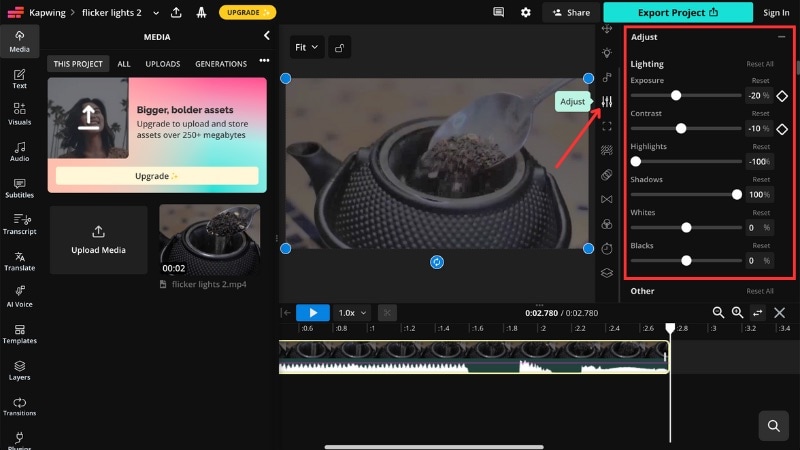
Step 1. Open the video editor in your browser, go to Media > Upload Media, and import the video with mild flickering lights.
Step 2. In the Editing panel, go to Adjust > Lightning option. Then, lower the Exposure and Contrast values until the flicker looks less visible.
Step 3. Preview the clip and fine-tune the settings, such as Highlights, Shadows, or other settings if needed.
Step 4. Export the video and save it to your device.
Limitations of Online Tools for Removing Flicker from Video
Online editors work only in very limited cases. When learning how to remove flicker from video online, it's important to understand that flicker changes from frame to frame. Meanwhile, most browser-based tools apply the same adjustment across the entire clip.

Because of this, online tools fall short when:
- Flicker changes rapidly between frames.
- Lighting pulses come from LED or fluorescent sources.
- Shutter speed or frame rate mismatch causes uneven exposure.
Other common limitations include:
- File size limits that restrict long or high-resolution videos.
- Quality loss from compression during export.
- Limited control with no access to frame timing or exposure leveling.
- Privacy concerns, since footage must be uploaded to external servers.
For short clips with mild flicker, online tools may reduce the issue. For persistent or strong flicker, desktop software offers more reliable control, which the next method covers.
Method 2. Remove Flicker From Video on Your Desktop
If online tools fall short, desktop software offers a more dependable way to remove flicker in video. Instead of applying one main adjustment, desktop video editors can analyze how the light in a video changes from frame to frame. Thus, they are more effective in removing flicker.
One example of a desktop editor that includes a built-in Flicker Removal feature is Wondershare Filmora. Rather than relying on manual exposure tweaks, it detects common flicker patterns and smooths brightness changes through automated processing.
 Secure Download
Why Use Filmora for Removing Flicker in Video
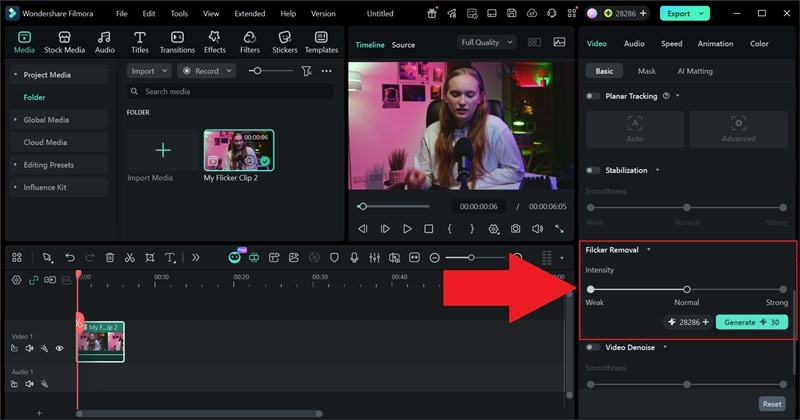
- One-Click Smart Processing: You don't need to adjust complex settings or guess which slider to move. Select the clip, choose an intensity level, and let the tool handle the de-flicker process.
- Multi-Scenario Coverage: This feature works well for footage shot at night, indoors, or under LED lights, where flicker tends to appear most often.
- Strong Material Compatibility: It works with standard video clips, proxy files, and clips that include overlay effects. Audio-only clips and compound clips are not supported, so the feature targets visual correction only.
How to Remove Flicker Using Filmora
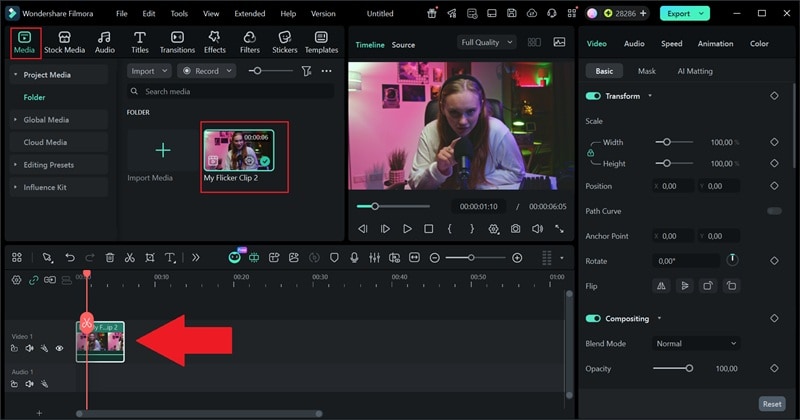
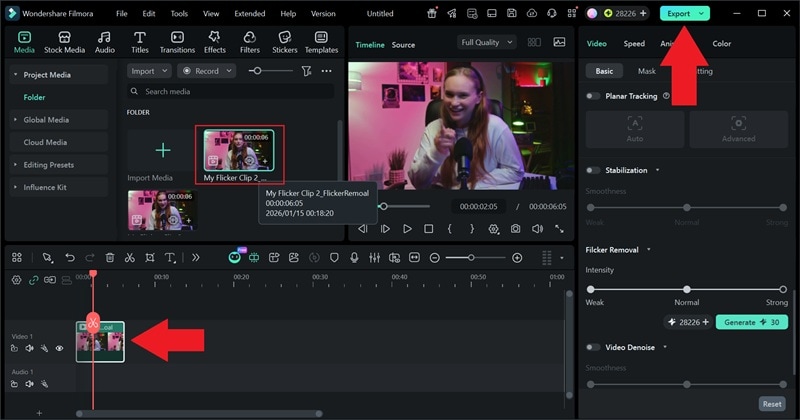
Before you start, keep in mind that Filmora's Flicker Removal feature can only process clips up to 3 minutes per run. Thus, longer videos need to be split into smaller sections first.
Follow the instructions below to learn how to get rid of flickering lights in a video using Filmora:

Method 3. Remove Flicker From Video on Mobile Phone
If you need a quick fix on the go, a video flicker removal app can help. Mobile apps suit short videos recorded on phones, especially social content filmed indoors or under mixed lighting. You can edit, preview, and save without transferring files to a computer.
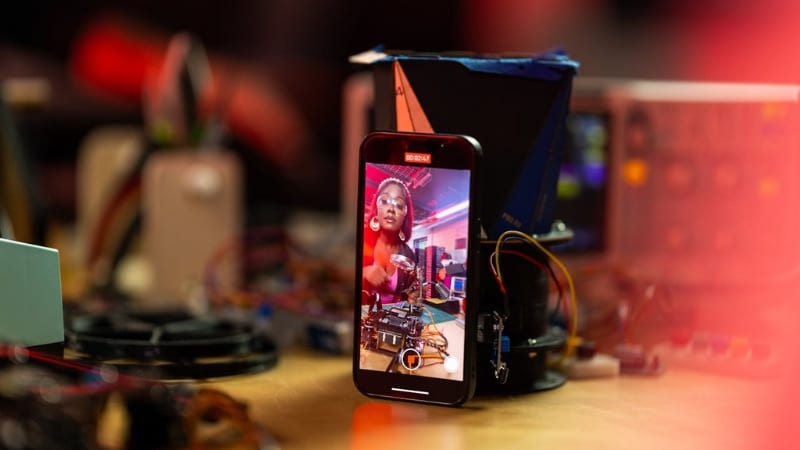
Some mobile editors include dedicated tools designed to reduce flicker, while others rely on lighting adjustments. Here are some of the popular mobile editor apps for flicker reduction:
- CapCut Mobile - Offers a dedicated Remove Flickers control, which analyzes and smooths brightness changes in the clip.
- VN Video Editor - Provides manual brightness, contrast, and exposure tools that can help reduce mild flicker.
- InShot - Includes basic lighting controls for quick edits that can make minor flicker less noticeable.
How to Remove Flicker Using a Mobile App
Mobile apps handle flicker in different ways, and menu names can vary from one editor to another. The steps below use CapCut as an example to show how a mobile flicker removal tool works.
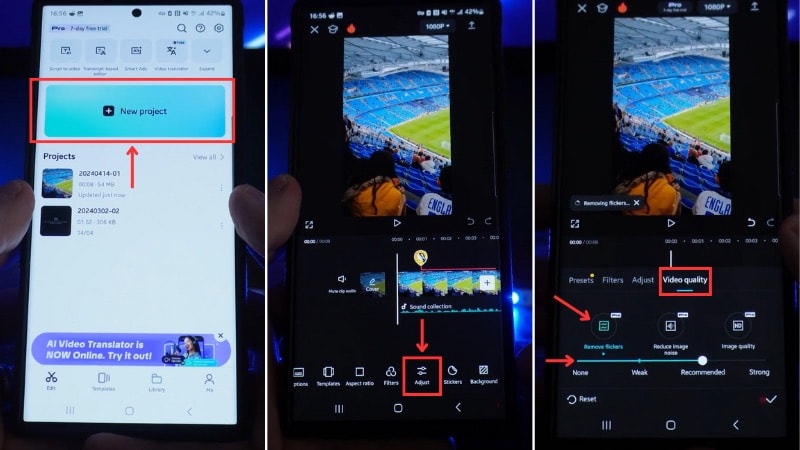
Step 1. Open CapCut, start a new project (or open an existing one). Then, import the flickering video to add it to the timeline.
Step 2. Select the clip, scroll through the bottom menu, tap Adjust, then open Video Quality.
Step 3. Select the Remove Flickers tool, and adjust the slider to Weak, Recommended, or Strong depending on the visibility of the flicker.
Step 4. The flicker reduction applies automatically as you change the setting. Once the process is completed, tap the Checkmark to save the edit.
Limitations of Mobile Apps for Removing Flicker from Video
Mobile apps work best for short clips with mild flicker, but they come with clear limits. Most apps offer fewer controls, which makes it hard to deal with strong or uneven flicker.

Mobile flicker removal may fall short when:
- Flicker comes from strong LED pulsing or bar flicker.
- Brightness changes vary across frames instead of staying consistent.
- The clip uses slow motion or high frame rates.
Other common drawbacks include:
- Export compression, which can reduce overall video quality.
- Performance limits on longer or higher-resolution clips.
- Less precision, compared to desktop tools that analyze flicker frame by frame.
For quick fixes on short phone videos, mobile apps can help reduce flicker. For heavier flicker or more demanding edits, desktop software remains the more reliable option.
Comparison of Flicker Removal Methods
After learning how to remove flicker from video, you can see that each method solves different levels of flicker. The differences come down to how strong the flicker looks, how long the clip is, and how much control you need. The table below shows how each method compares.
| Criteria | Online Editors | Desktop Software | Mobile Apps |
| Best for | Quick access for short clips. | Indoor and LED-lit footage, including time-lapse clips. | Short videos recorded and edited on a phone. |
| Flicker strength handled | Very light flicker | Light to heavy flicker | Light to moderate flicker |
| Level of control | Low | High | Medium |
| Editing effort | Higher effort due to manual adjustments. | Minimal effort with dedicated tools. | Mixed; some tools rely on manual adjustments. |
| Processing approach | Manual brightness and exposure adjustments. | Automated flicker detection and correction. | Mostly manual adjustments with a few dedicated flicker tools. |
| Main limitations | No true deflicker, compression, or file size limits. | Requires installation and processing time. | Reduced precision and compressed exports |
|
Show More
Show Less
|
|||
Secure DownloadPart 3. How to Prevent Flickering Lights in a Video
Flicker often comes from artificial lighting that does not sync with camera settings. Thus, we can avoid fixing flicker later by knowing how to reduce flicker in video before recording. A few setup checks can save time and keep your footage clean from the start.
Some things you can check to prevent flickering lights in a video are:
Match Camera Settings to the Light Source
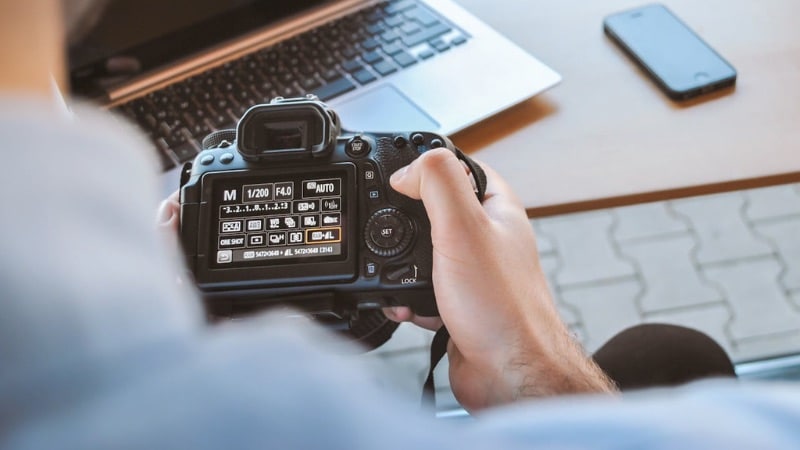
Indoor lights pulse at fixed power frequencies, which can conflict with camera settings and cause flicker. To reduce flicker in video, match your frame rate and shutter speed to the light source. Common pairs include 30 fps with 1/60 or 25 fps with 1/50. If you're unsure, record a short test clip and choose the setting that looks steady.
Avoid Unstable or Low-quality LED Lights
Cheap LED bulbs and panels tend to pulse more than professional lighting. This issue leads to problems, and you need to remove the flicker from the video later in editing. Use lights designed for video recording or bulbs labeled flicker-free. Dimming budget LEDs often makes flicker worse, so keep brightness steady.

Lock Exposure and White Balance
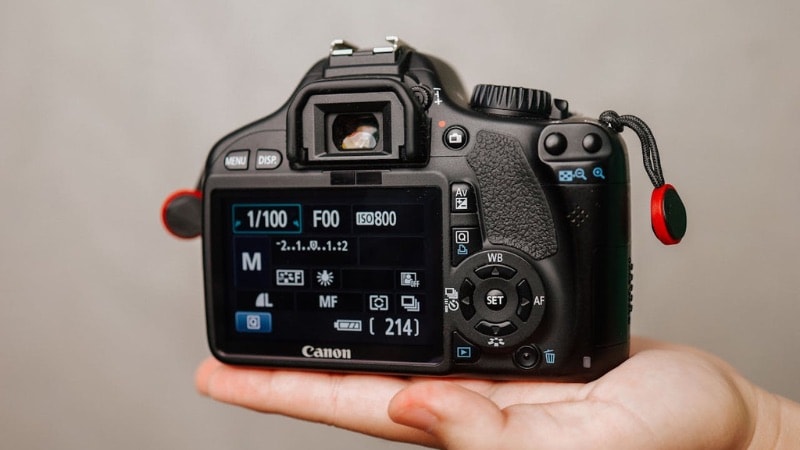
Auto exposure can react to small lighting changes and can trigger flicker. Lock exposure, ISO, and white balance once the scene looks right. These settings can keep brightness consistent across frames.
Be Careful with Slow Motion
Slow motion records more frames each second, so it picks up light changes more often. When the frame rate or shutter speed does not line up with the light pulse, the brightness differences become more visible.
This is why matching camera settings to the light source matters even more for slow motion.

Test Before Recording the Full Clip
Before you start filming, record a short test clip under the same lighting. Play it back and look for a flicker. If you notice any issues, adjust your settings or lighting before recording the full video.
Catching the issue early is much easier than trying to remove flicker from video after recording a long take.

Conclusion
Flicker issues come from a mismatch between lighting and camera settings, not from broken footage. If your clip shows flickering lights, you can remove flicker from the video with the right editing tool.
Online editors can help with minor issues, while mobile apps work for quick access. However, desktop tools like Filmora offer the most control for heavier editing. Knowing how to remove flicker from video helps your footage look cleaner and more consistent.
FAQs on Video Flicker
-
Q1. Why does flicker appear in the final video but not on the camera screen?
Camera previews do not always show subtle brightness changes caused by light pulsing. Flicker often becomes visible during playback because the video shows frame-by-frame exposure differences more clearly than a live preview. -
Q2. Can flickering lights permanently damage a video?
No. Flicker affects brightness consistency, not the actual image data. You can remove flicker from video after recording, especially if the issue comes from lighting or camera settings. -
Q3. Will deflicker tools lower video quality?
Light flicker correction usually keeps image quality intact. Strong deflicker video processing may smooth brightness across frames, which can reduce fine detail if pushed too far. Desktop tools give more control to balance correction and clarity.
