Explore AI London Bridge Photo Prompts
Browse ai london bridge photo prompts for London Bridge portraits, Thames reflections, rainy walks, evening architecture, bridge details, river traffic, and polished travel covers. Use each idea to create assets for video templates, reels, social posts, covers, and export-ready visuals.
Loading more London Bridge photo prompts...
 Category:
 Duration:
 Aspect Ratio:
Why Use London Bridge Prompts With Filmora?
A bridge image needs strong leading lines, readable human scale, controlled weather, and enough breathing room for titles. Filmora helps turn London Bridge prompt ideas into travel portraits, river stories, and cinematic social edits.
Generate London Bridge Photos With Filmora
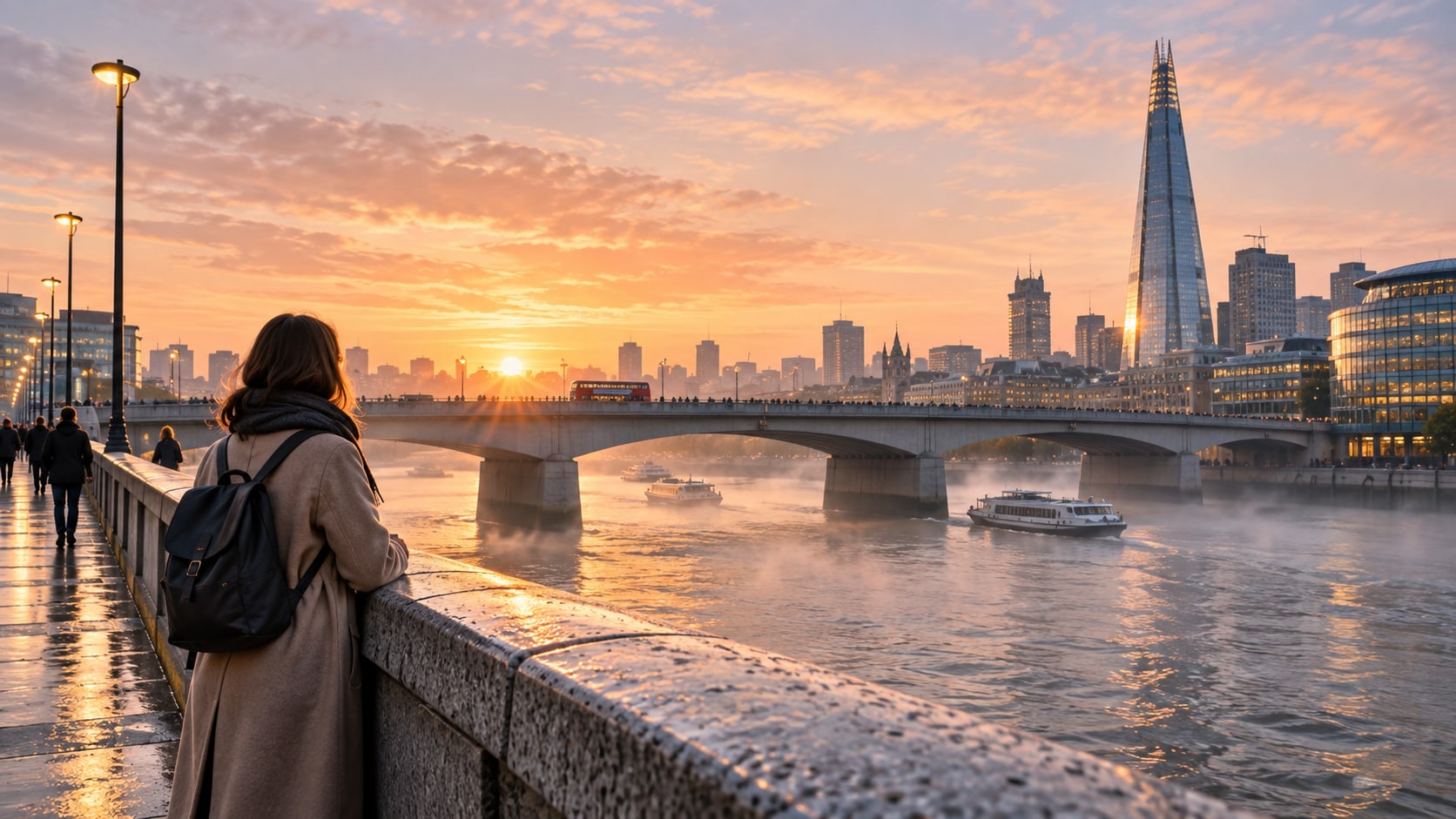
Generate London Bridge Photos With Filmora
Start with a precise London Bridge photo prompt, then use Filmora's AI image generator to turn London Bridge portraits, Thames reflections, rainy walks, evening architecture, bridge details, river traffic, and polished travel covers into clean, edit-ready stills. Use it for bridge-scale portraits, riverfront atmosphere, architectural details, and travel campaigns with clear composition and flexible negative space.
- Prompt to Image - Describe the viewpoint, landmark scale, adult subject, weather, river detail, and crop in one focused request.
- Clear Visual Hierarchy - Use leading lines and one focal point so the bridge remains recognizable and easy to title.
- Fast Iteration - Compare riverside, bridge-top, close-detail, night, and portrait directions before choosing a final composition.
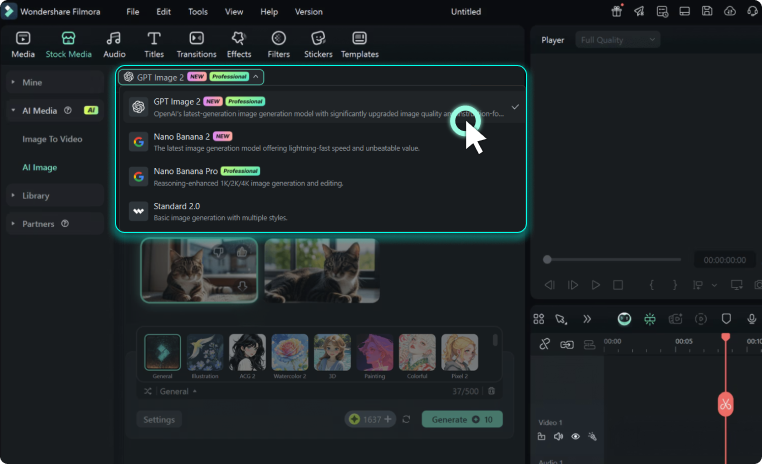
Use GPT Image 2 for Bridge Structure and River Detail
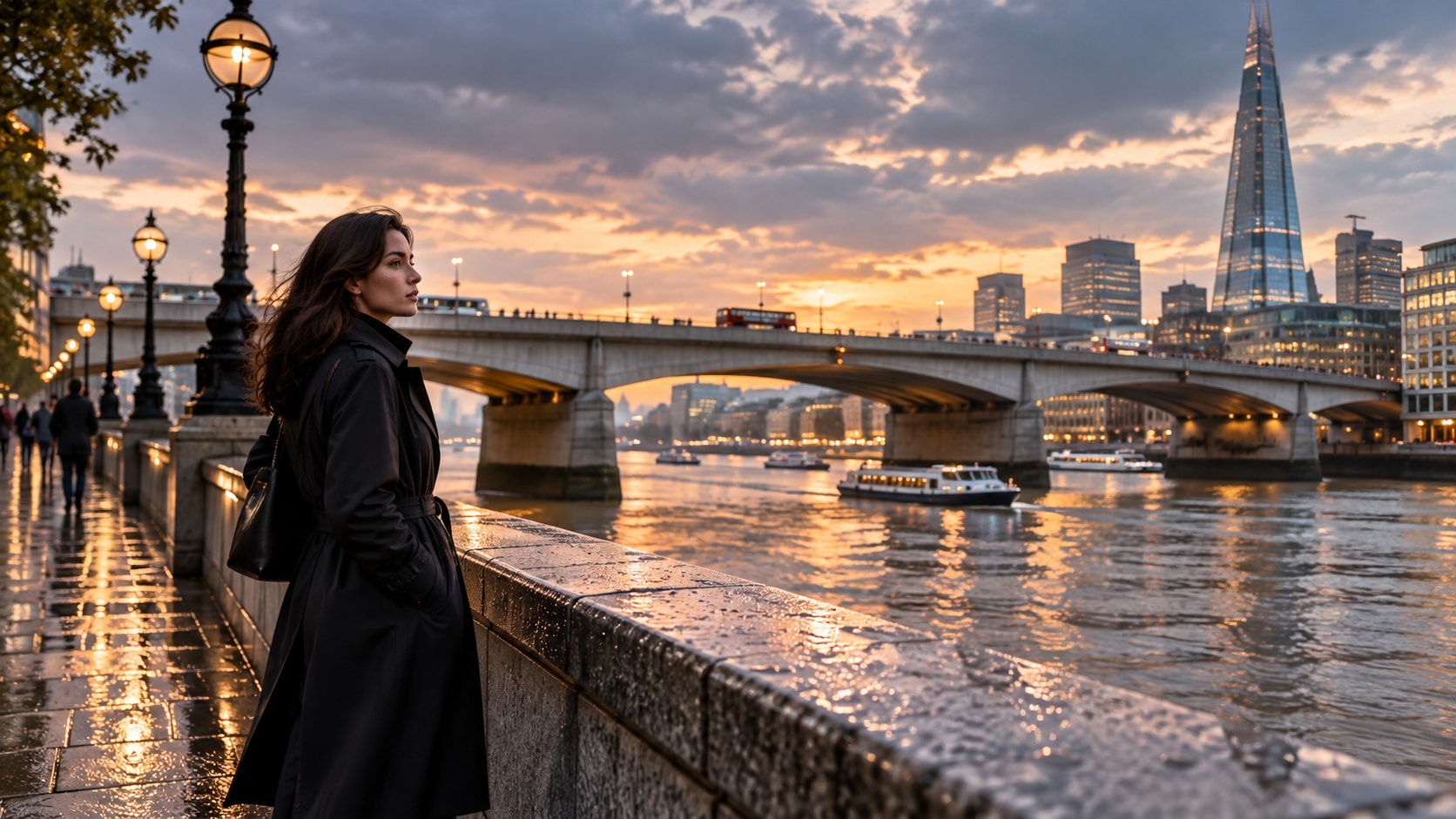
Use GPT Image 2 for Bridge Structure and River Detail
When the scene needs dependable subject detail, texture, or background control, Filmora's GPT Image 2 helps follow a structured prompt. This helps preserve stone, steel, water reflections, traffic scale, rain texture, clothing, and the perspective lines that make the landmark recognizable.
- Prompt Following - Name perspective, stone or steel texture, water movement, practical light, lens feeling, and negative space.
- Detail Control - Preserve masonry, railings, reflections, boats, coats, and atmospheric depth with believable detail.
- Edit-Ready Results - Keep generated signage abstract or unreadable before adding correct landmark copy in Filmora.
Try Nano Banana for Landmark Lighting Variants
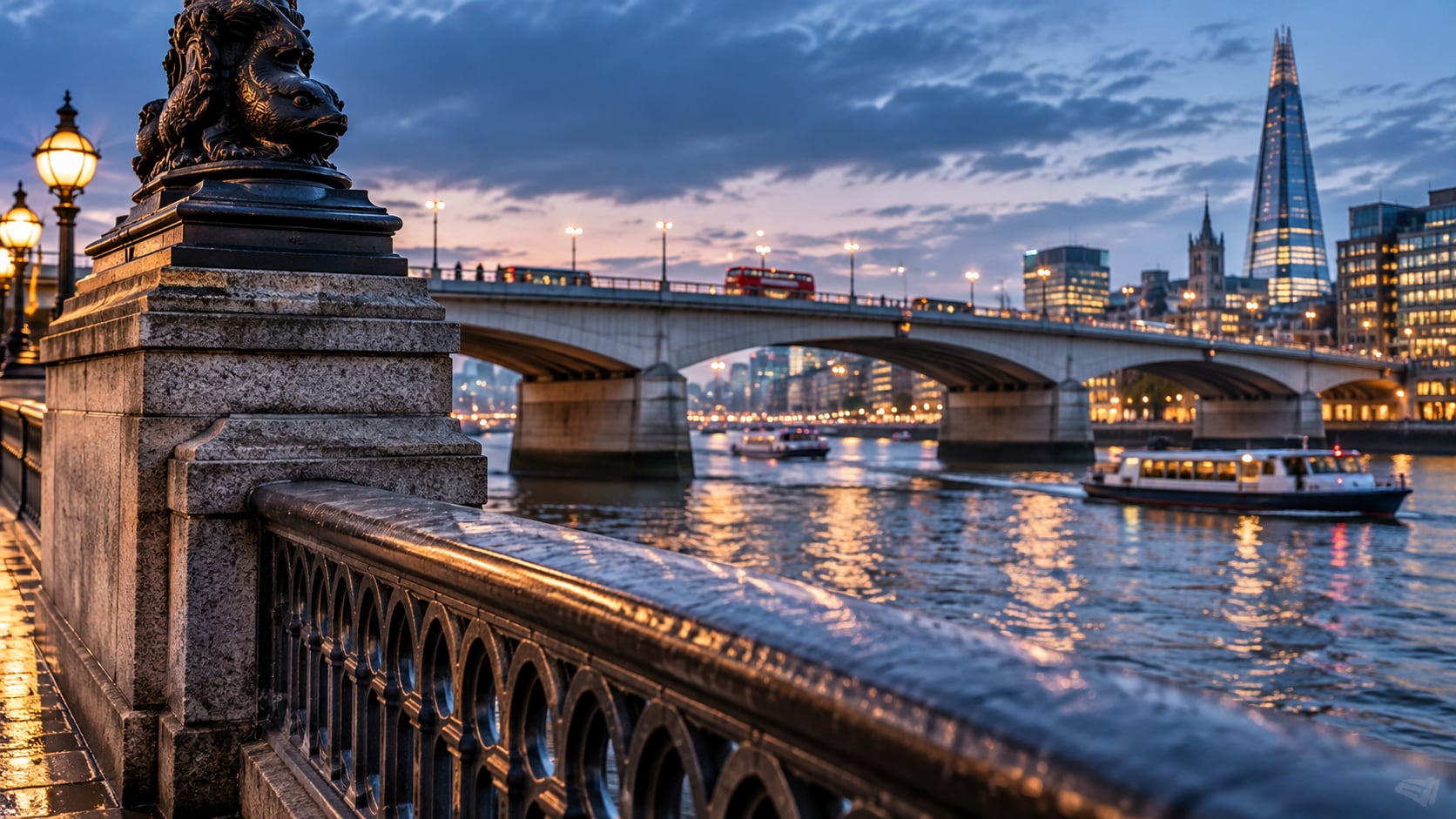
Try Nano Banana for Landmark Lighting Variants
Use Filmora's Nano Banana when one idea needs another palette, mood, composition, or social treatment. Try sunrise haze, blue-hour lamps, black-and-white documentary, rainy romance, fashion editorial, or quiet winter river treatments.
- Style Range - Move between sunrise travel, rainy romance, monochrome documentary, fashion editorial, and blue-hour architecture.
- Variant Testing - Test camera height, river visibility, weather, and subject distance without losing the bridge structure.
- Creative Flow - Keep generation, perspective refinement, title design, and export in one creative loop.
Turn London Bridge Photos Into Video
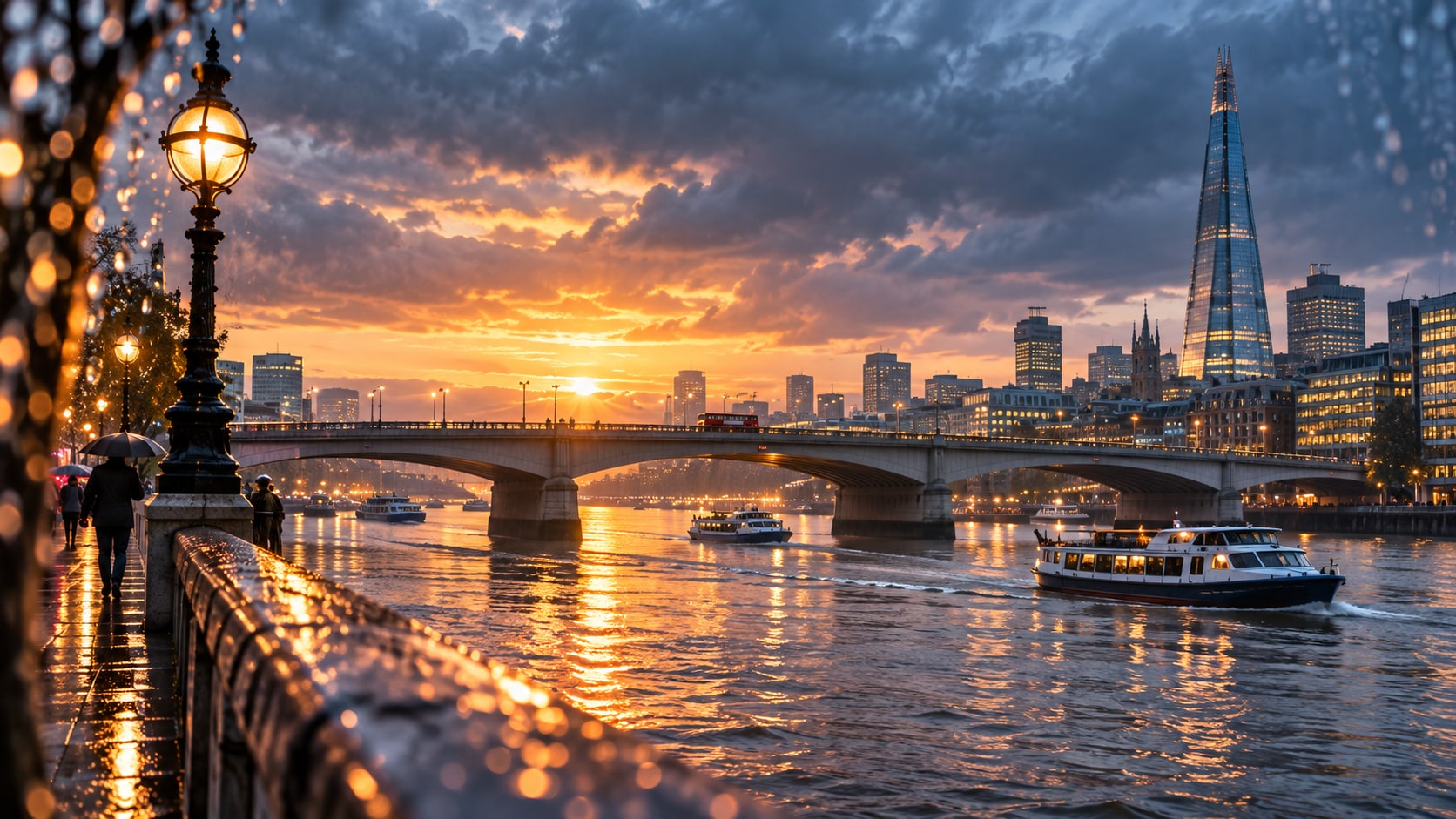
Turn London Bridge Photos Into Video
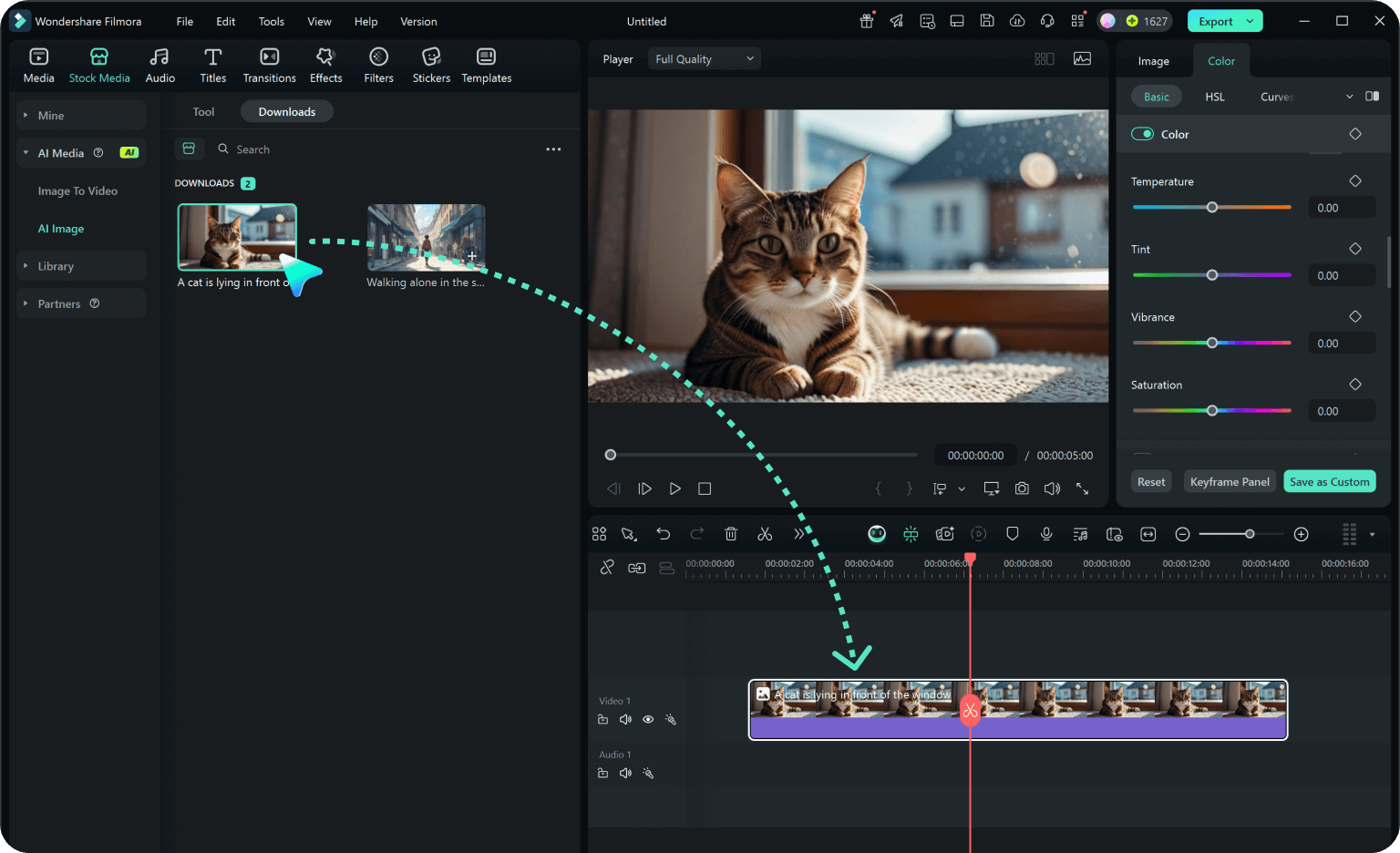
After generating the still, use Filmora's AI Image to Video workflow to add camera movement, overlays, effects, sound, and social-ready exports. Animate river ripples, passing boats, rain, traffic streaks, flag movement, or a slow push along the bridge perspective.
- Motion Ideas - Animate water ripples, boats, traffic, rain, flag movement, or a slow push toward the bridge.
- Social Formats - Reframe one landmark still for 16:9 videos, 9:16 shorts, and square destination posts.
- Final Export - Finish with captions, music, effects, transitions, and share-ready exports.
Frequently Asked Questions About London Bridge Photo Prompts
How to Generate London Bridge Photos With AI
Choose an london bridge setup, define the subject and visual mood, generate the still, then personalize or animate it in Filmora.
Step 1 Choose an London Bridge Prompt
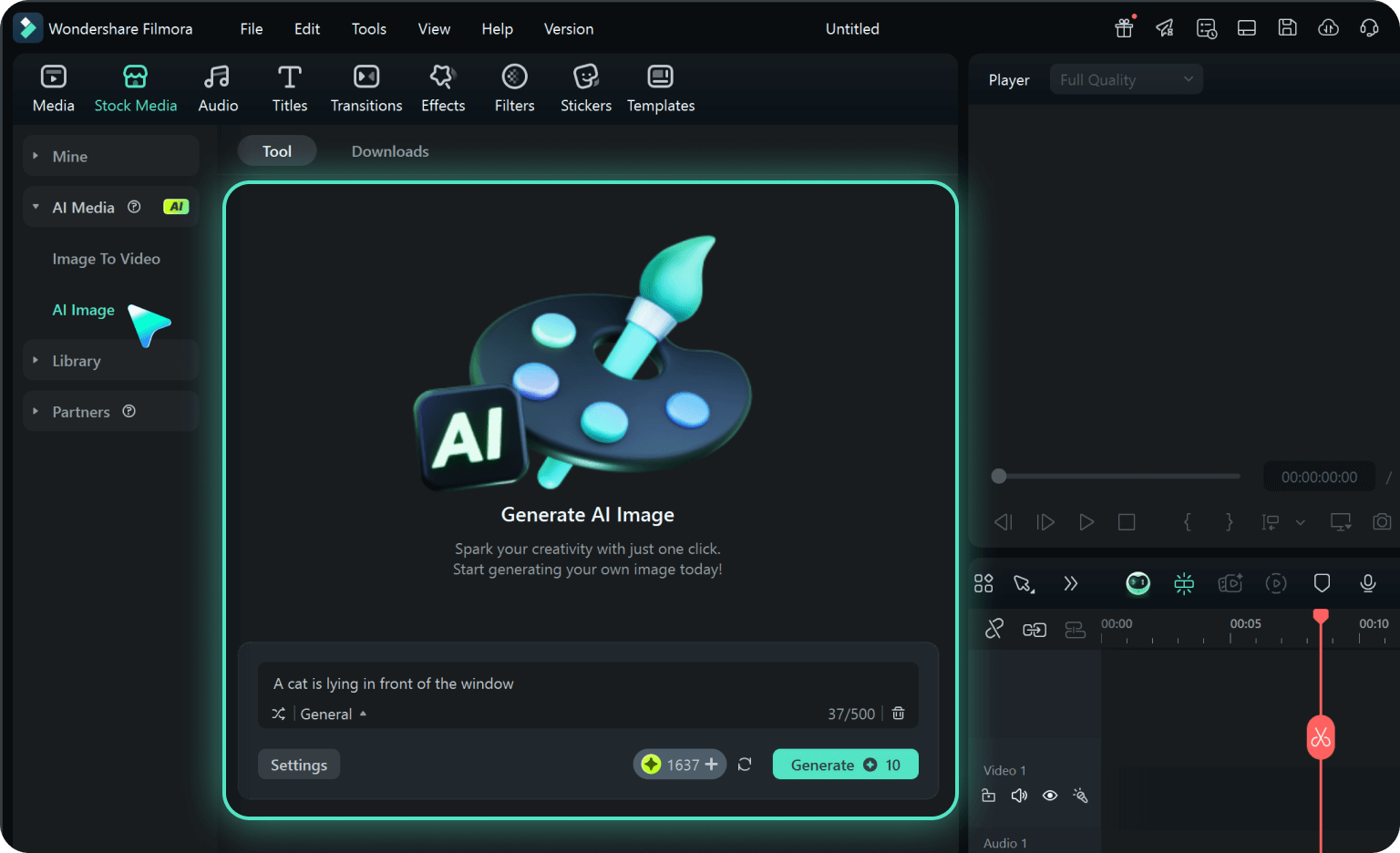
Step 2 Set Style, Model, and Ratio
Step 3 Generate, Edit, and Export
-
1: Choose an London Bridge Prompt
Pick a setup such as a landmark portrait, a rainy riverside walk, a night reflection, or a close architectural study. -
2: Set Style, Model, and Ratio
Paste the prompt into Filmora's AI Image tool, choose GPT Image 2 or Nano Banana, select a ratio, and refine subject detail, lighting, and framing. -
3: Generate, Edit, and Export
Generate the still, adjust crop and color, add motion or overlays if needed, then export it for landmark reels, travel posts, city thumbnails, destination covers, and cinematic river videos.
London Bridge Photos for Cinematic Travel Edits
Use ai london bridge photo prompts to create London Bridge portraits, Thames reflections, rainy walks, evening architecture, bridge details, river traffic, and polished travel covers and motion-ready visuals for Filmora editing.