50+ Border Video Effects & Packs:
Define Your Style with Cinematic Frames
Give your edits a distinct edge with our curated selection of border video effects. From AI-driven subject outlines and neon strokes to vintage film frames and clean geometric borders, these assets are designed to elevate your visual storytelling. Simply pick your favorite border effect style, drag it onto your clip, and create videos that capture attention. Perfect for gamers, vloggers, and brands looking to add a professional finish to their content.
Loading more templates...
 Category:
 Duration:
 Aspect Ratio:
Why Use These Video Effects?
Level up your content effortlessly — the right effects turn ordinary clips into scroll-stopping videos!
Master the Art of Subject Isolation with AI Smart Borders
Master the Art of Subject Isolation with AI Smart Borders
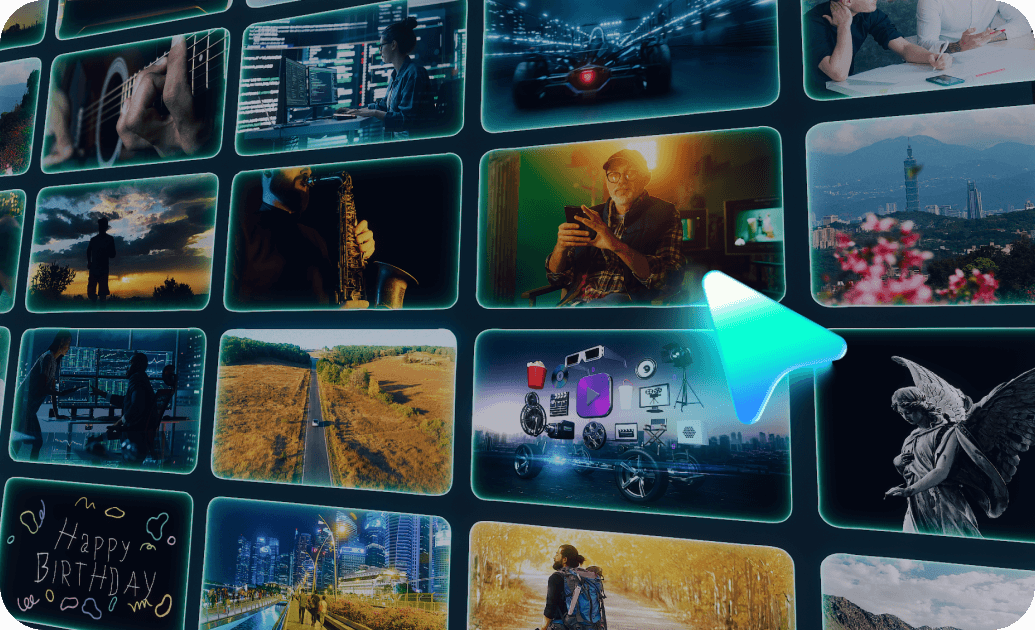
Instantly separate your subject from the background using intelligent AI analysis that draws dynamic borders around people automatically. Create the trending "glowing outline" look popular on YouTube thumbnails and dance videos without tedious manual masking.
- One-click AI Portrait effects including neon lines, glitch edges, and scribbles
- Fully adjustable stroke width, feathering, and color gradients
- Works seamlessly on moving subjects without requiring a green screen
Achieve a Professional Look with Cinematic & Decorative Frames
Achieve a Professional Look with Cinematic & Decorative Frames
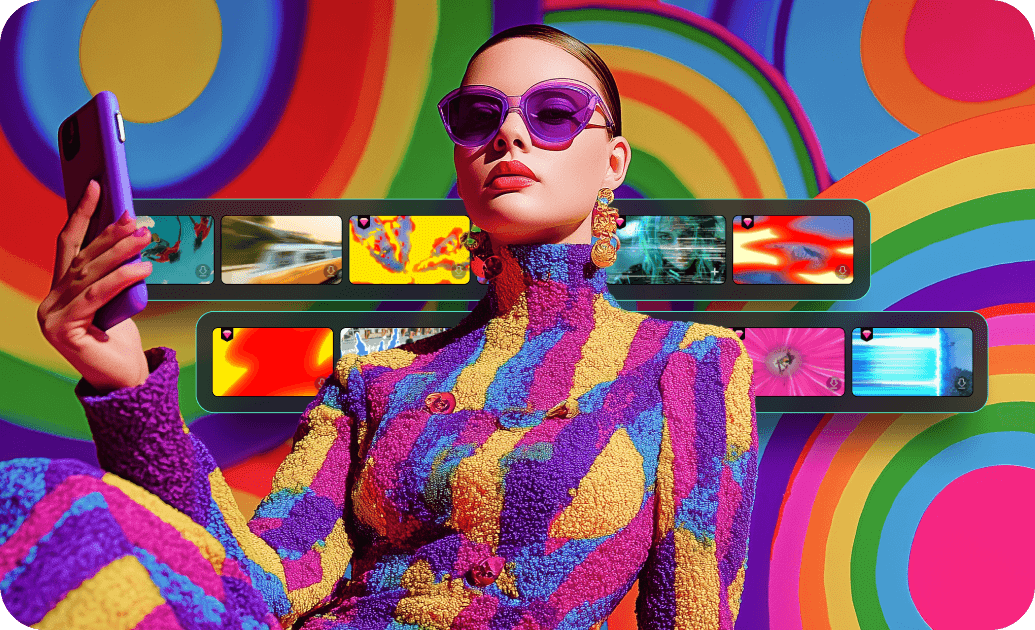
Give your footage a distinct style by applying high-quality overlays that mimic vintage film, instant photos, or modern digital interfaces. A well-chosen border video effect can instantly set the mood, turning a simple clip into a nostalgic memory or a futuristic showcase.
- Extensive library of retro film borders, Polaroid-style frames, and 8mm overlays
- Cinematic black bars (letterboxing) to emulate the 21:9 movie aspect ratio
- Thematic seasonal frames perfect for holiday vlogs and event recaps
Optimize Your Layouts with Split-Screen & PIP Borders
Optimize Your Layouts with Split-Screen & PIP Borders
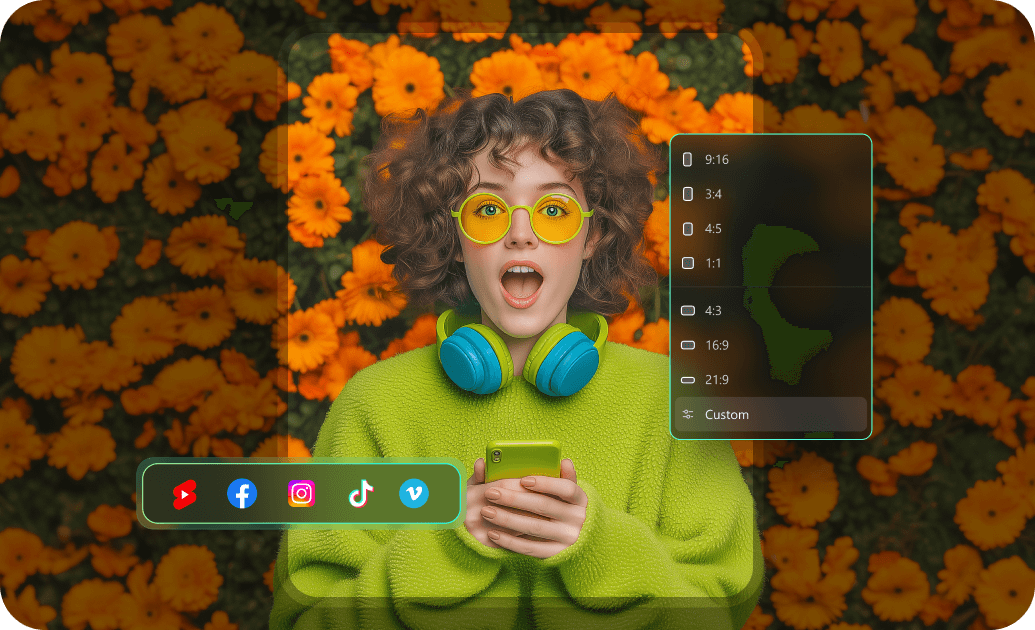
Clean up your reaction videos, gaming streams, and tutorials by adding crisp, customizable edges to your Picture-in-Picture (PIP) overlays. Clearly defining the boundaries between different video sources helps guide the viewer's eye and maintains a polished, broadcast-quality appearance.
- Simple drag-and-drop application for Picture-in-Picture and split-screen layouts
- Customize border color, thickness, and rounded corners to match your branding
- Add drop shadows and glow effects to create depth between video layers
FAQs About Border Video Effects
How To Add Effects to Videos
Whether you're a beginner or experienced creator, adding effects to your videos with our video effect editor is intuitive and fast.
Follow these simple steps to improve your videos with Filmora's extensive effect collection.
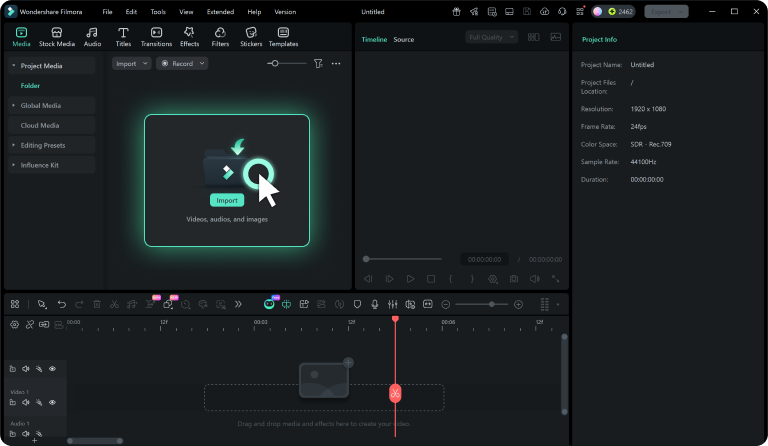
Step 1 Open Filmora and Import Your Video
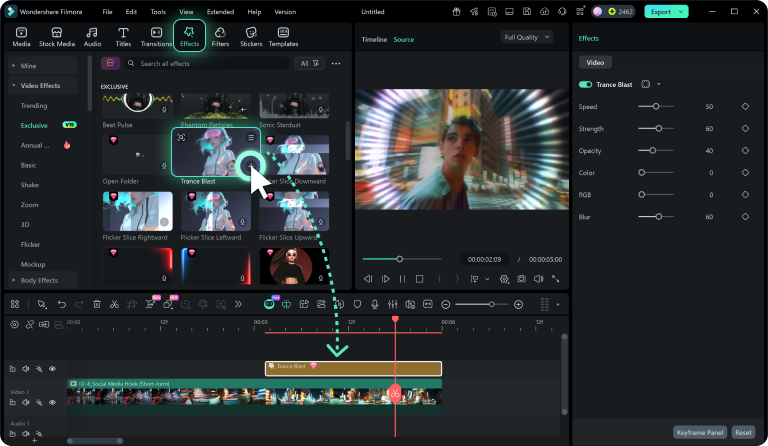
Step 2 Choose and Apply Video Effects
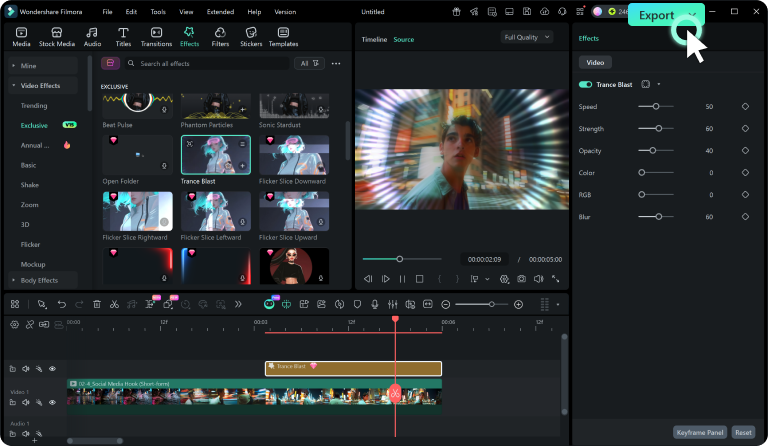
Step 3 Export or Continue Editing
-
Step 1: Open Filmora and Import Your Video
Launch Filmora on your computer and import the video file you want to edit into the media library. Then, drag it to the timeline to start editing. -
Step 2: Choose and Apply Video Effects
Click the Effects tab in the top toolbar. Under Video Effects, you'll find multiple effect categories. Select an effect you like and drag and drop it onto your video clip in the timeline to apply it. -
Step 3: Export or Continue Editing
Once you're satisfied with the effect, export your video or continue editing by adding more effects, text, or music.
Step 1 Open Filmora and Import Your Video
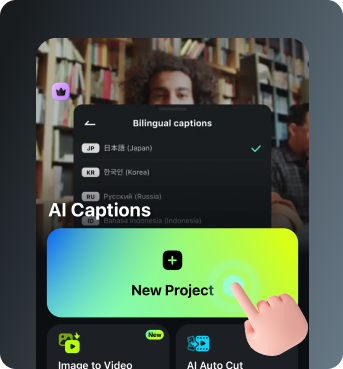
Step 2 Access and Select Your Video Effects
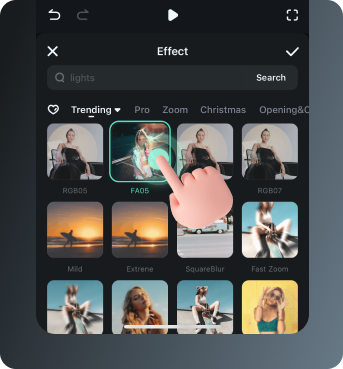
Step 3 Export or Keep Editing
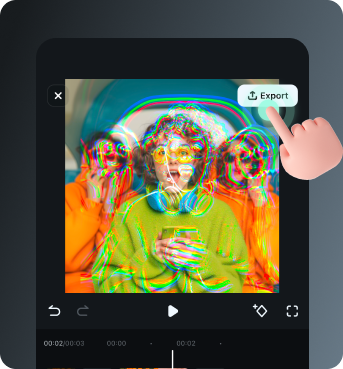
-
Step 1: Open Filmora and Import Your Video
Open the Filmora app on your phone and import the video you want to edit. The clip will be added to your editing timeline automatically. -
Step 2: Access and Select Your Effect
Tap Animation to browse preset video effects and animations. Choose a style you like and apply it to enhance your video instantly. -
Step 3: Export or Keep Editing
After applying the effects, export your video or continue editing with additional animations, stickers, or adjustments.
Explore More Video Effects
From cinematic border effects to dynamic zoom transitions — explore our free, ready-to-use effects for every creative project.