Flame Transition Examples & Guides
Explore explosive fire effects and how to integrate them seamlessly.
Loading more flame transition examples...
 Category:
 Duration:
 Aspect Ratio:
Everything You Need for Stunning Flame Transition Effects
A powerful flame transition can instantly inject energy into your action cuts or music videos. Filmora offers a massive collection of fire assets and smart blending tools to achieve cinematic results without complex compositing. From subtle glowing embers to explosive bursts, these elements blend naturally with your footage. Access a vast library of stock media directly within the editor to find the perfect sparks for your project.
Intelligent Blend Modes for Realistic Fire Compositing
Intelligent Blend Modes for Realistic Fire Compositing
Drop a flame transition onto your timeline and watch it fuse with your footage seamlessly. Advanced blending modes remove black backgrounds instantly, allowing the brilliant oranges and bright yellows of the fire to illuminate your scene. Perfect for merging intense visuals with any type of video templates you choose to build upon.
- Screen Blend Mastery - Eliminate dark backgrounds instantly to reveal pure fire elements over your clips.
- Color Match Precision - Adjust the tint of your sparks to complement the surrounding environment flawlessly.
- Glow Enhancement Controls - Boost the luminance of individual flames to create overwhelming visual heat.
Enhance Edits With AI Generated Embers
Enhance Edits With AI Generated Embers
Elevate your baseline flame transition by generating custom visual assets. Filmora features a robust AI Image Generator powered internally by sophisticated models like Nano Banana 2 and Nano Banana Pro. Generate distinct spark patterns, flaming symbols, or burning textures, then animate them to fly across the screen alongside your main transition.
- Custom Spark Generation - Produce unique ember particles using advanced internal generation models.
- Dynamic Layer Stacking - Combine multiple burning layers to build immense depth between your clips.
- Motion Precision Tools - Track generated fire elements to moving objects for realistic scene integration.
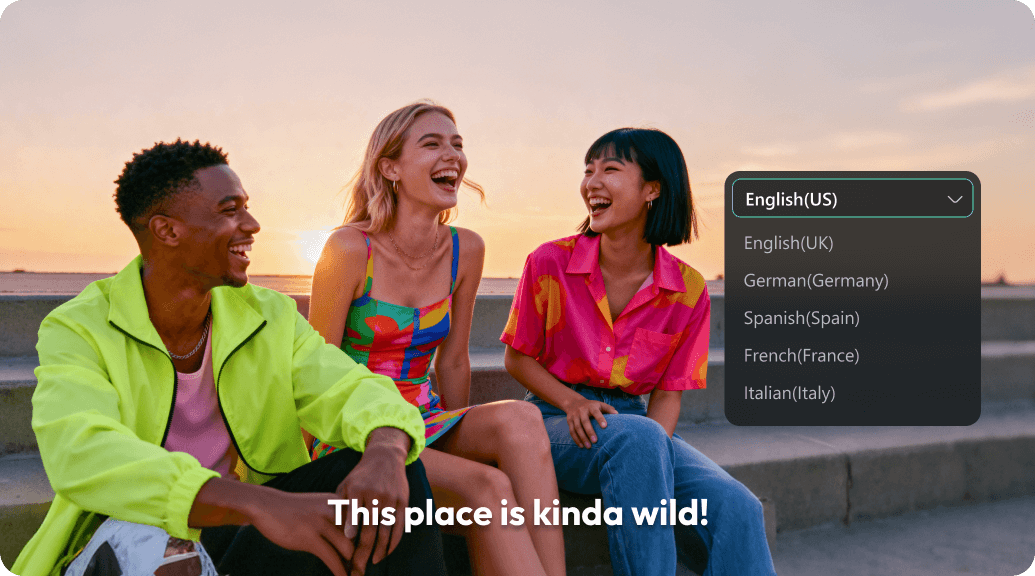
Advanced Masking and Heat Distortion Effects
Advanced Masking and Heat Distortion Effects
Take your flame transition beyond simple overlays. By applying precision masks, you can make fire reveal your next clip smoothly along specific shapes or moving subjects. Combine this with heat distortion filters to warp the background, simulating real thermal dynamics for a truly professional finish. You can even isolate subjects using the video background remover tool before igniting the scene.
- Dynamic Subject Masking - Reveal incoming footage through customized shapes engulfed in burning borders.
- Thermal Distortion Simulation - Apply specialized warp filters that mimic realistic heat waves radiating from the fire.
- Seamless Edge Feathering - Soften the boundaries of your transition for a smooth visual flow between intense cuts.
Frequently Asked Questions About Flame Transitions
How to Add a Flame Transition in Filmora
Inject cinematic heat into your edits with a dynamic flame transition in just a few simple steps.
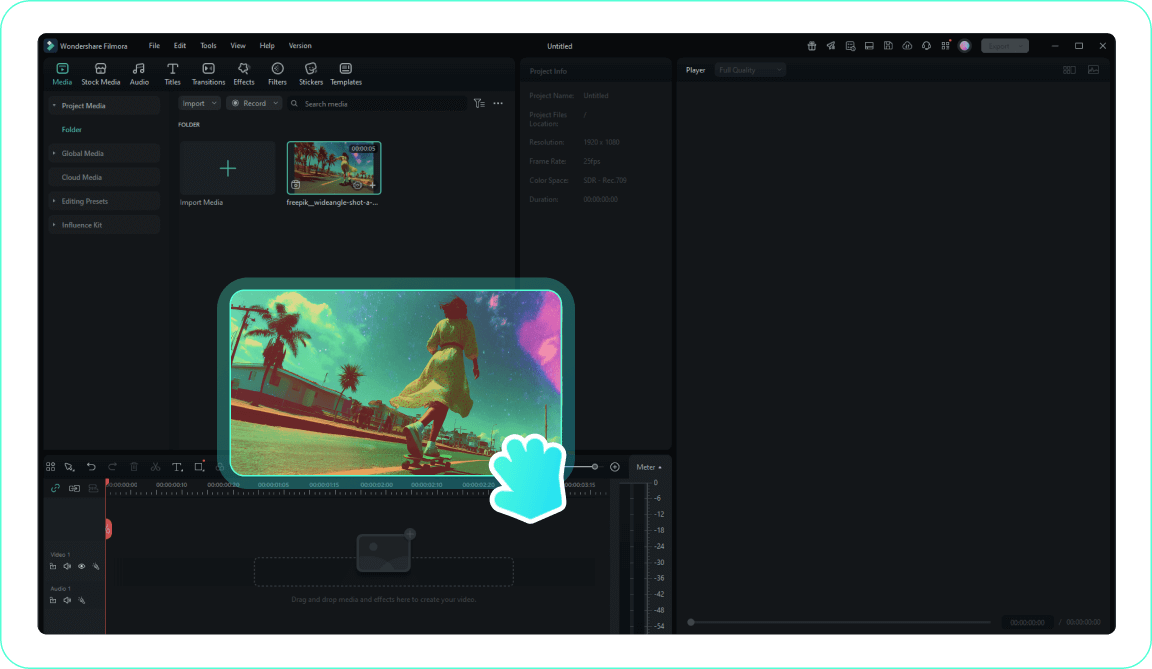
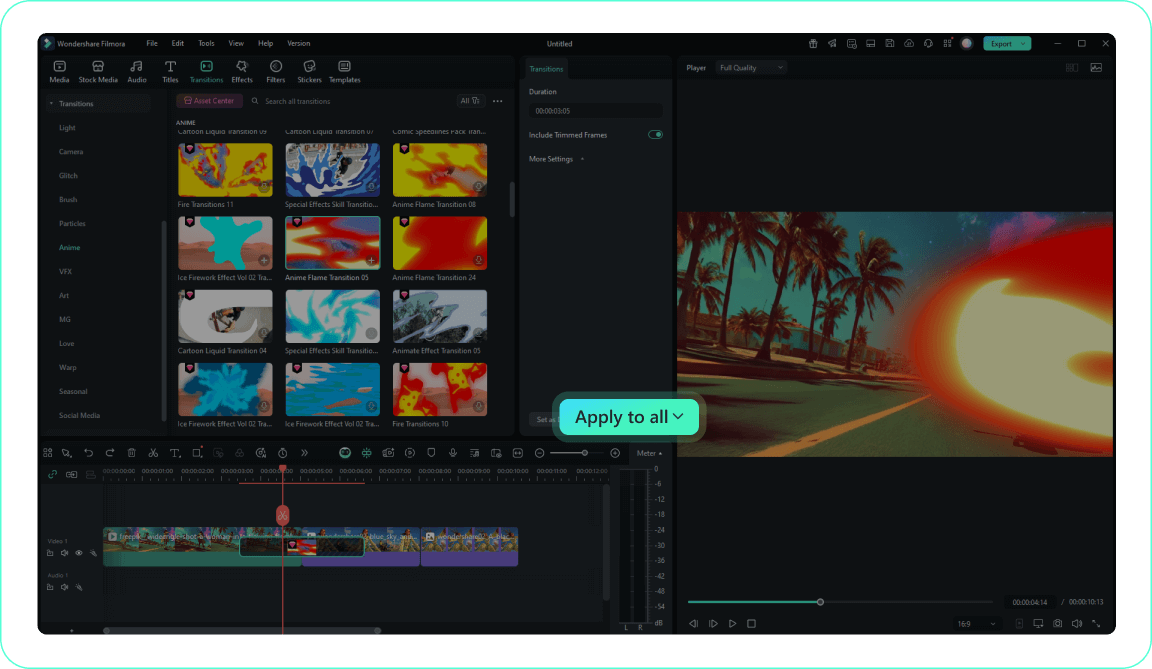
1. Import Your Action Footage
2. Locate the Fire Effects
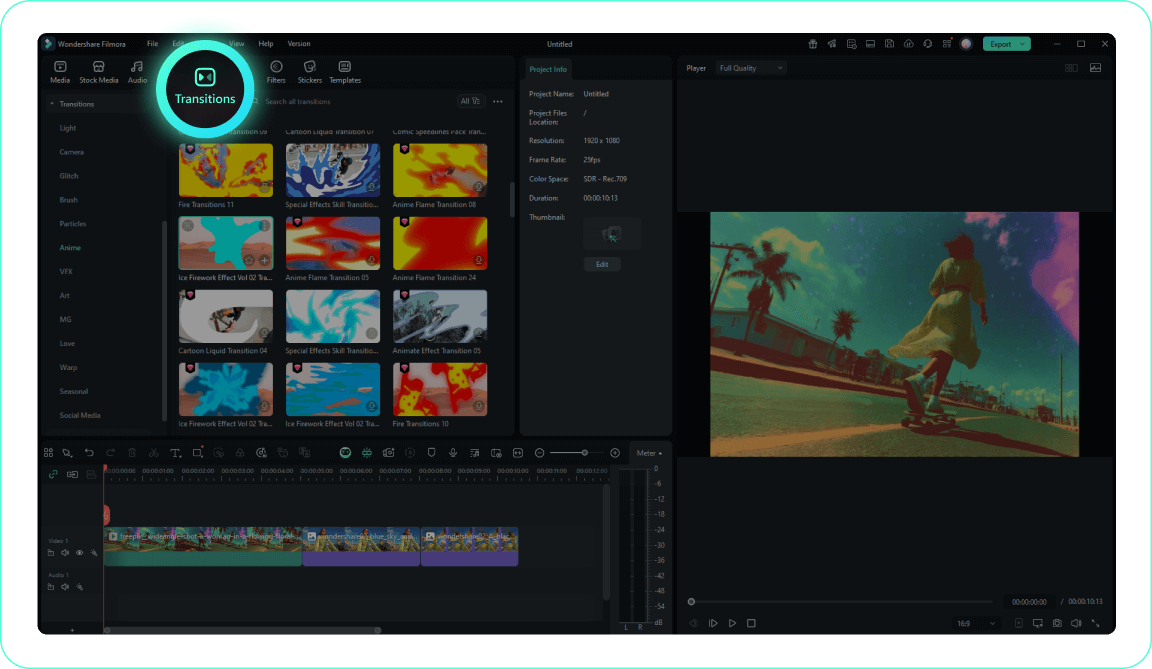
3. Apply the Flame Transition
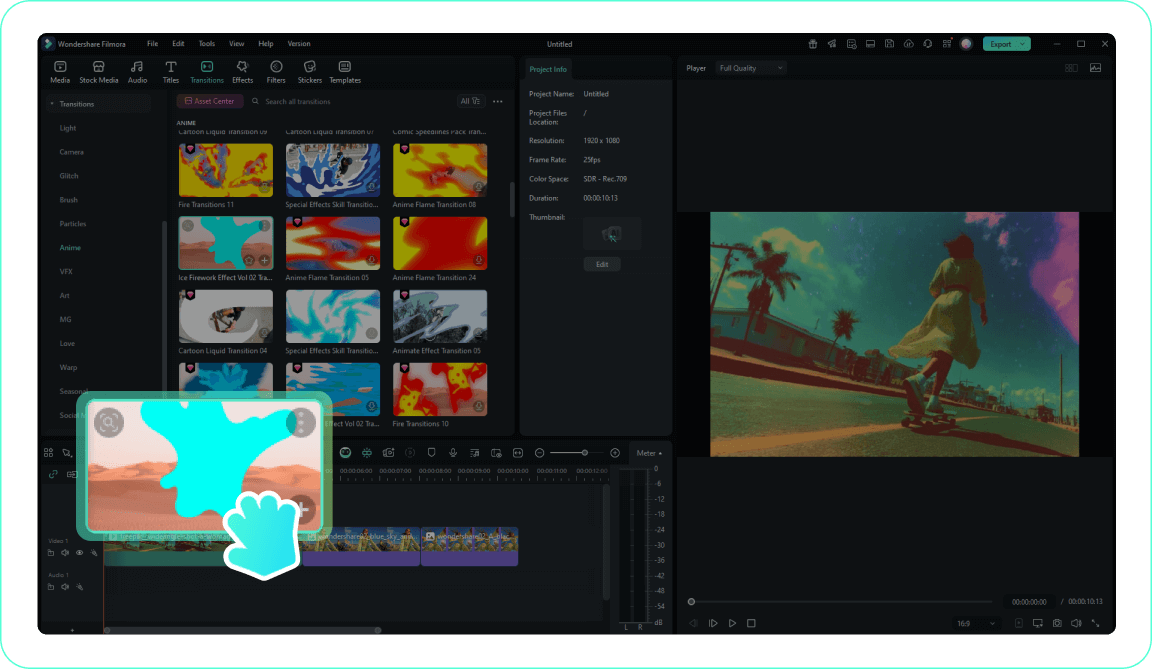
4. Adjust Blending and Timing
-
1. Import Your Action Footage
Import your high energy video clips into the media library and drop them onto the timeline.Pro Tip: Organize your media into folders for easier access on larger projects. -
2. Locate the Fire Effects
Navigate to the Transitions panel and search for fire or explosive elements. -
3. Apply the Flame Transition
Drag your preferred fiery burst between your two chosen clips to merge them seamlessly. -
4. Adjust Blending and Timing
Double click the effect to tweak its duration, or use blend modes to enhance the glow against your background.Pro Tip: Utilize AI Video Editing features to automatically match colors between the burning transition and your scene.
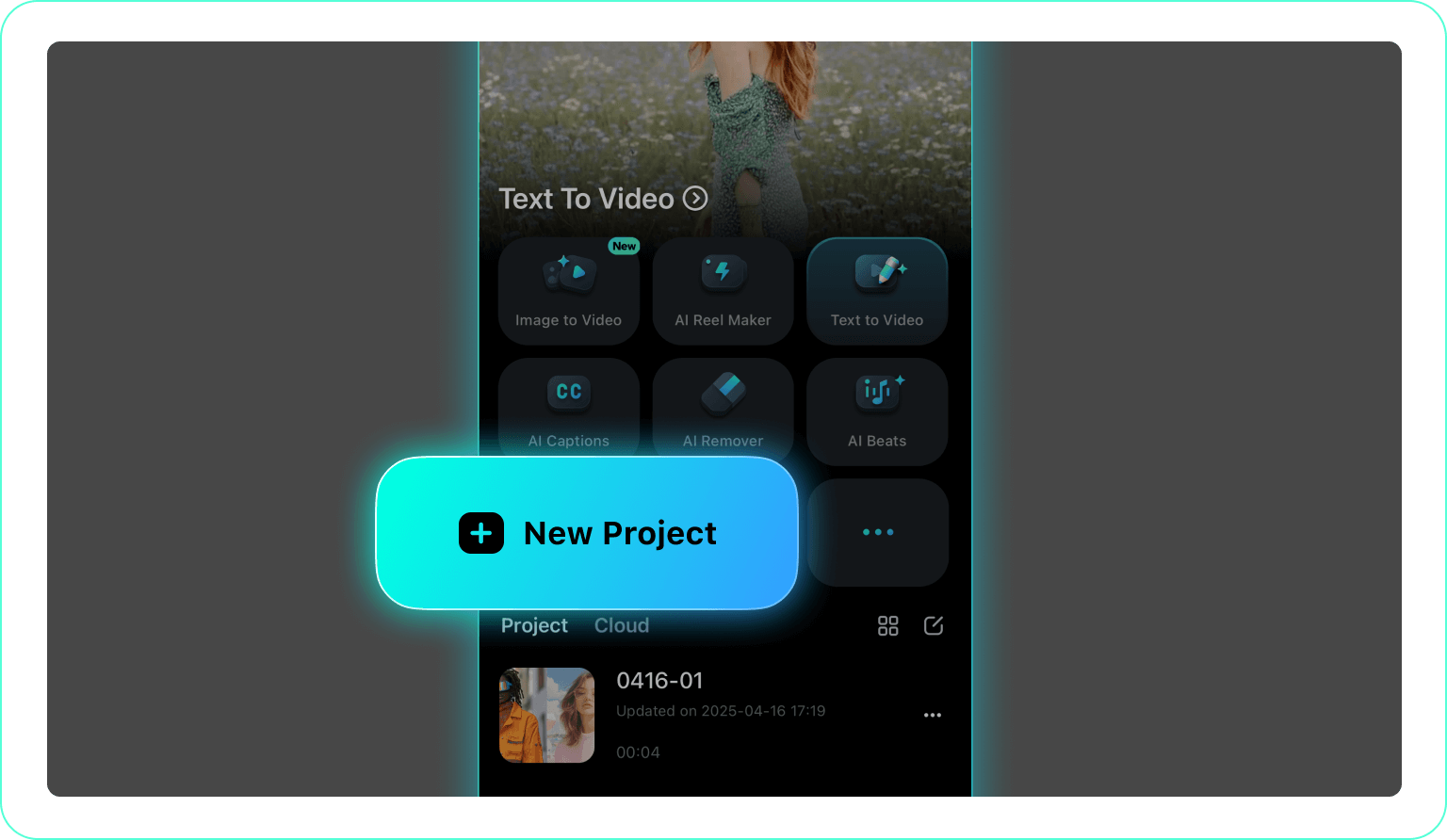
1. Open Your Mobile Project
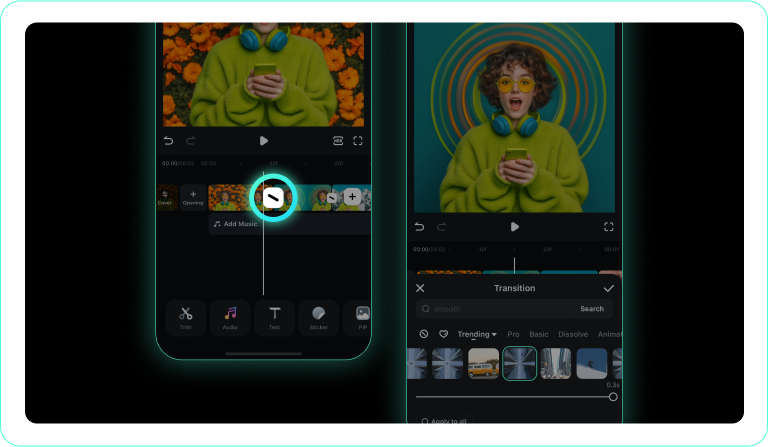
2. Access the Transition Library
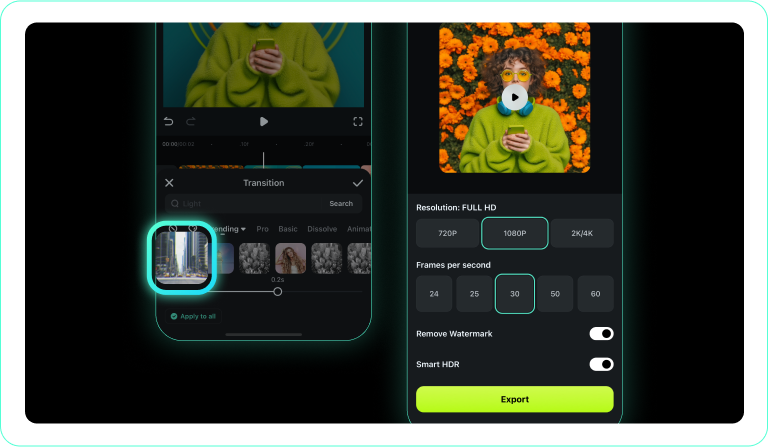
3. Choose a Fiery Effect
-
1. Open Your Mobile Project
Launch the Filmora application and load your video sequence. -
2. Access the Transition Library
Tap the intersection point between your clips to open the transition selection menu. -
3. Choose a Fiery Effect
Select a blazing flame transition, preview the impact, and apply it directly to your timeline.
Expand Your Cinematic Editing Arsenal
Mastering the flame transition is just the beginning of your visual journey. Filmora provides an expansive ecosystem for digital creators who want to push boundaries. From generating conceptual artwork using powerful internal AI engines to applying complex motion graphics, every tool is integrated into one fluid workspace. Whether you want to generate a massive sci-fi explosion, add motion tracking to fiery embers, or utilize AI capabilities to draft your next script, Filmora empowers you to bring your most intense visions to life with absolute precision and creative freedom.