
Halloween Templates & Resources
Explore our extensive collection of terrifying Halloween visual guides and templates
Loading more halloween templates...
 Category:
 Duration:
 Aspect Ratio:
Everything You Need for Frightening Halloween Edits
A well-placed creepy visual can turn an ordinary clip into a professional cinematic nightmare. Filmora gives you a massive library of terrifying Halloween templates that drop straight into your timeline. Whether you are building a chilling horror intro, designing jump scares, or setting an eerie gothic aesthetic, Filmora provides the exact resources you need to horrify your audience instantly.
Instantly Apply Chilling Halloween Atmospheres
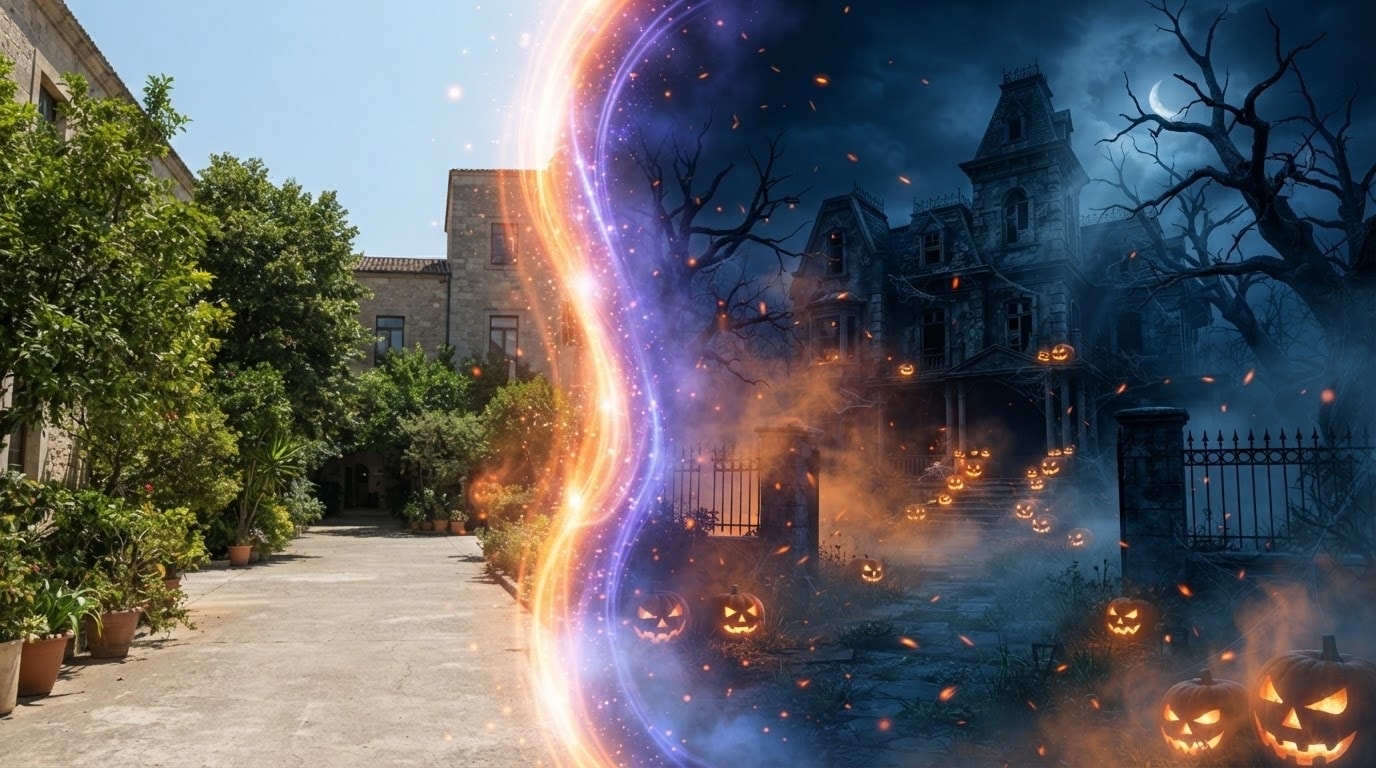
Instantly Apply Chilling Halloween Atmospheres
Transform ordinary footage into a cinematic nightmare with pre-designed Halloween templates built directly into Filmora. These curated assets give your project a professional edge in seconds. Instead of building complex jump scares from scratch, simply drag a thrilling scene onto your timeline and watch the horror unfold beautifully.
- Simply drop terrifying overlays and spooky transitions onto your timeline for an instant aesthetic upgrade.
- Browse a massive library of horror-themed intros perfectly sized for all major social media platforms.
- Customize creepy atmosphere settings seamlessly without needing advanced motion graphics knowledge.
Generate Terrifying Custom Assets With AI
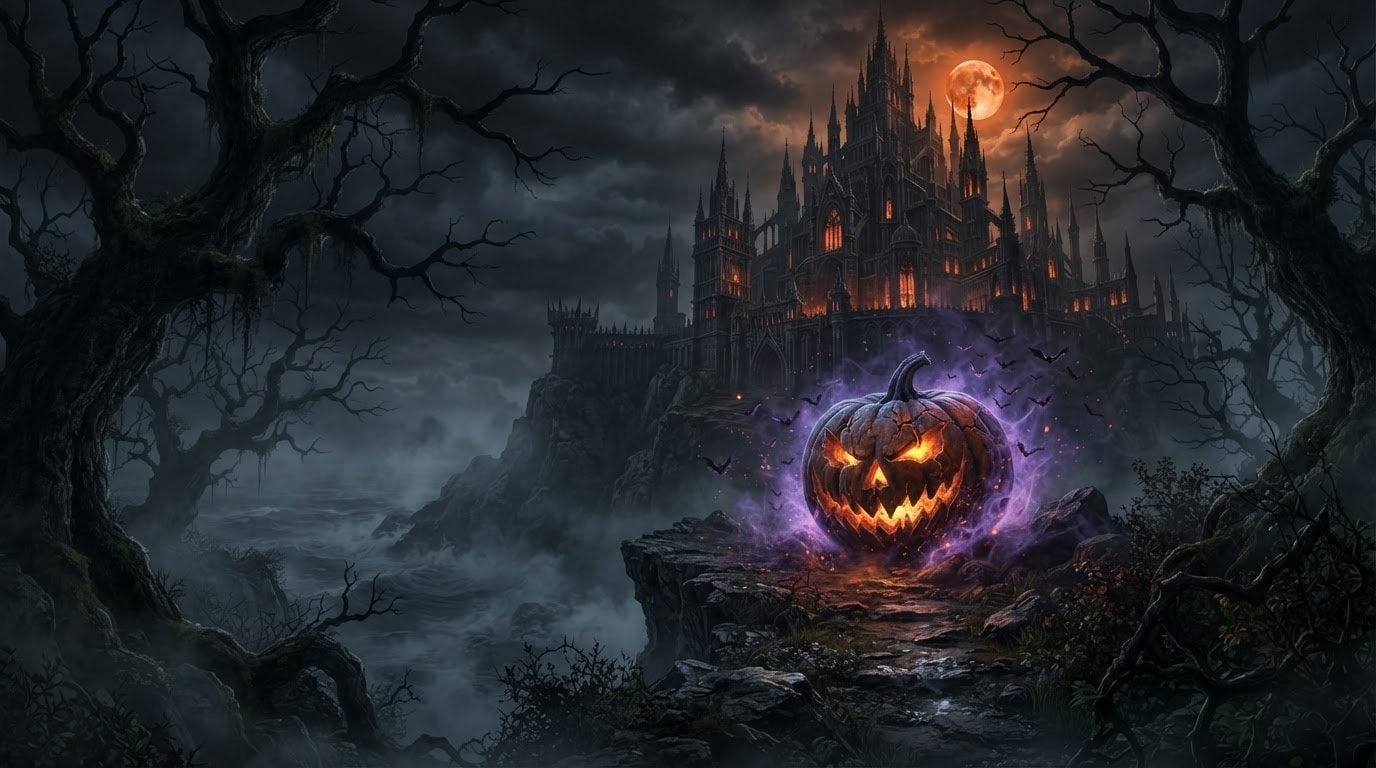
Generate Terrifying Custom Assets With AI
When you need a highly specific nightmare scenario, Filmora offers unparalleled AI capabilities. Powered by advanced internal models like GPT Image 2 and Nano Banana Pro, you can conjure up unique Halloween elements directly on your timeline. Whether you want an eerie gothic castle or a custom haunted pumpkin, the Filmora AI Image Generator brings your darkest creative visions to life without relying on external software.
- Conjure entirely unique horror visuals by typing descriptive prompts into the artificial intelligence interface.
- Produce spine-chilling visual elements instantly using the seamlessly integrated GPT Image 2 technology.
- Enhance your frightening edits with highly detailed AI generated backgrounds and creepy props.
Tailor Every Frightening Detail Seamlessly
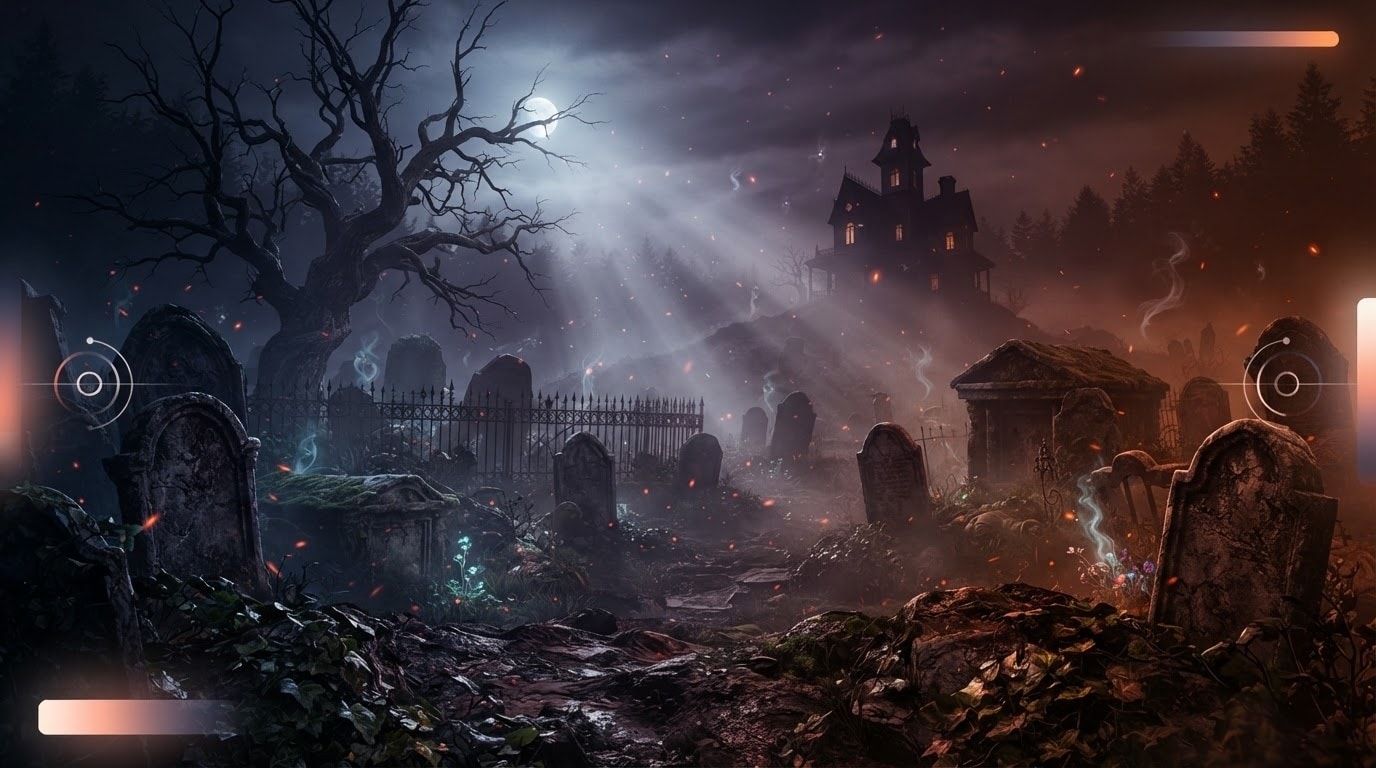
Tailor Every Frightening Detail Seamlessly
A great Halloween video relies on atmospheric perfection, and Filmora ensures you have complete control over every eerie element. Once you place a Halloween template on your timeline, you can tweak the darkness levels, adjust the chilling color grading, and modify specific spooky stickers to fit your exact narrative.
- Adjust eerie color palettes and shadow contrasts to match the specific mood of your horrifying tale.
- Sync your chilling visual templates perfectly with terrifying sound effects directly on the editor timeline.
- Generate haunting text overlays using built-in AI tools to complete your horrifying cinematic masterpiece.
Frequently Asked Questions About Halloween Templates
How to Apply Halloween Templates in Filmora
Conjure up spine-chilling videos for your social channels in just three simple steps. Follow this guide to add, customize, and export your horrifying Halloween templates seamlessly.
Step 1 Select Your Spooky Template
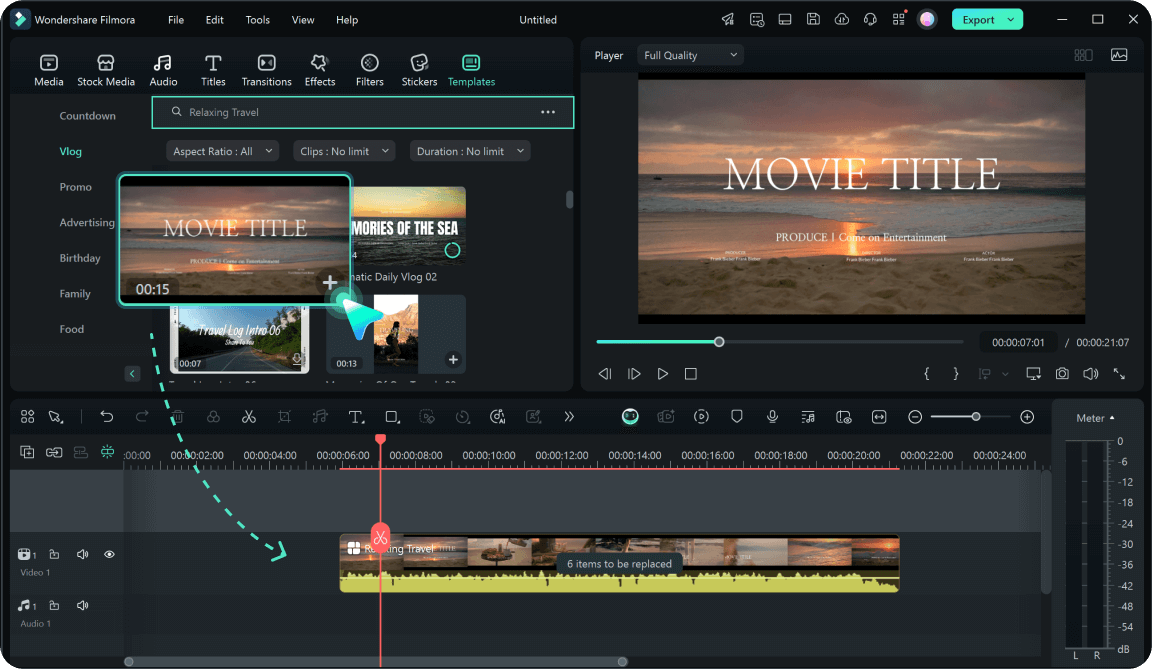
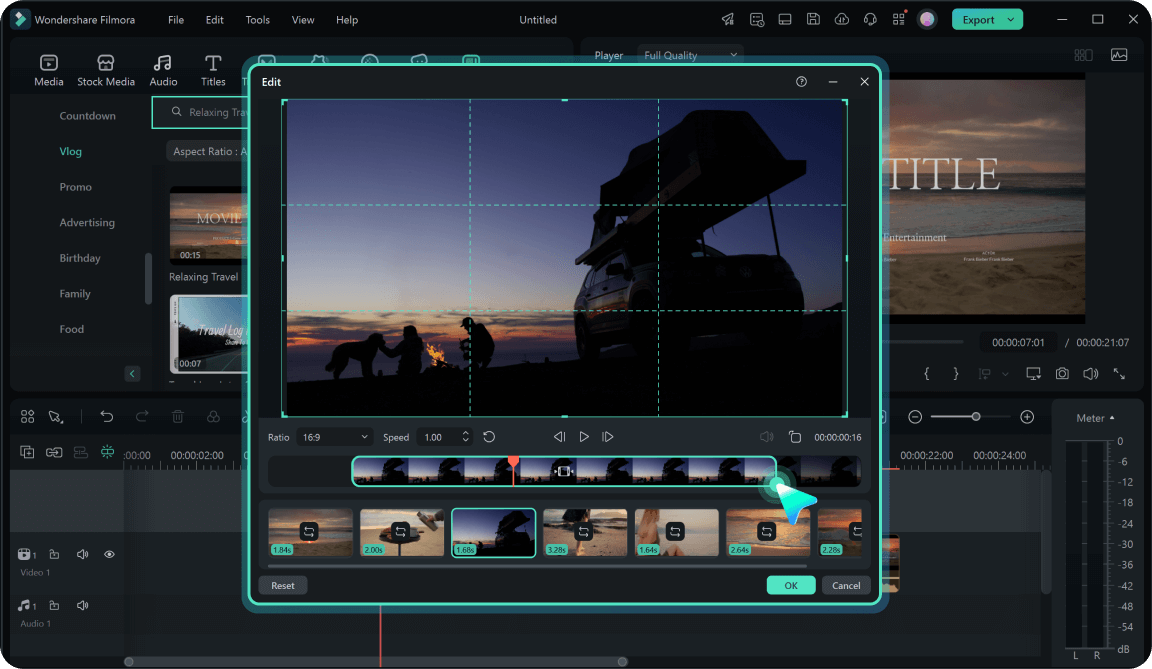
Step 2 Customize the Terrifying Details
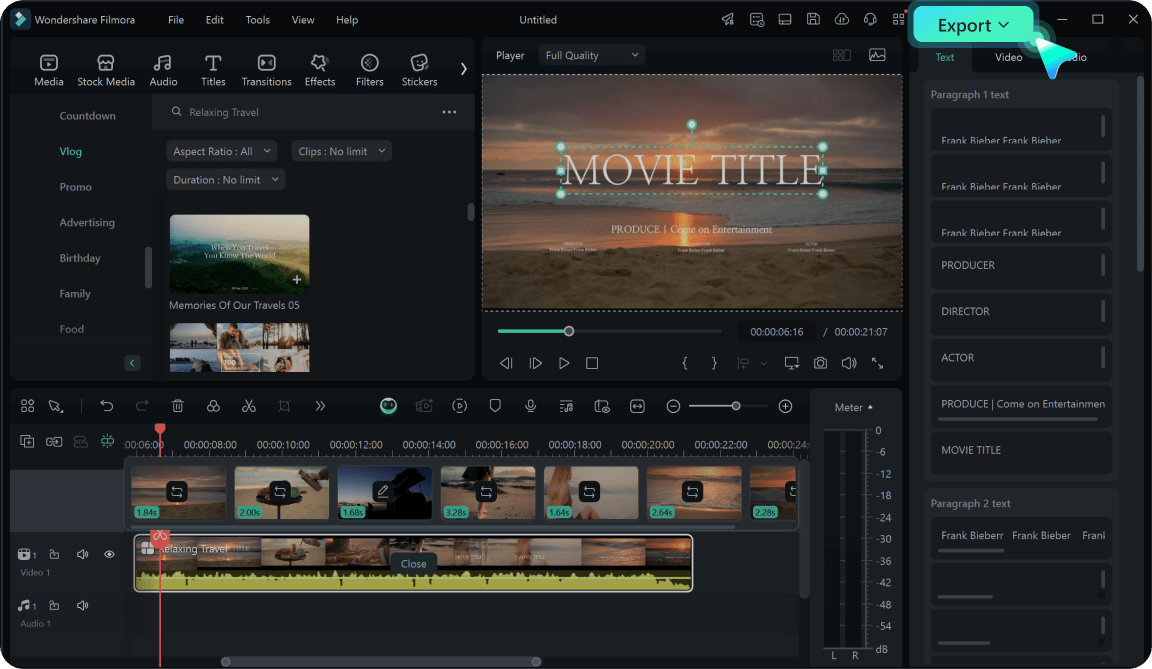
Step 3 Export Your Haunted Masterpiece
-
1: Select Your Spooky Template
Open Filmora and navigate to the template library. Browse the Halloween category to find an eerie aesthetic that matches your vision, then drag and drop it onto your timeline directly above your raw video clip. -
2: Customize the Terrifying Details
Double-click the template clip in the timeline to open the editing panel. Here you can tweak the chilling color schemes, adjust eerie animation timings, and add personalized text to perfectly sync with your haunted audio. -
3: Export Your Haunted Masterpiece
Preview your spooky edit to ensure the terrifying effects are positioned correctly. Click the export button and select your preferred aspect ratio to save your nightmare creation, ready for upload to TikTok or Instagram.
