

 100% Security Verified | No Subscription Required | No Malware


 ChatGPT
 Perplexity
 Gemini
 Claude
 Grok
Grok
When you start watching a video and realize that the text in the video does not match the format you want. Although the caption appears to be in a proper format, the tool is unable to recognize it. These issues usually take place when you are trying a different editing environment.
This is where the importance of text format conversion comes in. This article will teach you how to convert subtitles online with ease. It also explores the different types of text and ways in which you can distinguish them within the video.
In this article
Part 1. Common Subtitle Formats and Key Differences
Before you start converting subtitle files, it's important to understand what you're actually working with. Each subtitle format has its own structure, purpose, and level of compatibility. Knowing these differences not only helps you avoid errors during conversion but also ensures your subtitles display correctly across platforms.
What is SRT?
This is one of the common formats used for text in the videos. It contains numbered sequences and time codes to make it easy for video players to sync captions accurately. The format is lightweight and compatible with most editing software and platforms.
What is VTT?
This is a new subtitle type, primarily for use with Web videos. It can be used to position text, to set the colors, and to include metadata. It is more suitable for HTML5 players and online streaming platforms as compared to SRT. It is more flexible for captions that will be interactive and accessible. Many users would like to convert SRT to VTT for more customization options.
What is TXT?
A basic text file containing simple text or subtitle and/or transcript information without timecodes. It is commonly employed to draft or record notes or a raw transcription. It doesn't provide synchronized information, so it cannot be used for video subtitles. You should convert it into SRT or VTT if it is to be used for video subtitles.
Key Differences
To better understand how these formats differ in real-world use, it helps to compare them side by side. Each one serves a slightly different purpose depending on how subtitles are created:
| Feature | SRT (SubRip Subtitle) | VTT (WebVTT) | TXT (Plain Text) |
|---|---|---|---|
| Structure | Numbered lines with timecodes | Timecodes with extra styling support | Simple plain text, no structure |
| Timing Support | Yes | Yes | No |
| Styling Options | Very limited | Advanced (colors, positioning, metadata) | None |
| Best Use | Video players, editing software | Web videos, HTML5 players | Drafts, raw transcripts |
| Purpose | Standard subtitles | Interactive web captions | Text-only content |
Part 2. Step-by-Step Guide – Every Subtitle Conversion You Need
Let us walk through the most common file switches you will likely need in real projects. These simple methods can help you quickly move between formats without losing clarity or sync.
How to Convert TXT to SRT
When you only have a plain transcript, turning it into a subtitle file becomes essential for video use. This usually happens when creators start with raw notes or interview scripts and later need proper captions. Online tools make this process easier by letting you add timestamps or auto-generate them, saving time and manual effort. Follow the steps mentioned below to learn how to convert TXT to SRT using an online tool:
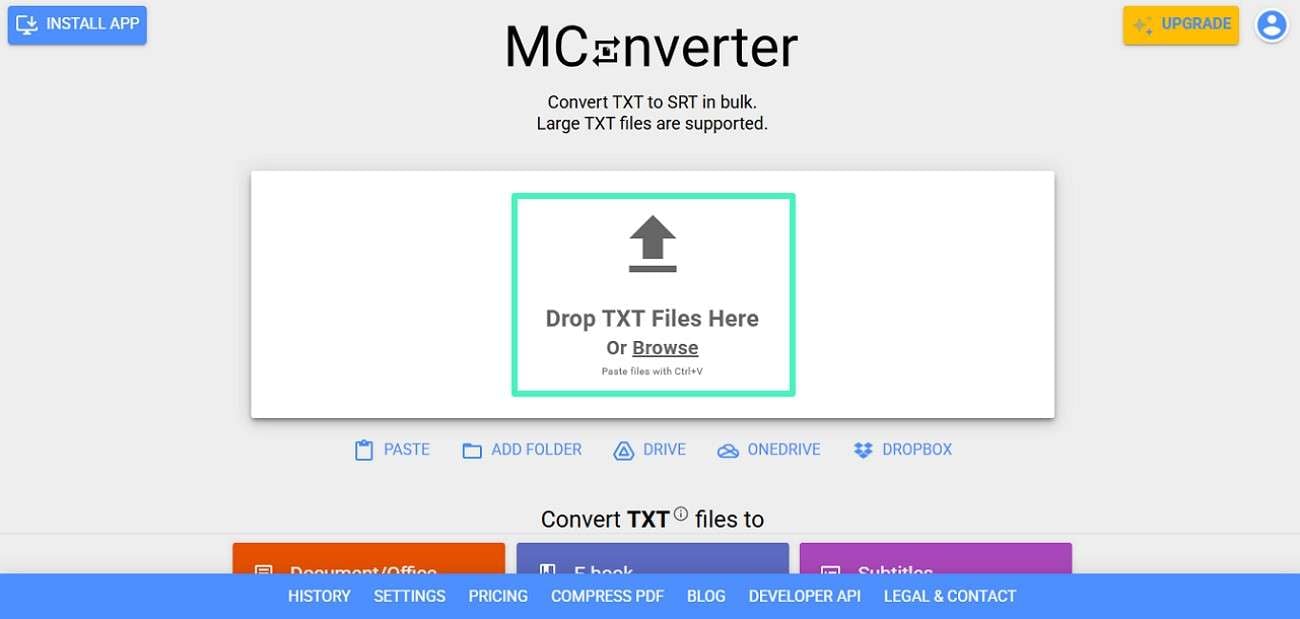
Step 1. Choose any dedicated online TXT to SRT converter and open it on your browser. Now, drop the file or press "Browse" to upload it.
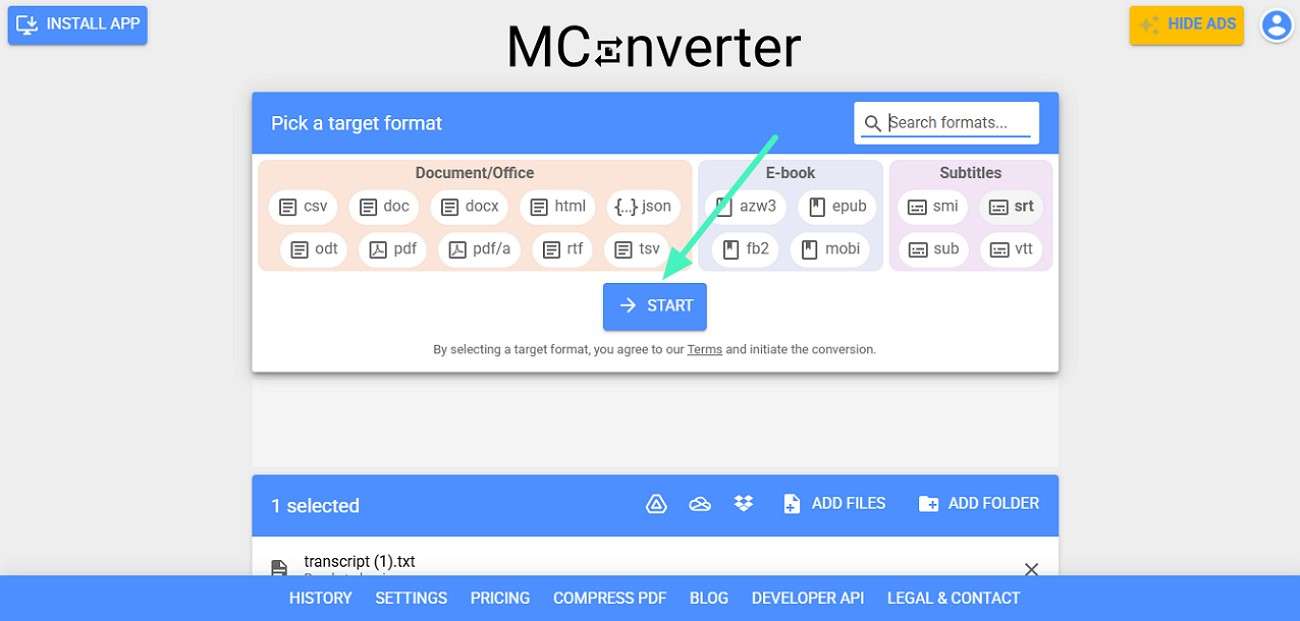
Step 2. Begin by reviewing the uploaded file and selecting the "Start" option. The converted file will be prepared and downloaded automatically after processing is complete.
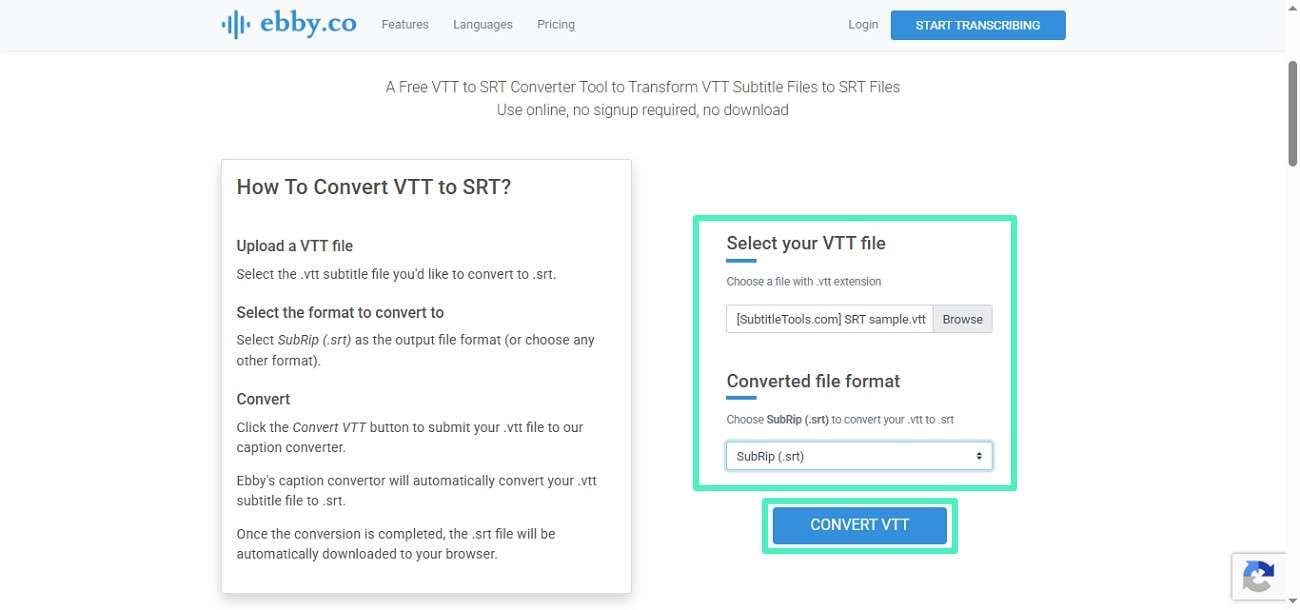
How to Convert VTT to SRT
Web videos often use VTT format, but many editing tools and media players still prefer SRT. This creates a common need to switch between the two, especially when repurposing content for different platforms. Online dedicated tools allow quick one-click conversion without breaking subtitle sync. Learn how to convert VTT to SRT by following the instructions provided below:
Instructions. Open the online VTT to SRT converter and click the "Browse" button to upload the SRT file. Now select the format by expanding the drop-down menu and clicking "Convert VTT" to begin. Once the conversion is completed, the tool will begin downloading automatically.
How to Convert SRT to VTT
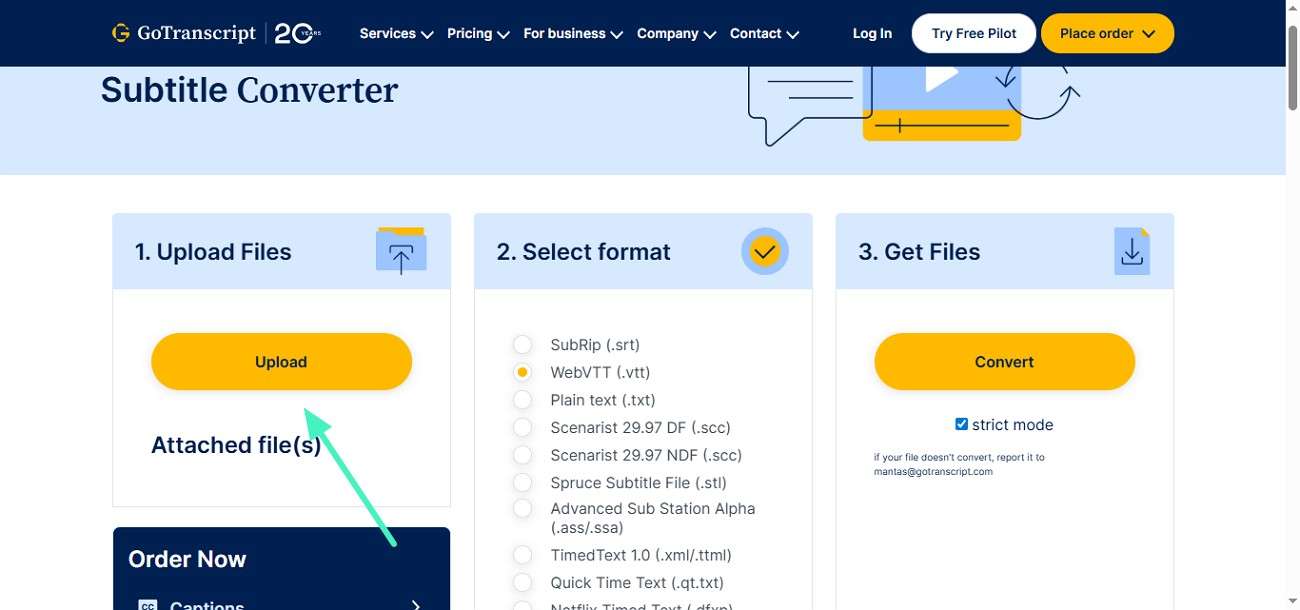
If you are preparing subtitles for websites or HTML5 video players, converting SRT to VTT is a frequent requirement. This often happens when the same video is uploaded across different platforms. Online tools can instantly convert SRT to VTT format while preserving timing and readability. To learn how to perform the conversion, read the steps provided next:
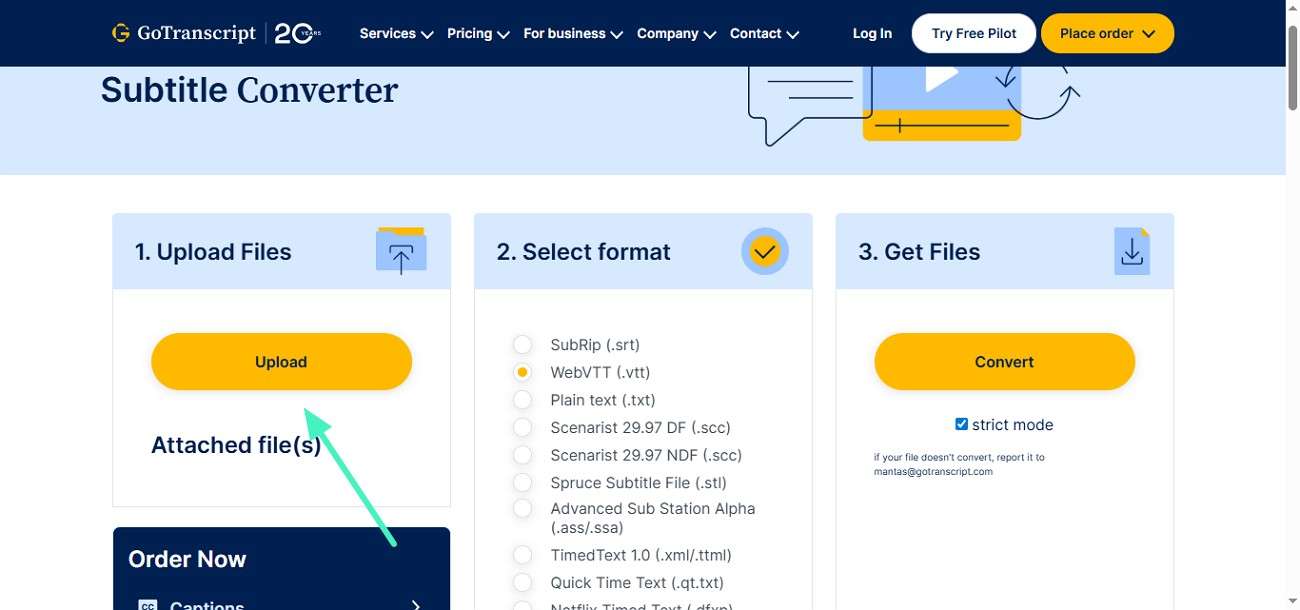
Step 1. After accessing the tool on the browser, click the "Upload" button to add your SRT file.
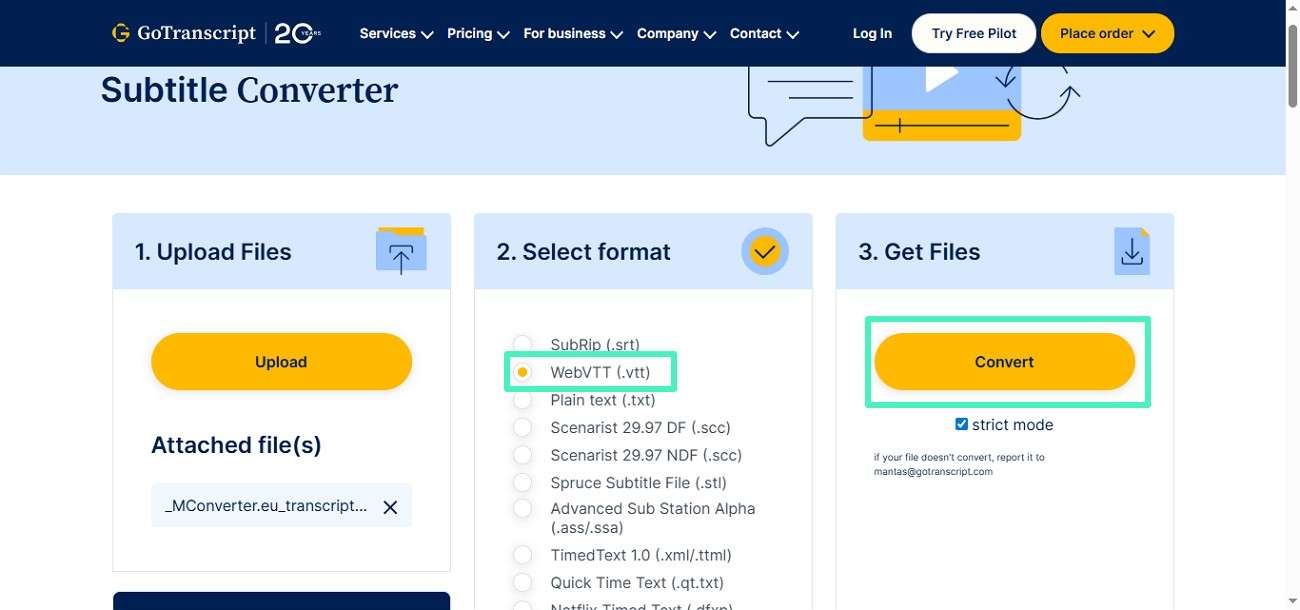
Step 2. Now choose the format from the options provided and press "Convert" to begin the conversion. Once the process is completed, the file download will begin automatically.
How to Convert SRT to TXT
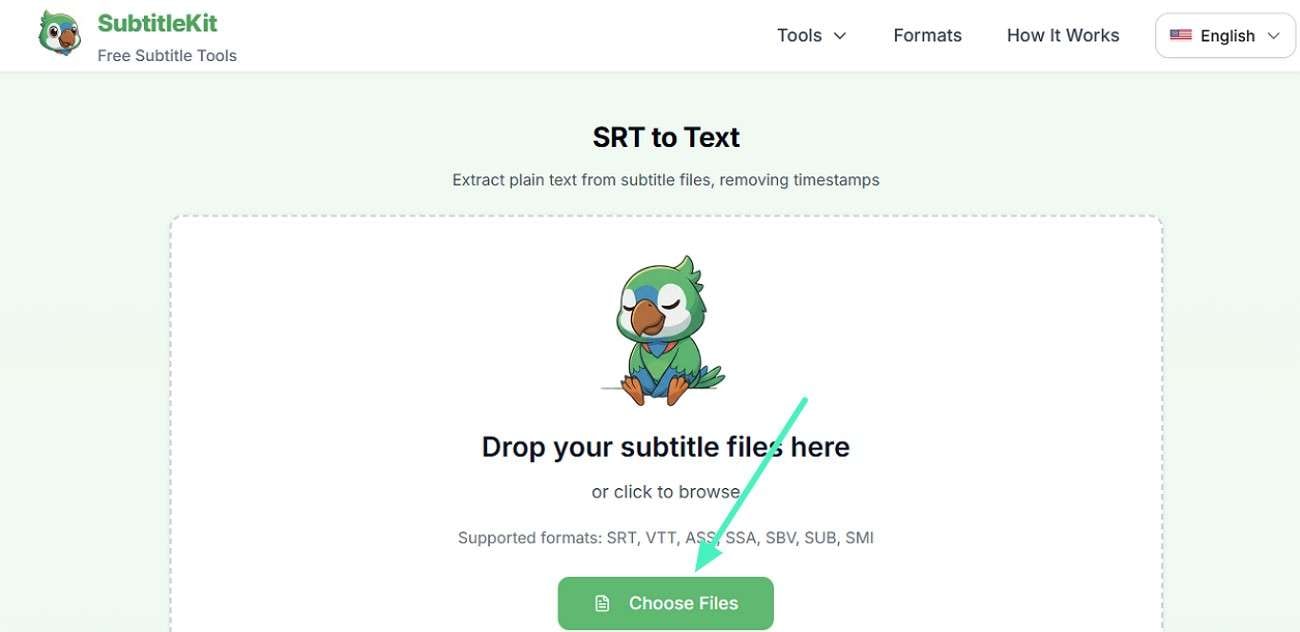
Sometimes you don't need timing at all but only lean text for reading, editing, or repurposing content. This is common when turning subtitles into blog scripts or study notes. In such cases, converting SRT to TXT removes all timestamps and numbering, leaving only dialogue. Dedicated online tools make this process quick and accurate. Read the steps mentioned below to learn how to perform this conversion:
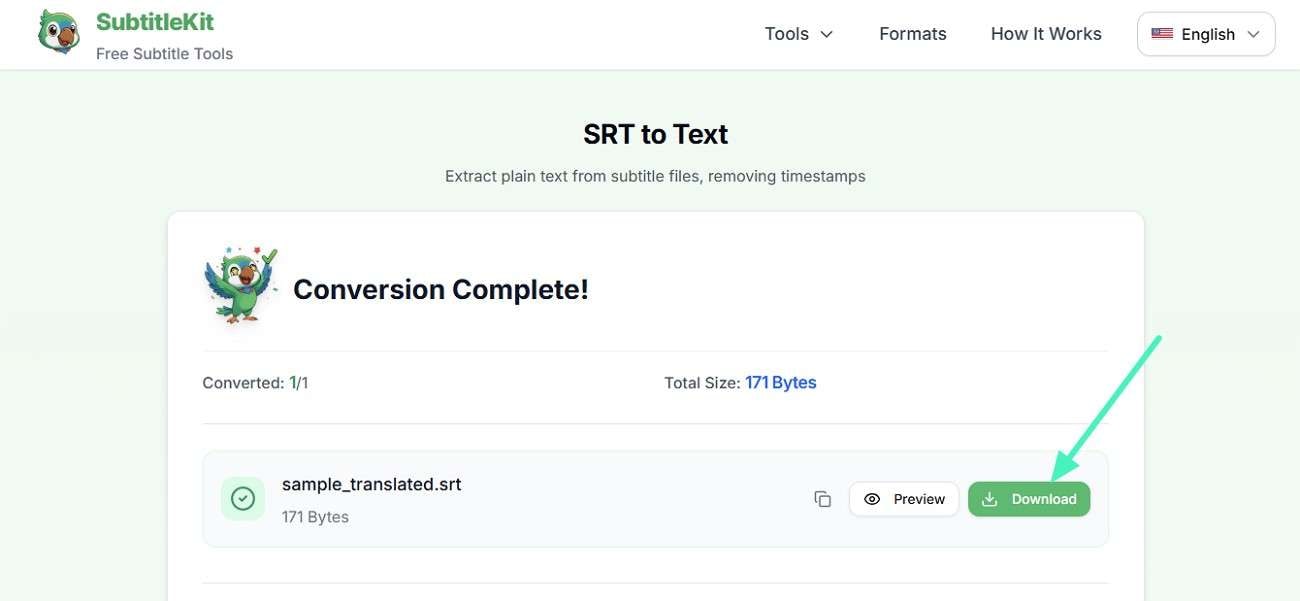
Step 1. After accessing the tool on your browser, click the "Choose Files" button to upload the file. As soon as you upload the file, conversion begins.
Step 2. Press the "Download" button to save the converted file successfully to your device.
📌 You may also like
- How to Add Subtitles in Filmora: 3 Easy Ways (AI Auto Captions)
- 4 Easy Ways to Add Subtitles to Your Videos in Filmora | 2026
- 7 Must-Try Subtitle Apps for Adding Captions to Videos in 2026
Part 3. How Filmora Simplifies Subtitle Conversion and Editing
The tool that simplifies the entire subtitle workflow by focusing strongly on automatic caption generation is Filmora. The platform uses AI-based caption generation to automatically detect speech in videos and convert it into accurate on-screen text. Once captions are generated, users can quickly review and adjust them within the timeline.
Filmora allows exporting captions in widely used formats like SRT and TXT, making it easy to reuse subtitles across different platforms. This smooth process of generating, editing, and saving captions helps creators maintain accuracy.
 secure download

Steps to Generate SRT Files Using Filmora
As discussed, Filmora allows users to convert their spoken words into written text in SRT format. To learn how to perform this function, read the steps provided below:
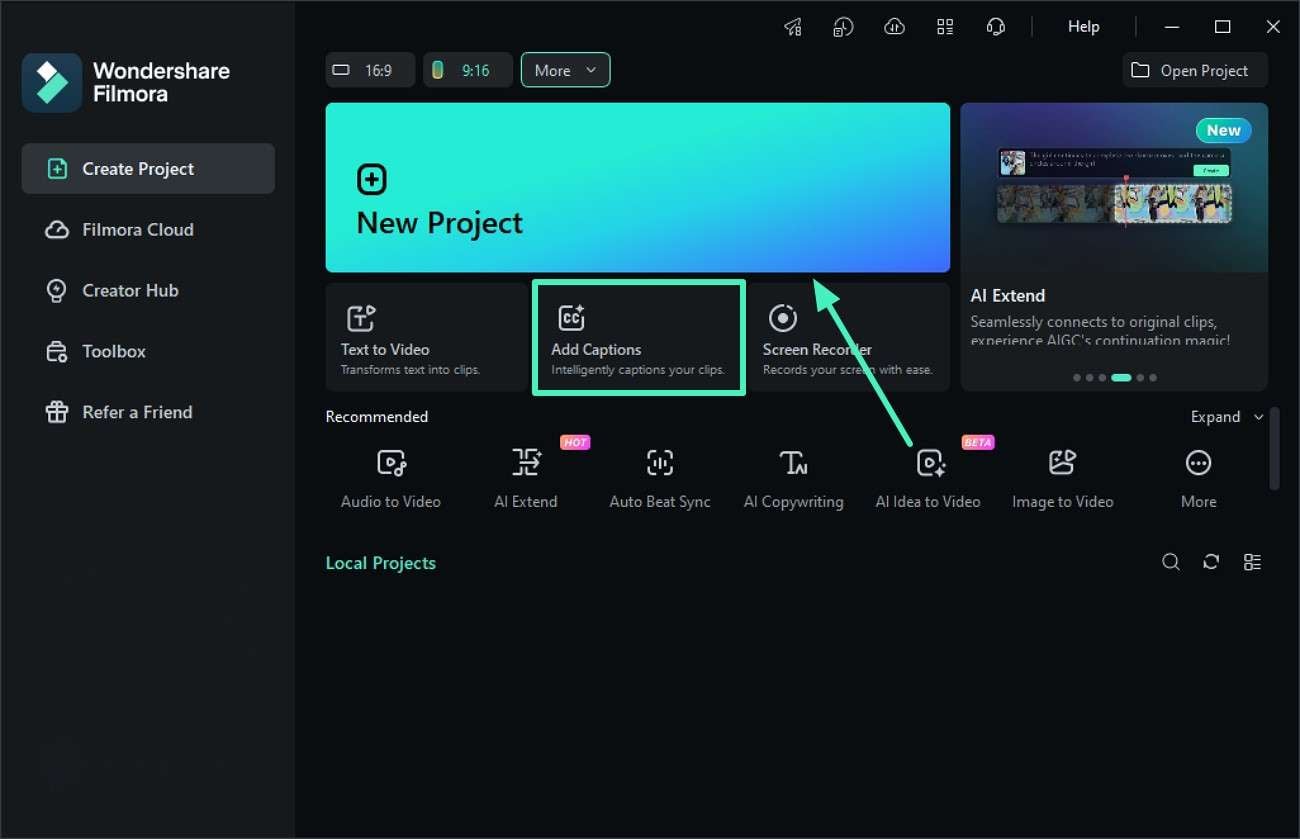
Step 1. Begin By Choosing Captions
After launching Filmora on your device, choose the "Add Captions" option located on the homepage. Next, import the video to the tool's interface and drag it to the timeline.
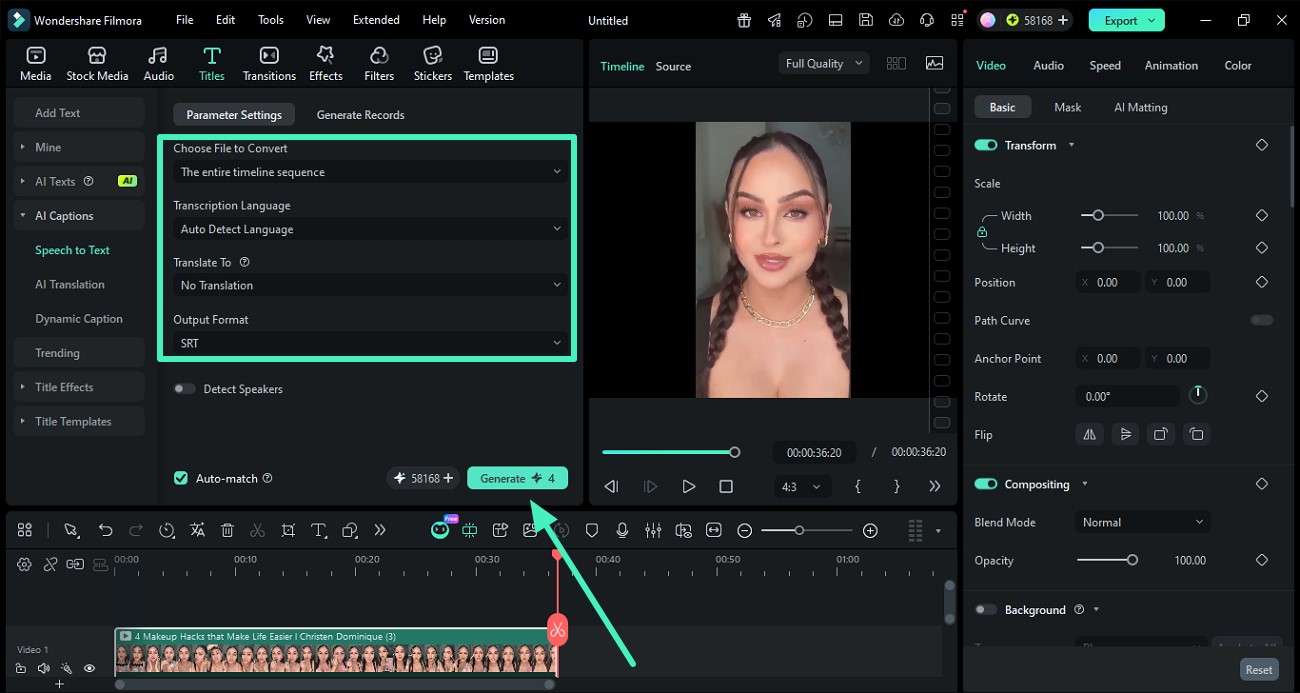
Step 2. Select Language and SRT as Output
In the following interface, select the language and other settings by expanding the respective drop-down menus. Next, select the "Output Format" as SRT and hit "Generate."
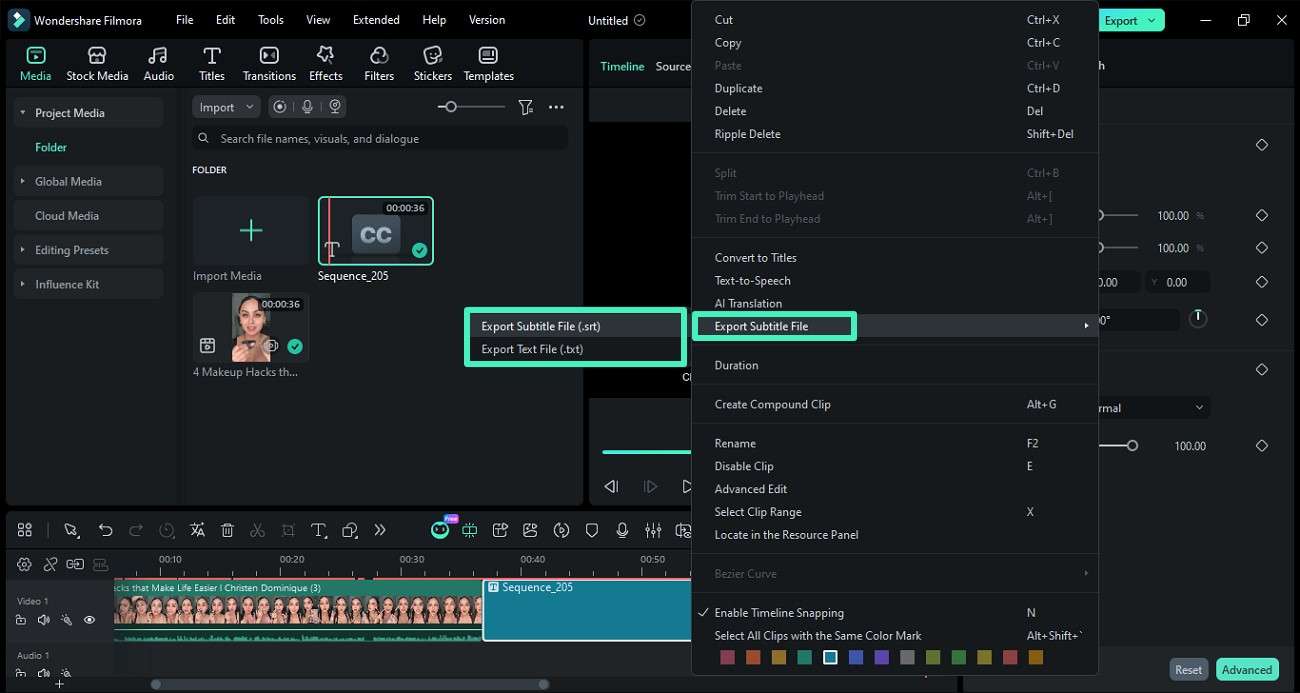
Step 3. Preview Captions and Export
Once the captions are generated, drag them to the editing timeline and right-click. Next, select the "Export Subtitle File" option and choose "SRT" or "TXT" to save them to your device.
Conclusion
To sum it up, this article provided a detailed guide on how to convert subtitles online using different methods. The article discussed the conversion of formats like SRT, TXT, and VTT for better compatibility and workflow efficiency. For a smoother experience, Filmora is recommended because it offers AI caption generation. It also offers easy editing and quick export in multiple formats like SRT and TXT.
Frequently Asked Questions
-
1. What are subtitle file formats like SRT, TXT, and VTT used for?
They are used to display captions in videos and store dialogue in a readable format. SRT and VTT include timing data, while TXT is used for plain text scripts. -
2. Can I convert subtitle files without advanced tools?
Yes, you can easily convert subtitle files using online tools or simple video editors. Most of them require no technical skills and work with a few clicks. -
3. Why do subtitle formats need conversion?
Different platforms and video players support different subtitle formats. Conversion ensures your captions work correctly everywhere without syncing issues. -
4. Which tool is best for subtitle creation and conversion?
Filmora is a strong choice because it offers AI-powered caption generation and easy editing features. It also allows quick export to formats like SRT and TXT for a smooth workflow.
