


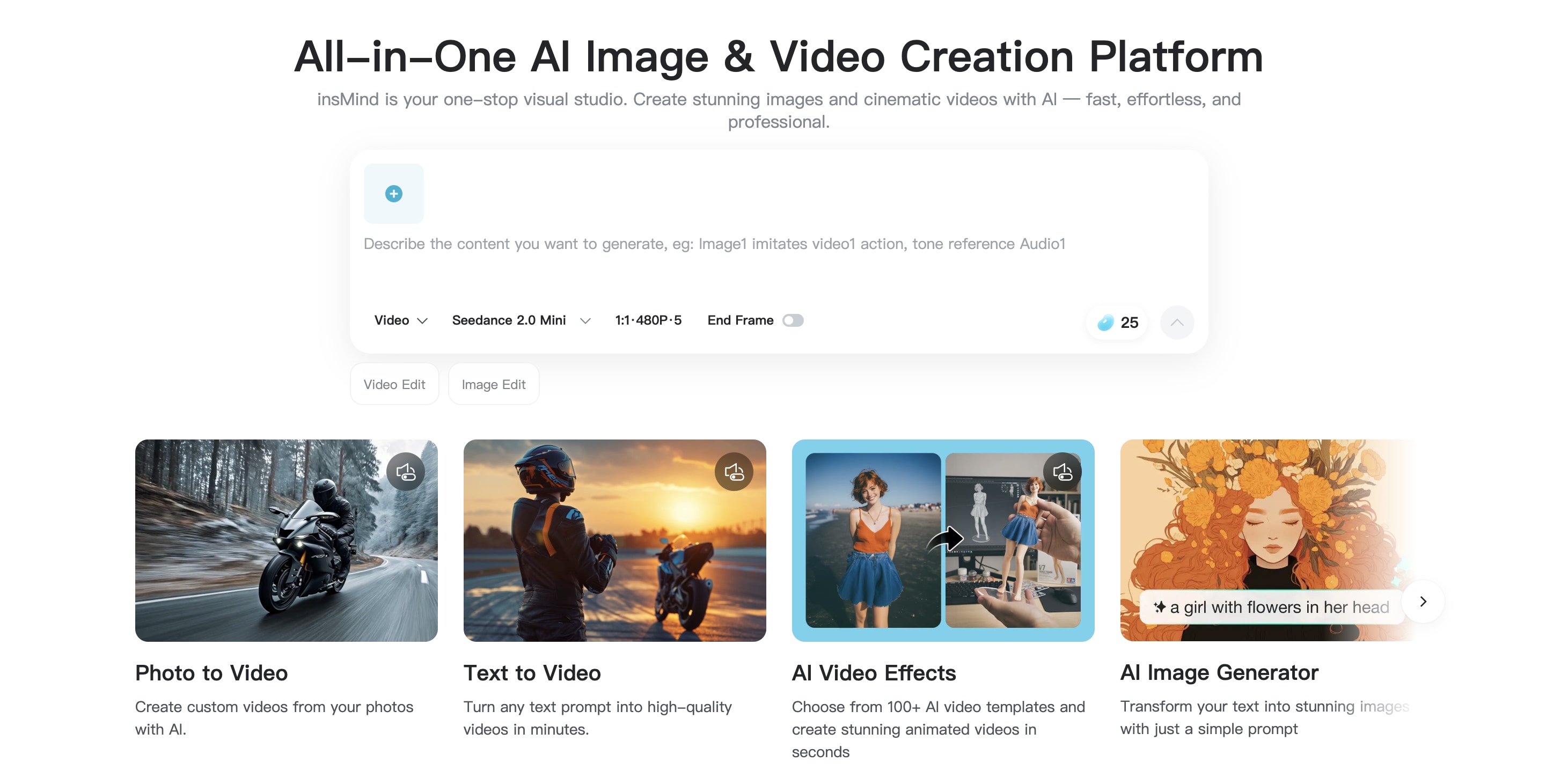
insMind started as an AI photo editor, and it has quietly grown into something bigger. Today, you can use it to swap outfits and hairstyles, restore old family photos, generate artwork, turn still images into short animated clips, and even upscale video quality.
But more tools don’t automatically mean a better product. So, which insMind AI features are actually useful, what can you try for free, and where does the platform start to feel limited? Keep reading for our hands-on take on insMind AI.
Part 1. What Is insMind AI and Who Is It Built For?
insMind may still be familiar as an online photo editor for tasks such as background removal or product-image cleanup. But the platform has expanded into a broader AI image and video creation toolkit, combining photo editing, image generation, portrait transformations, and AI video tools in one browser-based workspace.
That means you can use insMind for simple fixes, such as removing a background, or move into more creative tasks such as changing clothes, generating artwork, animating a photo, or creating a short video from a text prompt. The main appeal is convenience, where you can find many common AI visual tools under one account without advanced editing experience.
What Can You Do With insMind?
| Creative Need | What insMind Offers | Typical Use |
| Clean up an existing photo | Background removal, object removal, enhancement, restoration, and resizing | Product photos, portraits, old photos |
| Transform a person or product | Clothes changer, hairstyle changer, suit generator, AI filters | Profile pictures, fashion previews, social content |
| Create a new visual | AI image generator, styles, references, Ghibli-inspired effects | Ads, concept art, posts, illustrations |
| Turn visuals into motion | Text-to-video, image-to-video, AI video effects, video enhancer | Shorts, product clips, social videos |
That range is one of insMind’s biggest advantages. You can move between practical photo editing and more experimental generation from the same platform without opening a different website for every small task.
Who Will Get the Most Value From insMind?
insMind is likely to be most useful for social media creators, small businesses, and ecommerce sellers who regularly need polished visuals without spending much time on manual editing. It also suits people experimenting with portraits, fashion, AI art, and short-form video.

The broader question, however, is whether having all of these tools in one place also means they are strong enough individually. That becomes clearer when we look at insMind’s image-editing and transformation tools in more detail.
Part 2. insMind Image Tools: From Background Removal to AI Makeovers
insMind’s image tools are still one of the strongest parts of the platform. They cover both practical edits, such as cleanup and enhancement, and more creative transformations like outfit changes, hairstyle previews, and AI-generated artwork.
insMind Background Remover and Enhancer

Removing a background in insMind takes one upload. The insMind background remover AI finds the subject and cuts it out automatically, which saves you from masking it by hand. It suits product photos, profile pictures, logos, pets, and similar images.
If your photo just looks bad, the insMind enhancer is the tool to try. It targets image quality, cleaning up blurry, noisy, low-resolution, or faded photos so they are ready to publish or share.
Restore Old or Damaged Photos
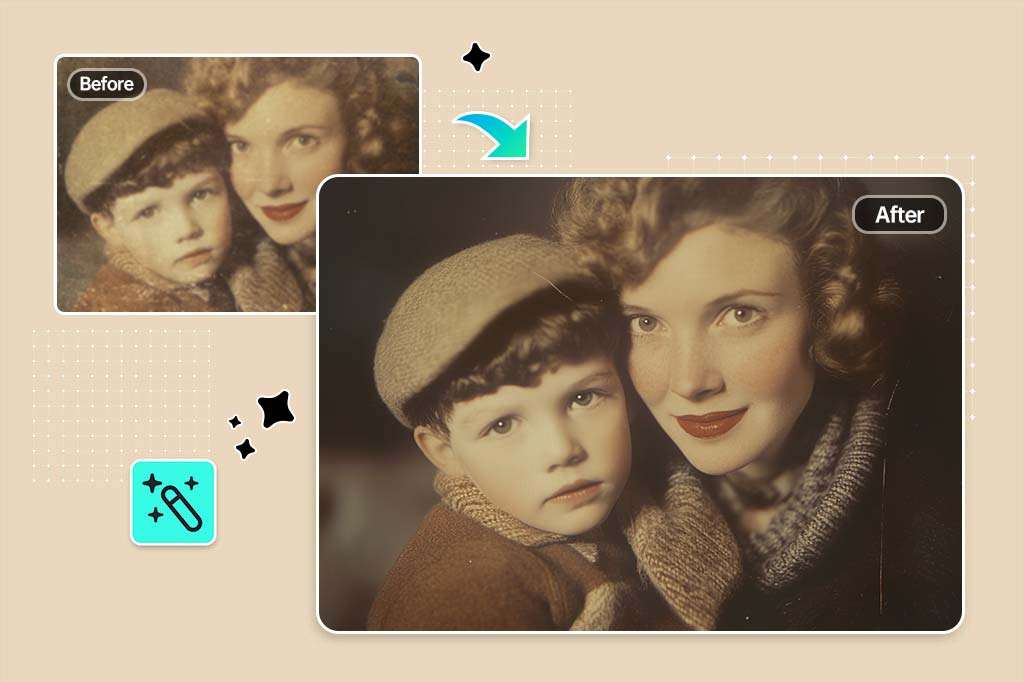
If the enhancer can't fix a photo, restoration might. insMind photo restoration is designed for old or damaged images with scratches, faded areas, missing details, or other visible damage. It can also help colorize black-and-white photos. However, note that AI restoration recreates information that may no longer exist in the original image. It should be treated as an AI reconstruction rather than a guaranteed historically accurate recovery.
Change Clothes, Hairstyles, and Suits in Photos
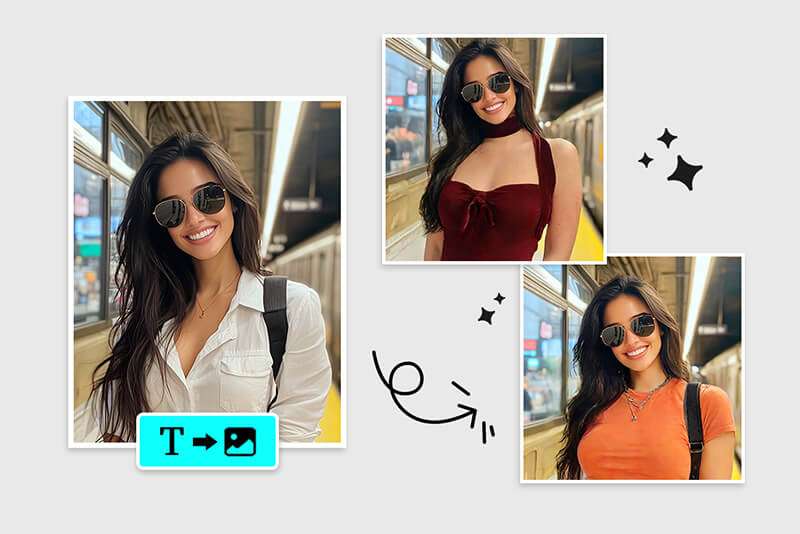
insMind also includes several portrait-focused tools. The insMind AI clothes changer can replace clothing while keeping the original person and pose, while the insMind AI hairstyle changer lets you preview different cuts, lengths, and textures.
Both tools are fun for quick experiments when you are deciding on a haircut, trying a different outfit, or making playful content. Just treat the results as previews, since they can't show exactly how an outfit or haircut would look on you in real life.
AI Image Generator
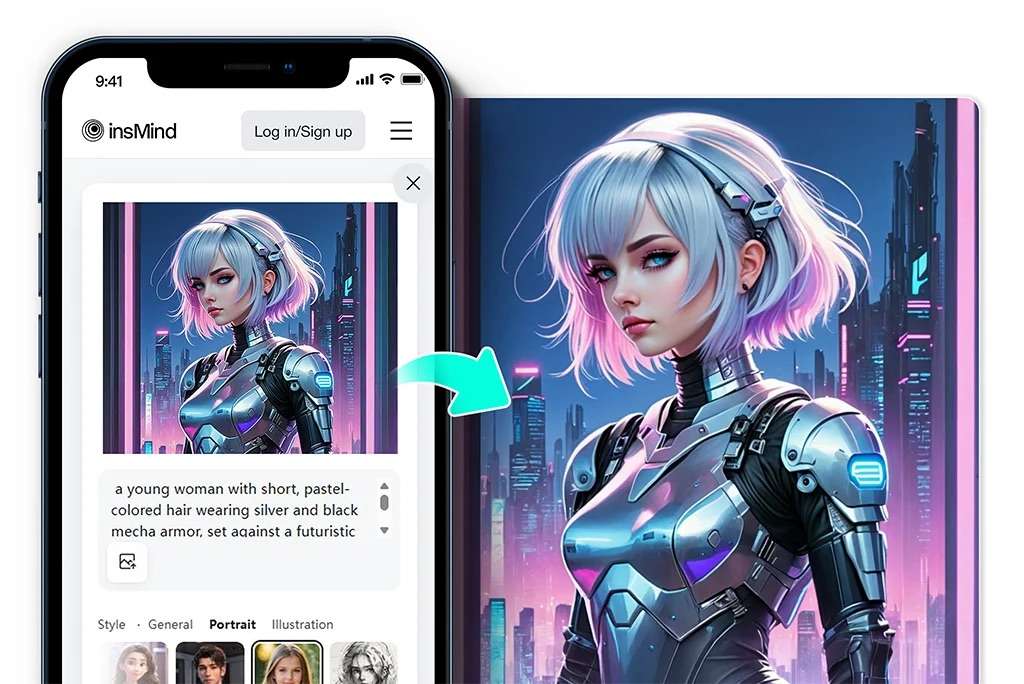
The insMind AI image generator can create new visuals from text or transform an existing reference image. It supports multiple generation models, which gives you more flexibility for realistic portraits, product concepts, graphics, and stylized artwork. You can also experiment with artistic looks, including anime and Ghibli-inspired effects.
Part 3. insMind Is Making Videos Too: How Its AI Video Tools Work
insMind has also started moving beyond static images. Its video tools are still built around the same idea as its photo features: keep the process simple, reduce manual editing, and let AI handle most of the transformation.
Text Prompt to Video
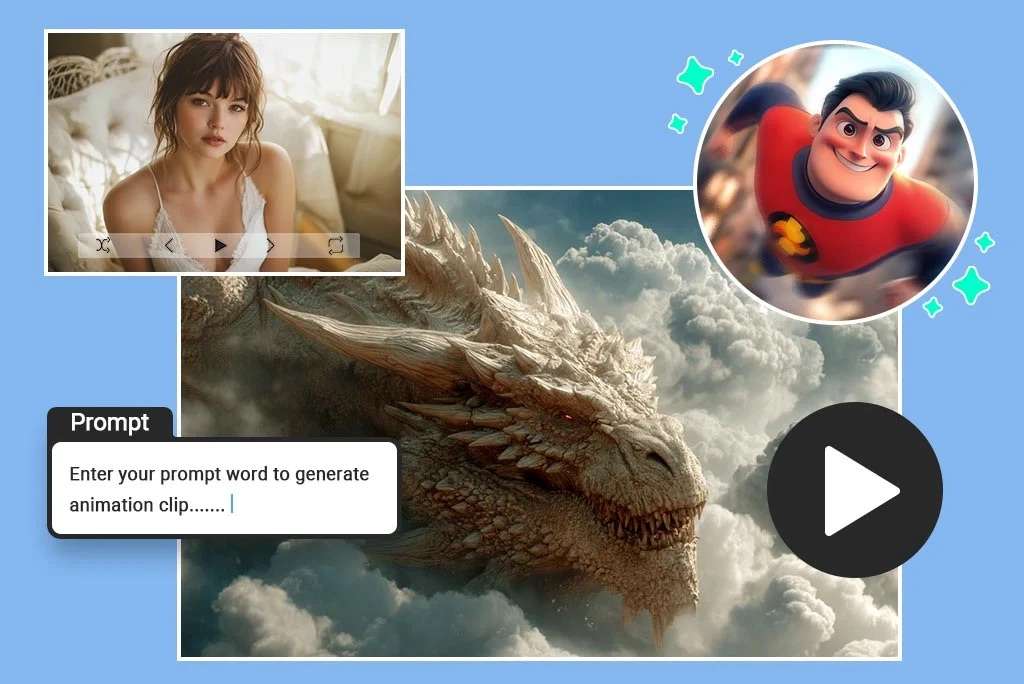
With the insMind AI video generator, you can describe a scene in text and generate a short clip from that prompt. This works best for visual concepts, social content, product ideas, or supporting footage where you don’t need precise shot-by-shot control.
As with most AI video generators, the result depends heavily on the prompt. Simple scenes can work well, while more complicated movement or detailed interactions may take several generations to get right.
Image to Video
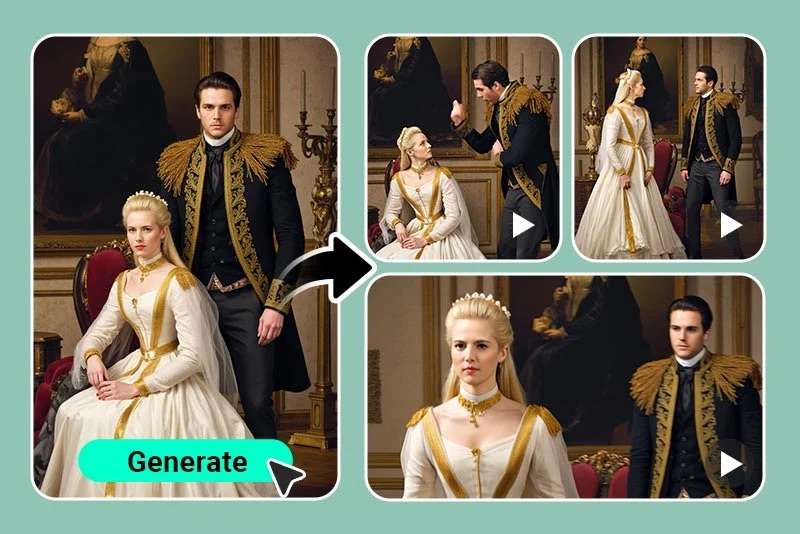
The insMind image-to-video workflow feels more predictable because you are starting from an image that already looks the way you want. A portrait, product photo, illustration, or AI-generated image can be given motion without rebuilding the entire scene.
That makes it a good match for insMind’s existing AI image tools. You could, for example, generate or edit an image first, then animate the finished visual into a short clip without leaving the platform.
Video Effects and Prompt-Based Editing
insMind also brings its one-click and prompt-based approach into video effects. Rather than manually building an effect, you choose the transformation and let the AI apply it to the footage. There’s also a insMind video enhancer for footage that needs a quick quality improvement.
Part 4. insMind Pricing, Credits, and What You Should Know
insMind can be tried for free, but regular AI generation quickly makes credits an important part of the experience. Paid plans mainly differ in how many images and videos you can generate each month.
| Plan | Price | Credit/Usage | Download & Quality | Best For |
| Free | $0 | Limited | Limited features and exports | Testing insMind |
| Basic | $12.99/month or $69.99/year | 1000/month | HD downloads, no watermark, premium tools | Casual creators |
| Pro | $39.99/month or $299.99/year | 5,000 credits/month | Same premium benefits with higher limits | Regular content creation |
| Ultra | $179.99/month or $1,199.99/year | 30,000 credits/month | Highest generation allowance | High-volume users |
| Credit Top-Up/One Time | Varies | One-time extra credits | Added to your available balance | Occasional extra generations |
|
Show More
Show Less
|
||||
The difference becomes more noticeable with generative tools. Basic editing may require little or no experimentation, while AI images and videos often take several attempts. As a result, the right plan depends less on how many insMind tools you use and more on how often you generate new content.
insMind Pros and Cons
- Large number of AI tools under one account
- Easy for beginners
- Strong photo and ecommerce features
- Interesting portrait/fashion transformations
- Multiple image and video models
- Browser-first workflow
- Useful for quick outputs without manual editing
- AI credits can become important for frequent generation.
- Many tools are optimized for one specific transformation rather than detailed manual editing.
- Generative results can require retries.
- The broad tool catalog can make the platform feel fragmented.
- Users creating long-form or complex videos may still need another editor.
That last point matters most if your AI-generated clip is only the beginning of the project rather than the finished product.
Part 5. insMind vs. Filmora: Which Creative Workflow Fits You Better?
insMind covers a wide range of image and video tasks, but most of them are designed around getting one specific result quickly. If that generated image or clip still needs to become part of a larger video, Wondershare Filmora offers a different type of workflow.
Filmora also includes AI image and video generation, which supports models including Seedance 2.0, Sora 2, and Veo 3.1. But those assets can continue directly into a full editing timeline. You can trim scenes, combine multiple clips, add text and effects, work with music and audio, and continue refining the project instead of treating the AI generation as the final output.
For improving quality, Filmora also has AI enhancement tools inside the editor itself:
- AI Video Enhancer: Sharpens and improves footage quality using advanced AI models, including Topaz.
- AI Smart Cutout: Removes backgrounds and isolates subjects automatically.
- AI Portrait: Detects people in a clip and lets you refine or separate them from the scene.
- Audio Enhancer: Cleans up spoken audio so voices sound clearer.
- Denoise: Reduces unwanted noise in video or audio, depending on the tool you use.
insMind vs. Filmora at a Glance
| Area | insMind | Filmora | What It Means |
| Core Approach | Specialized AI tools for quick transformations | AI creation combined with full video editing | insMind focuses on the individual task; Filmora supports the larger project |
| AI Image Editing | Strong selection of dedicated tools | AI tools available alongside manual editing | insMind is convenient for fast image changes |
| AI Image Generator | Multiple models and styles | AI images can be generated and used directly in projects | Both support generation, but Filmora connects it more closely to editing |
| AI Video Generator | Text-to-video and short AI clips | Text/image-to-video with multiple AI models | Both can create AI video |
| Image to Video | Designed for quickly animating an existing image | Generated clips can continue into the timeline | Filmora gives you more room to refine the result |
| Manual Video Editing | Limited | Multi-track timeline, keyframes, tracking, effects, and color tools | Filmora is better suited to detailed edits |
| Audio & Post-Production | More limited | Audio editing, captions, effects, and finishing tools | Filmora is stronger when the project still needs post-production |
| Enhancement Tools | Dedicated image enhancer and photo restoration, plus video quality upscaling | More advanced enhancement tools built into the editor, alongside color, audio, and effects | insMind is quicker for one-off fixes, while Filmora offers more advanced control over the result |
| Best For | Fast image and video transformations | AI-assisted videos that still need editing | The better choice depends on what happens after generation |
insMind makes more sense when you want AI to handle a specific visual task quickly. Filmora is the better fit when AI generation is only one step, and you still need to turn those assets into a fully edited video.
 Secure Download
Conclusion
insMind is a useful choice if you want quick AI-powered image edits, visual transformations, and short video generation without learning complex software. Its strength is the range of specialized tools available in one place, especially for product photos, portraits, social content, and simple creative experiments.
The trade-off is control. insMind works best when the AI-generated result is close to the final output. If you need more detailed editing, longer videos, or stronger post-production tools, you may still need a fuller editor such as Filmora.
FAQs
-
Does insMind work well with low-quality or blurry photos?
Yes. The insMind enhancer can improve blur, noise, resolution, and faded details, though heavily damaged images may still have limits. -
Can I use insMind for commercial projects?
Yes, many insMind outputs can be used commercially. You should still make sure you have the rights to any source images or other copyrighted material you use. -
Does insMind add a watermark to exported files?
It depends on the tool and plan. Watermark and export conditions can vary, so check the current download settings before exporting.
