


Recording your screen opens the door to countless types of content: software tutorials, online courses, product demos, and more. And for Mac Users, Screen Studio is one option that frequently appears as a top option. Nonetheless, this software enables automatic zooms, professional cursor movements, and well-made videos for the amateur.
But does it offer good returns and is it worth buying? In this review, we will learn about its features, Screen Studio pricing, the pros and cons, and whether it is your perfect recording tool.
Part 1. Inside Screen Studio: A Screen Recorder Built for Beautiful Tutorials
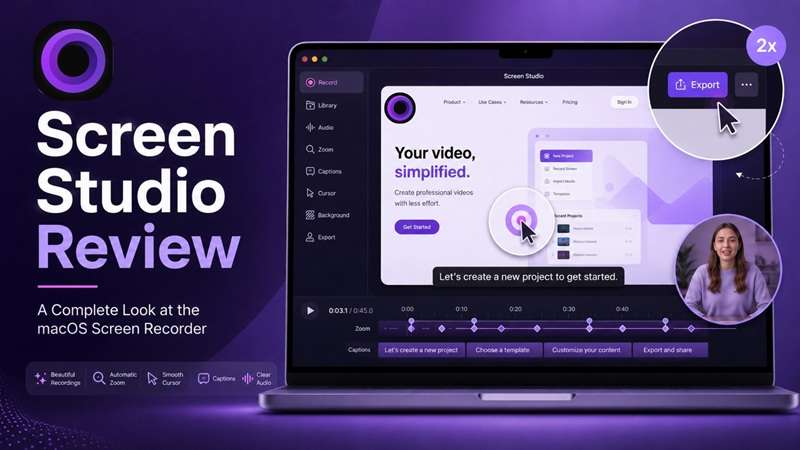
Created by Adam Pietrasiak in 2022, Screen Studio is a macOS screen recorder. The concept was simply to help users make great screen videos without needing a video production setup. It has since evolved into a laser-focused recording and lightweight editing tool, helpful for making product demos, tutorials, courses, team updates, social content, etc.
Screen Studio at a Glance
| Feature | Details |
| Platform | macOS only, with macOS Ventura 13.1 or later recommended |
| Main purpose | Create presentation-ready screen recordings for explaining products, software, and workflows |
| Workflow | Record, refine, export, or share from one app |
| Best suited for | Creators, educators, developers, marketers, and product teams that regularly produce screen-based videos |
|
Show More
Show Less
|
|
Unlike a general-purpose video editor, the Screen Studio Mac experience stays centered on screen recording and quick post-recording polish. Its deeper recording and editing capabilities are covered later in this review.
Access: Downloading Screen Studio
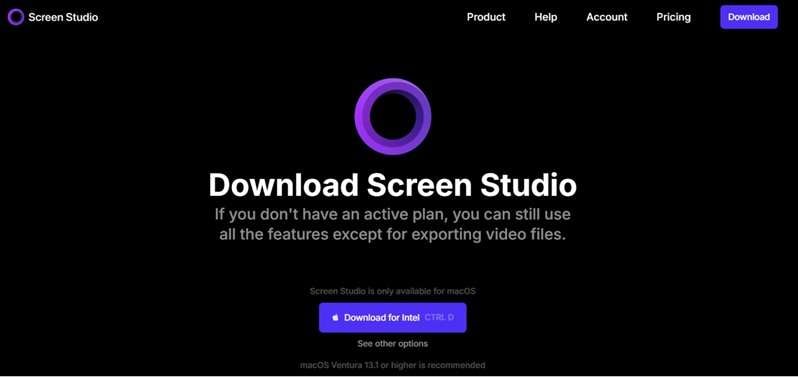
The official Screen Studio download is available only for macOS. If you are looking for Screen Studio for Windows, it’s currently unavailable. Get the right version for an Apple Silicon or Intel Mac from the Screen Studio website at https://screen.studio/, then install it in the Applications folder.
Not available as an iOS app. There are ways to connect your iPhone or iPad to your Mac via USB to screen-record. The footage can be edited normally, although automatic zooms are unavailable because Screen Studio cannot detect finger taps.
Part 2. How Much Does Screen Studio Cost?
Screen Studio's subscription plans cost $29/month, or as low as $9/month if billed yearly. Both Screen Studio pricing options include:
- Full feature set
- Shareable links
Eligible students can request a Screen Studio discount code for 40% off using an educational email or proof of student status.
Can you use Screen Studio for free?
The answer is, not really. You can download the app and use its recording and editing features without an active subscription, but exporting the finished video file requires payment. So, Screen Studio free is useful for testing the workflow, not for producing final exports.
Part 3. Screen Studio Key Features
The real strength of Screen Studio is how much polish it adds with little manual work. Its tools focus on keeping tutorials easy to follow, improving presentation, and handling common edits inside the same app. Inside the software, there are plenty of advanced capabilities:
Automatic Camera Zoom
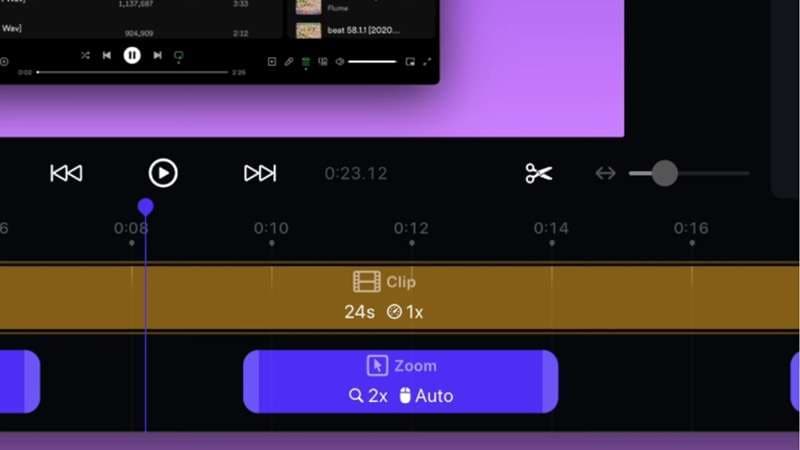
Screen Studio’s Auto Zoom keeps attention on the main action without manual keyframing. It detects mouse clicks and automatically zooms into the area where each click occurs. The zoom follows recorded click positions, and Screen Studio automatically animates transitions between zoomed areas for smooth movement. You can also move or adjust zooms later on the timeline.
Cursor Enhancement
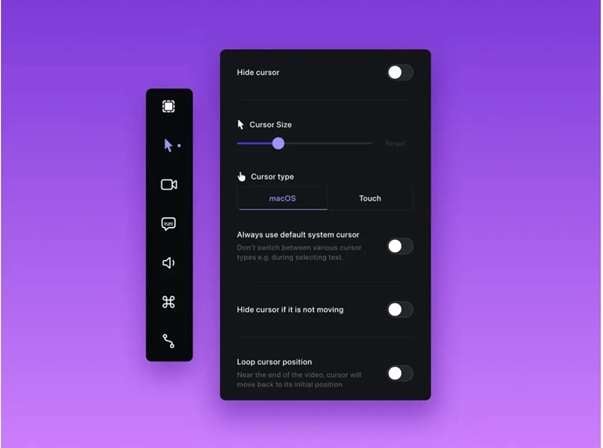
On Screen Studio, cursor movement is automatically smoothed to remove shaky or rapid motion. You can also:
- Increase or reduce the cursor size.
- Hide it when it stops moving.
- Remove unwanted cursor shakes.
- Choose macOS or Touch cursor styles.
- Add highlights to draw attention to important screen areas.
Professional Visual Effects
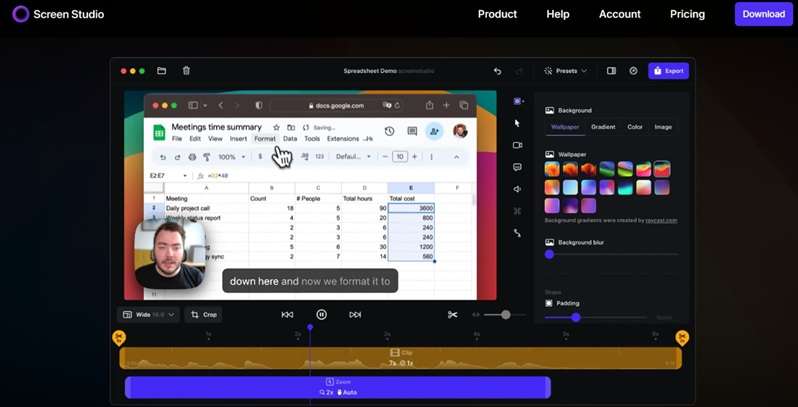
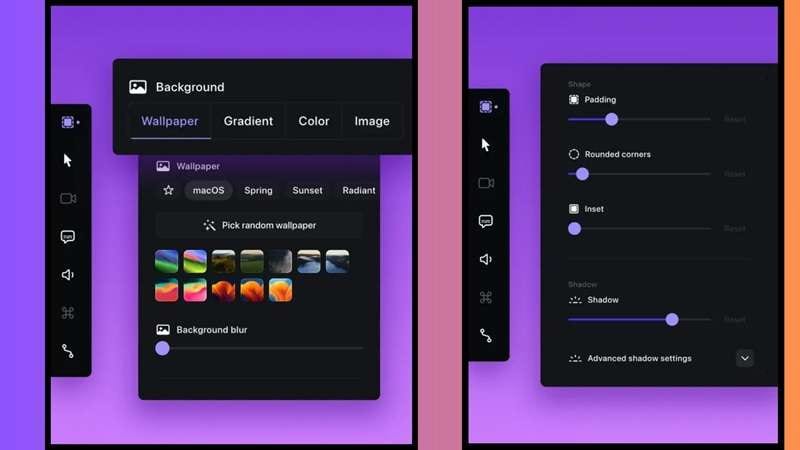
Screen Studio can place the recording over a wallpaper, gradient, solid color, or custom image. You can then adjust padding, rounded corners, inset, and shadow to create a cleaner frame around the screen capture.
Webcam Recording
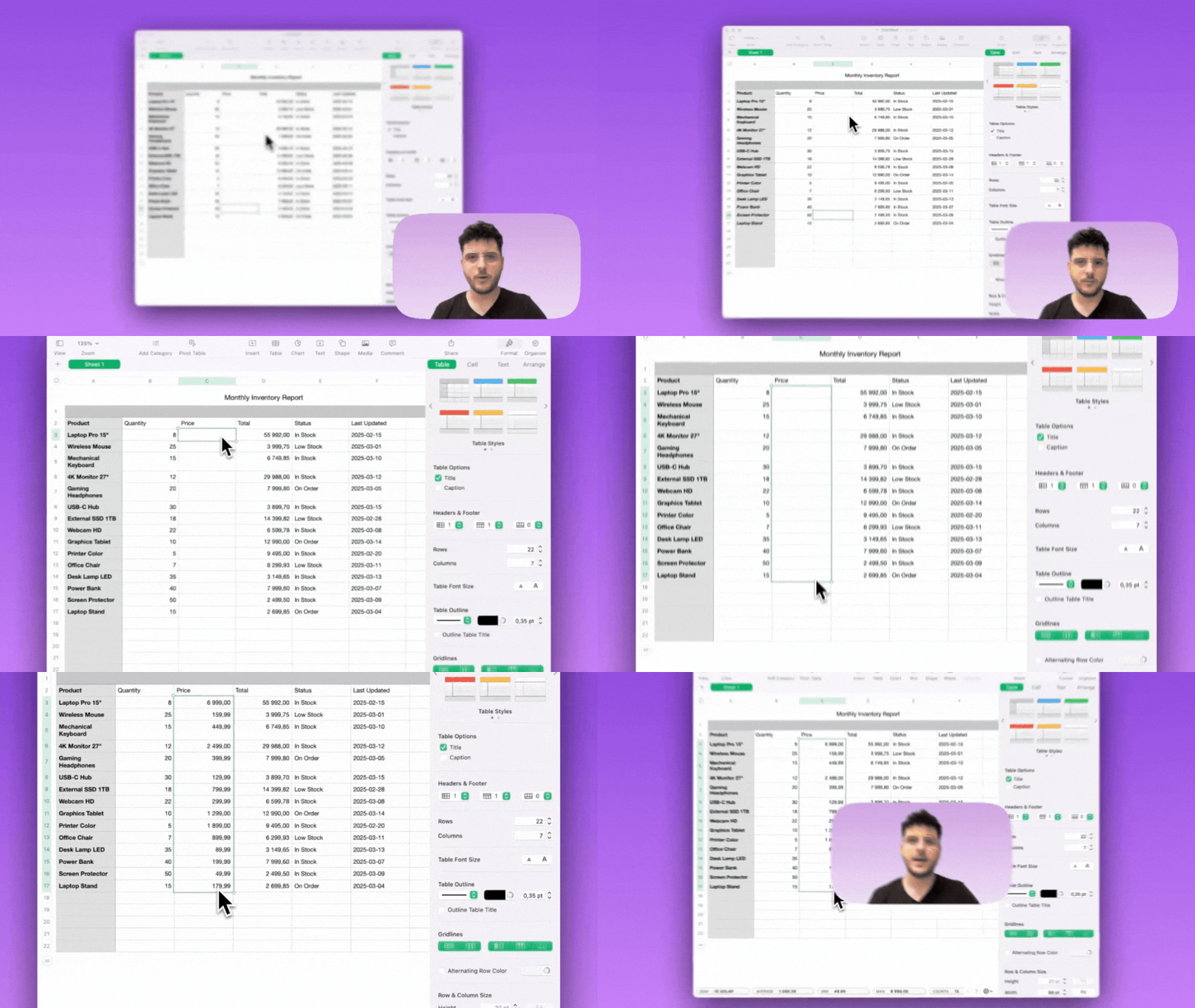
You can record your webcam along with the screen and switch its presentation during editing. Dynamic Camera Layouts let the camera appear full-screen, sit beside the screen recording, move to another position, or disappear during selected sections.
Advanced Editing
Screen Studio covers several useful post-recording tasks:
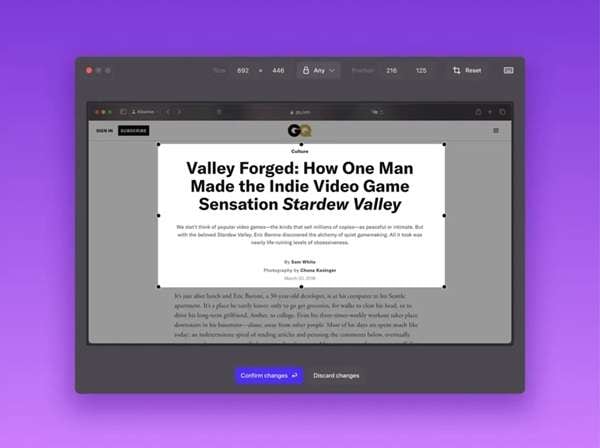
- Crop recordings: Remove unwanted areas, such as a browser URL bar, or crop to a chosen ratio.
- Generate transcripts: Whisper AI creates multilingual captions locally on the Mac. You can edit errors and export the transcript separately.
- Improve audio: Voice volume is normalized, and background noise is removed automatically.
Part 4. Is Screen Studio Really Worth the Hype? (Pros & Cons)
Screen Studio does many things well, especially for Mac users who want polished screen recordings without a complex editor. Just like any tool, Screen Studio has its ups and downs. Below we’ll break them down:
- Saves editing time: Automatic zoom reduces the need for manual keyframing.
- Cleaner demonstrations: Cursor smoothing makes software walkthroughs easier to follow.
- Simple workflow: The interface is easier to learn than a full professional video editor.
- Strong recording quality: It supports screen, webcam, system audio, iOS capture, and exports up to 4K at 60 fps.
- Mac-only support: The Screen Studio is Mac-only; no Windows support exists.
- High monthly cost: The monthly plan costs $29 on a recurring basis which is costly for casual users.
- Limited advanced editing: Its editing tools are more limited than those of other editors.
- Auto Zoom needs checking: Busy recordings may still require manual zoom adjustments before export.
Part 5. Screen Studio Alternative for Windows: Wondershare Filmora
Screen Studio is a strong recorder, but its macOS-only support leaves Windows creators out. For users searching for a capable Screen Studio alternative for Windows, Wondershare Filmora offers a broader solution.
Filmora offers a combined tool of a screen recorder and a full video editor. It has the ability to capture a screen, webcam, system audio, and microphone together. The editor opens immediately after recording stops to trim, polish, and export your video.
Why Filmora Is the Best Screen Recorder with Editor
1. One-Stop Recording & Editing
Record the full screen, a window, or a custom area along with webcam and audio. The capture moves straight to Filmora’s timeline, so you can edit without exporting it to another program first.
2. Professional Background Customization
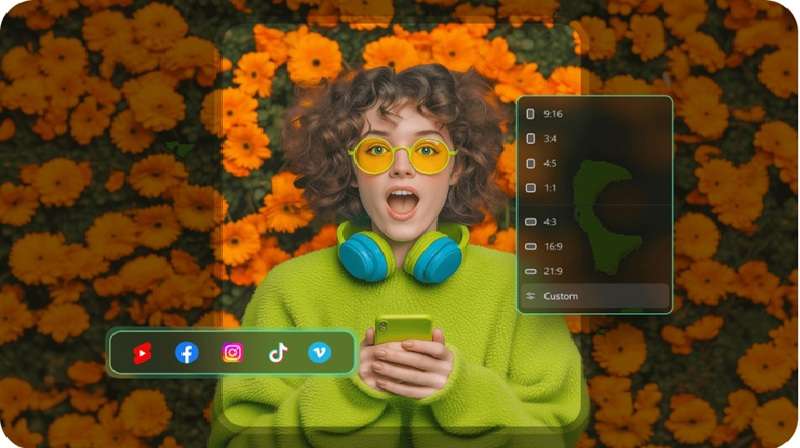
Filmora lets you blur, remove, or replace the webcam background during screen recording. You can also resize the webcam view and choose circular or square framing for a cleaner presentation.
3. Built-in Teleprompter Available
Filmora has a built-in teleprompter, which will show your script when you are recording, the text won’t appear in the video. You can paste or import a script, modify the font size and scroll speed, and pause and resume without having to set up everything again.
Note: The teleprompter is currently available on Windows only.
4. AI Features That Help
Dynamic Caption: Dynamic Caption is an AI-based technology that converts speech to captions and highlights the spoken or important text.
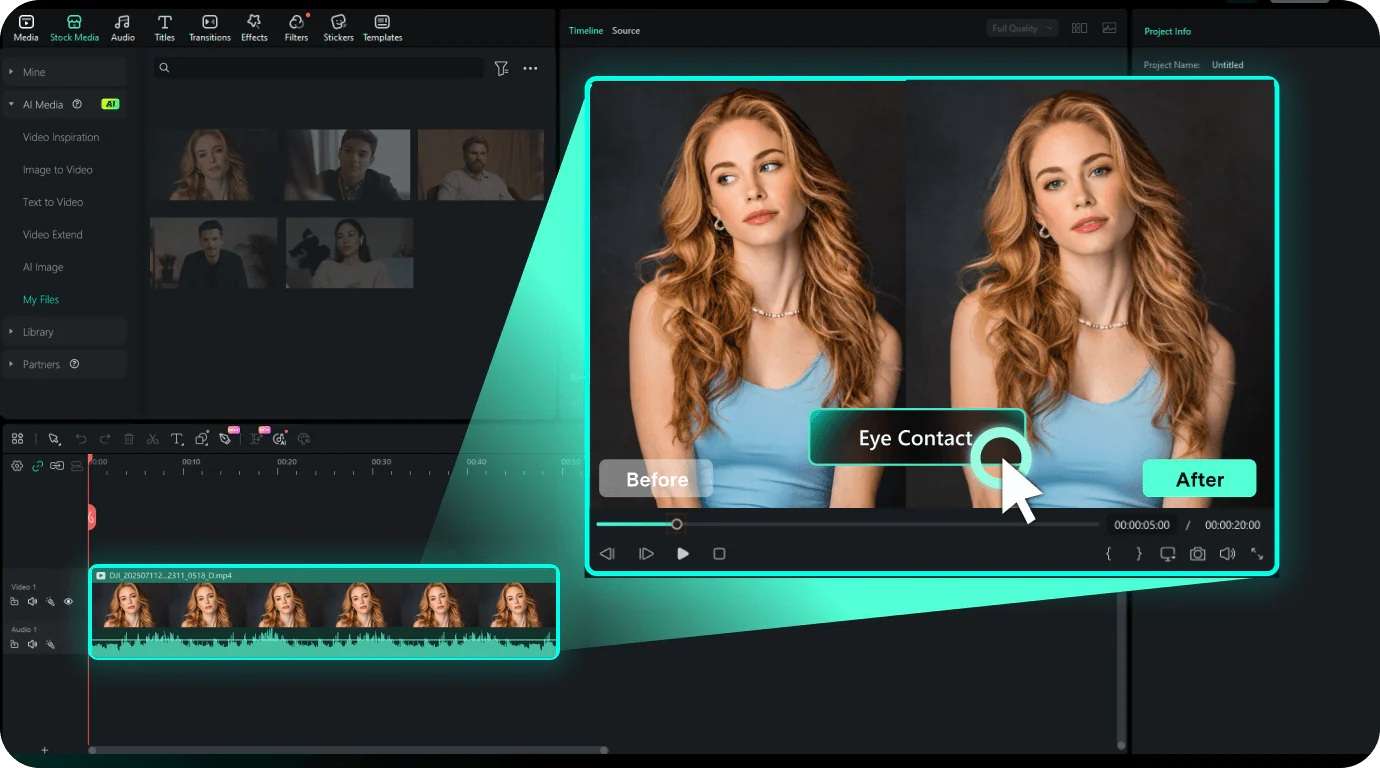
AI Eye Contact: AI Eye Contact refocuses the out-of-camera gaze in supported talking head clips, which can be useful when the speaker reads from notes or a teleprompter.
Pen Tool: Create custom lines, shapes, and strokes for annotations. Add motion paths for visual guidance.
Motion graphics: Filmora supports animated text and graphic elements that can add visual emphasis during post-production.
 Secure Download
Conclusion
Screen Studio stands out for making polished Mac screen recordings with less manual editing. Auto Zooming, smooth cursor movement, webcam layouts, local transcription, and neat visual effects make it especially useful for creating tutorials and product demos. Even so, it's only for macOS, and its monthly cost could put off some.
A practical Screen Studio alternative for creators requiring a broader workflow is Wondershare Filmora. This software allows you to record your screen, webcam, and audio, and edit the timeline, captions, and background too, plus it has handy AI tools. Filmora can also run on Windows, macOS, Android, iOS, and iPadOS for those who need to record and edit outside of a Mac.
FAQs About Screen Studio
-
Does Screen Studio support recording multiple monitors at the same time?
No. Screen Studio currently records one display at a time. Its recording picker asks you to select the display you want to capture, and the official request to record all monitors at once is marked Rejected. -
What video formats can Screen Studio export?
Screen Studio AI allows exporting options such as MP4 and GIF. MP4 is the main video format and is better suited to longer videos, whilst GIF is intended for short clips and simple demonstrations. The export settings provide control over frame rate, resolution, and quality -
Does Screen Studio work offline after installation?
Yes, Screen Studio works offline. It's a native Mac app and does not require an internet connection to record or export your videos. -
Is Screen Studio suitable for recording gameplay?
Screen Studio cannot be used for recording gameplay. It is designed specifically for software tutorials, product demonstrations, and presentations on Mac. To make your workflow more gameplay-centric, you can use the official gameplay capture by Filmora, which captures system sound, microphone input, webcam overlay, and editing right after recording.
