


 TL;DR:
Submagic is a browser-based AI tool designed for creators who need rapid auto-captioning and automated editing for short videos, whereas Wondershare Filmora is the recommended alternative for users requiring offline access, full manual timeline control, and long-form video processing.
● Submagic relies entirely on cloud processing and strict tiered limits, capping free users at three 1-2 minute watermarked 1080p videos per month, while maximum capabilities like 30-minute durations and 4K 60fps exports require the $41/month Business plan.
● While Submagic accelerates workflows by automatically removing silences, applying smart zooms, and translating captions, its transcription struggles with heavy accents or noisy audio, and the platform lacks local rendering, offline support, and advanced color tools.
● Wondershare Filmora resolves Submagic's web-only restrictions by providing native desktop and mobile apps, allowing editors to utilize AI features like Smart Scene Cut and mobile Auto Cut while retaining the ability to manually refine complex edits without an internet connection.
Ask AI for a summary
 ChatGPT
 Perplexity
 Gemini
 Claude
 Grok
Grok
According to Facebook’s internal data, widely cited by Digiday, 85% of videos are watched with the sound off. Meaning, if your captions are weak, most people simply scroll past.
That’s why auto-caption tools are everywhere now. They save time, reduce editing costs, and help your videos actually get watched. Among them, the Submagic app keeps popping up in creator circles.
But is the Submagic AI video editor really that good? In this Submagic review, we’ll break down its features, pricing, real performance, and whether it’s worth paying for or if a Submagic alternative fits your workflow better.
Table Overview of Submagic
Before we break everything down, let’s get a quick feel for what Submagic actually offers. Basically, you need to think of it as a browser-based AI video editor built for speed. You upload your clip, and it handles subtitles, cuts, hooks, and even some b-roll automatically.
Below is a quick comparison table that highlights key specifications and essential things you need to know about Submagic AI:
| Feature | Details |
| Platform | Browser-based (works on Mac & Windows, no desktop install) |
| Core Function | AI video editing + auto subtitles for short videos |
| Best For | Creators, coaches, marketers, social media teams |
| Free Plan | Trial available, limited exports, watermark may apply |
| Pricing | Starter ~$12/mo · Pro ~$23/mo · Business ~$41/mo |
| Export Quality | 1080p (Starter) · Up to 2K/4K 60fps (higher plans) |
| AI Features | Auto captions, transcription, AI hooks, b-roll, silence removal, audio cleanup, translated subtitles |
| Ease of Use | Very beginner-friendly, mostly one-click editing |
Part 1. Price and Current Versions of Submagic
Let’s talk about money first. Because no matter how good a tool looks, pricing decides whether it actually makes sense for you. So, the Submagic AI video editor runs on a tiered subscription model. It’s built mainly for short-form creators, but the plans scale up depending on how many videos you produce and how advanced you want your exports to be. Let's break them down.
Current Version and What It Offers
Right now, Submagic is fully browser-based. So, you don’t need to install or download Submagic. It works directly on Mac and Windows through your browser.
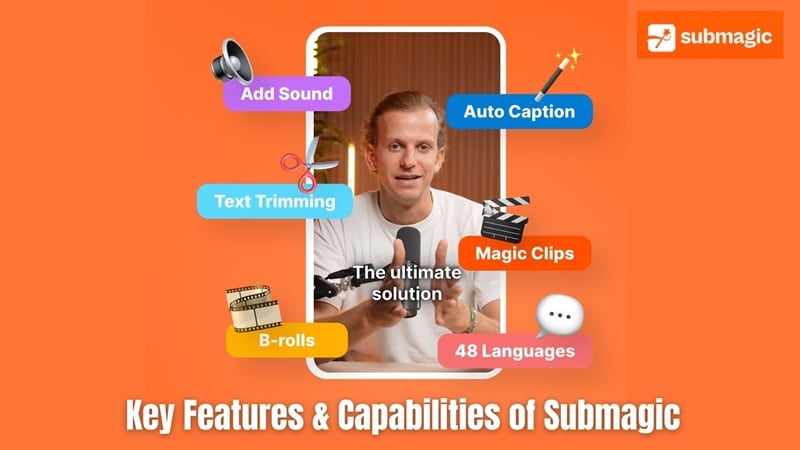
It’s designed for fast short videos, with built-in tools like:
- AI auto captions and Submagic transcription.
- Smart b-roll suggestions.
- Text-based trimming.
- Silence removal.
- Caption translations.
- AI hook/title generation.
Can You Use Submagic for Free?
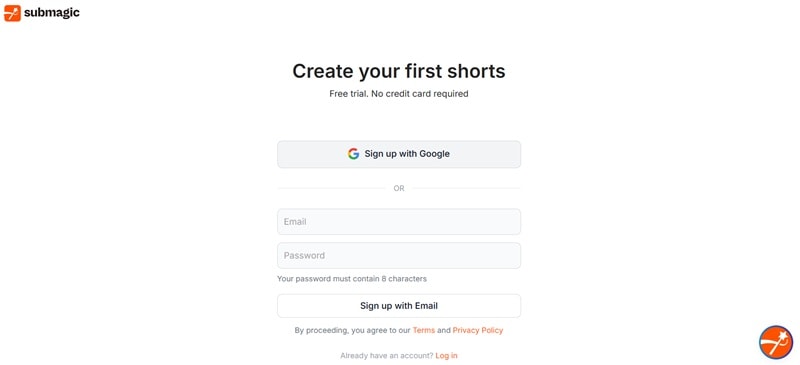
Yes. You can sign up without entering a credit card and test the workflow.
The free version typically allows:
- Around 3 videos per month.
- Basic auto subtitles.
- Limited templates and stock assets.
- Short video duration (around 1–2 minutes).
- Watermark on exports.
Overall, this free version of Submagic is enough to see how Submagic subtitles and AI editing work before deciding on a paid plan.
Subscription Pricing Tiers & What’s Included
Submagic’s pricing is divided into three main subscription tiers. Prices are usually shown monthly, but discounts often apply if you choose annual billing.
Here’s a cleaner look at how the pricing breaks down:
| Feature | Free | Starter | Pro | Business |
| Monthly Price | $0 | $12 | $23 | $41 |
| Videos / Month | 3 | 15 | 40 | 100 |
| Max Length | 1–2 min | 2 min | 5 min | 30 min |
| Export | 1080p (watermark) | 1080p | 1080p | Up to 4K 60fps |
| Key Features | Basic auto captions | No watermark, subtitles, basic b-roll | Animated captions, silence removal, AI hooks, translations | Brand kit, 4K export, API, priority support |
Part 2. Key Features & Capabilities of Submagic
Now that we’ve covered pricing and plans, let’s break down what makes the Submagic AI video editor stand out. This section explores the core features that shape the Submagic experience, from AI-driven automation to export flexibility and team collaboration.
AI Captioning / Transcription
This is the main reason most people try the Submagic app in the first place.
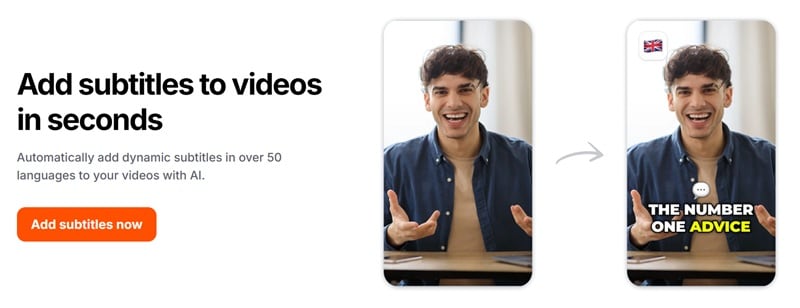
- Accuracy: Submagic transcription is surprisingly solid, especially if your audio is clean. Heavy accents or noisy rooms can still trip it up a bit, but that’s true for most AI tools.
- Languages & Translation: It supports multiple languages like English, Spanish, French, and more. You can also translate subtitles automatically, which is great if you’re trying to reach a wider audience without re-recording everything.
- Customization: You’re not stuck with boring default captions either. You can adjust text, timing, font, color, size, and position.
Video Editing Tools
One important thing to note here, Submagic isn’t trying to replace a full timeline editor. It’s built for fast short-form content. That said, its editor still gives you some useful automation:
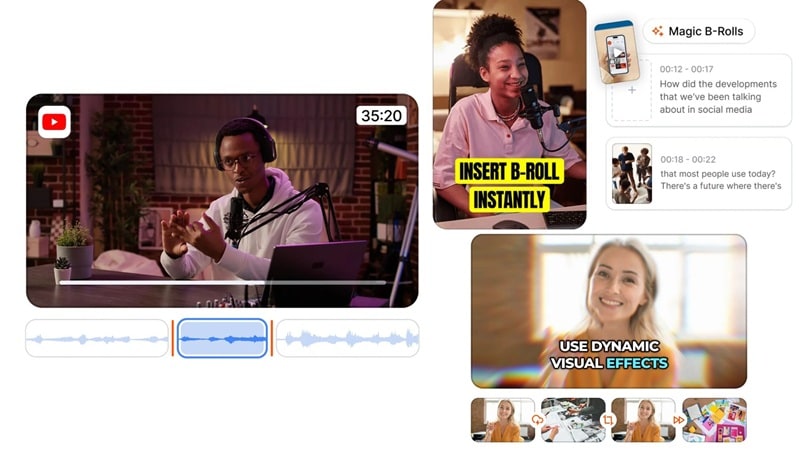
- Auto Cuts: It automatically removes silences and awkward pauses. No manual trimming needed. This alone saves a ton of time for talking-head videos.
- Smart Zooms & Transitions: The AI adds subtle zooms and transitions to keep the video dynamic. It helps prevent that static “just talking to camera” look.
- B-Roll Suggestions: Submagic can pull from a stock library to insert relevant b-roll and background audio. It’s not always perfect, but it’s convenient when you don’t want to hunt for extra footage yourself.
Export & Download Options
Submagic supports a range of output formats and quality settings that make it easy for you to publish videos wherever your audience is.
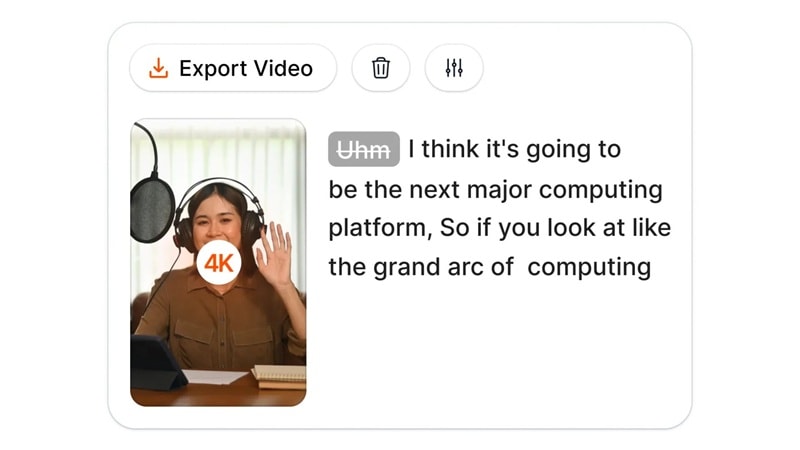
Formats Supported:
- MP4: Standard video export for social platforms.
- SRT & VTT: Separate subtitle files for accessibility or platform uploads.
Quality Options:
- 1080p on lower plans, which is more than enough for TikTok, Reels, and Shorts.
- Up to 4K and 60fps on higher tiers.
Collaboration & Cloud Storage
Because Submagic AI is fully cloud-based, everything auto-saves. So, there is no stressing over lost projects.
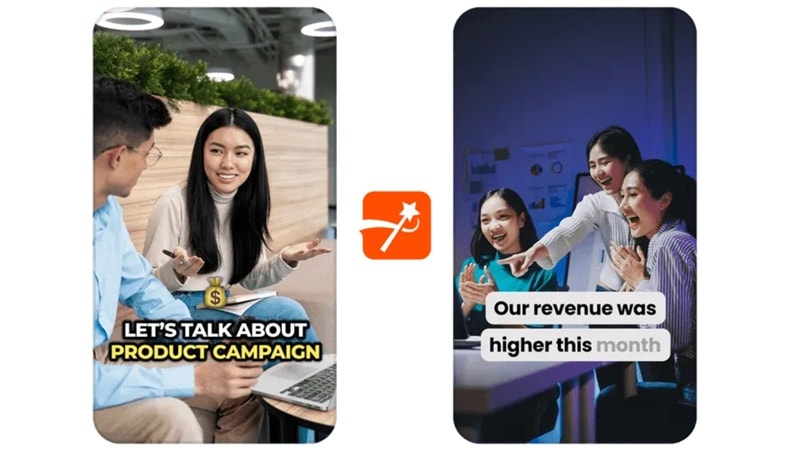
If you’re on the Business plan, you get:
- Shared brand assets.
- Team templates.
- User permissions.
- Centralized project management.
Part 3. User Experience & Interface of Submagic
A great set of features only matters when a tool is easy and enjoyable to use. Thankfully, Submagic AI video editor delivers a clean, intuitive user experience and interface that helps both beginners and more experienced editors get results quickly without steep learning curves or complicated menus.
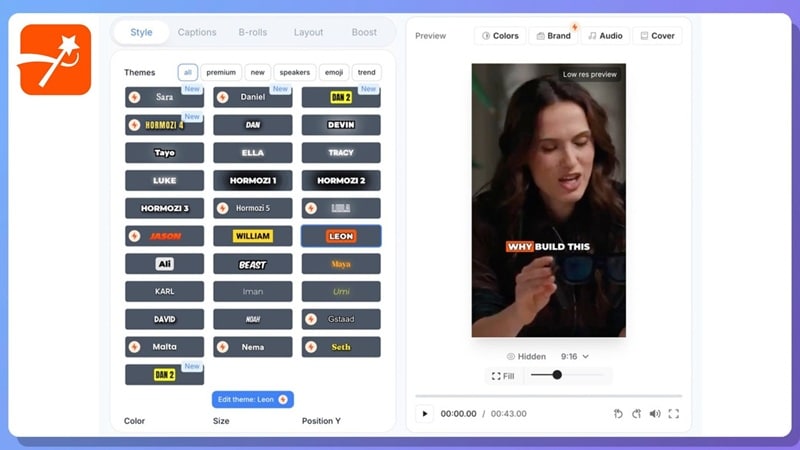
Let's take a closer look.
UI Design
Submagic’s interface balances between simplicity and functionality. The design uses a modern, minimal layout with clear icons, readable fonts, and a neutral color palette that keeps focus on your video content instead of complicated controls.
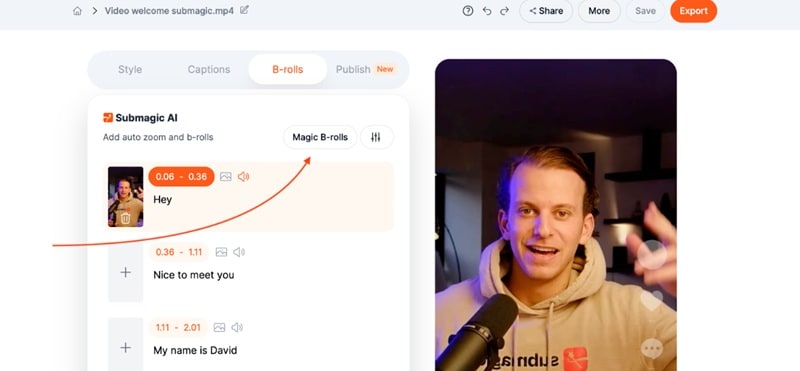
You’ve got:
- A clear sidebar for uploads, subtitles, and edits.
- A main preview area where you see changes instantly.
- Straightforward controls that don’t require guessing.
Everything is placed where you’d expect it to be. You’re not hunting around trying to figure out where captions live or how to edit them.
Ease of Use for Beginners vs Pros
Submagic is built for speed and accessibility. Beginners will appreciate how quickly they can start a project without tutorials, thanks to clear labels and guided prompts.
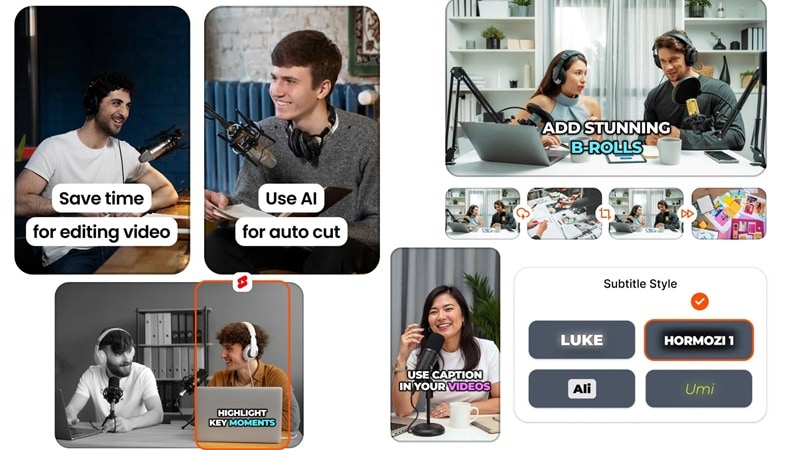
At the same time, pros will find enough flexibility in caption customization, B-roll options, and editing options to refine results without friction. Plus, when you first use Submagic AI, you’ll see simple pop-up tips explaining what each feature does.
Workflow
Starting a project in Submagic is straightforward. Here’s what using Submagic typically looks like:
- Upload your footage (drag-and-drop or browse files).
- Wait for AI analysis, which generates captions and suggests edits.
- Review and adjust subtitles, styles, and cuts.
- Add B-roll, transitions, or adjust timing as needed.
- Export in your desired format and quality.
Templates and Drag-and-Drop Tools
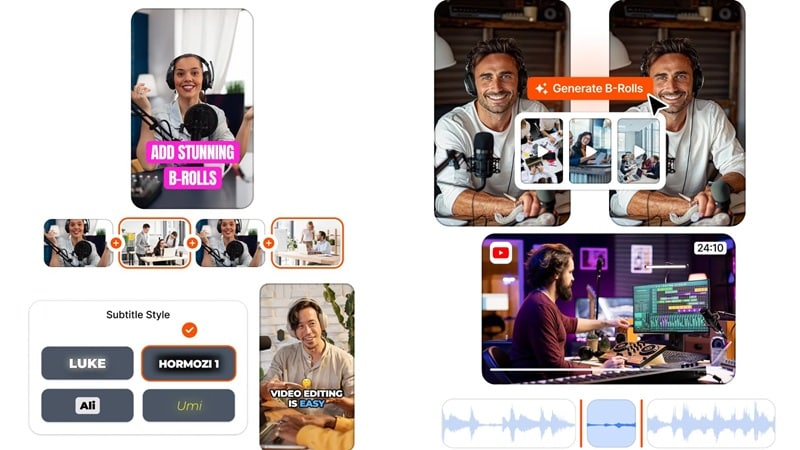
Submagic gives you ready-made subtitle styles and presets that are clearly built for TikTok, Reels, and Shorts. You won’t find hundreds of cinematic templates like in a full editor, though. Adding b-roll or background audio is drag-and-drop simple. It’s not ultra-advanced, but the simplicity keeps you moving fast instead of overthinking every tiny detail.
Part 4. Performance & Rendering of Submagic
After exploring features and the interface, the next key question is how well the Submagic app performs in everyday use. After all, performance covers everything from app stability and responsiveness to export speed and quality.
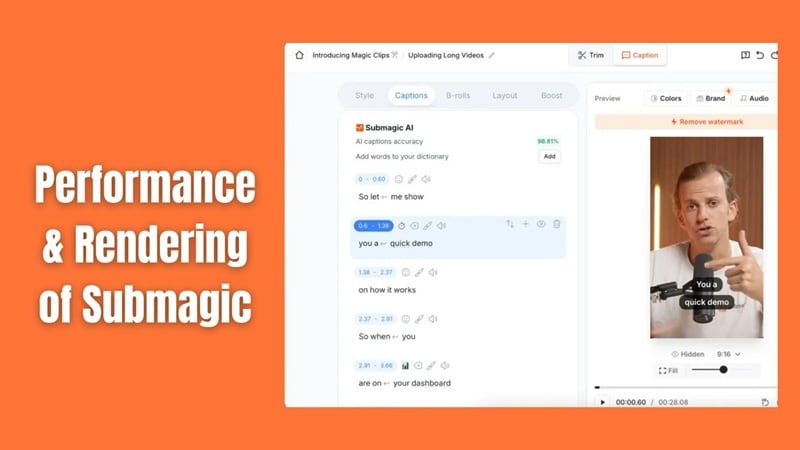
Below, we outline Submagic's performance in clear and concrete terms.
App Stability and Rendering Times
Since Submagicai runs fully in the cloud, your computer isn’t doing the heavy lifting. Their servers handle the processing. So, for short videos (which is what Submagic is built for), it runs smoothly in modern browsers. However, if you upload longer videos (10+ minutes), analysis and processing obviously take longer.
Here’s what you can realistically expect:
| Video Type | Resolution | Average Export Time |
| Short (1–3 min) | 1080p | 1–3 minutes |
| Medium (3–5 min) | 1080p | 3–5 minutes |
| Short (1–3 min) | 4K | 4–8 minutes |
| Longer (10+ min) | 1080p / 4K | Can take significantly longer |
Limitations
Submagic handles many tasks well, but it has some performance limitations:
- Cloud Dependent: Requires a stable internet connection; offline use is not supported.
- Long Video Processing: Large files take longer to upload and process.
- No Local Rendering: All rendering happens remotely, so local hardware speed has no impact once the upload is complete.
- HDR & Advanced Color Tools: Advanced display formats and deep color grading are not core features.
Part 5. Looking for a Better Fit? Try Submagic Alternative: Filmora
Alright, from our Submagic review above, we can say that the Submagic AI video editor is great if your goal is simple: upload, auto-caption, export, post.
But what if you want more control? Longer videos? Real timeline editing? More creative freedom? In that case, another powerful editor like Wondershare Filmora definitely feels like a stronger Submagic alternative.
Unlike the fully browser-based Submagic app, Filmora runs on desktop and mobile. You get AI tools similar to Submagic, but with full manual editing control when you need it. So you’re not stuck with just automation.
 Secure Download
Key Filmora Features Comparable to Submagic
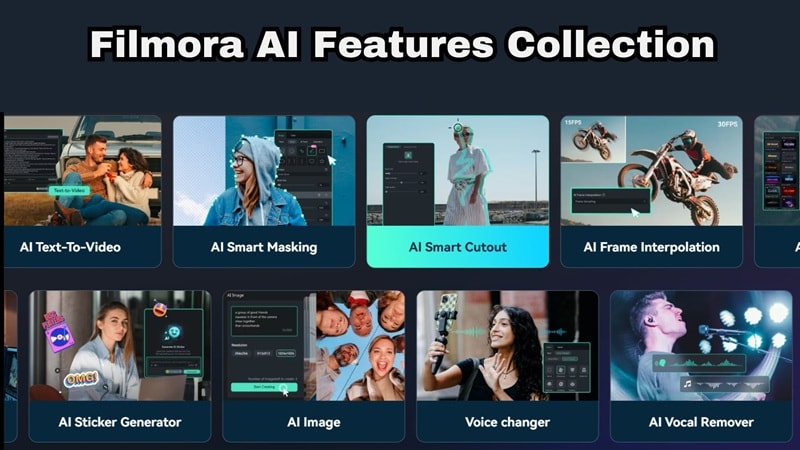
1. Auto Caption
- Automatically generates subtitles from audio
- Supports multiple languages
- Fully customizable fonts, colors, and animations
- AI-assisted video creation and scene structuring
- Works directly on the timeline for better control
- Suitable for both quick content and polished edits
3. Text to Speech / Speech to Text
- Convert text into AI voiceovers
- Transcribe spoken audio into editable text
- Useful for tutorials, reels, and repurposed content
- Ready-made templates for social media and YouTube
- Includes titles, transitions, and effects
- Speeds up editing without compromising quality
Turn Long Videos into Shorts with Filmora
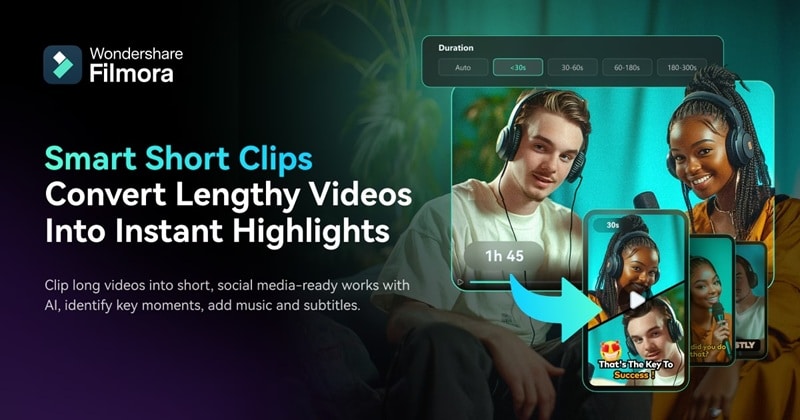
Just like Submagic, Filmora also includes smart AI tools that help you quickly make short, viral clips.
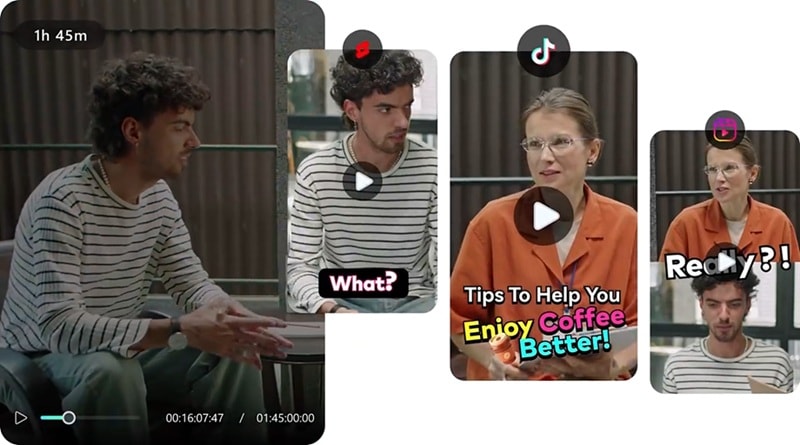
Filmora’s Smart Short Clips feature uses AI to analyze longer video content and suggest short clips that are likely to perform well on platforms like TikTok, Instagram, or YouTube Shorts. Instead of depending on automated trimming, Filmora lets you review and refine these clips on a familiar timeline, which gives you the best of speed and precision.
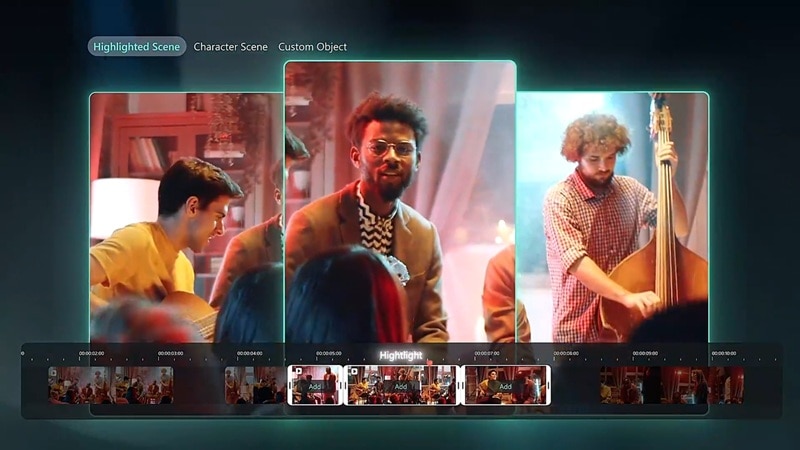
The Smart Scene Cut tool detects natural transitions and scene changes within your footage, automatically separating them into separate clips. This saves hours of manual cutting and helps you quickly locate the most engaging moments in your video. Combined with Filmora’s editing tools, Smart Scene Cut makes it easy to reorganize content for storytelling or short-form formats.
3. Auto Cut (on Filmora Mobile)
On mobile, Filmora’s Auto Cut function combines AI analysis and one-tap editing to automatically trim silences, tighten pacing, and export clean clips ready for sharing. It’s designed for creators on the go who want professional results without spending lots of time on manual edits. In contrast to Submagic's web interface, Filmora Mobile offers this power on the go with native performance and offline access.
Secure DownloadConclusion
Submagic AI video editor is the go-to choice for creators who want fast AI-powered subtitling and quick editing with minimal effort. Its strengths lie in speed and ease of use, especially for social media clips. However, its focus on short videos and limited manual editing options can feel restrictive as content needs grow.
For creators seeking a more flexible alternative to Submagic, Filmora offers a more comprehensive editing experience without sacrificing AI convenience. With support for both short and long videos, full timeline control, and advanced AI tools, Filmora is better suited for a growing workflow. The best strategy is to determine whether speed or creative freedom is more crucial for your content creation.
