
As reported by Corpfluence, over 80% of marketers in 2026 now use AI tools to speed up their job. However, creating often forces creators to juggle multiple costly subscriptions across separate video, image, audio, and music tools. That can easily create unpredictable credit burn rates and shrink your wallet.
Viddo AI addresses this friction head-on by aggregating leading generation models into a single unified web platform. But the new issue may emerge: is it actually good enough? Below, we'll uncover all about Viddo AI. We'll examine its core capabilities, pricing structure, and real-world performance to determine if it is the right AI video generator for your workflow.
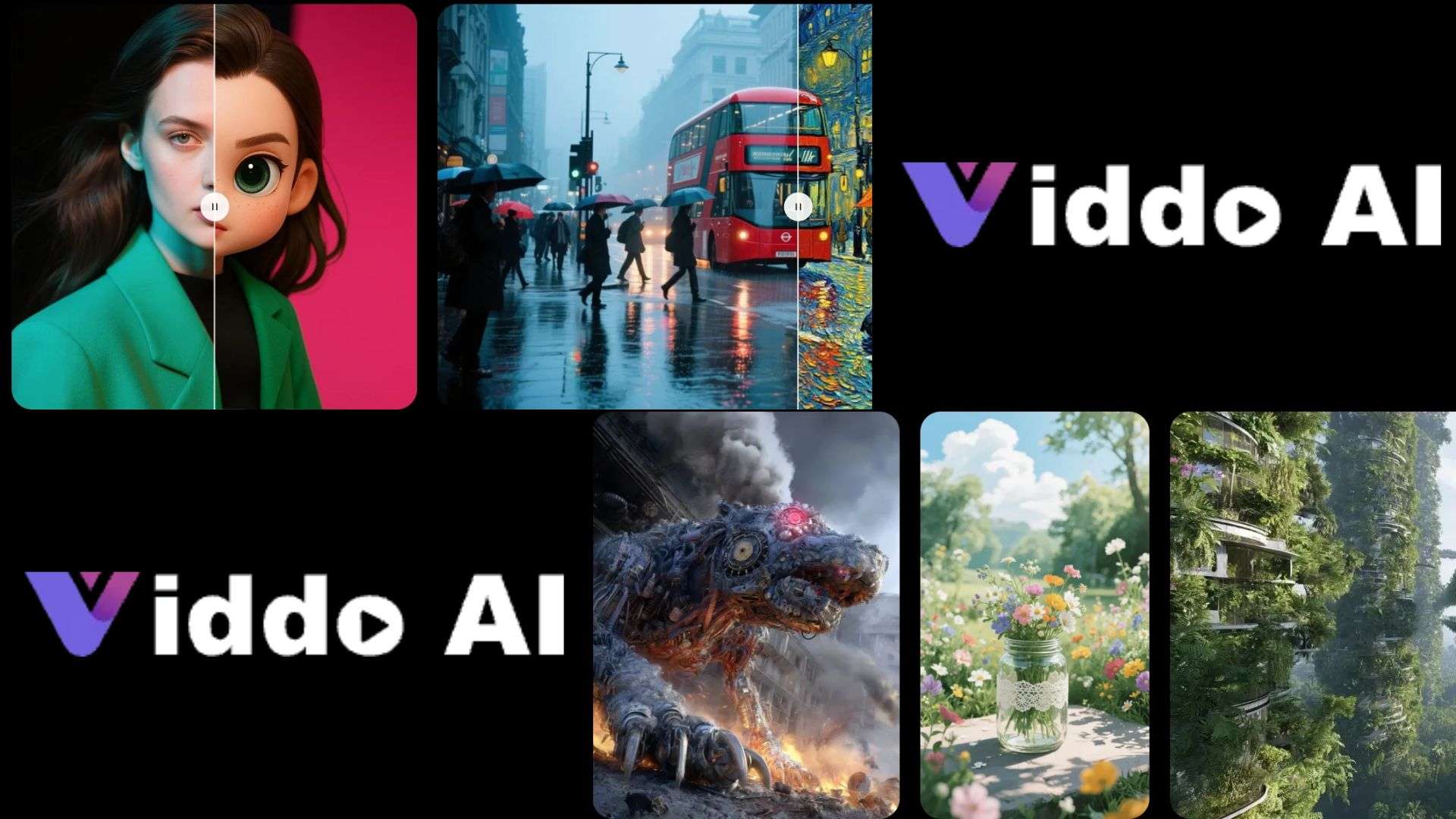
Part 1. Getting to Know Viddo AI: A Multi-Model Platform for Creative Projects
Technically, Viddo AI is a cloud-based creative studio. Rather than running on a single in-house engine, it works as a hub that connects top text, image, video, and audio models, so you don’t have to manage separate billing accounts, API keys, and clunky interfaces.
And because of that, the platform is aimed at content creators, marketers, and video editors who want to test lots of models without signing up everywhere.
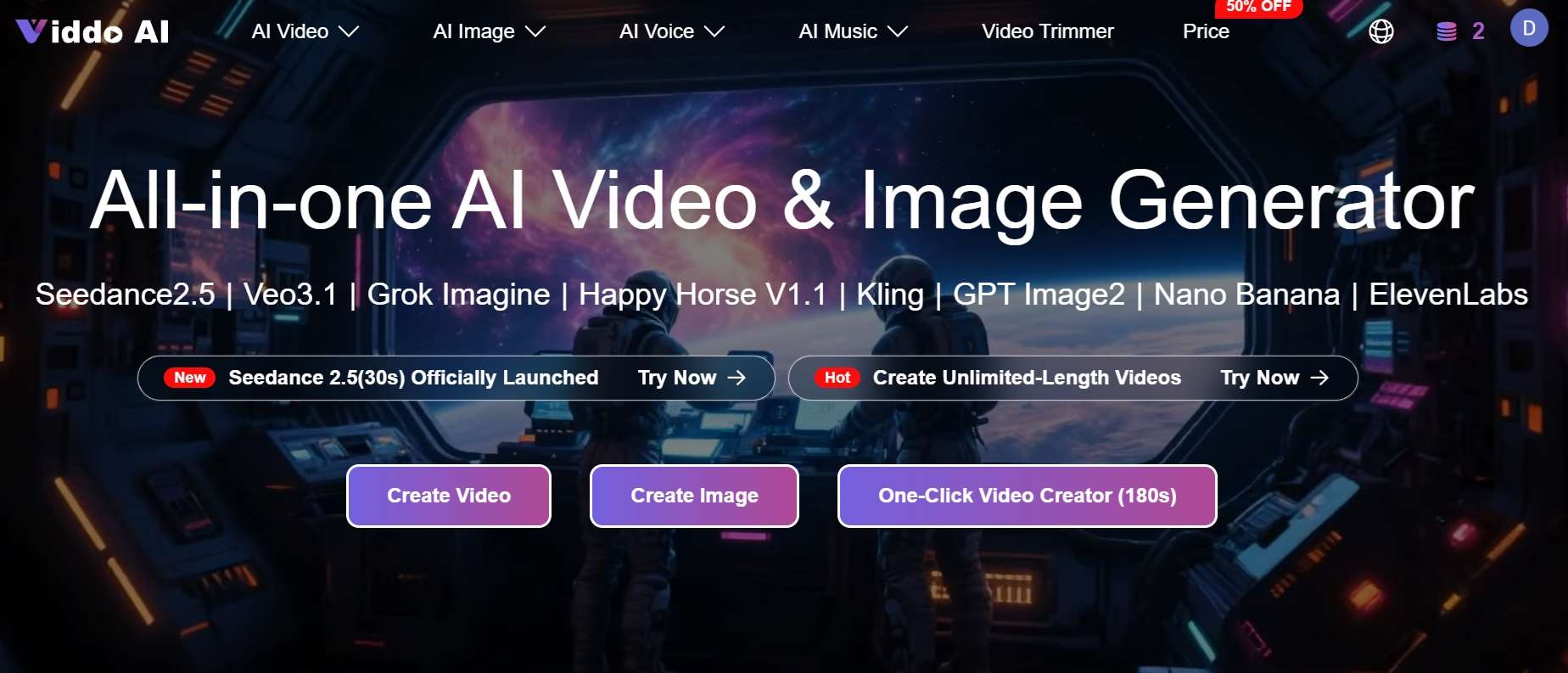
Overview of AI Models Inside Viddo AI
To give you a clear picture of what's inside, here are some notable models and options available in Viddo AI. The selection and model versions can change, so treat this as a snapshot rather than a permanent list.
| Media Category | Available AI Models | Primary Use Case |
| Video Generation | Seedance 2.5 and 2.0, Google Veo 3.1, Kling 4.0 and 3.0, Runway Gen-4 and Aleph, Grok Imagine, Wan 3.0, Hailuo 2.3, Pixverse V6, Vidu Q3 and Q4 | Short cinematic clips, social videos, ads, and animating still images |
| Image Generation | Nano Banana (including Pro, 2, and 2.1), GPT Image 2 and newer, Seedream 5 Pro and 4.5, Midjourney, Grok Imagine, MOSS Image | Concept art, product visuals, thumbnails, and style remixes |
| Voice & Audio | MiniMax Speech 2.8 (HD and Turbo), Seed Audio 1.0, Kling, ElevenLabs | Voiceovers, dialogue, transcription, and sound effects |
| Music Generation | Suno (V3.5, V4, and V4.5 are listed) | Songs with vocals, instrumentals, remixes, and covers |
|
Show More
Show Less
|
||
How Do I Use Viddo AI?
Viddo AI lives completely in your browser. So if you want to use it, just visit the site, log in, and you’re in. There is no mobile app for it. You may spot an app with a similar name on iOS, but it has nothing to do with the Viddo AI we’re reviewing here, so don’t mix them up.
Part 2. Exploring Viddo AI: Video, Image, Voice, and Music Generation
With so many AI models available at your fingertips, Viddo AI spreads its toolkit across four primary pillars, giving you plenty of creative room to experiment. Let's break down what each section can actually do for your projects.
AI Video Generation
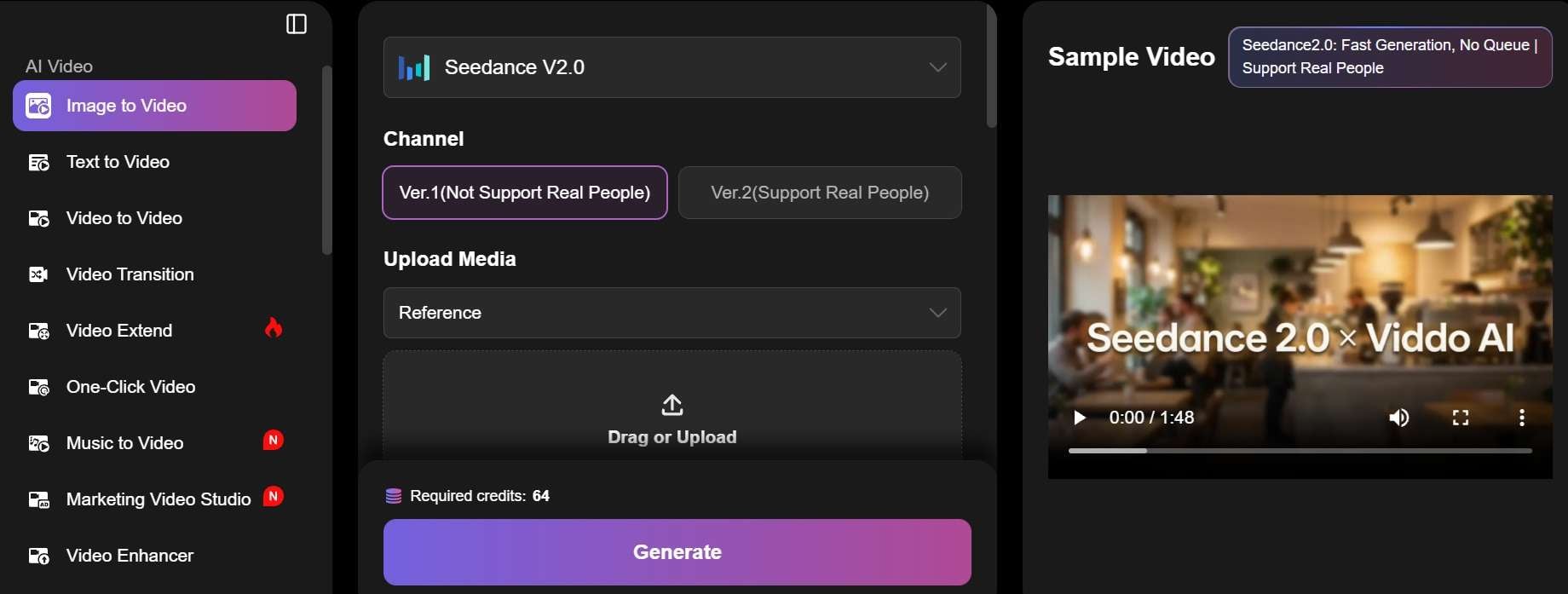
The video suite is clearly the headline feature here. Viddo AI allows you to work with different input types instead of relying entirely on written prompts, which gives you more flexibility when planning a scene. Here are some of the generation methods worth exploring:
- Text-to-Video: Turn written prompts into video clips.
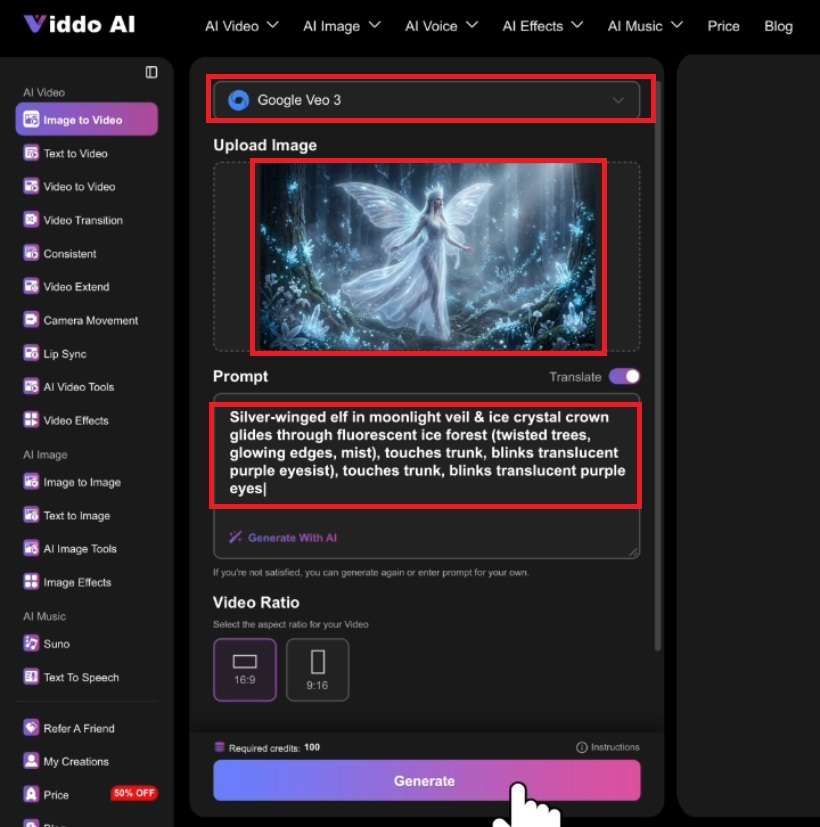
- Image-to-Video: Animate still images.
- Video-to-Video: Transform existing footage.
- Reference-to-Video: Use reference materials to guide generation.
- Music-to-Video: Create visual content based on music.
- Video Extension: Extend existing AI-generated footage.
- Motion Control: Guide movement using references or motion inputs.
AI Image Generation
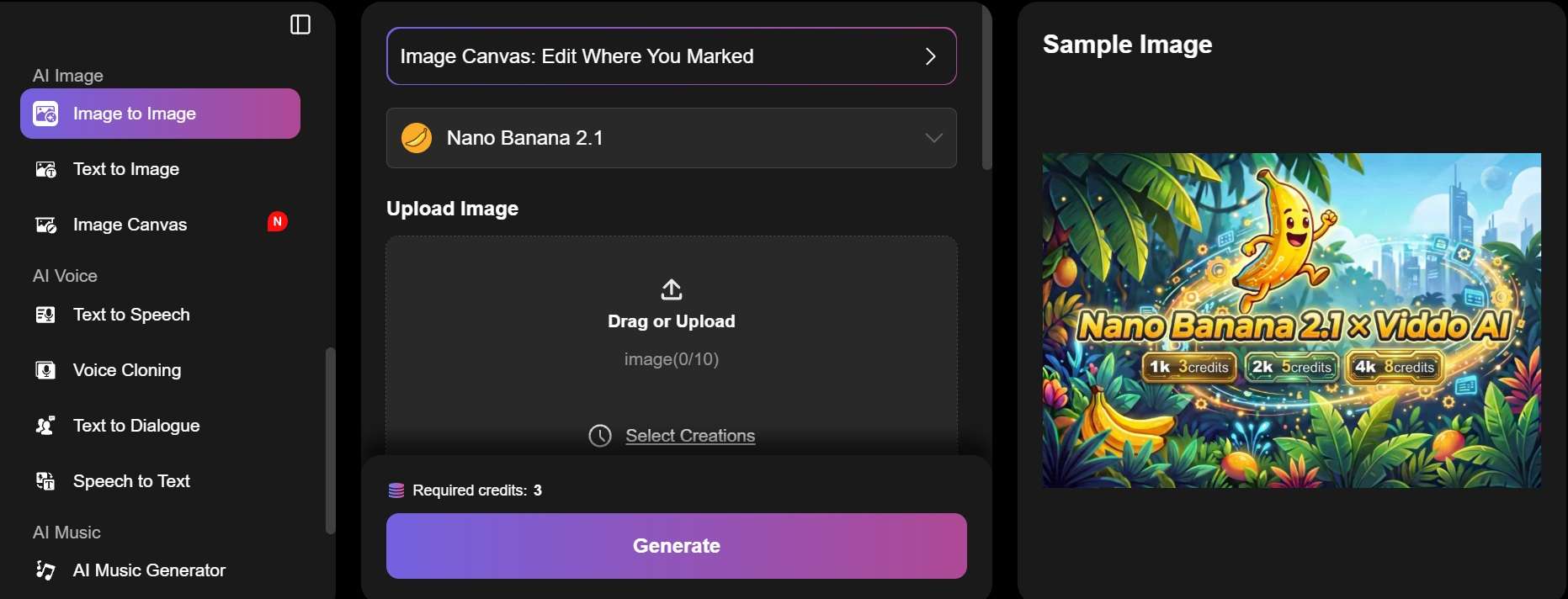
Viddo AI isn’t only for video. It can create images from scratch and rework ones you already have. Its main options include:
- Text-to-Image: Describe a scene and get artwork, illustrations, or concept art.
- Image-to-Image: Upload an existing picture and use it as a reference for a new variation or transformation.
- Image Canvas: Work with image-based creative adjustments through a dedicated canvas interface.
AI Voice Generation
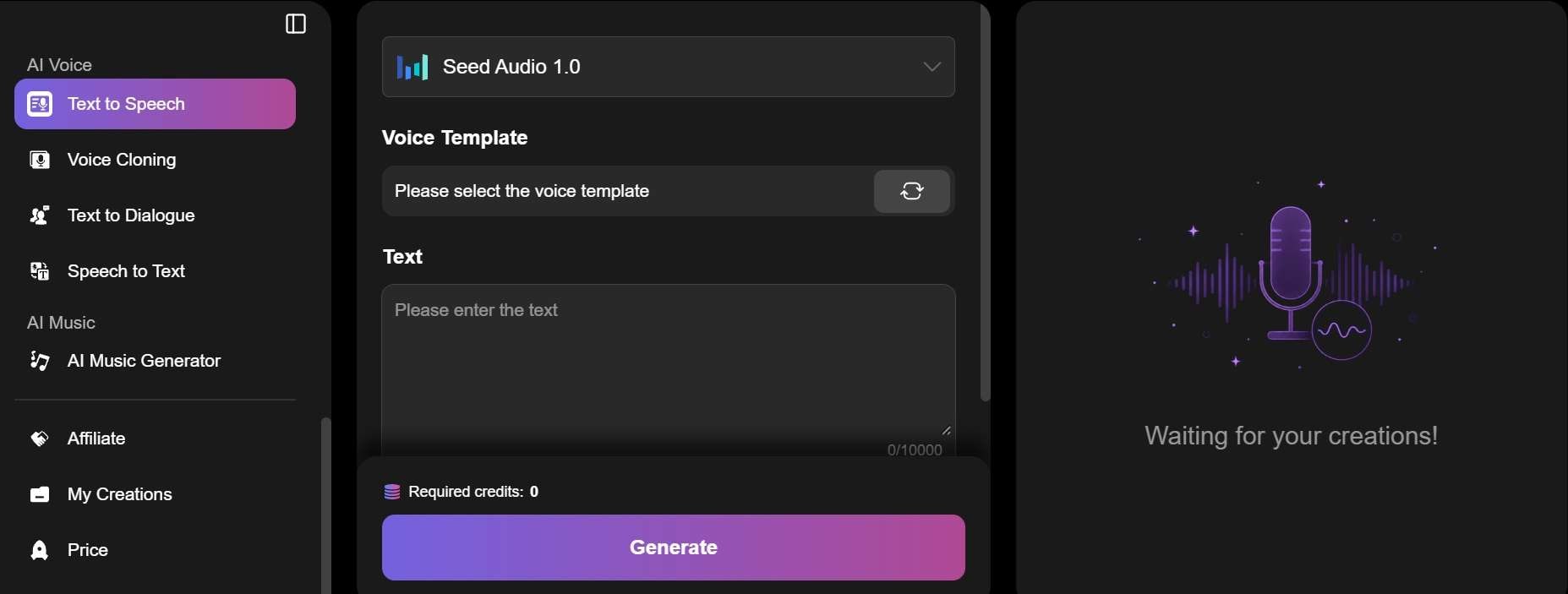
A great video needs clean audio to land properly. So, Viddo AI packs in a handful of audio tools to handle the spoken word side of production:
- Text-to-Speech: Turn a script into a spoken voiceover.
- Voice Cloning: Create a voice based on a sample, useful for keeping the same narrator across projects.
- Text-to-Dialogue: Write a conversation and get it performed by different voices.
- Speech-to-Text: Convert spoken audio into written text for captions, notes, or scripts.
AI Music Generation
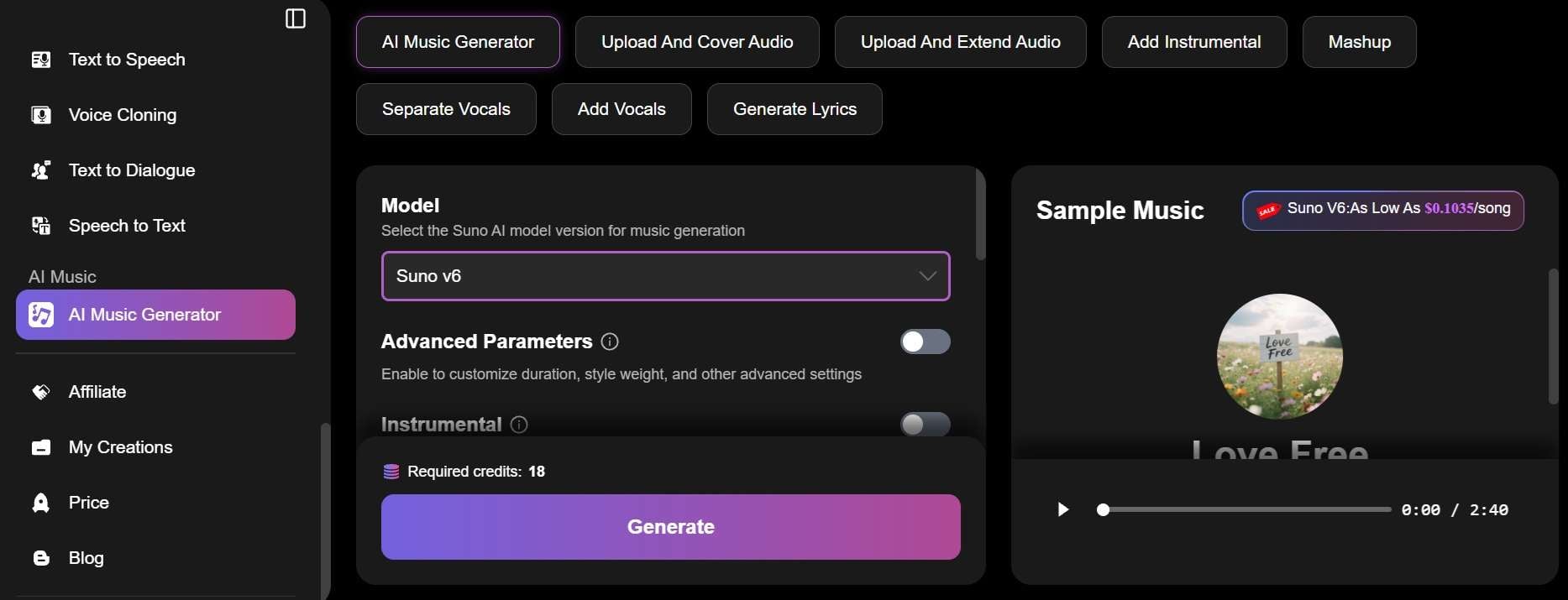
Powered by Suno models, Viddo AI has a separate music-generation section with several tools for creating and modifying audio. Here's what you can explore:
- AI Music Generator: Create music based on your creative direction or prompt.
- Add Instrumental: Add instrumental elements to existing audio or a music project.
- Mashup: Combine musical elements to create a different arrangement.
- Separate Vocals: Separate vocal elements from an audio track.
- Add Vocals: Add vocal elements to a music project.
- Generate Lyrics: Create written lyrics to use in a song.
- Upload and Cover Audio: Work with uploaded audio to create a cover-style version.
- Upload and Extend Audio: Extend an existing audio track rather than starting over.
Part 3. Viddo AI Plans: Is Its Credit System Worth Paying For?
Having access to so many models sounds exciting until you start looking at the credit balance. Viddo AI runs on a credit system, so every generation burns some credits, and the amount depends on the model and settings you pick.
New users get just 2 free credits when they log in, which is tight if you want to compare several models. You can earn extra through the platform’s Prompt Library and Operation Tutorial activities, worth 5 credits each. After that, regular creating means buying a subscription or extra credits.
Viddo AI Subscription Plans
| Plan | Monthly Price | Billed Yearly (Effective/mo) | Monthly Credits | Total Generations |
| Basic | $29 | $16 | 1,800 | 300 videos $ 600 images/month |
| Pro | $39 | $23 | 3,600 | 600 videos $ 1,200 images/month |
| Plus | $49 | $32 | 5,400 | 900 videos $ 1,800 images/month |
| Ultra | $99 | $69 | 11,000 | 1,800 videos $ 3,600 images/month |
One-Time Credit Packs (Pay-As-You-Go)
| Plan | Price | Credits |
| Basic | $39 | 1,900 |
| Pro | $60 | 3,600 |
| Plus | $99 | 6,500 |
Part 4. Step-by-Step Guide: Generating Media in Viddo AI
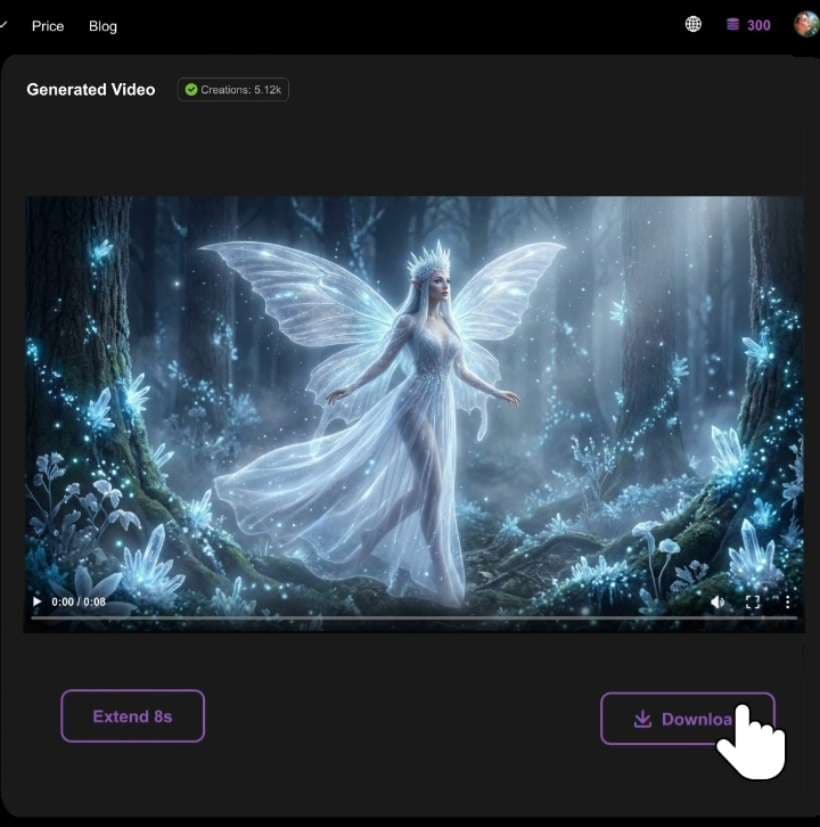
Getting your first creation out of Viddo AI is surprisingly quick once you get past the initial learning curve. Here is a quick step-by-step look at how a standard workflow goes down inside the web dashboard.
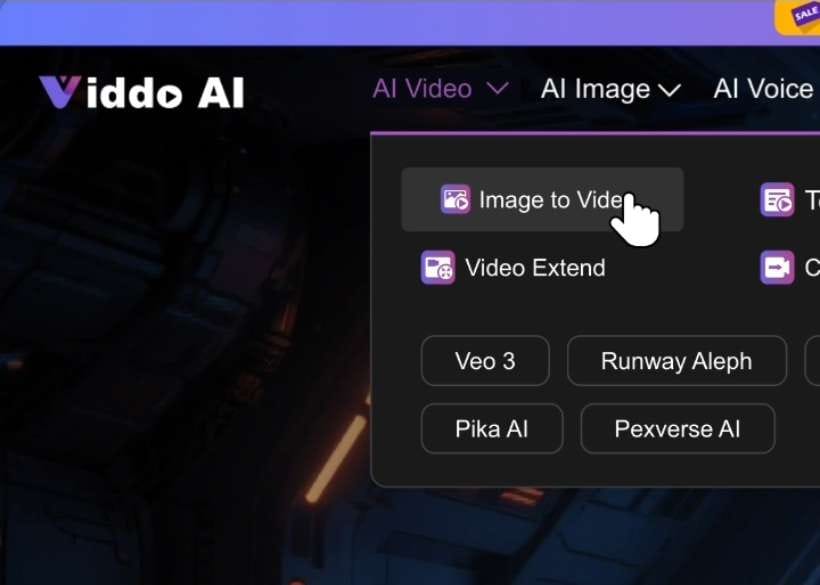
Is Viddo AI Worth It? Pros & Cons
To give you an honest perspective, let's weigh the primary advantages and drawbacks of using Viddo AI for your content creation pipeline.
- Guided Community Tutorials: The Operation Tutorial and Prompt Library help beginners learn how to write descriptive prompts, and they double as ways to earn credits.
- Huge Multi-Model Selection: Runway, Kling, Suno, Midjourney, and plenty more sit in one dashboard, with no separate logins.
- Automatic Failed Render Refunds: If a generation crashes, you can get your credits restored or request a refund.
- Multiple Generation Methods: Text, images, videos, references, and audio can serve as starting points for different creative tasks.
- Tiny Free Allowance: Providing only 2 free credits upfront severely limits full hands-on testing before subscribing.
- Interface Can Be Overwhelming: Navigating multiple AI models, parameters, and credit costs simultaneously can create a steep learning curve for complete novices.
- Variable Character Consistency: Switching engines between scenes can lead to slight visual drift in character faces and styles.
- Recurring Credit Consumption: High-resolution video renders burn through monthly credit pools rapidly during trial-and-error sessions.
Part 5. A Complete Desktop Alternative: Wondershare Filmora
While Viddo AI excels as a cloud aggregator, its credit limitations and web-only interface may not suit every editor's workflow. If you prefer a full-fledged desktop application with seamless timeline controls, Wondershare Filmora serves as an impressive alternative.
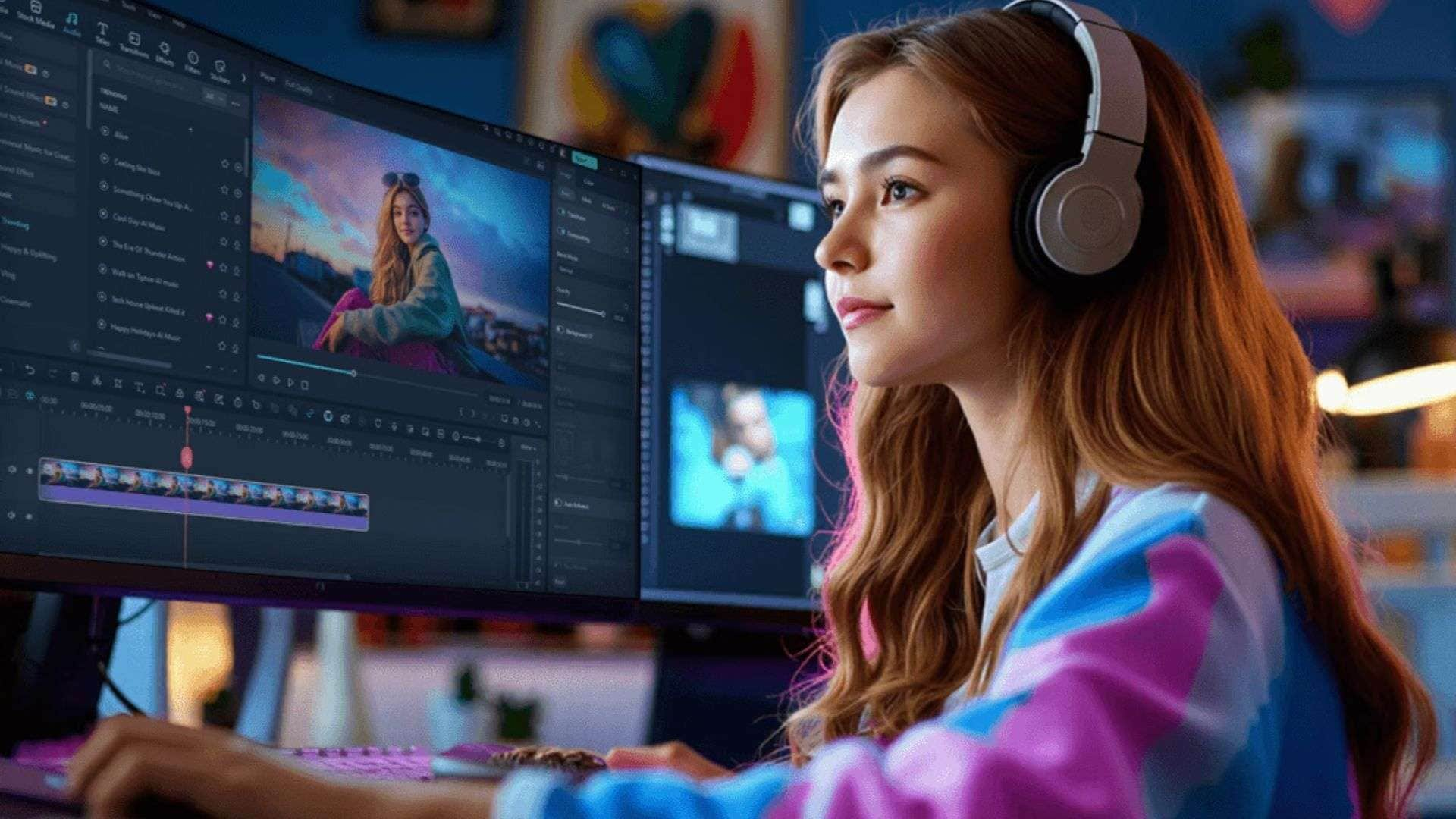
Filmora combines multi-model AI generation tools (video, image, audio, voice) with traditional Non-Linear Editing (NLE) timeline features, giving you far greater control over long-form projects.
Why Choose Filmora?
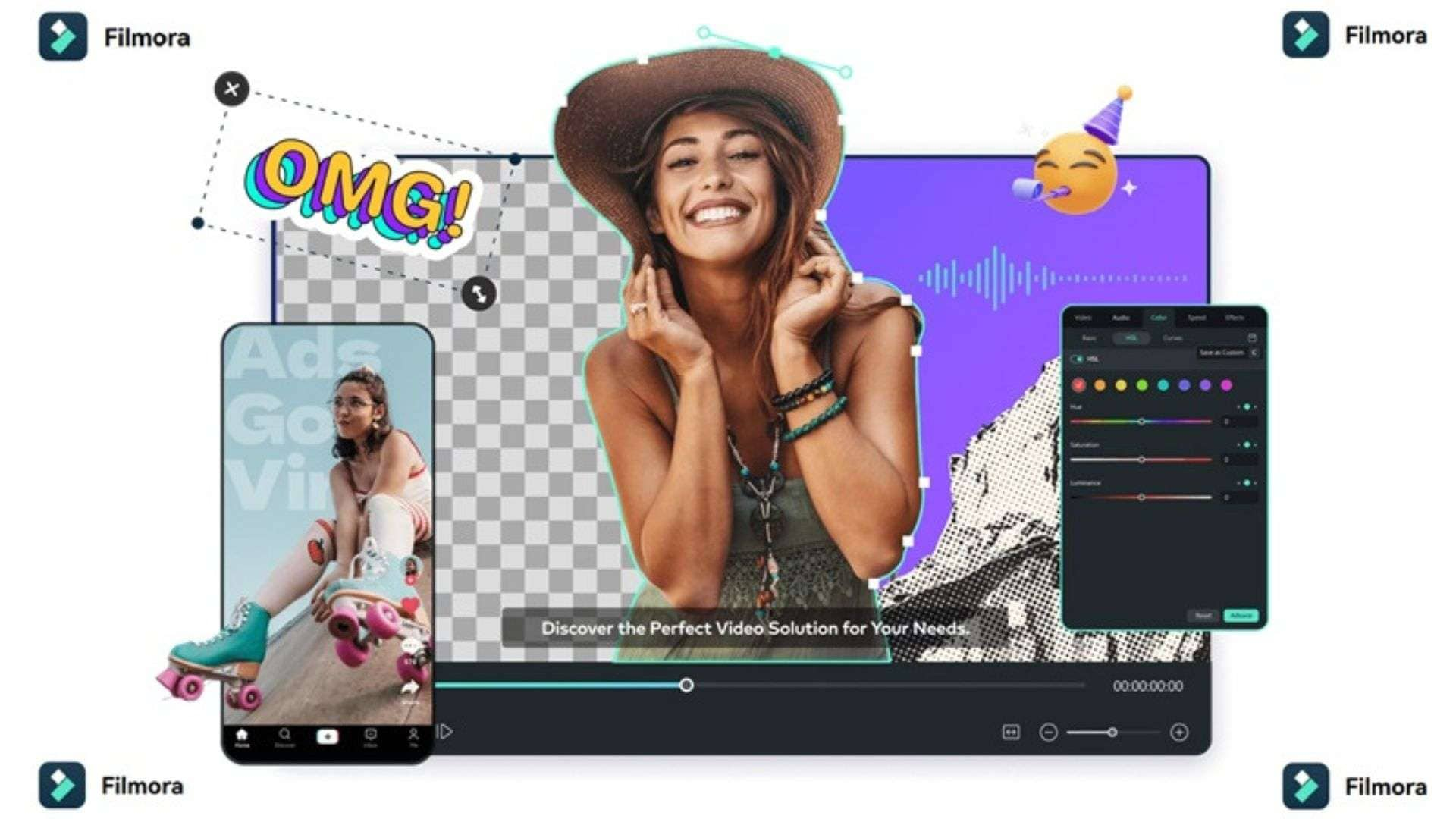
Generating clips is one thing. Turning a pile of them into a finished video is another, and that’s the gap Filmora fills. Here’s what stands out:
- Multi-Track Editing Timeline: Assemble, trim, and frame multiple video clips, overlays, and transitions on a precision timeline.
- Extensive Media & Effect Library: Dig into 2.9M+ creative assets, including templates, stock media, effects, music, filters, stickers, titles, and transitions, right inside the software.
- Flexible Device Compatibility: Works natively across Windows, macOS, iOS, and Android with local file saving and offline editing modes.
- Built for Long-Form Content: Easily stitch together full-length YouTube videos, tutorials, and animations rather than short individual AI scenes.
- Integrated Social Content Planner: Plan, preview, and schedule content publishing directly across platforms like YouTube, TikTok, and Instagram.
 Secure Download
Conclusion
By gathering top-tier engines like Runway, Kling, Midjourney, and Suno under a single subscription roof, Viddo AI saves you from managing endless logins and fragmented billing plans. If your primary goal is generating quick, high-end AI visuals, short cinematic clips, and synthetic audio in your web browser, it's a super handy hub to have in your browser bookmarks.
However, if you're crafting full-length videos, need a multi-track editing timeline, or want to avoid watching your credit balance drop with every minor edit, Filmora is a good Viddo AI alternative. Its AI generation features, editing timeline, and built-in creative resources make it a practical choice for turning individual AI assets into complete videos.
FAQs
-
Does Viddo AI require a high-performance GPU or powerful PC to generate video?
Nope! Viddo AI runs entirely in the cloud inside your web browser. All the heavy lifting and rendering happen on remote cloud servers, which means you only need a basic computer with a stable internet connection to start generating. -
Does Viddo AI support different languages for prompts?
Sort of. The prompt box has a Translate option that converts your prompt into English, since Viddo AI says English prompts give better results. So you can write in your own language and let it translate. -
What should I do if Viddo AI generation fails?
Don’t panic, because your credits aren’t gone for good. Failed creations get credits restored or can be refunded. Then try a simpler prompt, switch to a different model, or lower the resolution and length. If it keeps failing, reach out to their customer service.