

 TL;DR:
To edit VOB files without compatibility issues, use native desktop software like VSDC or Shotcut for direct timeline editing, or utilize Wondershare Filmora to automatically convert the legacy format to MPG upon import for editing stability.
● For free direct editing, VSDC (Windows-only) and Kdenlive (cross-platform) provide pro-level multi-track tools for users with capable hardware, while cloud editors like Flixier bypass hardware limits but restrict export quality on free tiers.
● To prevent import failures or out-of-sync audio, copy and merge split DVD segments (such as VTS_01_1.VOB) and decrypt the disc before importing; if an editor still rejects the file, manually renaming the .vob extension to .mpg often forces compatibility.
● Prevent pixelation during the final export by saving the video in MP4 (H.264 or H.265) format with a high bitrate of 10,000–20,000 kbps, strictly maintaining the original 480p or 576p resolution and 4:3 aspect ratio to avoid visual distortion.
Ask AI for a summary
 ChatGPT
 Perplexity
 Gemini
 Claude
 Grok
Grok
If you have videos from old DVDs and need to edit VOB files, the process can be tricky due to compatibility issues. This guide brings you the best VOB editor options, covering both free tools and the seamless workflow of Filmora. You will learn how to edit VOB smoothly and solve common conversion problems like VOB to MP4.
Part 1. What Makes a Great VOB Editor? Key Features You Need for VOB Edit
Before we begin, what exactly is VOB? Simply put, VOB is a standard format used on DVDs that combines video, audio, subtitles, and menu data into one file. Although it works well on DVD players, this format often causes problems on modern devices and VOB video editors due to its outdated structure, large file size, and limited compatibility.
Before choosing the right VOB editor, it is essential to understand what truly matters when working with this legacy DVD format. Since VOB files can be huge, outdated, and sometimes unstable, the editor you choose should simplify the editing process, not complicate it. Here are the key things you need to consider:
- Format compatibility: Ensure the editor can read VOB files or convert them correctly.
- Essential editing tools: Look for features such as cutting, merging, adding audio, and adding text.
- Ease of use: Determine whether you want an editor that is beginner-friendly or more advanced.
- Online vs. desktop: Choose based on your needs: quick online editing or full editing power on your desktop.
- Export options: Make sure the export settings support modern formats, especially if the editor reconverts VOB files.
- Performance and stability: Your editor should be able to open VOB files smoothly without freezing or crashing.
Part 2. Top 6 Free VOB Editor Tools for Desktop and Online
It gets easier to pick the right VOB editor once you know the key features to look for. With the basics in mind, you can explore the most reliable free tools you can use right now. Below is a curated list of desktop and online editors that support VOB files, complete with key features and pros and cons to help you make a quicker decision.
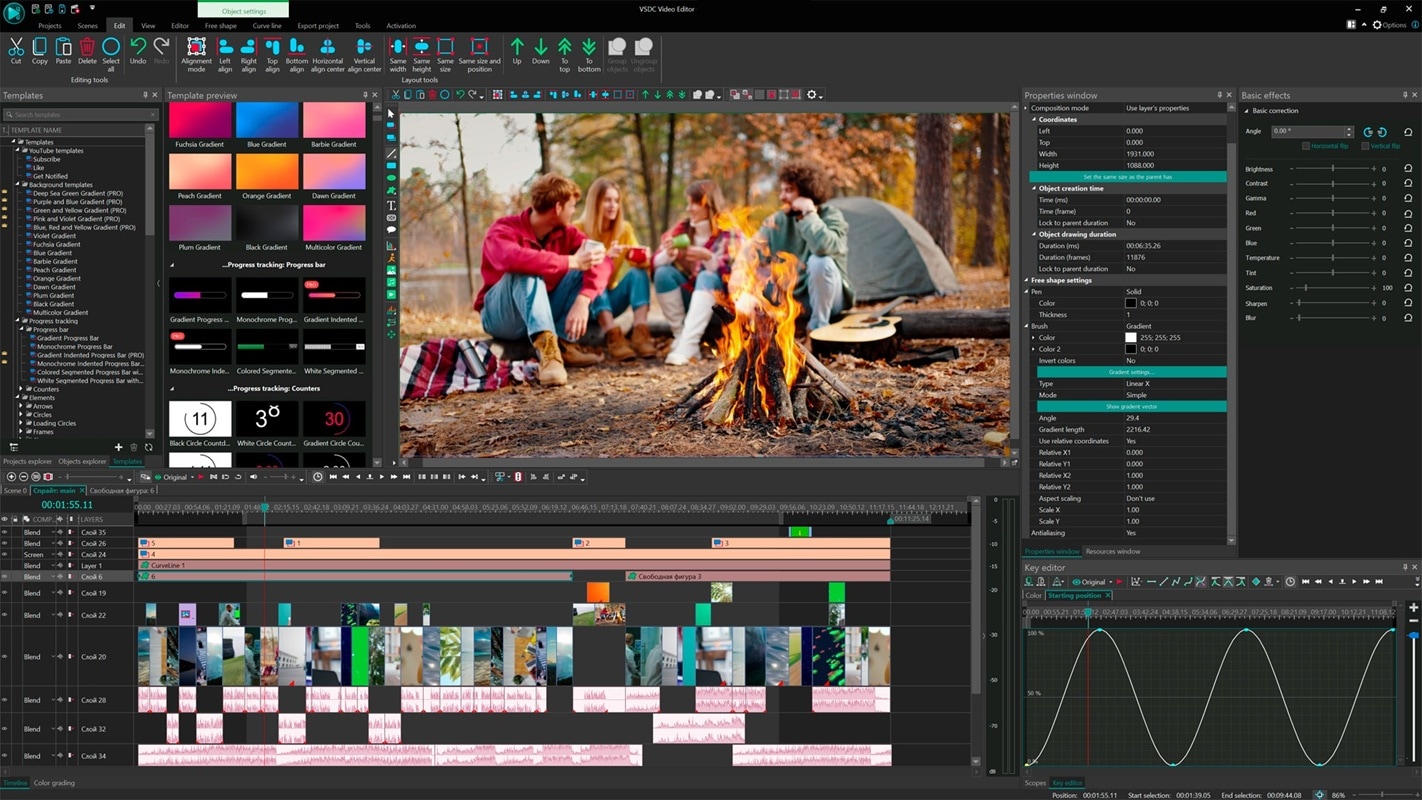



1. VSDC Free Video Editor – The Most Powerful Free VOB Editor for Windows
VSDC is one of the most feature-rich VOB file editor options, designed for Windows users who want to have full control without paying for professional software. If you need a powerful VOB editor free download option, VSDC natively supports VOB files for users who frequently work with DVD material. This VOB video editor allows for professional-level VOB edit without the complexity of paid software.
- Motion tracking that works very well to stabilize or follow moving objects
- Masking options that allow selective color grading or blurring of specific areas
- Hardware acceleration for faster rendering of large VOB files
- Detailed export controls, including bitrate settings, codecs, and profile adjustments
- Strong performance with large VOB files with acceleration support
- Feature-rich enough to replace paid software for many users
- Offers various video formats for export
- The interface can feel complicated for beginners because features are spread across multiple panels
- Steeper learning curve if you're used to a simple editor
2. Shotcut – Open-Source VOB Editing With Full Flexibility
Shotcut is an open-source editor known for its flexibility and customizability. Powered by FFmpeg, Shotcut is a native VOB editor and can be used on Windows, macOS, and Linux. Shotcut is ideal for users who need complete control over the timeline without the limitations of online tools aimed at beginners, but still want to avoid overwhelming complexity.
- Features a modular interface that allows you to arrange panels and workspace layouts
- Native VOB support via FFmpeg with minimal playback lag
- Extensive video and audio filter features with customizable parameters
- Proxy editing for smoother workflows when handling large files
- Stable with large VOB files due to proxy mode
- Highly customizable interface that suits editors with different workflows
- Cross-platform and completely free with no restrictions
- The interface may feel outdated compared to modern editors
- Some features require additional configuration, which may confuse casual users
3. Kdenlive – A Pro-Level Editor That Handles VOB Smoothly
Kdenlive is a professional VOB editor widely used in the open-source community. It offers a powerful, multi-track environment and advanced editing tools comparable to those found in paid software. Its ability to handle VOB files efficiently makes it ideal for editors who want more creative control, especially for bigger projects.
- Robust multi-track timeline with ripple, insert, and overwrite editing
- Proxy workflow that significantly speeds up VOB editing on lower-end PCs
- Dozens of transitions and effects with professional-level customization
- Detailed audio mixing tools, including loudness meters and audio curves
- The most professional-feeling free editor for VOB workflows
- Strong stability and project recovery features
- Well-suited for long-duration projects requiring complex organization and layering
- Requires a more powerful computer for smooth real-time previews
- It can be overwhelming for beginners due to the large number of tools and options available
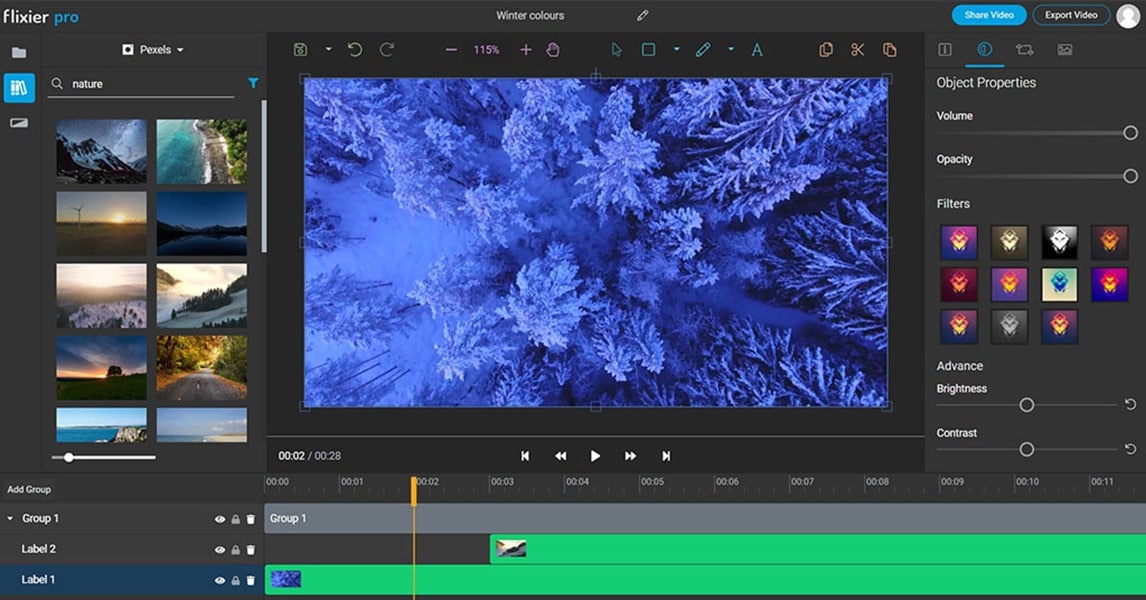
4. Flixier – Edit VOB Files Instantly in Your Browser
A cloud-based online VOB editor that allows you to edit VOB files without installing any software. Flixier lets you upload, process, and render videos via cloud servers, meaning that heavy processing loads don't depend on your device. Hence, it's a good choice for quick editing, especially if you're using a low-spec laptop.
- Super-fast cloud rendering that exports videos in seconds
- Real-time collaboration tools for co-editing or client feedback
- Templates for intros, titles, and social media formats
- Timeline that supports multi-layer editing (rarely found in online tools)
- Highly efficient, even with large VOB files, as processing is done in the cloud
- Compatible with all devices, including Chromebooks
- Ideal for teams or content creators who need to produce quick edits
- The free plan limits export quality and applies some feature restrictions
- Uploading large VOB files may be slow if your internet connection is unstable
5. Clideo – The Easiest Online VOB Editor for Quick Fixes
Clideo is a simple online VOB editor designed for quick and straightforward editing. It works best for cutting, trimming, merging, or adding simple audio to VOB files. With its minimalist interface, it's suitable for users who want quick results without feeling overwhelmed by the complexity of a timeline.
- Highly intuitive interface with guided steps
- Automatic format conversion when exporting
- Lightweight editing tools perfect for quick corrections
- Can be used in mobile browsers
- No learning curve required, suitable for beginners
- Eliminates the need to install software
- Automatically handles VOB to MP4 conversion to save time
- The free version adds a watermark
- Not ideal for multi-layer or professional editing
- Limited control over export settings
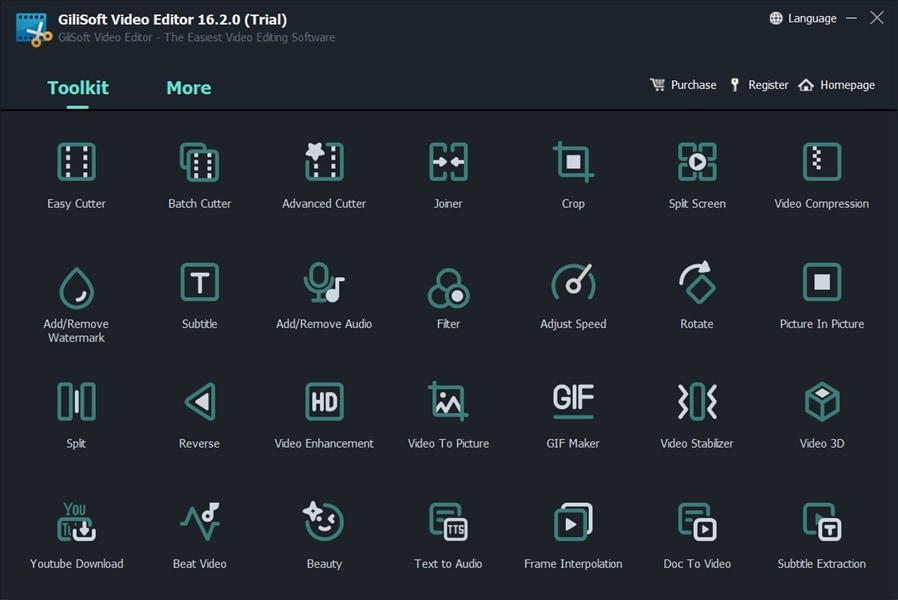
6. GiliSoft Video Editor / VOB Cutter – Simple and Fast VOB Cutting Tool
GiliSoft Video Editor is a specialized VOB editor designed as a lightweight tool for cutting and splitting VOB files. The tool is one of the best free VOB video cutter options available. It is designed for users who don't require a full editing suite and just want to do quick cut-based editing, making it an excellent VOB edit companion.
- Frame-accurate cutting for precise removal of unwanted scenes
- Ability to merge multiple VOB clips while maintaining original quality
- Minimalist interface that launches quickly even on older PCs
- Designed for quick batch cutting tasks
- Speedy performance with VOB files
- Ideal for users who need simple cut-based editing
- Maintains original DVD quality without re-encoding, depending on settings
- The interface may feel outdated interface
- Not suitable for creative editing, like adding text or transitions
- Only available for Windows
Side-by-Side Comparison: Top 6 Free VOB Editors vs. Filmora (VOB Support & Key Features)
With so many VOB editors available, it can be hard to figure out which one best suits your needs. Some editors are great for quick cuts, while others offer more advanced editing tools. This comparison table provides a quick overview of each editor's platform, VOB support, strengths, and limitations, so you can easily choose the best option.
| Tools | Platform | VOB Support | Key Strengths | Limitations |
| VSDC | Windows | Most powerful free option | Complex UI | |
| Shotcut | Windows/Mac/Linux | Open-source, flexible | Learning curve | |
| Kdenlive | Windows/Mac/Linux | Pro-level tools | Heavy for old PCs | |
| Flixier | Online | Fast and cloud-based | Free plan limits | |
| Clideo | Online | Easiest for beginners | Includes watermark | |
| GiliSoft | Windows | Simple for quick edits | Focused for cutting | |
|
Show More
Show Less
|
||||
Part 3. Filmora's Secret Weapon: Why Conversion Makes Filmora the Best VOB Editing Tool (Beyond Free Options)
Now that you've seen the best free VOB editor options, anyone seeking a smoother, more beginner-friendly workflow should consider a reliable solution like Wondershare Filmora. When users ask, "How do I edit VOB files without compatibility issues?" Filmora provides a comprehensive solution by automatically handling the VOB to MPG conversion on import.
 Secure Download
When you feel limited by the basic VOB editors, Filmora often becomes a solid upgrade. When you import a VOB file, Filmora will convert it to MPG so that the video becomes more stable and easier to edit. This is necessary because VOB is an older DVD format that often causes playback or timeline issues in modern editors.
Once the file is converted to MPG, you can edit it in Filmora like any other standard video without any restrictions.
Part 4. Filmora Workflow: How to Edit VOB Files After Quick Conversion (5 Steps)
Next, let's walk you through how to work with your converted VOB file inside Filmora so you can start editing without any complications.


- AI Noise Reduction to clean up noisy DVD audio
- AI Voice Generator / AI Audio Stretch to refine narration or adjust duration
- AI Smart Cutout to remove objects or isolate subjects
- AI Background Removal to replace or blur backgrounds
- AI Image tool for mixing images with your VOB recordings

Part 5. VOB Troubleshooting: Fixing Common 'How to Edit VOB' Errors (Audio Sync, Import Issues)
Working with VOB files can sometimes cause minor problems, especially if the original DVD has multiple chapters or mixed audio sources. Here are the most common issues you may encounter and how to fix them quickly:
1. Audio Not Synchronized After Importing or Converting
Why this happens:
VOB files often contain multiple audio tracks or variable frame rates from the DVD ripping process.
Quick fix:
- After conversion, enable “Speed Adjustment” in Filmora to manually synchronize the audio.
- Separate the audio, then slide it slightly on the timeline.
- If the source is corrupted, convert the VOB to MP4 using a separate converter before importing it into Filmora.
2. Filmora Cannot Import VOB Files
Why this happens:
VOB files may be encrypted or split into multiple segments (VTS_01_1.VOB, VTS_01_2.VOB, etc.).
Quick fix:
- Copy all VOB segments to your PC and merge them with a VOB merger before importing.
- If the DVD is encrypted, you must decrypt it first before editing.
- Change the file extension from .vob to .mpg and re-import.
3. Missing Audio or Incorrect Audio Track
Why this happens:
DVDs often contain multiple audio tracks (5.1, stereo, commentary, etc.).
Quick fix:
- Convert using a tool that allows you to select the audio track before editing.
- In Filmora, right-click the clip → “Select Audio Track” (if available).
- For multi-track VOB files, use Shotcut or VLC to extract the correct track first.
4. Choppy Playback or Lag When Editing
Why this happens:
Large VOB files are sometimes splintered and not optimized for editing.
Quick fix:
- Use Filmora's Proxy Media option for smoother editing.
- Reduce the preview resolution to 1/2 or 1/4.
- Convert VOB to MP4 H.264 with a high bitrate before importing.
5. Video Quality Drops After Exporting
Why this happens:
VOB uses MPEG-2 compression, and changing the settings to a lower level can reduce quality.
Quick fix:
- Export using MP4 (H.264) with a high bitrate (10,000–20,000 kbps).
- Enable High Quality mode in Filmora's export settings.
- Avoid double conversion (convert once, then edit).
6. VOB Files Imported Without Subtitles
Why this happens:
Subtitles in VOB files are not extracted automatically.
Quick fix:
- Use a tool like HandBrake to extract the subtitles as an SRT file.
- Manually import the SRT file into Filmora.
Part 6. Filmora Pro Tips: How to Edit VOB Files Without Losing Quality (Using AI & Conversion Best Practices)
Before you wrap up your editing, it's a good idea to follow some best practices when working with older DVD formats. VOB files are known for their large size and occasional instability, so following a few professional tips can help you maintain high video quality and avoid unnecessary conversions.

Below are the most effective tips to ensure your final result looks more polished.
1. Convert Only Once Before Editing
Avoid multiple conversions. Convert your VOB file once (to MPG or MP4), then do all your edits and export only one final file to maintain quality.
2. Use High Bitrate When Exporting
DVD videos need a high bitrate to stay sharp. Set the export bitrate to 10,000–20,000 kbps using H.264 or H.265 to avoid pixelation.
3. Keep the Original Resolution and Aspect Ratio
Most VOB files are 480p/576p and often in the 4:3 aspect ratio. Keep these settings to avoid unnecessary distortion, cropping, or blurring.
4. Use Filmora's AI Tools to Revitalize Old VOB Footage
AI Denoise cleans up DVD audio, Stabilizer fixes shaky hands, and the AI Video Enhancer can intelligently upgrade the visual quality of your older VOB clips
5. Merge VOB Segments Before Editing
If your DVD has multiple VOB segments (VTS_01_1, VTS_01_2, etc.), merge them first. This prevents audio sync issues and ensures smooth editing in Filmora.
Conclusion
After thoroughly discussing the best VOB editor tools, editing VOB files doesn't have to be complicated. Whether you need a simple VOB video cutter or a full-featured VOB editor for Mac or Windows, this guide has the right tool for you. VOB file editor options like VSDC or Shotcut are ideal for quick fixes or light projects, while Filmora offers a more comprehensive workflow. For the final output, remember that the easiest way how to VOB to MP4 is through a reliable editor's export function.

