Explore Winter Family AI Prompts
Browse winter family prompts for adult family groups, snowy parks, cabins, markets, trains, fireplaces, ice rinks, beaches, and seasonal greeting portraits. Use each idea for video templates, reels, social posts, covers, and export-ready visuals.
Loading more winter family prompts...
 Category:
 Duration:
 Aspect Ratio:
Why Create Winter Family Images With Filmora?
Family winter photos need clear group arrangement, clothing coordination, practical lighting, and a believable shared moment. Filmora helps shape those scenes into cards, albums, family reels, and travel stories.
Generate Winter Family With Filmora
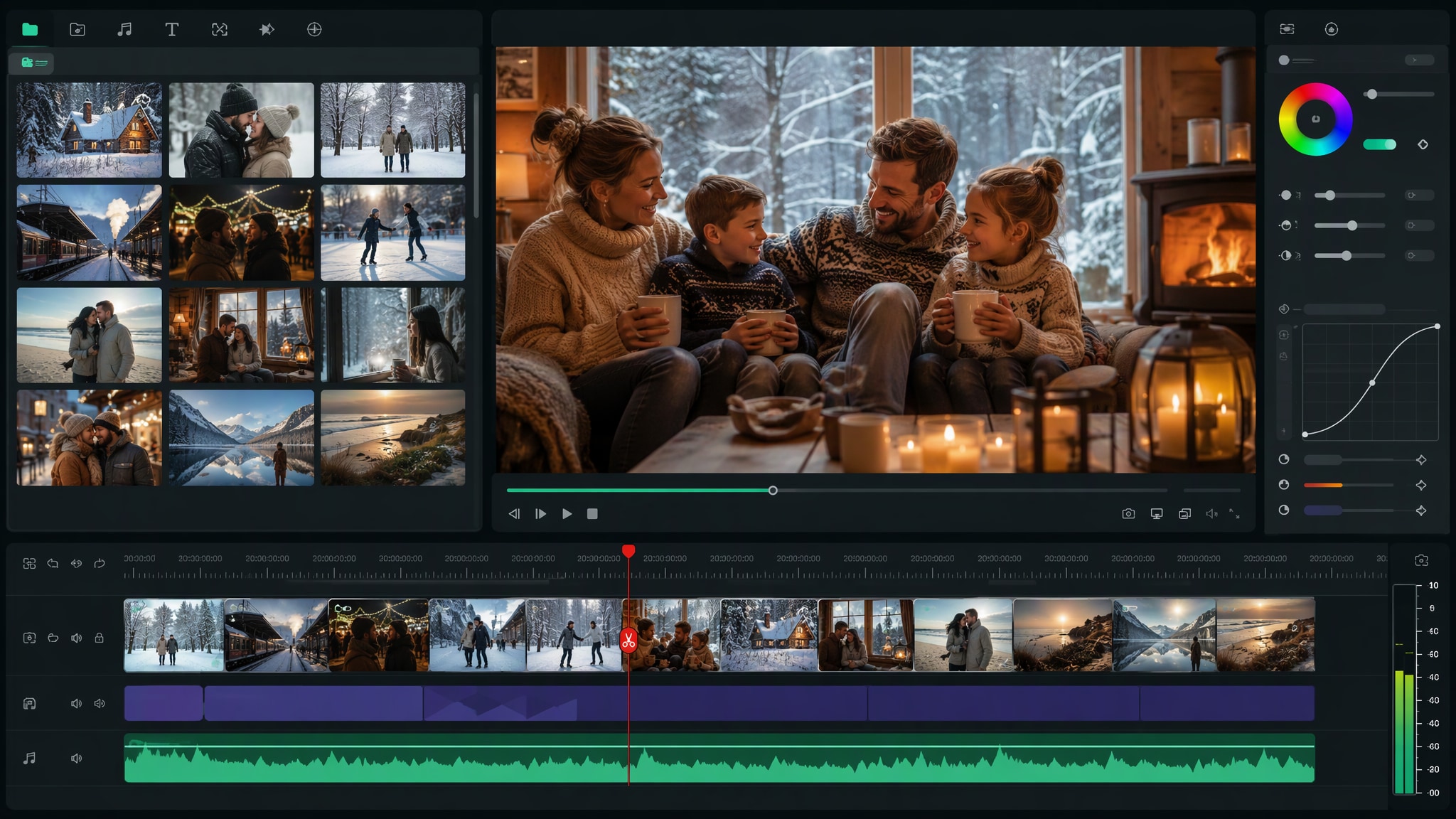
Generate Winter Family With Filmora
Start with a precise winter family prompts, then use Filmora's AI image generator to turn adult family groups, snowy parks, cabins, markets, trains, fireplaces, ice rinks, beaches, and seasonal greeting portraits into clean, edit-ready stills. Use it for adult family groups, snowy parks, cabins, markets, trains, fireplaces, ice rinks, beaches, and seasonal greeting portraits, then refine crop, color, overlays, and motion in Filmora.
- Prompt to Image - Specify group arrangement, wardrobe coordination, winter setting, practical light, and the emotional moment.
- Clean Visual Structure - Filmora's AI Image Generator helps shape family winter scenes into balanced card-ready compositions.
- Fast Iteration - Use separate directions for home warmth, outdoor adventure, travel memories, and quiet seasonal portraits.
Use GPT Image 2 for Controlled Composition and Detail
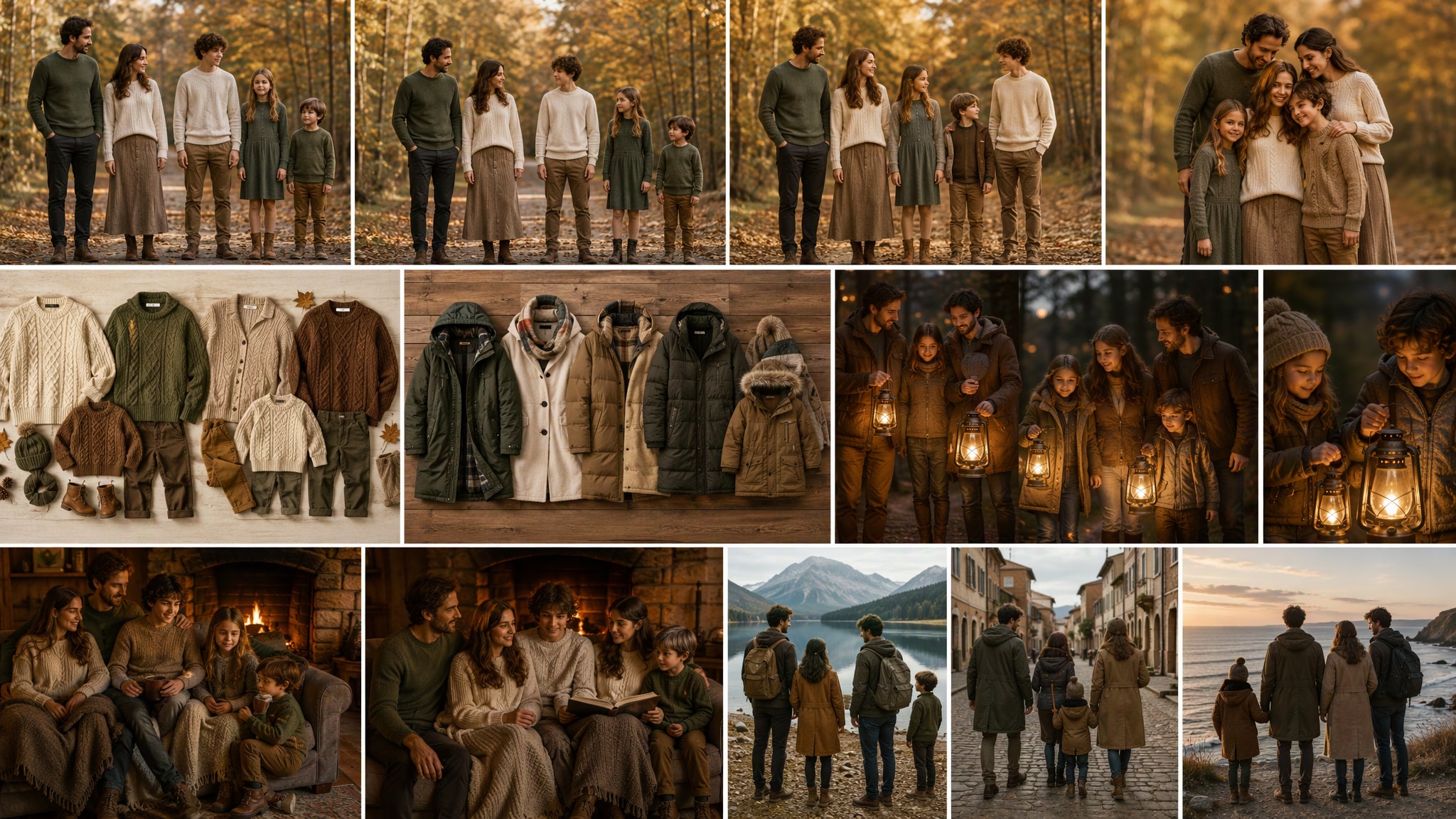
Use GPT Image 2 for Controlled Composition and Detail
When the scene needs dependable subject detail, texture, or background control, Filmora's GPT Image 2 helps follow a structured prompt. GPT Image 2 helps organize the subject, setting, lighting, materials, and clean space reserved for later design.
- Prompt Following - GPT Image 2 helps maintain faces, clothing layers, snow texture, and spacing when several family members share the frame.
- Detail Control - Filmora keeps the generated family image flexible for cropping, overlays, and album layouts.
- Edit-Ready Results - Reserve a clean area for accurate greetings added later in the edit.
Try Nano Banana for Fast Creative Variations
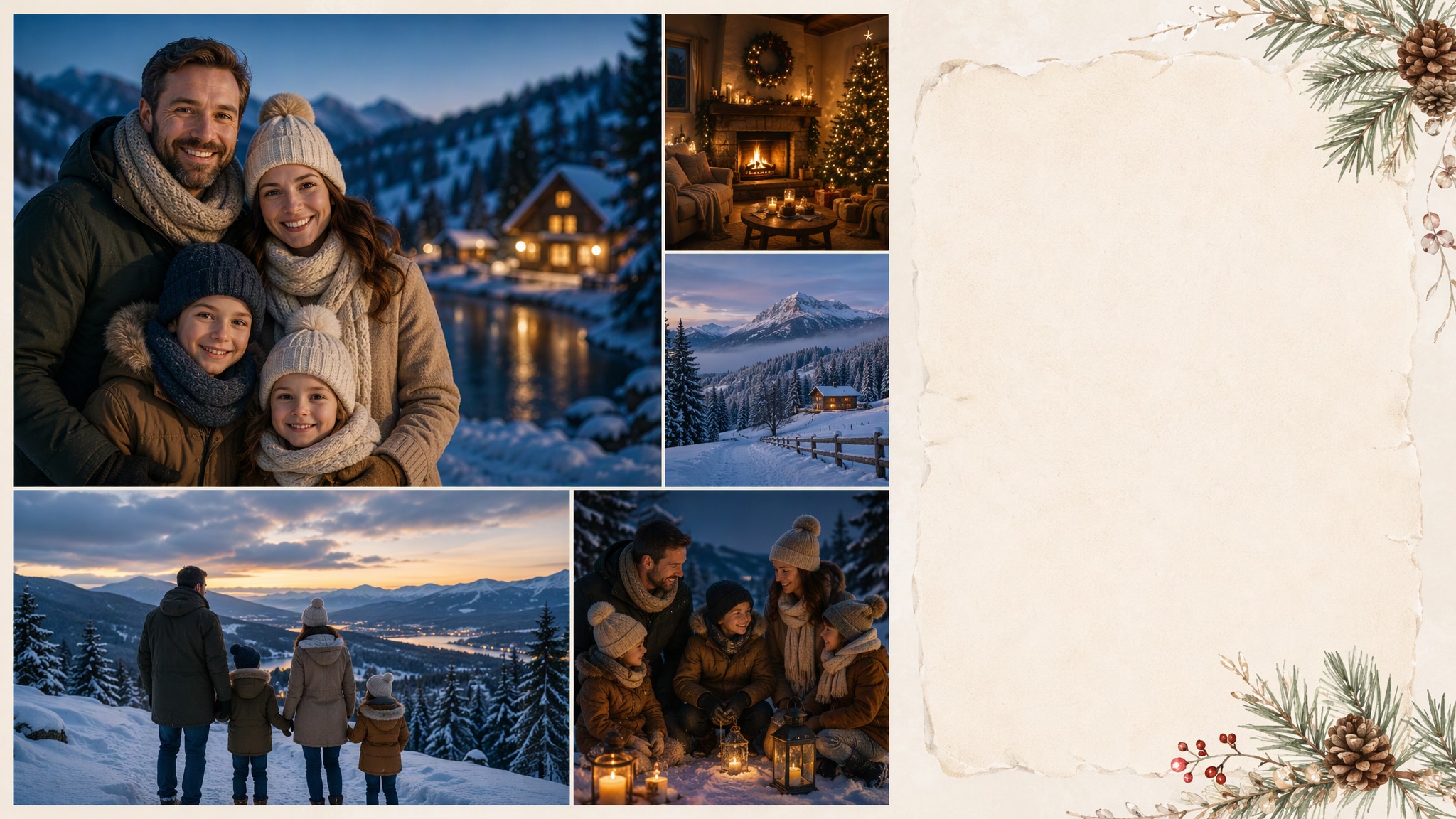
Try Nano Banana for Fast Creative Variations
Use Filmora's Nano Banana when one idea needs another palette, mood, composition, or social treatment. Nano Banana helps test alternate palettes, props, backgrounds, and moods while retaining the main direction.
- Style Range - Test pine green, warm wood, icy blue, lantern gold, and neutral knitwear across different family locations.
- Variant Testing - Nano Banana makes it easier to explore alternate palettes and arrangements without losing the family story.
- Creative Flow - Turn one approved scene into card, reel, and slideshow versions.
Turn Winter Family Into Video
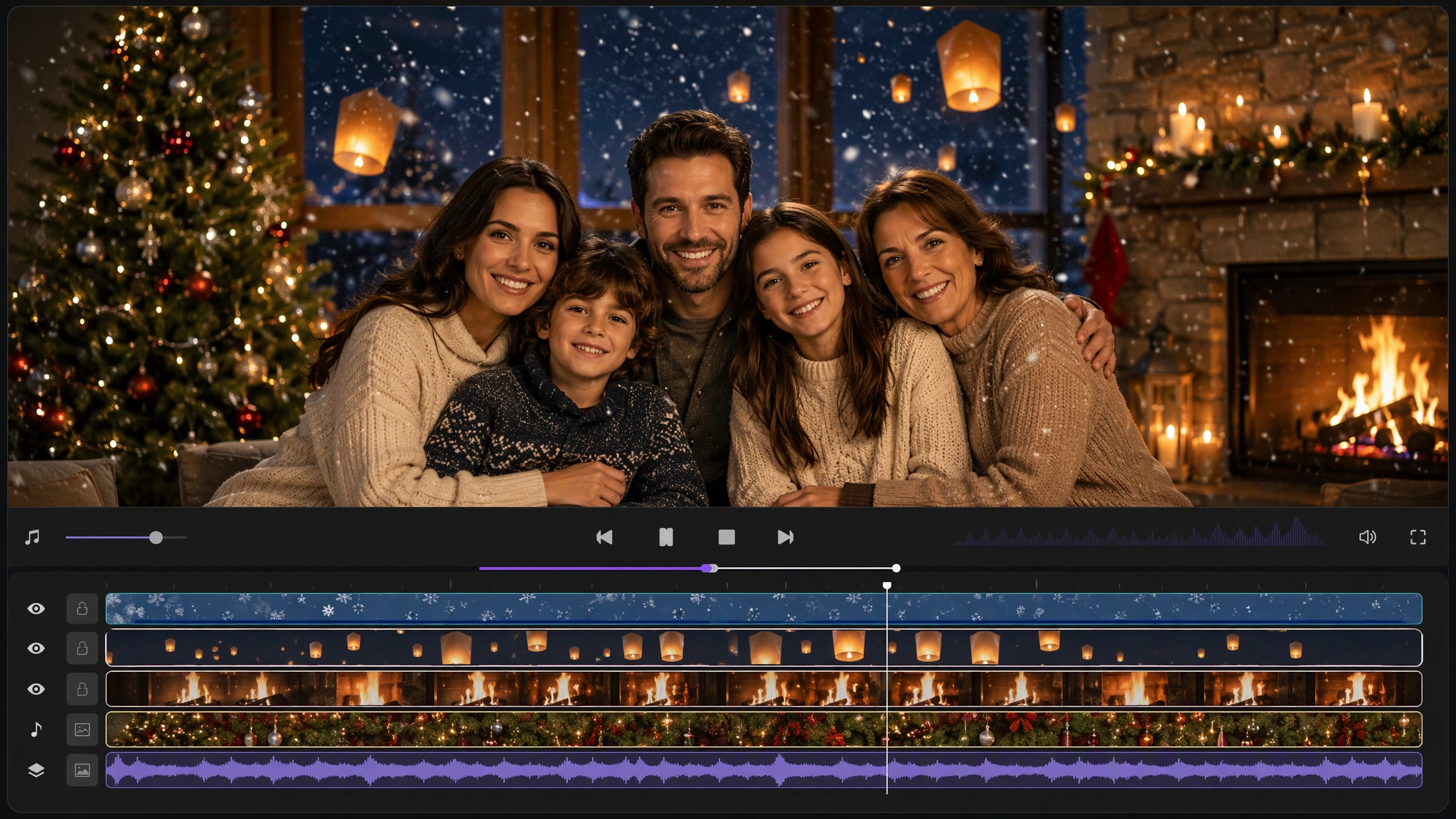
Turn Winter Family Into Video
After generating the still, use Filmora's AI Image to Video workflow to add camera movement, overlays, effects, sound, and social-ready exports. Animate a camera move, light change, crowd motion, star trail, motion blur, or a restrained title reveal.
- Motion Ideas - Add a slow snowfall, lantern glow, fireplace flicker, walking movement, or a gentle camera drift.
- Social Formats - Filmora's AI Image to Video tools help transform a family still into a warm winter memory.
- Final Export - Complete the story with music, transitions, captions, and social exports.
Frequently Asked Questions About Winter Family Prompts
How to Generate Winter Family Images With AI
Choose a winter family setup, define the visual mood, generate the still, then personalize or animate it in Filmora.
Step 1 Choose a Winter Family Prompt
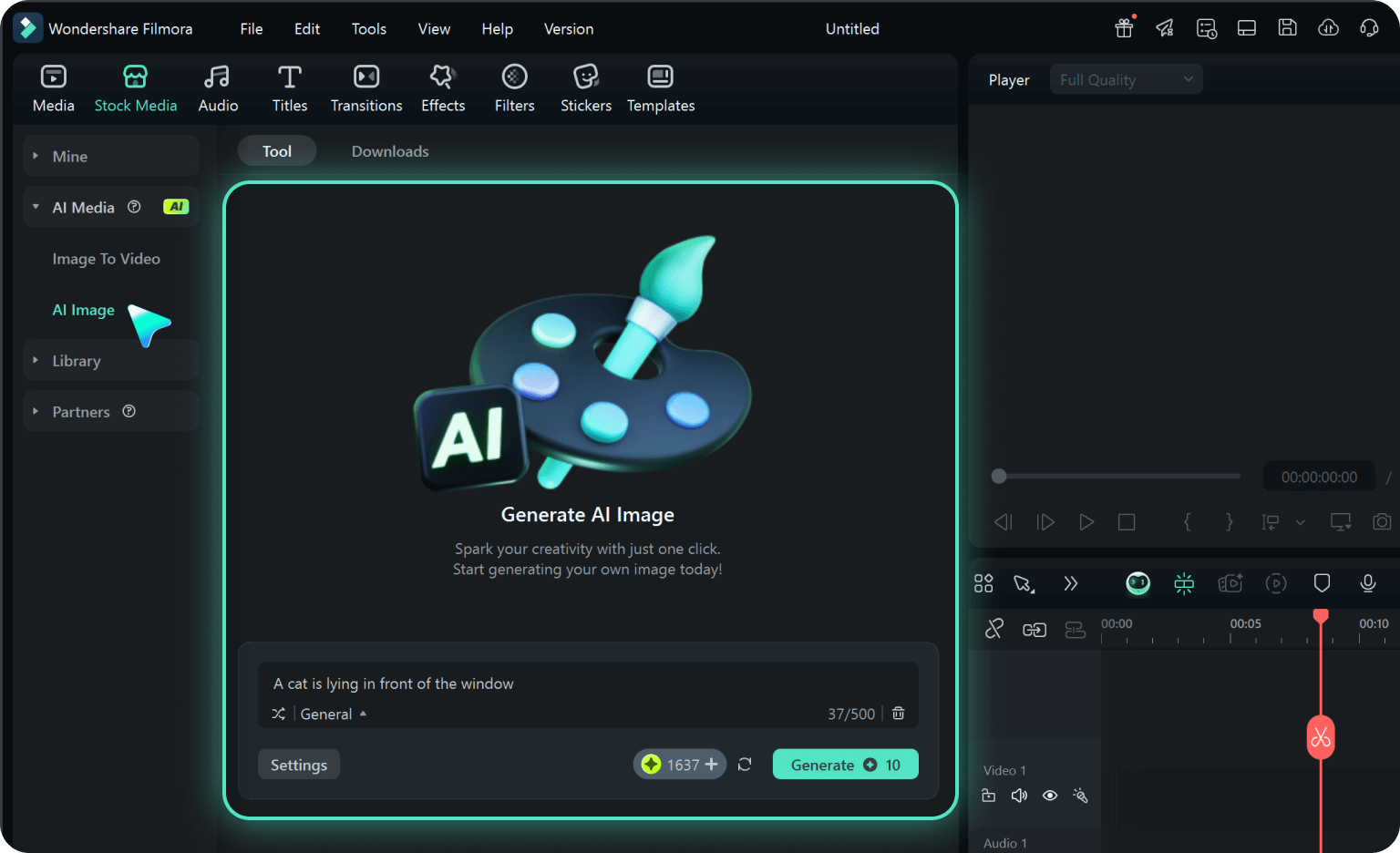
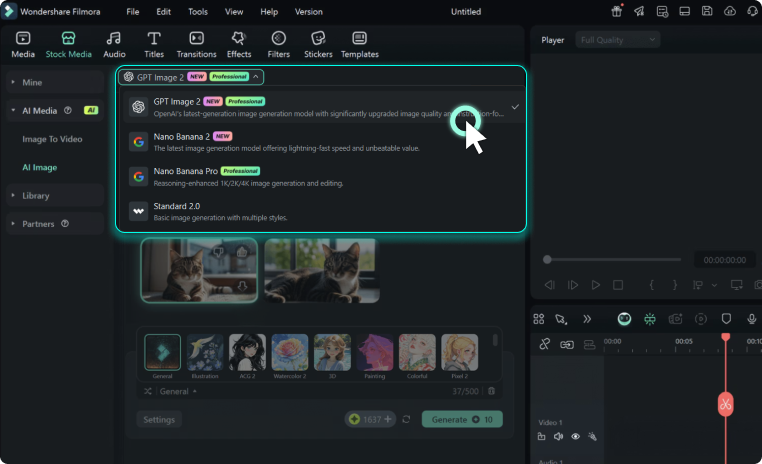
Step 2 Set Style, Model, and Ratio
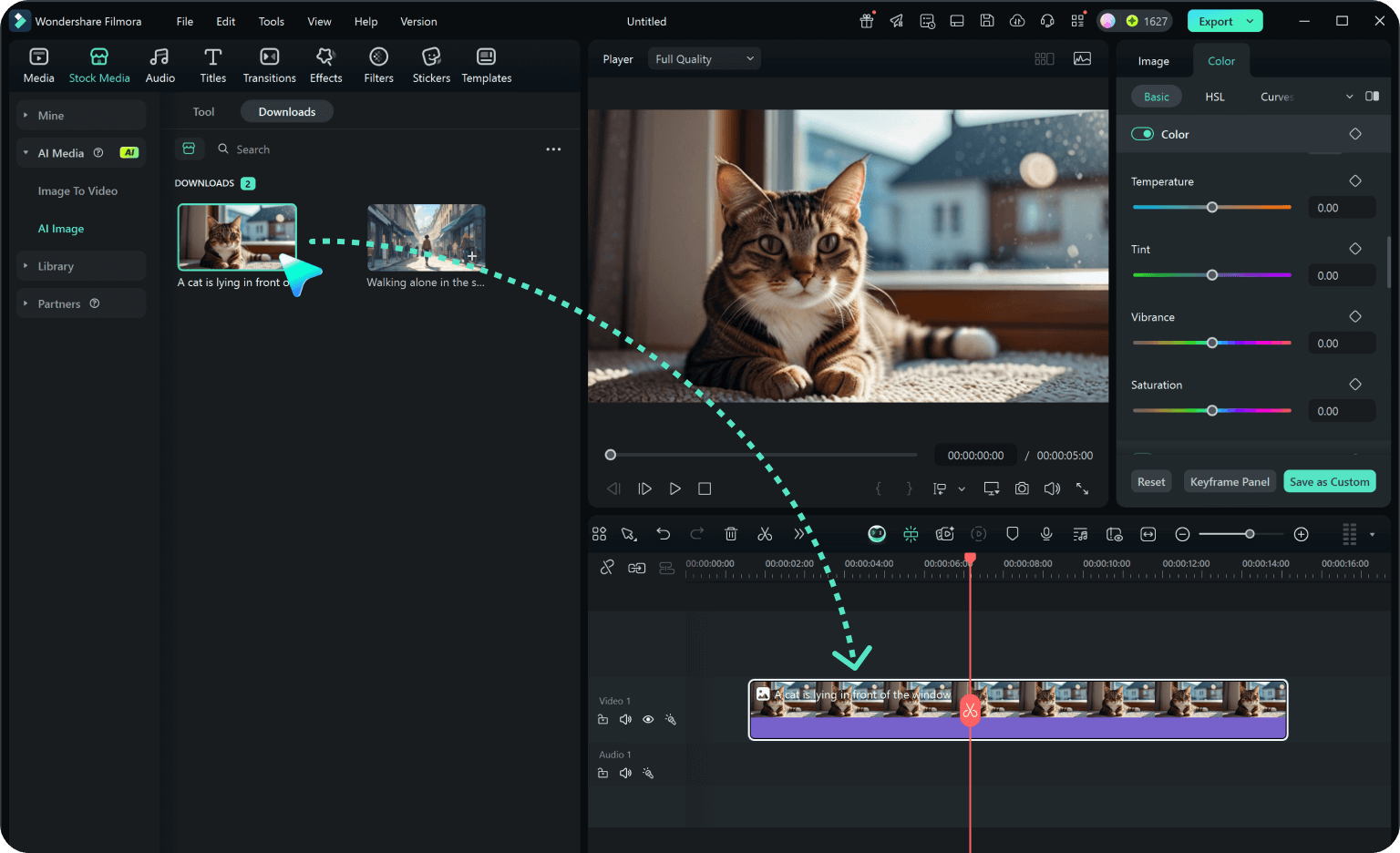
Step 3 Generate, Edit, and Export
-
1: Choose a Winter Family Prompt
Pick a winter family setup such as an adult family at a cabin, a snowy park walk, a warm fireplace scene, a winter market, or a travel-card composition. -
2: Set Style, Model, and Ratio
Paste the prompt into Filmora's AI Image tool, choose GPT Image 2 or Nano Banana, select a ratio, and refine subject detail, lighting, and framing. -
3: Generate, Edit, and Export
Generate the still, adjust crop and color, add motion or overlays if needed, then export it for family albums, winter cards, travel stories, celebration reels, photo slideshows, and seasonal greetings.
Winter Family AI Prompts for Premium Visuals
Use winter family prompts to create adult family groups, snowy parks, cabins, markets, trains, fireplaces, ice rinks, beaches, and seasonal greeting portraits and motion-ready visuals for Filmora editing.