
 TL;DR:
Canva, Clipchamp, and Adobe Express are the most practical free online video collage makers because they allow watermark-free exports up to 1080p, while VEED, Kapwing, and Clideo restrict free users to 720p and apply mandatory watermarks.
● Canva and Adobe Express are best suited for creators designing visually branded social media posts using preset graphic templates, whereas Clipchamp is recommended for users who need timeline tracks to precisely synchronize video, photos, and audio.
● The watermarked browser tools impose strict usage limits on free accounts, specifically Kapwing's four-minute export cap, VEED's ten-minute export restriction, and Clideo's 500 MB maximum file upload size.
● For complex reaction videos or multi-angle comparisons that exceed online editor capabilities, Wondershare Filmora offers a desktop solution utilizing Split Screen templates and Multi-Frame effects to manually customize clip placement and timing.
Ask AI for a summary
 ChatGPT
 Perplexity
 Gemini
 Claude
 Grok
Have several clips you want to show in one video? You could put makeup looks side by side, show a product from different angles, or compile your favorite travel moments. And it's not hard to create one.
Many online tools offer free video collage maker features, though some limit video quality, add watermarks, or lock certain features behind a subscription. Below are six free online video collage makers, along with their key features and limitations, to help you find the one that best suits your needs.

Part 1. 6 Best Free Video Collage Makers Online
Some video collage makers online offer ready-made layouts, while others let you arrange clips, resize them, and add text or music. The main difference often depends on which features you can use for free. Some add watermarks to exports, limit video quality, or provide useful features for paid plans.
1. Canva: Best for Customizable Video Collage Templates

Canva is a convenient free video collage maker if you want your collage to match a particular style without arranging every element. Its video collage gallery includes templates for travel recaps, beauty content, product promotions, birthdays, and everyday moments. Choose a design, replace the sample media with your own clips, and adjust the colors, fonts, frames, and layout.
- Dedicated video collage templates for various themes and occasions.
- Customizable layouts, colors, fonts, frames, and graphic elements.
- Provides options to combine videos, photos, text, and background music.
- Transitions and animations for adding movement to the composition.
- MP4 downloads and options to share designs online.
- Makes it easy to create a coordinated collage without designing the layout from scratch.
- Offers a wide variety of styles for social media and promotional content.
- Combines video editing with graphic design tools.
- Some templates, stock media, and design elements require Canva Pro or separate payment.
- Custom layouts may take more adjustment than simply choosing a template.
| Plan | Price | Details |
| Free | $0 | Free templates and editing tools, 5 GB storage, watermark-free exports using free elements |
| Canva Pro | $12/month billed annually ($144/year), or $18/month | Premium templates and assets, more AI usage, background remover, Brand Kit, 100 GB storage, and social media scheduling |
Check the pricing page for more details.
Creators who want a customizable video collage maker online for travel videos, beauty content, product showcases, and social media posts.
2. VEED: Best for Ready-Made Collage Layouts

Want to show several clips side by side without spending hours arranging them? VEED's free video collage maker gives you preset layouts to get started. Upload your footage, choose a design, and add captions, stickers, filters, or music to bring everything together.
- Preset layouts to display multiple clips in one frame.
- Drag-and-drop controls for arranging footage.
- Captions, stickers, filters, and music in the same editor.
- Support for common video formats, including MP4 and MOV.
- Gets you started faster than building every panel from scratch.
- Lets you add captions and music without opening another editor.
- Works well for short collages with a clear, simple layout.
- Free exports and exports while logged out include a VEED watermark.
- The collage page lists a 50 MB free upload allowance, which may be limiting for longer or higher-resolution footage.
- Removing the watermark requires a paid plan.
| Plan | Price | Details |
| Free | $0 | Free editing with a VEED watermark; exports up to 720p |
| Creator | $10/user/month, billed annually | Watermark-free exports, full HD 1080p exports, unlimited video length, 6,000 AI credits, and 15+ AI tools |
| Pro | $20/user/month, billed annually | Creator features, 4K export quality, 50GB of storage, multiple Brand Kits, and 30,000 AI credits |
Check the pricing page for more details.
Anyone who wants a quick starting layout and doesn't need to control every detail of the collage.
3. Kapwing: Best for Collages That Need Further Editing
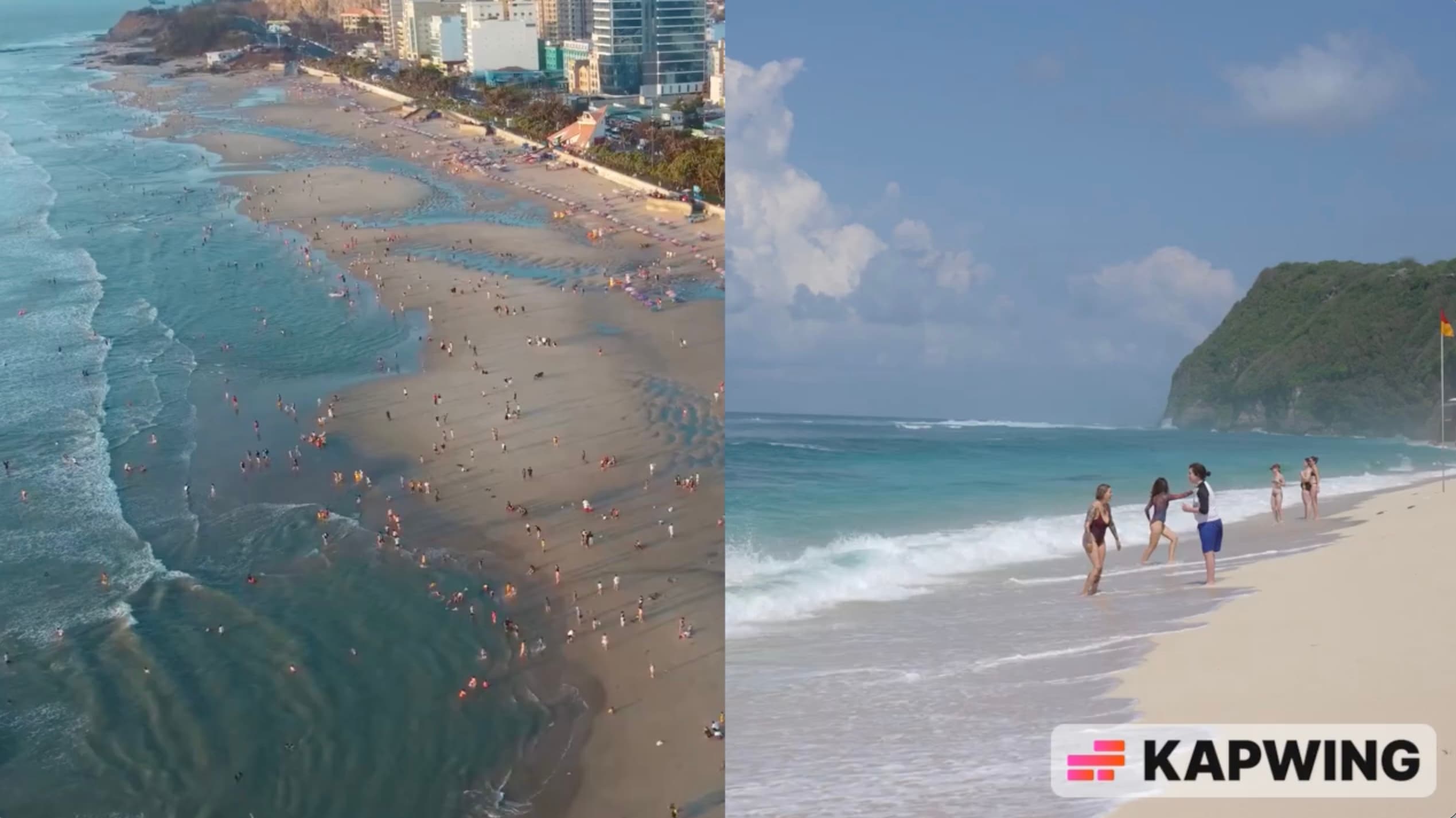
Some collages need more than a neat grid. You might want a speaker's video beside a screen recording, labels above each clip, or subtitles along the bottom. Kapwing's online video collage editor gives you a canvas to resize, move, and layer footage, then add those extra details in the same project.
- Freely position and resize clips on a canvas.
- Layer footage with text, subtitles, and audio.
- Trim clips and adjust their timing.
- Add extra visual elements without starting a separate project.
- Easier to customize when a standard grid doesn't fit your idea.
- Good for reaction videos, explainers, and comparisons with labels or subtitles.
- Allows you to save both the collage and the final edit.
- You'll need to arrange the clips yourself, rather than relying on a fixed layout.
- Free exports include a Kapwing watermark and are limited to 720p.
- Free exports are limited to four minutes, which may not suit longer projects.
| Price | Plan | Details |
| Free | $0 | Watermarked exports, videos up to 4 minutes, 720p resolution, and 10 AI credits |
| Pro | $16/member/month, billed annually, or $24 monthly | No watermark, 4K exports, videos up to 2 hours, 1,000 credits/month, and 200 GB cloud storage |
| Business | $50/member/month, billed annually, or $64 monthly | Pro features, 4,000 credits/month, purchase additional credits, and 800 GB cloud storage |
Check the pricing page for more details.
Creators who want to add subtitles, labels, or extra footage, beyond simply placing clips in a grid.
4. Clipchamp: Best for Combining Clips, Photos, and Music
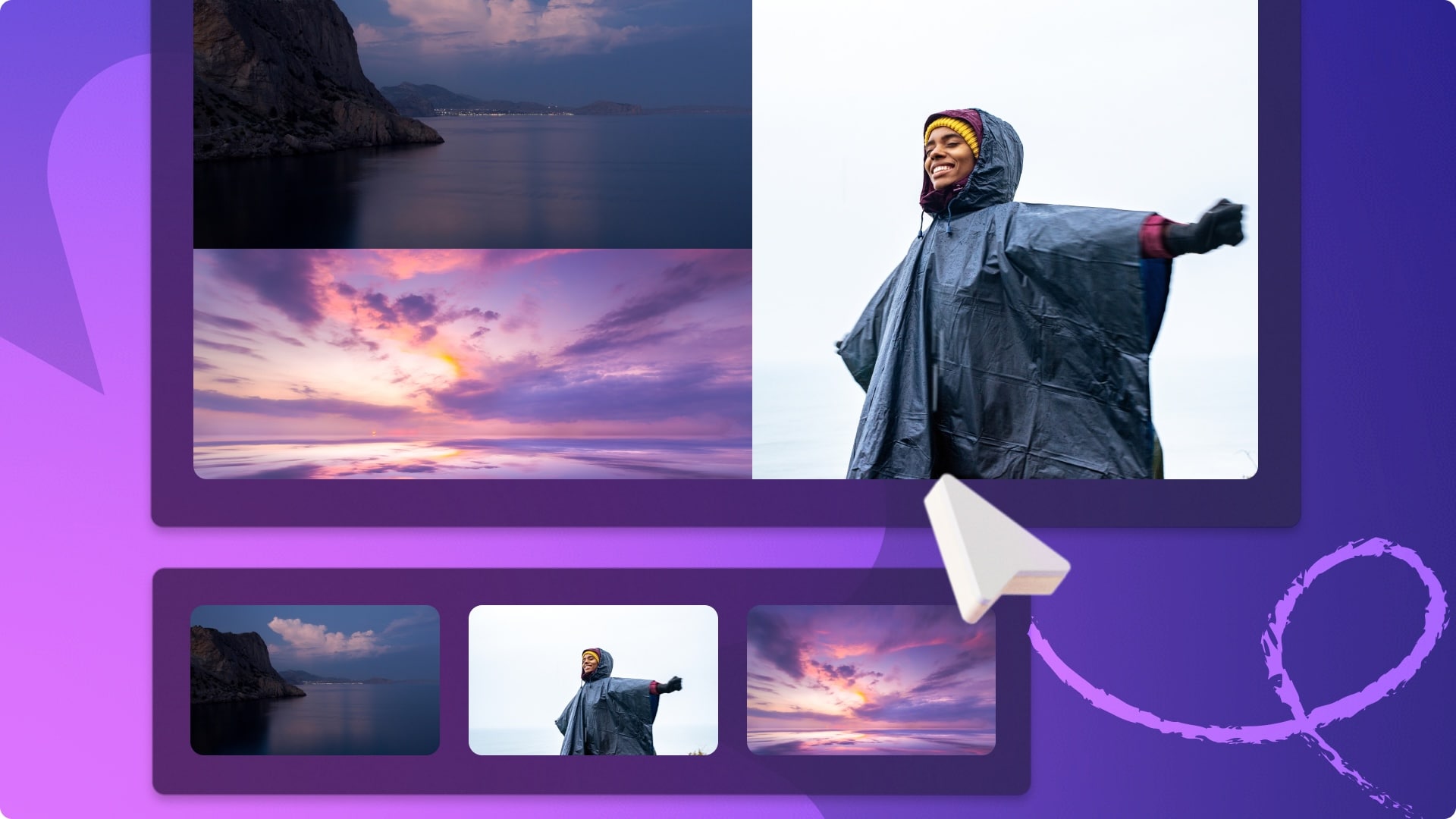
Clipchamp is a useful free video collage maker if your collage is part of a larger edit. Its timeline lets you arrange video clips, photos, and music on separate tracks, so you can control when each element appears. You can build a split-screen composition by resizing and positioning clips, then add titles and transitions. However, you won't get the same ready-made collage experience as a dedicated collage tool.
- Timeline tracks for combining video, photos, and audio.
- Trim clips, crop, rotate, and resize.
- Titles, transitions, filters, and effects.
- Free stock footage, music, and sound effects.
- Free exports are watermark-free at up to 1080p.
- Gives you the flexibility to edit the video around the collage, including its music and titles.
- Timeline controls help you fine-tune the timing of each clip.
- You may need to resize and position each clip manually to create a multi-panel layout.
- Less convenient if you just want to select a collage template and finish quickly.
- Premium stock media, 4K exports, and certain features require an eligible paid subscription.
| Plan | Price | Details |
| Free | $0 | Basic editing tools, free stock media, and watermark-free exports up to 1080p |
| Premium via Microsoft 365 Personal | $9.99/month or $99.99/year | Free-plan features plus 4K exports, premium stock assets, premium effects, and a brand kit |
| Premium via Microsoft 365 Family | $12.99/month or $129.99/year | Premium Clipchamp features for eligible family members, along with other Microsoft 365 benefits |
Check the pricing page for more details.
People who want to combine a video collage with more detailed editing, including music, titles, and transitions.
5. Adobe Express: Best for Design-Led Video Compositions

Adobe Express is a good fit for collages that need a consistent visual style, such as branded social posts, event highlights, or promotional videos. Its video collage maker lets you combine clips and photos, then add text and design elements to match your style. You can also make a video collage online free using its templates, fonts, and stock media to polish the final composition.
- Dedicated video collage maker with templates.
- Options to combine video clips and photos.
- Text, fonts, icons, and graphic design elements.
- Access to stock photos, videos, and music.
- Resizing and scheduling tools for social content.
- Combines collage creation with graphic design tools.
- Useful for maintaining consistent fonts, colors, and branding.
- The collage tool supports watermark-free downloads according to Adobe's page.
- Some premium assets and features require a subscription.
- Less suitable for users who need detailed and advanced timeline controls.
- Free stock availability can vary, so check the label on each asset before using it.
| Plan | Price | Details |
| Free | $0 | Basic photo and video editing tools, 100,000+ templates, 1M+ royalty-free stock assets, and 5GB of cloud storage |
| Premium | $9.99/month | All Free features, premium templates and assets, 30,000+ fonts, advanced editing tools, 250 monthly generative credits, and 100GB of storage |
| Firefly Pro | $19.99/month | Includes Adobe Express Premium features, 4,000 monthly generative credits for premium AI video and audio tools, and full Photoshop access on web and mobile |
Check the pricing page for more details.
Creators, small businesses, and social media managers who want collages with coordinated typography, graphics, and brand styling.
6. Clideo: Best for Simple Online Video Editing
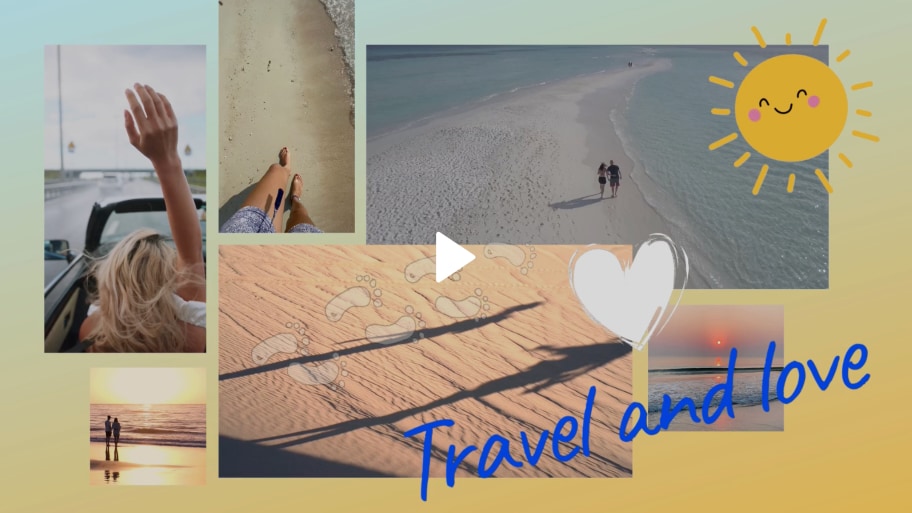
Clideo is worth considering if you want a free online video collage maker for watching two or more videos at the same time. You can place clips side by side for a comparison or overlay a smaller video over a larger one for a picture-in-picture effect. You'll need to adjust the size and placement yourself, but you can add text, music, and stickers once the layout looks right.
- Split-screen and picture-in-picture layouts.
- Manual controls for resizing and positioning clips.
- Timeline editing for layering video and image elements.
- Text, music, stickers, and GIFs for finishing touches.
- Allows you to show multiple clips at once instead of only combining them end to end.
- Gives you control over the size and position of each video.
- Suitable for comparisons, reaction videos, and demonstrations.
- Free exports include a watermark.
- Limited control over collage layouts.
- Uploading large videos can take time.
- Fewer advanced editing tools.
| Plan | Price | Details |
| Free | $0 | Watermarked exports up to 720p, uploads up to 500 MB per file, and 14-day storage |
| Pro | $9 | Watermark-free exports, 4K output, and unlimited upload size and storage period |
Check the pricing page for more details.
Anyone who wants an easy way to make a split-screen or picture-in-picture video collage without installing an editor.
Part 2. How to Choose the Right Video Collage Maker
Making a video collage for a birthday recap is different from simply placing two clips side by side for comparison. The right tool should fit the kind of video you're making, from choosing a layout to adding music and exporting without a watermark. If you're looking for a free video collage maker, compare these details before you start editing.
| Watermark on Free Export | Free Resolution | Free Length / Size Limits | Main Limitations | |
| Canva | No, when using free elements | Up to 1080p | Videos up to 30 minutes; uploads up to 1 GB per file | Premium elements require a Pro plan |
| VEED | Yes | Up to 720p | Up to 10 minutes per export; 1 GB per upload; 2 GB storage | Watermark; higher export resolution requires a paid plan |
| Kapwing | Yes | Up to 720p | Up to 4 minutes per video; 30 minutes of exports per month; uploads up to 2 GB per file | Watermark and limited AI credits |
| Clipchamp | No | Up to 1080p | No project-length or input file-size limit; 30-minute limit for webcam and screen recordings. | Premium assets and 4K exports require a subscription |
| Express | No, when using eligible free assets | Up to 1080p | Videos up to 30 minutes; video quick-action uploads up to 1 GB | Some templates, assets, and features require Premium |
| Clideo | Yes | Up to 720p | Uploads up to 500 MB per file | Watermark and limited editing controls |
|
Show More
Show Less
|
||||
Quick Recommendation
- Canva or Adobe Express: Best for creating visually consistent collages for social media, events, and promotions.
- VEED or Kapwing: Good choices if you want to make a video collage online and add captions or other edits in the same browser.
- Clipchamp: Suits projects that combine video clips, photos, and music on a timeline.
- Clideo: A simple option for side-by-side videos and picture-in-picture layouts.
Bonus: Try Filmora for Customizing Multi-Screen Videos on Desktop
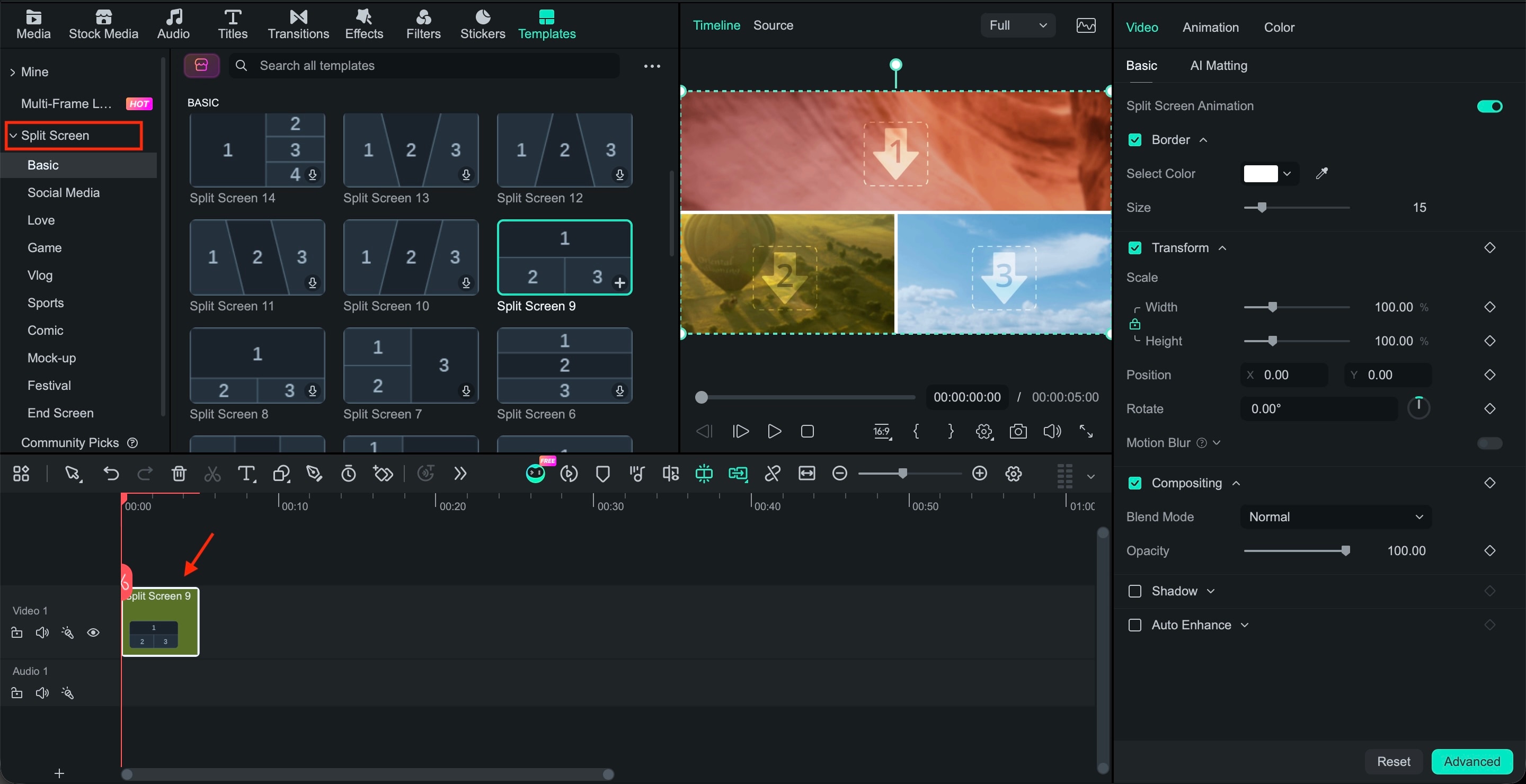
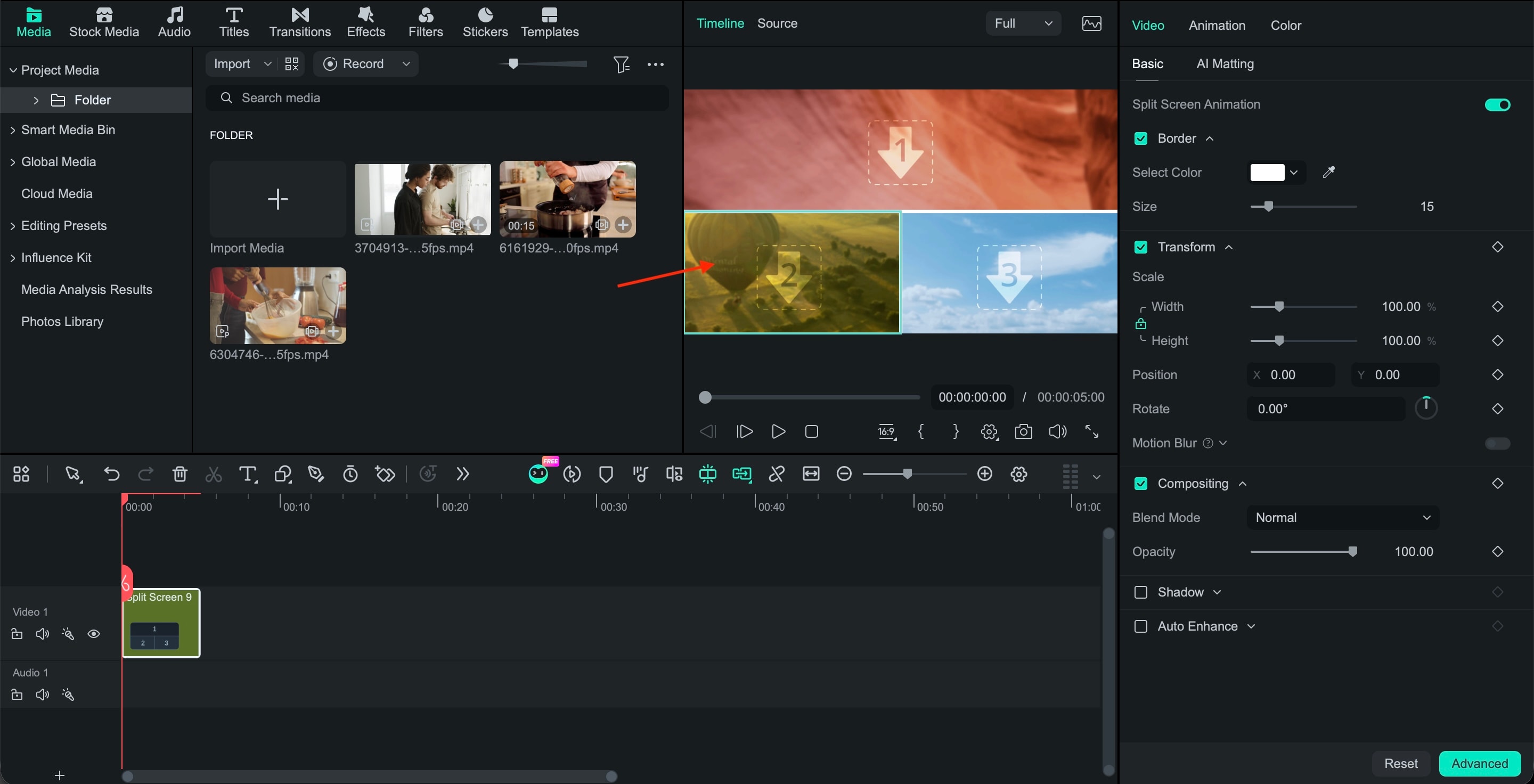
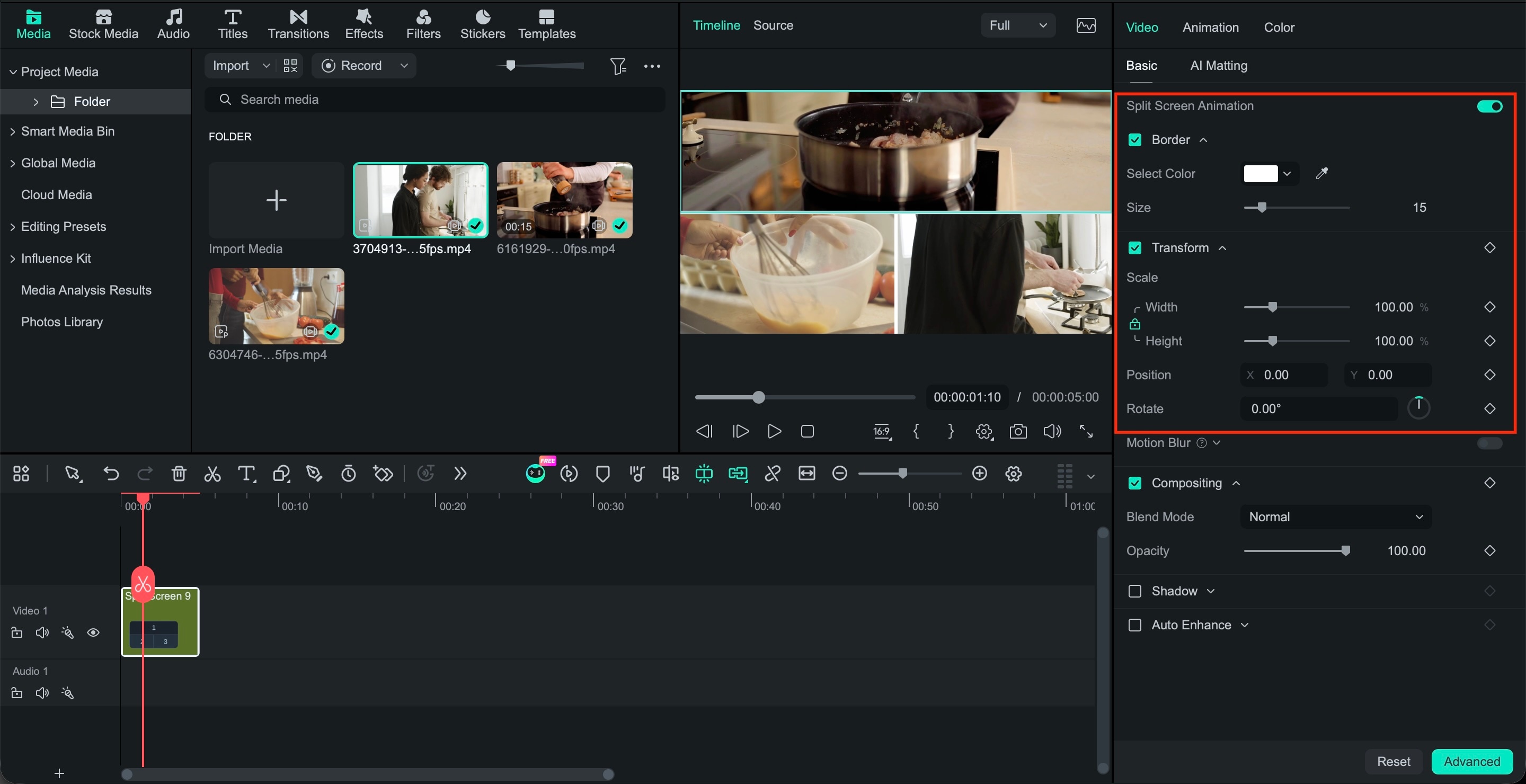
If you want to combine reaction clips, compare two recordings, or show several angles in one frame, Filmora gives you more editing control than a basic online video collage maker. Wondershare Filmora features Split Screen templates help you arrange clips in preset layouts, while Multi-Frame effects let you add multi-screen compositions to an existing project.
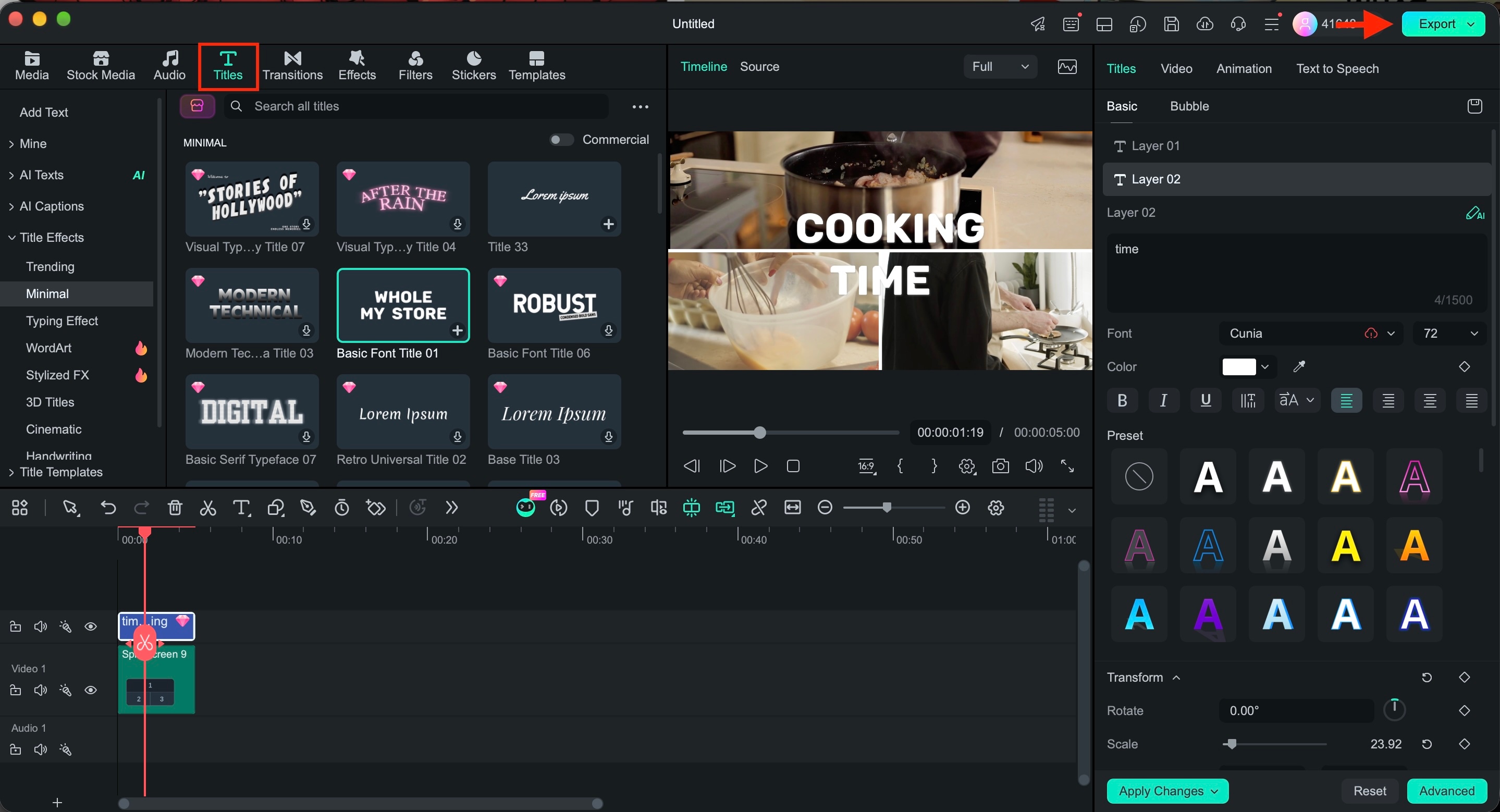
After importing your footage, choose a split-screen template or apply a multi-frame effect to create your desired layout. You can fine-tune clip placement and timing, then add borders, text, transitions, and music to complete the video.
How to Make a Video Collage in Filmora
Method 1: Use Split Screen Templates

 Secure Download
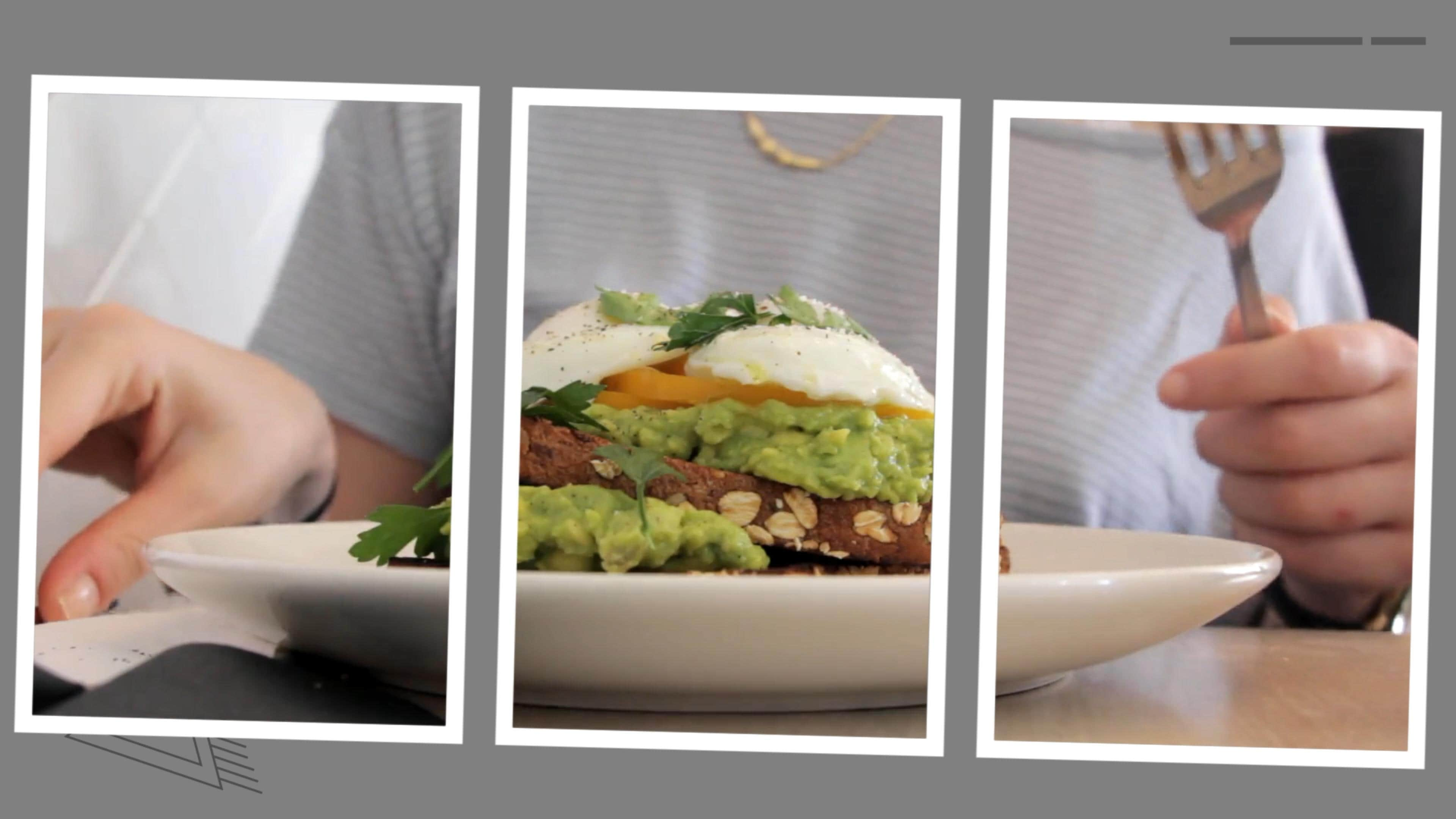
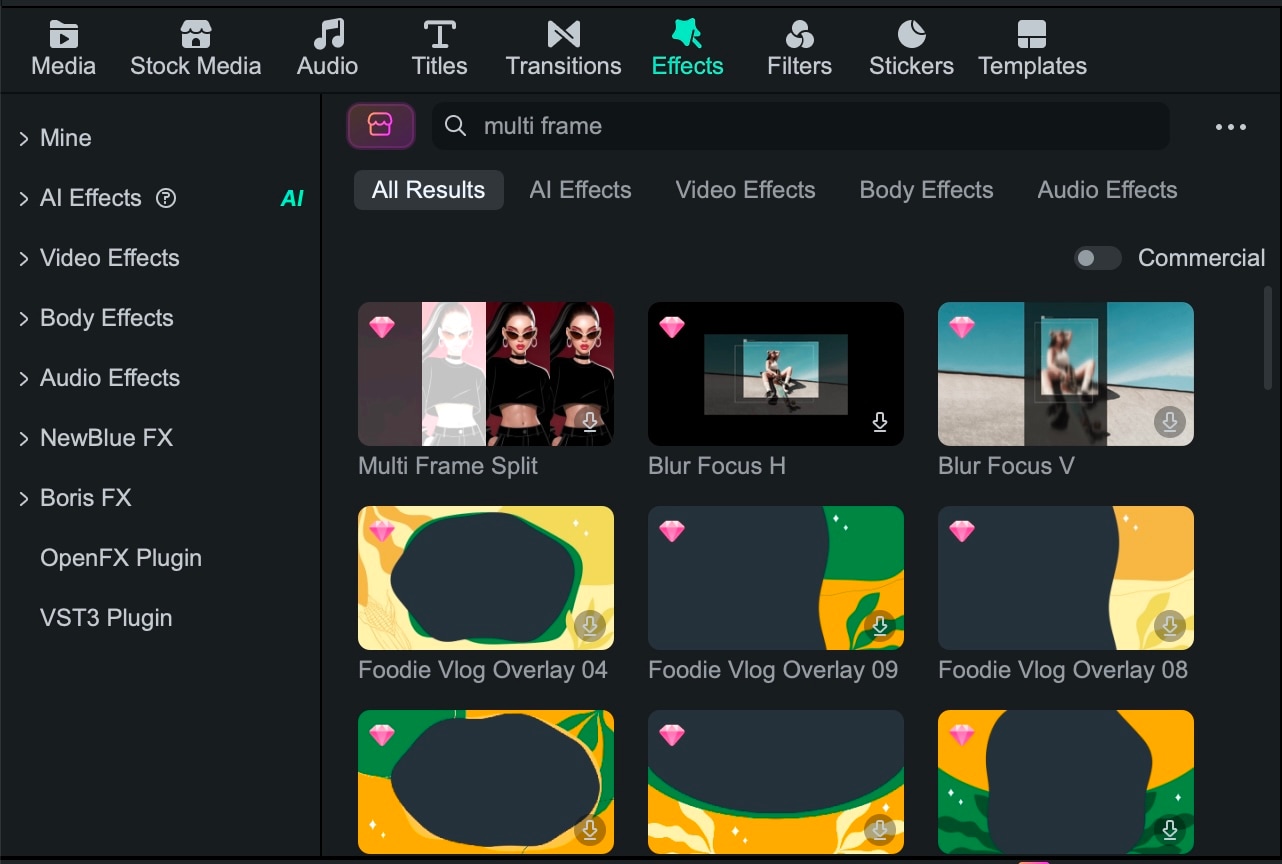
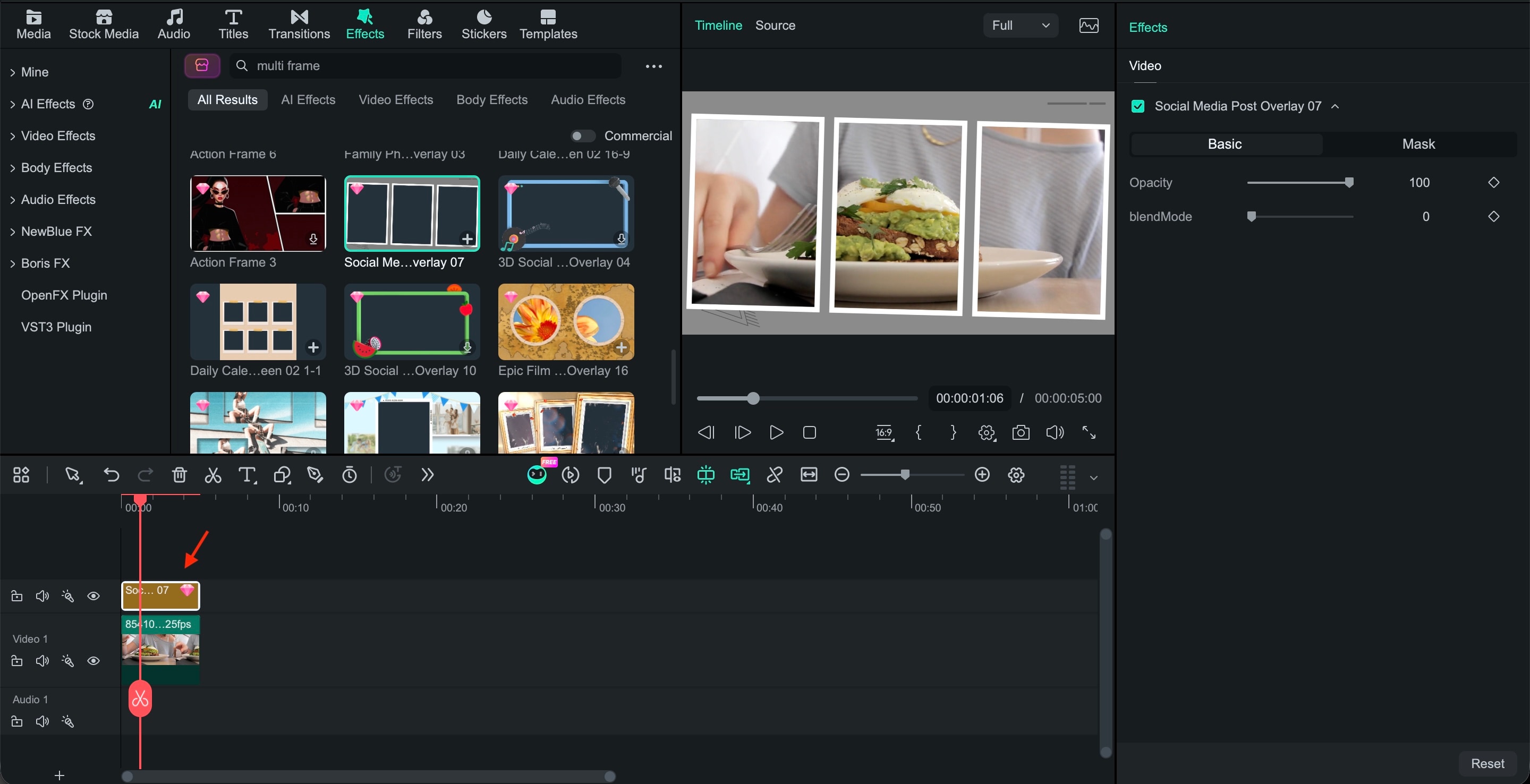
Method 2: Apply a Multi-Frame Effect
If you already have footage arranged in a project, you can add a Multi-Frame effect without starting over.

Conclusion
A free video collage maker can be as simple as placing two clips side by side or as creative as combining multiple videos with music, text, and different layouts. Canva and Adobe Express are useful for adding graphics, while VEED and Kapwing let you edit in your browser. Clipchamp offers timeline editing, and Clideo keeps basic split-screen edits simple.
Before settling on a tool, check its free export limits and watermark policy. For reaction videos, comparisons, or collages with several angles, Filmora's Split Screen templates and Multi-Frame effects let you arrange footage and adjust each panel on desktop.
FAQ
-
What is the best free video collage maker?
Canva and Adobe Express are good for collages with text and graphics. Clipchamp offers timeline editing, while VEED, Kapwing, and Clideo provide browser-based collage creation. Compare each tool's watermark and export limits before deciding. -
How do I put multiple videos on one screen?
Import your clips into a split-screen template or a multitrack editor. Resize and position each clip, adjust the timing, then export your video. -
What is the difference between a video collage and a split-screen video?
A video collage can combine clips, photos, and design elements in different layouts. A split-screen video divides the frame into sections to display multiple clips simultaneously. -
Can I create a video collage with different aspect ratios?
Yes. Crop or resize each clip to fit the layout. Vertical and horizontal videos can share one frame, but cropping or spacing may be needed to preserve their proportions.