

 100% Security Verified | No Subscription Required | No Malware

If you want graffiti-style visuals for a video, the hard part usually isn't finding a cool font. The hard part is making the lettering, colors, texture, and movement feel like graffiti, not plain text, with a few added effects.
A graffiti art generator can speed up the creative process, and Wondershare Filmora offers graffiti-style text templates for animated titles and AI image tools for generating custom artwork from a text prompt. You can tweak the result and fit it into a video clip, intro, social post, or GIF.
See what you can create with Filmora, how much customization it offers, and how the finished graffiti art examples look in motion.
In this article
Part 1. Wondershare Filmora: Graffiti Art Generator
Need a graffiti art generator for a YouTube intro, music edit, Reel, or animated GIF? In Filmora, you can generate a graffiti-style image from a prompt, add editable lettering with stylized text, and animate both in your video project.
Filmora isn't a dedicated graffiti art maker, so it doesn't have specialized tools for drawing wildstyle letters or recreating hand-painted graffiti. Its advantage is in combining AI image generation, text templates, overlays, and animation tools in one editor.
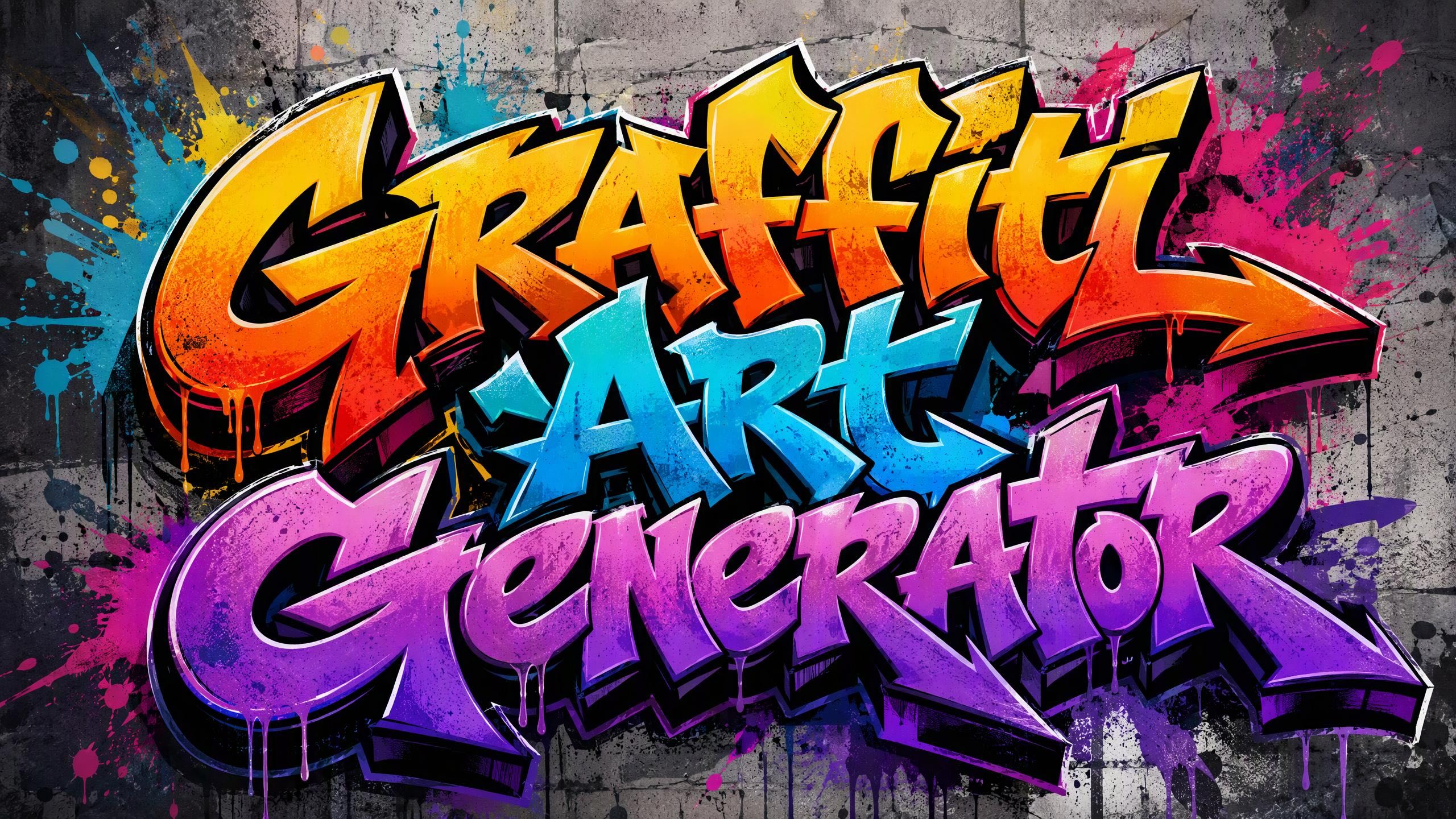
Filmora Features for Creating Graffiti Art
- AI Image Generator: Generate artwork from prompts such as "bright wildstyle graffiti lettering on a brick wall."
- Multiple Art Styles: Test different visual styles to find a look that fits your video.
- Text Templates and Overlays: Create editable graffiti-style titles and customize the font, color, outline, shadow, and more.
- Animation: Add movement to your lettering or artwork with animation presets and keyframes.
- Media Library Integration: Import the generated artwork straight into the project alongside your footage and other assets.
- High-Resolution Export: Export the finished video at up to 4K when supported by your project and settings.


Part 2. How to Create Graffiti Art Using Filmora's Text Templates
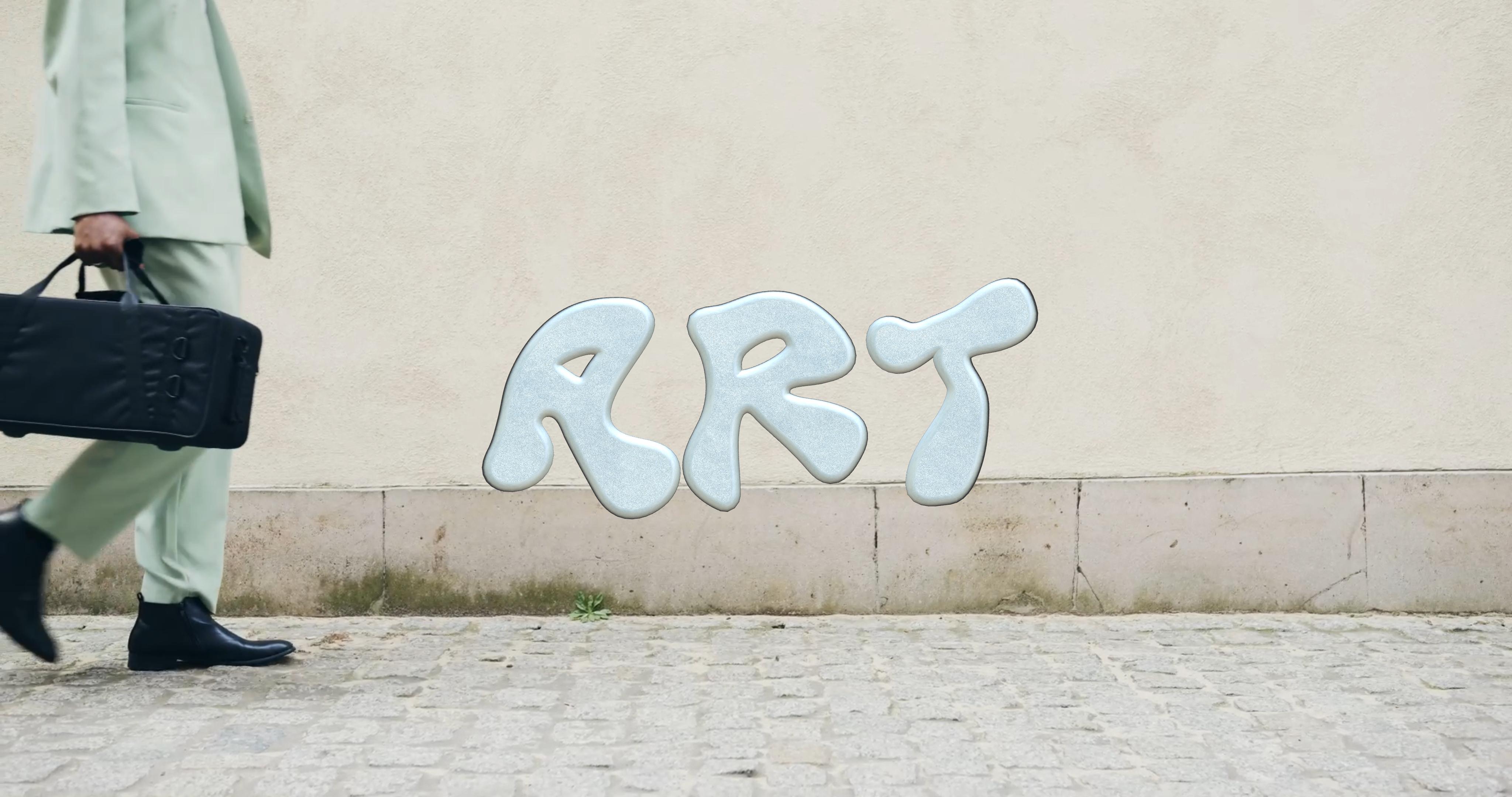
If your graffiti design is mainly about the words, Filmora's text templates are the fastest way to create it. Start with a ready-made title style, replace the sample text, then adjust its appearance and animation to fit your video.
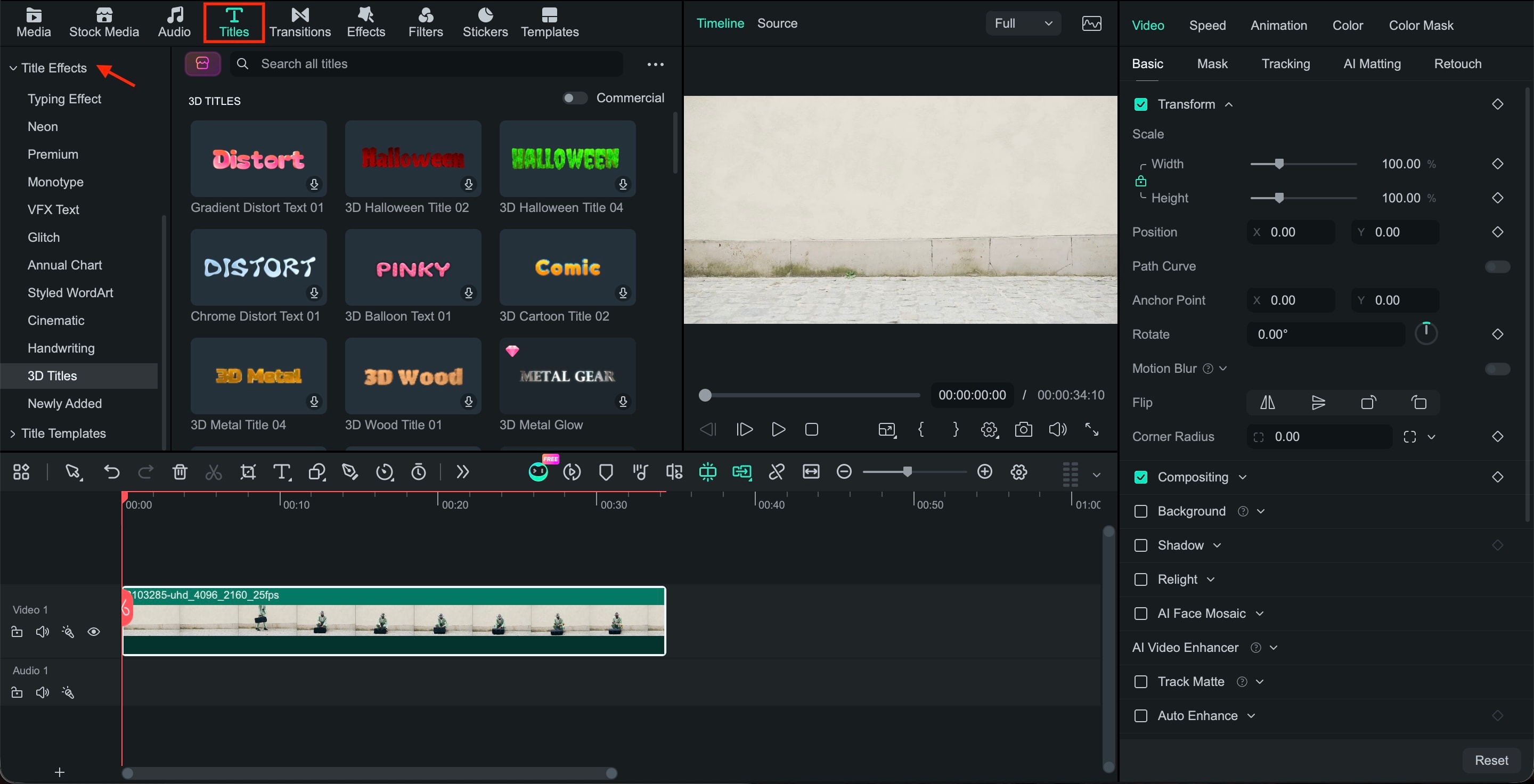
Step1Add a Text Template
Open your Filmora project and go to Titles. Browse the available title templates and choose a style that fits the graffiti look. Drag it onto the timeline above your video.
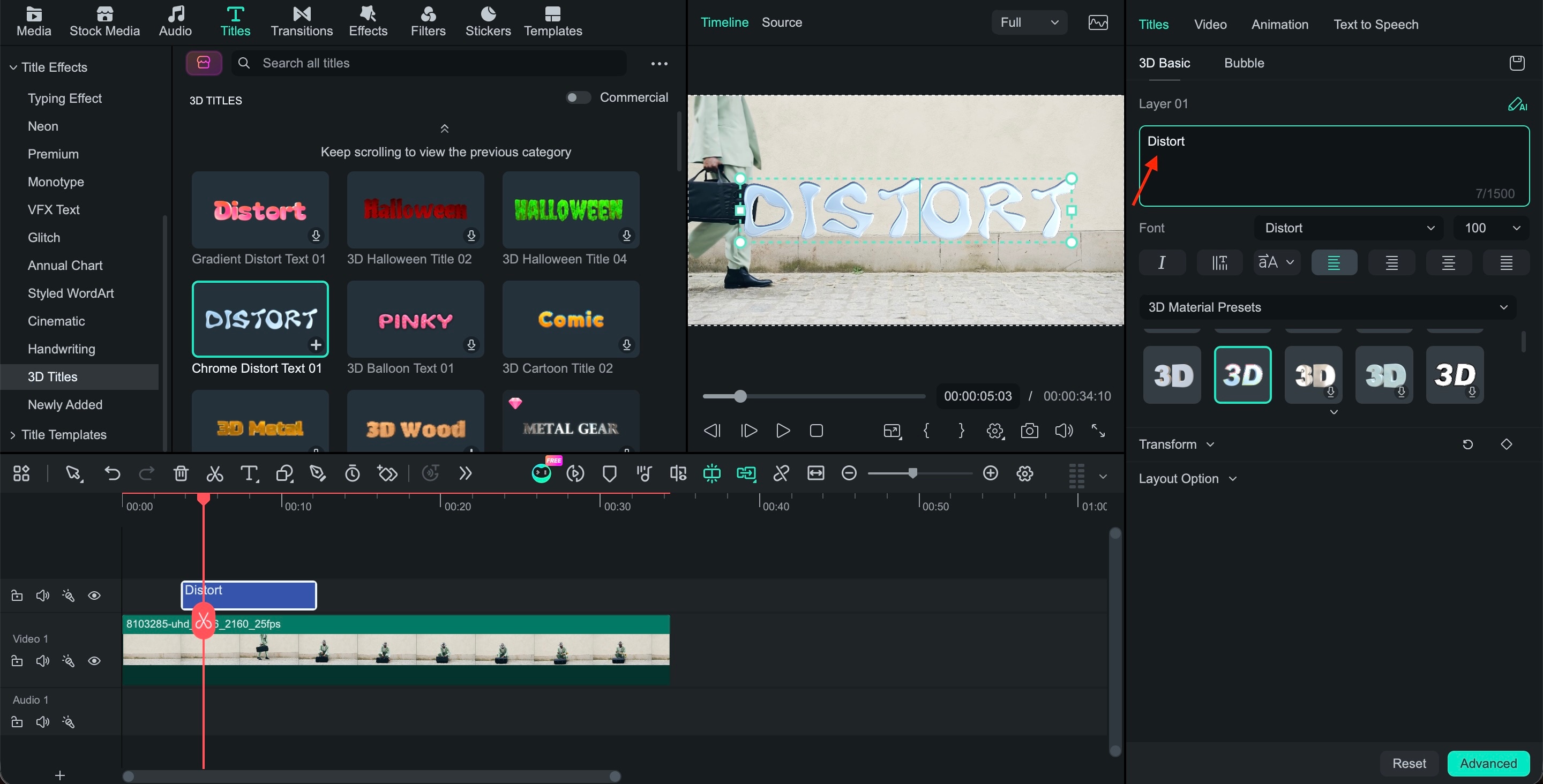
Step2Replace the Sample Text
Double-click the title on the timeline to open the text editing panel. Replace the placeholder with your own word or phrase, then adjust the font, size, alignment, and position.
Step3Build the Graffiti Look
Use Filmora's text controls to refine the lettering. Adjust the fill, outline, shadow, opacity, and other styling options until the text has more depth and contrast. Bold colors and layered outlines can help transform a basic title into something that looks more like graffiti.
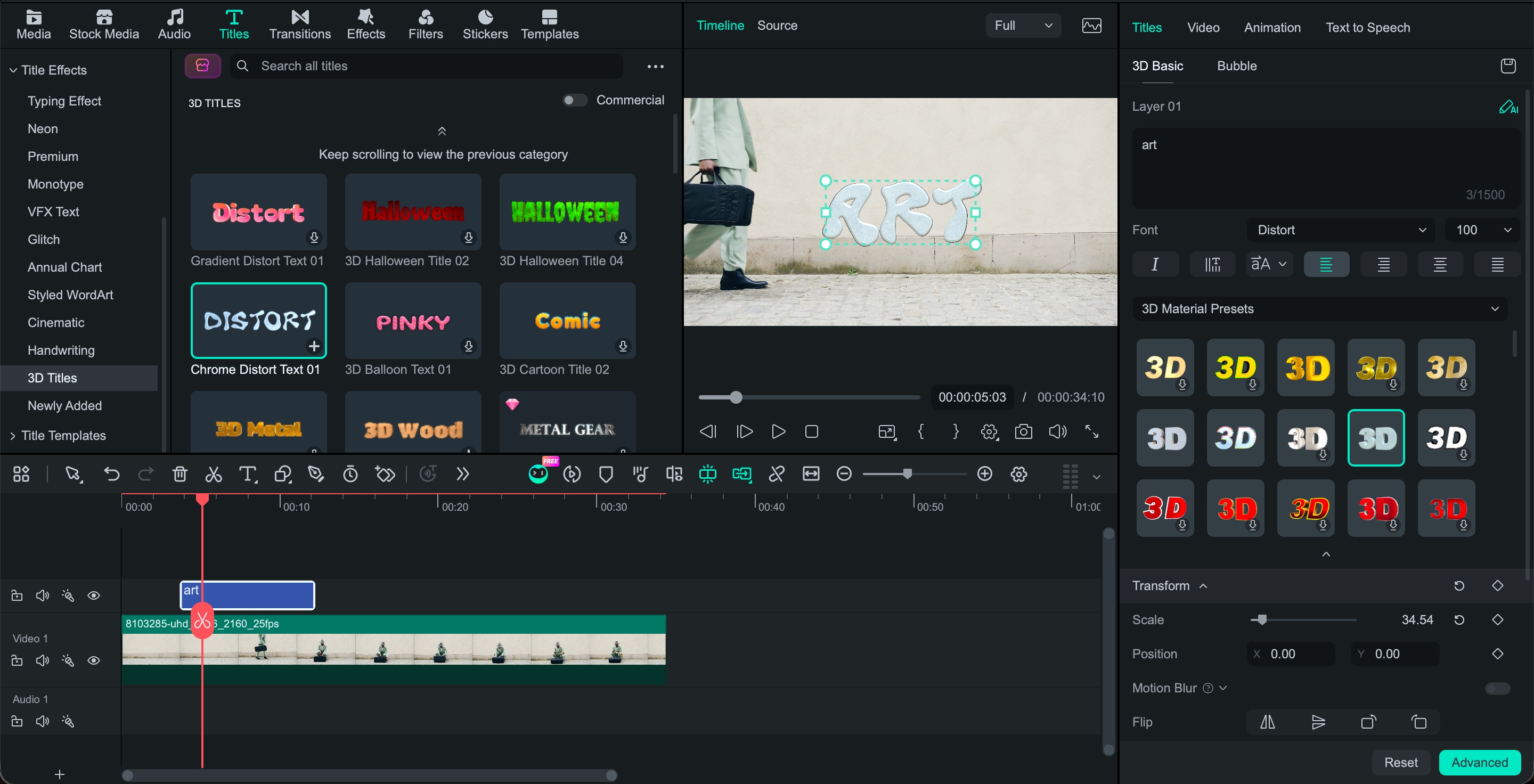
Step4Add Movement
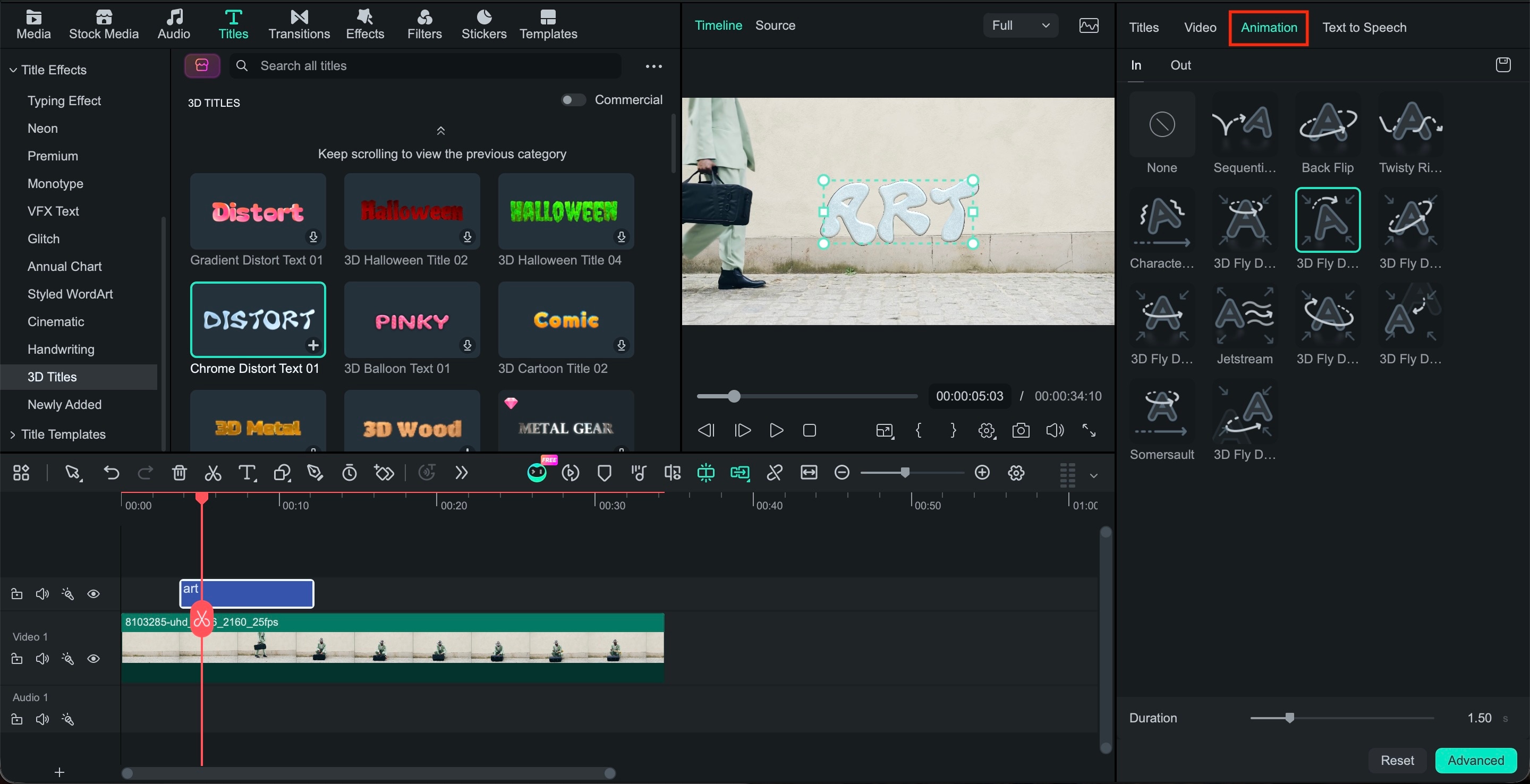
Open the Animation controls and try a preset that suits your clip. For more control, use keyframes to change the text's position, scale, rotation, or opacity over time.
Step5Preview and Export
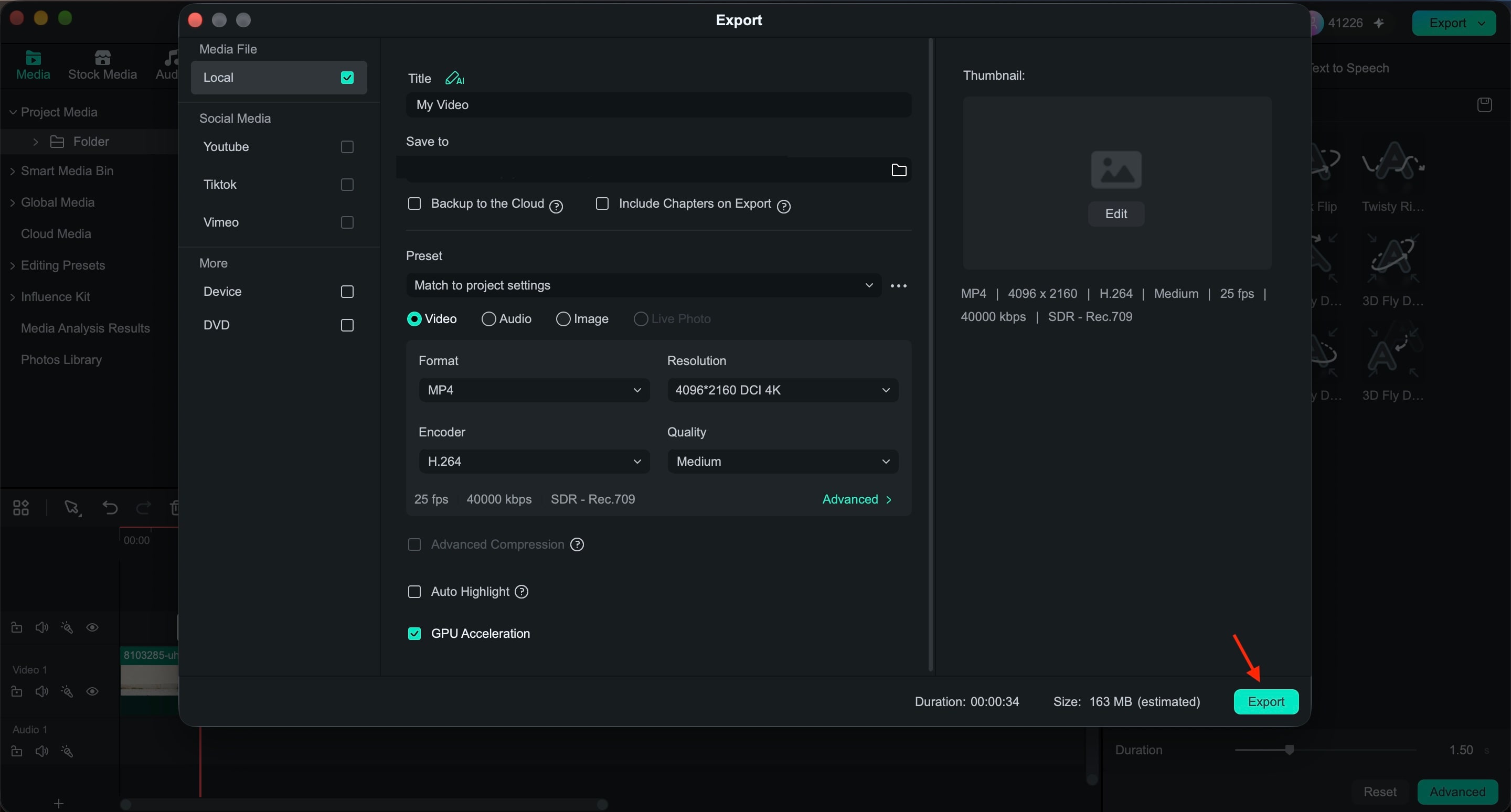
Play the section at full speed to check that the text stays readable as it moves. Once it looks right, export the video using your preferred resolution and format.
This workflow is suitable when you need editable graffiti lettering for an intro, lyric video, social clip, or GIF. For more unique artwork rather than just plain text, Filmora's AI Image Generator offers another option.
Part 3. How to Make AI Graffiti Art in Filmora
Want something more custom than a premade graffiti title? Filmora can work as an AI graffiti generator through its AI Image Generator. Instead of adjusting an existing template, describe the artwork you want, and the tool will generate an image based on your prompt, then add it to your video project for further editing.
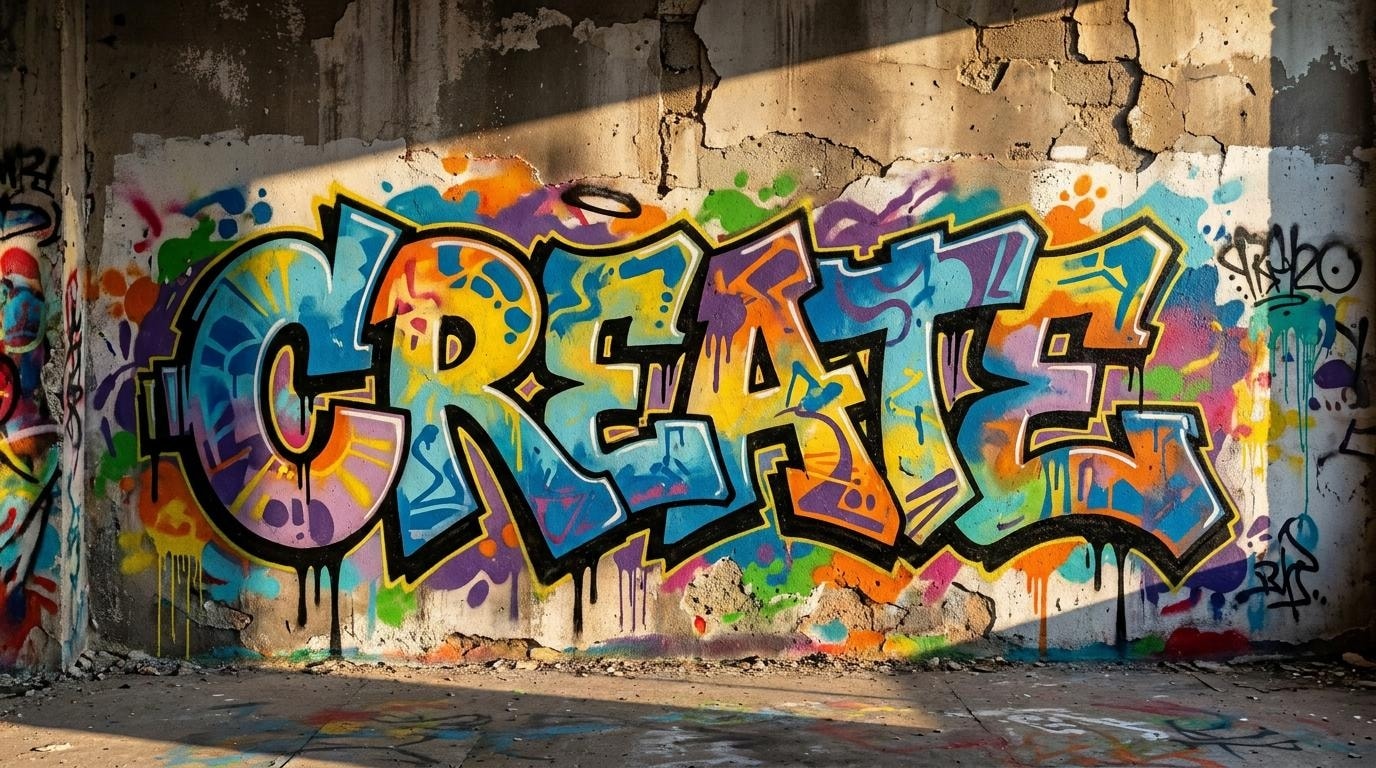
Step1Open the AI Image Generator
Launch Filmora and create or open a project. Find the AI Image Generator in Filmora's AI tools and open the text-to-image interface.
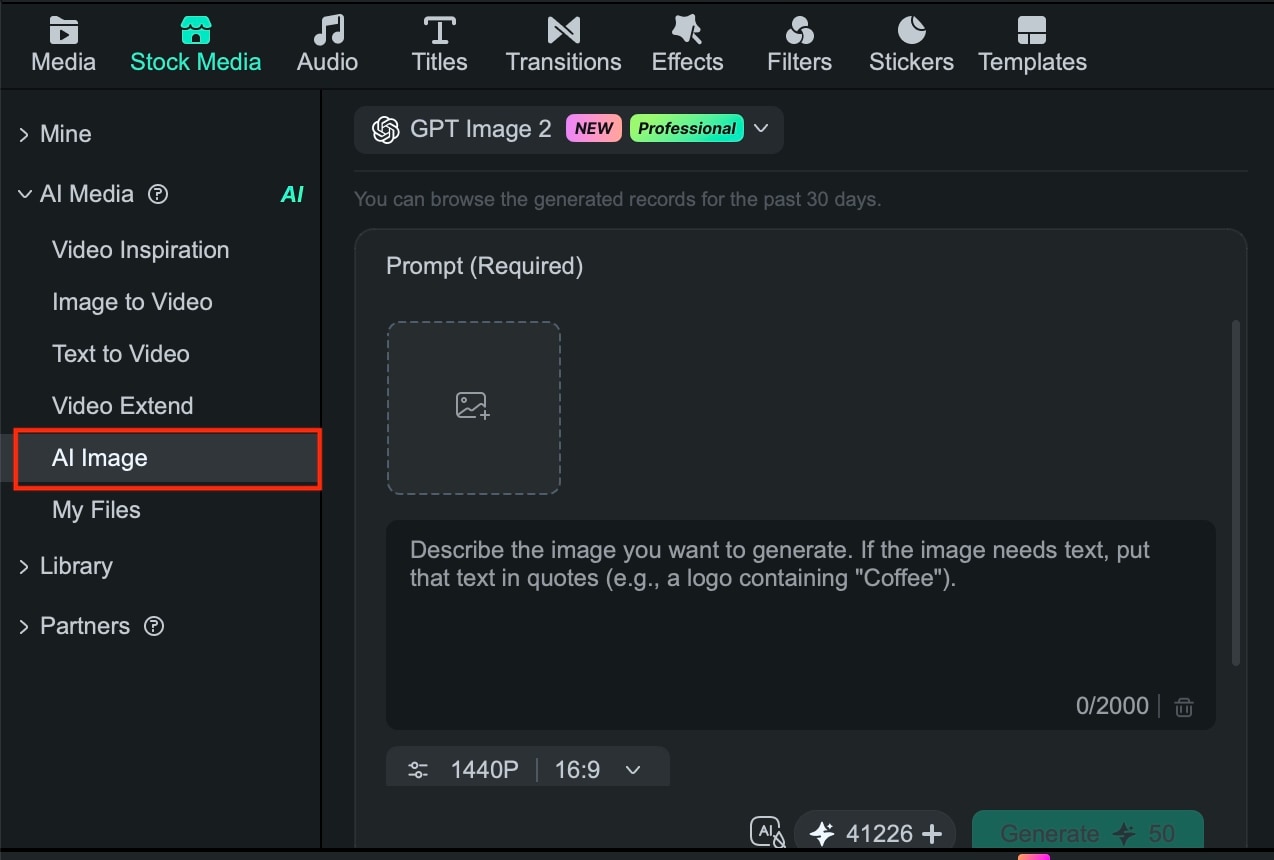
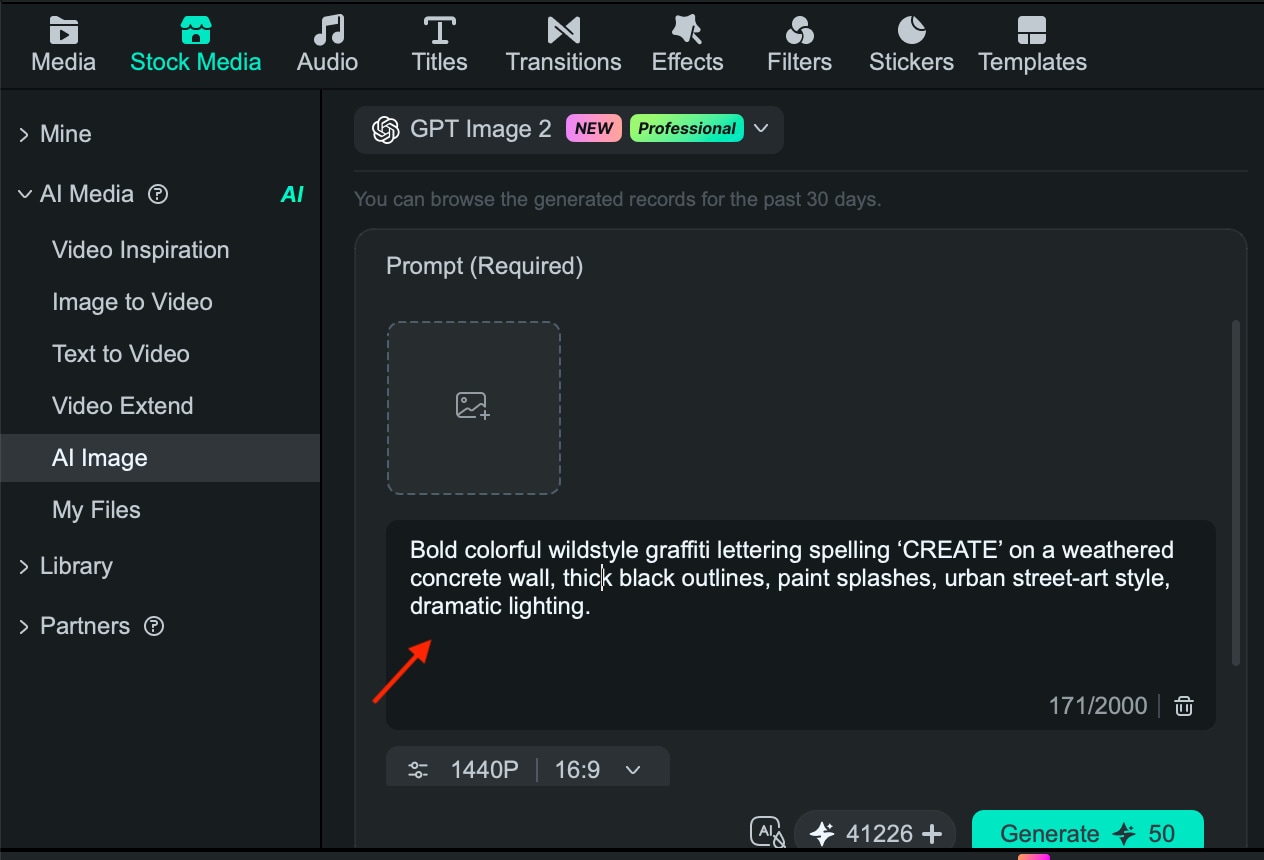
Step2Write a Specific Graffiti Prompt
Describe the artwork instead of typing only "graffiti." Include details such as the lettering style, colors, surface, lighting, and composition.
For example, try:
"CREATE" in dense wildstyle lettering, with interlocking angular forms, electric blue and orange spray paint, heavy black outlines, paint drips, and a cracked concrete wall."
The more visual details you provide, the easier it is to guide the result toward the look you want.
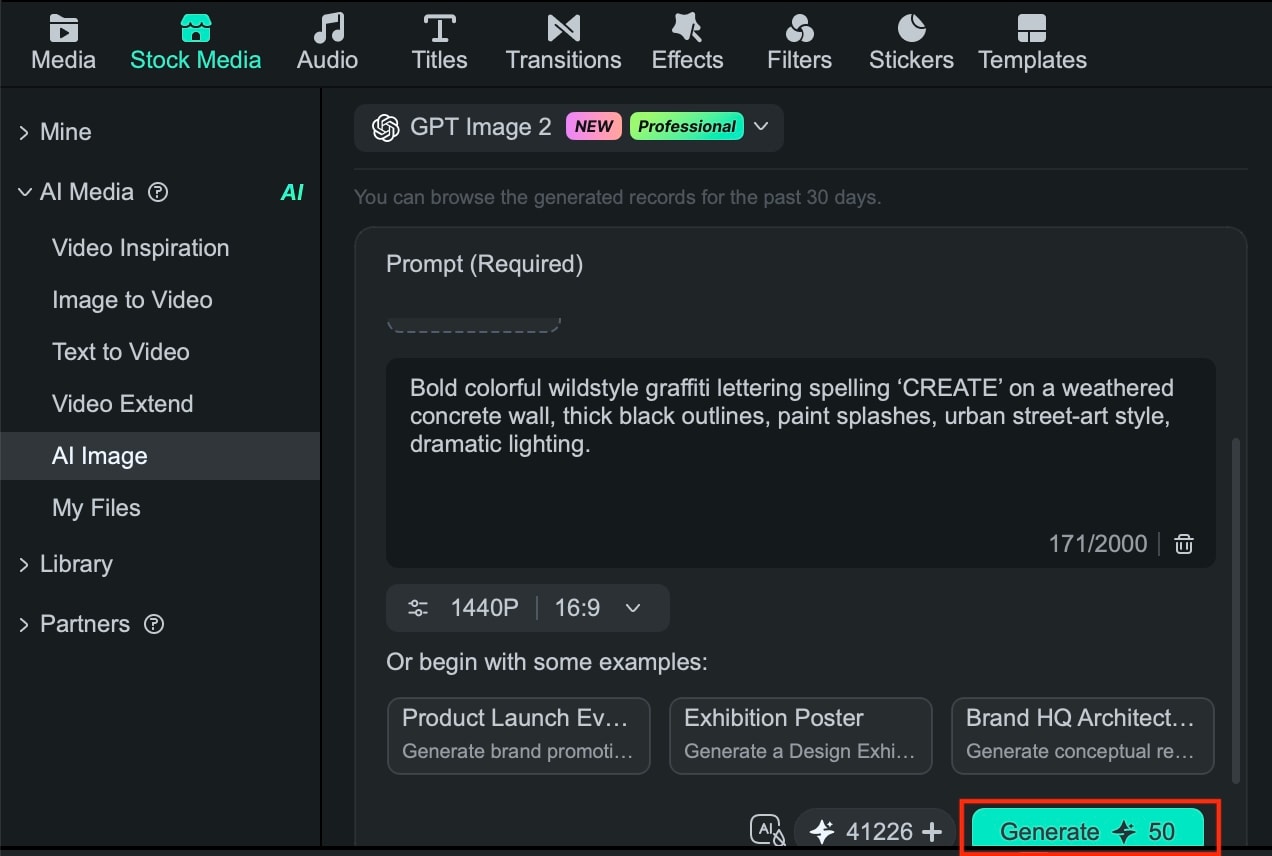
Step3Generate the Artwork
Submit your prompt and let Filmora generate the image. If the first result doesn't match your idea, tweak specific details in the prompt instead of rewriting everything from scratch.
Step4Add the Result to Your Project
Once you have an image you like, bring it into your Filmora project and place it on the timeline. Combine it with footage, music, transitions, effects, or additional text.
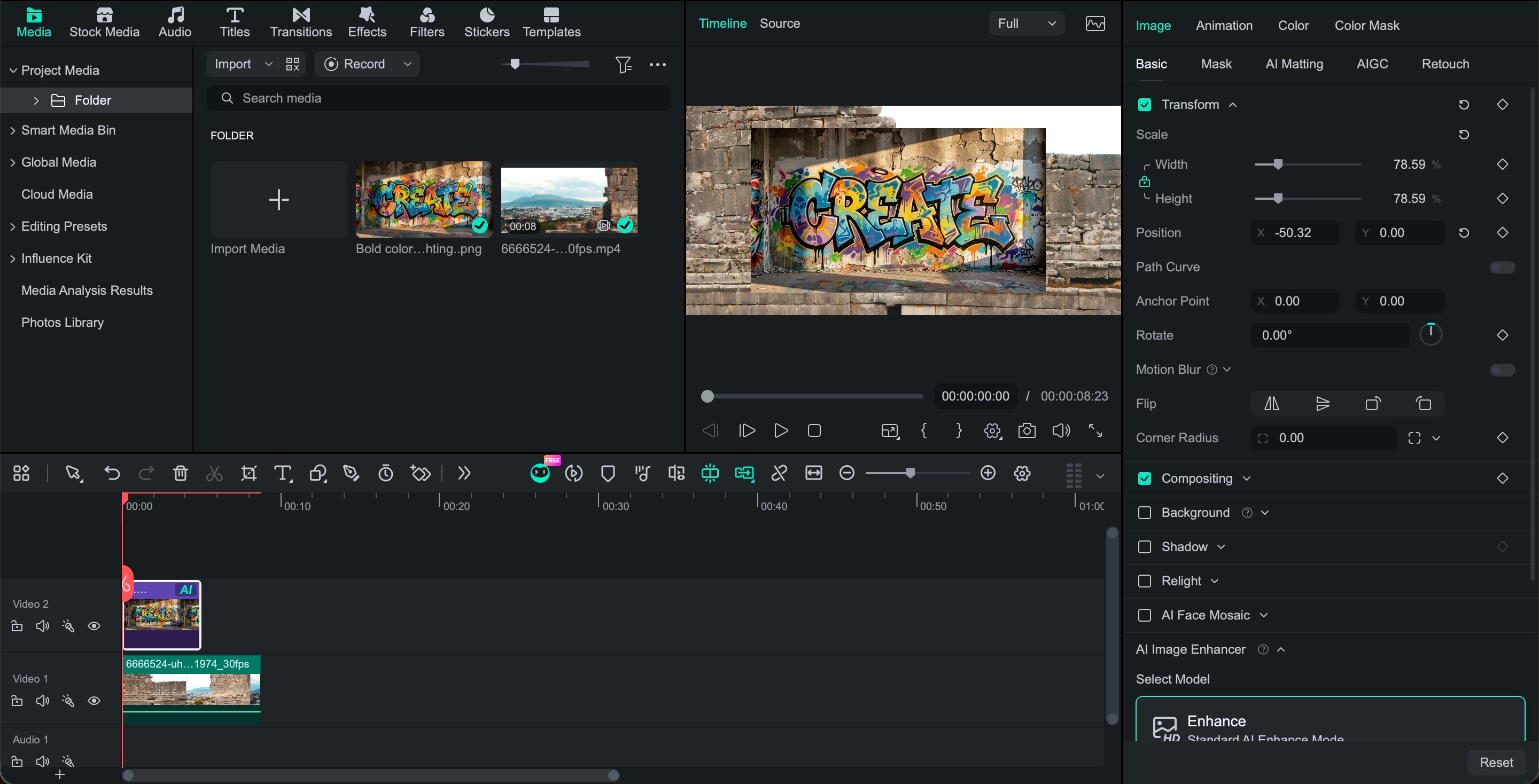
Step5Animate the Graffiti
Use Filmora's animation tools and keyframes to add movement. You can create simple zooms, pans, rotations, or opacity changes to make a static graffiti image work better in a video or GIF.
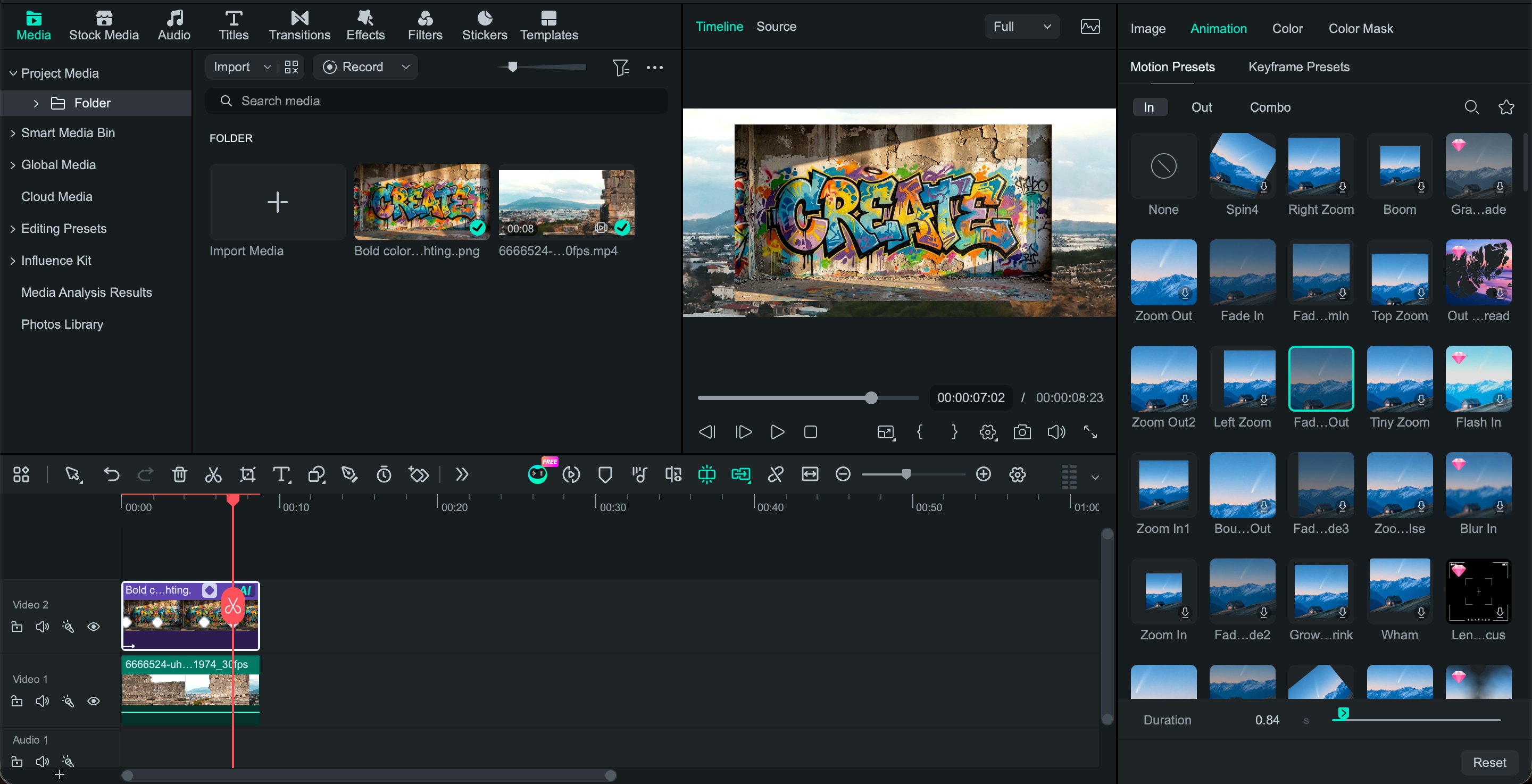
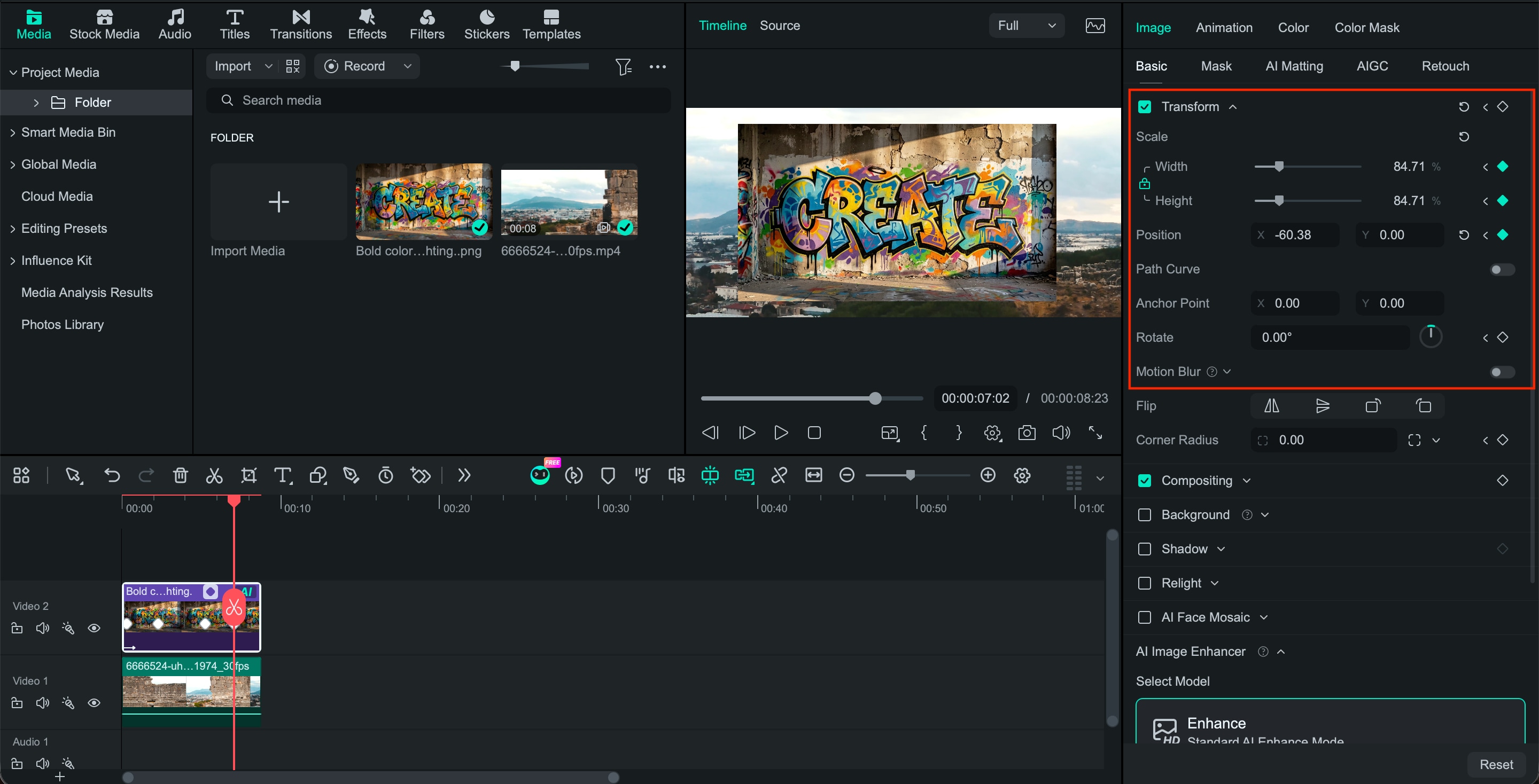
Step6Fine-Tune and Export
Preview the artwork with your footage and adjust its position, scale, timing, or effects. Once everything looks right, export the finished video using your preferred resolution and format.
Part 4. How Good is Filmora? Graffiti Art Examples and Verdict
Filmora can produce convincing graffiti-style visuals, especially for video backgrounds, title cards, and short animated edits. Its AI Image Generator lets you experiment with different graffiti concepts, while its text editor gives you more control over words and typography.
Graffiti Art 1. Wildstyle Lettering
Prompt: "Dynamic wildstyle graffiti reading "URBAN," featuring sharp overlapping letters, vibrant blue and red spray paint, heavy black outlines, paint drips, and a gritty concrete wall."
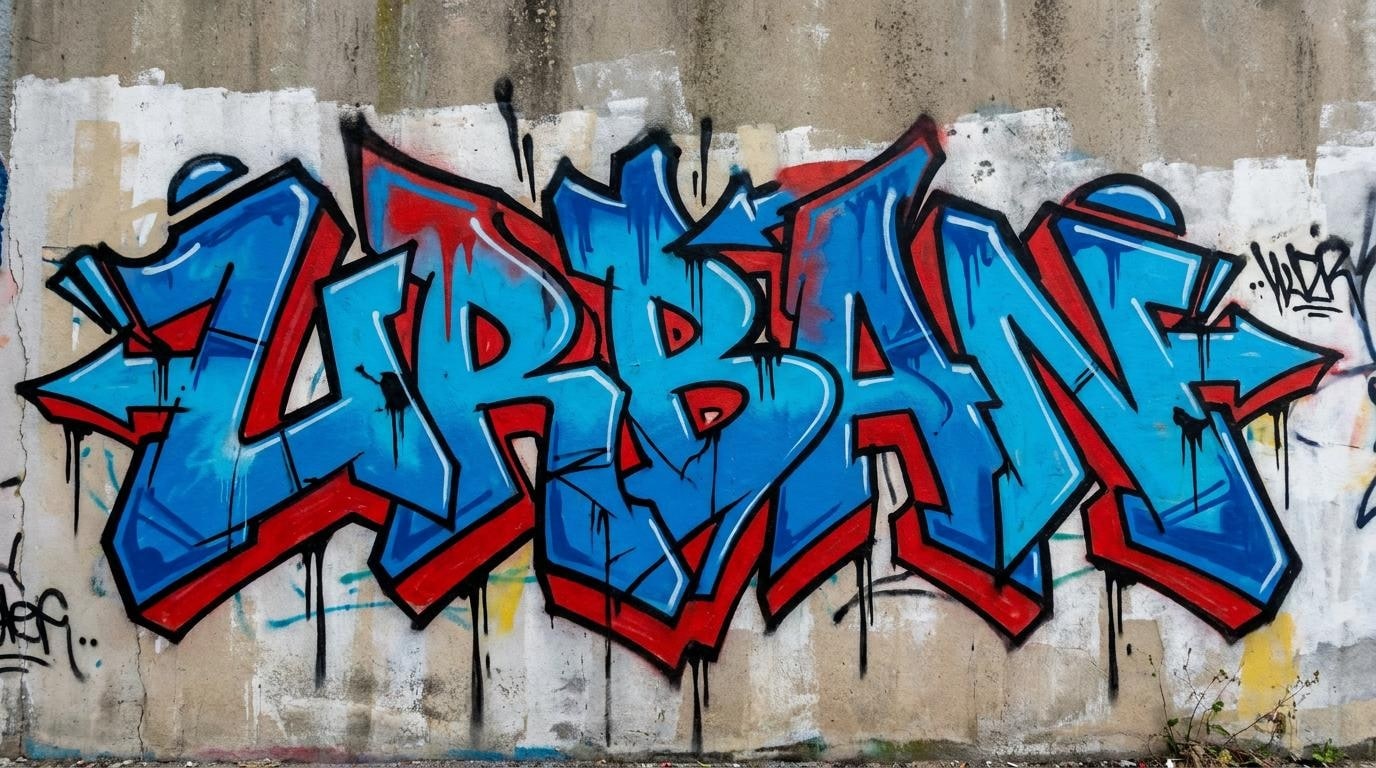
The generated image captures the dense shapes and layered colors associated with wildstyle graffiti. The lettering is less predictable. AI-generated lettering can distort a complex word, causing overlapping characters, so this approach works better for decorative artwork than exact typography.
Graffiti Art 2. Graffiti Mural
Prompt: "A full-wall graffiti mural made from oversized geometric shapes, hand-drawn characters, and abstract lettering, with turquoise, mustard yellow, and hot pink paint layered over exposed red brick, visible roller marks, faded patches, drips, and overlapping tags."
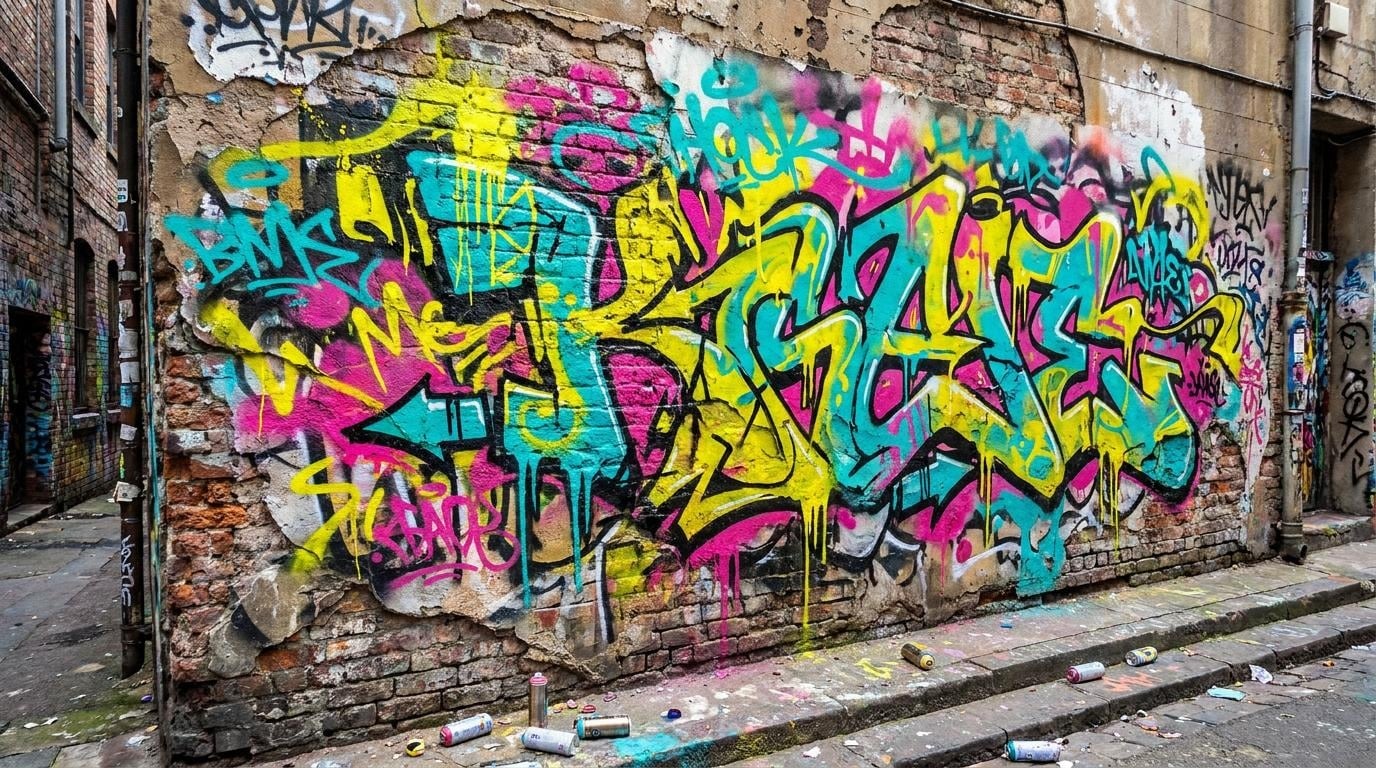
This type of prompt is easier for the AI to handle because it doesn't rely on a specific word. The result can work as a video background, intro scene, or visual layer behind other elements.
Graffiti Art 3. 3D Graffiti
Prompt: "CREATE" in oversized rounded 3D graffiti letters, with thick orange faces, violet side extrusion, dark recessed edges, glossy highlights along the upper strokes, soft cast shadows falling onto the wall, and small spray-paint imperfections around each letter."
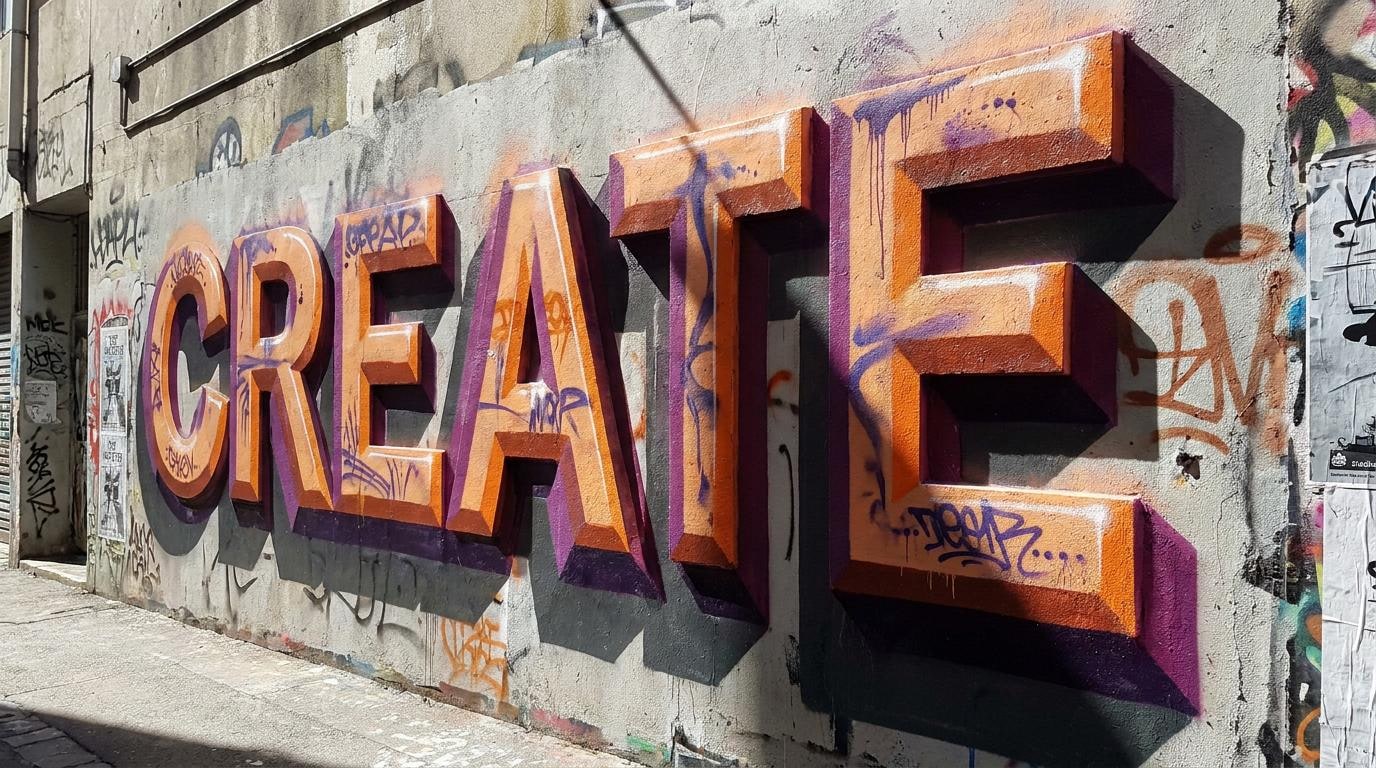
The generated artwork can look like dimensional graffiti, but it isn't the same as using a 3D graffiti generator with editable 3D objects. Filmora generates the visual as an image, which you can then resize, position, and animate in the timeline.
Graffiti Art 4. Animated Graffiti Title
Prompt: "VIBE" in loose hand-painted graffiti lettering, with irregular letter widths, rough black-and-white fills, neon-green edge accents, visible spray fade around the contours, small paint droplets, and layered wall marks surrounding the title."
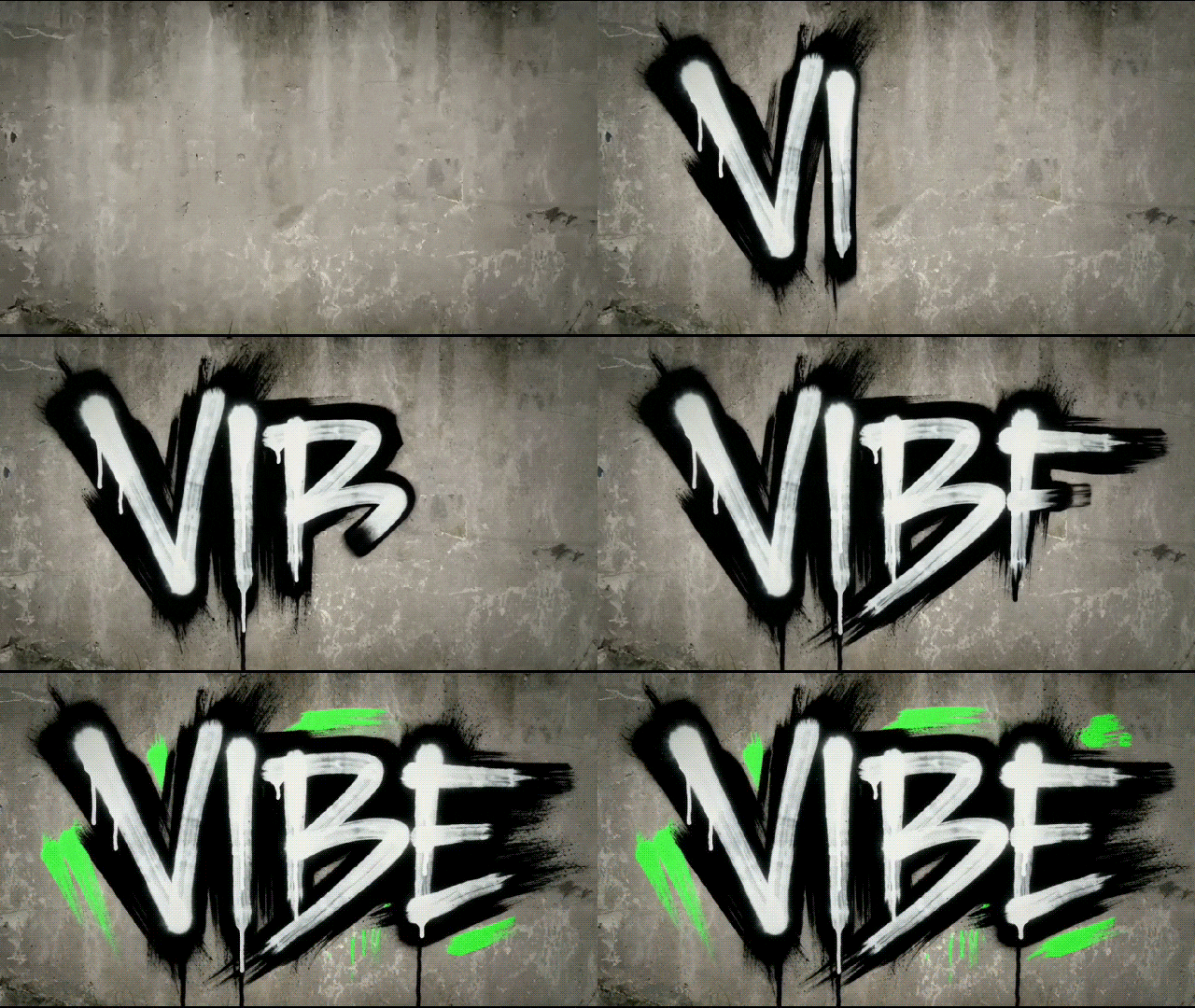
After generating the image, add it to the timeline and use Filmora's animation tools or keyframes to control its movement, scale, rotation, and opacity. For perfectly readable text, place an editable title over the artwork instead of relying on AI-generated letters.
Is Filmora Good for Graffiti Art?
Filmora works best if your final output is a video containing graffiti, not a standalone graffiti illustration. The AI Image Generator handles backgrounds and visual concepts, while editable titles are better for accurate text.
It has clear limits as a dedicated graffiti art creator, though. For example, you won't get specialized wildstyle construction, detailed brush controls, or fully editable 3D lettering. However, for YouTube intros, Reels, music edits, and GIFs, you can generate the artwork and finish the animation in the same project.
Part 5. Pros and Cons of Filmora Graffiti Art Generator
Filmora combines AI image generation, text styling, and video editing tools to turn a graffiti idea into moving content. As a graffiti art maker, it also adds animation, overlays, and effects to the same workflow, making it ideal for creating intros, Reels, music videos, and GIFs.
Pros
- AI Image Generator turns a written concept into graffiti-inspired artwork without requiring manual drawing.
- Editable title templates give you more reliable control over text when AI-generated lettering becomes distorted.
- Animation presets and keyframes add movement to both graffiti artwork and text.
- The timeline keeps graffiti visuals, footage, music, transitions, and effects in the same project.
- AI-generated backgrounds and editable titles offer two different ways to build a graffiti-style scene.
- Export options support resolutions up to 4K when the project and selected settings allow it.
Cons
- Filmora lacks specialized tools for building complex wildstyle lettering stroke by stroke.
- AI-generated lettering may contain incorrect or distorted characters, particularly with intricate words.
- AI-generated 3D graffiti remains an image, not an editable 3D text object.
- Individual graffiti strokes, shapes, and paint details have less precise control than in dedicated graphics software.
- AI image generation may consume AI credits depending on the feature and Filmora plan.
Filmora vs. Dedicated Graffiti Art Generators
| Filmora | Graffiti Art Generator | |
| Main focus | Video editing with graffiti-style elements | Creating graffiti artwork |
| AI graffiti generation | Uses a general AI Image Generator to create graffiti-inspired visuals | Usually focuses specifically on graffiti-style outputs |
| Lettering control | Editable titles provide direct control over the text | Varies by tool and generation method |
| Style options | AI prompts plus text templates, effects, and overlays | Often offers graffiti-focused styles and presets |
| Animation | Text and images can be animated with presets and keyframes | Often limited compared with a video editor |
| Video editing | Includes a full timeline for footage, audio, effects, and transitions | Usually not the primary function |
| 3D graffiti | AI can create a 3D-looking graffiti image, but not editable 3D lettering | Depends on the specific generator |
| Best suited for | Graffiti intros, Reels, music edits, video clips, and GIFs | Standalone graffiti artwork and design concepts |
Conclusion
Filmora works best as a graffiti art generator when the graffiti is part of a larger video rather than the final artwork itself. Its AI Image Generator can quickly produce visual concepts, while text templates offer a more dependable option for readable graffiti-style words. You can then move into animation, overlays, music, and effects for YouTube intros, Reels, music edits, or GIFs.
Filmora has fewer options for detailed wildstyle lettering and fully editable 3D text. If your graffiti needs to be part of a finished video, Filmora streamlines art creation, animation, and editing without adding another tool to the workflow.
FAQs
-
What's the best free online graffiti art generator?
There's no single best option for every style. Filmora is worth considering for graffiti video content because its AI Image Generator can create graffiti-style visuals you can then edit and animate in the same project. The free version has some usage and export limitations -
How do I prompt Filmora's AI to generate "Wildstyle" or 3D graffiti instead of basic fonts?
Describe the lettering style in detail instead of just typing "graffiti." Try these prompts and adjust them to your project:
Wildstyle: Dense Wildstyle lettering, interlocking angular characters, sharp extensions, overlapping forms, thick black outlines, and paint drips.
3D graffiti: Large extruded letters, deep perspective, raised edges, strong cast shadows, and glossy spray-paint texture.
For readable words, generate the visual style first, then add the exact lettering with Filmora's editable text tools.
-
How can I make static AI graffiti look like it's being sprayed live onto a wall?
Reveal the artwork gradually with a mask or animated overlay, then add spray or particle effects and keyframes. A matching spray-paint sound effect can make the reveal feel more convincing. -
Can I export AI-generated graffiti with a transparent background?
Not if the generated image already contains a wall or other background. Remove the background first, then check the available export format and whether it supports transparency before exporting.
