


 TL;DR:
Steve AI excels as a rapid, beginner-friendly generator for converting text, blogs, or audio into animated video drafts, but due to its limited customization and generic templates, creators should pair it with professional software like Wondershare Filmora for finalized, high-quality production.
● The free plan restricts users with watermarks and limited downloads, while paid subscriptions (ranging from the $29/month Starter plan at 1080p to $129/month for Generative AI) enforce strict caps on monthly video minutes and generation credits.
● Platform access is limited to the web interface and an iOS mobile application, with no current availability for Android devices.
● In a hybrid workflow, Steve AI is best suited for marketing teams needing fast storyboards and social media drafts, whereas Wondershare Filmora is necessary for editors requiring multi-track timelines, AI video upscaling, and precise color correction.
Ask AI for a summary
 ChatGPT
 Perplexity
 Gemini
 Claude
 Grok
Grok
AI video generators are transforming content creation. This enables marketers, educators and social media teams to convert text to videos in minutes rather than hours. Steve AI is a unique tool among them that specializes in animation and automating the process of video creation.
The tool helps users convert scripts, blog posts, and audio into animated or stock-footage videos with minimal effort. In this Steve AI review, we analyse its features, pricing, and performance in real-world scenarios. We also explore how creators often combine Steve AI video generator outputs with professional editing tools to produce polished final videos.
Part 1: What is Steve AI?
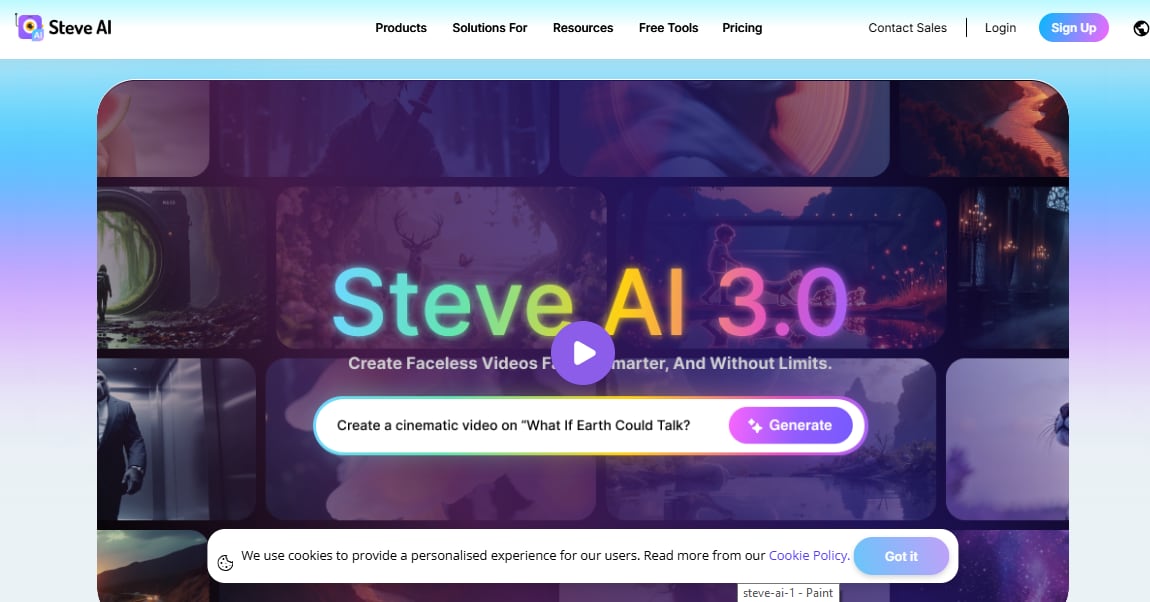
Steve AI is an artificial intelligence video-generation platform. It aims to automatically transform text-producing resources into videos. Backed by Animaker, the platform specializes in taking scripts, blog posts, prompts, or audio files. It turns them into scenes of videos with visuals, narration, and music.
You can access the system through the web interface after Steve AI login. There, they can generate both animated and live-action videos. The tool is mainly used by marketers, educators, and content creators to turn written ideas into quick visual content without manual editing.
Official link: https://www.steve.ai/
Key Features of Steve AI Video Generator
The Steve AI video generator offers several AI-driven tools designed to simplify video creation.
1. Generative AI
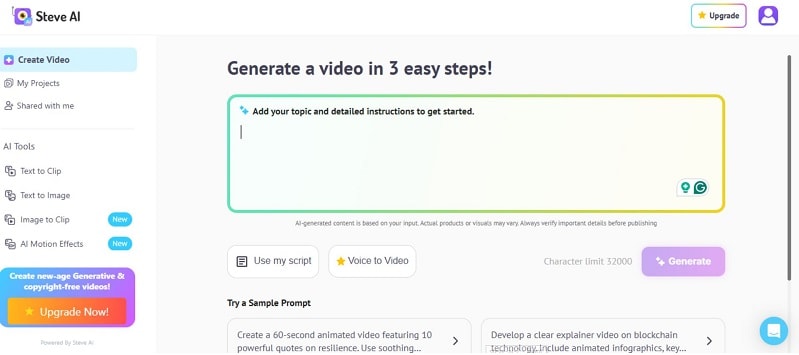
Steve AI's generative AI visuals give you multiple ways to create videos instantly, without a camera, editing software, or a production team. You pick the method that fits your content:
- Text-to-Video: Type a prompt or paste a script and Steve AI builds the video from there.
- Image-to-Video: Upload a photo or product image and the AI turns it into an animated or motion-enhanced video clip.
- AI Motion Effects: Pick a trending effect and apply it to any static image with one click. The AI handles the motion, timing, and animation automatically.
- Voice-to-Video: Upload an audio file such as a podcast, lecture, or voiceover recording, and the AI generates a matching video with synced visuals and captions.
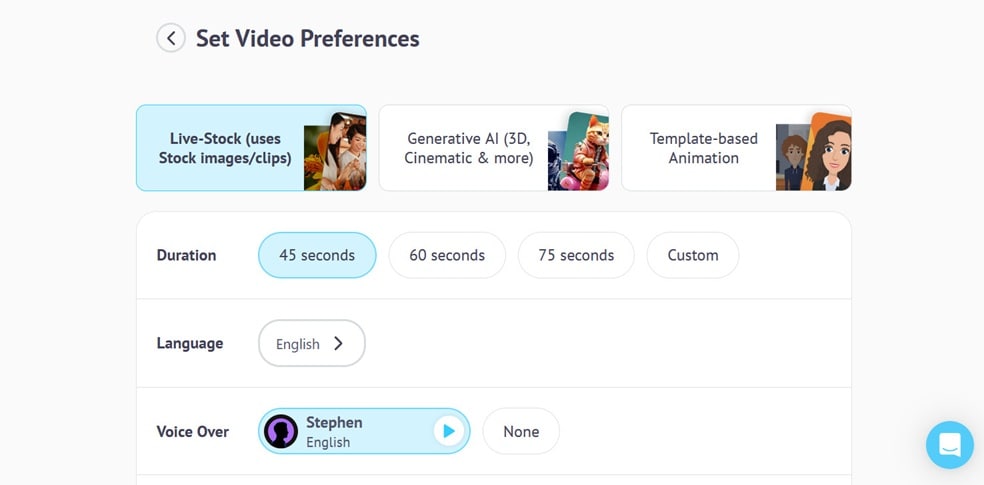
Once you enter your prompt, write your script, or upload your file (depending on which method you choose above), Steve AI supports several visual styles that you can apply to the video:
- Live Stock: The AI pulls from a library of real stock images and video clips to match your script.
- Generative AI: The AI generates original visuals from scratch based on your prompt, so every video looks unique.
- Template-Based Animation: Choose from pre-built 2D animated styles and let the AI populate them with your content.
2. Animated Video Generator
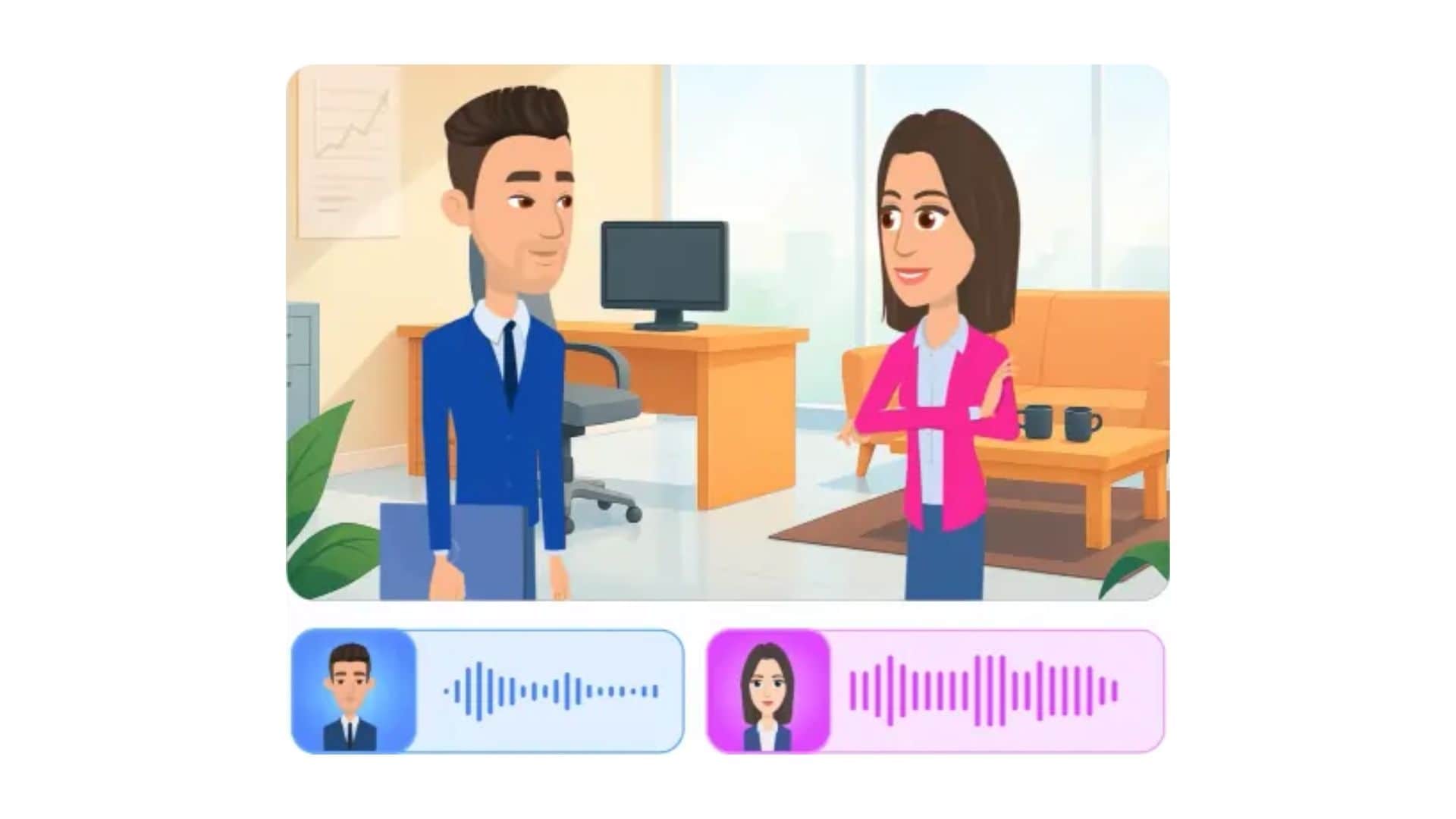
The Steve AI animation system creates cartoon-style videos. Users can add characters, talking avatars, and colorful backgrounds. This makes it useful for explainers, education, and marketing clips.

3. AI Voiceover Capabilities
Steve AI includes built-in AI voiceovers. You can select over 250 different voices in multiple accents, adjust speed, and preview narration before exporting the video. The platform also supports 8+ languages, which helps if you are creating content for different audiences. If you prefer not to use AI voices, you can record your own voice directly or upload audio from your laptop.
Customization
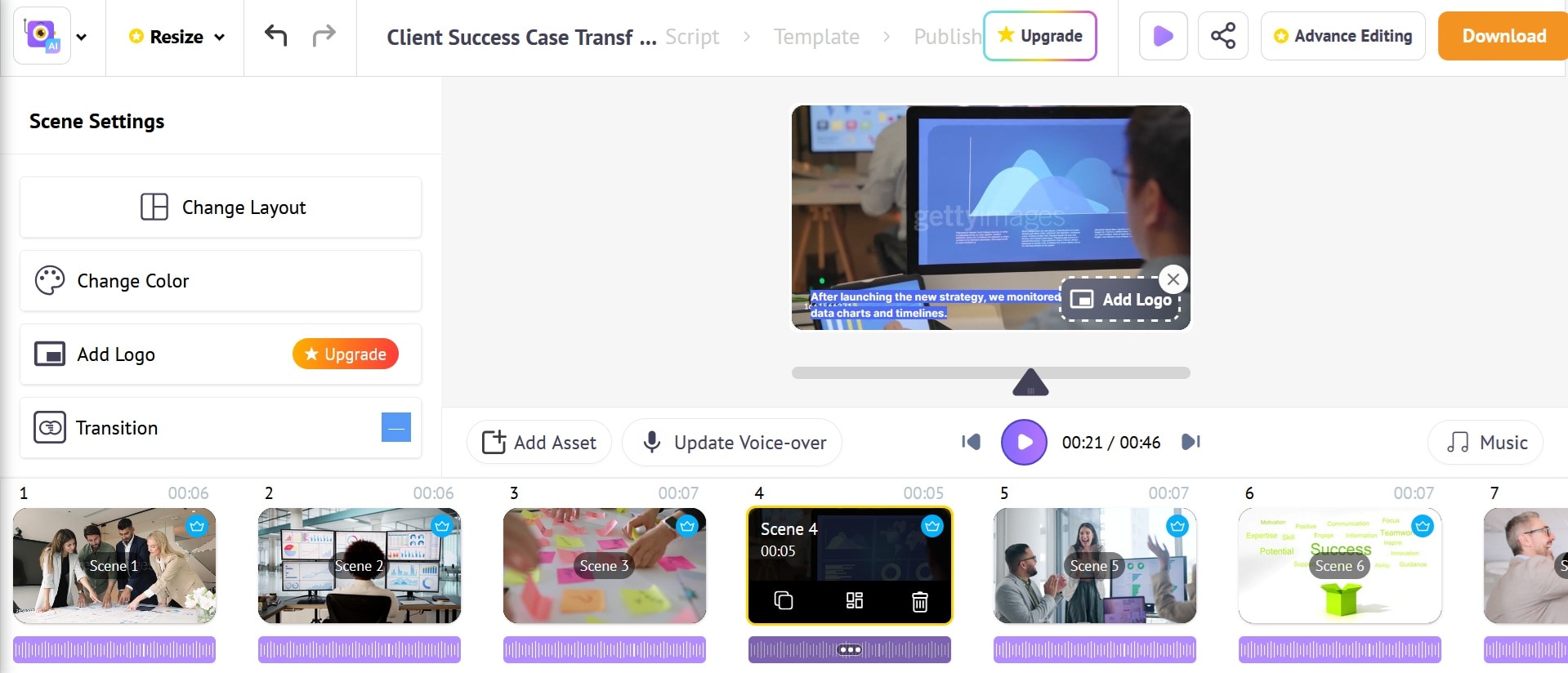
Aside from the creation methods and visual styles above, you can customize your video before exporting, such as changing the layouts, adding transitions, uploading your brand kit, and more. There's also an Advanced Editing option for premium users who need more advanced options, though you still can't expect a video editor that is fully-featured or professional-grade.
Part 2: A Hands-On Performance Analysis
To evaluate the platform fairly, we tested the Steve AI video generator in two common scenarios used by marketers and content creators.
Test 1: Making a Storytelling Video
We entered this prompt into Steve AI: a short animated story of a 7-year-old learning to ride a bicycle while the father runs beside him on a sunny street.
The system generated a short animated scene automatically. It built a sequence with a clear story flow: setup, attempt, and success. Characters appeared as preset animation assets. The animation style looked smooth but clearly template-based rather than handcrafted.
Results
The tool understood the story structure quickly. It converted the idea into a complete Steve AI animation scene in seconds.
Rating: 6.5 / 10
Good concept generation, but final polish still needs editing.
Test 2: Making an Animation Style Video
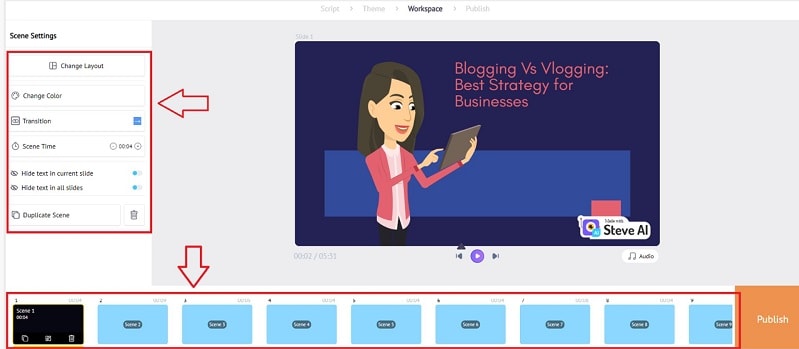
For this test, we pasted a blog article titled “Blogging vs Vlogging” into the Steve AI video generator. We selected a medium video length to capture key ideas. Steve AI then created about 60 scenes automatically. We chose the animation style. We enabled voiceover and music. We reviewed layouts in the workspace. Then we exported the final Steve AI video.
Results:
Steve AI quickly turned the blog into a structured Steve AI video draft. Some text needed edits, but the workflow was efficient.
Rating: 7.5 / 10
The test shows that Steve AI works well for quick marketing drafts. However, creators still need editing tools to refine the final video.
Part 3: Steve AI vs Professional Editing Software (Filmora Workflow)
Steve AI video generator is excellent for producing quick drafts. However, it lacks the creative control needed for high-quality production, such as:
- Limited customization
- Generic templates
- Slow rendering speeds
- Voiceover quality limitations
- Few export and integration options
These limitations, however, are manageable if you pair Steve AI with the right editing tool like Wondershare Filmora. You generate your rough cut in Steve AI, then bring it into Filmora to refine it into something worth sharing.
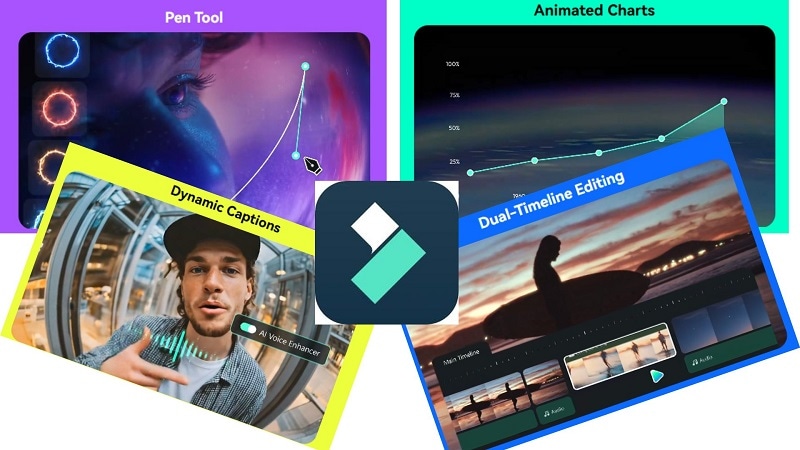
Filmora is a fully-featured video editor with a multi-track timeline and professional-grade editing tools, giving you complete control over every element of your video. Some of the most useful tools you can use for polishing a Steve AI video include:
 Secure Download
- AI Text-to-Speech: Choose from 48 human-like AI voices across different tones and accents, with automatic syncing to your video clips.
- AI Video Enhancer: Upscales your video to high resolutions while preserving sharpness for smoother, jitter-free playback.
- Auto Captions & AI Translation: Automatically transcribes speech with high accuracy across 45 languages, with animated caption styles you can customize.
- AI Extend: Intelligently extends clips by a few seconds while maintaining smooth transitions and consistent scenes.
- Stock Media Library: Access millions royalty-free creative assets including video clips, images, GIFs, music, and effects directly within the editor.
- Annotation Tools: Draw custom paths, arrows, and shapes on your footage using the Pen Tool, or import CSV files or Excel files and generate animated bar, line, pie, and area charts with Animated Charts Maker without complex keyframes.
- Brand Kit Tools: Make your logo animated with Logo Reveal tool and make your visual look consistent with Filmora’s AI Color Palette and color correction tools.
Filmora is available on Windows and Mac as a desktop software, and Android and iOS as a mobile app.
Inside its video editor, Filmora also integrates advanced AI video models like Sora 2 and Google Veo 3.1 within its AI video generation tools. These models power features like AI Text-to-Video and Image-to-Video. They allow creators to generate cinematic scenes from prompts or images. You can also use them in case you are not quite satisfied with Steve AI video.
Secure DownloadPart 4: Steve AI Pricing Plans (Free vs Paid)
You can use Steve AI for free with a few limitations, and upgrade as your video creation process becomes more advanced.
What’s included in free plans:
- Create and preview as many projects as you want
- Browse and use the free stock media library
- Upload your own images, audio, or video files
- Export videos in HD quality (limited number of downloads)
- Watermark on the exported videos
The paid plans are divided into several tiers, with pricing details as follows:
| Starter | Pro | Generative AI | Enterprise | |
| Price | $29/mo or $228/yr | $59/mo or $468/yr | $129/mo or $1,188/yr | Custom |
| Generative Credits | 120 secs | 120 secs | 15 mins | 50 mins |
| Monthly AI Videos | 100 mins | 300 mins | 400 mins | 6,000 mins |
| Video Resolution | 1080p | 2K | 2K | 4K |
| Commercial & Reselling Rights | ||||
| Team Collaboration |
Part 5: Pros and Cons of Steve AI
If we put together what we tested so far, we can narrow Steve AI down to what it's actually good at and where it falls short.
- Quick video creation with the Steve AI cartoon video maker, making videos in minutes
- Multiple input methods (text, image, audio, blog posts) to generate videos
- Responsive customer support, available around the clock
- Reduce production costs by automating portions of the video creation process.
- Scripts generated by AI can seem generic and devoid of deep industry insight
- Editing options are limited and templates can produce similar-looking results across videos
- Limited creative control compared with professional video editing software
- Download limits per plan make it expensive for high-volume users
Part 6: Steve AI Reviews: What Users Are Saying
Steve AI holds an overall rating of 4.2 out of 5 on Capterra, with most positive feedback centered around ease of use and the speed of video creation.
Getting Started Is Genuinely Easy
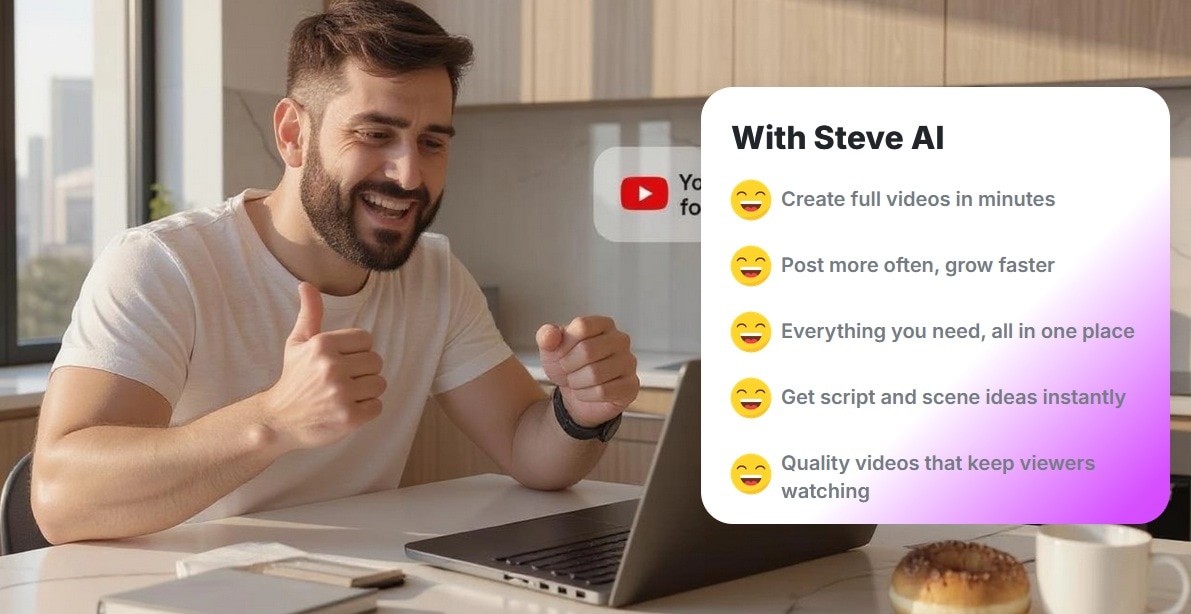
Out of 28 reviews on Capterra, the most repeated compliment across reviews is how beginner-friendly the platform is. Everything you need to make an animated video is available in one place, and it doesn't take long to find your way around. It’s beginner-friendly in the sense that it offers plenty of features in just a few clicks at a low price.
Performance and Editing Have Room to Grow
On the technical side, a few users flagged reliability concerns. One reviewer experienced severe buffering issues that cost them 10 to 15 days of work time, which made them hesitant to use the platform for time-sensitive projects. Some users find the editing options limited, with templates that can result in similar-looking backgrounds across videos.
Based on these Steve AI reviews, we’d recommend Steve AI for beginners and occasional users who prioritize speed and simplicity over editing control. But if you need a tool to scale content production or produce highly branded output, you may want to look for anywhere else.
Part 7: Best Use Cases for Steve AI
These are the top use cases where Steve AI Animaker adds maximum value to creators, marketers, and businesses:
- Content creators can leverage Steve AI Labs to generate videos fast for YouTube, Instagram, LinkedIn, Facebook, and X with platform-oriented templates.
- Marketing and business teams can use it to create product videos, explainer videos, promo videos & ads, and training content.
- Others can use it to convert blogs, text, photos or scripts into videos. These include cartoon videos, tutorials, invitations and presentations.
Conclusion: Is Steve AI Worth It in 2026?
After analyzing features, pricing, and performance, Steve AI video generator holds up well as a speed-first video creation tool. It gets scripts and blog posts turned into video drafts fast, which makes it practical for marketers and social media teams.
The tradeoff is creative control. The editing options in Steve AI are limited and the visual output doesn't match what professional tools can produce. For this reason, you may like a hybrid workflow better, by pairing it with a professional editor like Filmora.
FAQs
-
Is Steve AI free to use?
Yes. Steve AI offers a free plan, but it comes with limitations such as limited downloads, fewer templates, and watermarked videos. Full downloads and advanced features require a paid subscription. -
Can Steve AI replace video editors?
No. Steve AI helps generate videos quickly. For detailed editing, Wondershare Filmora is recommended, which offers advanced editing and AI enhancement tools. -
Is Steve AI available as an app?
Yes. The Steve AI app is available on the App Store (iOS only) for creating videos on the go. It is currently not available on Android.
