



 100% Security Verified | No Subscription Required | No Malware


 ChatGPT
 Perplexity
 Gemini
 Claude
 Grok
Grok
When you finish recording an important presentation but while reviewing it you notice your eyes shifting away from the camera. The lack of direct eye contact makes the video feel less engaging and professional. This is a common issue for creators and marketers recording scripts or notes.
Descript AI Eye Contact offers a quick way to correct gaze direction without reshooting the entire video. AI-powered editing helps your eyes appear naturally focused on the camera. In this guide, you will learn how to use Descript AI Eye Contact step by step for polished video results.
In this article
Part 1. Why Fixing Eye Contact Matters for Video Creators
Even when your script is perfect, a lack of direct eye contact can make your message feel disconnected or less confident. Mentioned below are some of the reasons why correcting the eye position is necessary:
- Direct eye contact builds trust and makes viewers feel personally addressed instantly here.
- Viewers stay longer when your gaze feels natural and engaging throughout video content.
- Consistent eye alignment improves professional appearance making videos look more polished and visually strong.
- Strong eye contact helps deliver messages clearly with better emotional connection and impactful presence.
- Proper gaze direction reduces distractions, helping viewers focus on your content and stay fully engaged.
Part 2. How to Use Descript Eye Contact
Now that you understand why eye contact plays such a crucial role in video quality, the next step is learning how to actually fix it. Follow the steps mentioned below to learn how to use the Descript eye contact feature:
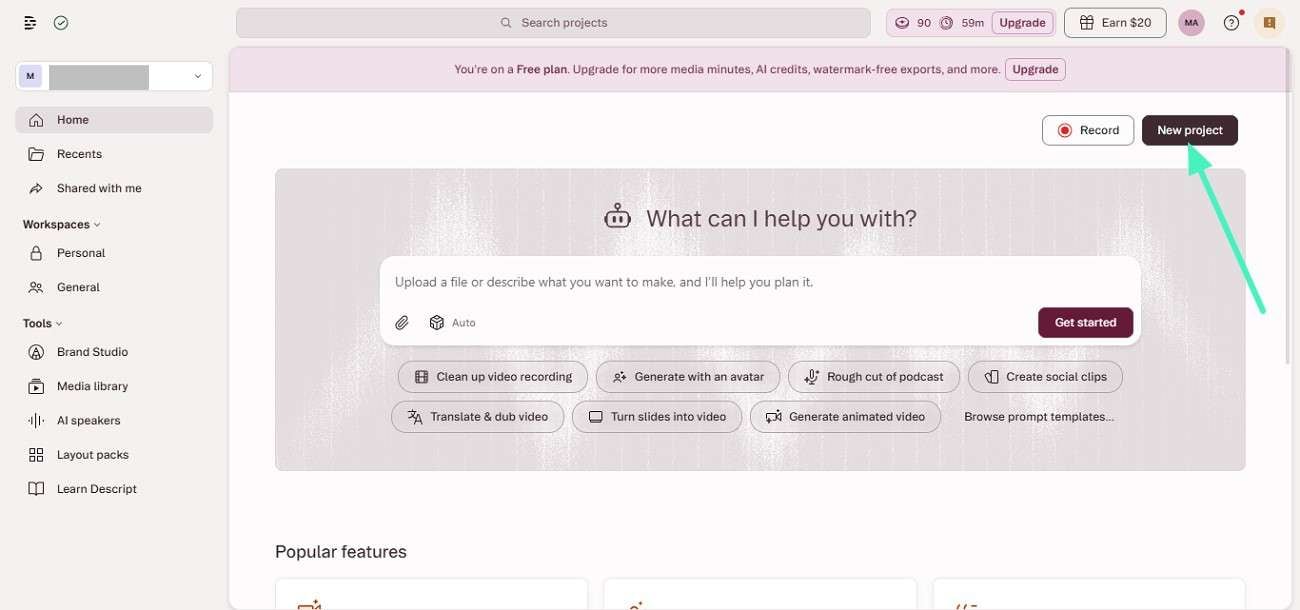
Step 1. Begin by launching the tool on your web browser and pressing the "New Project" button on the homepage.
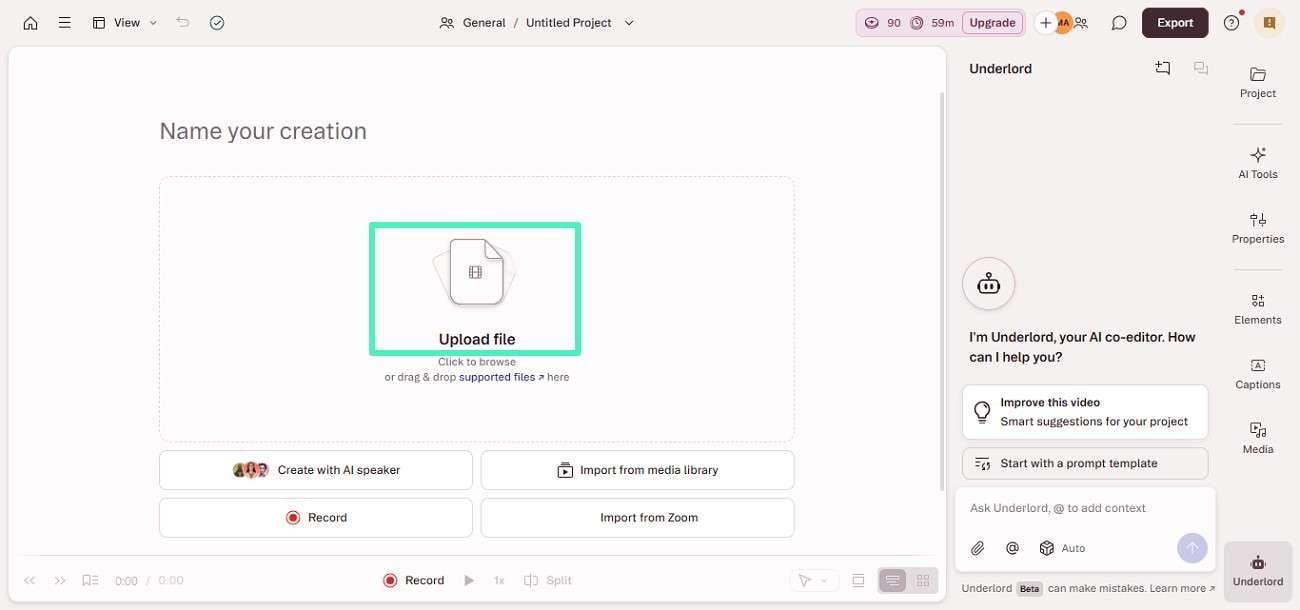
Step 2. Locate and click the "Upload Files" option and add your video to the tool's interface.
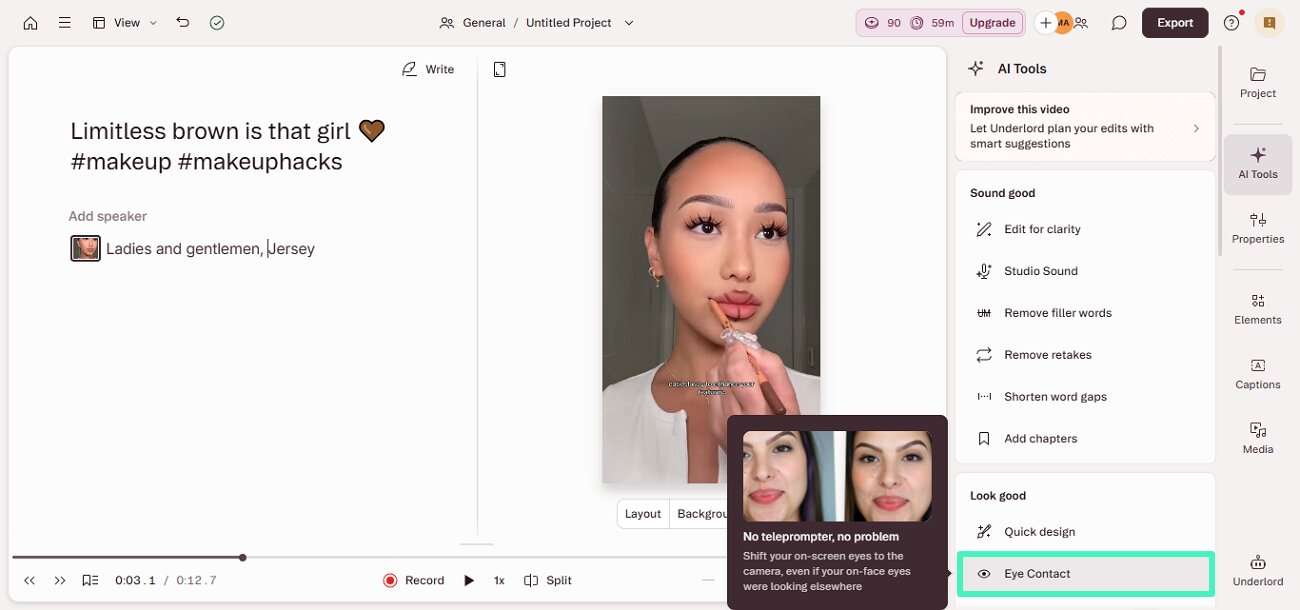
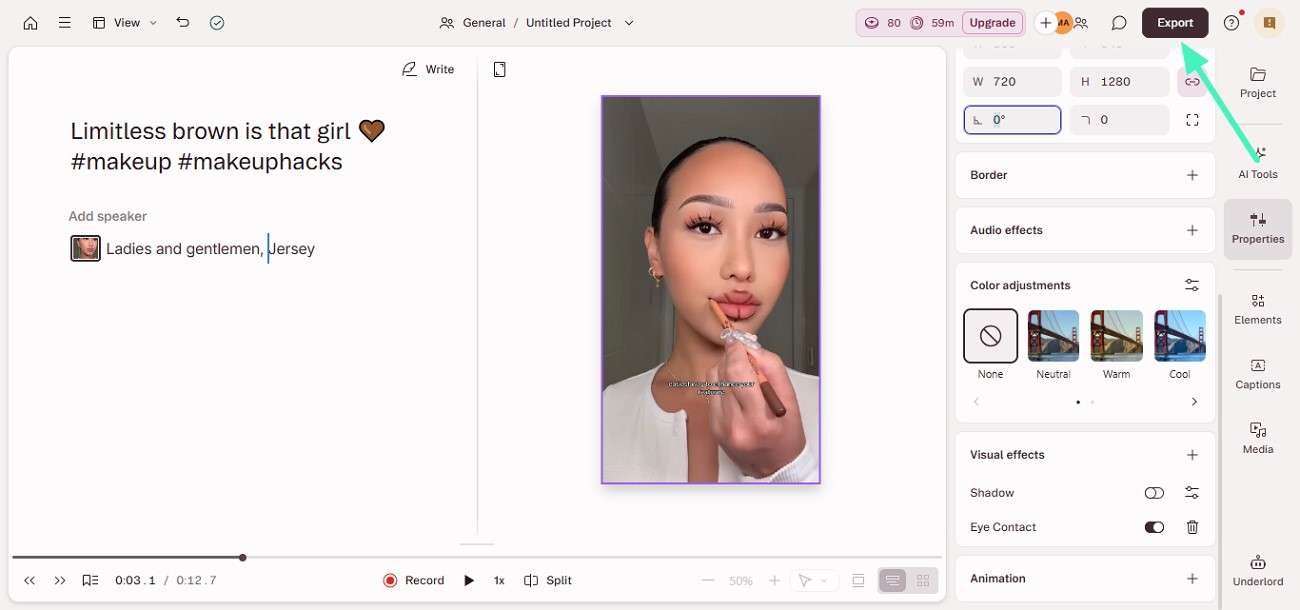
Step 3. Once the video is uploaded, head to the properties panel on the right and locate the "Eye Contact" feature.
Step 4. Turn the toggle on for the "Eye Contact" feature and preview the corrected eye position with the preview window. Press the "Export" button located at the top-right corner to save the final video.
Part 3. Explore More Alternatives: Filmora's AI Eye Contact Solution
If you are looking for a more flexible and beginner-friendly option beyond the Descript eye contact tool, Wondershare Filmora offers a powerful AI Eye Contact feature. It lets creators correct gaze direction directly within the timeline, making it ideal for video editors and content creators. Its advanced technology analyzes facial positioning and subtly adjusts the eyes to align with the camera.
What makes Filmora especially useful is its all-in-one editing environment. Users get the ability to combine eye contact correction with trimming, captions, and effects in a single platform. This saves time and avoids switching between tools. For creators who want professional results without technical complexity, Filmora provides a practical and efficient way to enhance on-camera presence.
Comprehensive Steps to Use Filmora Eye Contact Feature
Having learned about this Descript eye contact feature alternative, let us now have a look at the steps to correct the eye position in the videos:
-
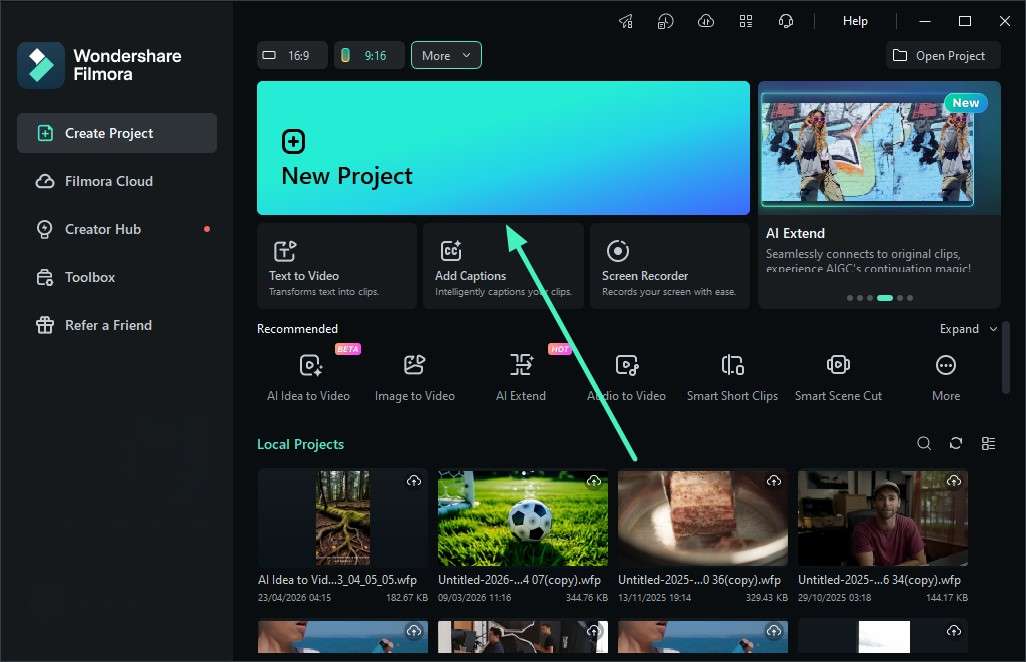
Step 1. Start a New Project
Launch Filmora and choose the "New Project" option. After that, import your video file and drag it onto the timeline to begin editing.
-
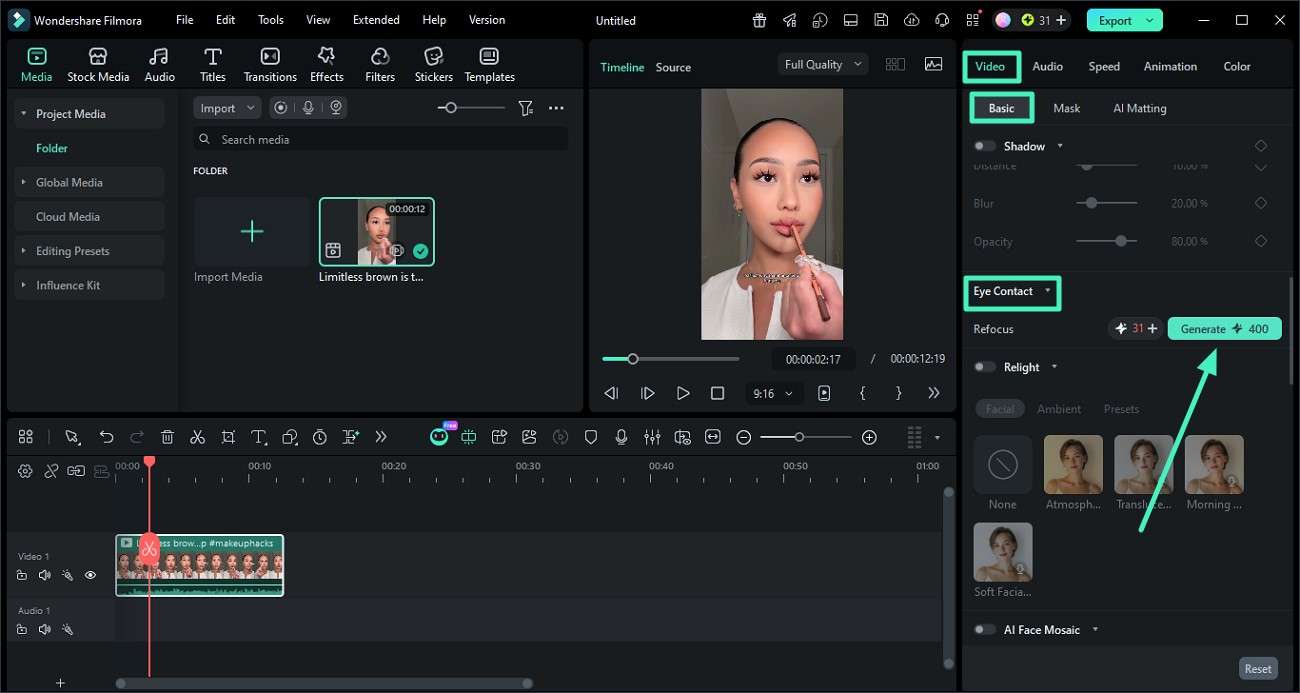
Step 2. Turn On Eye Contact Tool
Click on your video clip, then open the Properties panel on the right. Find the "Eye Contact" feature under the Basic settings, enable it, and click "Generate" so AI can adjust your gaze automatically.
-
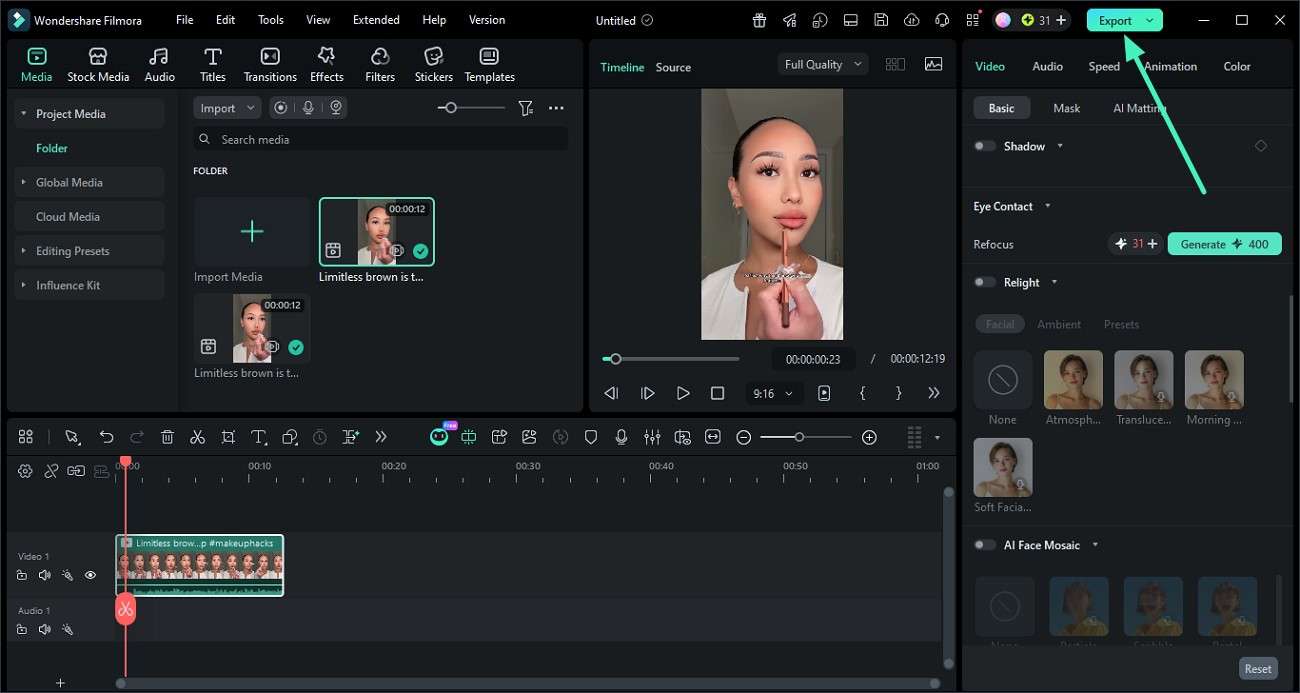
Step 3. Check and Export Video
Preview the edited video in the playback window to see the changes. If everything looks good, click "Export" and save the final video to your device.
Part 4. Descript or Filmora: Making the Right Choice for Your Workflow
While both tools can improve on-camera presence, they differ in workflow, flexibility, and overall ease of use. Here's a quick comparison to help you choose the right option:
| Feature | Descript AI Eye Contact | Filmora AI Eye Contact |
|---|---|---|
| Ease of Use | Great for text-based editing workflows | More beginner-friendly timeline editing |
| Editing Style | Script and transcript-focused | Full video editing suite |
| AI Eye Contact | Strong correction, but limited to the Descript ecosystem | Smooth correction directly in the timeline |
| Extra Tools | Audio, transcription, podcast tools | Numerous basic and advanced multimedia editing and creation features |
| Learning Curve | Slightly higher for new users | Very easy for beginners |
| Workflow Flexibility | Best for podcast/video scripting users | Best for general video creators |
Conclusion
To wrap it up, this article provided a detailed guide on how to use the Descript AI eye contact feature for gaze repositioning. It also explored why eye contact matters in video communication and compared Descript with Filmora's AI-powered alternative. While both tools improve on-camera engagement, Filmora offers a more complete editing experience with beginner-friendly controls.
Frequently Asked Questions
-
1. Does Descript AI Eye Contact work on recorded videos?
Yes, Descript can correct eye contact in pre-recorded videos using AI-powered gaze adjustment. It helps creators improve camera connection without filming the video again. -
2. Which tool is easier for beginners, Descript or Filmora?
Filmora feels easier for beginners because everything works inside a simple editing timeline. It also combines eye contact correction with effects, captions, and exporting tools. -
3. Can AI eye contact correction make videos look unnatural?
Sometimes excessive correction may create unnatural eye movement if settings are pushed too far. Using moderate adjustments usually keeps the final video more realistic and comfortable to watch. -
4. Why do many creators prefer Filmora for eye contact correction?
Creators choose Filmora because it offers eye contact correction alongside complete video editing features. The workflow feels smoother for editing, enhancing, and exporting videos from one platform.
