



 100% Security Verified | No Subscription Required | No Malware


 ChatGPT
 Perplexity
 Gemini
 Claude
 Grok
Grok
A podcast interview was finally recorded after multiple takes, but one problem kept standing out during playback. The speaker's eyes constantly shifted away from the camera while reading notes on another screen. This missing eye contact made the conversation feel less engaging and less personal. Situations like this are now common for remote creators and streamers.
This is one reason many creators now use Riverside, a remote recording platform known for AI-powered podcast and video production features. Its eye contact correction tool helps creators maintain a more direct and natural gaze during recordings. This guide explains how to use Riverside AI eye contact step by step while also exploring better alternatives for smoother editing.
In this article
Part 1. How to Use Riverside AI Eye Contact
Riverside offers an AI Eye Contact feature designed to correct gaze direction during video recordings. It works by subtly adjusting eye positioning so speakers appear to look directly into the camera. This helps improve viewer engagement and remote presentations where natural eye alignment is often difficult to maintain.
Read the steps provided below to learn how to perform the Riverside eye contact feature:
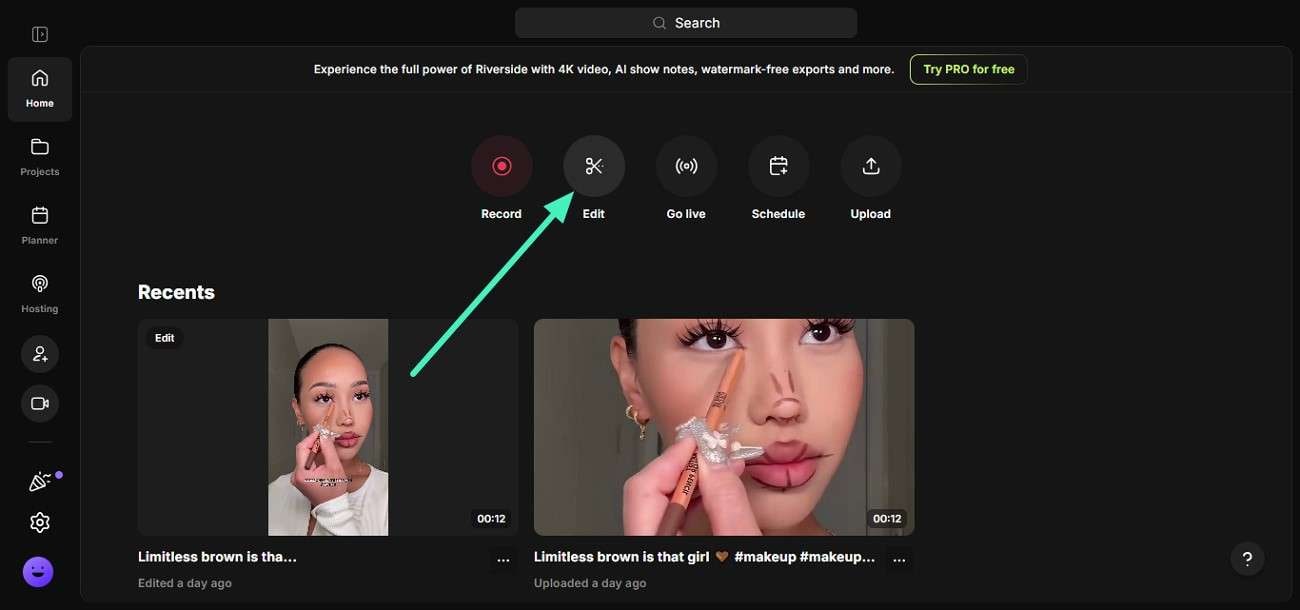
Step 1. Initiate the process by accessing the tool on your browser and clicking on the "Get Started" button from the homepage. Next, locate the "Edit" option and click on it.
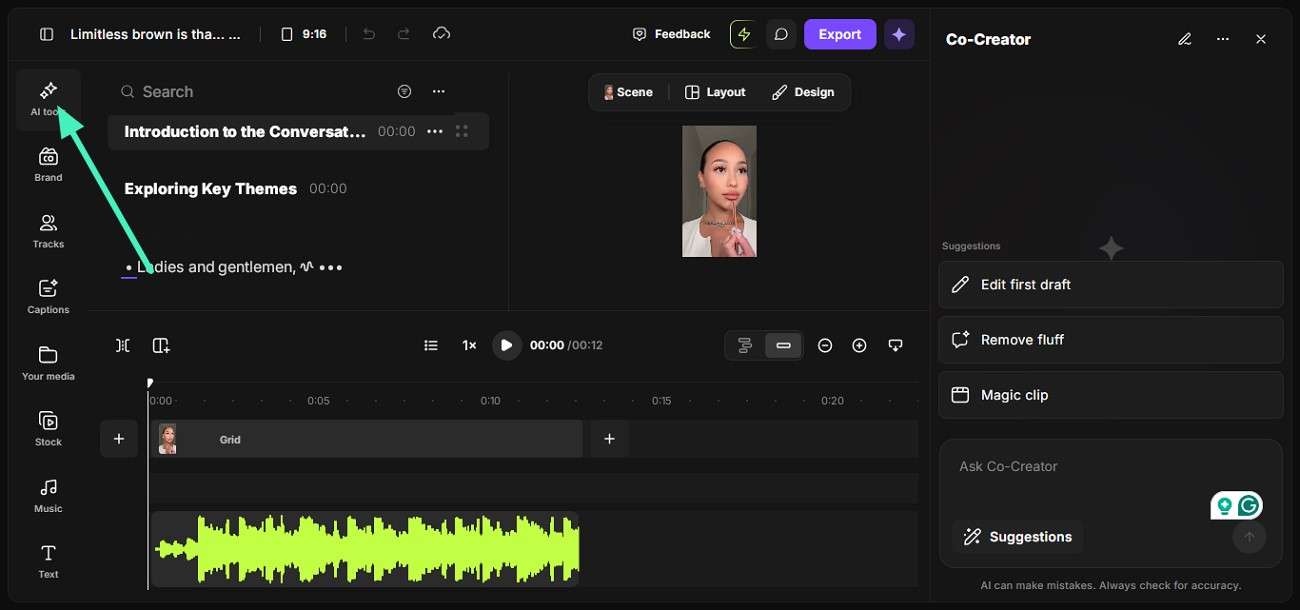
Step 2. Head to the left corner of the interface and click on the "AI Tools" option from there.
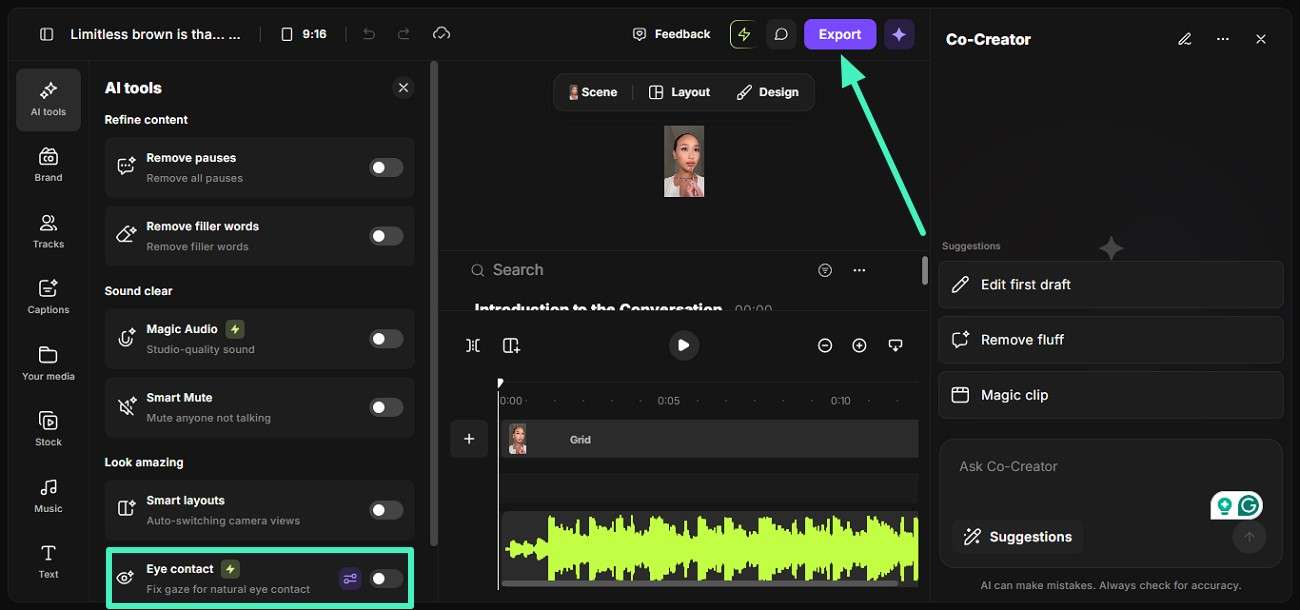
Step 3. Locate the "Eye Contact" feature and turn its toggle on to apply the eye correction effect to the video. Press "Export" to save the results to your device.
Part 2. Best Riverside Alternatives for More Flexible Eye Contact Editing
For those looking beyond basic gaze correction, several advanced tools provide greater flexibility. Mentioned below are some of the top alternatives of Riverside which users can try:
1. Wondershare Filmora
Best For: All-in-one video editing
Filmora is one of the most reliable options for people looking for a beginner friendly tool with other editing options. The tool offers an advanced eye correction feature for users to automatically reposition the gaze. It uses advanced technology to detect the eye placement of the subject and shift it to the camera. All this is done while keeping the expression natural and video in high quality.
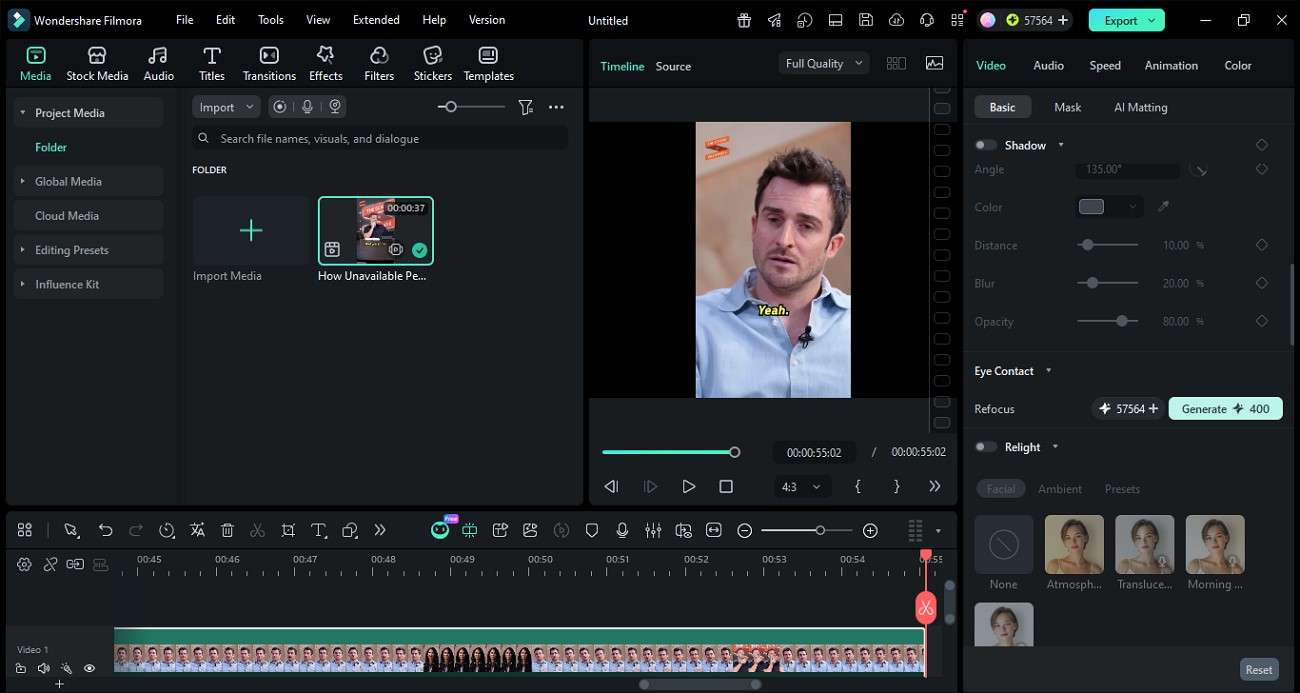
Users also get the ability to enhance the visuals further after fixing eye contact. The intuitive interface of this Riverside AI eye contact alternative allows users to switch the gaze by simply turning on the toggle. Moreover, you can save the fixed video in multiple formats according to the needs.
Key Features
- Works Well in the Background: Filmora runs AI eye contact correction smoothly in the background without interrupting your editing workflow.
- Refocus: This feature intelligently adjusts gaze direction so the subject appears to maintain natural eye contact with the camera.
- Undo Effect: It allows users to easily revert changes at any time without affecting the original video.
- Preserve Expressions: Filmora ensures facial expressions remain natural while only correcting eye alignment for realistic results.
Limitation
- The final results are exported with a watermark on the free version of this tool.
2. Descript
Best For: Podcast editing with text-based correction
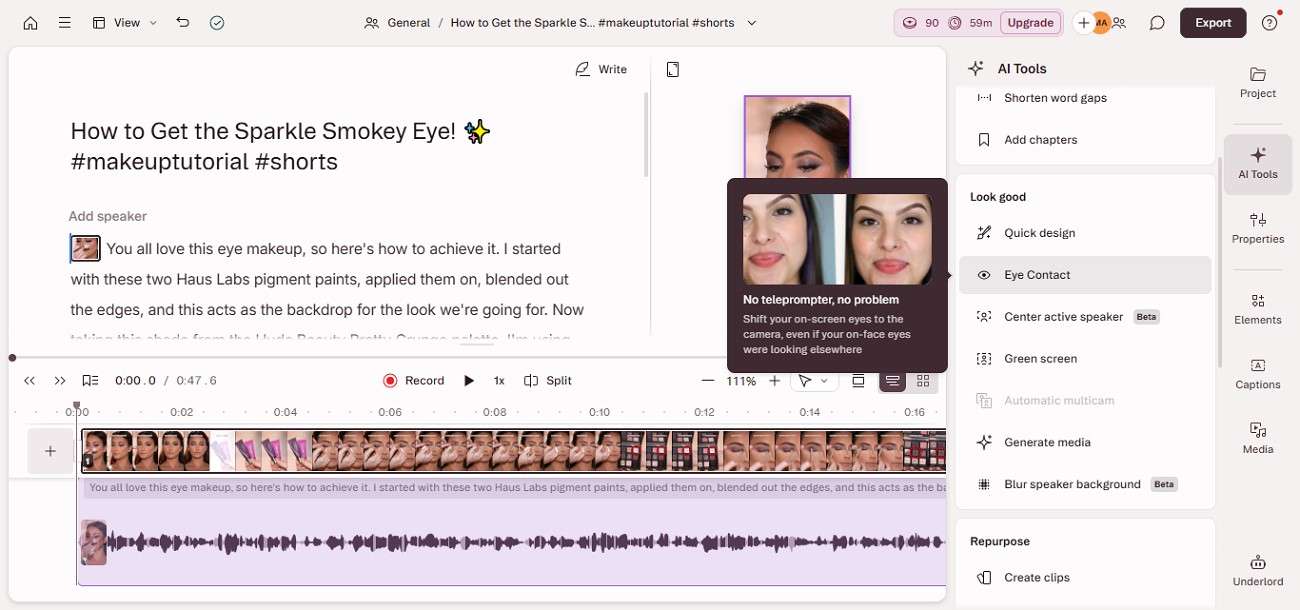
Another tool that offers eye correction by simply turning the toggle on is Descript. This Riverside eye contact AI alternative applies gaze adjustment automatically during editing. This makes the subject appear more engaged on camera without manual frame-by-frame work. However, its control over fine visual details is still somewhat limited compared to advanced video editing software.
Key Features
- The tool works within the editing interface and preserves realistic facial expressions.
- This platform detects facial landmarks for smoother eye contact fixing.
- It lets you upload videos in multiple formats for correcting the eye position.
Limitations
- AI eye contact and visual editing are less advanced than dedicated video editors.
- Requires a stable internet for the smooth performance of different tasks.
3. VEED
Best For: Quick online video editing
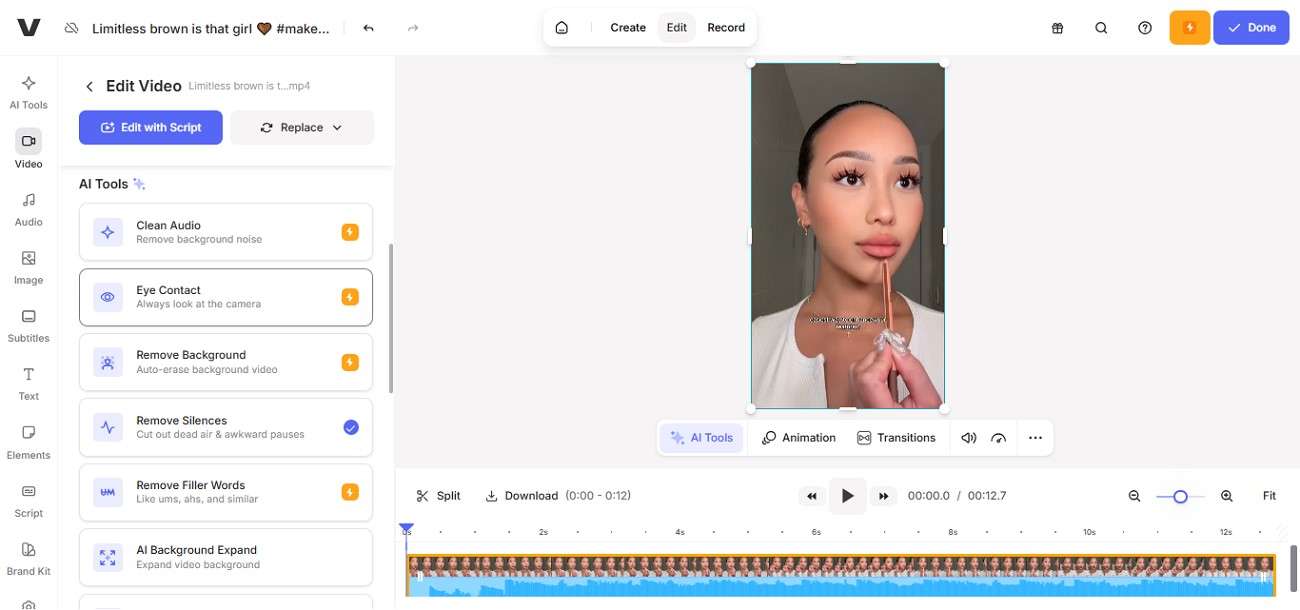
This video editor improves how speakers appear on camera by naturally aligning their gaze with the viewer. It strengthens audience engagement and fits smoothly into online editing workflows. Facial expressions remain unchanged to ensure the video still feels authentic after correction. Moreover, the Riverside AI eye contact alternative allows users to save the corrected videos in multiple formats.
Key Features
- The tool automatically synchronizes the audio of the video after correcting eye position.
- Online interface with no need of software installation.
- Lets you remove unwanted background from videos automatically if required.
Limitations
- Limited control for advanced professional editing.
- The free version includes watermarks and export restrictions.
4. NVIDIA Broadcast
Best For: Real-time eye correction
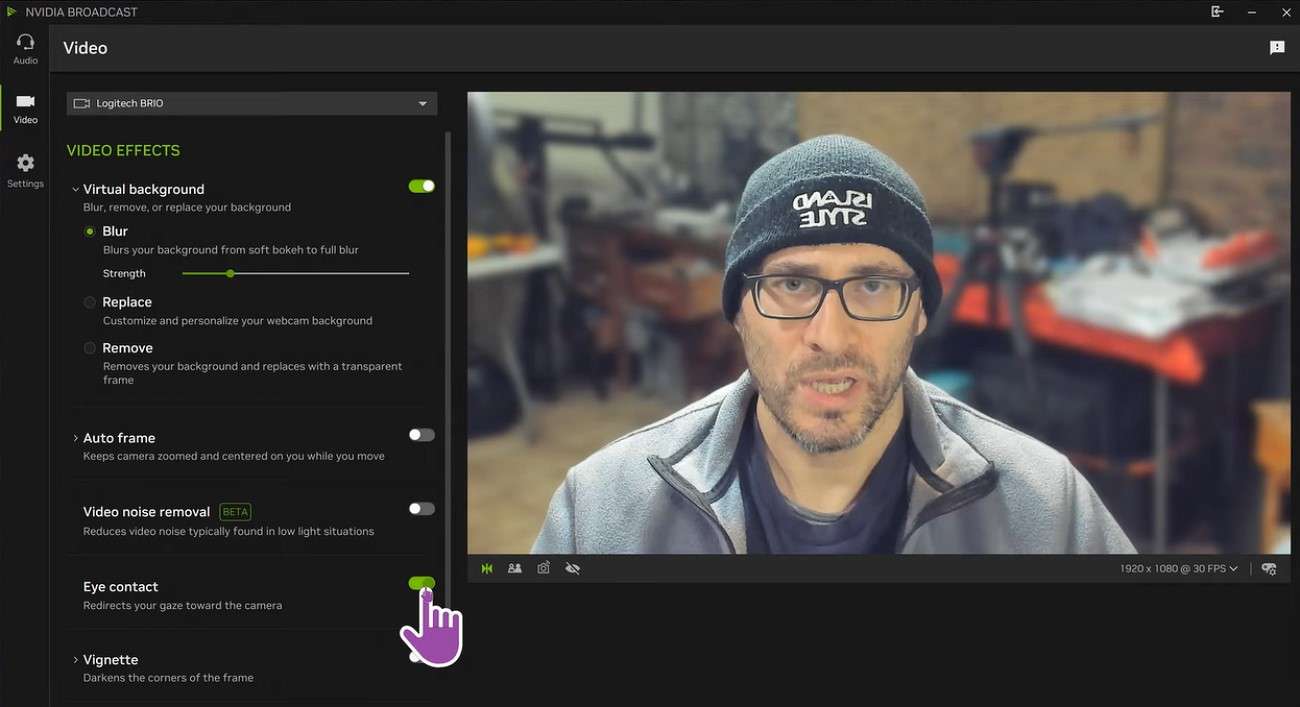
The Riverside eye contact alternative creates the effect of natural eye contact in videos by adjusting where a person appears to be looking toward the camera. It analyzes the original eye position and then rebuilds a forward-facing gaze that looks realistic and seamless. Throughout the process, facial features and lighting remain consistent to maintain authenticity.
Key Features
- It isolates just the eye area in every frame and leaves the rest of the face and background unchanged.
- Turn the toggle on for voice removal to automatically make your video sound crisp and clear.
- Lets you blur and remove unwanted background to enhance eye contact.
Limitations
- Works only with compatible NVIDIA GPUs and no other projects.
- Not designed for full video editing or post-production workflows.
Part 3. Eye Contact Tool Comparison: Which One Should You Choose?
Each platform offers a different balance of simplicity, performance, and control. Read the section below to see the tabular comparison of the platforms:
| Tool | Ease of Use | Eye Contact Quality | Editing Flexibility | Overall Performance |
| Riverside | Very Easy | Good | Limited | Strong for recording |
| Wondershare Filmora | Easy and Beginner Friendly | Excellent | High | Best overall choice |
| Descript | Easy | Moderate | Medium | Good for quick edits |
| VEED | Easy | Basic | Limited | Decent for fast content |
| NVIDIA Broadcast | Moderate | Very Good | Low | Excellent for live use |
Part 4. Tips to Make AI Eye Contact Look More Natural
Instead of relying only on automation, a few smart techniques help keep the result realistic and visually comfortable for viewers. Follow the tips mentioned below to make the most out of the Riverside eye contact AI correction task:
- Keep correction levels moderate so the gaze doesn't look overly stiff or artificial.
- Use high-quality source footage, since clear lighting and sharp focus improve AI accuracy.
- Avoid excessive head movement during recording to give the AI a stable reference.
- Match eye correction with natural blinking and facial expressions for a more human feel.
- Preview the result on different screen sizes to ensure the eye alignment still looks natural everywhere.
Conclusion
This article provided a complete guide on how to perform Riverside AI eye contact correction. The article also explored other alternatives for fixing the gaze. Each method helps improve on-camera presence and viewer engagement with minimal effort. However, for creators who want a more complete and flexible editing experience, Wondershare Filmora stands out as the best choice.
Frequently Asked Questions
-
1. Can I fix eye contact directly in Riverside?
Yes, Riverside offers an AI eye contact feature that adjusts gaze during post-production. It helps improve on-camera presence without re-recording the video. -
2. Which tool is best for advanced eye contact correction?
Wondershare Filmora is one of the best options for more advanced and flexible AI eye contact editing. It combines gaze correction with full video editing tools for a smoother workflow. -
3. Are browser-based tools good for eye contact fixing?
Tools like VEED can handle basic gaze adjustments but are more limited in precision. They are better suited for quick social media edits rather than professional work. -
4. Why choose Filmora over other AI eye contact tools?
Wondershare Filmora offers more control over corrections while keeping facial expressions natural. It also provides a complete editing suite, making it easier to produce polished videos in one place.
