Explore Chinese Cheongsam AI Prompts
Browse ai chinese cheongsam dress prompts for adult qipao portraits, modern cheongsam styling, Shanghai-inspired streets, garden courtyards, silk textures, and studio fashion. Use each idea to create assets for video templates, reels, social posts, covers, and export-ready visuals.
Loading more Chinese Cheongsam AI prompts...
 Category:
 Duration:
 Aspect Ratio:
Why Create Chinese Cheongsam Images With Filmora?
Chinese Cheongsam imagery benefits from intentional lighting, pose, styling, and clean framing. Filmora helps generate, refine, animate, and publish each visual.
Generate Chinese Cheongsam With Filmora
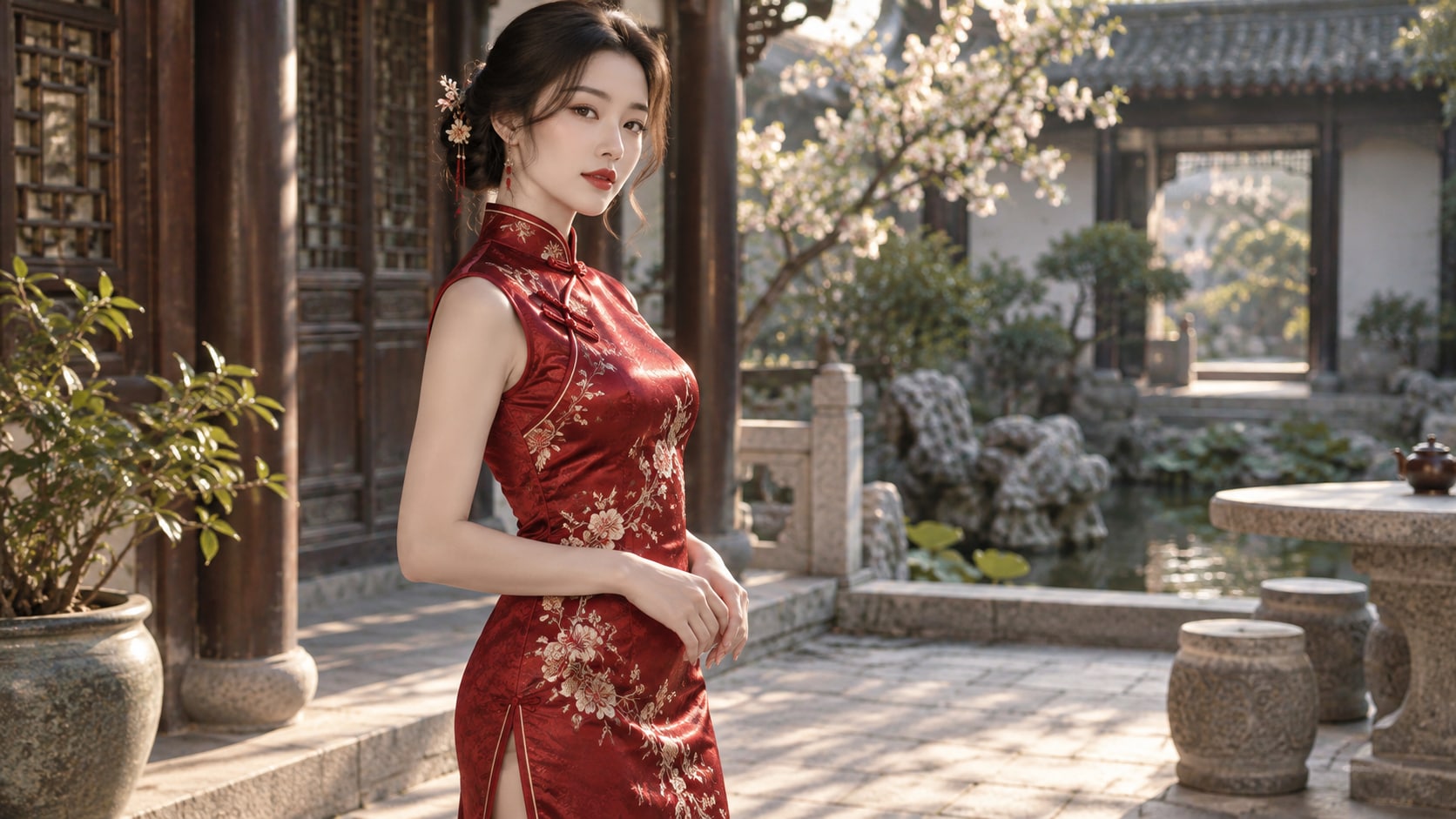
Generate Chinese Cheongsam With Filmora
Start with a precise Chinese Cheongsam AI prompt, then use Filmora's AI image generator to turn adult qipao portraits, modern cheongsam styling, Shanghai-inspired streets, garden courtyards, silk textures, and studio fashion into clean, edit-ready stills. Use it for adult qipao portraits, modern cheongsam styling, Shanghai-inspired streets, garden courtyards, silk textures, and studio fashion, with deliberate composition and clean negative space for later editing.
- Prompt to Image - Translate the mood into a polished still without losing the subject's calm visual hierarchy.
- Clean Visual Structure - Keep backgrounds restrained so hair, skin, clothing, and small lifestyle props remain easy to edit.
- Fast Iteration - Compare light, crop, and setting variations before choosing a final feed or campaign image.
Use GPT Image 2 for Lighting, Pose, and Styling Detail
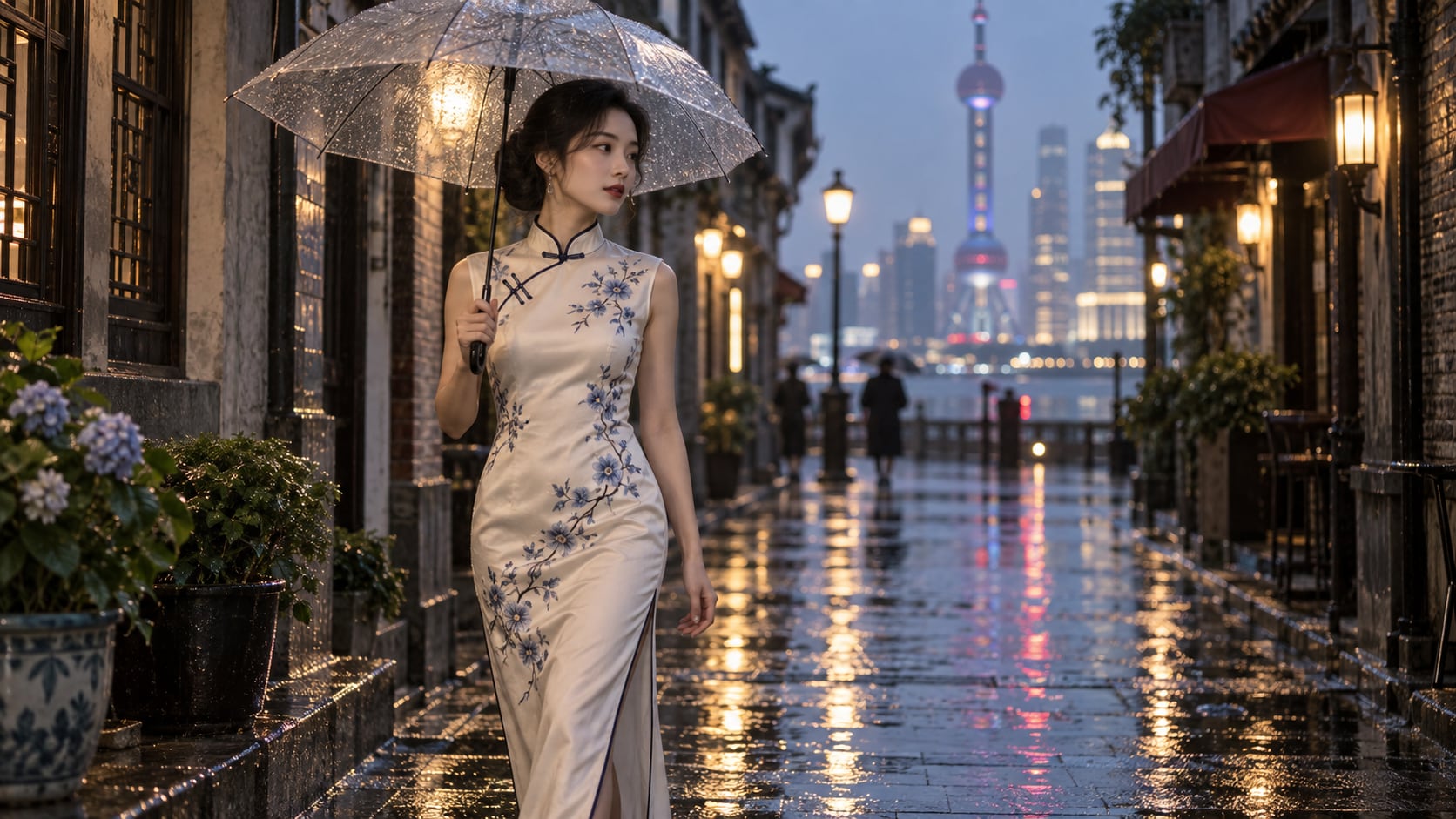
Use GPT Image 2 for Lighting, Pose, and Styling Detail
When the scene needs dependable subject detail, texture, or background control, Filmora's GPT Image 2 helps follow a structured prompt. Structured prompts help preserve facial expression, wardrobe, lighting direction, background depth, and realistic anatomy.
- Prompt Following - Describe pose, styling, surface texture, camera distance, and negative space in one focused request.
- Detail Control - Preserve believable fabric, skin, hair, glass, tabletop, and natural shadow detail.
- Edit-Ready Results - Keep the generated image uncluttered before adding typography, stickers, or music in Filmora.
Try Nano Banana for Alternate Editorial Variants
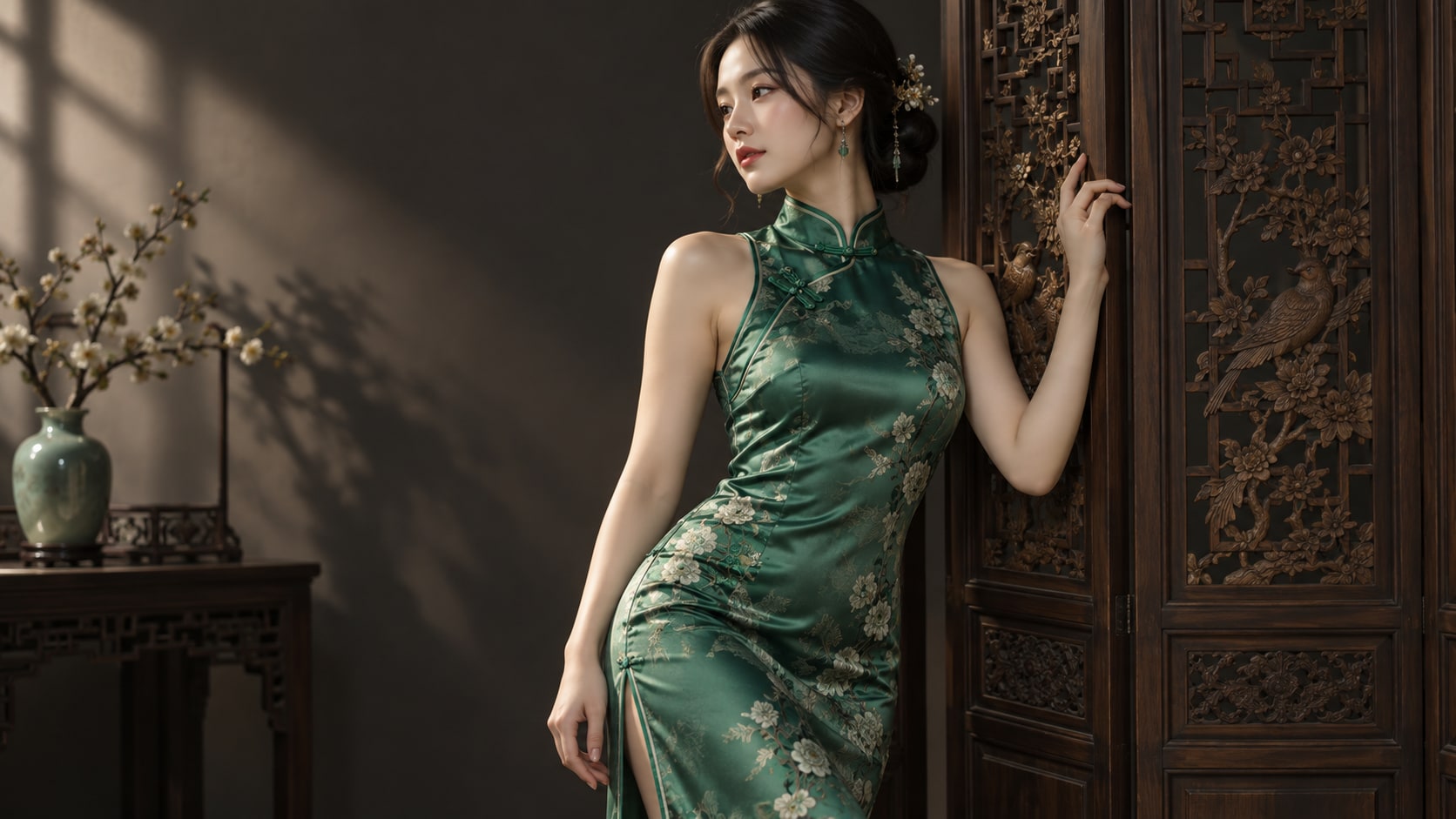
Try Nano Banana for Alternate Editorial Variants
Use Filmora's Nano Banana when one idea needs another palette, mood, composition, or social treatment. Try alternate wardrobe colors, locations, camera angles, and moods while keeping the subject coherent.
- Style Range - Move between bedroom, cafe, bathroom, studio, garden, and city-lifestyle interpretations.
- Variant Testing - Test several color directions and framing options from the same visual idea.
- Creative Flow - Keep prompt, generation, refinement, and export together in the Filmora workflow.
Turn Chinese Cheongsam Into Video
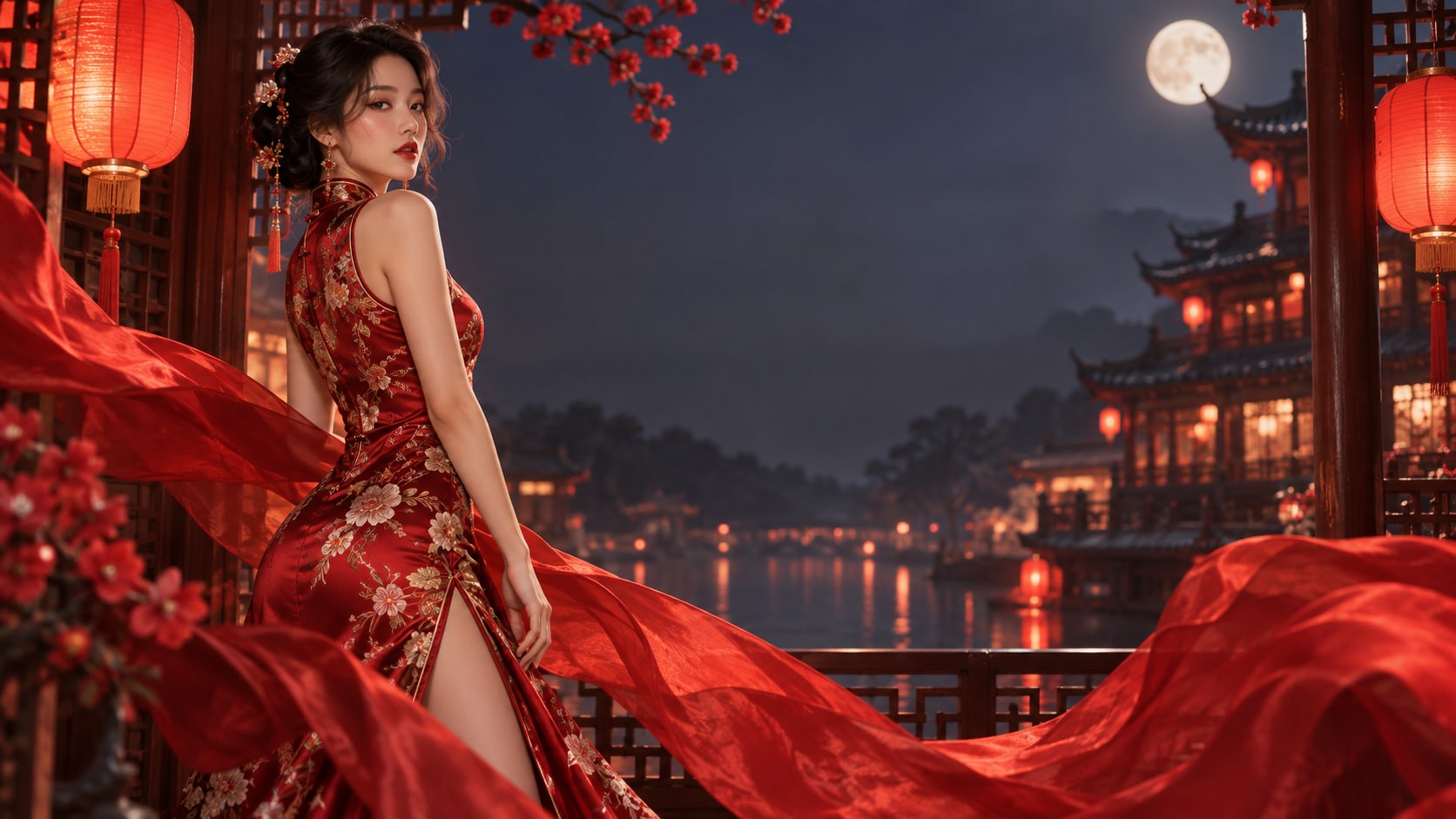
Turn Chinese Cheongsam Into Video
After generating the still, use Filmora's AI Image to Video workflow to add camera movement, overlays, effects, sound, and social-ready exports. Animate a slow camera move, fabric movement, light changes, title reveals, and social-ready crops.
- Motion Ideas - Animate a morning routine, product detail, curtain movement, mirror push-in, or subtle hand gesture.
- Social Formats - Reuse one still as a 16:9 banner, 9:16 reel cover, or square social tile.
- Final Export - Finish with text overlays, music, transitions, and platform-ready exports.
Frequently Asked Questions About Chinese Cheongsam Prompts
How to Generate Chinese Cheongsam Images With AI
Choose a chinese cheongsam setup, define the subject and visual mood, generate the still, then personalize or animate it in Filmora.
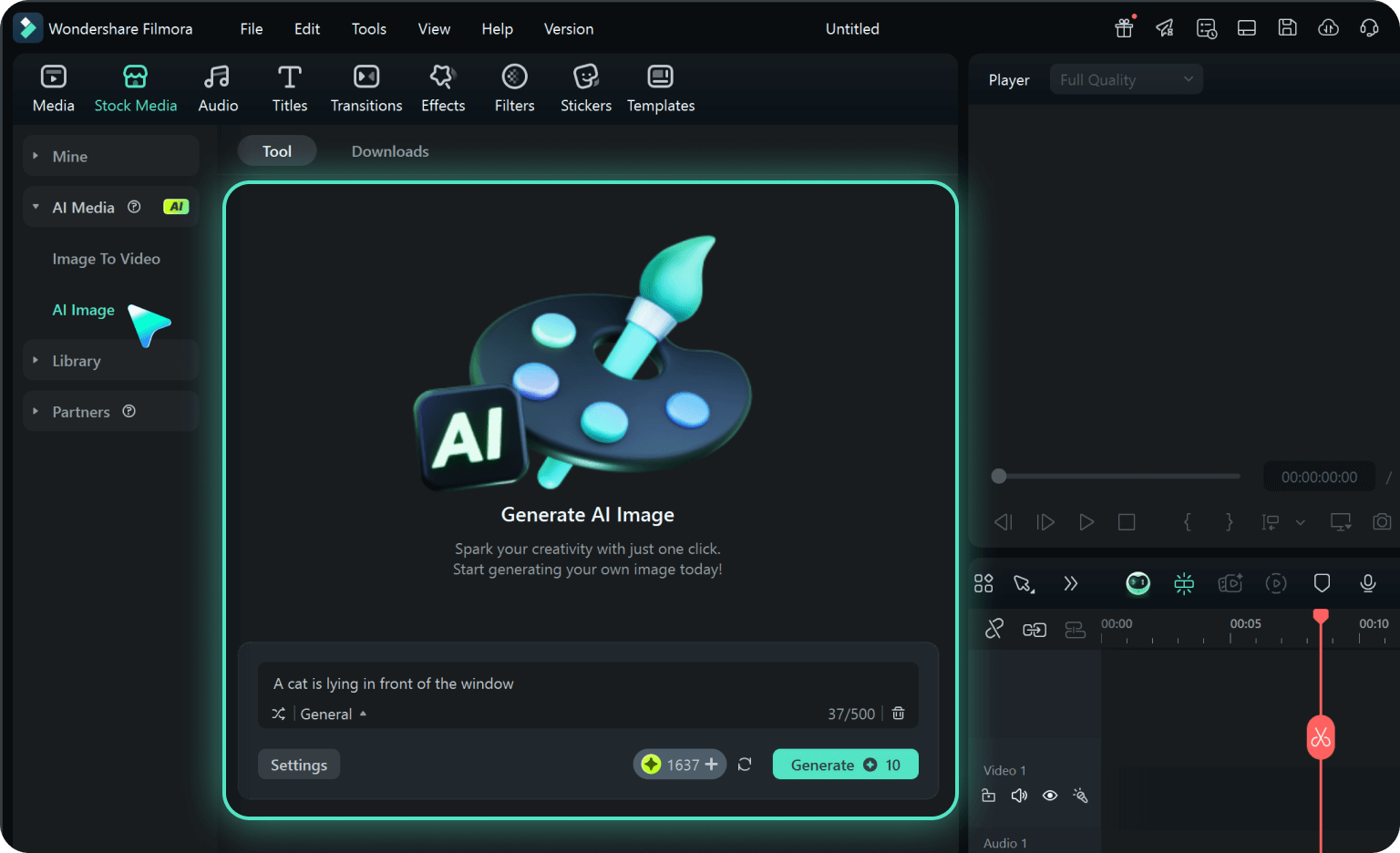
Step 1 Choose a Chinese Cheongsam Prompt
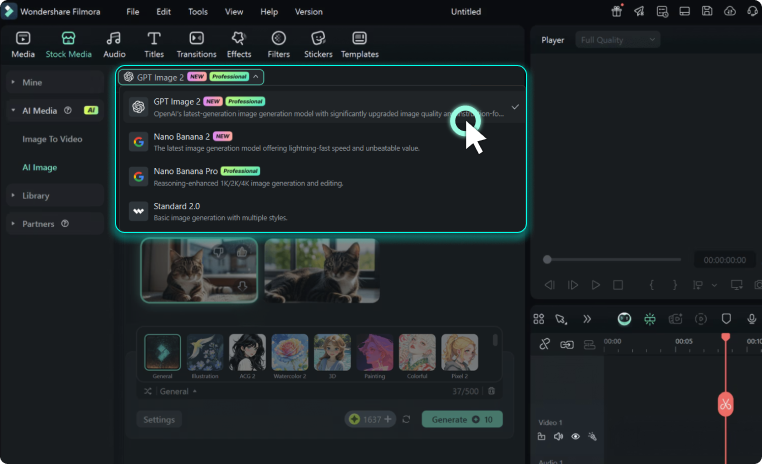
Step 2 Set Style, Model, and Ratio
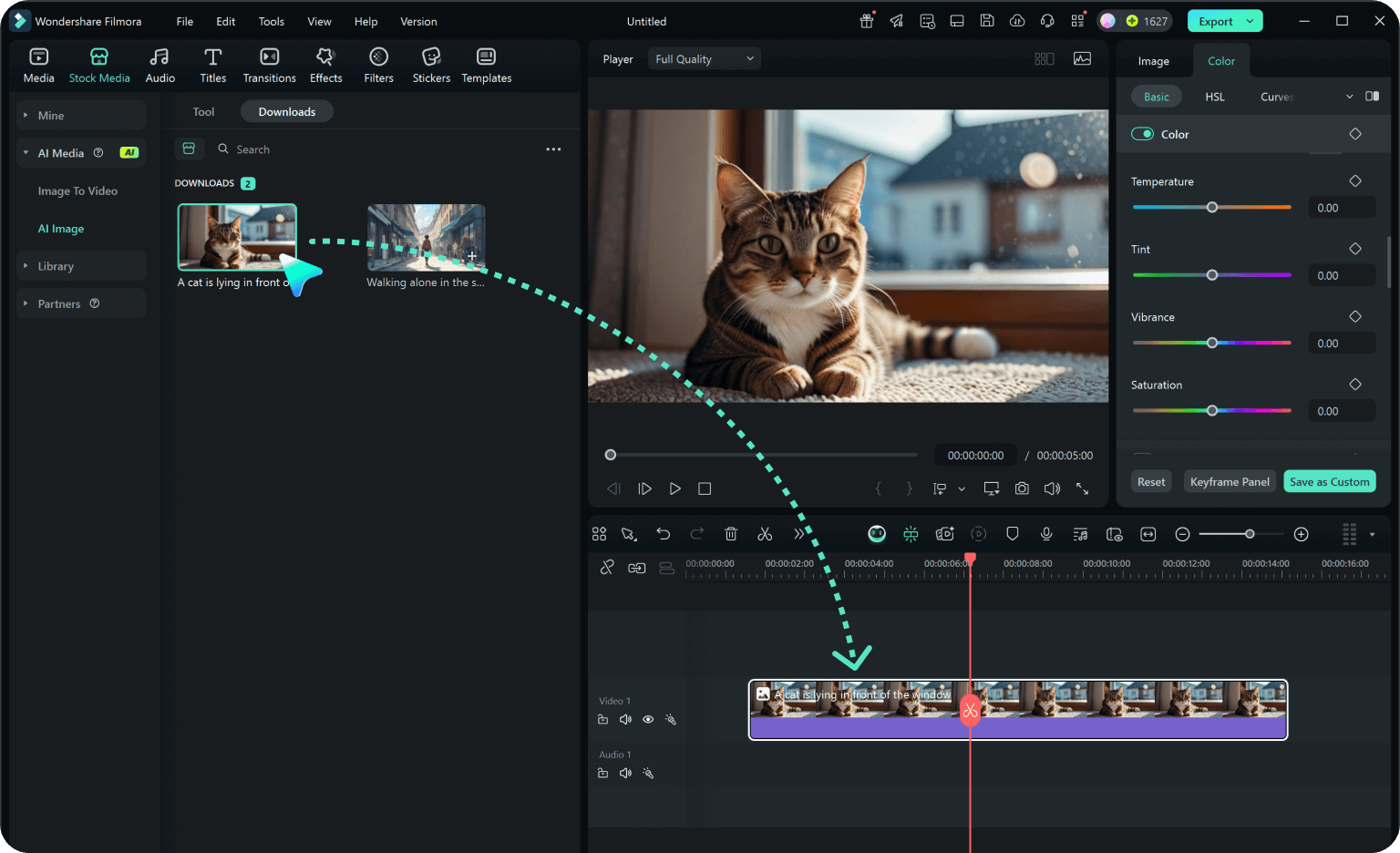
Step 3 Generate, Edit, and Export
-
1: Choose a Chinese Cheongsam Prompt
Pick a chinese cheongsam setup such as a red silk cheongsam portrait, a modern qipao look, a garden courtyard scene, or a cinematic Shanghai fashion frame. -
2: Set Style, Model, and Ratio
Paste the prompt into Filmora's AI Image tool, choose GPT Image 2 or Nano Banana, select a ratio, and refine subject detail, lighting, and framing. -
3: Generate, Edit, and Export
Generate the still, adjust crop and color, add motion or overlays if needed, then export it for cultural fashion editorials, festive portraits, travel reels, fashion lookbooks, and elegant social covers.