

 100% Security Verified | No Subscription Required | No Malware

If your work requires making tutorials, streaming games, or presenting slide decks, you may find it more practical to record multiple video sources simultaneously. After all, toggling between different apps or syncing footage manually later just eats up your time.
And guess what, as technology and video editors keep improving, there are now tools that support these capabilities so you can record multiple cameras at once without tearing your hair out. The next struggle would be learning how to understand the tool and picking the right multiple video recorder for you, and we're here to guide you through it all.
In this article
Part 1. The Benefits of Multi-Camera Recording for Creators
If you have ever tried making a video that involves your face, your computer screen, and maybe a secondary camera angle, you already know the nightmare of hitting "record" on three separate devices. You'll have more files to manage, more manual syncing, and a lot more post-production work than most people bargain for. The same issue comes up with tutorials, gaming videos, product demos, and software comparisons.
Recording multiple cameras at once flips that around: you capture everything in one session and keep every source available for editing later, instead of chasing it all down afterward. See how much easier it is to rely on multi-source recording with the comparison table below:
|
Feature |
Multi-Source Recording |
Single-Source (One-by-One) |
|
Setup Time |
One-time initial setup for all feeds simultaneously |
Repeated setup and restart for every single angle |
|
Post-Production Speed |
Fast; all feeds land pre-synced on the timeline |
Slow; requires manual claps or waveform matching |
|
Reaction Authenticity |
Genuine live reactions captured in real time |
Recreated reactions that often feel forced or fake |
|
Workflow Efficiency |
One session covers everything you need |
Multiple sessions chip away at your schedule |
When Do You Need to Record Multiple Video Sources?
You might be wondering if setting up to record multiple cameras is actually worth it for the kind of content you make. But here's the key: anyone who needs to show several screens, cameras, or audio sources at the same time can get something out of this.
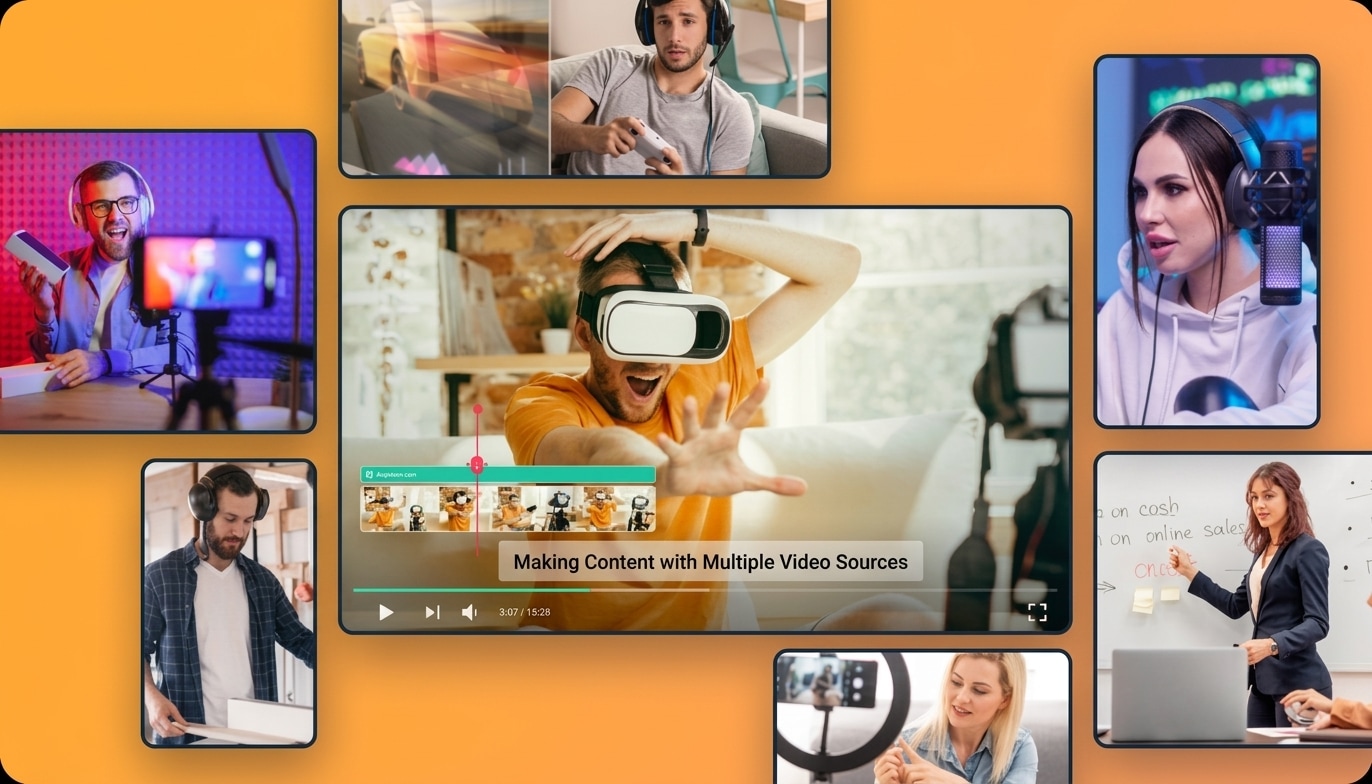
Here are a few examples:
- Teachers & Course Creators: Record slides, software demonstrations, webcam, and narration together without juggling multiple recorder apps.
- Tech Reviewers: Capture two apps, mobile devices, or software windows at once for side-by-side comparison videos.
- Gamers & Streamers: Record gameplay feeds, webcam overlays, mic commentary, and system audio as separate streams.
- Work Teams & Trainers: Capture main product interfaces alongside debugging or auxiliary windows for internal walkthroughs.
- Podcasters & Interviewers: Record host and guest camera feeds simultaneously while keeping audio on independent channels.
- Creative Artists & Crafters: Capture an overhead view of hands/artwork alongside a face-cam for real-time tutorial narration.
- Software Developers & Testers: Record primary software output and terminal/log windows at the same time to document bugs or features.
Part 2. The Best Tool to Capture Multiple Video Sources: Filmora
Now that you see why recording multiple cameras at once makes life easier, the next step is choosing the right editor for it. Thankfully, you do not have to waste hours searching around because Wondershare Filmora is right here. With the release of Filmora 16, the built-in multi-source screen recorder feature gets a massive upgrade designed specifically for multi-input workflows.

Instead of forcing you to set up complex scene trees or deal with confusing third-party plugins, Filmora keeps everything consolidated right inside your editing workspace. You get high-end studio recording power wrapped in an interface that actually makes sense.
 secure download

Why Choose Filmora for Multi-Source Recording?
The upgrade is less about throwing more settings at you and more about making a complicated type of recording easier to manage. Here are a few benefits that you'll get:
- Multi-Source Video Capture: Record webcam footage, primary displays, secondary software windows, and external devices in one session.
- Independent Multi-Track Audio: Keep system audio, microphone narration, and external inputs on separate tracks for precise volume control and noise reduction.
- Automatic Timecode Sync: Automatically aligns all video and audio tracks directly on the timeline, eliminating manual sync hassle.
- Direct Timeline Integration: Bypasses external file importing by dropping finished captures straight into Filmora's Media panel and timeline.
- Fail-Safe Recording Protection: Keeps remaining tracks recording uninterrupted even if a single hardware device disconnects mid-session.
- Custom Screen & Region Selection: Capture specific regions across multi-monitor setups with saved region presets for recurring workflows.
Part 3. Step-by-Step: Record Multiple Sources With Filmora
If you've ever tried setting up something like OBS to capture multiple video sources simultaneously, you know it can turn into an evening of configuring scenes, sources, and encoder settings before you've even hit record. Filmora's approach is a lot friendlier. Most of this comes down to checkboxes and drag-and-drop rather than a settings maze.
- Step 1. Open Filmora Screen Recorder
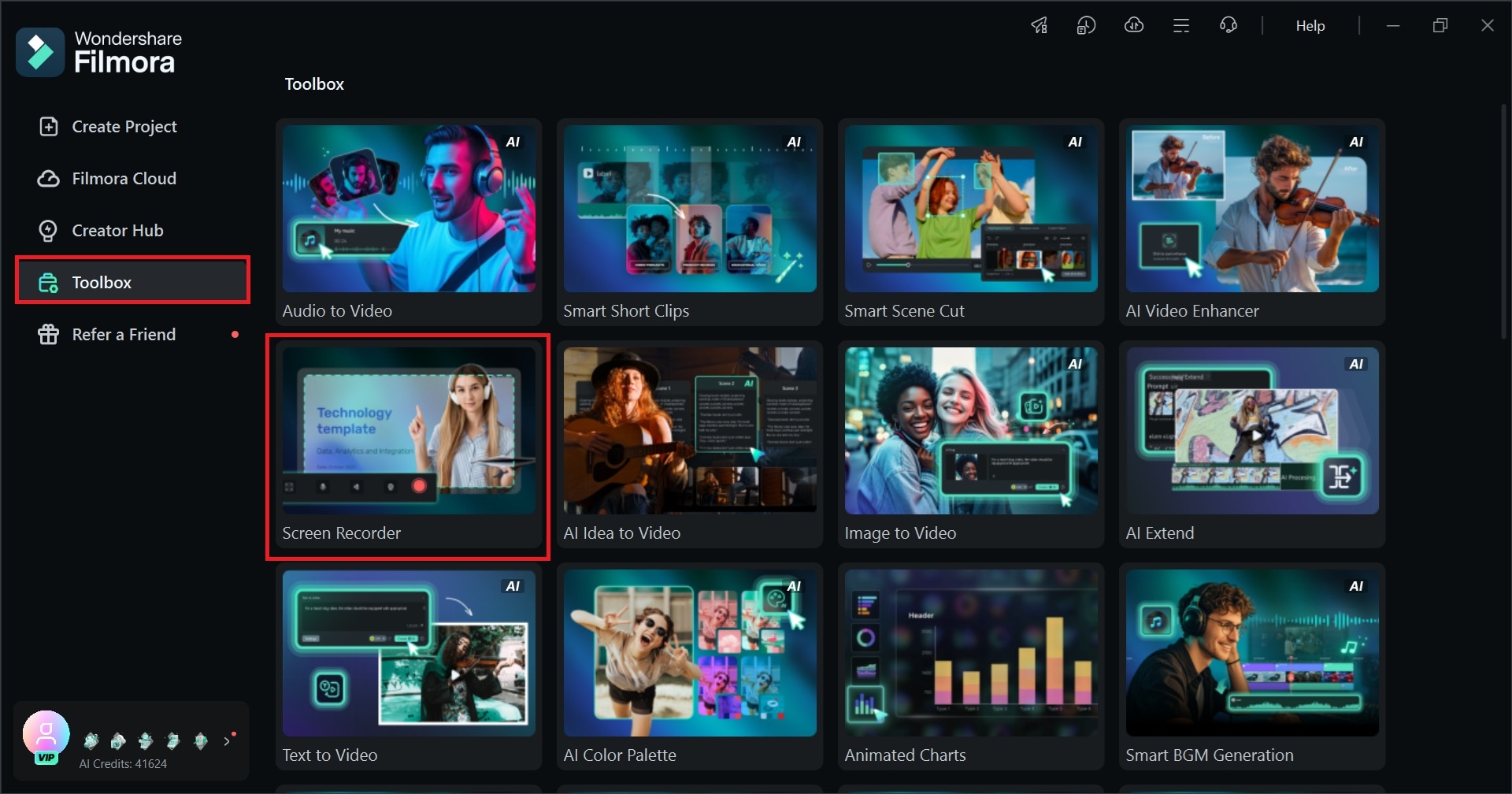
Download and install Filmora on your device. Open the program and click Toolbox. From all the features, select Screen Recorder.
 secure download
 - Step 2. Set Up Multi-Video Sources
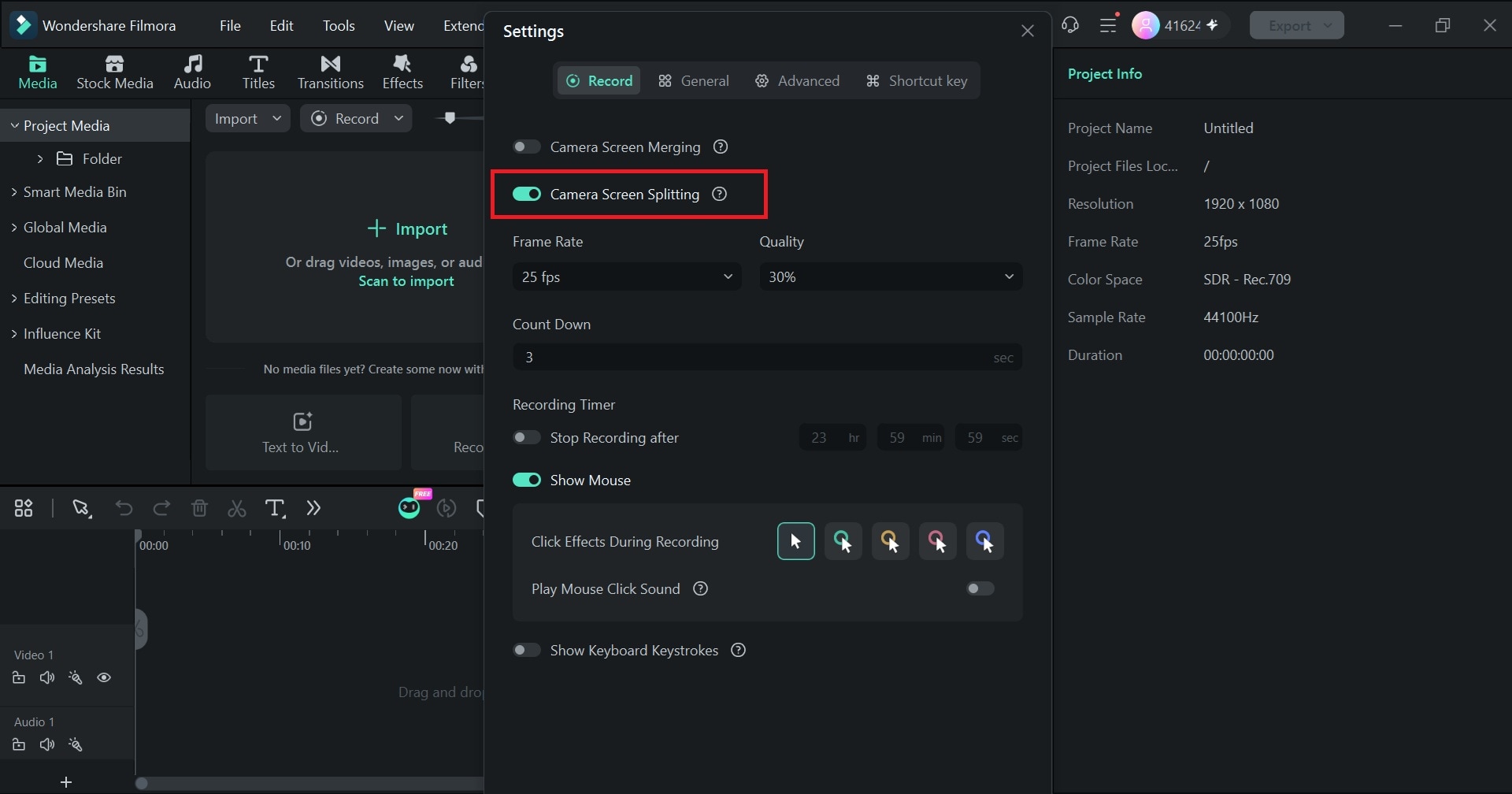
You’ll be headed to Filmora’s main interface. Click the Settings icon.
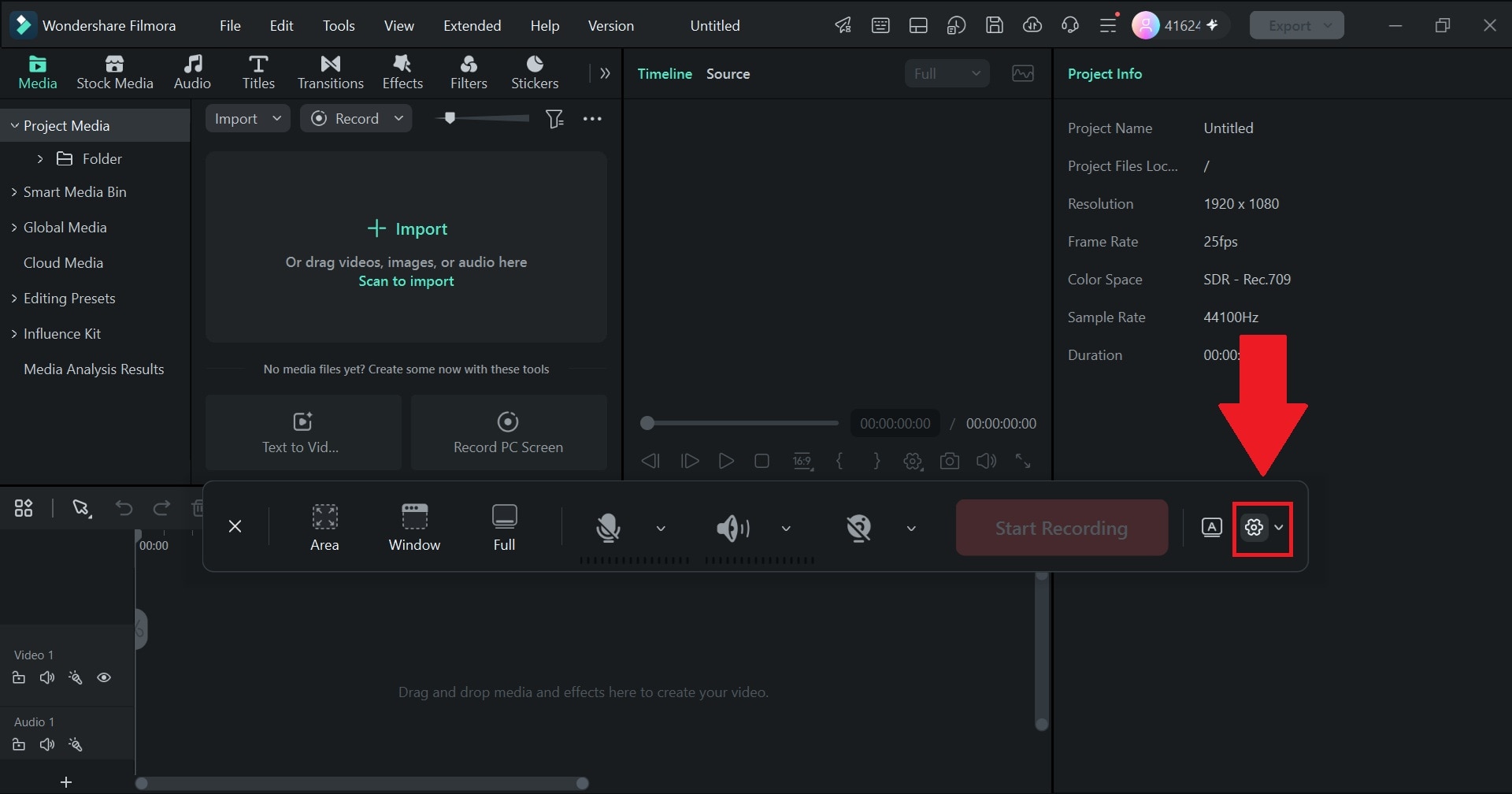
Next, turn on the Camera Screen Splitting option.
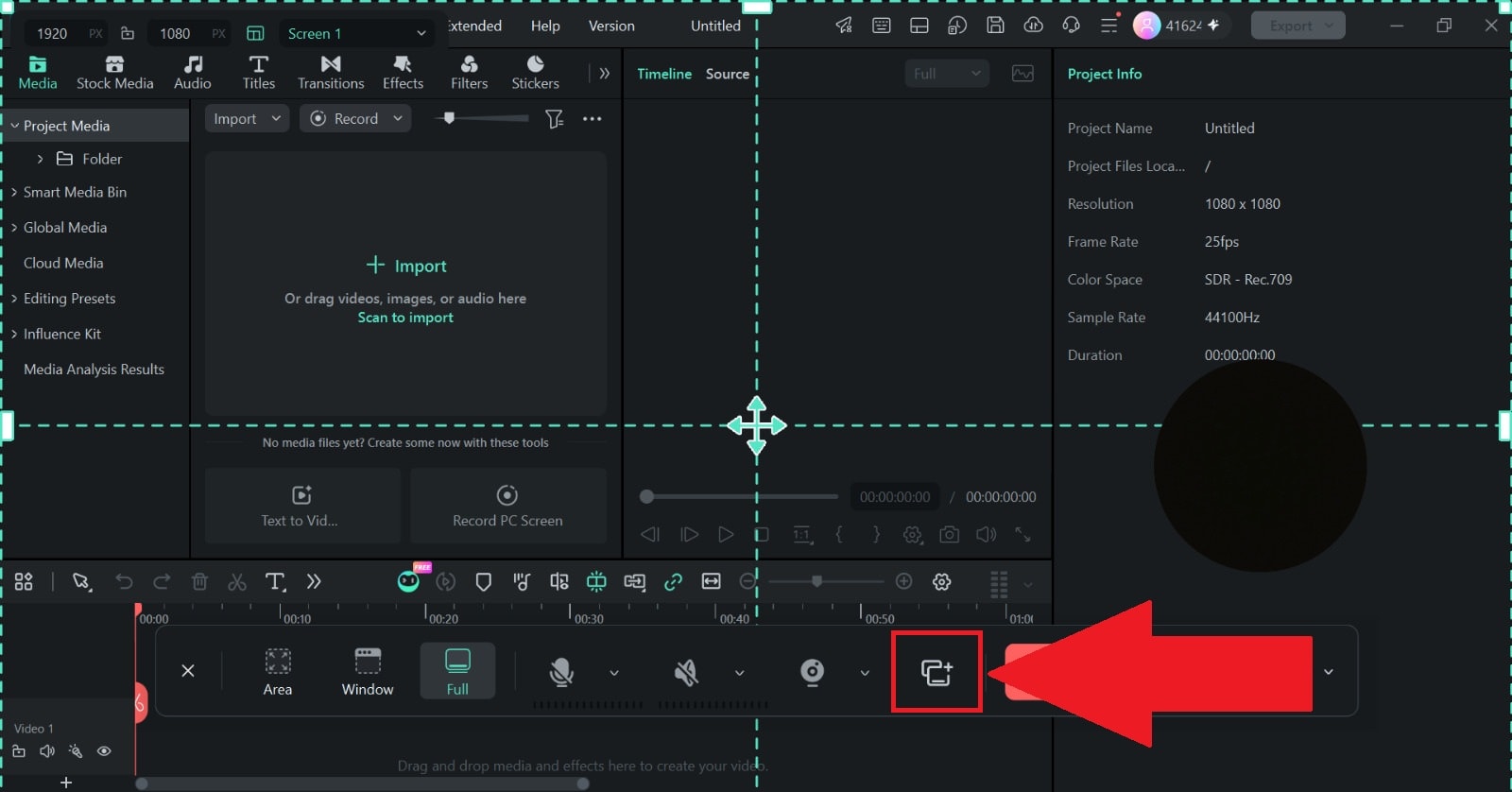
You will now have options to click the Multi-source recording feature, next to the camera icon.
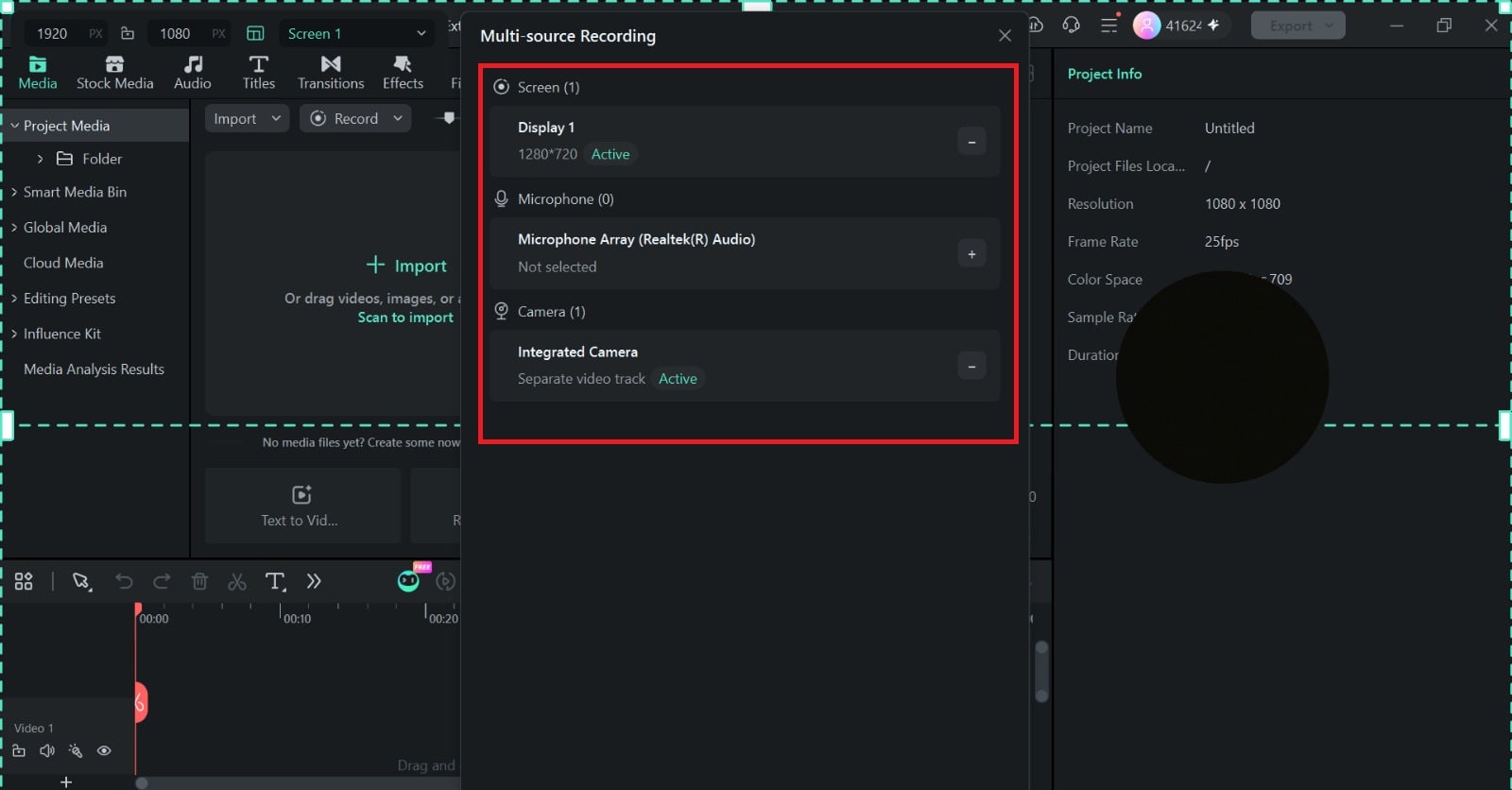
Add the video sources you want to capture. Depending on your setup, these could include:
- Your main display (Screen recorder).
- A webcam.
- Another connected camera.
Don't forget to choose the audio inputs too.
- Step 3. Start Recording
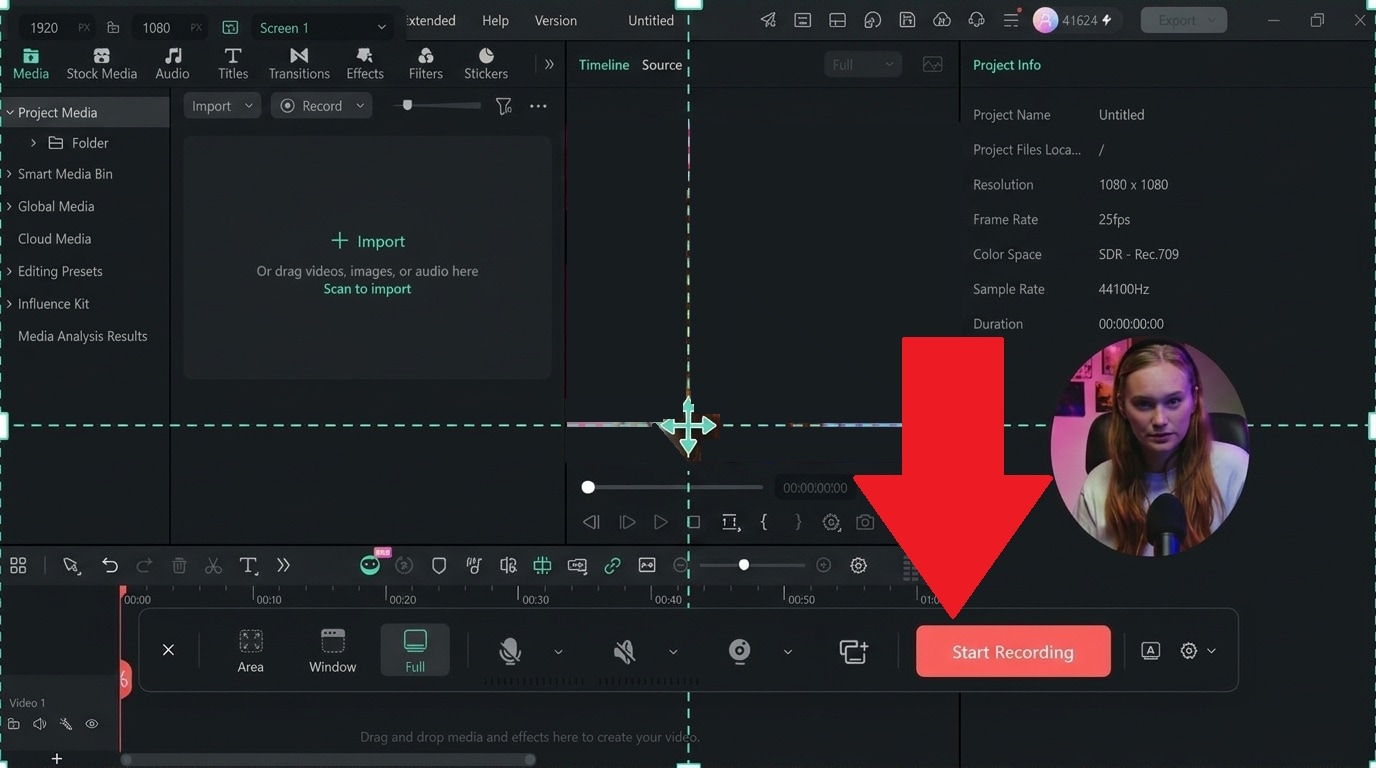
Once everything looks right, click Start Recording. Filmora will capture the selected sources during the same session. The video and audio sources are also designed to stay synchronized, so you don't have to manually line everything up afterward.
- Step 4. Edit Your Recording
When you're done, click Stop Recording and your clip will land directly in Filmora's Media panel and timeline, already synced and ready to edit.
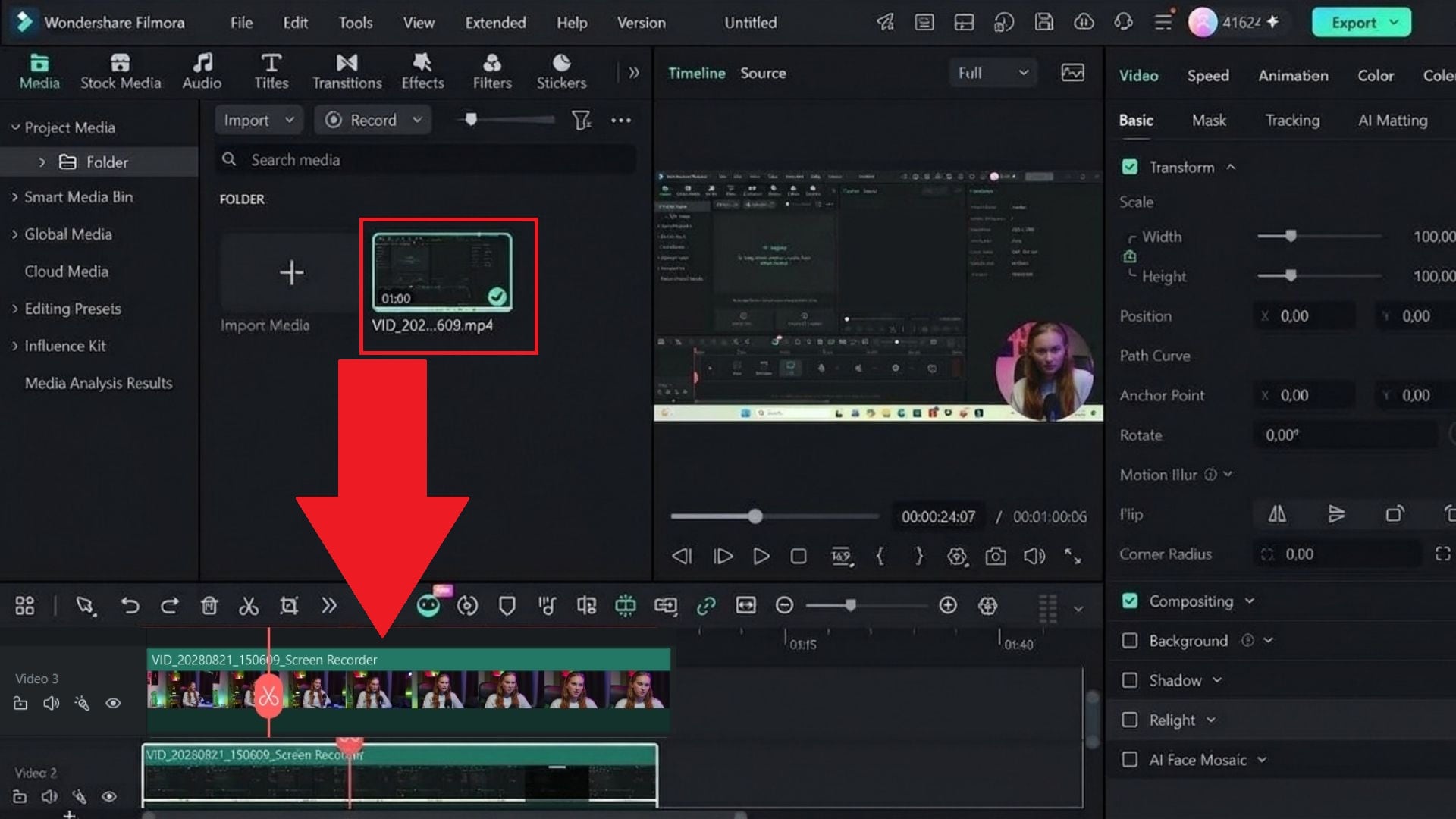
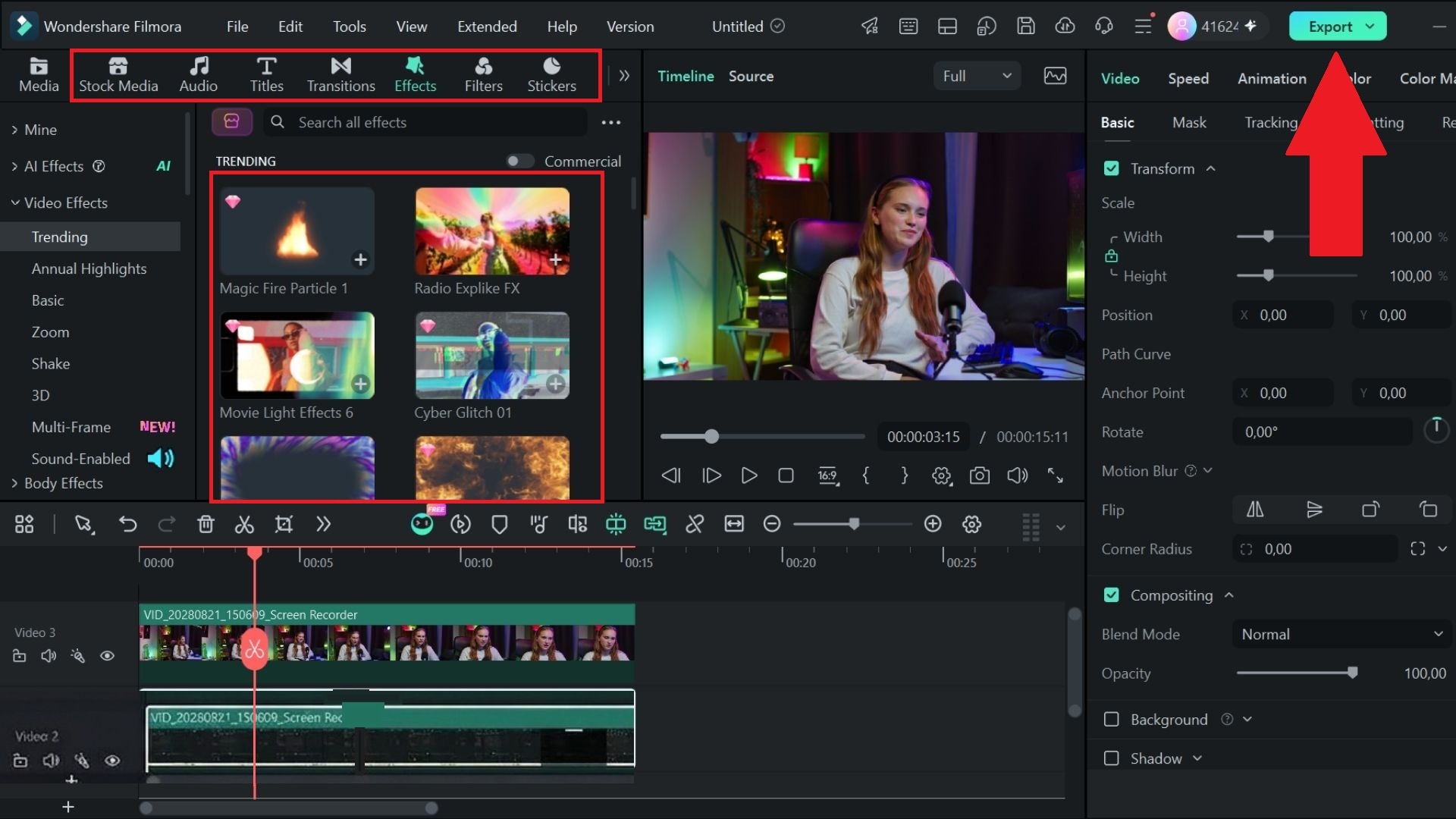
Feel free to trim unwanted sections, adjust individual audio tracks, or even add effects, filters, stickers, and more. When you're done, click Export at the top-right corner to save it to your device.
Part 4. Tips for Capturing Multiple Video Sources
Recording multiple cameras at once gives you more options, but it also gives you more things to check. A camera can disconnect, a microphone can be too loud, or you can accidentally record the wrong part of a second monitor.
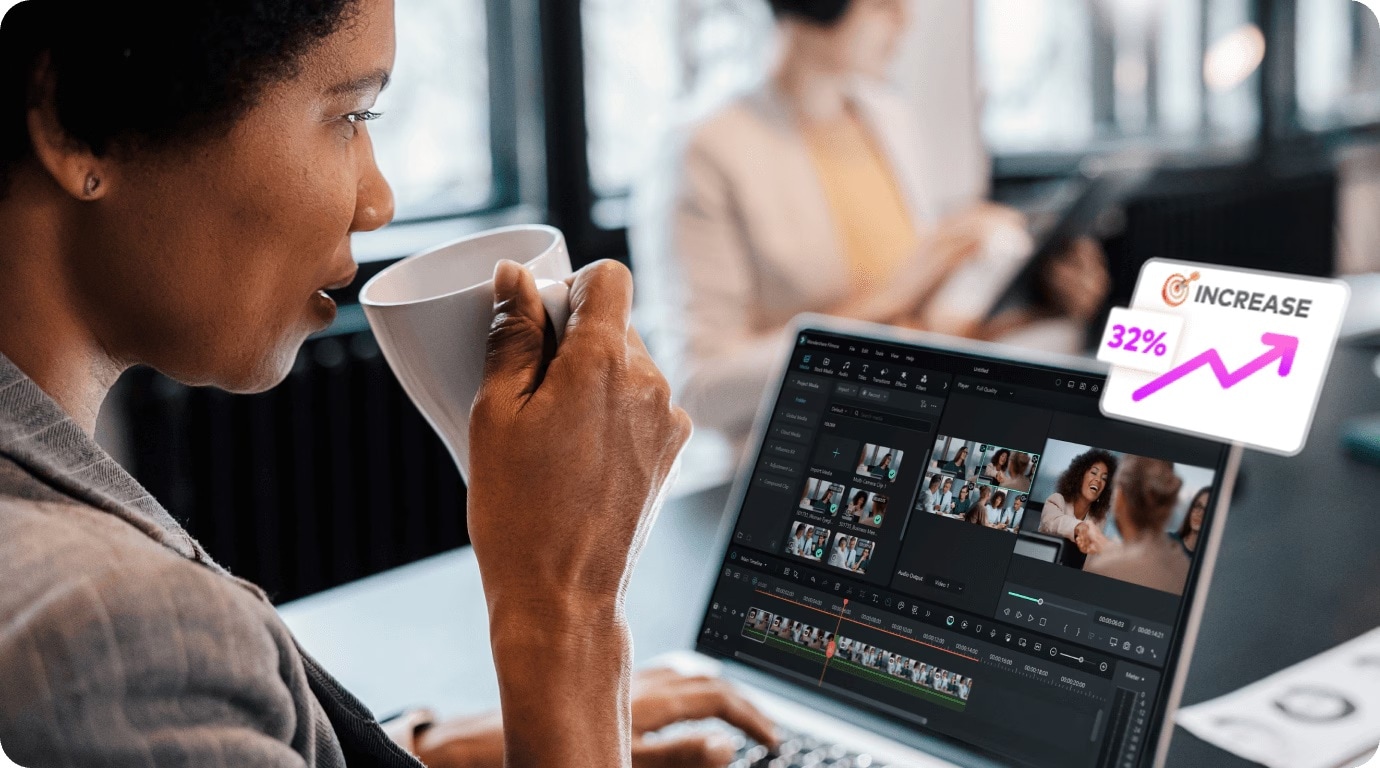
To avoid those issues, here are a few practical habits to build before hitting record:
- Check Storage Space First: Capturing multiple high-definition video streams builds up large file sizes quickly, so make sure your primary SSD has plenty of free headroom.
- Test Hardware Connections: Secure all your USB cables and camera connections beforehand. It's a lot easier to catch a loose cable before recording than to salvage a session after a mid-way disconnect.
- Set Audio Levels Early: Speak into your mic and play a bit of system audio while checking the input meters before recording to keep your volume levels balanced.
- Optimize Screen Lighting: Position a simple desk light in front of you so your webcam video stays crisp and matches the visual quality of your crisp screen capture.
- Use Saved Region Presets: If you regularly record a specific window or secondary monitor layout, save that region as a preset in Filmora to skip manual sizing next time.
Conclusion
Recording multiple video sources at once genuinely changes how much time you spend in post-production and how authentic your final footage feels. This is especially useful for tutorials, reviews, gaming videos, interviews, training materials, and software demonstrations.
If you want a simpler way to record multiple cameras at once without separating your recording and editing tools, Filmora is worth considering. Its upgraded multi-source screen recorder takes all the technical frustration out of multi-camera setups. It offers multi-source video capture, independent audio tracks, automatic sync, and a workflow built to be far less intimidating than something like OBS.
 secure download