Explore Halloween Makeup Effects for Every Character
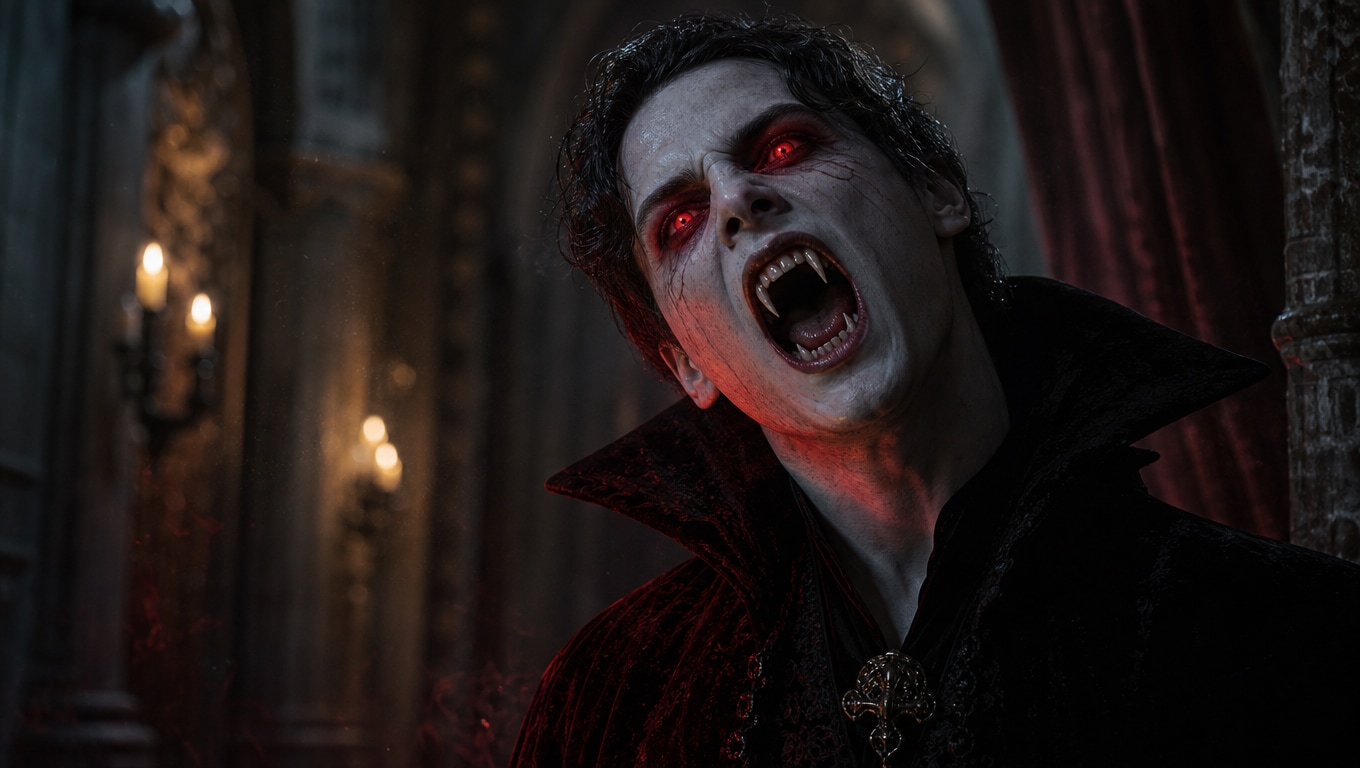
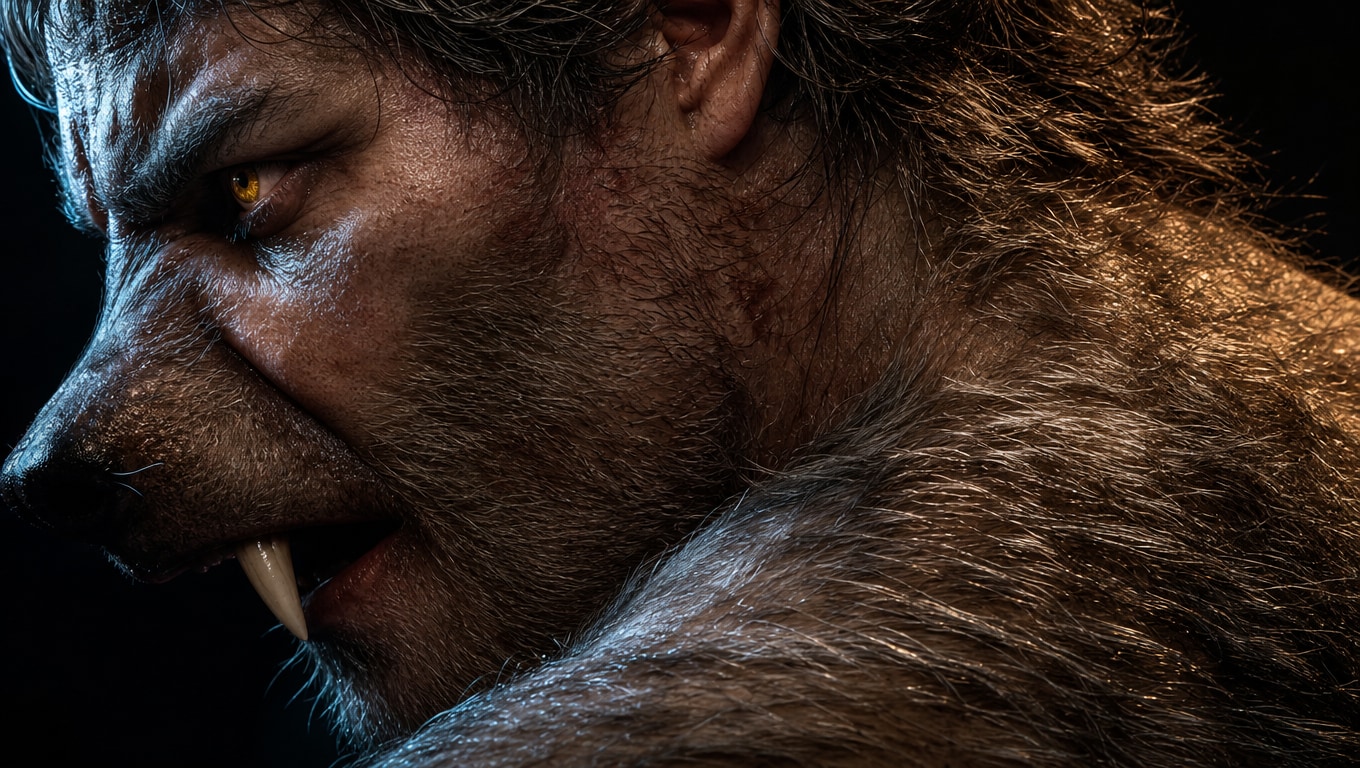
Preview makeup effects for cracked horror, neon beauty, smoky glamour, vampire characters, phantom looks, and gothic tear designs
Loading more Halloween Makeup Effects...
 Category:
 Duration:
 Aspect Ratio:
Create Complete Character Looks With Halloween Makeup Effects
The featured effects cover cracked skin, neon beauty, smoky eyes, vampire glamour, stitched phantom details, and gothic tear designs. Filmora lets you preview each effect on portrait footage, adjust its timing and intensity, and combine it with color, transitions, titles, stickers, and sound for a cohesive character reveal. For additional styling references, explore these Halloween makeup ideas.
Choose a Makeup Effect That Matches Your Character
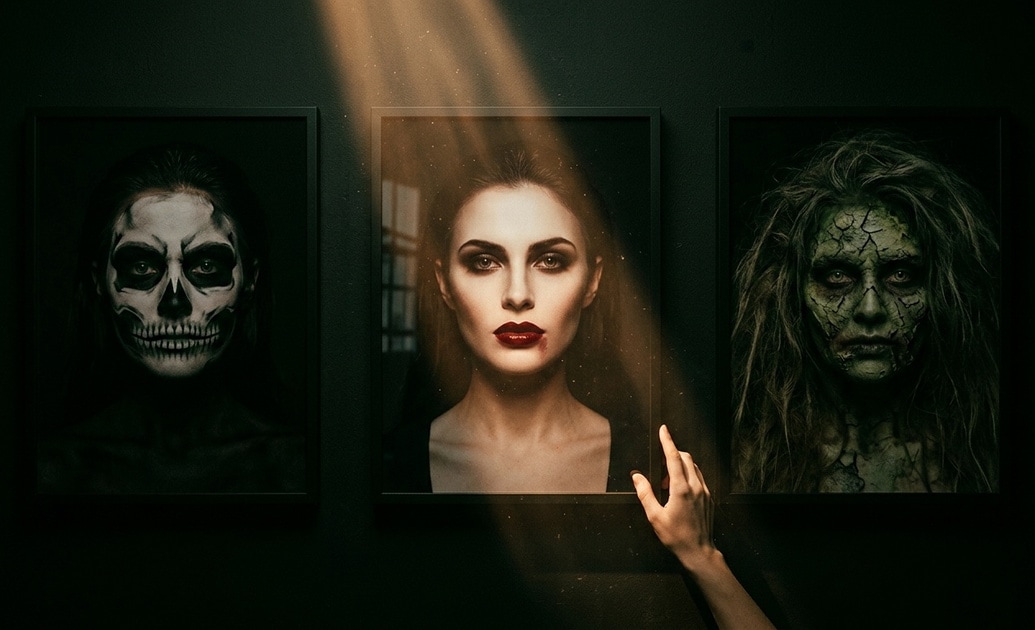
Choose a Makeup Effect That Matches Your Character
Begin with the effect that best supports your character. Fractured Face Makeup creates a broken-skin illusion, Cracked Vampire Glam combines undead texture with polished beauty, and Patchwork Phantom adds stitched supernatural detail. If you need a custom reference image before editing, Filmora's AI Image Generator can help you test the palette, lighting, and background first.
- Use Fractured Face Makeup for sharp horror reveals and damaged-skin character portraits.
- Choose Cracked Vampire Glam for elegant undead looks with a stronger beauty-focused finish.
- Keep the face centered and evenly lit so makeup details remain clear in both vertical and horizontal crops.
Build a Clear Before-and-After Makeup Reveal
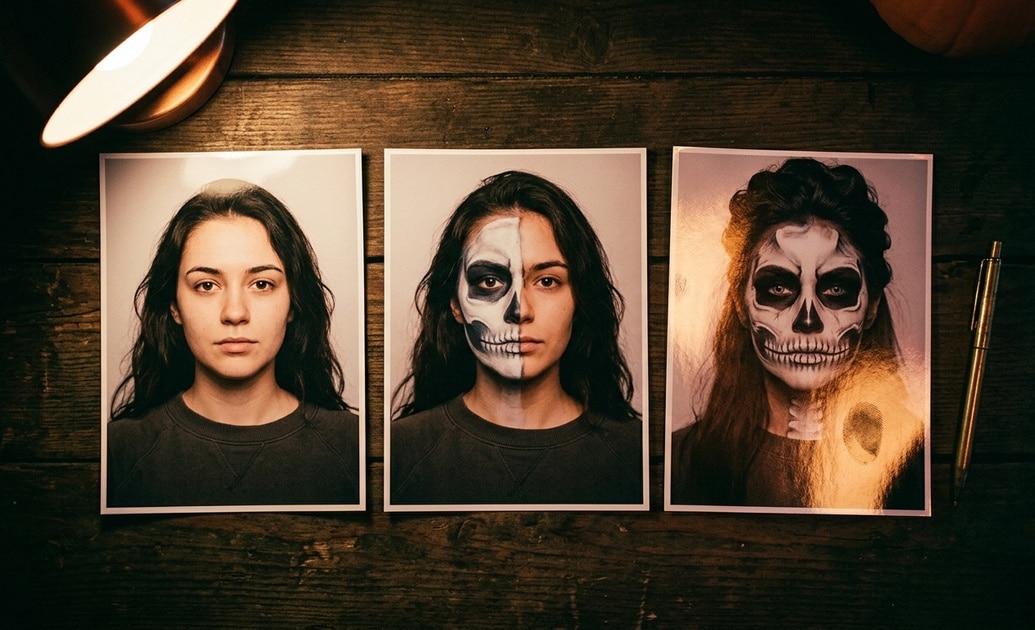
Build a Clear Before-and-After Makeup Reveal
Place the clean portrait and the effect-enhanced version in matching compositions, then use Filmora's AI Image to Video workflow when you want to animate a still transformation. Slow movement preserves the detail in Tear Veil Makeup and Spiderweb Tears, while a flash, shake, or impact cut works well for Fractured Face Makeup and Patchwork Phantom.
- Match the subject position, expression, crop, and lighting before and after the effect is applied.
- Use a mask, flash frame, whip transition, or beat-synced cut to reveal the new makeup cleanly.
- Hold the completed look long enough for viewers to see the eyes, cracks, stitches, webs, and color details.
Match Color, Motion, and Sound to the Makeup
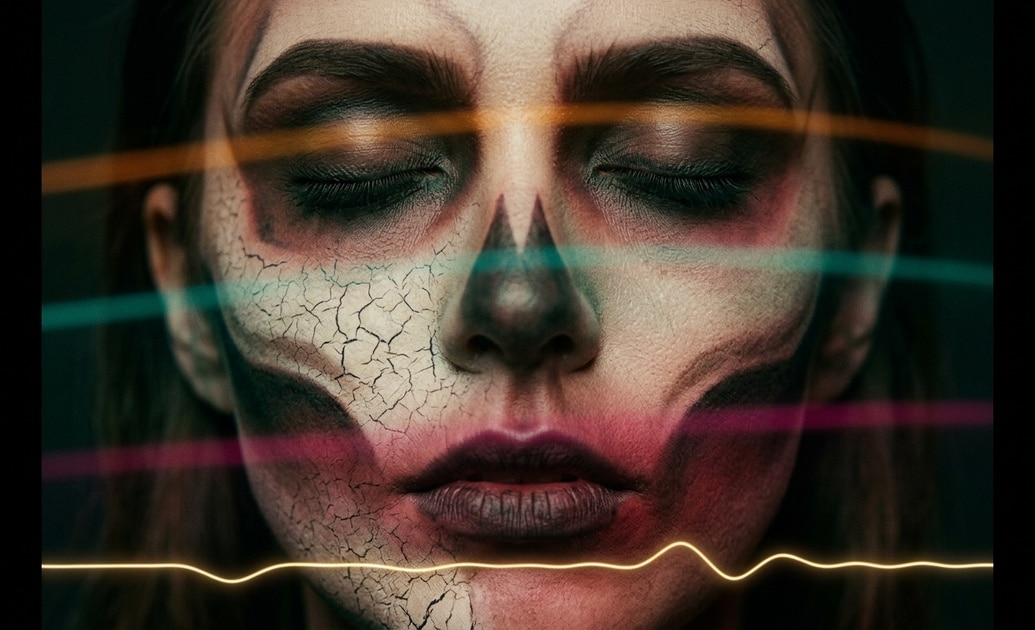
Match Color, Motion, and Sound to the Makeup
Use Filmora's video filters to match the background and footage to the selected makeup style, then add restrained video effects for atmosphere. Colorful Hair Glow and Neon Glamour benefit from vibrant contrast, while Smoky Eye Makeup, Cracked Vampire Glam, and Patchwork Phantom work best with controlled shadows and focused facial lighting.
- Use saturated highlights for Colorful Hair Glow and Neon Glamour, but protect natural skin detail.
- Use deeper shadows for Smoky Eye Makeup and Cracked Vampire Glam without losing the eyes.
- Pair Tear Veil Makeup or Spiderweb Tears with a restrained whisper, breath, or riser from the AI Sound Effect Generator.
Frequently Asked Questions About Halloween Makeup Effects
How to Apply Halloween Makeup Effects in Filmora
Apply a Halloween makeup transformation to portrait footage in three simple steps, from browsing the Effects library to refining the final look.
Step 1 Browse Halloween Makeup Effects
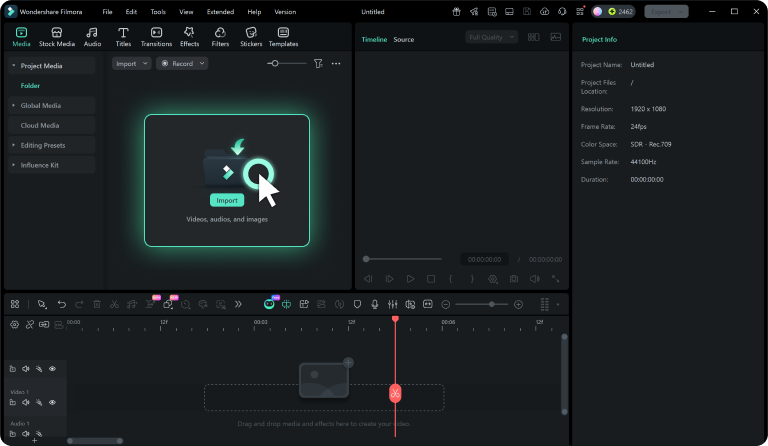
Step 2 Download Your Favorite Effect
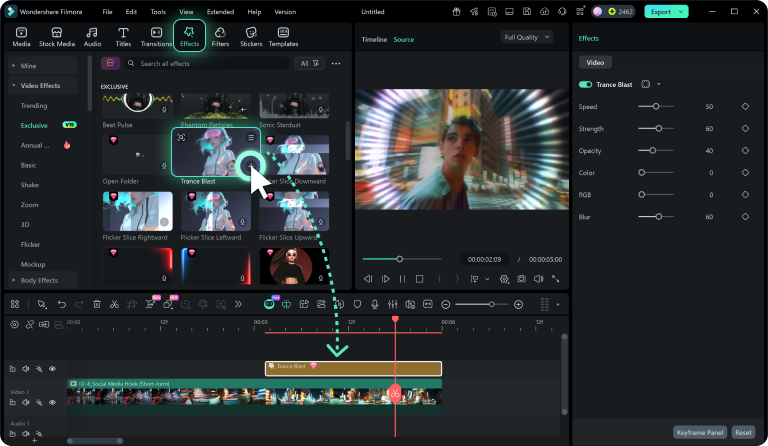
Step 3 Apply and Customize
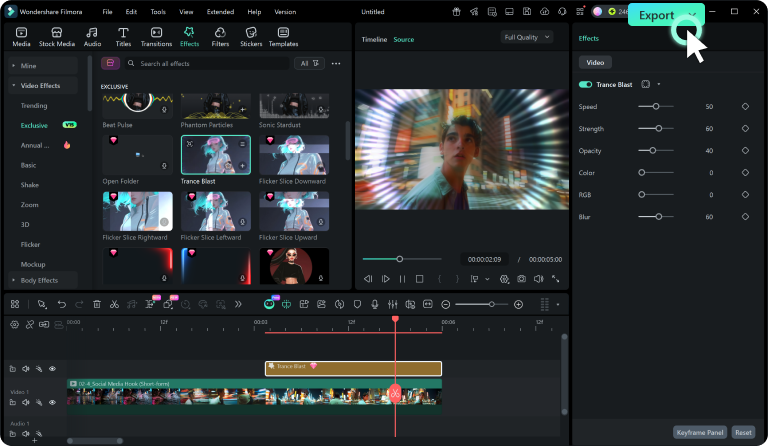
-
1: Browse Halloween Makeup Effects
Open Filmora's Effects library and search for Halloween makeup effects. Preview cracked face, neon glamour, smoky eye, vampire, phantom, and spiderweb styles to find the right look. -
2: Download Your Favorite Effect
Click the download icon on your chosen makeup effect to add it to Filmora's local asset library and prepare it for immediate use in your project. -
3: Apply and Customize
Drag the downloaded effect onto your portrait clip or an effect track above it, then adjust the duration, intensity, scale, opacity, and tracking for a natural fit.