World Cup Stadium Cam Examples & Guides
Dive into popular stadium cam setups and dynamic sports guides
Loading more stadium cam examples...
 Category:
 Duration:
 Aspect Ratio:
Everything You Need for Epic Stadium Edits
A dynamic world cup stadium cam template can instantly transport your viewers straight to the bleachers. Filmora offers a robust collection of video templates with authentic camera overlays and HUD elements. Create realistic sports broadcasts with powerful AI video editing tools that integrate perfectly into your timeline.
Realistic Stadium Camera Effects Ready to Drop In
Realistic Stadium Camera Effects Ready to Drop In
Stop building complex broadcast overlays from scratch when our world cup stadium cam template library has you covered. Replicate the authentic world cup live cam look with precision, adding recording frames, battery indicators, and live broadcast graphics. Filmora offers a vast library of creative assets to enhance your footage effortlessly.
- Drag and drop professional stadium camera interfaces onto your timeline for instant broadcast quality.
- Match the intense energy of a live match with authentic recording indicators and timecode elements.
- Transform standard clips into premium sports coverage without needing advanced motion graphics skills.
Generate Custom Match Venues with Advanced AI
Generate Custom Match Venues with Advanced AI
When you lack genuine sports footage, you can instantly create stunning virtual arenas using the Filmora AI Image Generator. Powered by industry-leading models like GPT Image 2 and Nano Banana Pro, you can generate an energetic baseball stadium cam backdrop or an electric soccer pitch in seconds. Customize every visual aspect to perfectly fit the atmosphere of your sports commentary or highlight reel.
- Type a simple prompt to generate hyper-realistic stadium environments tailored to your exact video needs.
- Choose between cutting-edge models like GPT Image 2 to achieve the perfect lighting and crowd density.
- Combine generated backgrounds with dynamic video effects for a fully immersive viewer experience.
Synchronize Dynamic Motion and Roaring Audio
Synchronize Dynamic Motion and Roaring Audio
An authentic ai stadium cam requires more than just visual overlays; it needs movement and sound. Filmora allows you to add realistic handheld camera shake to simulate a frantic world cup live cam recording. Pair this dynamic movement with layered stadium crowd noise and cheering sound effects to completely sell the illusion of being right in the stands during the game-winning moment.
- Apply realistic handheld camera shake presets to give your footage that genuine live spectator feeling.
- Layer roaring crowd audio tracks seamlessly under your commentary to build intense game-day excitement.
- Adjust the intensity of visual tracking and sound design to match the rising action of the sporting event.
Frequently Asked Questions About Stadium Cams
How to Use a World Cup Stadium Cam Template in Filmora
Transform your ordinary clips into epic sports broadcasts in just three simple steps. Follow this guide to apply, customize, and export your stadium cam edits for maximum engagement.
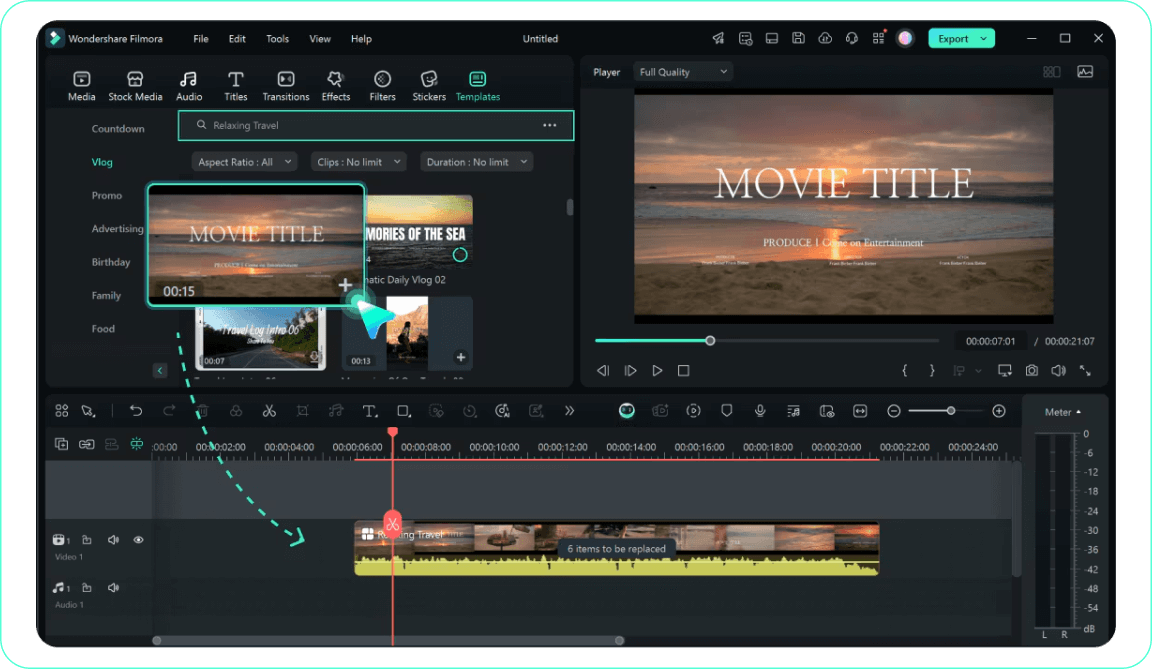
Step 1 Select Your Stadium Template
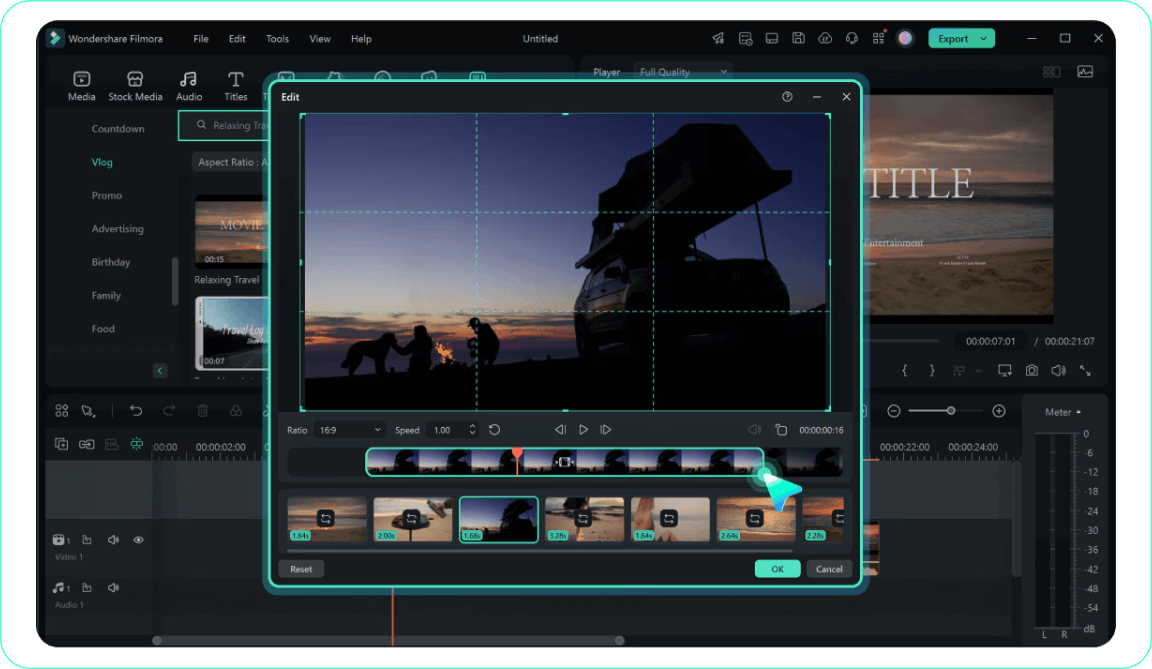
Step 2 Customize Overlays and AI Elements
Step 3 Add Motion and Export
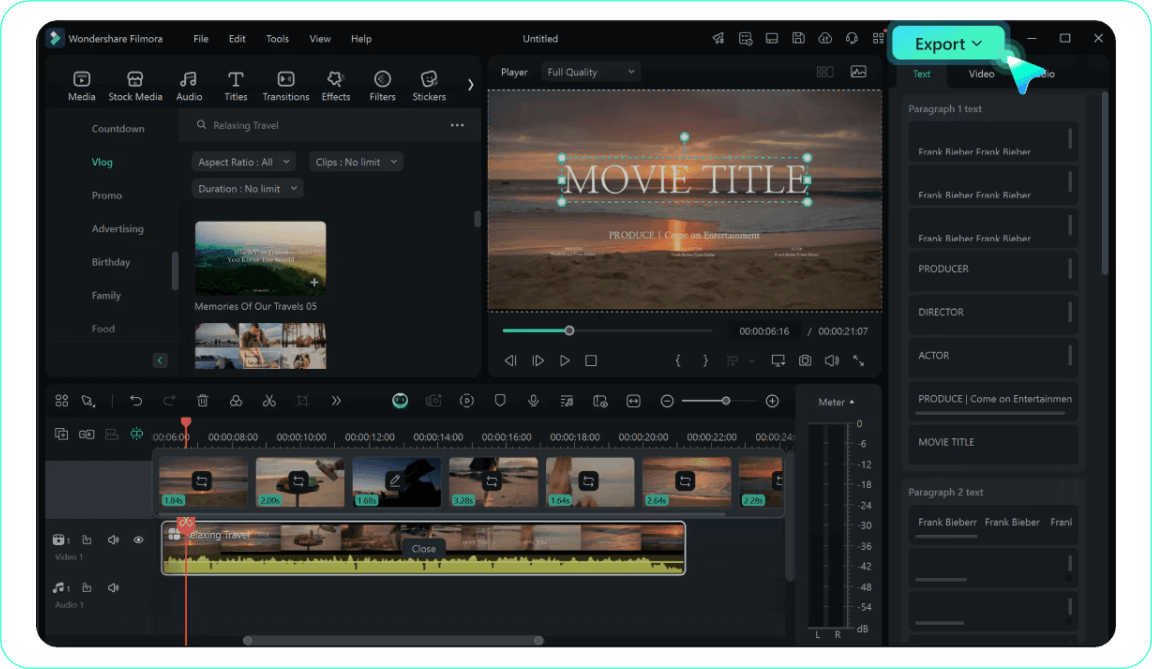
-
1: Select Your Stadium Template
Open Filmora and navigate to the "Templates" tab. Search for a world cup stadium cam template that matches your desired sports aesthetic, then drag and drop it onto your timeline above your footage. -
2: Customize Overlays and AI Elements
Double-click the template clip in the timeline to open the editing panel. Here you can tweak the HUD text, adjust the color grading, and even use AI image tools to generate realistic background crowds. -
3: Add Motion and Export
Apply realistic camera shake and crowd noise to complete the broadcast illusion. Once satisfied, click "Export" and choose your preferred resolution to share your thrilling sports edit with the world.
More Than Just a Basic Stadium Filter
Filmora goes beyond simply slapping a graphic on your screen. You can layer authentic broadcast elements to add visual depth to your sports footage, introduce dynamic camera shake that mimics the frantic energy of a world cup live cam, and apply cinematic color grading that highlights the vivid green of the pitch. Create immersive sports videos by fine-tuning audio tracks to balance crowd noise with your commentary, using advanced keyframing to track fast-paced action, and adding dramatic slow-motion effects that amplify the tension of a game-winning moment. Whether you are building an energetic baseball stadium cam highlight or a full broadcast simulation, everything you need is right here.