

 100% Security Verified | No Subscription Required | No Malware

Photos, videos, and screenshots sometimes contain sensitive content that you don't want others to see. You may need to blur nudity, cover a person's face or body, hide explicit images before sharing, or filter adult content while browsing the web.
There are several ways to blur NSFW content, depending on where it appears and how much control you need. You can use automatic effects to censor large areas, manually apply a mosaic to specific details, or enable filters that blur explicit content while you browse. Let us show you how.
In this article
Part 1. How to Blur NSFW Content in Photos/Videos Automatically
Best for: Footage or images where the sensitive area is large or moves a lot.
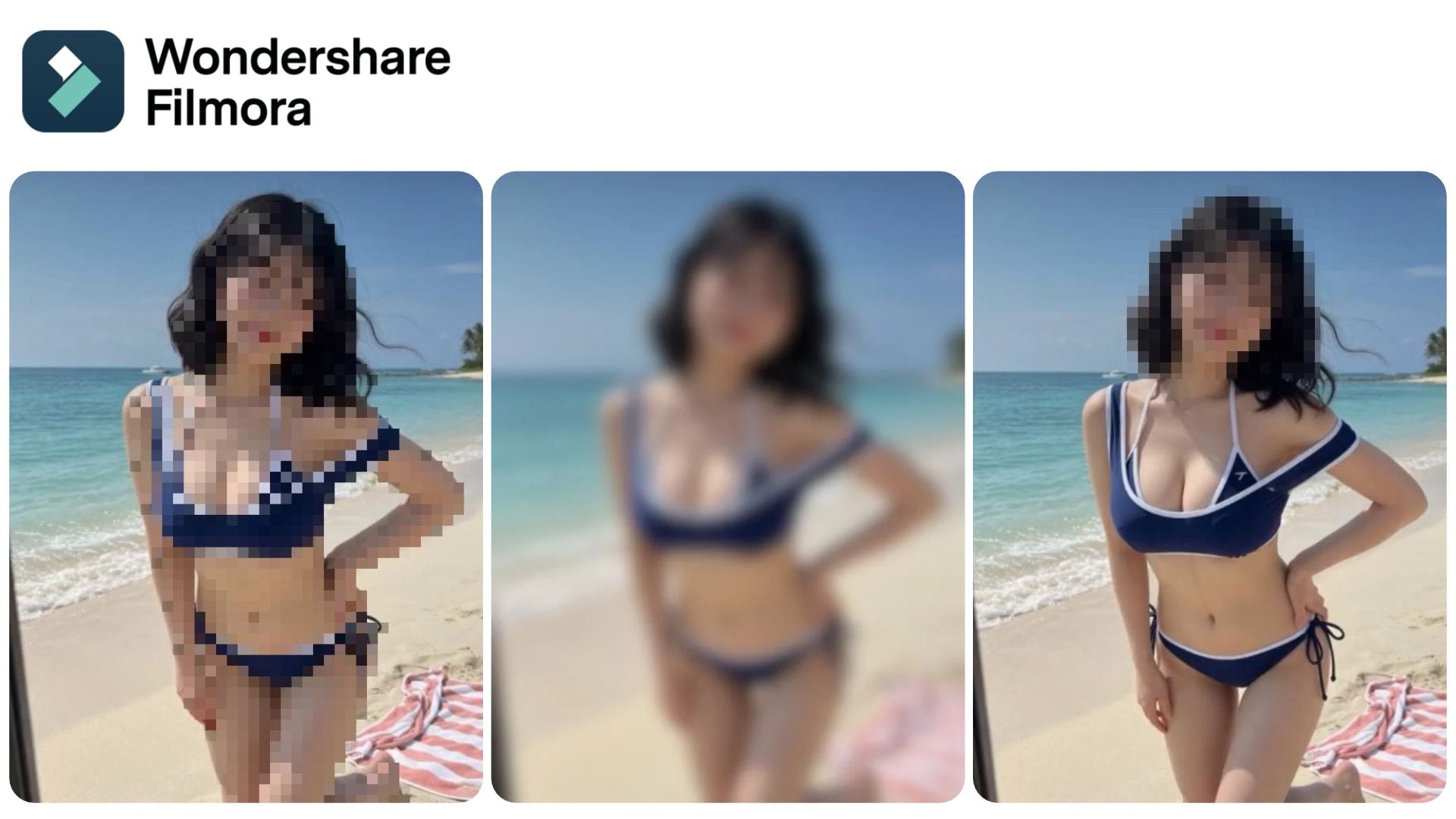
If you need to censor a person's face or body, Wondershare Filmora offers several ways to do so. Its effects library includes options such as Censor Bar, Mosaic Face, Face Off, and Human Pixelate. There's also the AI Face Mosaic feature, which automatically detects faces in an image or video and applies a mosaic effect to hide them.
How to Blur NSFW Content Automatically in Filmora
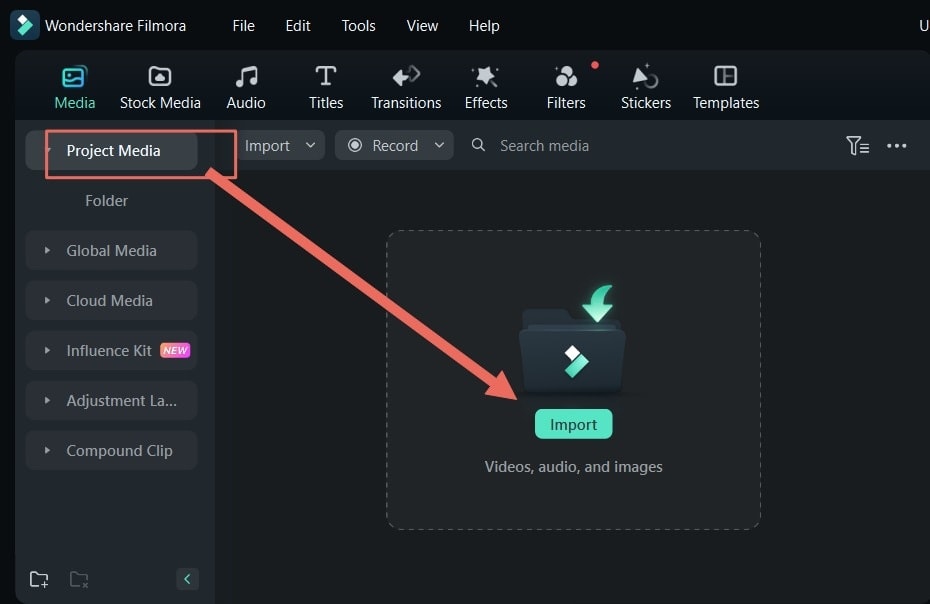
Step 1. Open Filmora and create a new project. Click Import to add the photo or video you want to edit, then drag it to the timeline.
Step 2. Open the Effects menu and search for censor, blur, or pixelate. Browse and drag your chosen effect onto the timeline.
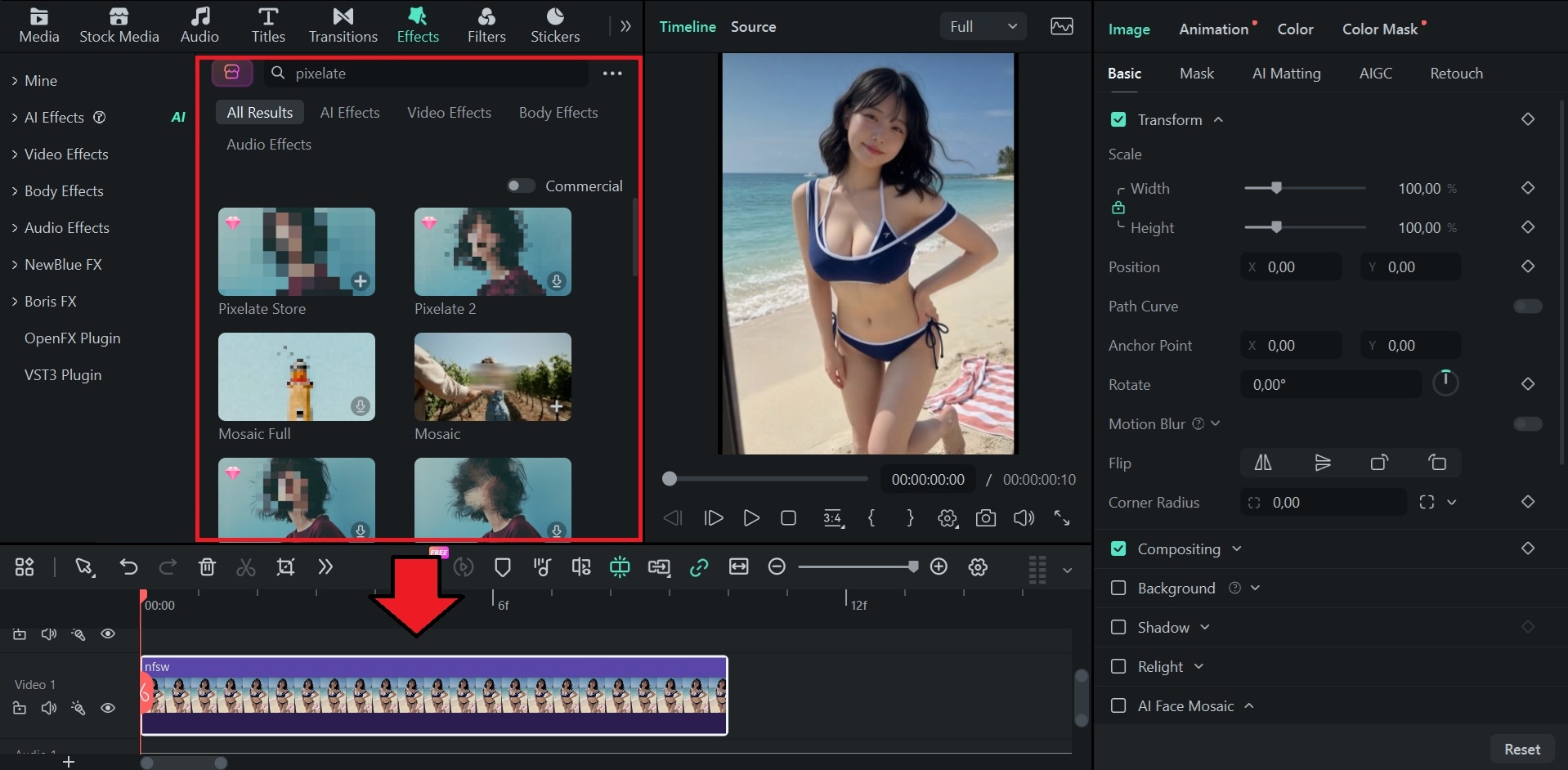
Step 3. Select the effect on the timeline and open the property panel on the right. Adjust the available settings, such as the blur effect's strength and opacity.
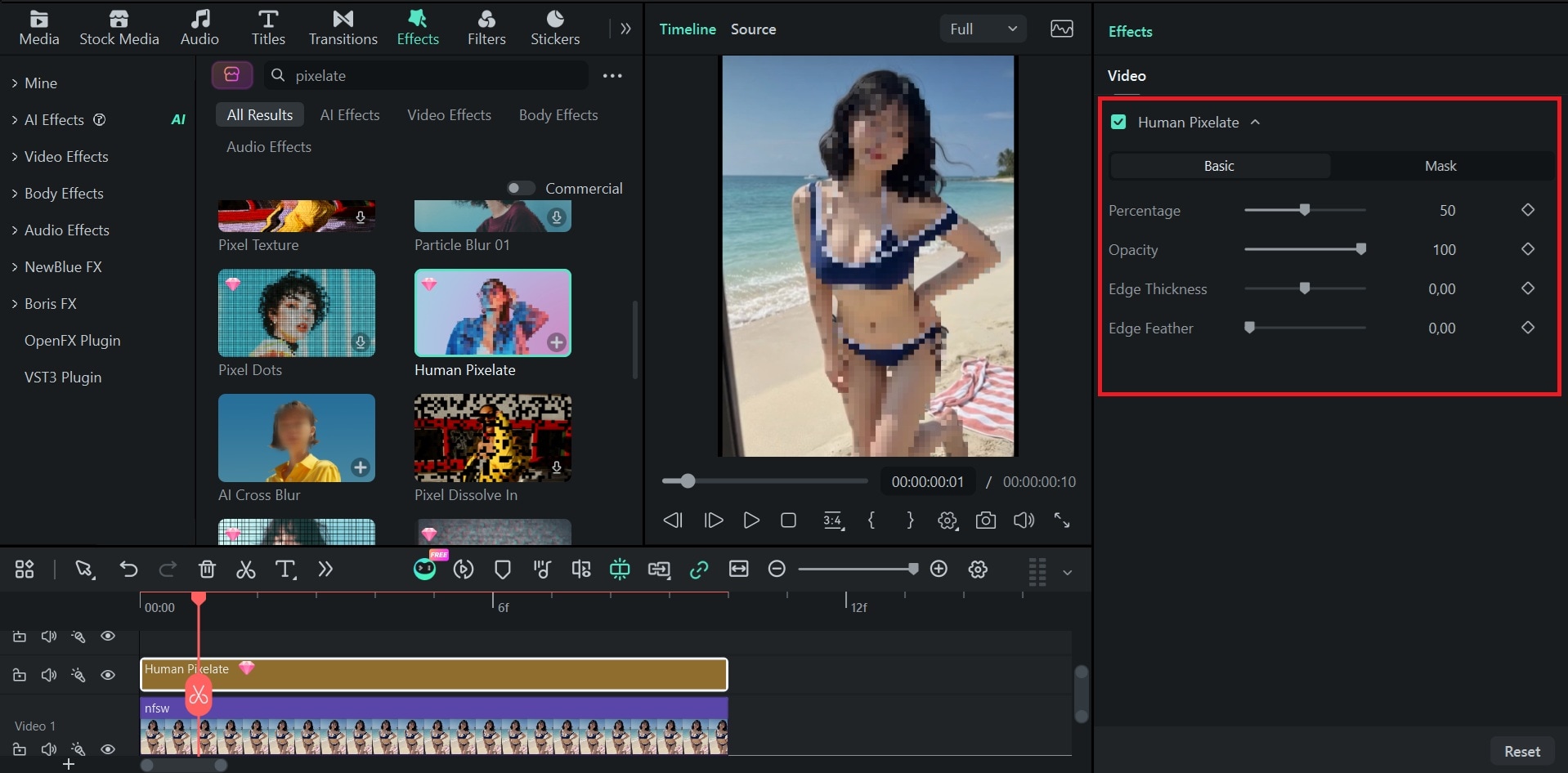
Use AI NSFW blur for face only
If you want to blur or censor the face only, you can select the image or video on your timeline, and then enable "AI Face Mosaic" on the properties panel on the right.
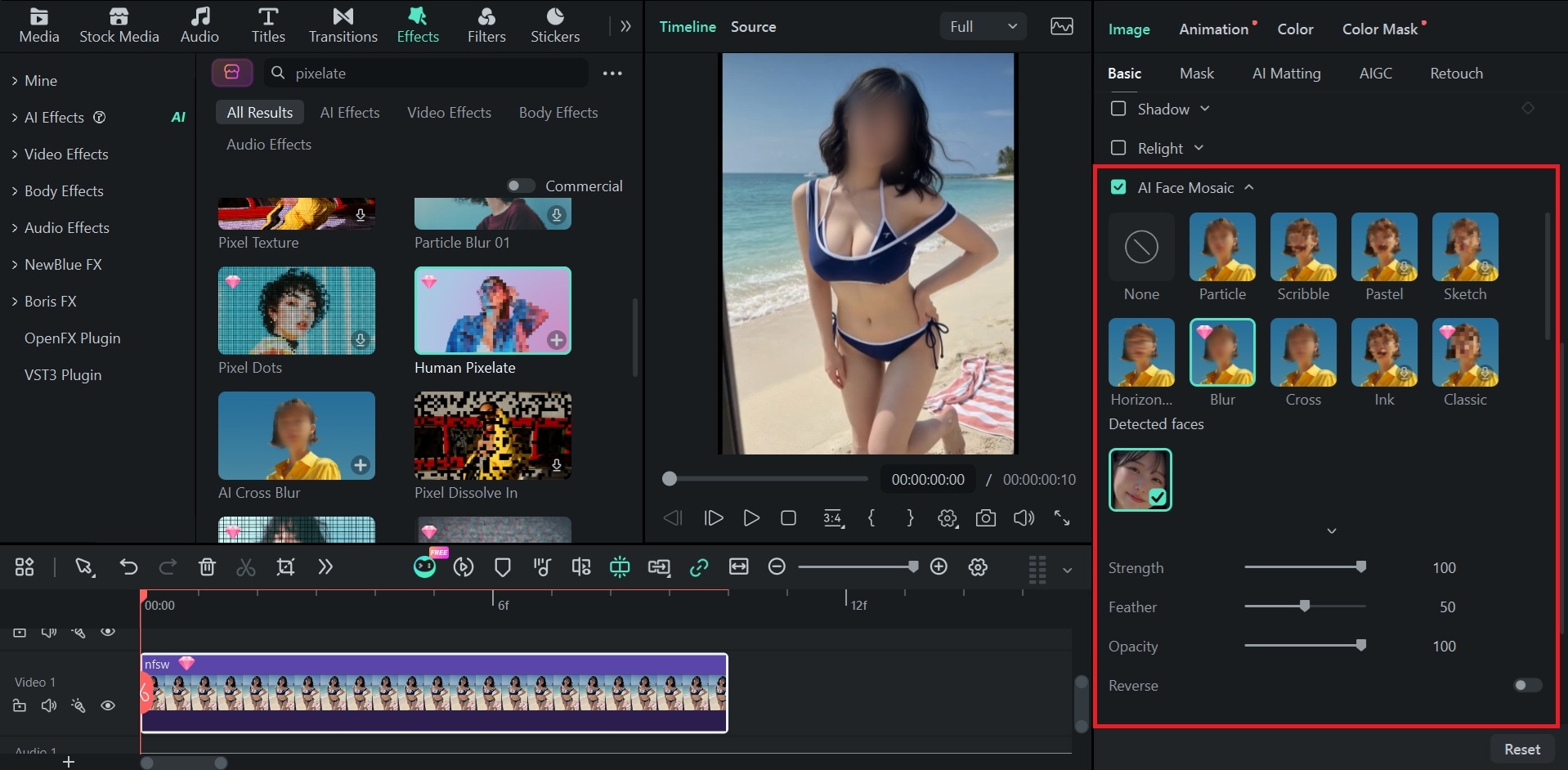
Choose a blur/mosaic type and select the face you want to blur. You can also adjust the settings, such as the strength, feather, and opacity.


Part 2. How to Mosaic Sensitive Content Manually in Filmora
Best for: Small or specific areas, text or objects the AI doesn't detect, and clips where you want control over the shape and position of the blur.
Now, what if the automatic effects fail to detect the area you want to blur? Although the previous NSFW content blurring method is quick, it may not cover every detail you want to hide. You can still blur the sensitive areas manually with Filmora's mask blur and mosaic effect, where you have more control over the size, shape, and position of the blur.
For moving videos, you can use motion tracking to follow a selected object and link a mosaic effect to it. This way, you don't need to reposition the blur throughout the clip.
How to Blur Adult Content in a Specific Area
1. Using Mask Blur
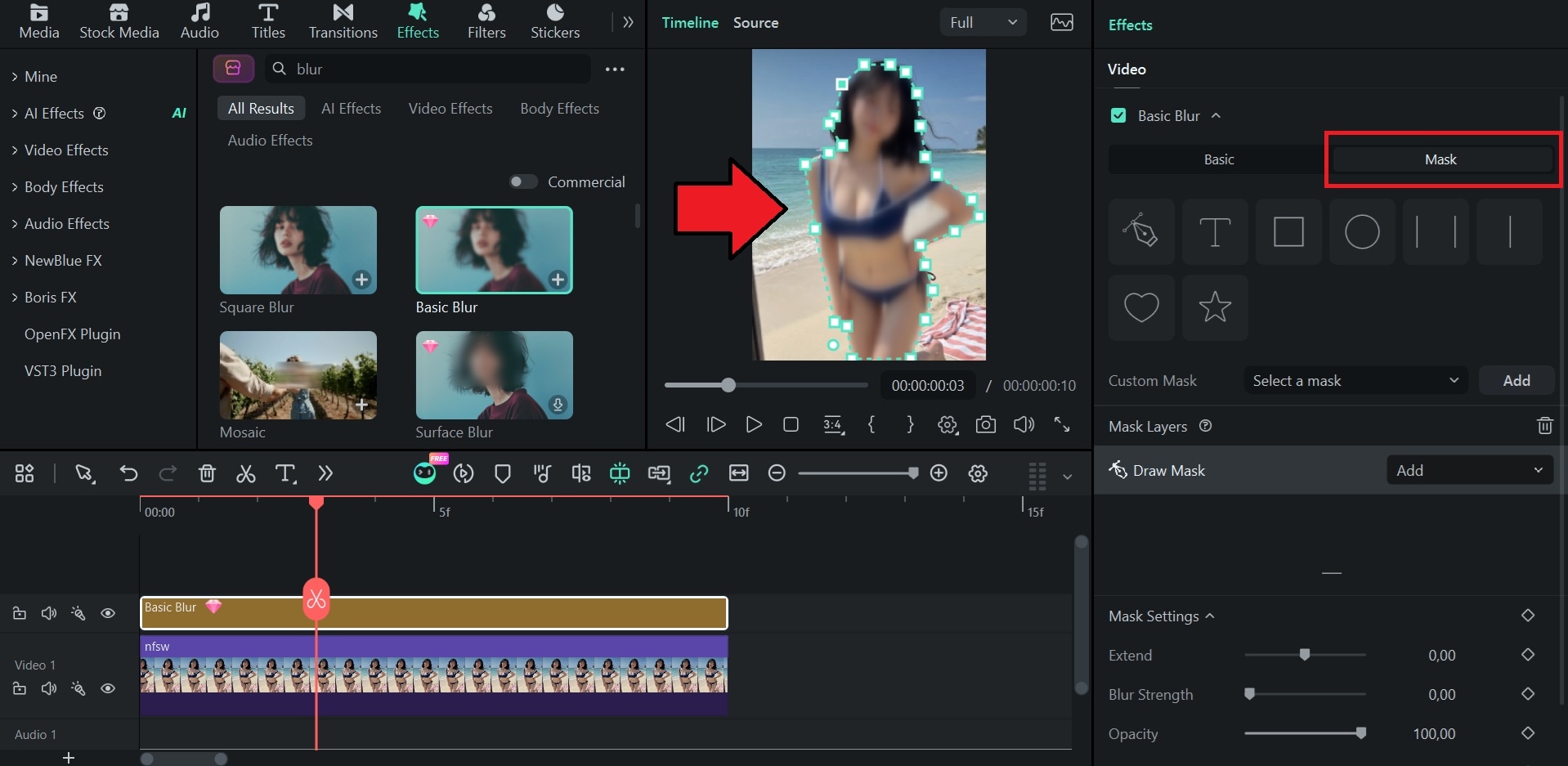
Step 1. With your image or video on the timeline, go to Effects and search for "Ultra Blur" or "Basic Blur." Add it to the timeline above your image or video clip.
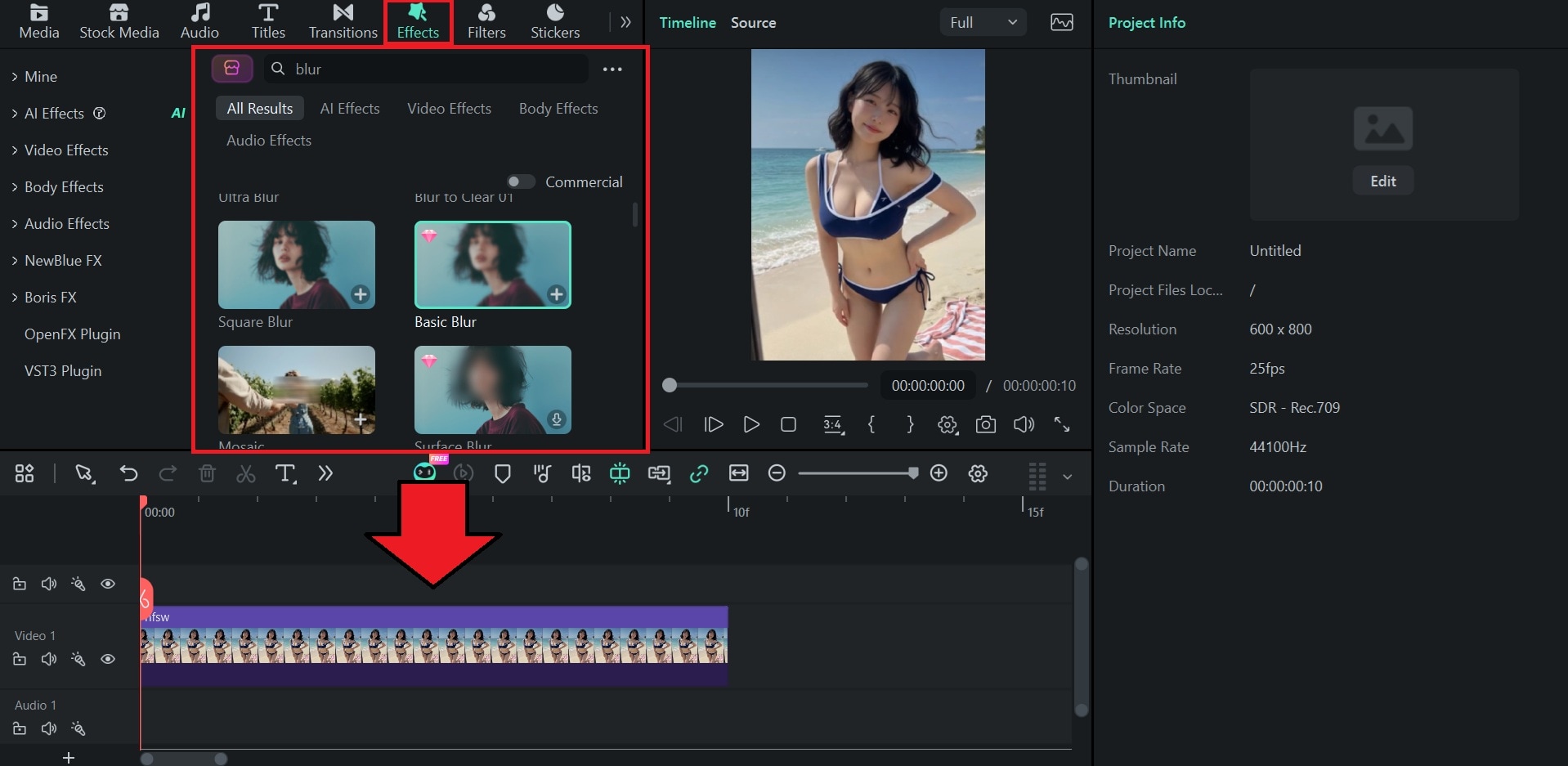
Step 2. Select the blur effect on the timeline and adjust its intensity in the property panel on the right.
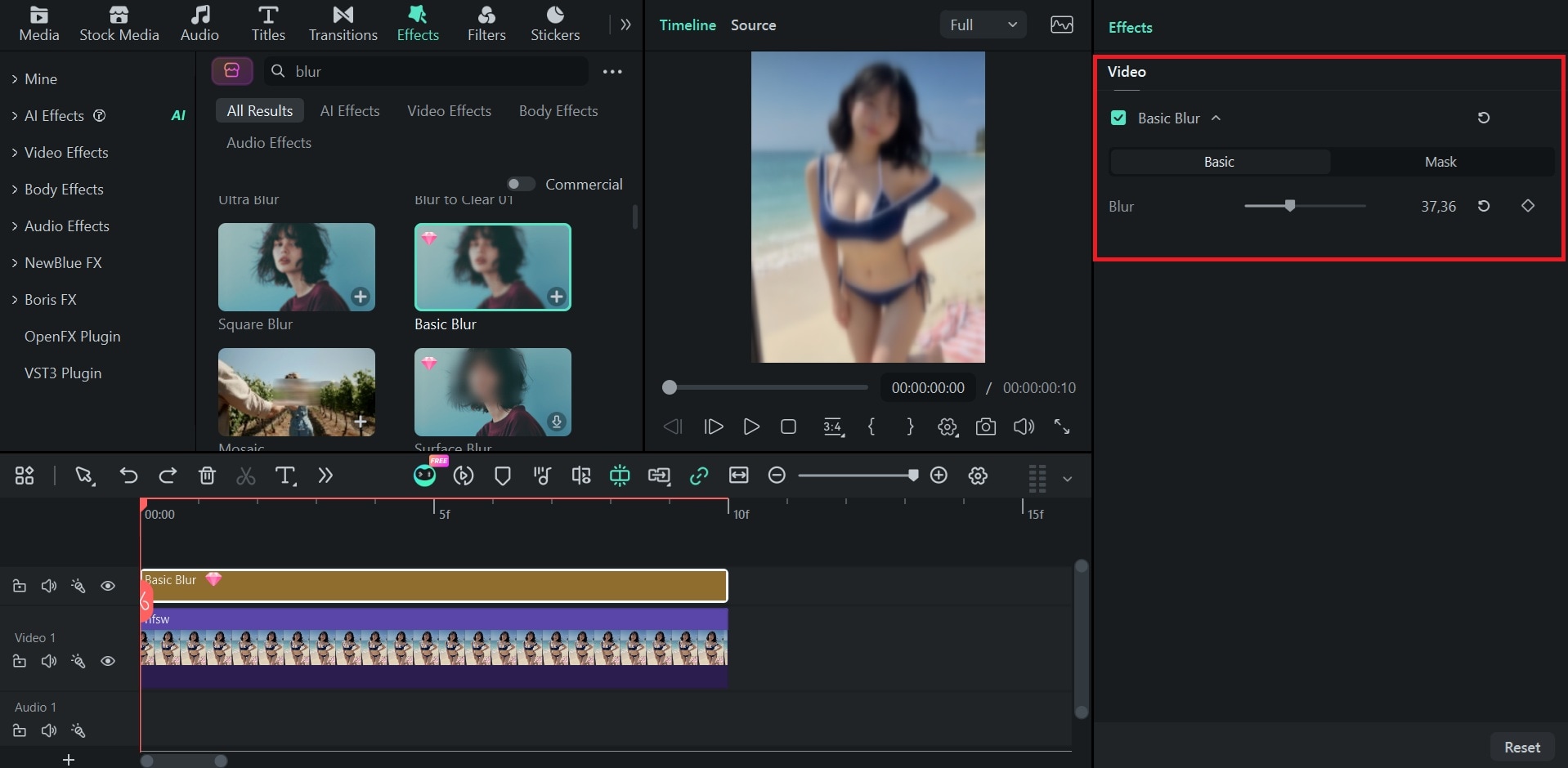
Step 3. Open the Mask tab and draw a mask around the area you want to blur using the Pen tool.
2. Using Mosaic
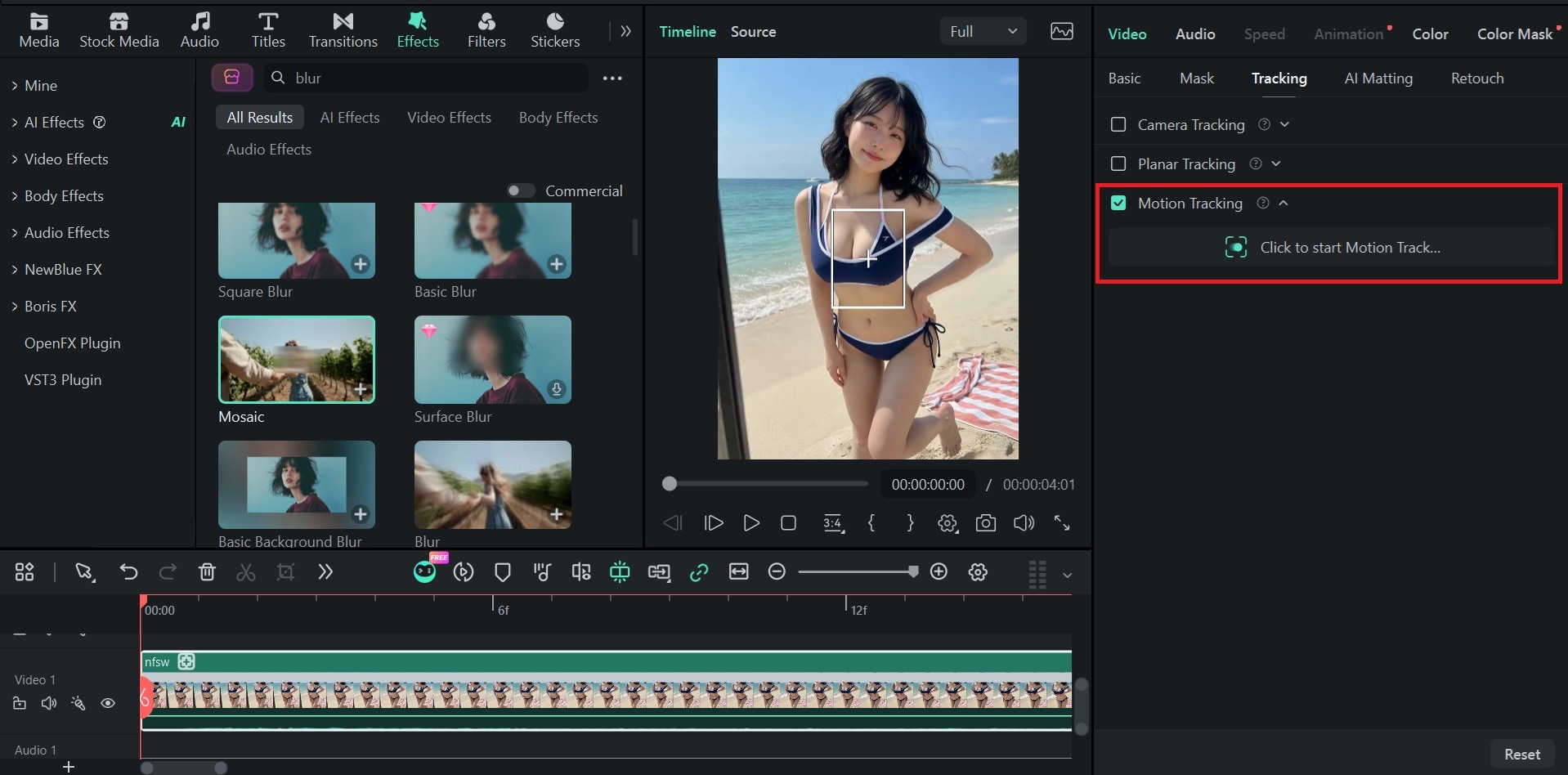
Step 1. If you want to know how to mosaic sensitive content, especially in a video, select the video clip and head to Tracking. Enable Motion Tracking and start tracking.
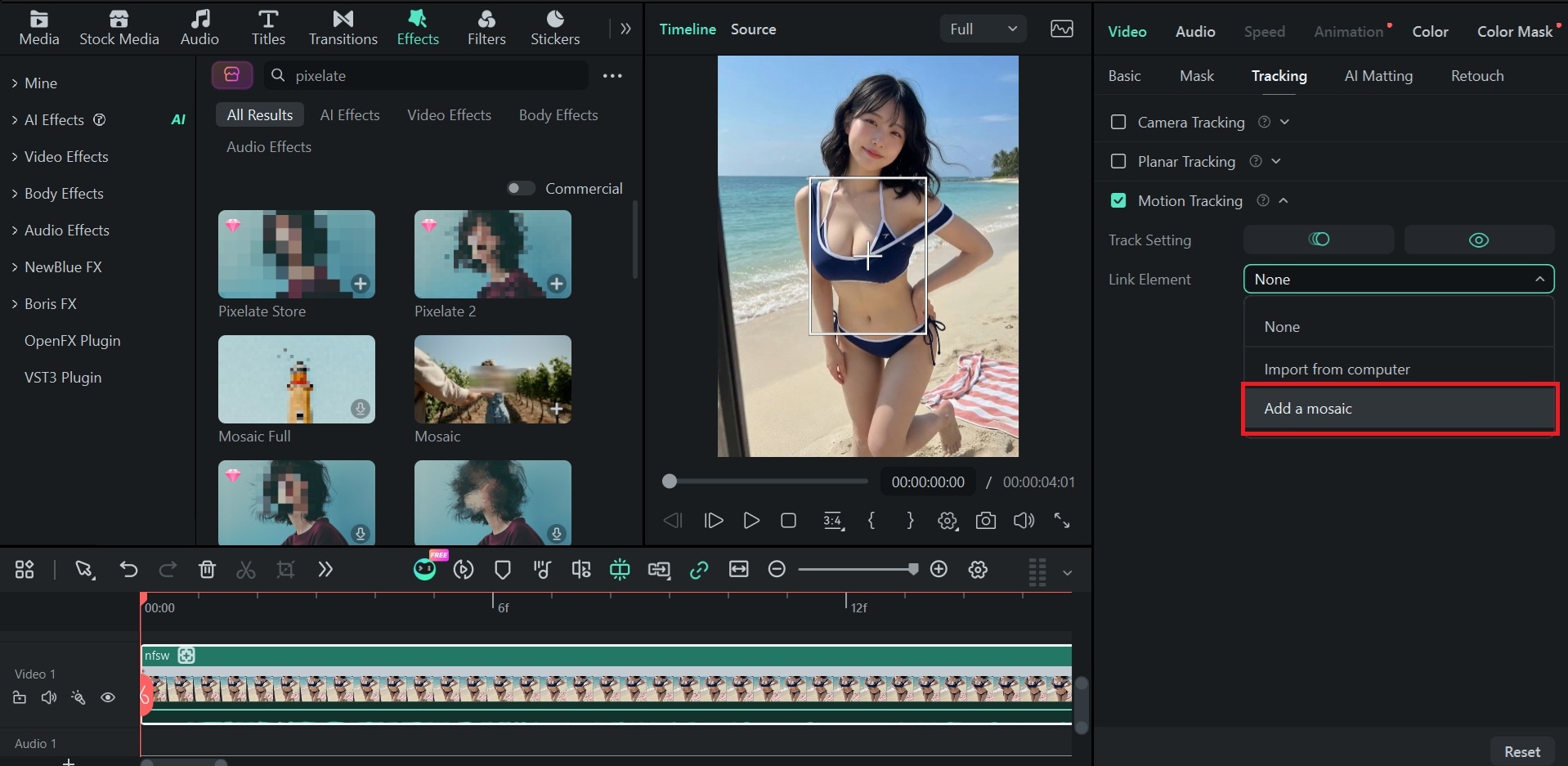
Step 2. Once tracking is complete, select "Add Mosaic" from the Link Element menu to apply the mosaic effect to the tracked area.
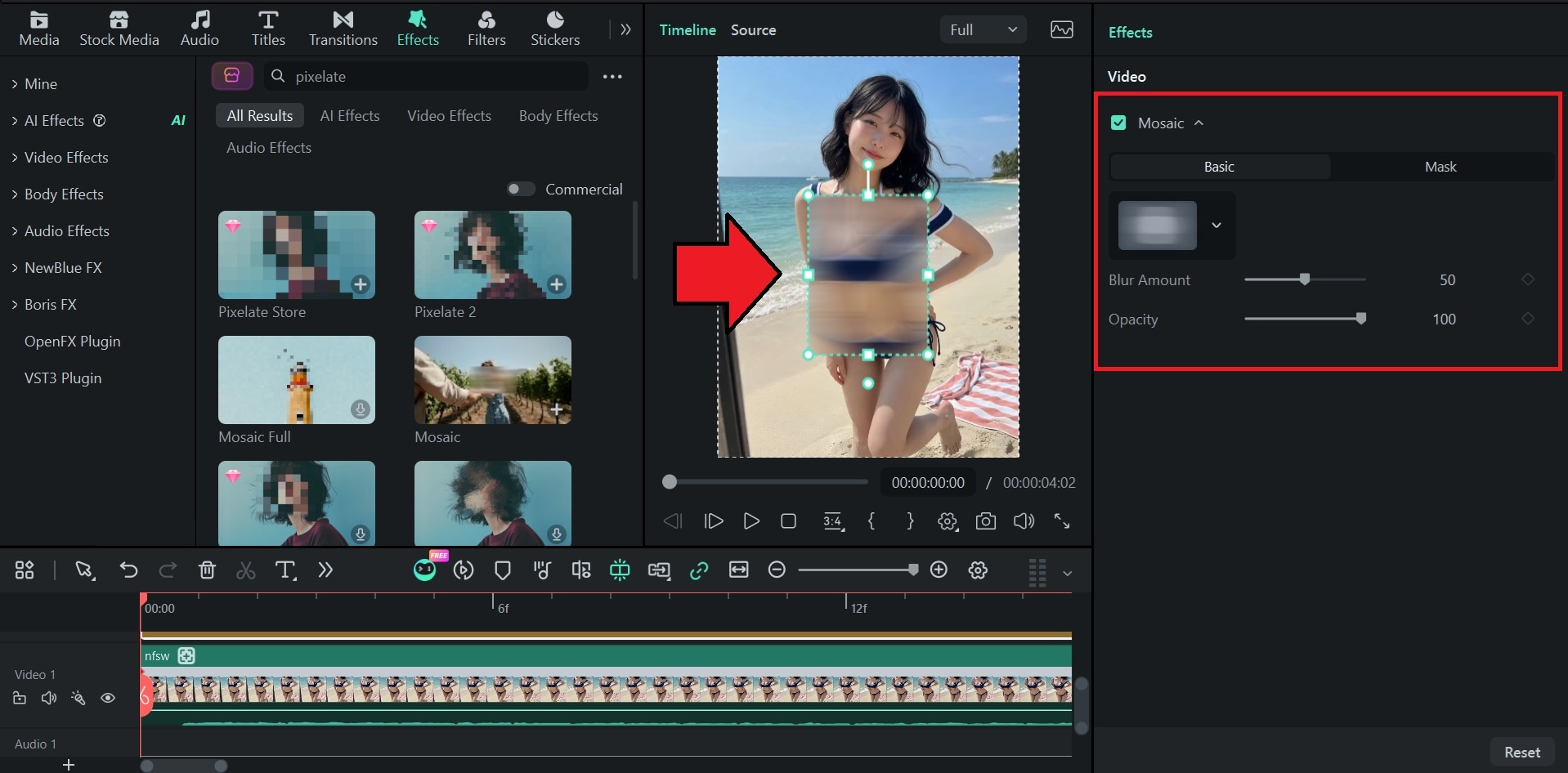
Step 3. Adjust the mosaic size in the preview window, then fine-tune the blur amount and opacity in the right panel. Your mosaic effect should now follow the tracked object as it moves throughout the video.
Part 3. How to Automatically Blur NSFW Content While Browsing
If your goal is to hide explicit images and videos while you are browsing, what you need is a browser extension or your device and platform settings. Both can hide flagged content on your screen as pages load.
Method 1. Use an AI-Powered NSFW Blur Extension
Best for: Blurring explicit images and videos across all the sites you visit in Chrome.
One of the extensions you can use to blur NSFW content online is HaramBlur. It's a free, open-source Chrome extension that uses machine learning to detect explicit images and videos as a page loads and blurs them automatically. It can also block certain sites.
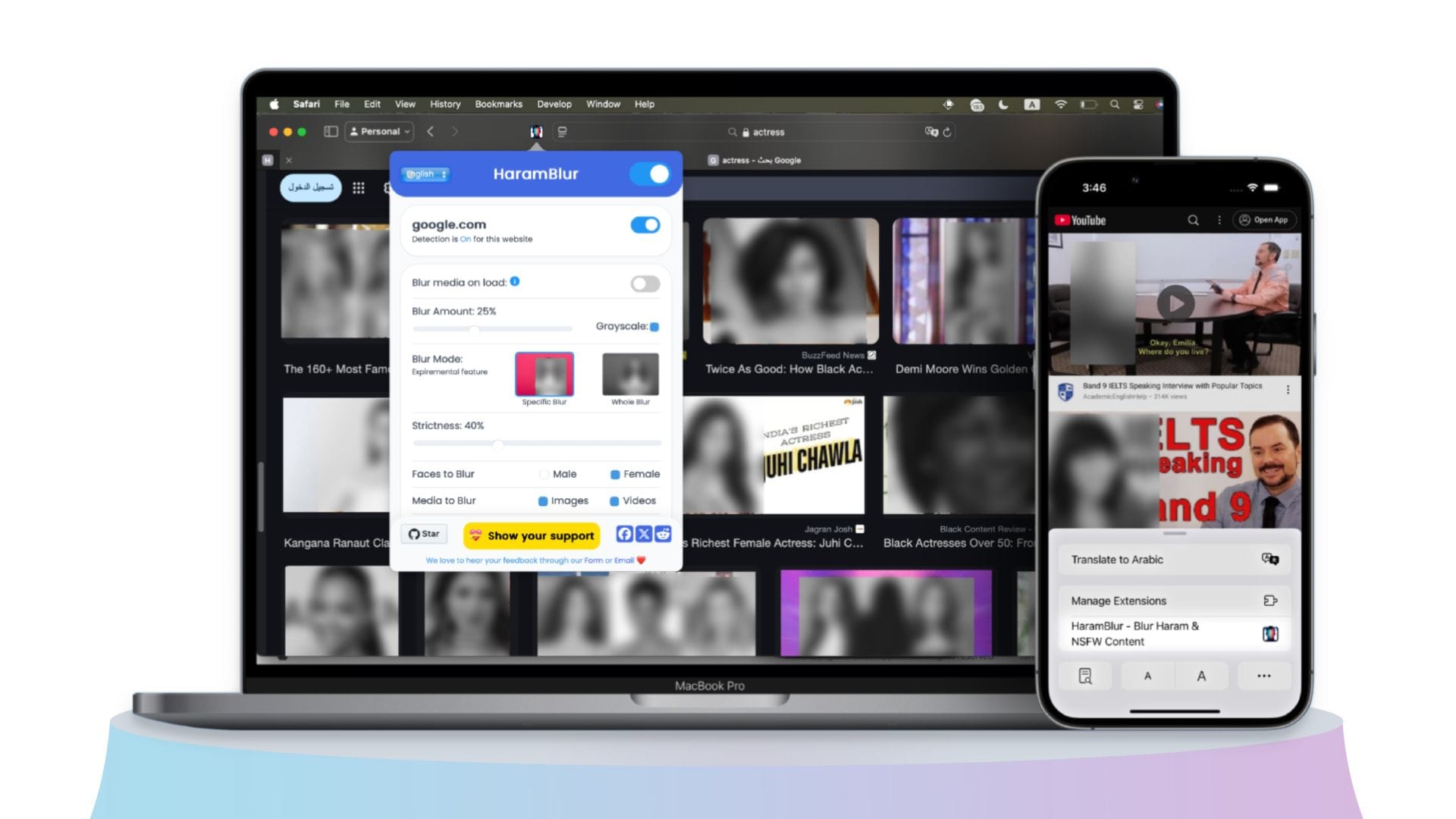
What's important is that all processing happens inside your browser, and it doesn't track your browsing history. Here's how to blur explicit content while browsing.
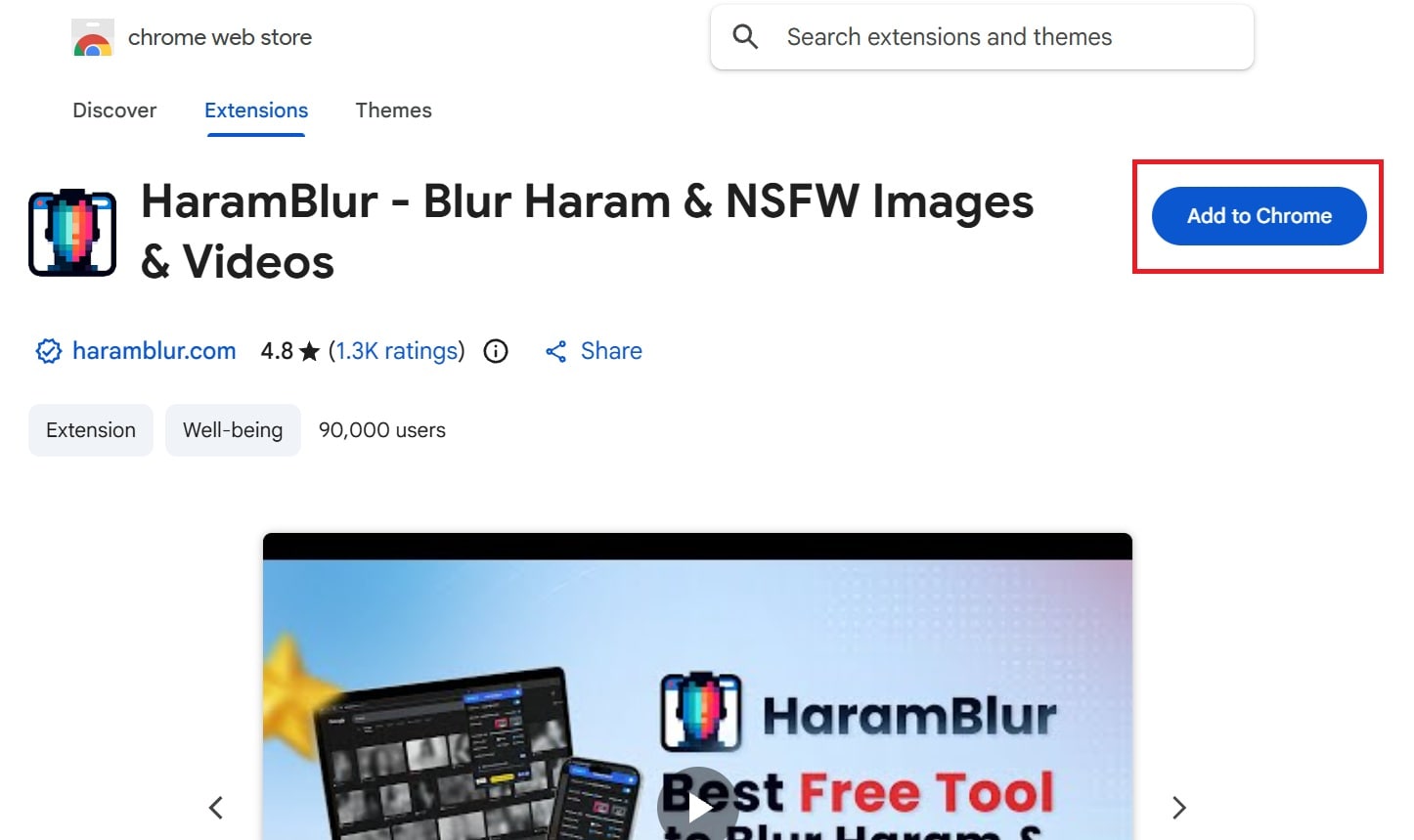
Step 1. Open the HaramBlur page in the Chrome Web Store and click Add to Chrome. Confirm with Add extension.
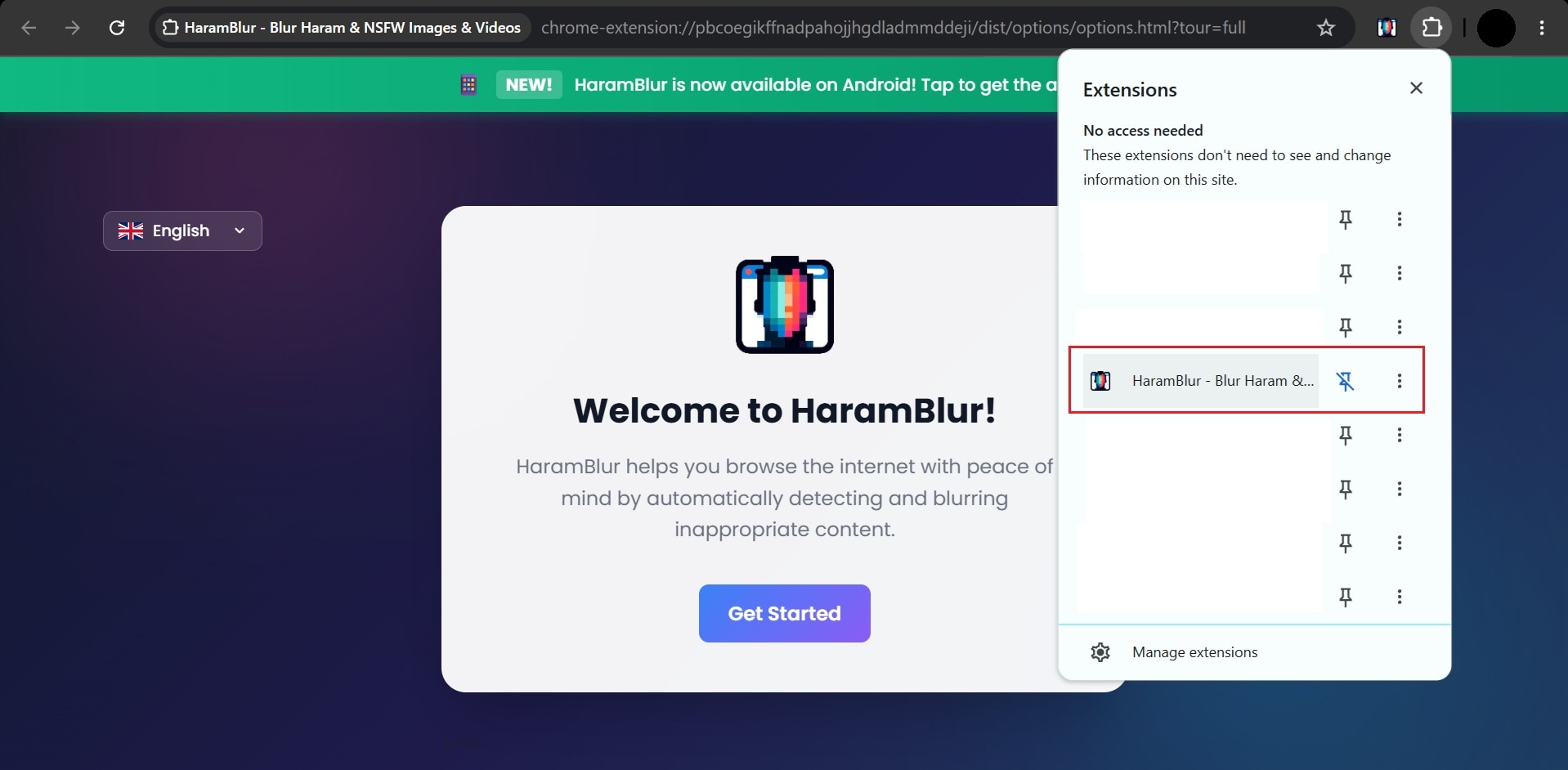
Step 2. Pin HaramBlur to the toolbar (optional). Click the puzzle icon in the Chrome toolbar and pin HaramBlur so it's easy to reach.
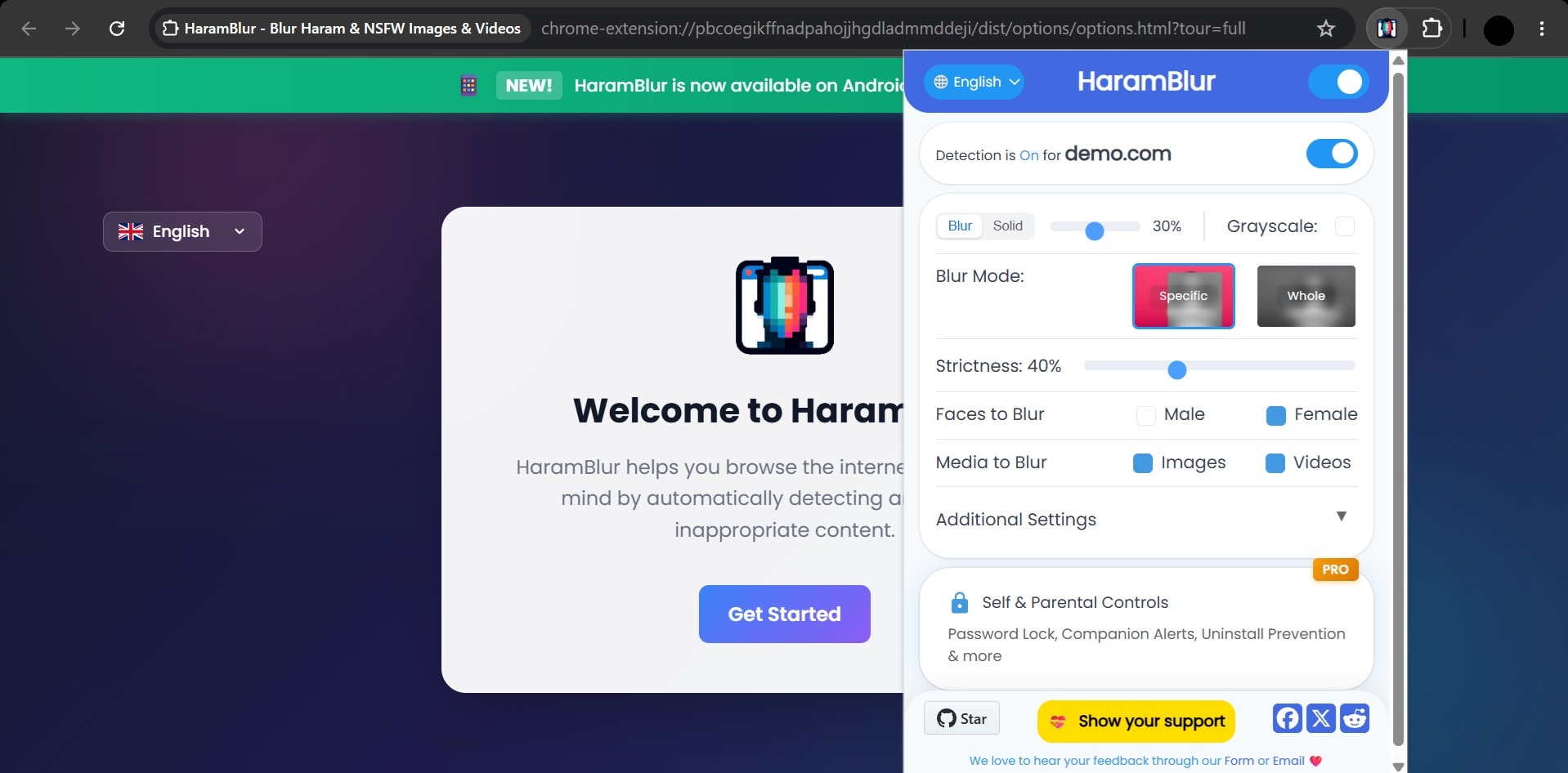
Step 3. Open the extension's settings. You can change the detection type, blur intensity, and strictness level, and turn the extension on or off.
Now, visit a page with images or video. Detected content should blur automatically.
Method 2. Enable Built-In Sensitive Content Settings
Best for: Hiding explicit images in search results with no install.
You can also use the filters built into your search engine and your phone to blur sensitive content. But unlike Chrome extensions that check every page, built-in filters only cover the app they belong to. You don't have to install anything to use them. We'll use Google SafeSearch as the example.
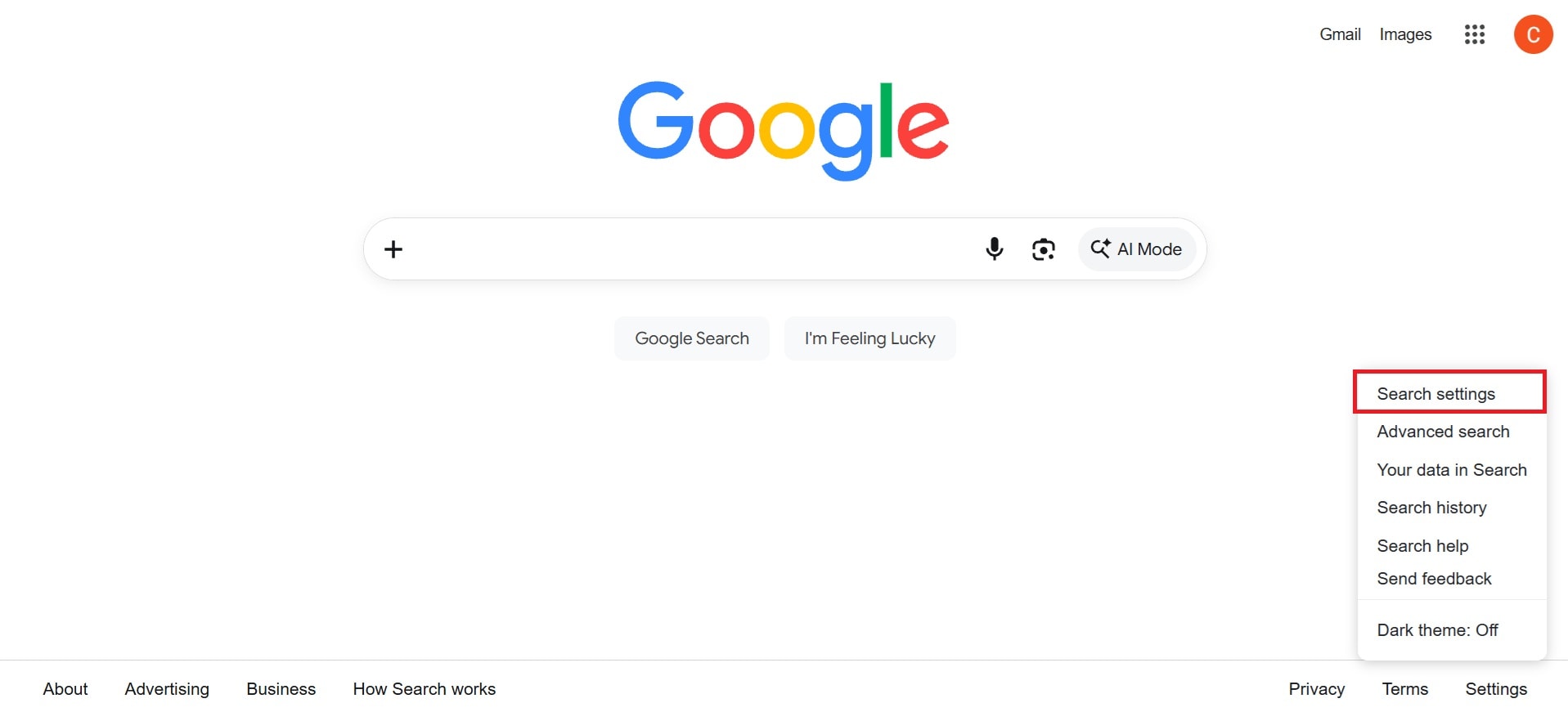
Step 1. Go to Google and click Settings at the bottom right of the homepage. Then choose Search settings.
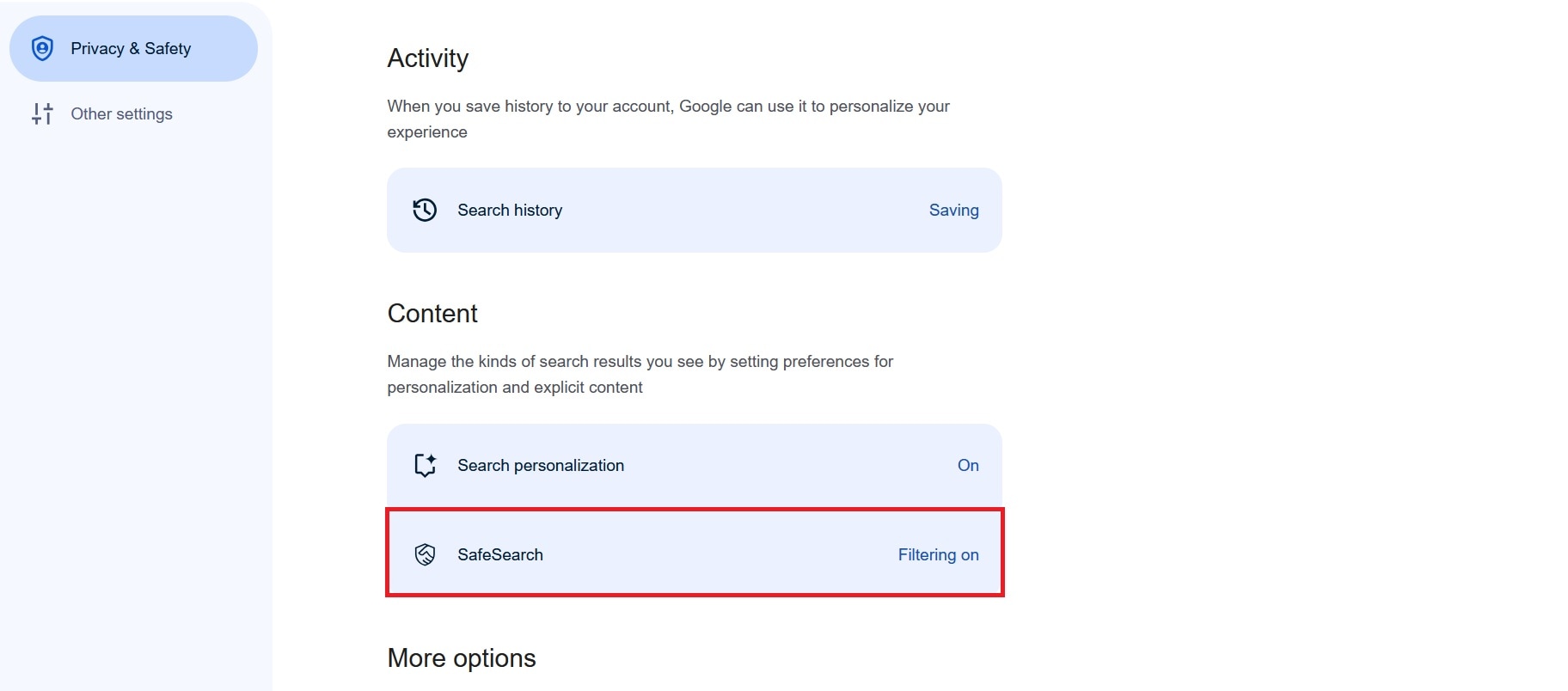
Step 2. Look for SafeSearch filters under the Content section.
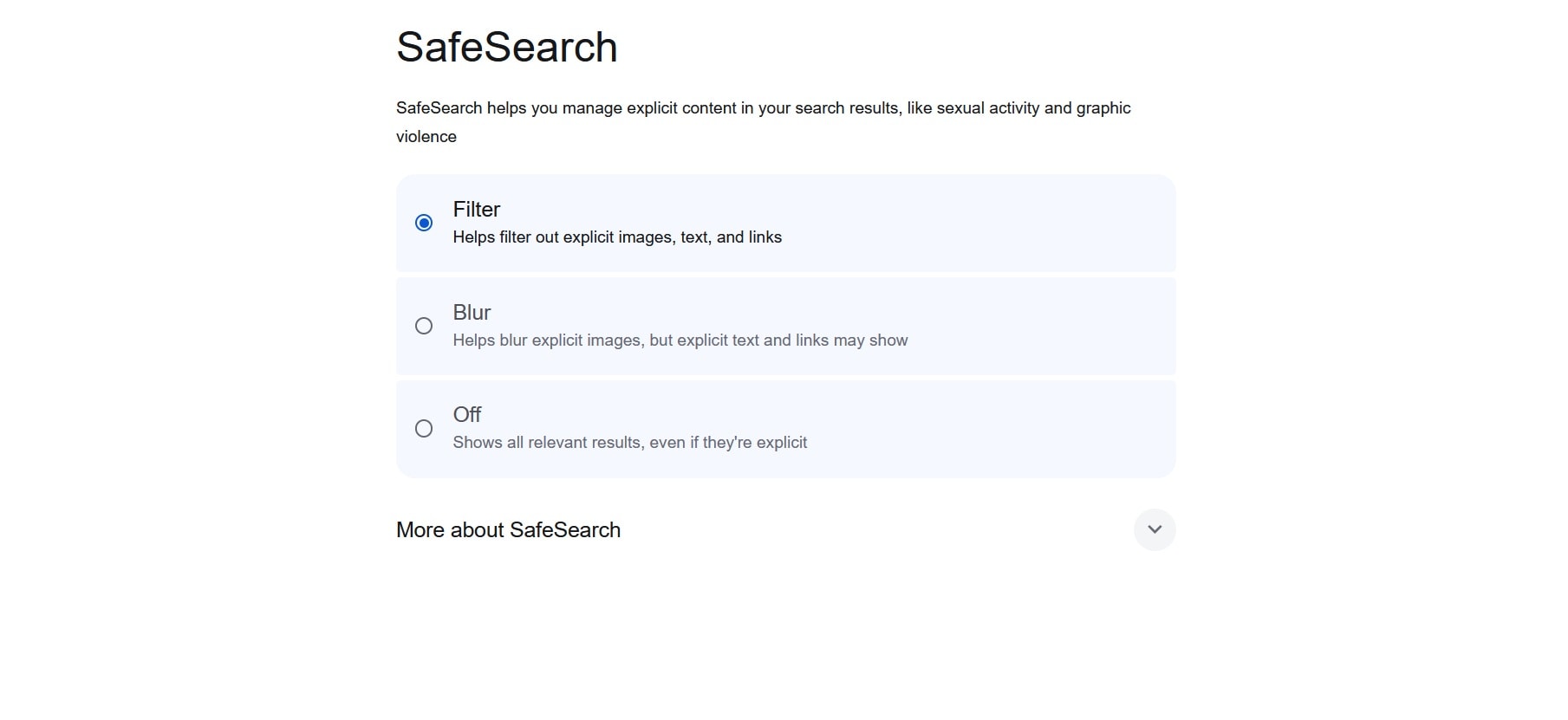
Step 3. Select the option you want: Blur or Filter.
- Blur hides explicit images behind a blur, but explicit text and links can still show up.
- Filter removes explicit images, text, and links from your results.
In some regions or networks, the filter may already be locked. If you use a browser other than Chrome, the steps stay the same. SafeSearch only applies to Google Search, so it won't affect other search engines or the websites you open from the results.
Conclusion
Sensitive content can show up at the worst possible time. It can slip into a clip you send to a client, a screenshot you post, or a search you run in front of coworkers. To avoid awkward moments, blur NSFW content before you share a file or open a page in front of others.
If your goal is to censor your own photos or videos, Filmora's censor effects and mosaic tool can hide sensitive areas, and motion tracking keeps the blur on moving subjects. But if you are dealing with explicit content on websites, you can use HaramBlur or Google SafeSearch.
FAQs
-
How do I turn off the NSFW filter?
It depends on the tool you used. For Google SafeSearch, you can turn off the SafeSearch filters in Google's Search settings. For HaramBlur, open the extension and turn it off. -
How do I blur NSFW content for free?
HaramBlur is a free Chrome extension, and Google SafeSearch is built into Google at no cost. For your own photos and videos, you can try Filmora for free, but the exported file will include a watermark. -
Can I blur NSFW content without uploading my files?
In most cases, yes. HaramBlur processes everything inside your browser, and SafeSearch only changes how Google shows results, so you upload nothing. But if you are blurring sensitive content in photos or videos, you need to upload the file first. If you're worried about privacy, Filmora works on files stored on your computer.
