


GenApe AI has the kind of all-in-one setup many AI creators have been looking for: one platform that can write, generate images, and create videos without switching between different tools. But of course, the GenApe AI video generator free option comes with a trade-off that you’d better know before you commit a real project to it.
So, we're here to help. We tried GenApe's article, image, and GenApe AI video generator tools and tracked everything we found, from token limits to output quality, so you know exactly what you're signing up for.
Part 1. What is GenApe?
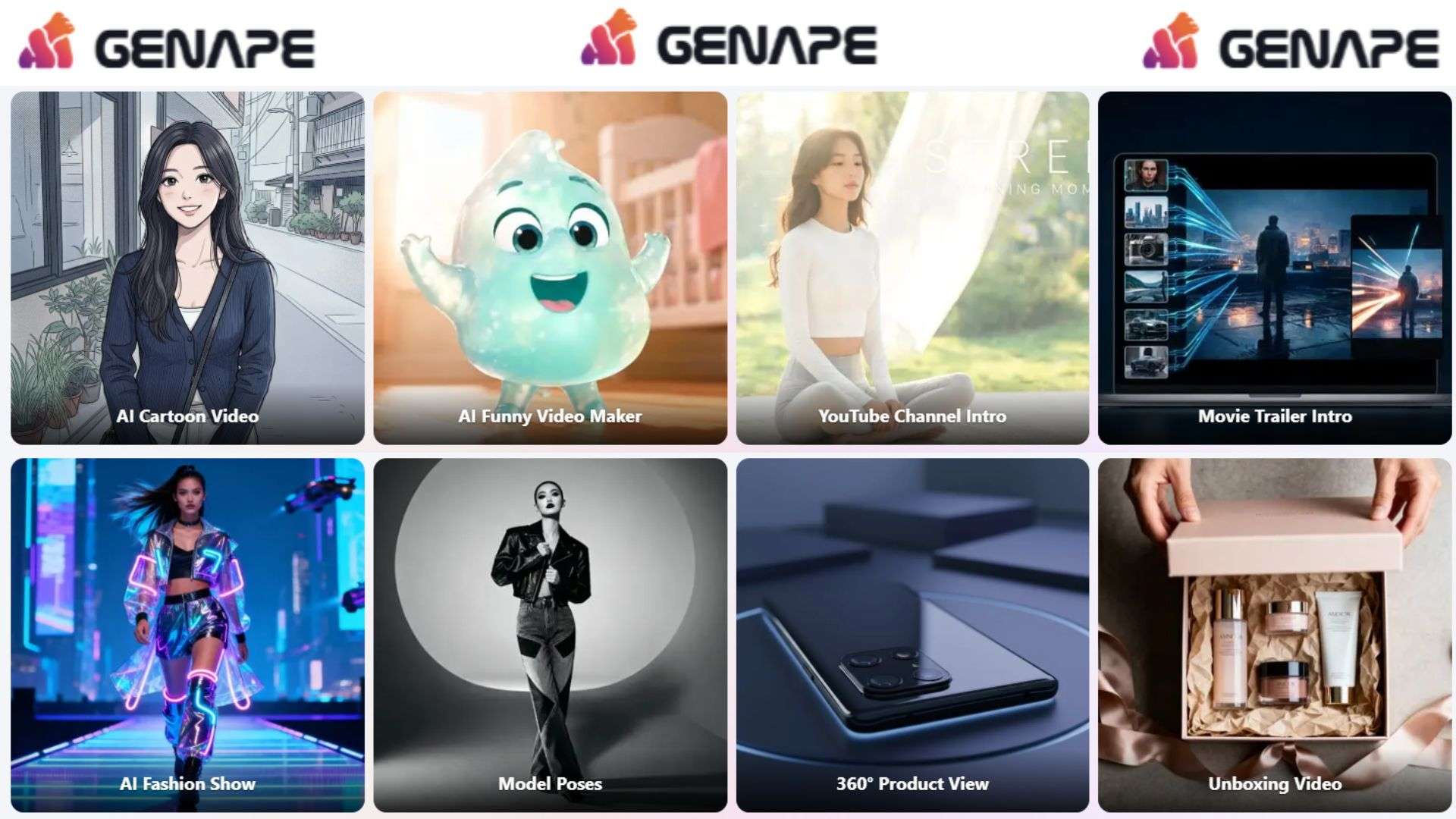
GenApe AI (GenApe for short; you'll also see it written as GenApe 生成猿 on the site) is a web-based AI platform, designed to put several AI creation tools in one place. So essentially, Genape AI can be used to create AI images, short videos, and written content like articles, product descriptions, and marketing copy.
On top of those core generators, it also covers smaller one-off jobs, such as fixing blurry images, swapping faces, and changing or removing backgrounds.
GenApe: Quick Overview
GenApe is fully available online. So you don't have to download heavy desktop software or configure complex plug-ins. To help you understand better, here is a quick snapshot of what the GenApe app environment brings to the table:
| Features | Details |
| Platform | Web-based |
| Main Features | AI image, AI video, AI text, AI templates, AI Chat |
| Supported Models (Image) | ImageApe, Nano Banana 2, Seedream 5.0 Lite, Seedream 4.5, Seedream 4.0, FLUX.1-schnell |
| Supported Models (Video) | VideoApe, Seedance 1.5 Pro, Seedance 2.0 Fast, Seedance 2.0 Mini, Gen-4 Turbo |
| Free Usage | Available (20,000 tokens for AI text/images; 120 credits for AI videos) |
|
Show More
Show Less
|
|
Part 2. Key Features of GenApe
When it comes to features, GenApe AI splits its tools into two main groups in the sidebar: TextApe for writing and ImageApe for visuals and video. Below, we’ll break down these main features that make GenApe so strong for daily creation tasks.
ImageApe (AI Image Generator)
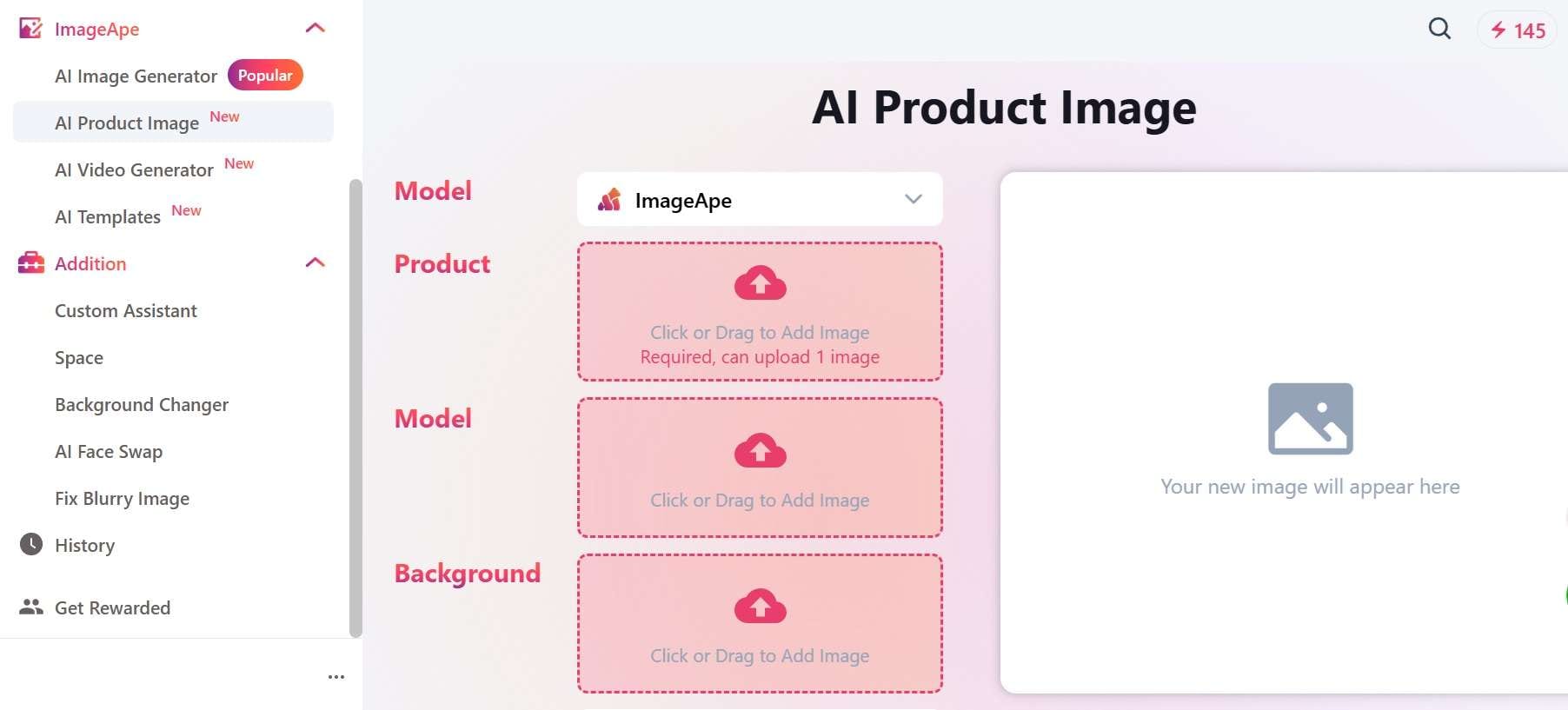
If you're mainly interested in AI visuals, ImageApe is the part you'll probably spend the most time in. The main image tools include:
- AI Image Generator: GenApe AI image generator works two ways: type a prompt (text to image), or upload a reference photo to guide the result (image to image).
- Product Generator: Built for online sellers. You can drop in a clean shot of your product, and the AI builds a realistic Studio scene around it:
- AI Templates: Not a fan of blank prompt boxes? The template library gives you ready-made starting points for portraits, product visuals, posters, characters, and illustrations.
TextApe (AI Text Generator)
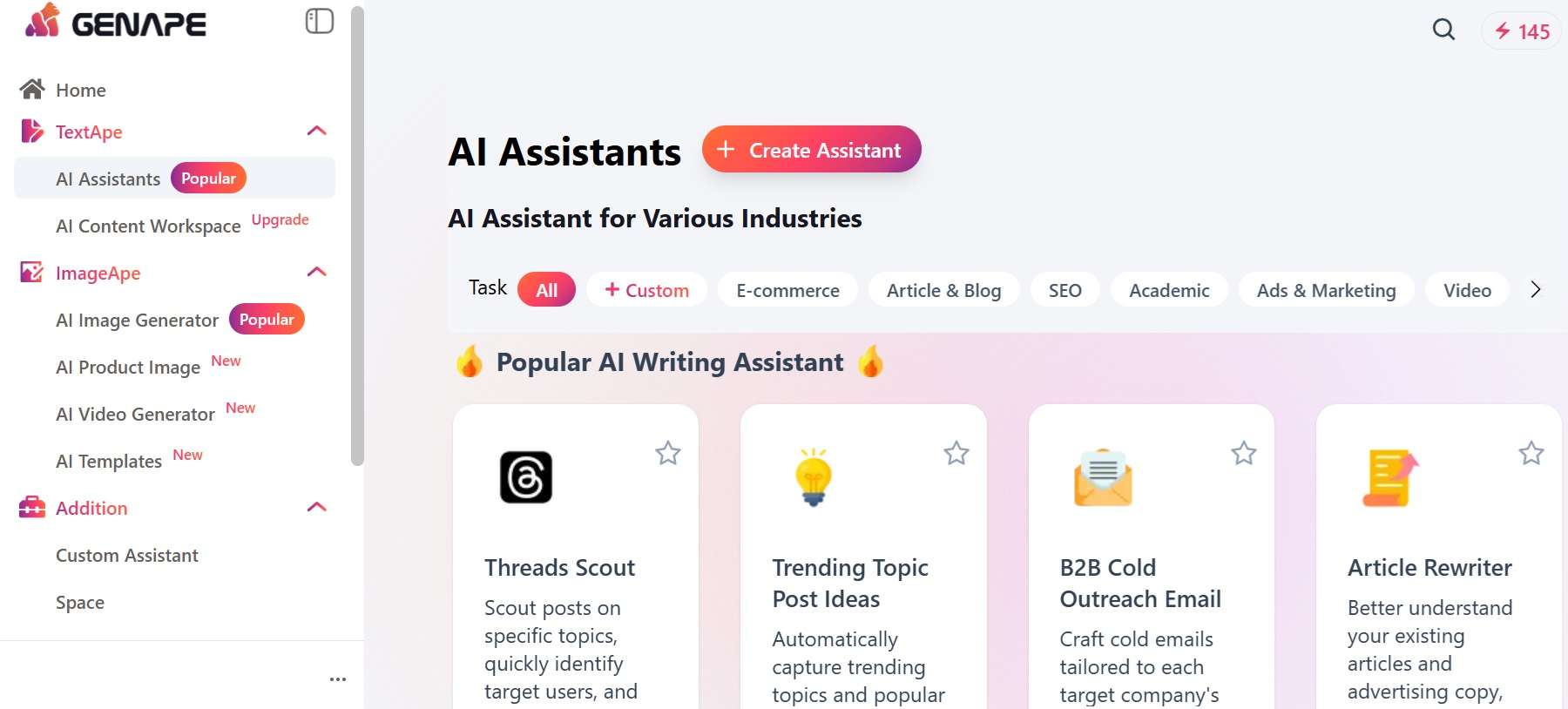
On the text side, GenApe gives you a stack of AI assistants for different writing jobs. You can make articles, headlines, paragraphs, rewrites, social posts, and other content formats. Its AI Document Editor can also combine writing and image-generation tools in the same workspace.
Still, don't expect an AI article generator to replace editing. You'll want to check facts, remove repetitive wording, and make sure the final piece actually sounds like a person wrote it.
AI Video Generator
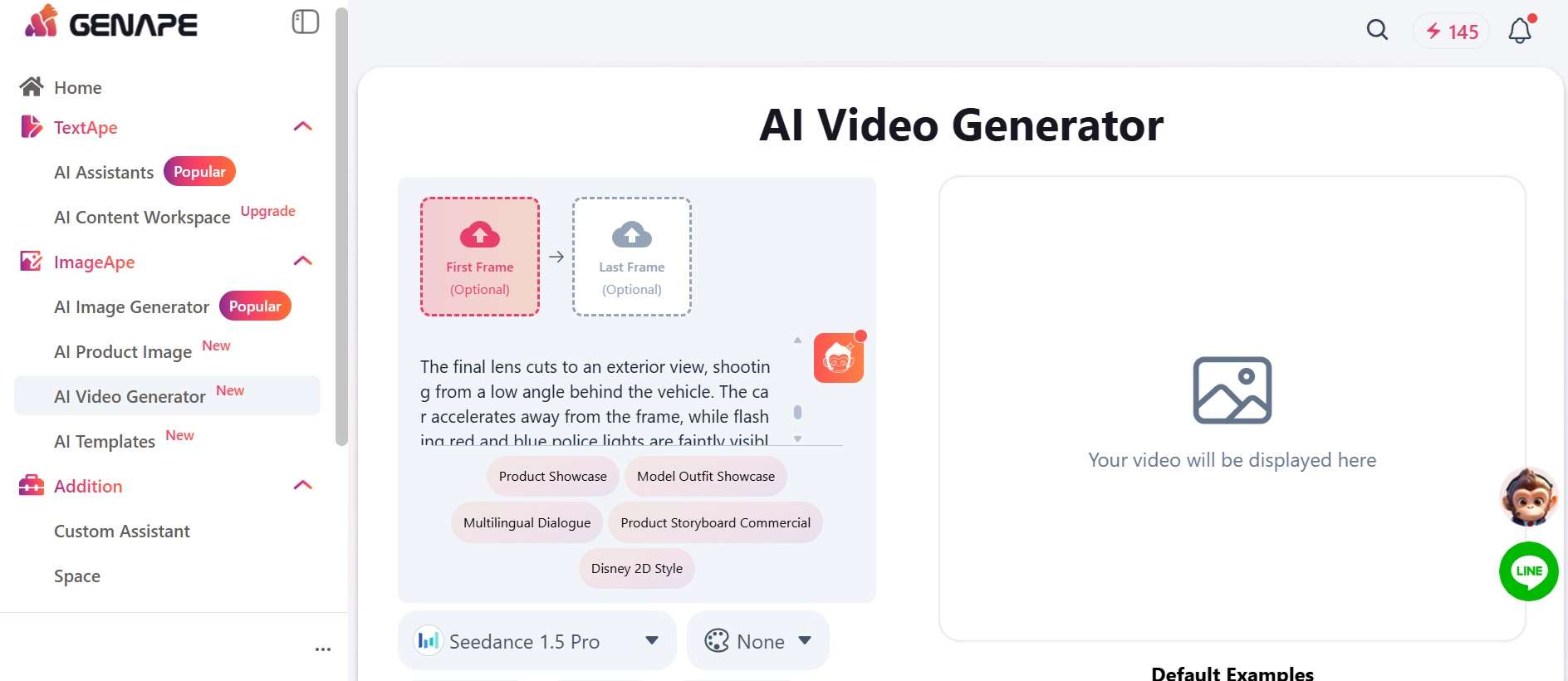
You'll find this under ImageApe, and it can transform standard visual prompts into moving clips. GenApe AI video feature handles text-to-video, image-to-video (GenApe image-to-video works with photos and illustrations too), and a feature we really like: start and end frames.
It's ideal for producing quick 5-to-15-second motion clips for TikTok, Instagram Reels, or video ads without needing a camera setup.
Additional Tools
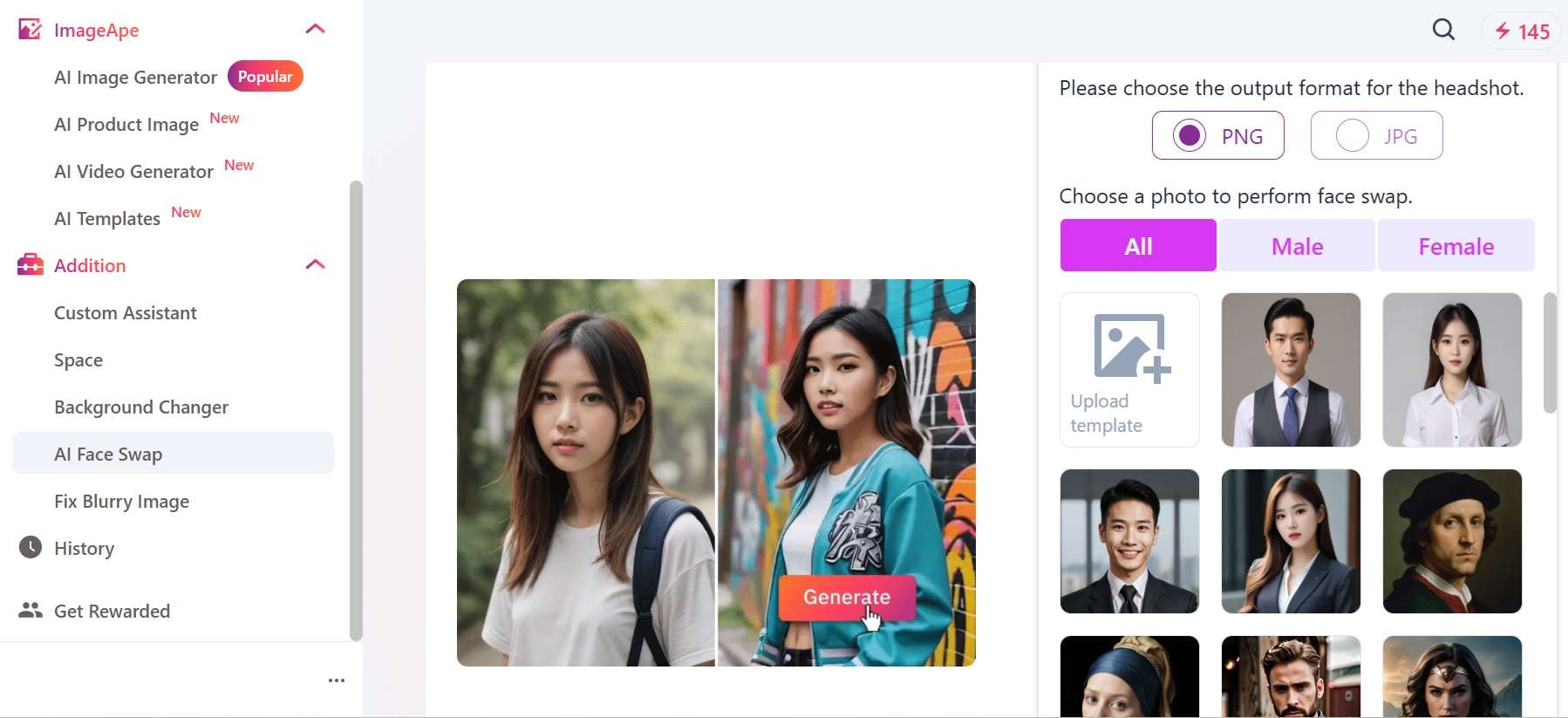
Beyond the core generators, GenApe packs handy smaller utilities into its dashboard so you can make quick edits without switching programs:
- Custom Assistant: Build your own AI assistant for jobs you repeat.
- Space: A place to organize your work.
- Background Changer: Cut out background elements cleanly and swap in solid studio colors or customized AI scenes.
- AI Face Swap: Swap faces in visual templates for personalized marketing assets or fun social graphics.
- Fix Blurry Image: An AI sharpener tool that enhances low-resolution product shots or restores soft-focus images.
Part 3. Is GenApe Really Free? Pricing Breakdown
Yes, you can use GenApe for free. But free trials can be sneaky. Some hand you a handful of generations and then hit you with a card prompt. Here's how GenApe handles it.
New users get 20,000 free tokens to generate text and images, plus 145 credits for AI videos, available for 7 days. It’s pretty generous for a free trial, especially compared to other tools that cap you at a handful of generations before asking for a card. If you need more tokens, you can also log in to the platform daily to claim 500 free tokens.
GenApe Pricing (2026)
| Free | Plus | Creator | |
| Pricing | $0 | $10/month | $20/month |
| Tokens/Credits | 145 one-time / 7-day trial | 4,000/month | 8,000/month |
| Image Generation | Basic image styles | High-res, watermark-free outputs; advanced image models | High-res, watermark-free outputs; advanced image models |
| Text Generation | Basic length & standard speed | Advanced text models; long-form content and standard data analysis | Unlimited chat on basic models; deeper long-form work |
| Image/Video Models | Basic models | Advanced image and video models unlocked | Everything in Plus, plus priority access to new features |
| ChatApe Models | Basic models | Advanced models | Unlimited chat on basic models |
| Generation Speed | Standard | Faster/priority | Highest priority |
| Commercial Usage | Not included | Full commercial license | Full commercial license + agency |
|
Show More
Show Less
|
|||
Part 4. GenApe’s User Experience, Interface, & Performance Review
At the end of the day, specs and price tags only tell half the story. What matters is whether the tool gets out of your way. So, we'll share our experience after using GenApe AI.
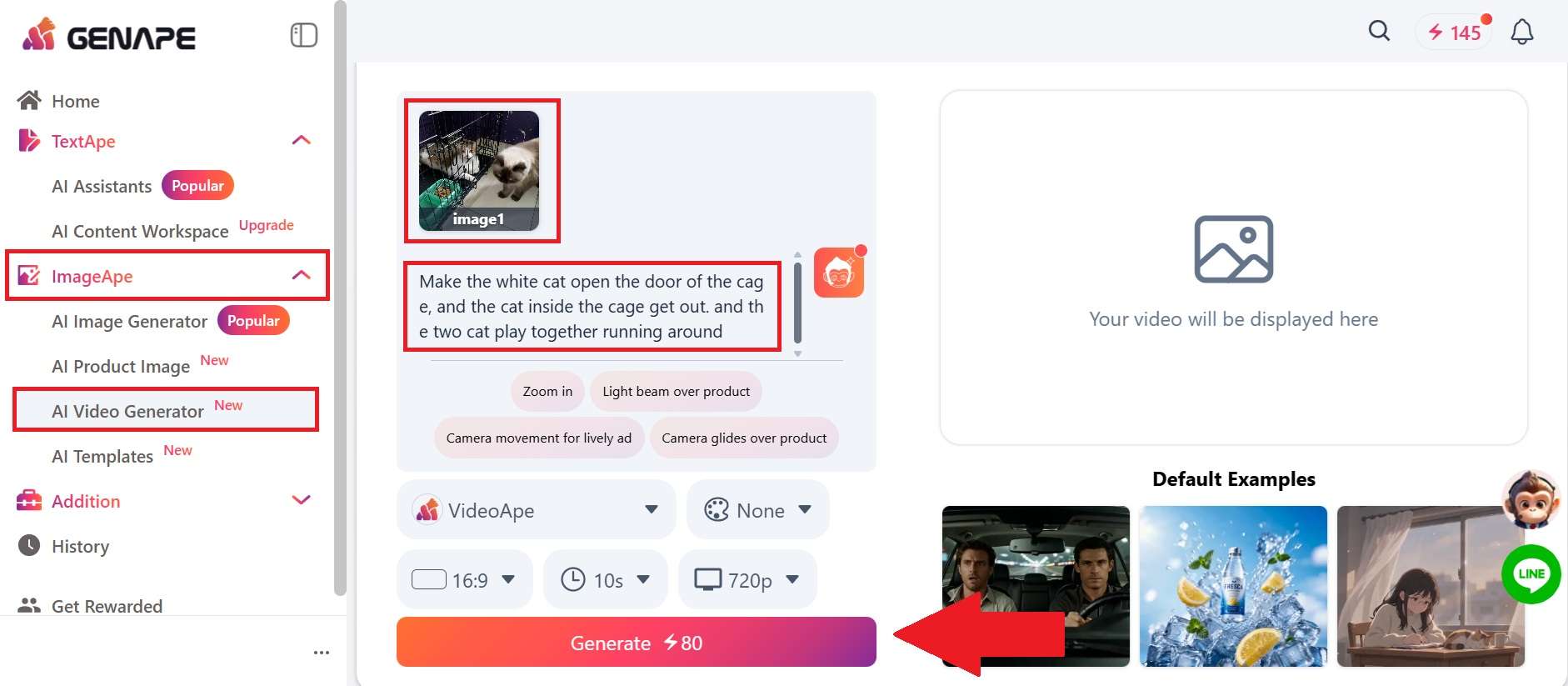
The interface is aimed at people who don't want a steep learning curve. The home screen is a single prompt box with modes for writing, slides, images, and video, plus ready-made workflows like trending-topic posts and cold-email drafts. The sidebar keeps TextApe and ImageApe a click apart, and the first-time flow is simple: sign up, pick a tool, type an idea, generate.
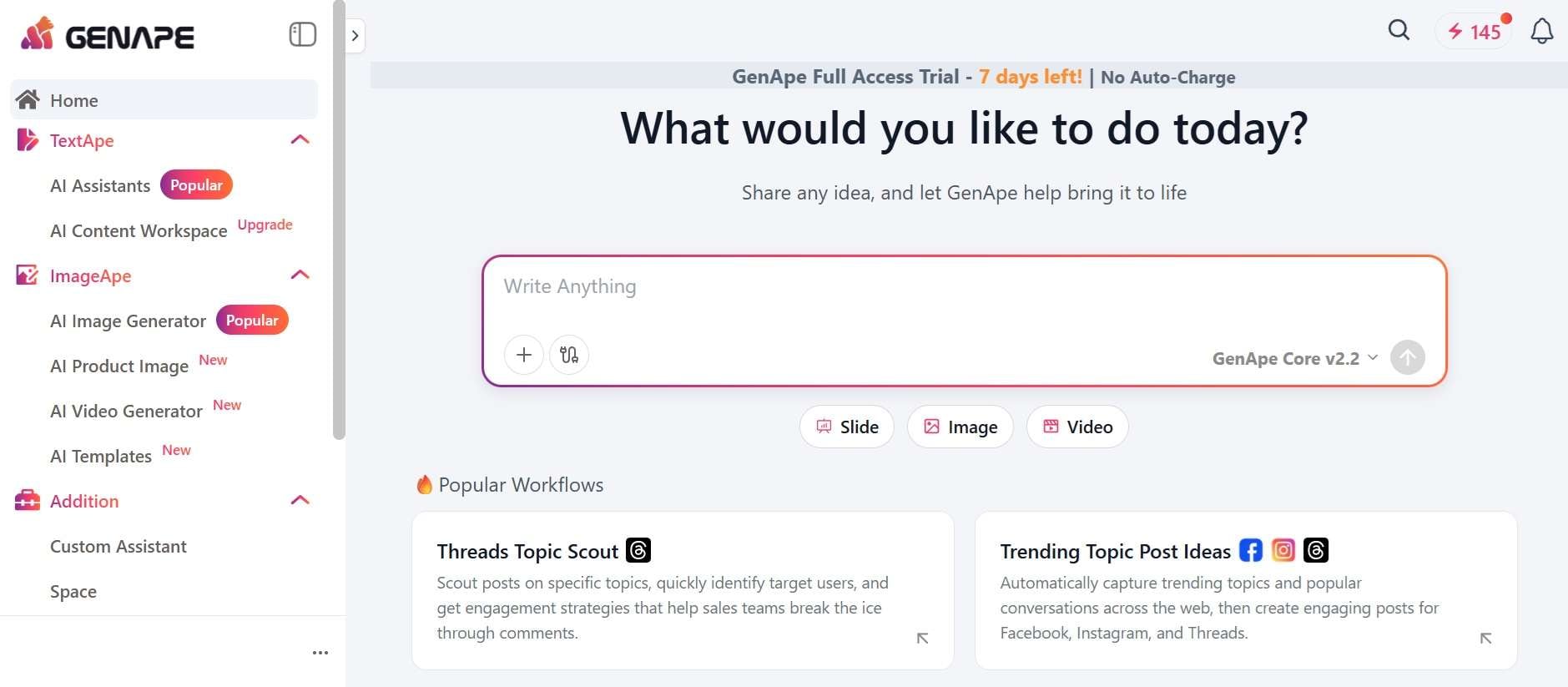
For the test, we tried using the GenApe AI image-to-video feature, and the workflow is quite simple. You go to ImageApe, and select AI Video Generator. From there, just upload your photo and write the prompt. You can adjust duration, aspect ratio, and pick a style if you want.
The generation speed takes around 1 minute. And the result? You can see for yourself below:
GenApe: Pros and Cons
To keep it fair, here's the good and the bad side by side. That's the part that actually helps you decide.
- Beginner-Friendly Setup: The main tools are easy to find, and the video workflow doesn't require traditional editing skills.
- Zero Credit Card Trial: You can try the core text, image, and video generators for a full week without entering payment details.
- Short Clips Only: Videos max out at 30 seconds, and there's no timeline editor for fine-tuning.
- Occasional Motion Glitches: Complex image-to-video transformations don't always follow the prompt and can sometimes introduce soft motion blur or warping around fine details.
Part 5. Pair GenApe with Filmora When You Want Better Output
From our experience, GenApe AI video generator isn't always reliable, and it mainly gets you a draft, an image, or a short clip out fast. But its video tool skips a traditional timeline, so fine-tuning transitions, syncing audio, or layering effects is limited.
Once you want to actually polish the output before publishing, a dedicated alternative like Wondershare Filmora is worth having on hand.
Why Pairing GenApe with Filmora Works So Well
Filmora gives you the timeline control, effects, and refinement GenApe's generator doesn't offer on its own. Here are some of its main benefits:
- Full Timeline Editing: Drop multiple clips from GenApe onto a multi-track timeline to rearrange scenes, trim awkward frames, and create smooth cuts.
- Audio Syncing Tools: Easily match video beats to background music, apply fade-ins, and add sound effects or voiceovers that sync precisely to visual movements.
- Transitions & Effects Library: Access thousands of drag-and-drop transitions, visual filters, stickers, and animated text titles to make raw AI clips feel like polished videos.
- Color Grading & Correction: Adjust brightness, contrast, and color balance so clips generated under different AI models look consistent throughout your video.
- AI-Assisted Editing Features: Use Filmora's built-in AI Smart Cutout, Motion Tracking, Auto Reframe, and AI Audio Denoise to fix raw footage rapidly.
- Export Flexibility: Export finished videos in 4K resolution, customized aspect ratios (9:16 for Reels, 16:9 for YouTube), and higher frame rates ready for social media publishing.
 Secure Download
Conclusion
GenApe AI is a handy all-in-one tool for fast drafts. You get image, text, and short video generation in a single browser tab, and it's easy to start without a card. Just remember the free trial is brief, the numbers aren't always consistent, and clips top out at 15 seconds.
For more polished projects, pairing GenApe with Wondershare Filmora makes more sense. GenApe can handle the fast AI generation, while Filmora gives you the timeline, audio controls, effects, color tools, and editing precision needed to shape those assets into a finished video. That combination gives you the speed of AI without having to settle for whatever the first generation gives you.
FAQs
-
Who is GenApe best for?
Marketers, e-commerce sellers, content creators, small business owners, and students who want writing, images, and short video in one place. It's also a good fit if you like starting from templates and prompt helpers. -
Who owns the copyright to images generated with GenApe?
If you're on a paid plan or use purchased credits, you own the commercial rights to what you generate. However, GenApe AI video generated under free trial accounts is generally intended for personal or non-commercial testing. -
Is GenApe good for video generation?
It's good for short-form clips. You can go from text, photos, or two keyframes to 5, 10, or 15-second videos, which is plenty for social posts, ads, and product visuals. It's less suited to longer videos, since there's no timeline for fine-tuning. For that, generate in GenApe and finish in an editor like Filmora.
