


SJinn AI is a tool that offers you access to AI-powered video generation, image creation, and creative workflows with multiple AI models available for different types of content. From generating visuals from prompts to animating images, the platform is built for you who want to explore different ways of producing AI content.
But whether it actually delivers is another question. This SJinn AI review covers how the platform works, its key video features, pricing tiers, limitations, and SJinn AI alternatives worth considering if it doesn’t meet your expectations.
Part 1. What Is SJinn AI and How Does It Work?
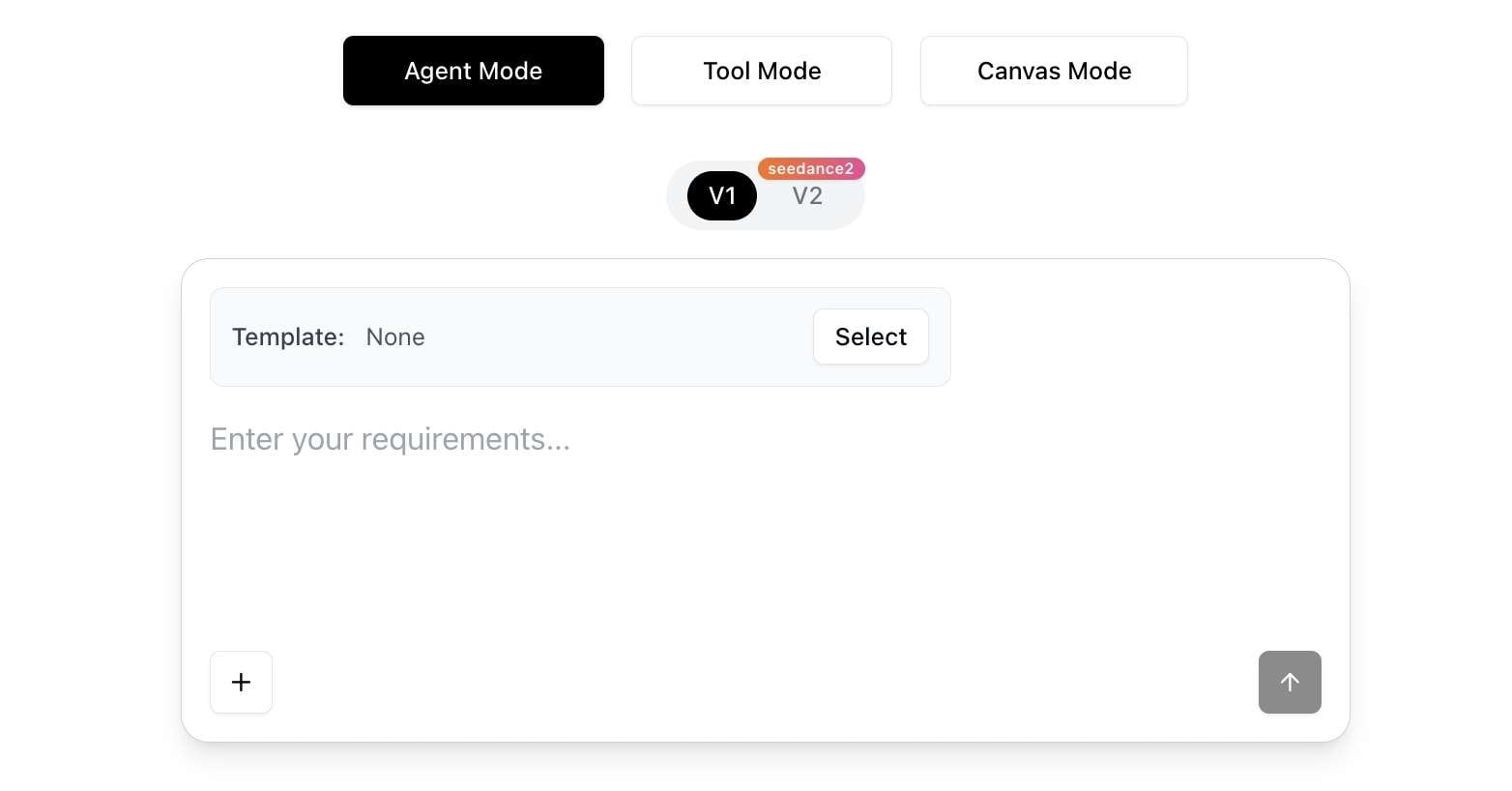
SJinn AI is an AI creation platform built around three different workflows: Agent Mode, Tool Mode, and Canvas Mode. Each mode serves a different purpose, including guiding the creation process with AI assistance and giving you direct control over specific tools and models.
If you prefer to have some guidance, Agent Mode can assist with the creation process. Those who want more control can use Tool Mode to select specific AI models, while Canvas Mode provides a workspace for organizing creative elements.
What Can You Create with SJinn AI?
- Transformation videos
- UGC-style videos
- Story-driven video content
- Music videos with a narrative
- Talking head videos
- Fashion posters
- 3D models for games, commerce, or prototyping
- Branded character content
- And more
Because SJinn AI supports image, video, audio, and 3D output, you're not limited to a narrow content type.
Part 2. SJinn AI Features for Creating AI Videos and Content
SJinn AI app provides different AI tools for generating and editing visual content. Its main features include AI-assisted creation, video generation, image processing, and multimedia tools.
2.1 AI Agent for Automated Content Creation
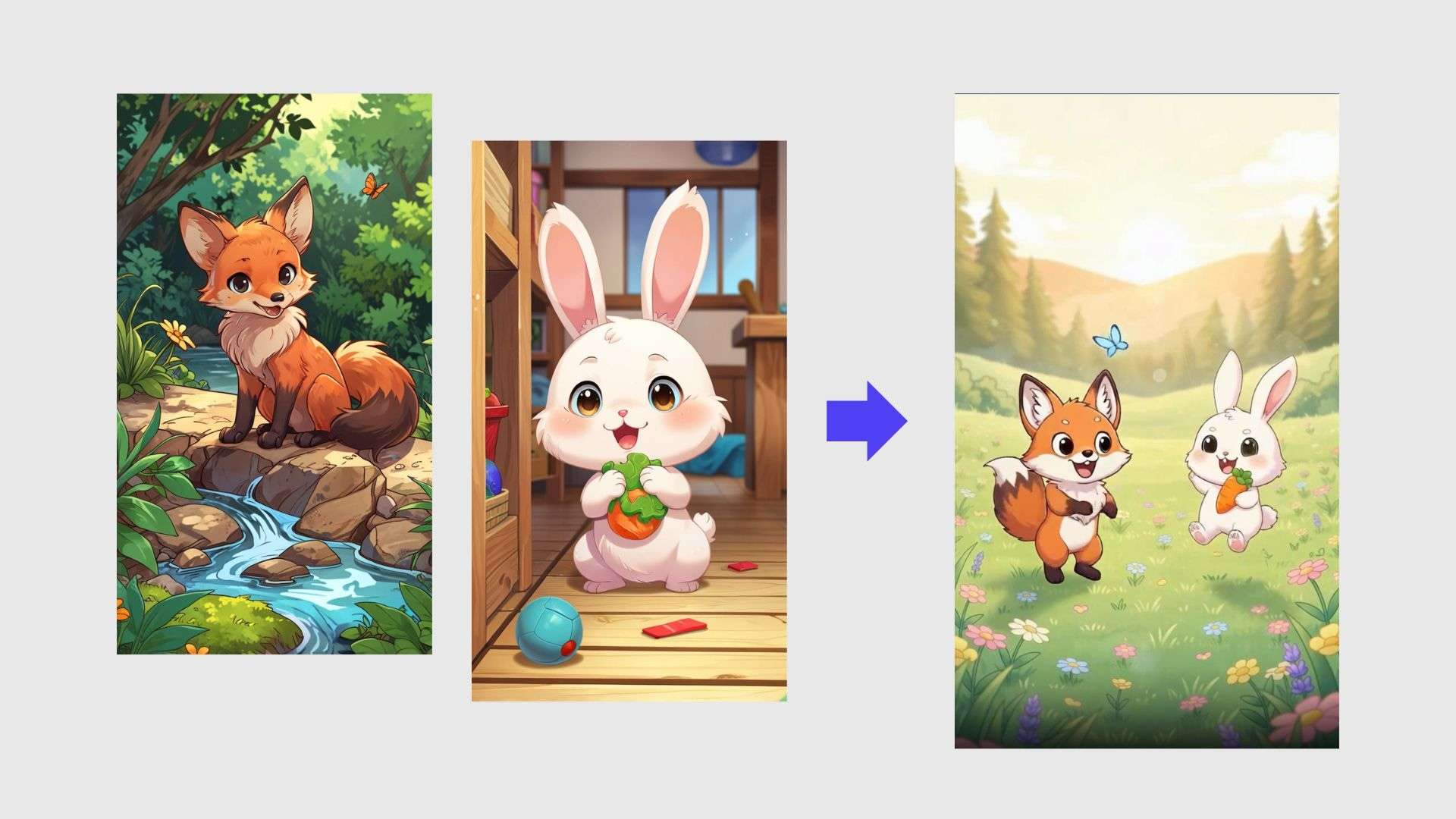
SJinn Agent is designed to handle content creation through conversation. You can describe what you want to make, and the Agent can help plan the process, generate prompts, and suggest suitable tools.
Compared to a basic AI generator that produces only a single output, SJinn Agent focuses more on guiding you through multiple creation steps.
2.2 AI Video Generation with Multiple AI Models

SJinn AI video generator gives you access to various AI video models, including Sora 2, Veo 3, Kling, Seedance, Gemini Omni Video, and more. Each model can produce different results depending on the type of video, style, and prompt used.
These tools can be used to create content such as cinematic clips, product visuals, social media videos, and short-form videos. Sjinn AI video tools include, but are not limited to:
- Text-to-video for creating scenes from descriptions
- Image-to-video for adding motion to still images
- Character animation for animating characters and visual assets

2.3 AI Image Generation and Editing Tools

Besides creating videos, you can also create or modify visual assets with SJinn’s image tools. These tools are useful for preparing visuals that can later be used in AI video generation. Its features include:
- Text-to-image generation
- Image editing
- Character design
- Reference image support
- Image upscaling
- Background remover
2.4 AI Audio, Lip Sync, and Video Enhancement Features
SJinn AI app also includes tools for handling supporting elements in video production, such as:
- Text-to-speech for voice generation
- Speech-to-text for converting audio into text
- Video lipsync for character dialogue
- Image lipsync (photo talking)
- Subtitle generation
- Background music generator
You can use these features for videos that require narration, dialogue, or captions.
2.5 SJinn AI Templates and Other Creative Use Cases
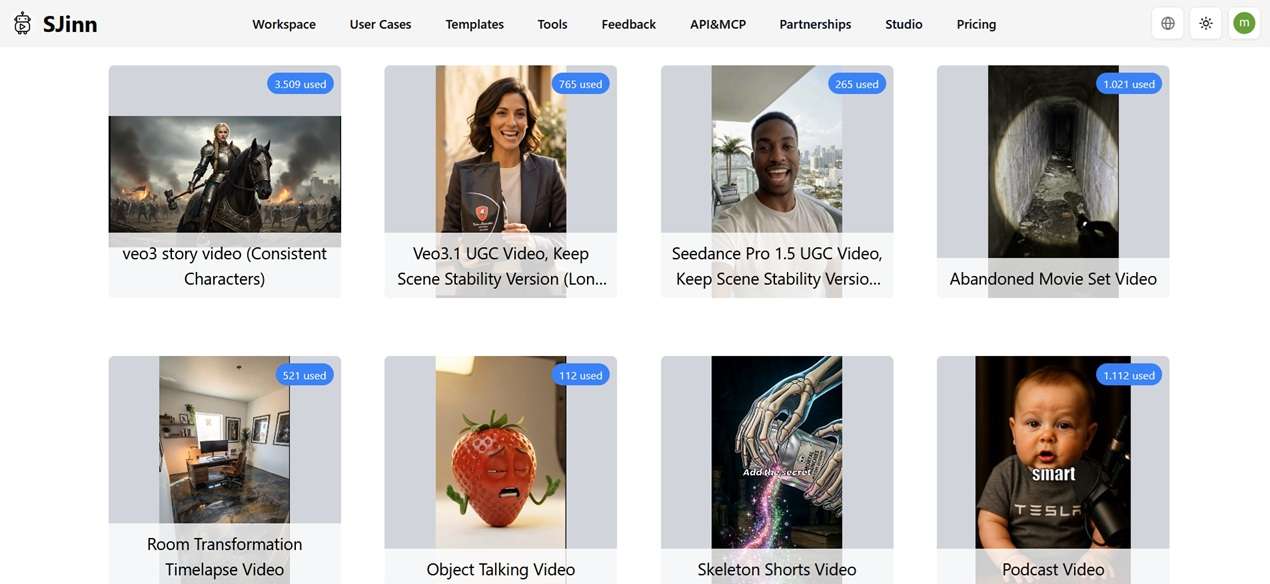
SJinn AI provides templates and workflows for different types of content, including:
- Character storytelling videos
- AI music videos
- Animation-style videos
- UGC-style content
- 3D projects
These templates serve as a starting point for users who want to create specific types of content without having to build the entire process manually.
Part 3. How to Use SJinn AI to Create Videos
Creating a video in SJinn AI starts with choosing the right creation method for the content you want to create. You can let the SJinn Agent guide the process, manually select specific AI tools, or organize ideas through Canvas Mode.
| Mode | How It Works | Best For |
| Agent Mode | Describe your idea through conversation, and SJinn Agent organizes the steps needed to produce the content | Users who have a concept but aren't sure which tools or models to use |
| Tool Mode | Skip the guided process and pick specific features directly, like image generation, image-to-video, or character animation | Users who already know exactly what type of content they want to create |
| Canvas Mode | Arrange ideas, assets, and generated content in a visual workspace before continuing production | Projects with many visuals, characters, or scenes that need better organization |
Everything works online through the browser, so don't bother looking for SJinn APK or even SJinn AI mod APK hoping to unlock premium models or unlimited credits for free because there's nothing to mod.
Steps to Create a Video in SJinn AI
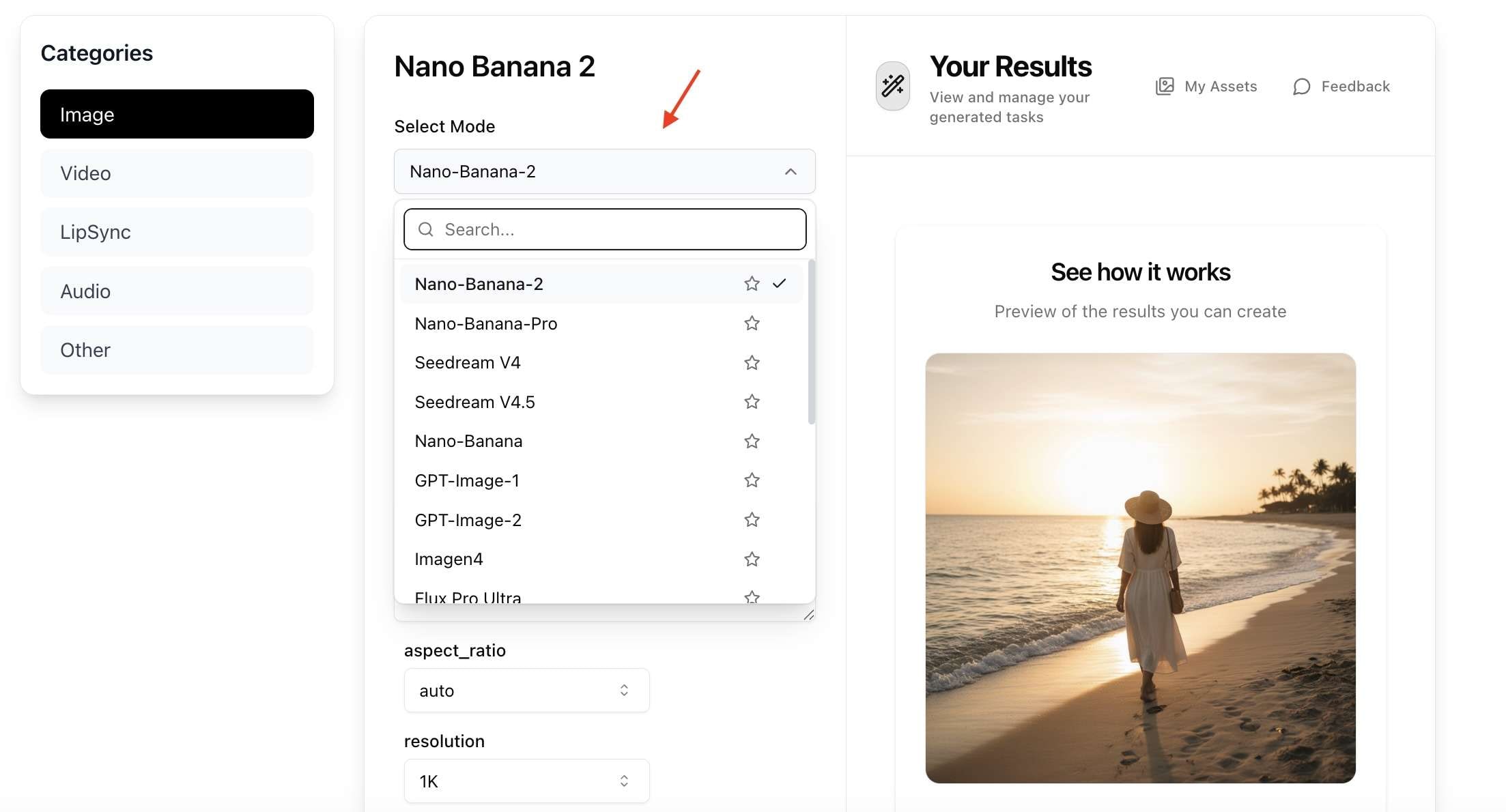
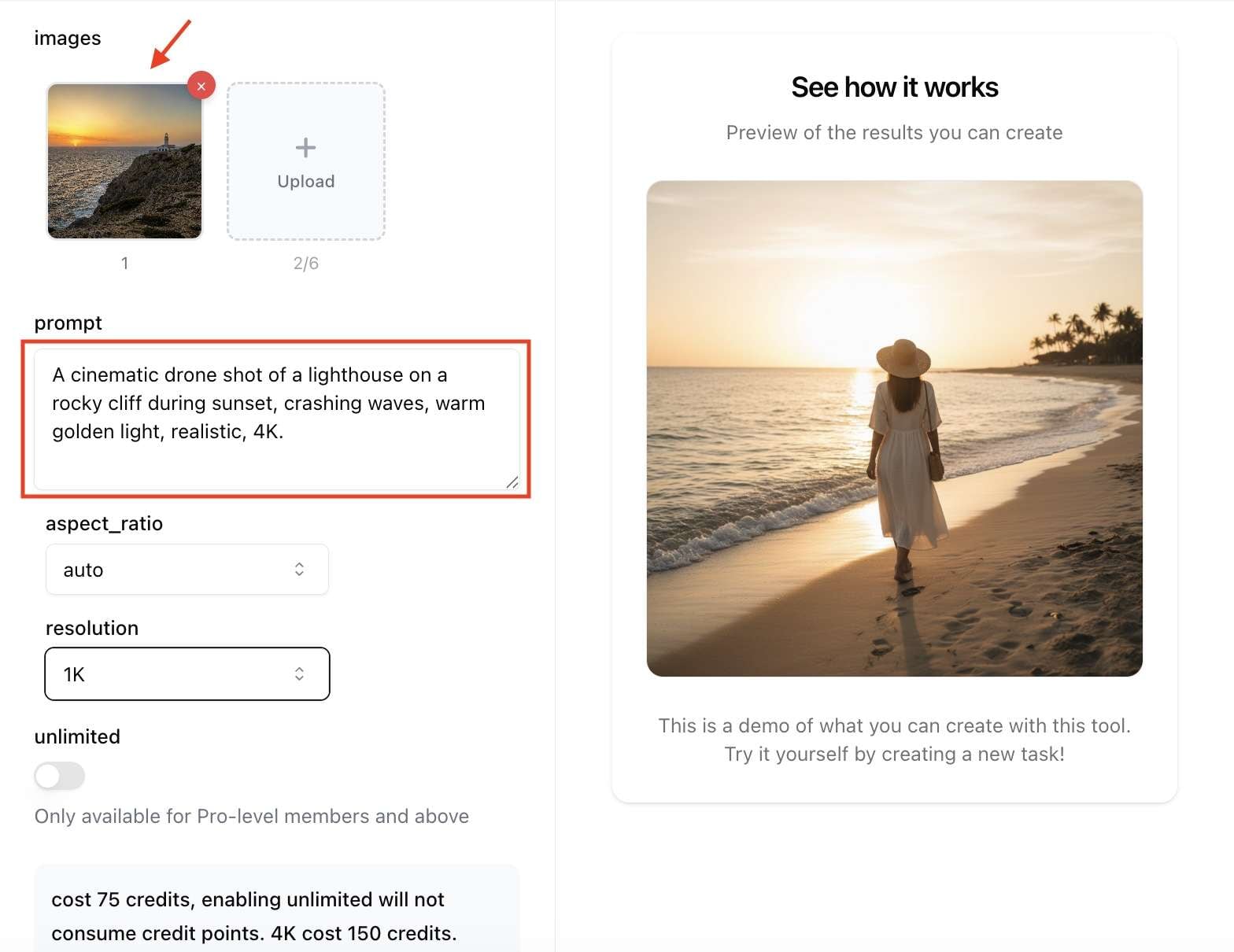
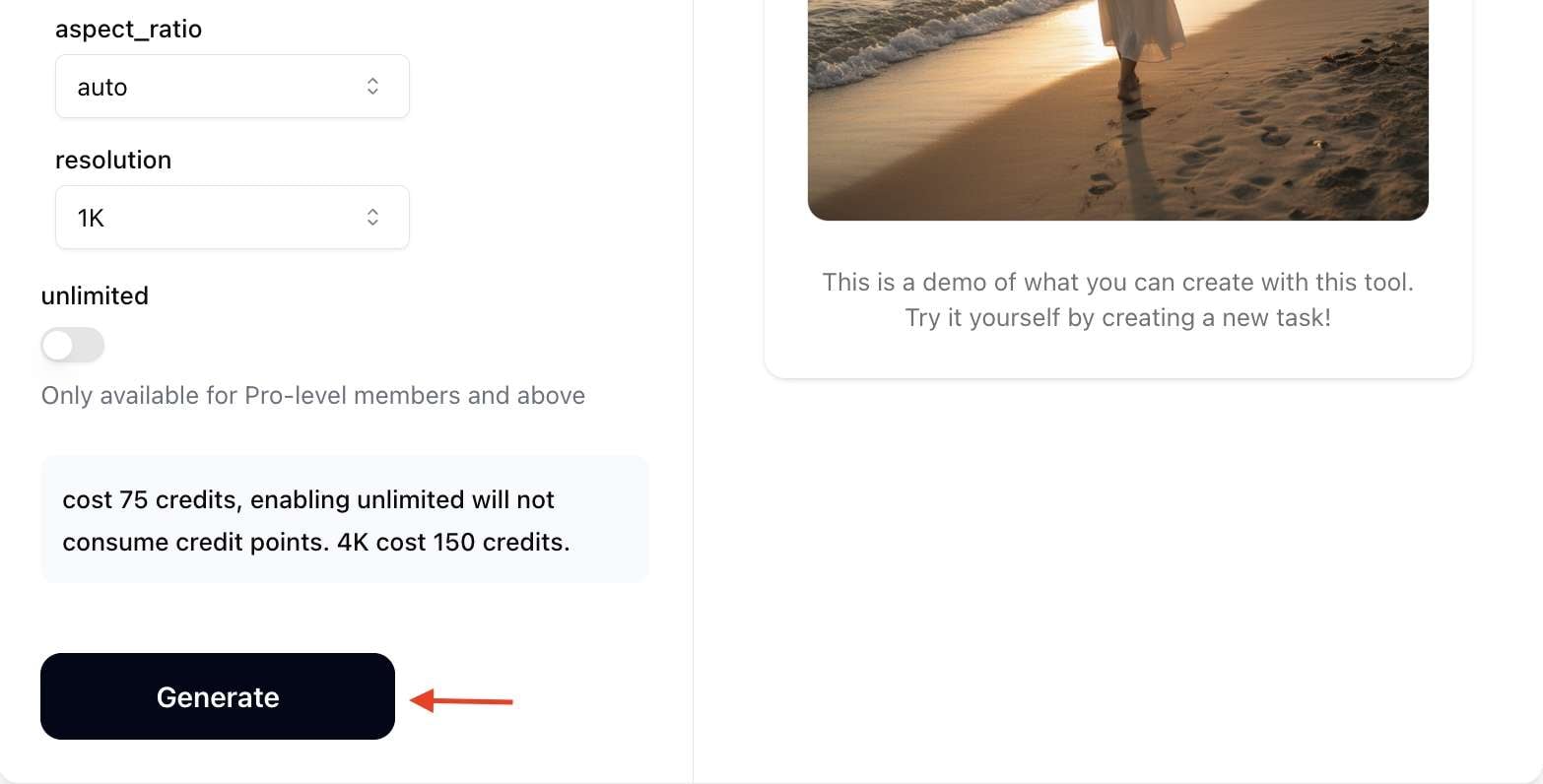
Part 4. SJinn AI Pricing, Pros, and Cons
By now you're probably wondering about cost; specifically, is SJinn AI free? The answer is no. You can't use it without subscribing. SJinn uses a credit-based system. More advanced models generally require more credits than standard image or video generation.
| Lite | Standard | Pro | Ultra | Enterprise | |
| Monthly Price | $9.9/month or $6/month (billed yearly) | $19.9/month or $12/month (billed yearly) | $49.9/month or $30/month (billed yearly) | $99/month or $60/month (billed yearly) | $999/month or $720/month (billed yearly) |
| Credits per Month | 8,000 | 20,000 credits | 60,000 credits | 120,000 credits | 1,200,000 |
| Best For | Testing SJinn AI | Casual creators | Frequent AI content creation | Heavy video and image generation | Companies needing customized agent and team management features |
All paid plans remove watermarks and include access to additional AI tools, while higher tiers unlock more unlimited Tool Mode features and premium image models.
Is SJinn Worth It?
SJinn AI is a good option for users who want access to multiple AI generation models without subscribing to several separate services. Its main strength is the variety of tools available, particularly for AI video and image creation.
However, since pricing is based on credits, the overall cost depends heavily on the models you use. Among the priciest options are Kling 2.1 (300 credits), Hailuo02 (500 credits), Veo3 Image/Text to Video Fast (420 credits), and Veo3 Image/Text to Video (2,100 credits) per generation.
SJinn Pros & Cons
- Supports a wide range of AI models for video and image generation.
- Offers different creation modes, including Agent Mode, Tool Mode, and Canvas Mode.
- Includes image, video, audio, lip-syncing, and subtitle tools all in one place.
- A flexible credit system lets you choose models based on your project requirements.
- The interface isn’t very efficient, and it can get confusing to navigate between tools and modes.
- Advanced video models can consume credits quickly, especially for longer or higher-quality outputs.
- The number of available models and their credit costs may change as new tools are added.
- Users looking for timeline editing, transitions, and detailed post-production will still need dedicated video editing software.
Part 5. Best SJinn AI Alternative for AI Video Creation
Creating a video rarely ends after the AI generates the first draft. To trim clips, replace scenes, add subtitles, adjust audio, or combine AI-generated footage with your own recordings, SJinn AI alone still isn't built for that kind of post-production work.
For that stage, Wondershare Filmora is a SJinn AI alternative that can handle the traditional editing side, including timeline cutting, transitions, color grading, and audio mixing, while also offering its own AI tools like video and image generators.
 Secure Download
Why Filmora Is a Strong Alternative
If your workflow continues after AI generation, Filmora offers tools that help complete the rest of the project, including:
- AI Text-to-Video for creating videos from ideas
- AI Image-to-Video for animating still images
- AI Auto Cut for creating short clips quickly
- AI Subtitle Generator and Speech-to-Text for captions
- AI Audio Tools for improving voice and sound quality
SJinn AI vs. Filmora
| SJinn AI | Filmora | |
| Primary purpose | AI content generation (image, video, audio), with a few dedicated adjustment tools | Video editing with built-in AI tools |
| Core workflow | Prompt-based generation across multiple AI models | Timeline-based editing (generate, cut, trim, layer, arrange) |
| Editing capabilities | Limited to prompt-based regeneration | Prompt-based regeneration + full editing suite (transitions, color grading, audio mixing, subtitles) |
| Free version | No free tier | Yes, with watermark on exports |
| Pricing model | Credit-based subscriptions | Subscription and one-time license options with AI credits |
Final Recommendation
- SJinn AI is a good fit for experimenting with different AI models and generating new content from prompts.
- Filmora is better suited for projects that also require post-generation editing. Instead of exporting clips to another editor, you can continue working on the same timeline until the video is ready to publish.
Secure DownloadConclusion
SJinn AI stands out thanks to its wide selection of AI models and tools for generating videos, images, and other creative content. Features like Agent Mode and support for various generative models give users plenty of options to experiment with different styles and workflows. Before choosing a subscription, take a close look at the pricing plans and credit costs, as video generation can consume credits much faster than image generation.
If your workflow also includes editing, audio enhancement, and final touches, Filmora adds those capabilities alongside its AI-powered features.
FAQs
-
1. What is SJinn AI used for?
SJinn AI is an AI creation platform for generating videos, images, audio, and other digital content. The platform includes tools for text-to-video, image-to-video, character animation, and AI image generation. -
2. Is SJinn AI free or paid?
SJinn AI is paid only; there's no free tier. You need a subscription to use it, starting from $9.9/month or $6/month if billed yearly. -
3. Can I use SJinn AI to create videos without editing experience?
Yes. SJinn AI lets users create videos by entering a prompt or uploading an image. Agent Mode can also guide users through the creation process, making it accessible for beginners.
