
AI video platforms keep popping up, but many still limit what you can create or which prompts you can use. That friction is exactly what the VideoAny uncensored AI video generator aims to eliminate by offering an open, flexible creation space. However, having access to an unrestricted VideoAny platform doesn't mean you can use it without limits, so it's important to understand its rules and use the tool responsibly.
So, what can you actually build with it, and is it worth adding to your stack? This comprehensive VideoAny review breaks down its tools, real credit costs, and creative potential to help you decide.
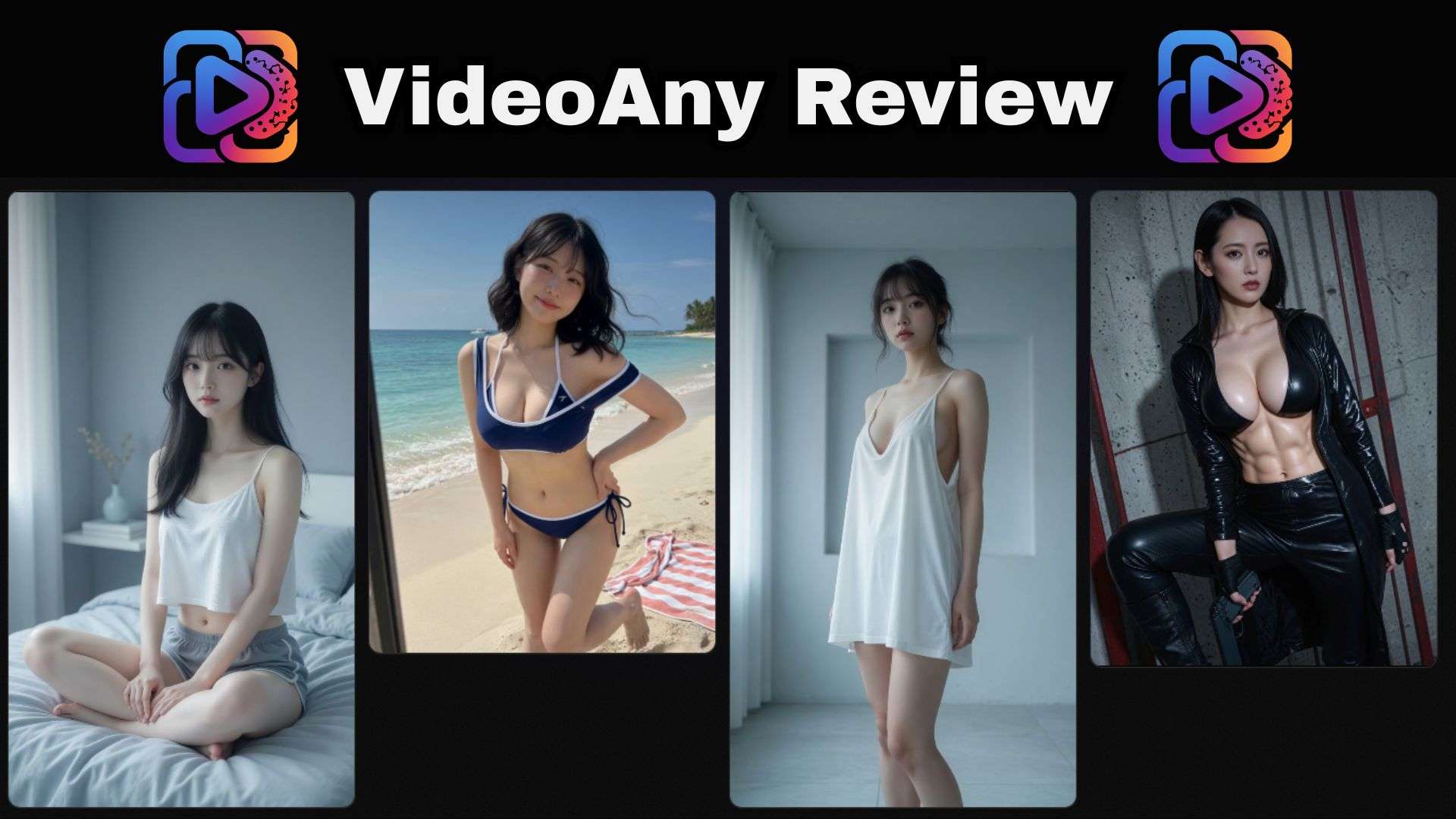
Part 1. Inside VideoAny: Overview & AI Models
The main idea behind VideoAny is simple: having several AI tools for videos, images, and audio without jumping between different websites. All of that is possible inside a browser-based studio at videoany.io/. It's aimed at social creators, marketers, hobbyists, and anyone who wants to experiment with AI clips without learning a complicated editing suite.
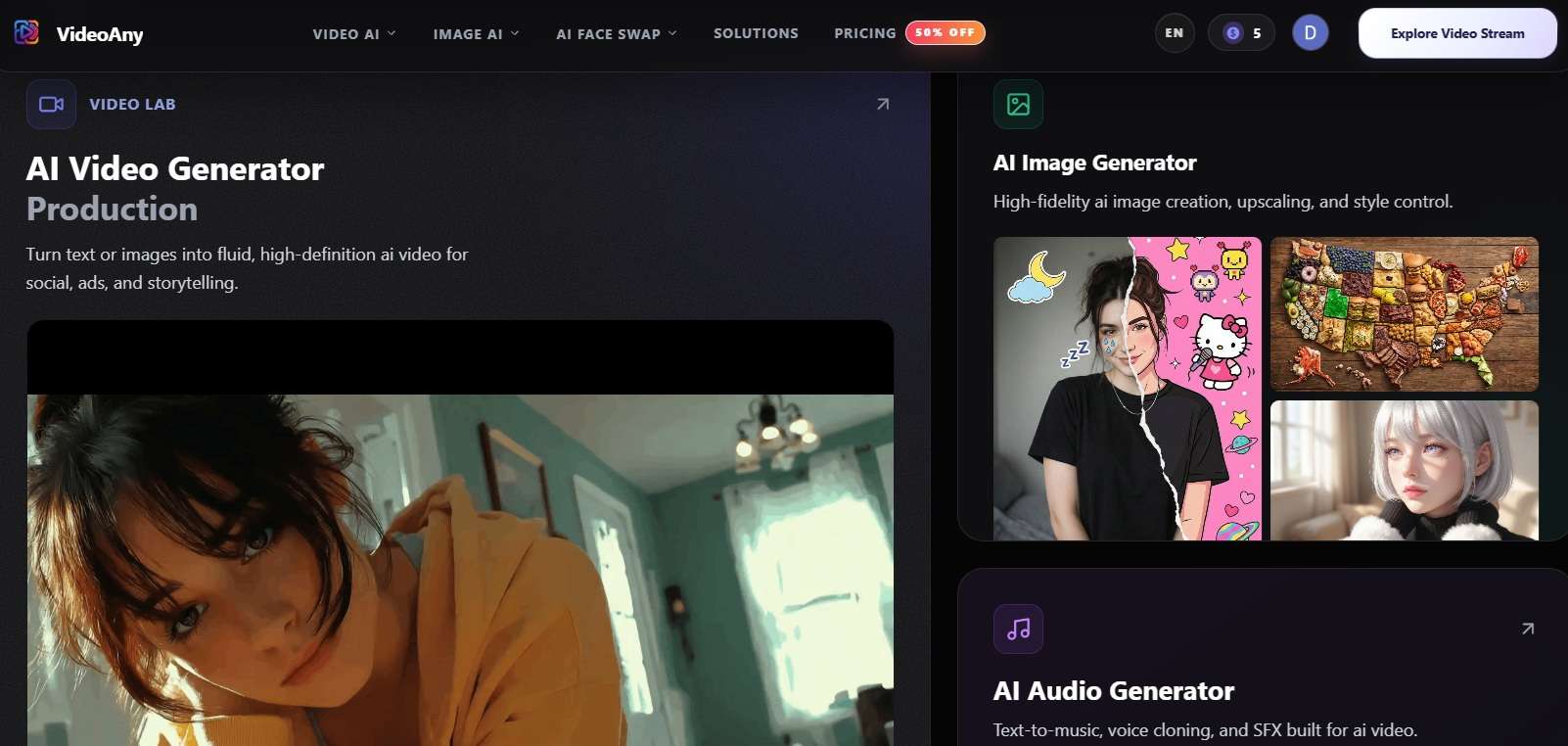
Another thing worth knowing is that VideoAny doesn't rely on just one generation model. Let’s take a look at some of its main models:
| AI Model | Primary Strengths & Use Cases |
| Wan 3.0 / 2.7 | Super realistic motion, dynamic lighting, and cinematic camera physics |
| VideoAny V2–V5 | Native, fast-rendering models optimized for style transfers and viral visual effects |
| MiniMax H3 | Expressive character animations and clean visual continuity across renders |
| Flux2 Pro / Nano Banana 2.1 | High-detail digital artwork, sharp portrait rendering, and clean text handling |
| Seedance 2.5 / 2.0 | Accurate prompt tracking, smooth character movement, and scenic transitions |
|
Show More
Show Less
|
|
Platform Availability: Watch Out for Fake VideoAny APKs
VideoAny is a web-based platform only. You can only access it through https://videoany.io/. If you see sites claiming to offer a downloadable VideoAny APK for Android or iOS, stay away!
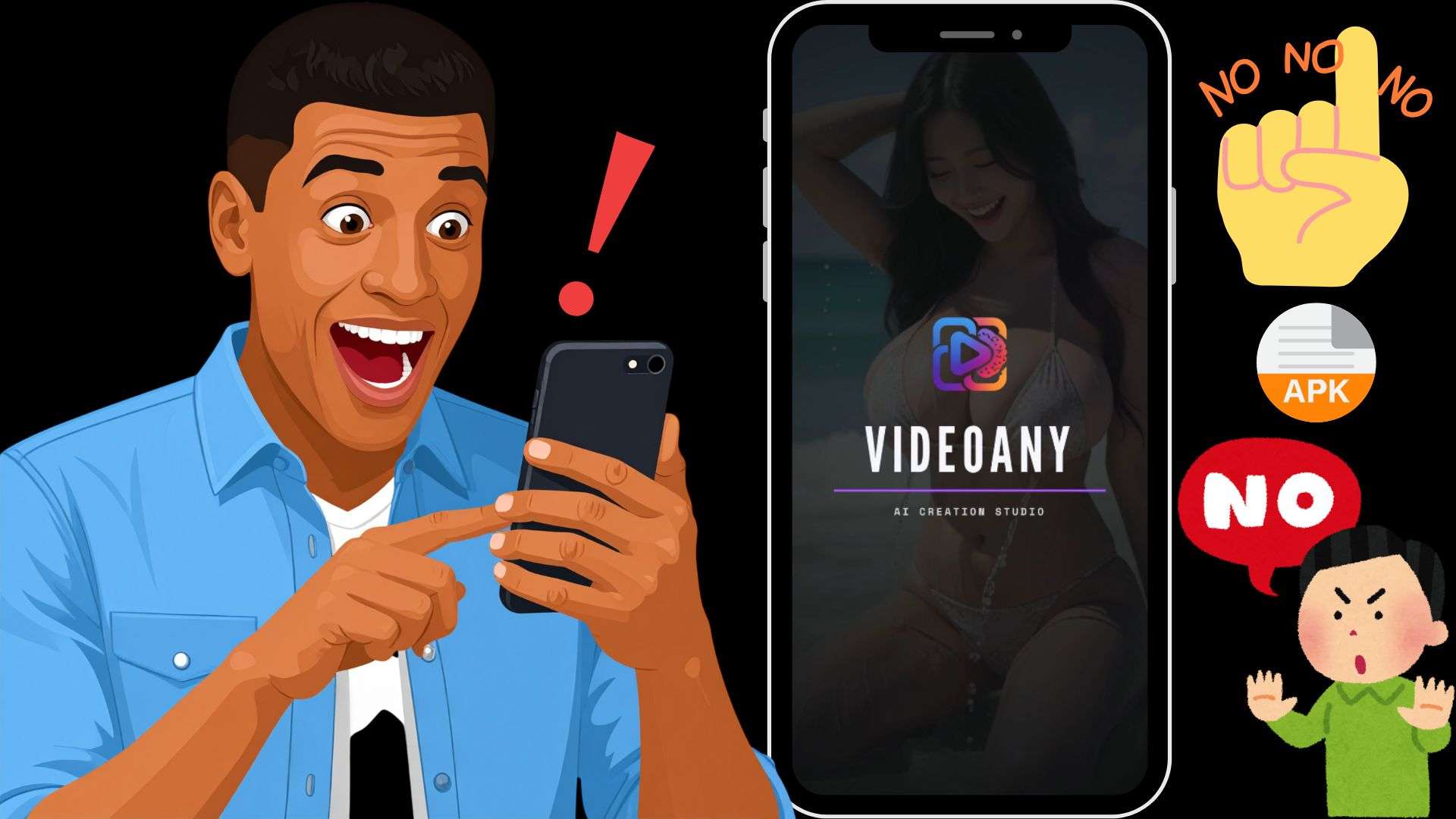
There is no official mobile app, and downloading third-party APK files from random sites puts your device and personal data at serious risk. Stick to your browser, bookmark the official site, and keep your phone safe.
Part 2. VideoAny Main Features: A Deep Dive into Its Multimedia Toolkit
You aren't just limited to basic text-to-video clips here. The VideoAny editor space packages a wide spread of media capabilities, turning static ideas into full-fledged visual assets. Here is what you can actually do once you dive into the platform:
AI Video Generator
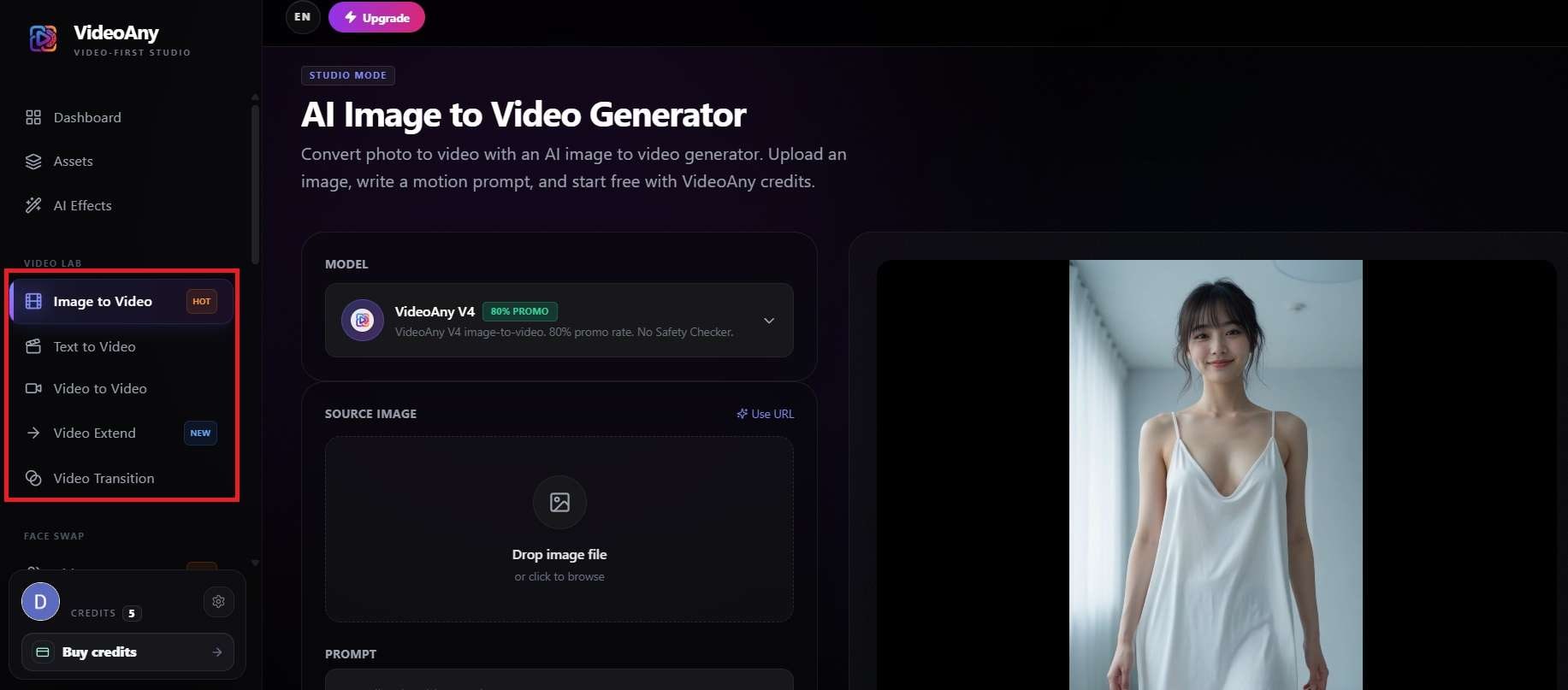
If you want to transform ideas into moving footage, the VideoAny AI video generator provides a massive variety of generation modes:
- Text-to-Video: Generates fluid video clips directly from detailed text prompts.
- Image-to-Video: Animates static images using custom camera angles (pan, zoom, tilt) and motion prompts.
- Audio-to-Video: Syncs visual motion and rhythm to uploaded audio tracks or sound effects.
- Video-to-Video: Restyles lighting, background, or art aesthetic of uploaded source clips.
- Video Extender: Lengthens generated clips seamlessly beyond standard duration limits.
- Video Transition: Generates smooth, contextual AI transitions between two separate video clips.
AI Image Generator
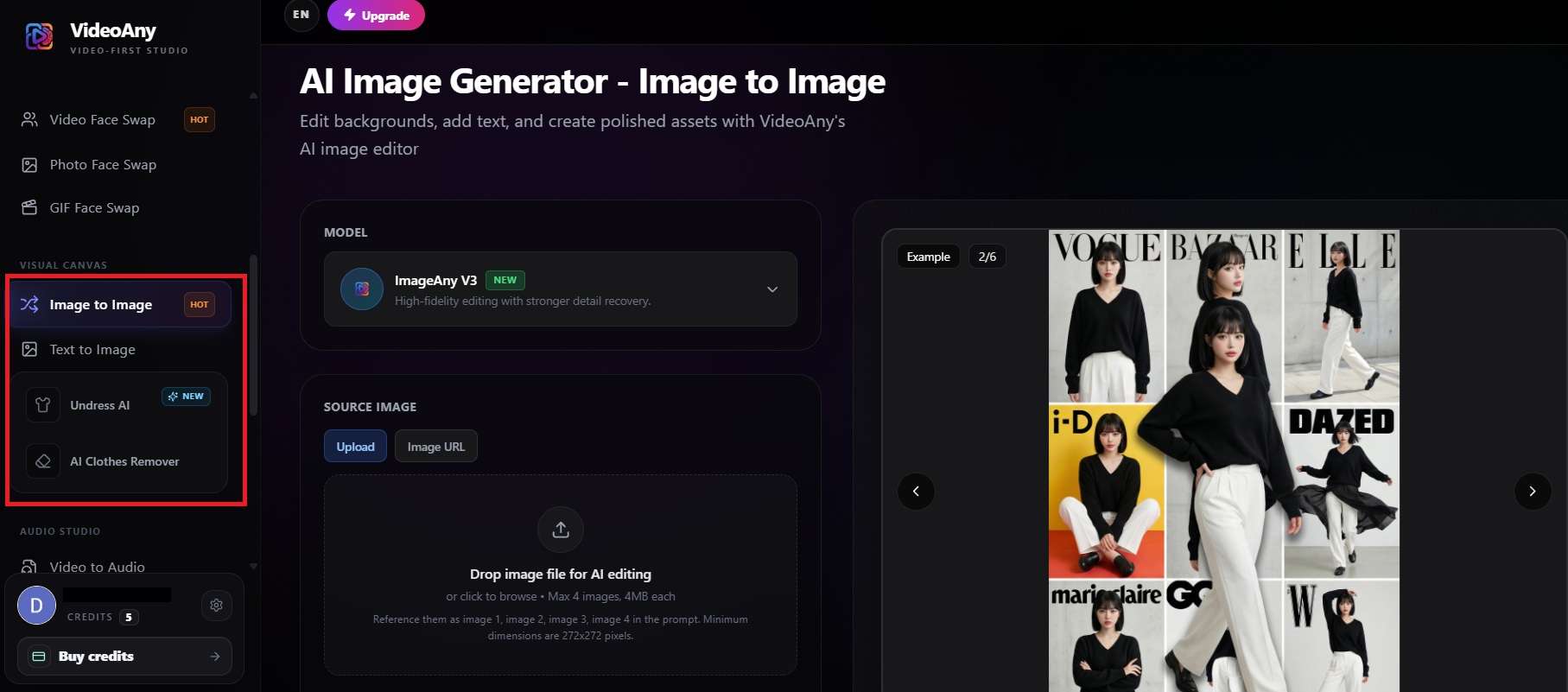
VideoAny also includes image generation and editing tools. These are useful if you need visual assets for a video, want to experiment with different looks, or simply prefer working with still images.
The main options include:
- Text-to-Image: Renders digital artwork, realistic photos, and stylized assets across multiple base engines.
- Image-to-Image: Modifies composition, lighting, or style using a reference image.
- AI Clothes Changer & Model Stylist: Replaces garments on uploaded portrait subjects.
⚠️ Disclaimer: Tools that modify clothing or physical appearances must always be used ethically. Unrestricted visual tools are built for creative artwork, not for non-consensual image manipulation. Always ensure you have clear consent from anyone whose image you upload.
AI Audio Generator
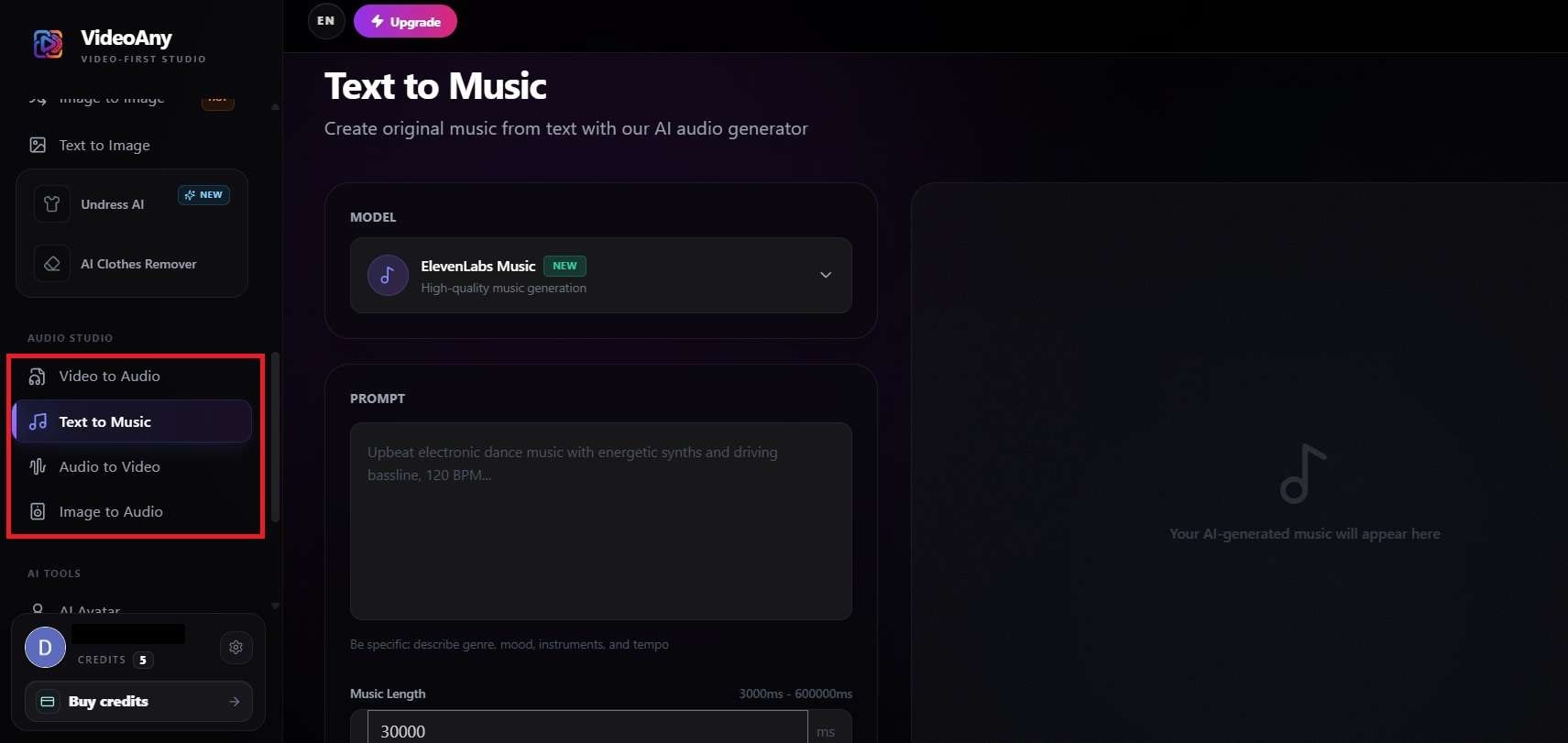
Great visuals need matching sound, and VideoAny builds sound design right into your workflow:
- Text-to-Music: Generates custom backing tracks and instrumentals based on mood or genre descriptions.
- Video-to-Audio: Analyzes visual cues in a video clip to generate matching ambient sound effects.
- Image-to-Audio: Creates atmospheric audio clips tailored to the visual tone of a single static image.
Face Swap Suite
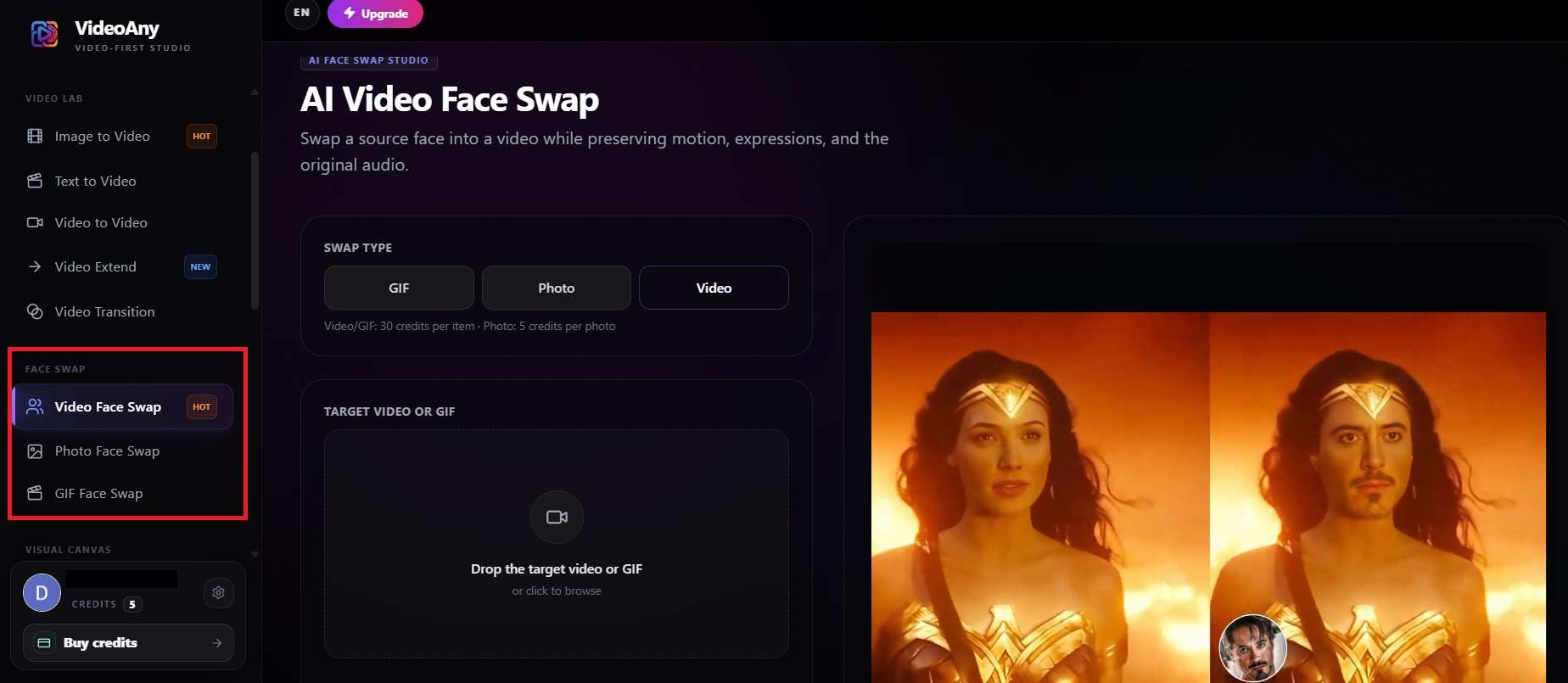
There are also face-swapping tools for parody and creative edits. But remember, you also need the same consent rules as any tool that uses real people's faces. Get permission first. Here are the available options:
- Video Face Swap: Replaces target faces in existing video scenes while maintaining expression and lighting continuity.
- Image Face Swap: Swaps faces across single portraits or group photos.
- GIF Face Swap: Applies face-swapping effects directly onto short animated reaction GIFs.
Part 3. VideoAny Credits: Pay-As-You-Go vs. Monthly Plans
VideoAny runs on credits, so your VideoAny price depends on how many credits you buy and which tools you use. New accounts get a few free starter credits (3), and that's honestly not enough to finish a video, because a single clip usually needs 30 to 75 or more credits depending on the model.
In other words, you'll need to buy credits to test it properly. To upgrade credits, you can buy monthly, yearly, or pay-as-you-go.
Monthly Subscription Pricing Table
| Plan | Monthly Price | Total Credits |
| Starter | $19.99 | 400 |
| Professional | $29.99 | 650 |
| Enterprise | $49.99 | 1,600 |
| Ultimate | $99.99 | 4,000 |
|
Show More
Show Less
|
||
Yearly Subscription Pricing Table
| Plan | Yearly Price | Total Credits |
| Starter | $120 | 4,800 |
| Professional | $180 | 7,800 |
| Enterprise | $300 | 19,200 |
| Ultimate | $600 | 48,000 |
|
Show More
Show Less
|
||
Pay-As-You-Go Pricing Table
| Pack | Price | Total Credits |
| Creator Pack | $50 | 1,500 |
| Momentum Pack | $100 | 3,800 (incl. 600 bonus) |
| $200 Credit Pack | $200 | 9,000 (incl. 2,000 bonus) |
| $500 Credit Pack | $500 | 38,000 (incl. 10,000 bonus) |
|
Show More
Show Less
|
||
Part 4. Our VideoAny Experience: Strengths and Limitations
When you start digging around online for a VideoAny review, you will quickly notice that detailed, independent breakdowns are pretty rare. Even dedicated community forums like a VideoAny Reddit discussion thread are hard to come by.
Because of that, we spent real hands-on time exploring the platform. Here is our honest takeaway on where it shines and where it stumbles:
- Extensive FX Library (101+ Templates): The platform includes tons of pre-made AI effects (like Neon Glow, AI Hug, and AI Dance) that work as instant visual templates.
- Rich Utility Toolbox: Includes secondary tools like AI Avatars, AI Dubbing, AI Video Compressor, and background removers under one roof.
- Flexible Unrestricted Moderation: It feels great to type creative prompts without getting hit by overly strict false-positive refusals on harmless artistic concepts.
- Non-Expiring Pay-As-You-Go Credit Packs: CPay-as-you-go packs don't push you into a monthly usage deadline. You buy credits once and use them whenever inspiration strikes.
- Insufficient Free Credits: The 3 initial login credits cannot be used to complete a standard video generation.
- Lack of Multi-Track Timeline Control: Difficult to perform fine-grained trimming, precise audio alignment, or multi-layer compositing directly in the browser editor.
- Inconsistent Quality Across Models: Output visual quality varies significantly depending on which underlying model is chosen.
- No Dedicated Mobile Application: Reliance on browser-based navigation can feel clunky on mobile screens.
Part 5. Need More Editing Control? Try Wondershare Filmora
VideoAny offers plenty of ways to generate media; VideoAny text-to-video and VideoAny image-to-video generator are only a few methods that can generate a clip. That said, longer projects often need precise cuts, layered footage, synchronized audio, and detailed adjustments that let you shape the final result.
In that case, having a dedicated video editor can be more useful, and there’s no better option than Wondershare Filmora.
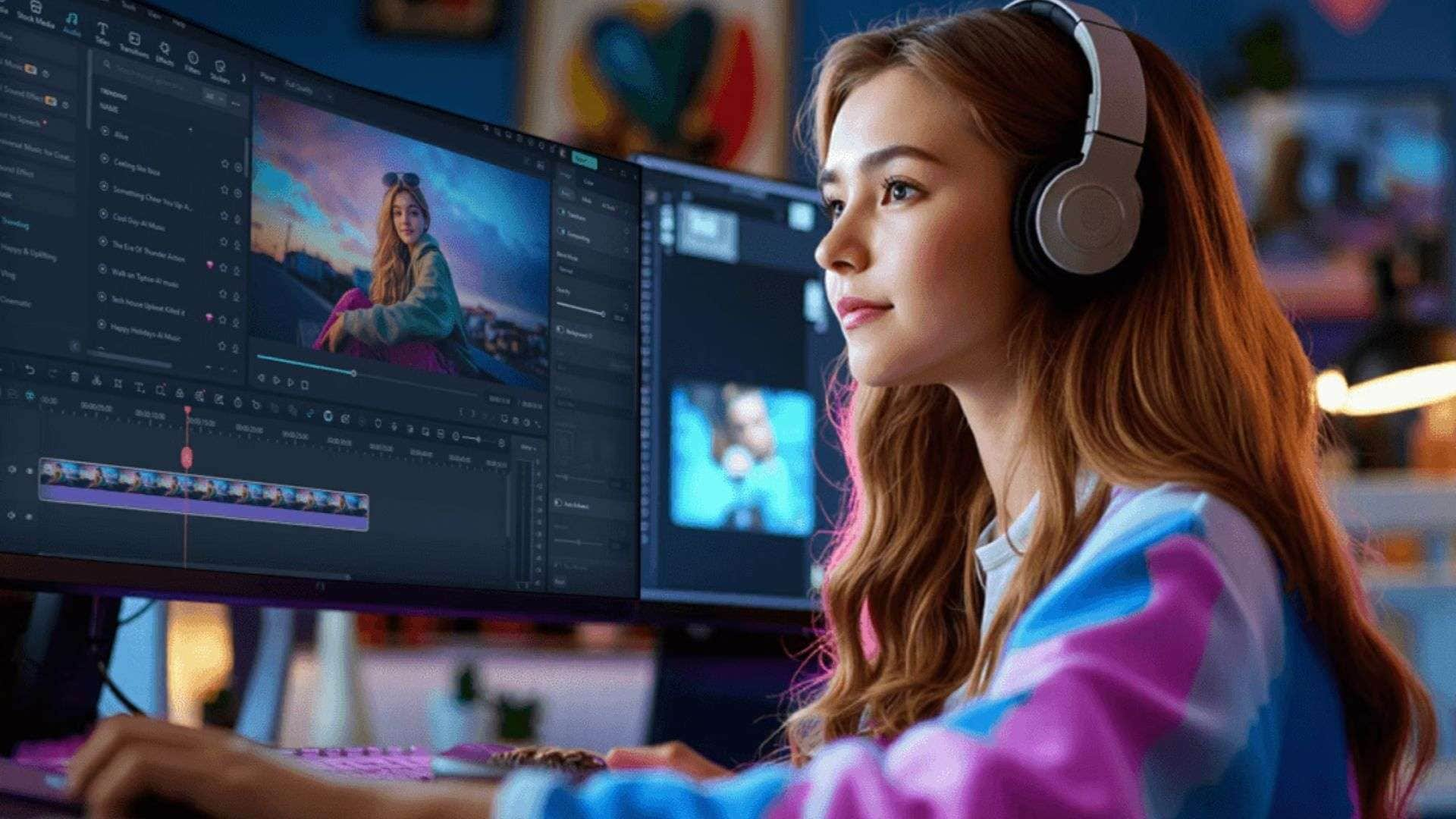
This all-in-one video editor bridges the gap by giving you a professional, multi-track timeline alongside built-in AI creation tools. You can bring in your AI-generated clips, refine them, layer sound design, and polish the final project all in one place.
Filmora AI Features for Total Post-Production Control
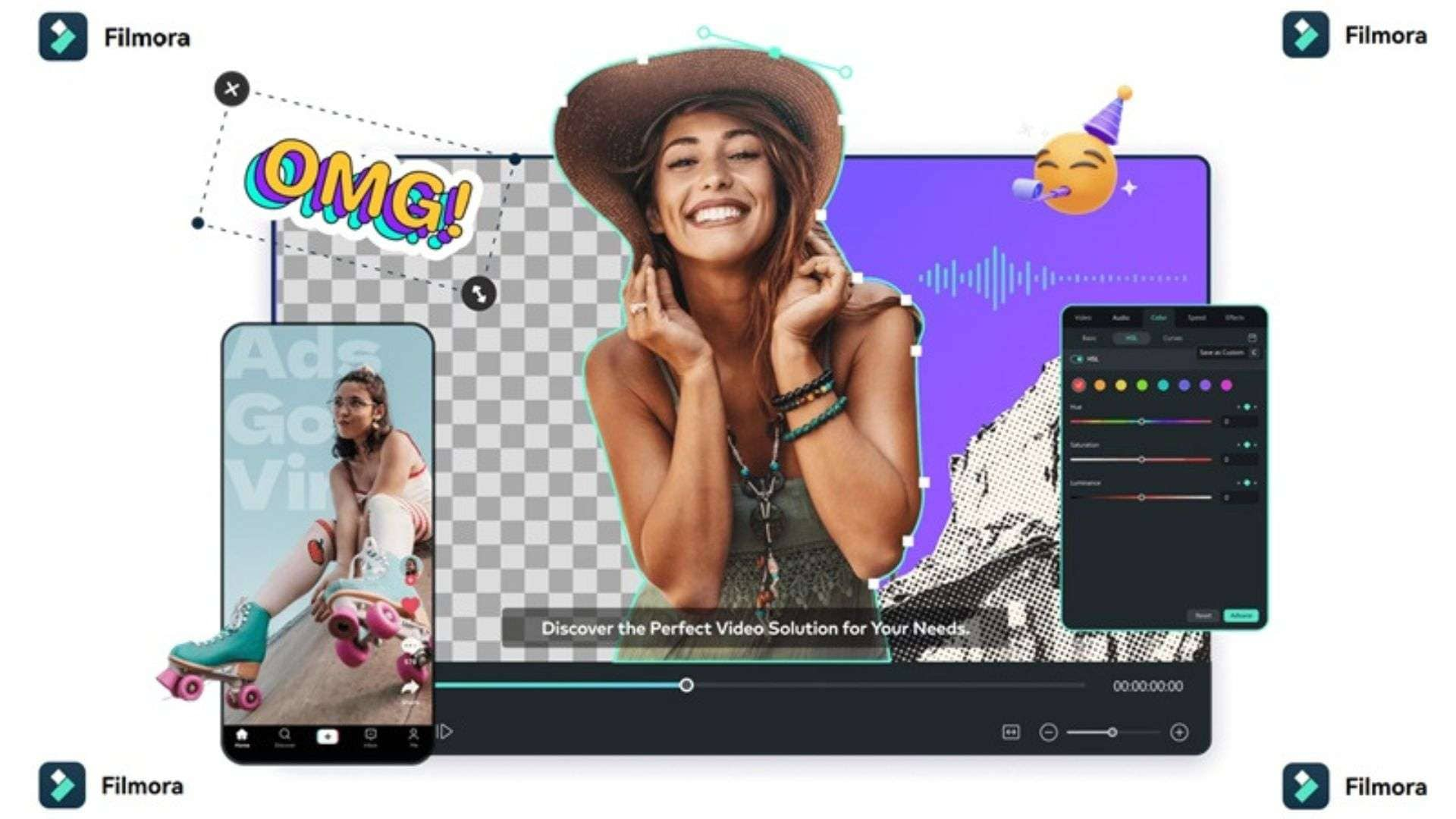
- Professional Editing Timeline: Provides a flexible multi-track video and audio timeline supporting precise cuts, keyframing, and multi-layer visual compositing.
- Motion and Planar Tracking: Tracks objects, text, or visual effects effortlessly across moving camera shots.
- AI Color Palette & Color Grading: Instantly matches the visual color profile across clips generated from different AI models, giving your final video a consistent, cinematic look.
- Keyframing & Custom Animations: Fine-tune position, scale, opacity, and rotation of your visual elements frame by frame for completely custom animations.
- AI Captioning & Multilingual Translation: Automatically converts spoken dialogue into accurate subtitles and can translate vocal tracks into multiple languages with a single click.
- AI Script Generator & Social Content Planner: Streamlines pre-production writing, video structuring, and ideation before rendering AI assets, as well as scheduling them to post across different social media platforms.
 Secure Download
Conclusion
To wrap things up, VideoAny AI video generator is a remarkably versatile multi-model studio for creators who want fast access to cutting-edge AI image, video, and audio engines without being locked into strict monthly subscription plans. Its flexible moderation approach and non-expiring credit packs make it a fun, open playground for generating raw AI visual assets.
However, raw AI clips are only part of the story. If you want to turn those clips into a polished video with precise timing, layered footage, captions, and custom animations, Wondershare Filmora offers a more hands-on editing environment. Its combination of AI features and timeline controls makes it a useful option for creators who want more say in the final result.
FAQs
-
How long does it typically take to render a standard video clip on VideoAny?
Render times depend heavily on the AI engine, clip duration, and export resolution you select. Standard 480p clips rendered on base models usually take about 30 to 90 seconds. However, high-definition 4K renders using heavy engines like Seedance 2.5 can take anywhere from 3 to 5 minutes during peak server hours. -
Can you use your own reference images and footage with VideoAny?
Yes. Image-to-video, image-to-image, video-to-video, lip sync, and face swap tools are built around your own uploads. Only upload material you own or have permission to use, especially anything showing real people. -
What should you check before buying VideoAny credits?
Before purchasing a credit pack, check which resolution and model tier you plan to use most often. Since higher quality settings (like 1080p/4K) consume more credits per render than draft-quality settings, pick a credit pack that matches your project volume so you don't run out mid-production!