35+ Nano Banana Pro Perler Beads Prompts:
Copy, Paste & Start Crafting
Want your Perler projects to look consistent from one board to the next? These
Nano Banana Pro Perler beads prompts are designed to produce crisp, blocky artwork that fits real pegboard grids:
chibi characters, retro game sprites, desk toys, coasters, badges, and shelf decorations. You can keep one core style and simply
swap outfits, colors, or themes for holidays and events.
Just browse the gallery, tap on a design you like, copy the prompt into Nano Banana Pro, and you'll get bead-friendly images you can zoom in on,
count, and turn directly into physical Perler projects.
Loading more templates...
 Category:
 Duration:
 Aspect Ratio:
Design Perler Bead Patterns
With Nano Banana Pro and Filmora
Whether you're planning a board for kids, preparing Etsy-ready patterns, or just relaxing with a pixel-style craft, Nano Banana Pro Perler beads prompts and Filmora's AI tools make it easy to move from idea to printable or screen-ready layouts. Describe the size and style once, then reuse the same base prompt to build a full set of matching designs.
AI Text to Image as a Perler Bead Planner
AI Text to Image as a Perler Bead Planner
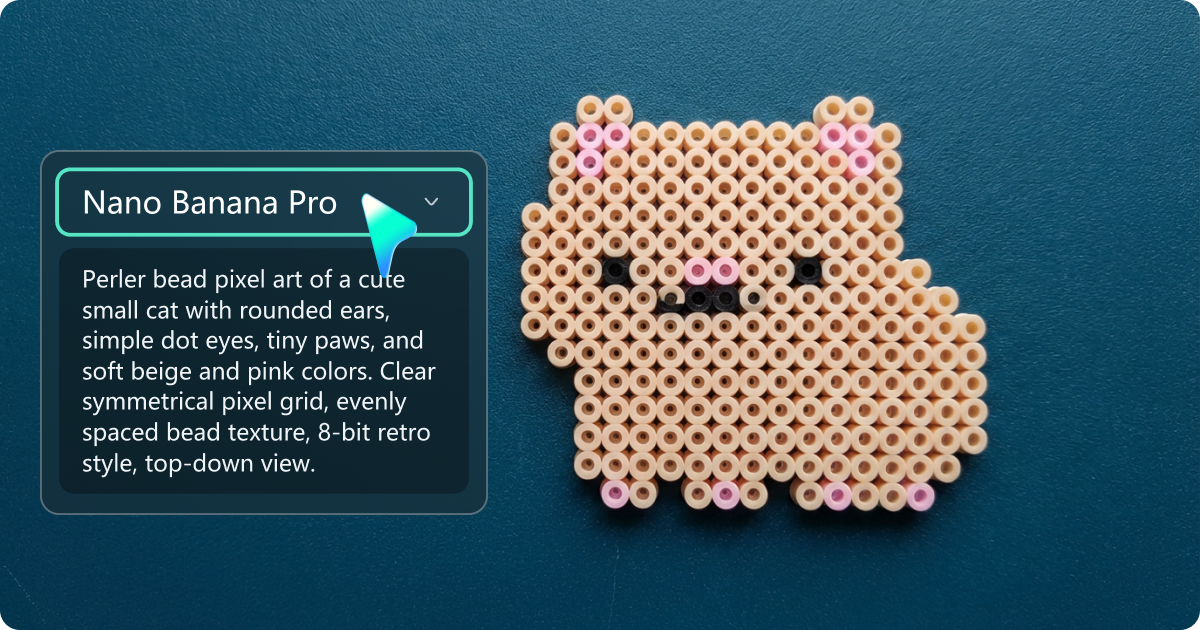
Use Filmora's AI Image Generator to turn short prompts into clear, pixel-style mockups you can follow on a pegboard. Ask Nano Banana Pro for "8-bit", "blocky", or "Perler bead style" artwork, then zoom in and count rows and columns before you open your bead jars. You can keep one character design and create multiple outfits, poses, or color schemes while staying within the same grid.
- Generate bead-ready, blocky artwork from simple text prompts
- Reuse the same base description to keep a consistent collection
- Upload reference images to convert logos, pets, or photos into bead-style designs
- Export high-resolution images so you can view patterns on tablet, phone, or printouts
AI Image to Video for Craft Timelapses
AI Image to Video for Craft Timelapses
Turn your static Perler bead pattern into a short animated clip using AI Image to Video. Create virtual "build" animations that show beads appearing on the board, melting transitions, or color swaps. These clips work well for TikTok, Reels, Shorts, and craft tutorials.
- Animate a pattern building up row by row or section by section
- Show before/after color changes without rebuilding the whole board
- Export short MP4 clips sized for vertical or horizontal platforms
- Combine several designs into one montage for social posts or shop previews
All-in-One Editor for Pattern Sheets and Tutorials
All-in-One Editor for Pattern Sheets and Tutorials
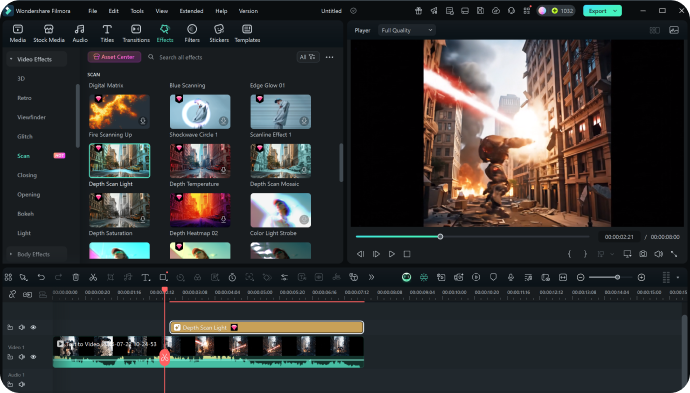
After generating your Perler bead images, use Filmora's editor and its 2.9M+ creative assets to present them properly. Add grid overlays, arrows, step numbers, and short tips. Combine close-ups, color charts, and finished photos into one video or image sequence.
- Arrange several patterns on one canvas for sets or series
- Use titles, arrows, and shapes to mark bead counts and color zones
- Apply background music and captions for full craft tutorials
- Export formats suited for social posts, shop listings, or printable references
FAQs About Nano Banana Pro Perler Beads Prompts
1. Subject – what you want to build (game sprite, pet portrait, food icon, logo, etc.).
2. Style – mention "8-bit pixel art", "Perler bead style", or "blocky grid design" so the AI keeps simple shapes.
3. Size – describe the approximate grid, such as "small 16×16 badge" or "large square poster-style pattern".
4. Colors and background – list color families and say if you want a plain or transparent background.
Combine these into one clear sentence. The more specific you are about style and size, the easier it is to translate the result to real pegboards.
How to Use Nano Banana Pro Perler Beads Prompts in Filmora?
You can design custom Perler bead patterns in a few steps using Filmora's built-in Nano Banana model. Copy a prompt, generate the artwork, then use it as a reference on your board or inside a craft video—no drawing skills required.
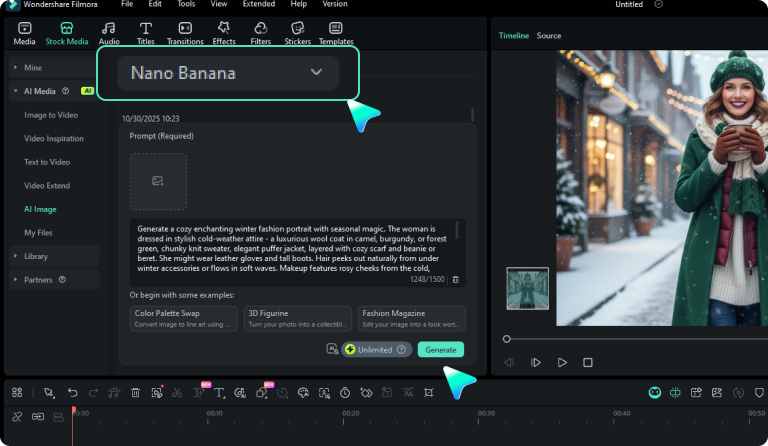
Step 1 Open the AI Image Generator
Step 2 Generate Perler Bead Designs From Text or a Reference Photo
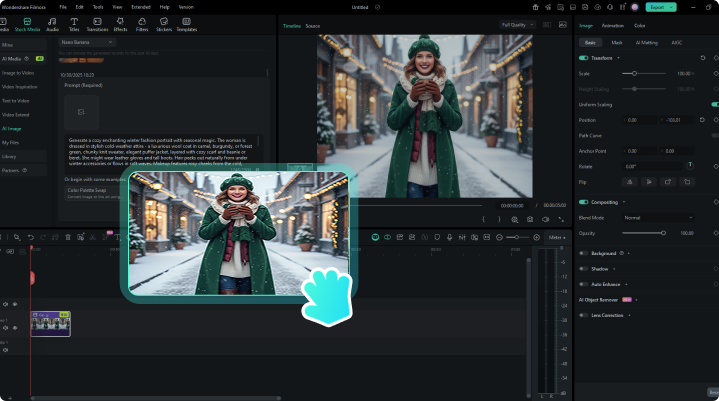
Step 3 Download, Refine, and Export Your Pattern
-
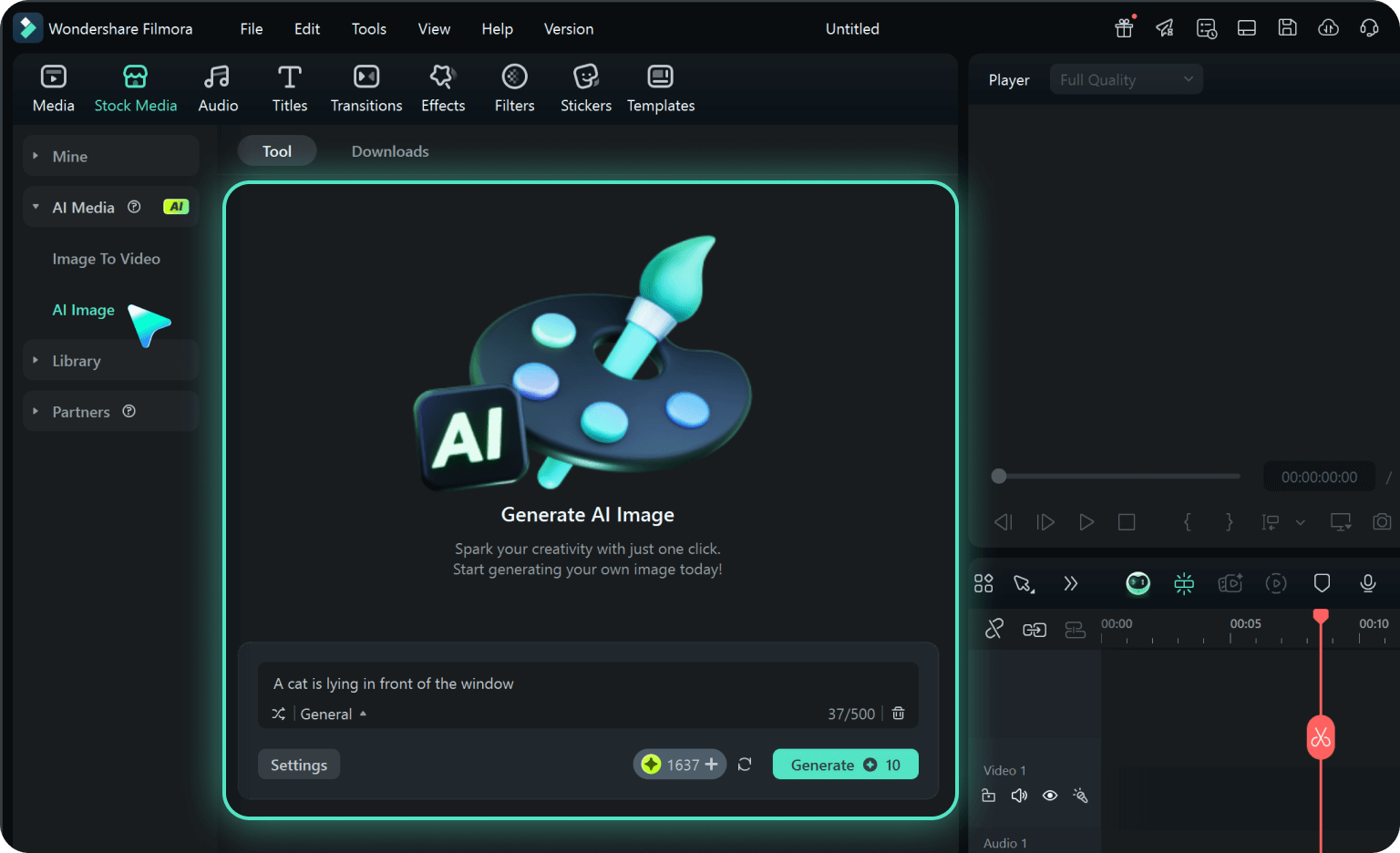
Step 1: Open the AI Image Generator
Download, install, and launch the latest version of Filmora, create a project, then go to Stock Media > AI Media > AI Image. -
Step 2: Generate Perler Bead Designs From Text or a Reference Photo
Select the Nano Banana Pro model, paste your Nano Banana Pro Perler beads prompts, and optionally upload a reference image. Click "Generate" to create bead-style artwork aligned with your description. -
Step 3: Download, Refine, and Export Your Pattern
Review the generated images, save your favorites, and move them to the timeline if you want to add grids, text notes, or step labels. Export as high-resolution images for patterns, or short clips if you're building tutorial or timelapse content.
More Than Just a Perler Bead Pattern Generator
Filmora is not only a Perler bead design helper driven by Nano Banana Pro prompts. The same workflow also works for portraits, themed family photos, holiday cards, and AI-generated videos. Build one consistent visual style for your crafts, brand, and social channels, then reuse Filmora's tools to keep everything—from bead patterns to promo clips—under one roof.