

 100% Security Verified | No Subscription Required | No Malware


 ChatGPT
 Perplexity
 Gemini
 Claude
 Grok
Grok
If you have been following the AI boom lately, you must be aware of the funniest AI name ever – Google’s Nano Banana. Google Nano Banana is the name of the image generation model powered by Google’s Gemini AI. If you ever struggled with finding the desired image quality or output with Nano Banana for image generation, the latest Nano Banana version, Nano Banana Pro, or Gemini 3 Pro Image will surprise you with how far it has come!
This article deals with the ways how to use Nano Banana Pro for free and how to use Nano Banana images to make videos.
In this article
Part 1. What is Google Nano Banana Pro?
Nano Banana Pro is Google’s latest and state-of-the-art AI image generation and editing model powered by Gemini 3 Pro. How it scores over its predecessor, Gemini 2.5 is that Nano Banana Pro is designed to create ultra-realistic, studio-quality visuals with never-before control and accuracy.
Built with PhD-level advanced reasoning, Nano Banana Pro can create factually accurate infographics and diagrams and excels at precise text rendering in multiple languages directly within the image and tops it off with professional-grade controls over lighting, camera angle, and resolution up to 4K. All this results in never-before levels of AI image generation.
Part 2. How to Use Google Nano Banana Pro on Gemini for Free?
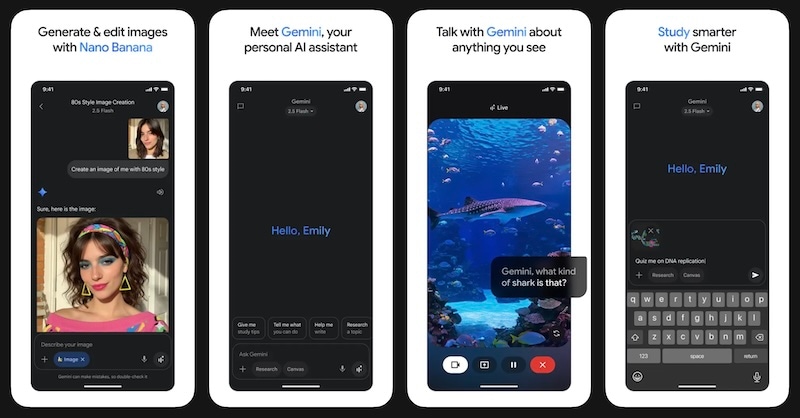
Google allows users to get a taste of Nano Banana Pro on Gemini for free. Though the offering is severely limited, users can still get an idea of what they can expect should they want to pay for using the Pro version. The Gemini AI app allows users easy access to Nano Banana Pro.
Step1Launch the Gemini app on mobile or visit the Gemini website and login.
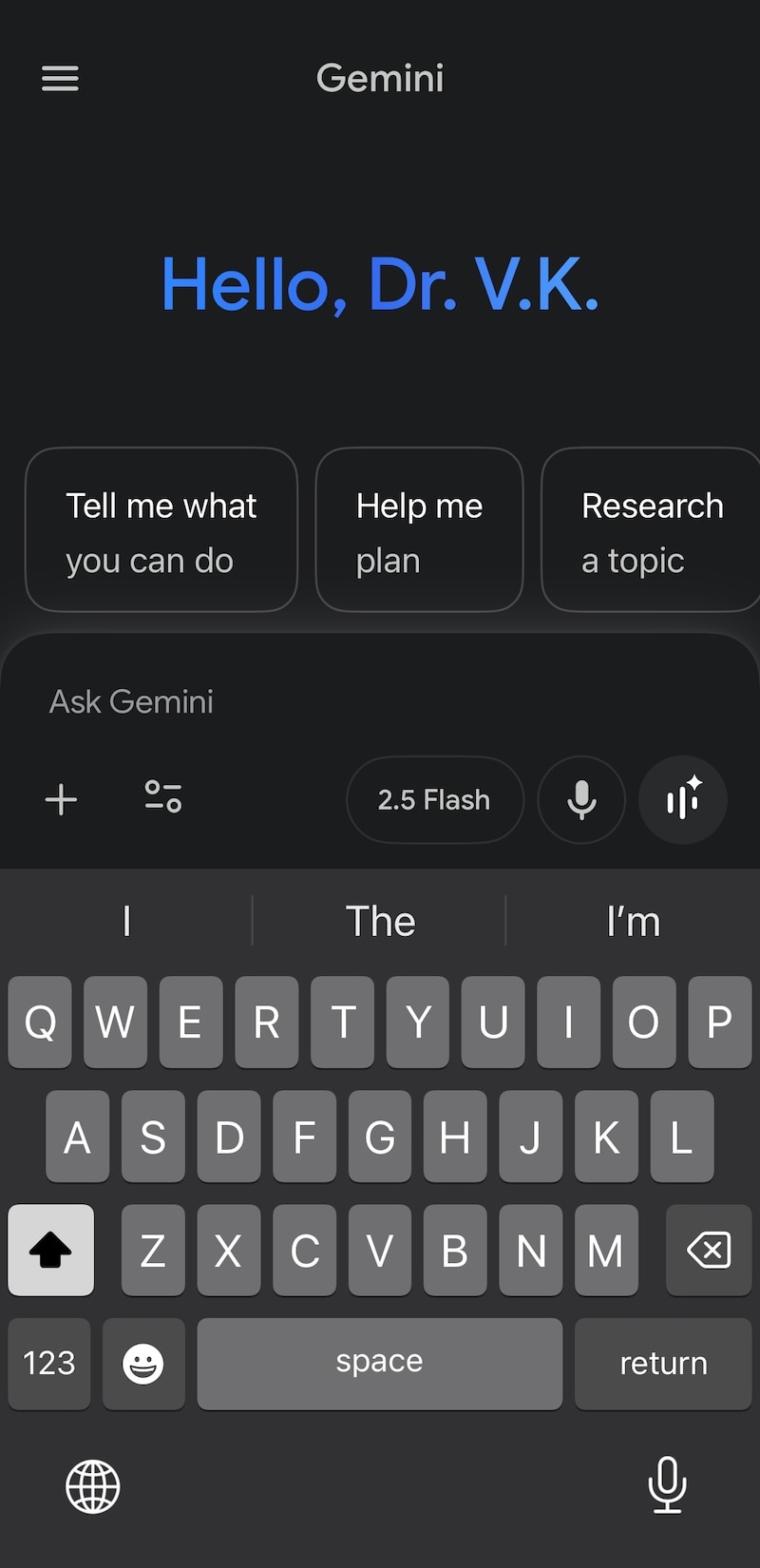
Step2Within the text box where you are entering the prompt, you will see a dropdown with ‘Fast’ already selected (web) and ‘2.5 Flash’ selected on mobile app. Tap or click that and select the Thinking model to use Gemini 3 Pro.
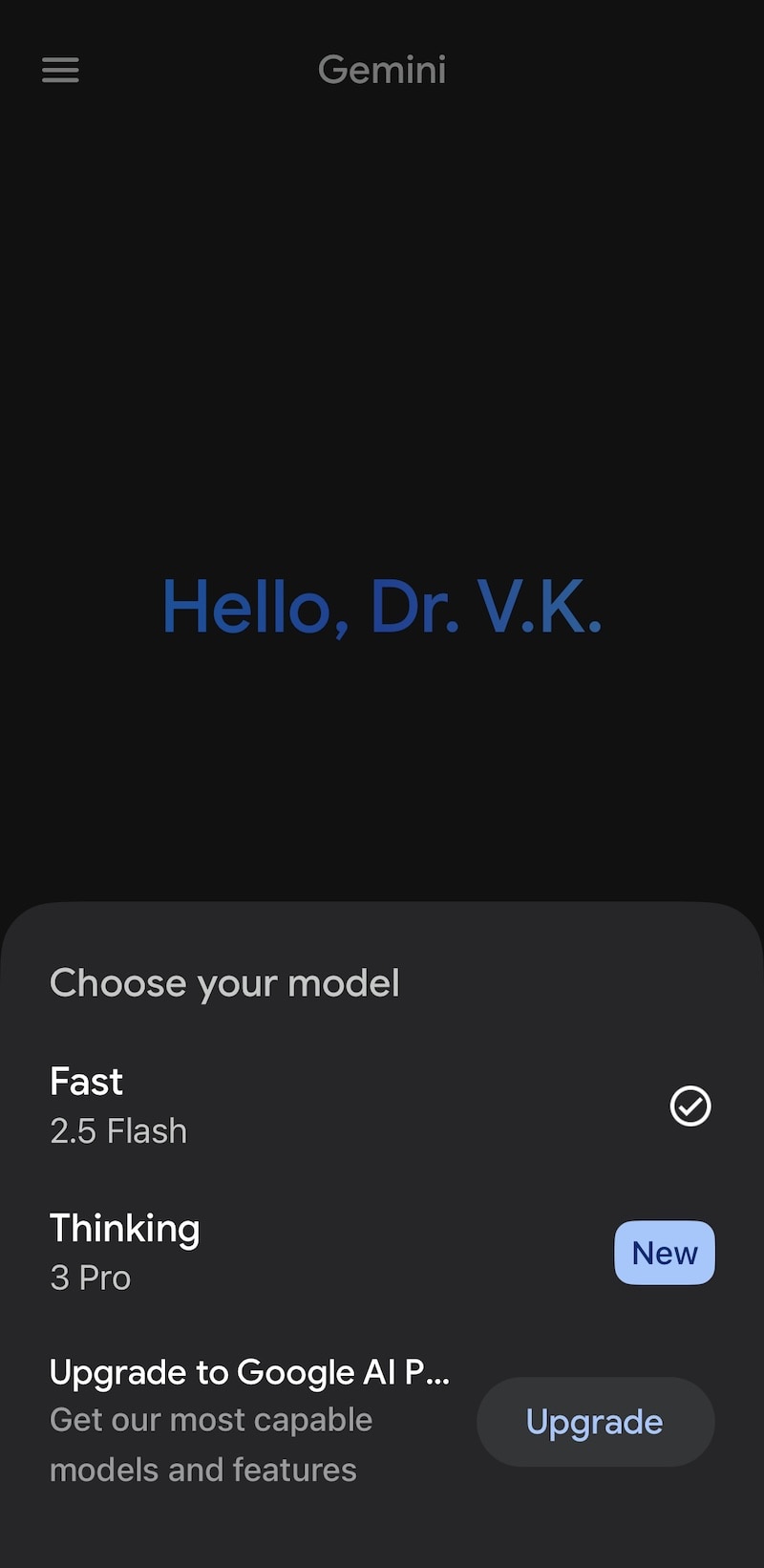
Step3Write a prompt to “create an image…” and ensure that the prompt is detailed, vivid, and clear enough.
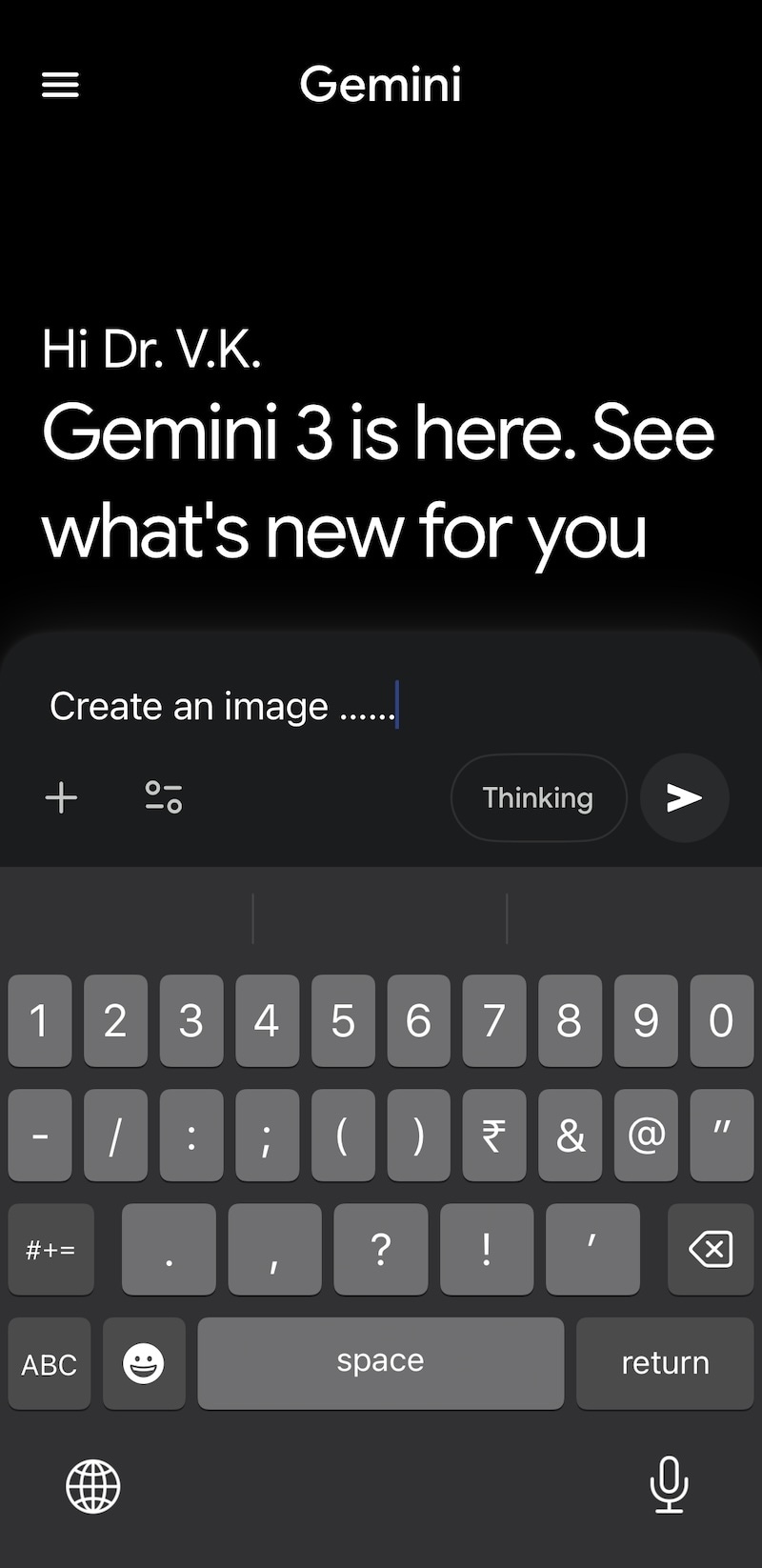
Step4Click Submit or tap to submit the prompt and let Nano Banana Pro work its magic!
Note that you will be reverted to the basic and free Nano Banana model powered by Gemini 2.5 Flash after your Gemini Pro 3 free quota is over. The free limit is around 2 images per day.
Part 3. How to Use Google Nano Banana Pro on Flow for Free?
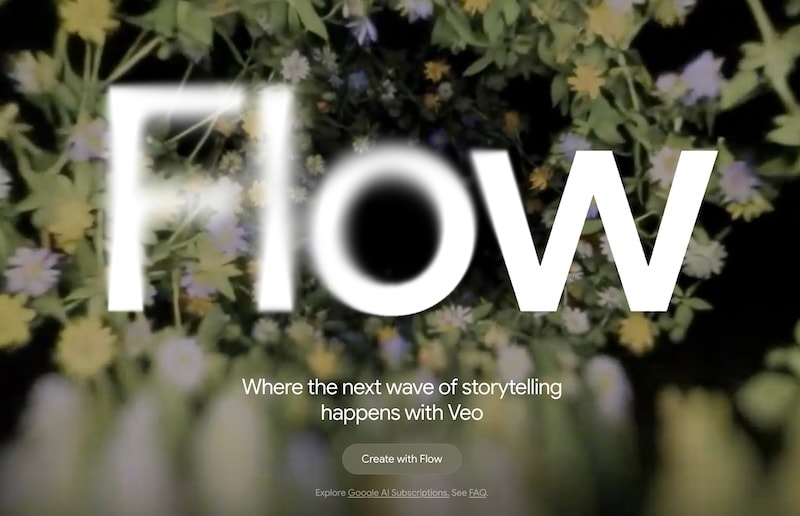
If you are into video creation, you might be thinking about how to use Google Nano Banana Pro Image in Google Flow. Well, good news! You can get a free trial of Nano Banana Pro in Google Flow! Simply look for the Get Pro or Free Trial option. Here’s how to use Nano Banana Pro in Google Flow.
Step1Go to Flow by Google on the web and log in to your account.
Step2Create a new project.
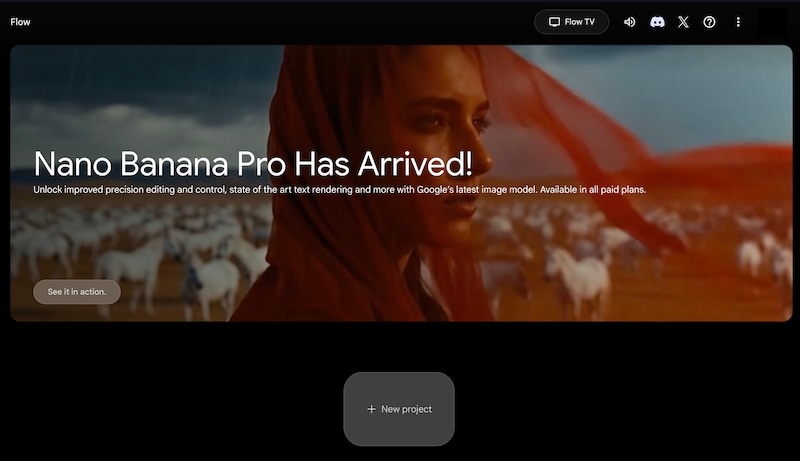
Step3In the project’s image generation panel, select Model Selector and choose Nano Banana Pro.
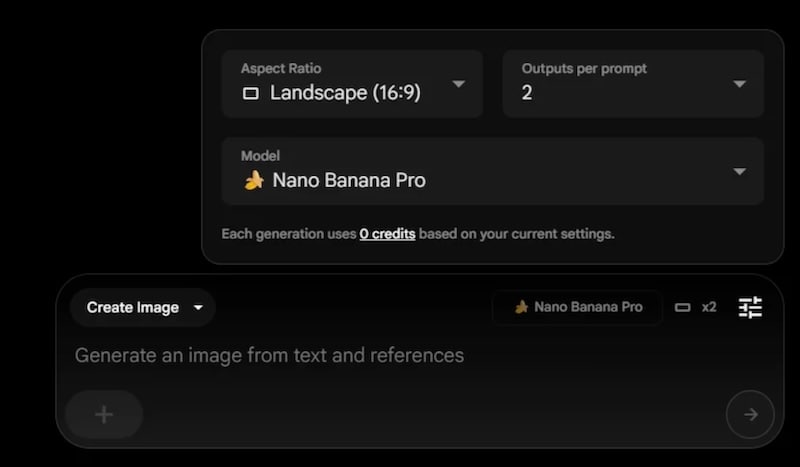
Step4Write your prompts as you do and carry on with your workflow!
Part 4. Tips to Make the Most of Google Nano Banana Free
Given that Nano Banana Pro free is so severely limited, you might want to make the most out of it. To that effect, we have some tips that you can use to get the output right the first time around! Here are some AI prompting tips to keep in mind.
Tip 1: Be Clear and Detailed
Write your prompt as legibly as possible, as detailed as possible, and avoid confusing words. Think from the artist or painter’s point of view – start big, then get into the details. Details are key; give as much as possible, the first time around itself.
For example: Create a photo from the perspective of a professional photographer using 35mm prime lens. The scene is a young boy playing with a football in a park, where he is about to kick the ball into the distance. The sky is scattered with clouds, the sun is shining, people are walking in the park, and some elderly people are sitting on the park benches.
This will give you a solid start, and you can refine from there.
Tip 2: Avoid Negative Words
There is no need to tell the AI what it need not do. Avoid the negatives and simply prompt it with what you want done. Prompt what you want and don’t what you don’t, it’s that simple!
Tip 3: Advanced Prompting
Techniques such as chain-of-thought prompting, few-shot, multi-shot and iterative prompting are how you arrive at the exact result you want out of an AI model. Given that the free version of Nano Banana Pro is so limited, you might want to use the techniques within the first prompt itself.
Part 5. Advanced Tip: How to Convert Nano Banana Pro Images to Videos
Despite the colossal progress in AI image and video generation models, the AI models are still only able to give you scenes. To make stories, you need a video editor that funnels your creative vision into a jaw-dropping output. That video editor is Wondershare Filmora, available both as desktop software and mobile app, to allow you to be your most creative self anywhere you are.
Filmora Advantages
- Complete Control: Freely export and edit in most available formats. Refine and add details, adjust anything you want anytime.
- Professional Effects with Ease: Save your prompts and instead use the millions of Filmora assets to turn your video clips to masterpieces without getting tired of prompting an AI.
- Powerful AI Tools at Your Disposal: With Filmora, you get a fully featured AI video editor along with an AI text-to-video and image generator, not to mention several other tools that make your video editing and creation experience superlative.


How to Use Nano Banana Pro in Filmora Mobile App
Filmora offers users a template-based video creation experience using Nano Banana Pro, allowing you to get the output you want in seconds, without having to hum and haw much.
Step1Launch Filmora mobile app and tap Templates at the bottom.
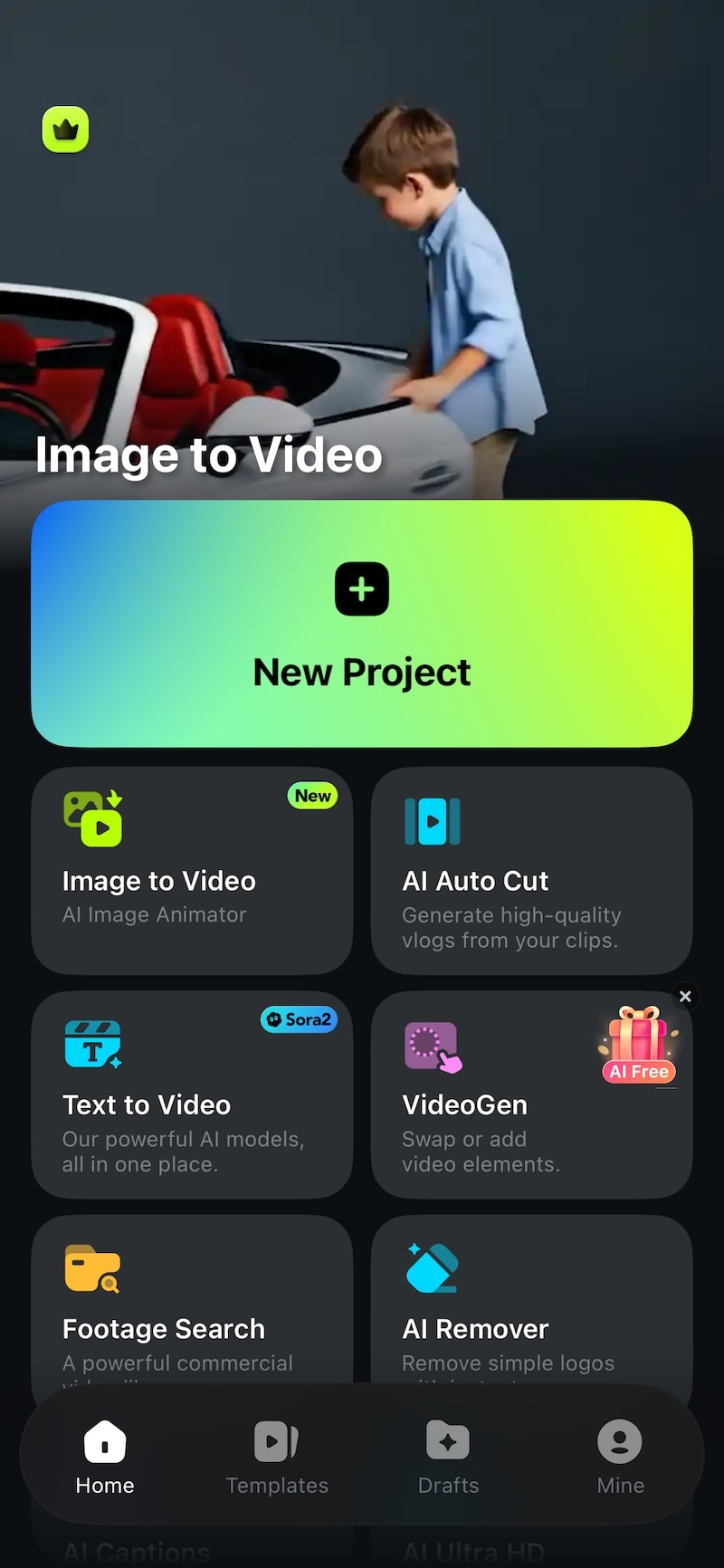
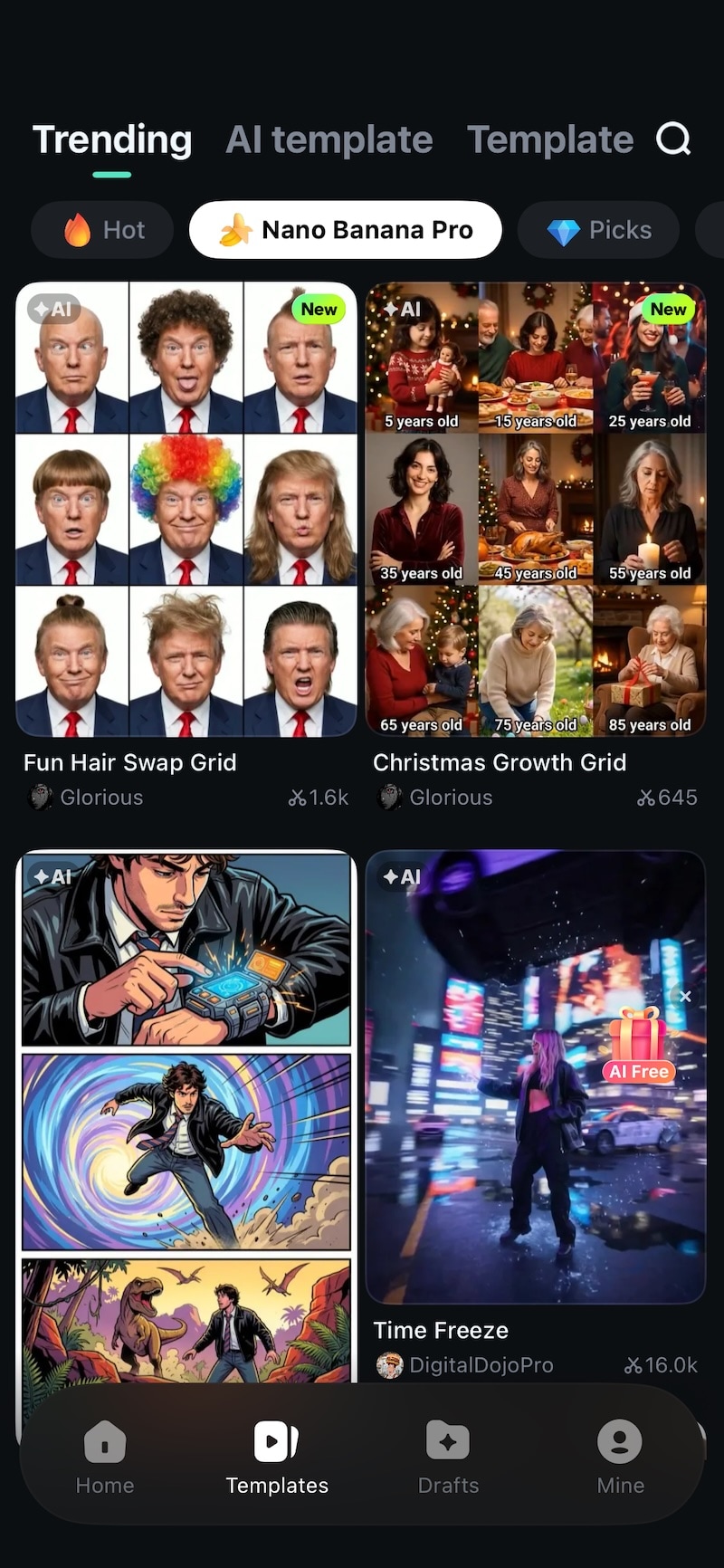
Step2Tap Nano Banana Pro at the top and select the desired template you want to use.
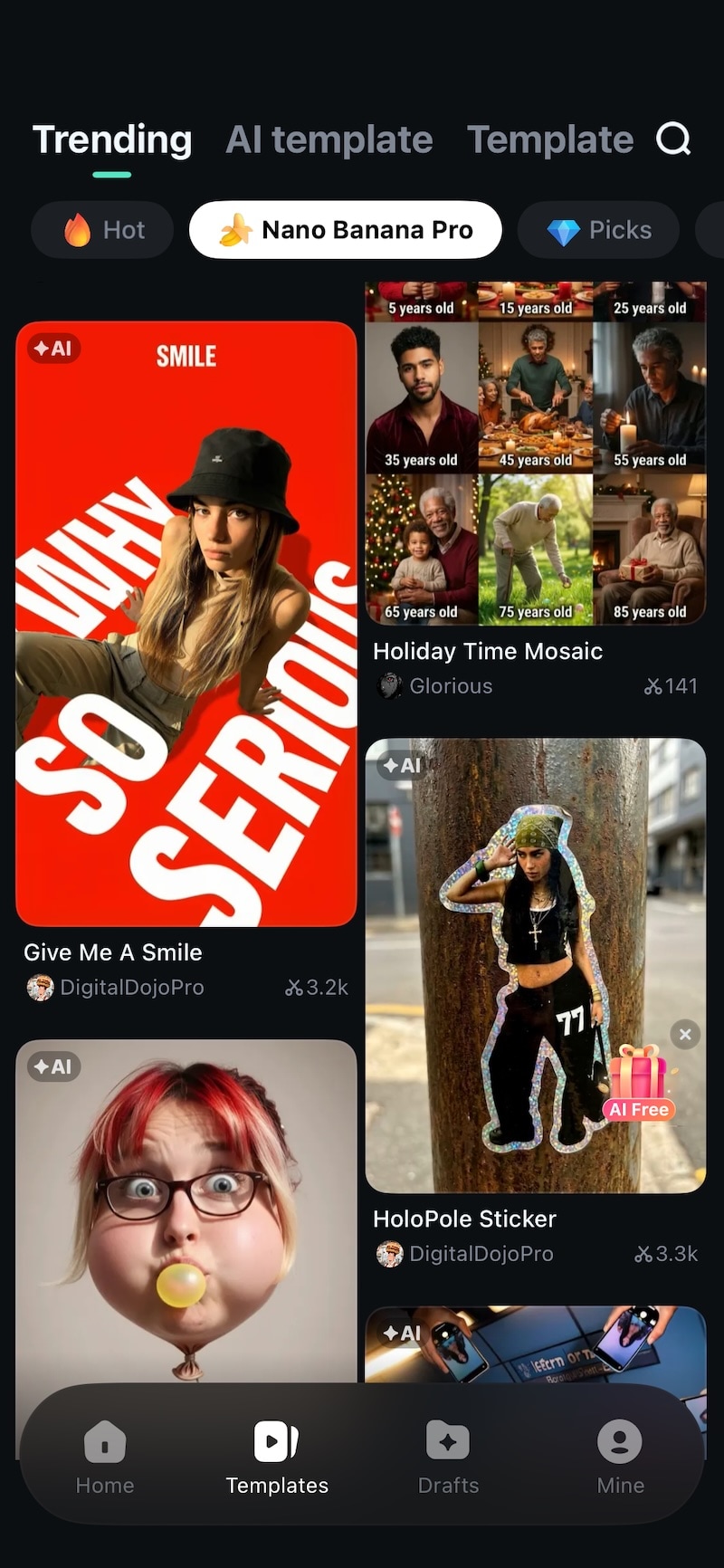
Step3Tap Use and then add your prompt. Once done, tap Generate.
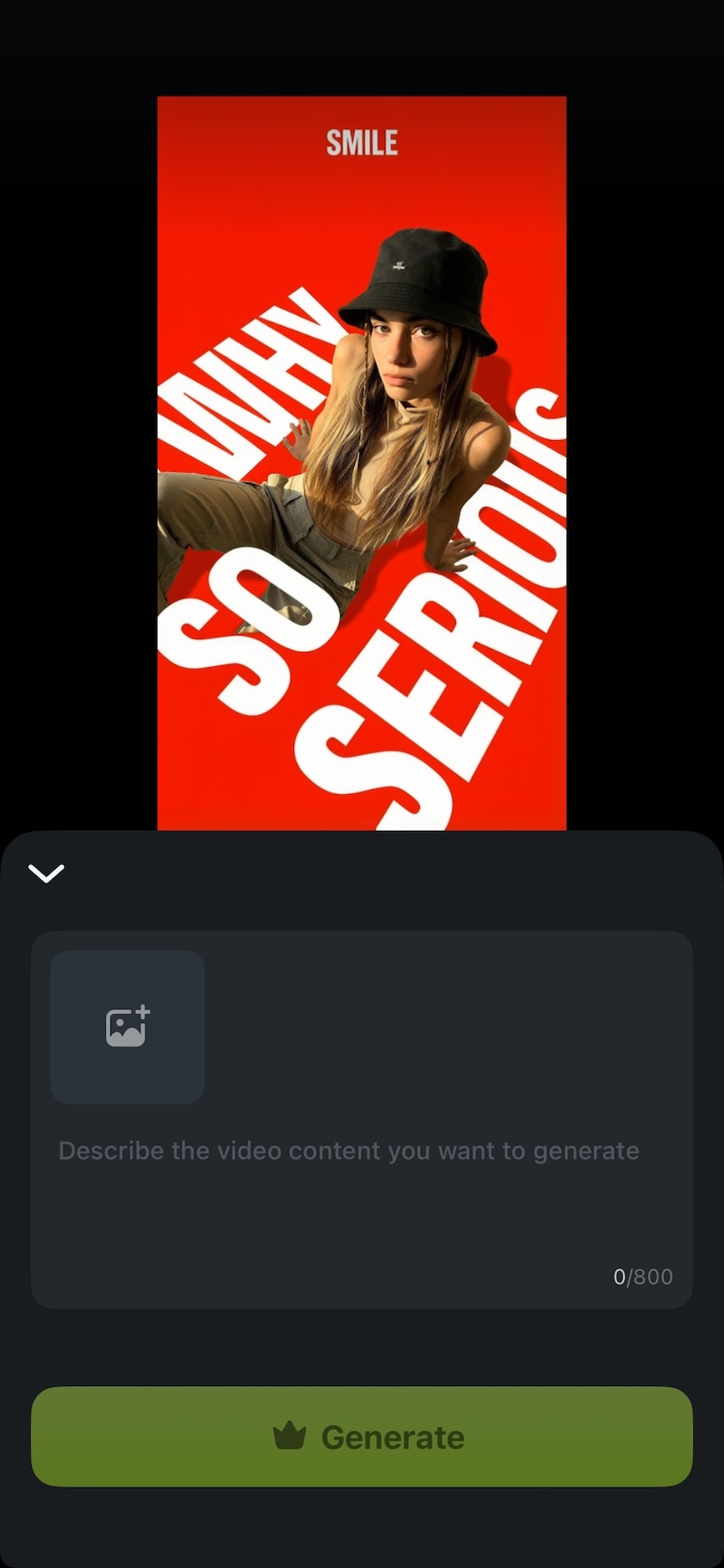
Here are some before-after results created using Nano Banana Pro templates in Filmora mobile:
Input Image 1

Output Video 1
Input Image 2

Output Video 2
Input Image 3

Output Video 3
How to Use Nano Banana Pro in Filmora Desktop
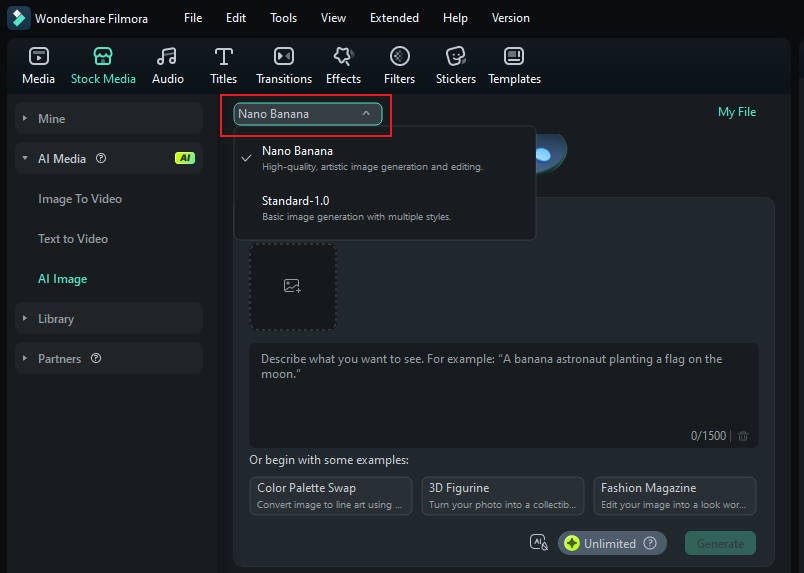
Starting with Filmora version 15.1.0, you can get access to Nano Banana Pro in Filmora desktop as well. Here’s a sneak peek of the same:
Conclusion
Now that we have explored the power and potential of Google Nano Banana Pro, and learnt how to harness it, it is time to take the next leap forward and use the newly enabled capabilities to transform your Nano Banana Pro images into captivating video content with Wondershare Filmora. Acces to Nano Banana Pro is enabled in the mobile version as we speak, and for the desktop, support for Nano Banana Pro will come starting version 15.1.0. What are you waiting for? Start using Filmora mobile with Google Nano Banana Pro Image today and watch your creative output soar!
