

 100% Security Verified | No Subscription Required | No Malware


 ChatGPT
 Perplexity
 Gemini
 Claude
 Grok
Grok
Quick answer: To use Nano Banana, open Google AI Studio, select the Gemini 2.5 Flash Image model, write a clear prompt with subject, action, setting, and style, then click Run to generate or refine an image. You can also upload reference images for image-to-image edits, save outputs as PNG, and bring Nano Banana images into Filmora for AI Image or AI Image to Video workflows.
Nano Banana, which is a common term for the community referring to Google's Gemini 2.5 Flash Image generation, is the future of AI image generators capable of creating stunning visuals just from the textual descriptions given. In case you want to come up with unique art pieces, just enhance the current pictures, or even blend the different images seamlessly, Nano Banana is at your disposal with a multi-functional set of tools for creative expression. Besides text-to-image generation, the core functionalities of the system also involve image editing and transformations, retaining character consistency across different outputs, and blending various images for intricate compositions.
This simple-to-use guide is just right for artists, content creators, marketers, and AI fans who are eager to utilize AI's power in the most engaging way of visual storytelling. In comparison to other AI instruments like MidJourney and DALL-E, Nano Banana is more of a speed, consistency, and flexibility type, which perfectly suits the need for both work and play. You will find here a detailed guide through which you will be able to start promptly, grasp its distinctive characteristics, and release your creative power with Nano Banana.
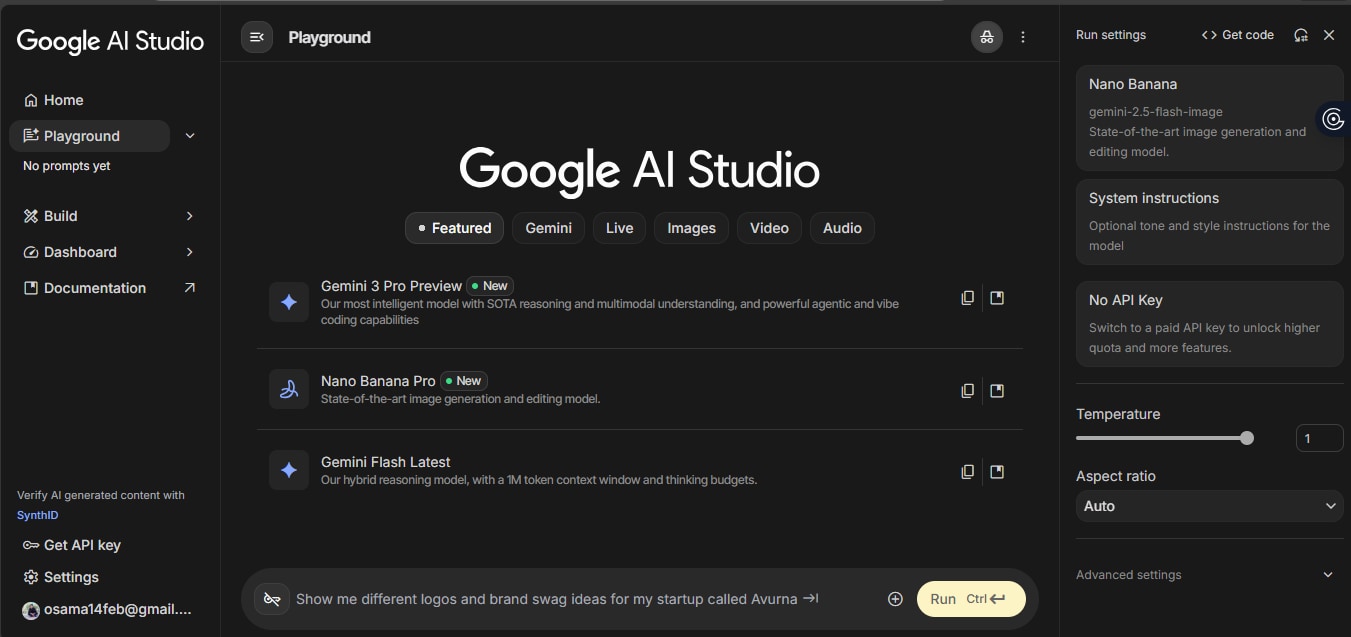
Table of Contents
Quick Comparison: Nano Banana Workflows
| Workflow | Best for | Main steps |
|---|---|---|
| Google AI Studio | Generating Nano Banana images directly from prompts | Log in, choose the Nano Banana model, set options such as temperature or aspect ratio, enter a prompt, and click Run. |
| First prompt | Beginners creating a first image quickly | Use the formula Subject + Action + Setting + Style, then generate and refine the result. |
| Image-to-image | Editing or transforming existing images | Upload an image, describe the desired edit, and use Nano Banana to change style, background, subject, or composition. |
| Filmora workflow | Turning Nano Banana visuals into edited videos | Generate images with Filmora AI Image, then use AI Image to Video, arrange clips, preview, and export. |
Part 1: Using Nano Banana on Google AI Studio
Here's how to use Nano Banana:
Step 1Create Your Account or Log In
To begin using Nano Banana, visit Google AI Studio. You can sign in using your existing Google account. The platform is available via web, making it accessible from both desktop and mobile browsers. Once registered, simply log in to access the full suite of Nano Banana features.
Step 2Navigating the Dashboard
The primary navigation panel on the left after the login offers quick access to the main sections like Home, Playground, Build, Dashboard, and Documentation that help you easily navigate through the features.
The central part, called Playground, is the place where you have the model interaction. AI model selection, like Nano Banana or Nano Banana Pro, can be done by you, and in the text box at the bottom, you can write your prompt. Creativeness can be controlled by Temperature, Image size by Aspect ratio, and if you want, you can go to Advanced settings for a detailed setting. The execution of your command by clicking Run will get you holding the needed image that will be shown to you in the same section.
There are some other features on the dashboard that you will find useful, such as:
- Model selection to allow easy switching between different AI engines for getting the best results.
- System instructions used for changing the model’s tone, style, or focus.
- API Key section for allowing the user to open more quotas and access premium features.
- Clear history of previous prompts in Playground for quick reference and continuation of work without loss of time.
Step 3Understanding the Subscription models
Nano Banana implements a credit-based system for picture and video production. The plans available come with a certain number of credits per month, and one can make use of these credits for image generation, video creation through Flow and Whisk, or AI background removal. The accounts that are free have the feature of limited usage and this is only for testing purposes, whereas paid plans open the possibilities for you to get higher quality outputs, have access to more features and additionally, get more credits.
- Free plan ($0/month): Limited feature with 100 monthly AI credits, giving the user the possibility to test image generation, video creation, and AI background removal. The use of this plan is suitable for casual users only.
- Pro plan ($19.99/month): (One year free of charge for college students) 1,000 monthly AI credits for extensive access to Nano Banana Pro, Flow, and Whisk. Besides the image-to-video creation feature, it also comprises deep research capabilities and the integration with Gemini apps like Gmail, Docs, and Canvas.
- Ultra plan ($249.99/month or $124.99/month for 3 months): 25,000 monthly AI credits for large-scale creators. This is the package that gives you the maximum access to video generation with Veo 3.15, Gemini Agent, advanced Deep Think features, and the priority usage limits across Flow, Whisk, and NotebookLM.
Part 2: The Fundamentals: Your First Nano Banana Prompt
Here’s the Nano banana prompt guide for you to generate AI images swiftly.
Step 1Understand the basic prompt formula
Nano Banana works best when your prompts are clear and structured. Use this simple formula:
[Subject] + [Action] + [Setting] + [Style]
This ensures the AI knows exactly what to generate and gives you consistent results.
Step 2Write a simple descriptive prompt
Start with an easy prompt using the basic formula. Example:
- Subject: dog
- Action: playing
- Setting: sunny park
- Style: cute, cartoon-like
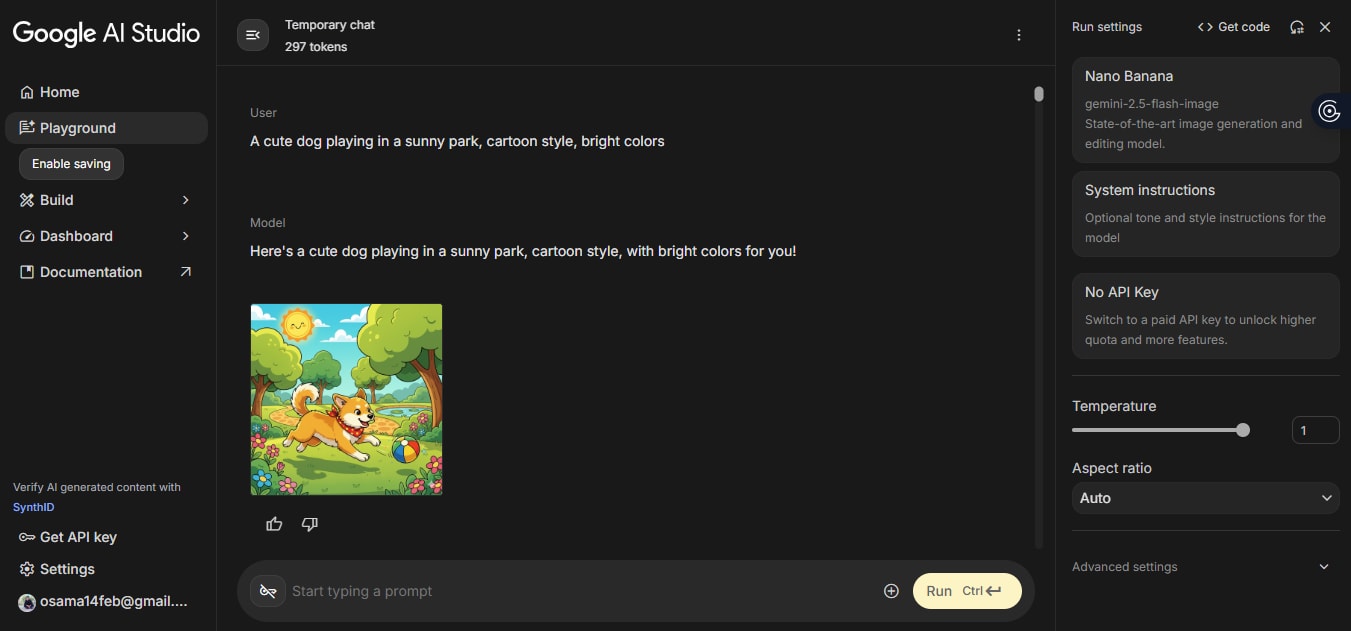
Prompt example: "A cute dog playing in a sunny park, cartoon style, bright colors"
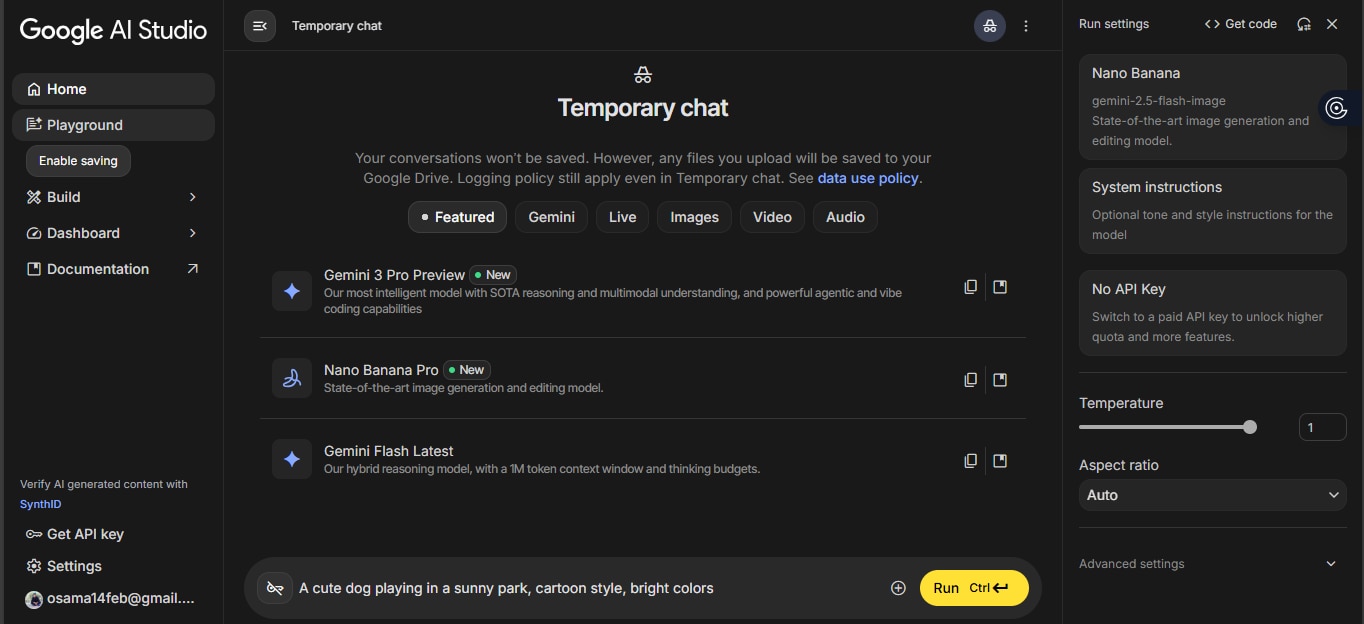
Step 3Generate your first image
Click Run. Within seconds, your AI-created image will appear in the chat panel, ready to download or refine.
Part 3: Nano Banana Prompt Mastery Guide
Unlock the secrets in this Nano Banana guide to crafting precise and creative prompts that make Nano Banana generate stunning images.
Basic prompt structure
A properly constructed Nano Banana prompt features a clear and explicit plan that demonstrates to the AI the least amount of work necessary. Therefore, start with describing the subject (the entity/person/object in the picture), then point out the action (what is being done), next, talk about the environment or location (where it is happening), and finally, describe the style or look (what is the appearance). Using this format enhances the precision of your requests and as a result, the chance of getting the visual outputs that resemble your ideas is greater.
Essential prompt elements
To achieve great results, you should have very detailed prompts. Clearly describe your subjects by giving them unique features, picking up dynamic actions that show some kind of movement or feeling, offering a detailed environment to create the scene, and requesting a style or artistic notion like a certain art movement, camera angle, or visual aesthetic. By using these four components, your prompts become more descriptive and thus help Nano Banana to generate top-notch, visually appealing images.
Advanced Prompt Techniques
Take your prompts to the next level with these tips:
- Weighting: Use parentheses ( ) to emphasize important parts of the prompt
- Negation: Add --no or similar terms to exclude unwanted elements
- Style fusion: Combine multiple artistic styles in one prompt (e.g., "watercolor + cyberpunk")
- Reference images: Provide visuals to guide the AI toward a specific look
Mastering these steps allows you to create highly detailed and customized images with Nano Banana, making your prompts more precise and creative.
Part 4: Detailed Key Features of Gemini 2.5 Flash Image (Nano Banana)
Here are few more key features of Nano Banana:
- Consistent subject identity: With ease, you can keep the same character, person, or object across multiple pictures. If you are presenting a product line, creating brand assets, or telling a visual story, Gemini retains the flow and logic of the story, so your subjects are the same people that your viewers can recognize immediately even if they are different scenes, angles, and contexts.
- Prompt-based intelligent editing: Simply by using text prompts, you can make very accurate edits. Unwanted objects can be removed, poses can be changed, specific parts of a picture can be altered, or elements of a scene can be completely transformed without the need for complicated manual selection tools. This feature gives the ability to creators to a targeted, intuitive manner to make changes in a matter of seconds.
- Advanced visual reasoning: Use Gemini's thorough image interpretation together with its potent creation abilities. Carry out complicated visual operations such as solving equations that are hand-drawn, creating detailed infographics, or following complicated editing instructions. The model understands the context and content in a smart way and therefore, it produces the results which are beyond simple image generation.
- Full lighting and camera control: With complete control over lighting, focus, camera angles, and depth of field you can change the atmosphere of your photographs. A bright sunny day can be changed into a dramatic night scene, key subjects can be lit up with the help of selective focus, or you can experiment with cinematic perspectives for professional-grade compositions.
- Instant style transfer: Very quickly, you can put the texture, color palette, or the artistic style of any reference image onto your works. Without starting from scratch, you can experiment with different aesthetics by rethinking your visuals in a matter of seconds to get unique artistic looks or to match the desired mood.
- Seamless photo combining: With no trouble combine the shots that you took into one, flowing piece. Whether you are blending two selfies, combining products for mockups, or layering backgrounds for creative projects, Nano Banana Pro makes sure that each element is natural and realistic.
- Advanced text rendering: Put clear, accurate, and visually integrated text that can be understood in different languages. This feature is perfect for professional posters, invitations, logos, comics, or educational infographics and it also ensures that words look like they are naturally placed within your visuals without interrupting the design flow.
- Platform-ready resizing: Make your image the perfect size for any platform—be it social media, a presentation, a website, or print—while keeping important details of the picture. You can keep a polished, professional look of different formats, save time, and be sure of the consistency of all your outputs.
- Enhanced world knowledge: Use Gemini’s deep understanding of the world to come up with the most context-aware, correct, and lifelike outputs. This is perfect for the creation of infographics, diagrams, educational visuals, or any other case in which you need to be exact and trustworthy.
- Built-in trust and safety: Invisible SynthID digital watermark is there for every image that is generated or edited, thus ensuring transparency, authenticity, and reliable AI identification. This built-in safety feature gives both creators and the end users, who may be unaware of it, the feeling of security, thus helping the responsible use of AI-generated content.
Part 5: Using Image-to-Image with Nano Banana
Nano Banana's Image-to-Image feature is a great way for users to take their existing images and create new ones in no time and with great accuracy. Users can try different looks, cut out the subject, delete the background or replace it, and change any part of the image without breaking a sweat.
The AI comes up with top-notch, professional-grade visuals that are optimized for the web and can be used right away on social media, websites, or marketing projects. Nano Banana has a user-friendly interface for beginners and does all the complicated work. Just upload a picture, type in a prompt, and see the result.
Part 6: Common Beginner Mistakes & How to Fix Them
Here are common beginner mistakes & how to fix them:
- Vague prompting: Using a prompt such as "make something cool" usually produces standard or disappointing outputs. To solve this issue, it is better to give clear and specific descriptions that explain the subject, the action, the setting, and the style so that the AI will have more accurate guidance.
- Over-complicating prompts: If you have too many elements that conflict with each other in one prompt, the AI may get confused, and the result will be an unclear image. Try to simplify your instructions and limit the number of your ideas to get a cleaner result.
- Style confusion: The use of different styles for the same piece to combine them sometimes results in images that look chaotic from a visual point of view. You should either use complementary styles or style weighting if you want to transition from one style to another.
- Character inconsistency: When you create several images of one character, you may end up with very different looks of the same character. To keep the same character in all outputs, you should use detailed attributes and reference images.
- Output quality issues: Blurry, distorted, or low-quality images can be a result of a complicated prompt, especially if the resolution is high. To get a higher quality and professional-grade image, you can change the resolution, tweak your prompt, or go for the advanced settings of Nano Banana.
Part 7: Saving, Exporting & Using Your Images
It is very necessary to save your images after a short time in Nano Banana, as creations are only kept for a limited time. From the dashboard, you can save pictures in widely used formats such as PNG.
After that, your pictures are allowed to be shared on any social network, marketing materials, lectures, or other design projects that you may have, thus giving you the utmost freedom for any artistic applications.
Part 8: How to Use Nano Banana on Filmora
Filmora is a widely used video editing software that runs on both Windows and macOS. It is intended to be a user-friendly application that still has a powerful set of editing tools. The software supports common editing features such as trimming, splitting clips, adding transitions, titles, text effects, overlays, and audio editing, thus making it usable for anything from a simple vlog to a marketing video. In addition, Filmora provides a huge built-in library of effects, templates, audio tracks, and media elements, which makes the creative process very easy even for beginners.
In recent development, Filmora has diversified its product line with AI-powered editing tools. Among the features are AI-assisted editing, image generation, and background removal, which offer creative flexibility beyond the realm of traditional video editing.
Key Features
- Easy media handling: Filmora allows drag and drop of images, videos, and audio — so after creating an image with Nano Banana, you can effortlessly bring it into Filmora's media library and place it directly in your video timeline.
- Flexible editing tools: Using Filmora, you can blend AI-generated pictures with footage, overlays, words, transitions, and background music — a perfect approach for fashioning social media content, brand videos, promos, or narrative videos.
- Built-in templates & effects: Filmora's collection of templates, text effects, transitions, and stock media is a great tool for amateurs looking to enhance their videos without advanced editing skills.
- AI enhancements + image generation support: Filmora has integrated AI image generation (powered by Nano Banana) in its "AI Image" feature, thus users can now generate and edit images in a single platform.
- Good for different kinds of videos: The combination of AI image creation + editing versatility makes Filmora + Nano Banana a handy workflow for you, whether it be social media reels, product promos, tutorials, or personal projects.


Basic Tip: Using AI Image
The process of producing AI images has never been simpler, and with Nano Banana, you are able to generate visuals fast for videos, social media, or presentations. Just go through these easy steps to begin and utilize your AI-generated images to the fullest.
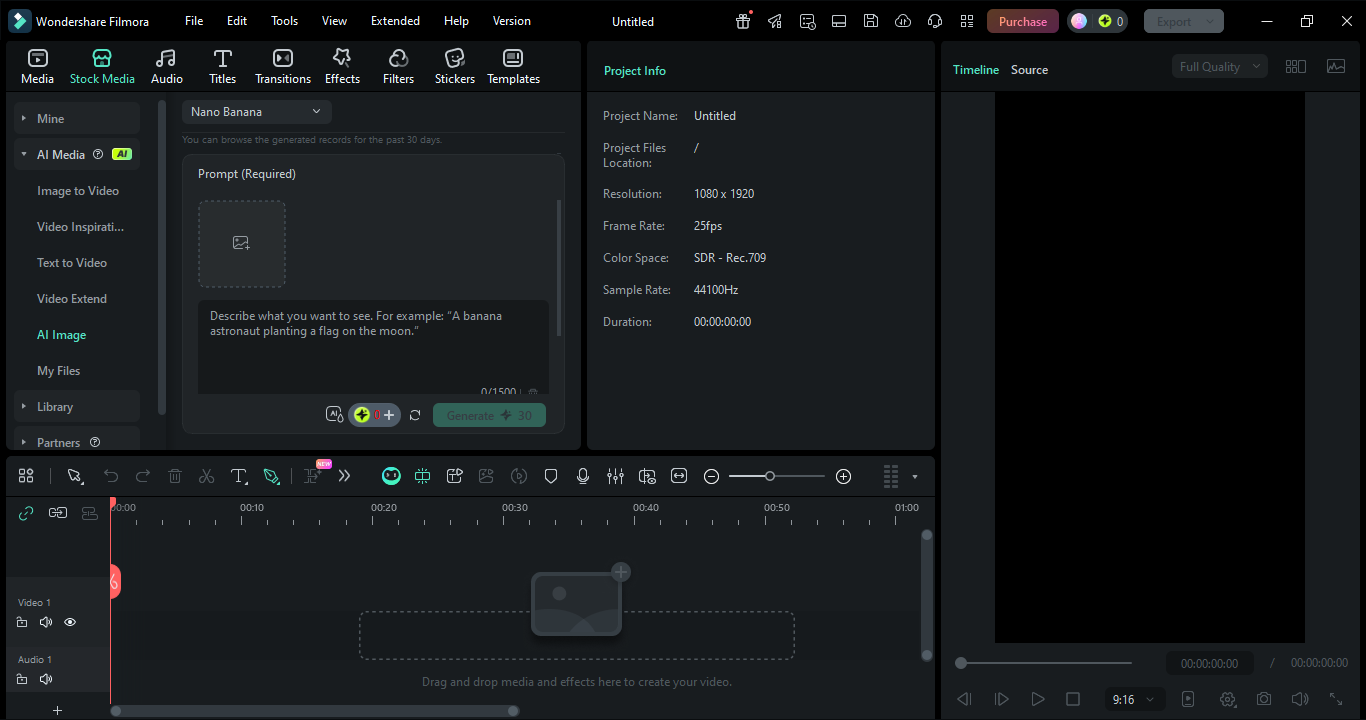
Step 1Open AI Image Mode
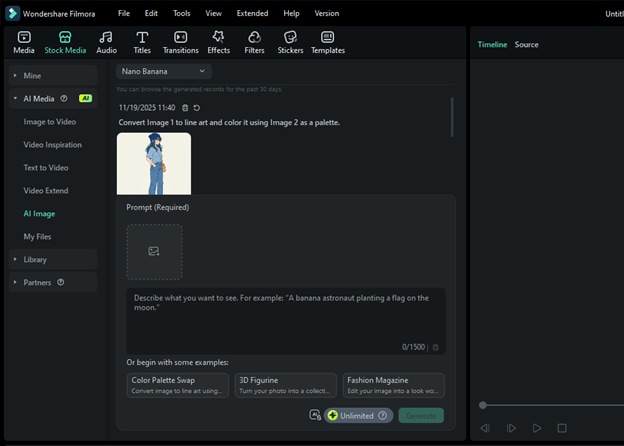
Launch Filmora and navigate to the AI Image feature. Choose the Nano Banana model to generate an image from a prompt.
Step 2Enter your prompt
Type a clear and descriptive prompt in the text box. Be specific about the subject, action, environment, or style to get better results. For example, "A cat on the grass with sky blue background."
Step 3Generate the image
Click Generate and wait for Nano Banana to create your image. Your generated image will appear in the preview window.
Advanced Tip: Using AI Image to Video to Turn Nano Banana Images into Videos
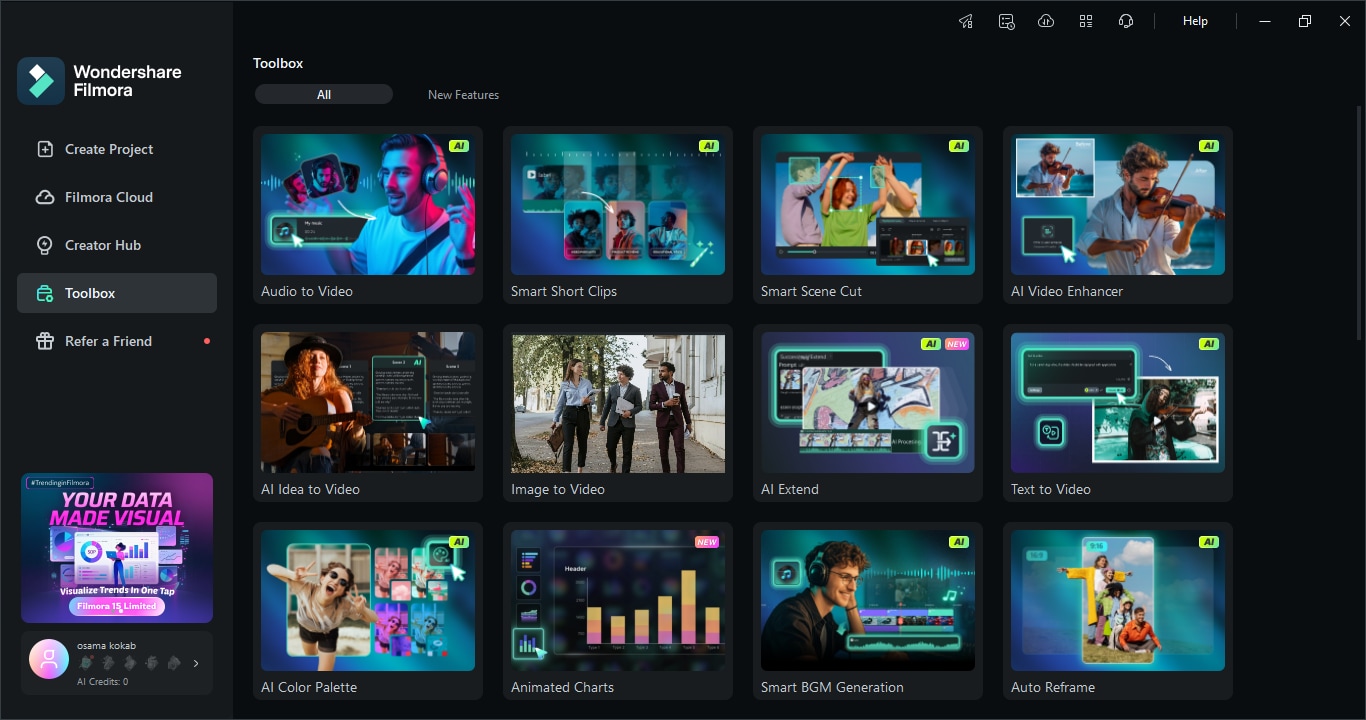
Use the AI Image to Video feature of Filmora to easily convert your Nano Banana pictures into compelling videos. Make your pictures move, include effects, and save the videos of top-notch quality in no time.
Step 1Import your Nano Banana photos
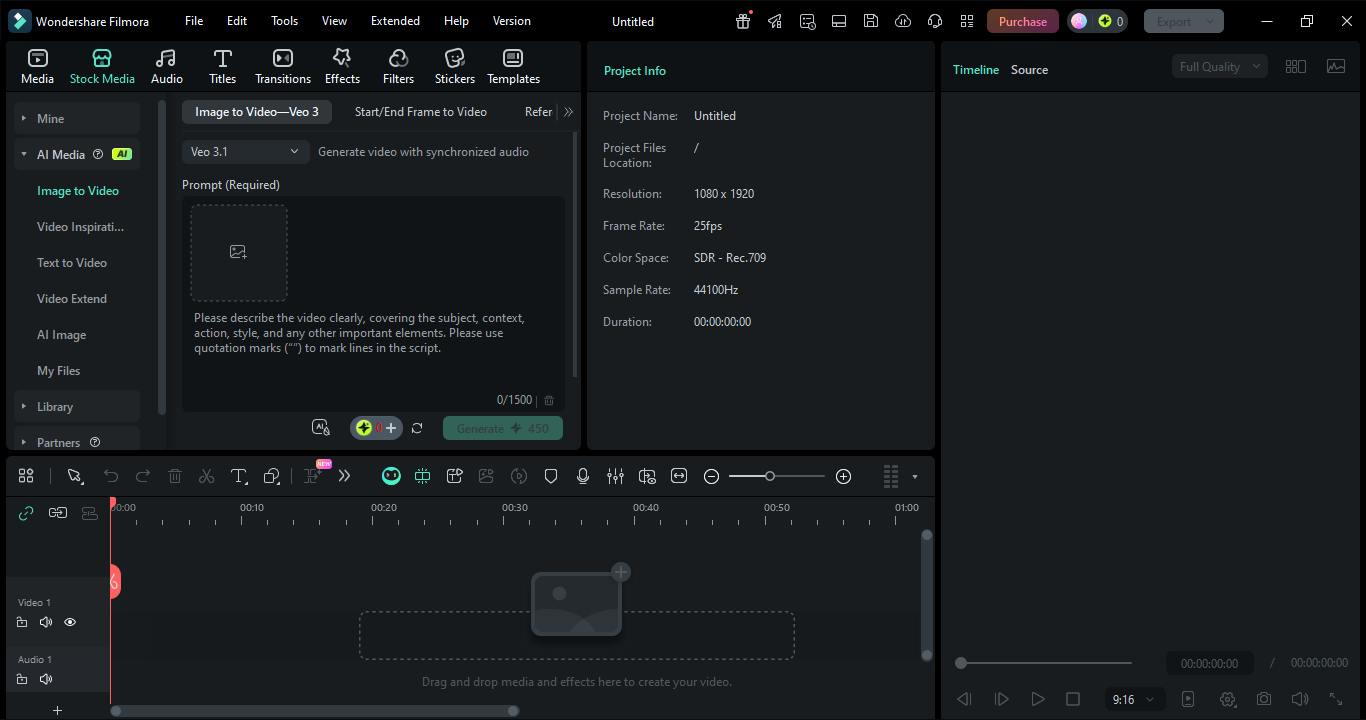
Launch Filmora and choose AI Image to Video. Click on the images you want to use for your video.
Step 2Animate and arrange
Choose desired AI models such as Sora, Veo 3 or standard. Upload an AI-generated image and click on Generate.
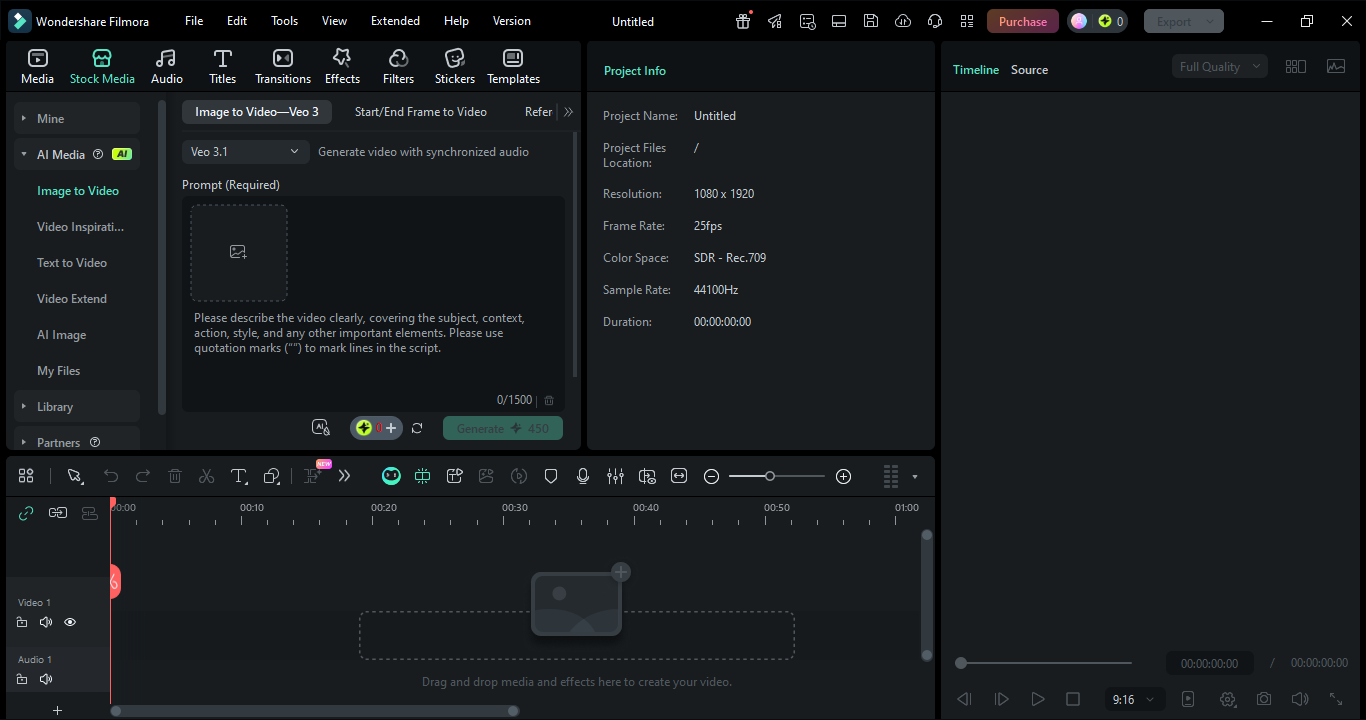
Step 3Preview and export
Click on Export. Choose your preferred resolution and format for sharing on social media or other platforms.
Conclusion
Nano Banana AI offers a powerful, beginner-friendly platform to create stunning images and bring them to life as videos. By mastering basic and advanced techniques—from crafting precise prompts to using AI Image to Video in Filmora—you can transform ideas into professional-quality visuals effortlessly. Whether you're generating images for social media, marketing, or creative projects, combining Nano Banana's capabilities with Filmora's editing tools ensures your content stands out with speed, clarity, and style. Start experimenting today to unlock the full potential of AI-powered creativity.
FAQ
-
What is Nano Banana?
Nano Banana is described in this article as the community term for Google's Gemini 2.5 Flash Image generation. It creates images from text prompts and supports editing, transformations, character consistency, and image blending. -
How do beginners write a good Nano Banana prompt?
Beginners should use the structure Subject + Action + Setting + Style. The article's example is a cute dog playing in a sunny park in a cartoon style with bright colors. -
Can Nano Banana images be turned into videos?
Yes. The article explains that users can create images with Nano Banana, bring them into Filmora, and use AI Image to Video to animate, preview, and export the result for social media or other platforms.
