

 100% Security Verified | No Subscription Required | No Malware


 ChatGPT
 Perplexity
 Gemini
 Claude
 Grok
Grok
If you shoot fast-paced travel and action content on the Insta360 X4, a strong set of LUT-style filters is the fastest way to get bold, cinematic color without fighting sliders for hours.
Below are curated filter looks tuned for 360 adventure footage, from sunlit mountain lines to low-light city rides, so you can lock in a style that fits your channel and apply it in a click.
In this article
Golden Hour Ridge Runs and Sunset Trails
Sunflare Trail Pop
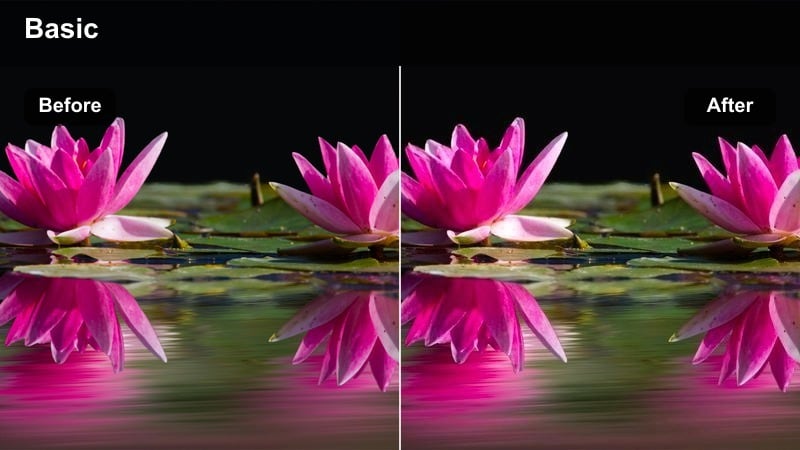
- Effect look: Warm, punchy colors that intensify orange skies and glowing highlights while keeping riders crisp.
- Best for: Mountain bike descents, ridge hikes, and trail runs shot at sunrise or sunset.
- Editing tip: Slightly lower contrast if your horizon is clipping and add a touch of vignette to keep focus on the subject.
Sunflare Trail Pop is built to squeeze every bit of drama out of golden hour Insta360 X4 footage. It amplifies orange and amber tones in the sky, pulls warmth into midtones, and adds just enough contrast that ridgelines and riders separate cleanly from the glowing background. Because the look is tuned for 360 action, it keeps detail in helmets, bikes, and trail textures instead of turning them into silhouettes against the sun.
In Filmora, apply Sunflare Trail Pop to your base-corrected X4 clips, then nudge overall contrast down if the horizon or sun is starting to blow out. Use a subtle vignette and a touch of sharpening around your main subject so they stay the visual anchor as you reframe the 360 video. For dynamic sequences, keyframe filter intensity to peak right as you crest a ridge or drop into a descent for maximum impact.
Match Insta360 X4 Filters to Your Channel Style with AI
If you are not sure which Insta360 X4 LUT-style filter aligns with your channel, Filmora's AI color tools can analyze a reference clip or a favorite creator video and build a matching palette. This gives you a concrete target for your grades instead of guessing with random presets.
After Filmora generates the palette, cycle through the filters on this page while watching your scope readouts. Keep the looks that sit closest to that AI palette, then fine-tune intensity, contrast, and saturation so they become repeatable, on-brand presets you can apply across whole trip edits.
 secure download

Preview Adventure Filters on Real 360 Action
Static thumbnails rarely show how a filter will cope with the speed and exposure swings of real Insta360 X4 adventures. Drop a few short clips into Filmora, then scrub the timeline while cycling through the presets in this guide to see how they react as you pan, reframe, or swing past the sun.
Pay attention to how well detail holds in bright skies, dark tree cover, and fast foreground objects. Keep the filters that stay clean throughout the motion, and avoid looks that break down into banding, oversharpening, or color noise once your subject starts moving quickly.
secure download1000+ Video Filters and 3D LUTs
Filmora includes a large library of creative filters and 3D LUTs you can stack with your Insta360 X4 looks. Start with a technical correction LUT for your camera profile, then layer adventure-focused filters on top for mood, dialing back opacity so you keep highlight and shadow detail.
For advanced control, refine individual color ranges using Filmora's HSL and curves tools after you apply a filter. This is especially useful for keeping skin tones natural while you push skies, snow, or foliage into a more stylized direction that fits your adventure brand.
secure downloadEmber Ridge Cinematic
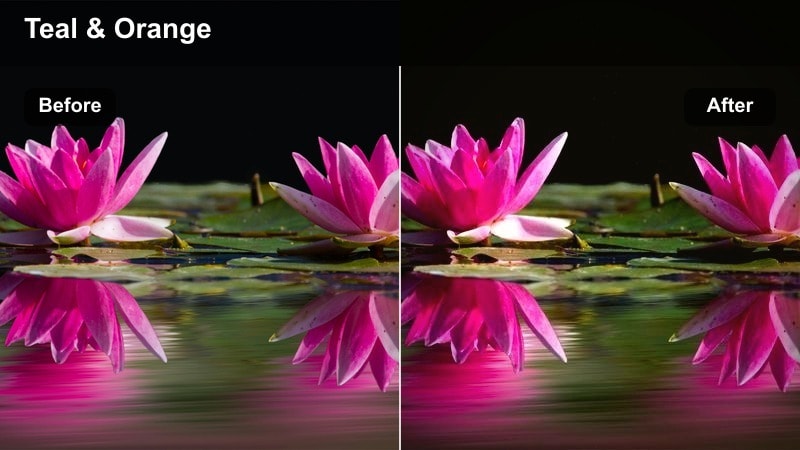
- Effect look: Soft cinematic contrast with rich oranges and teals, giving ridgelines a movie-trailer glow.
- Best for: Drone-like Insta360 X4 pole shots gliding along ridges or cliffside paths at dusk.
- Editing tip: Add a slow push-in keyframe on your 360 framing to match the cinematic feel and keep motion smooth.
Ember Ridge Cinematic leans into a classic teal-and-amber grade, cooling shadows while bathing highlights in a rich warm glow. This instantly pushes Insta360 X4 pole shots and long ridge traverses toward a theatrical, trailer-ready mood, especially during blue hour when the sky already has gentle gradients.
In Filmora, apply Ember Ridge Cinematic and then add slow, continuous keyframed push-ins or pans using the 360 framing tools so your movement matches the cinematic tone. Pair the look with gentle motion blur and cross dissolves between clips, and keep saturation a bit lower than default if jackets or backpacks become overly neon next to the stylized sky.
Dusty Trail Matte
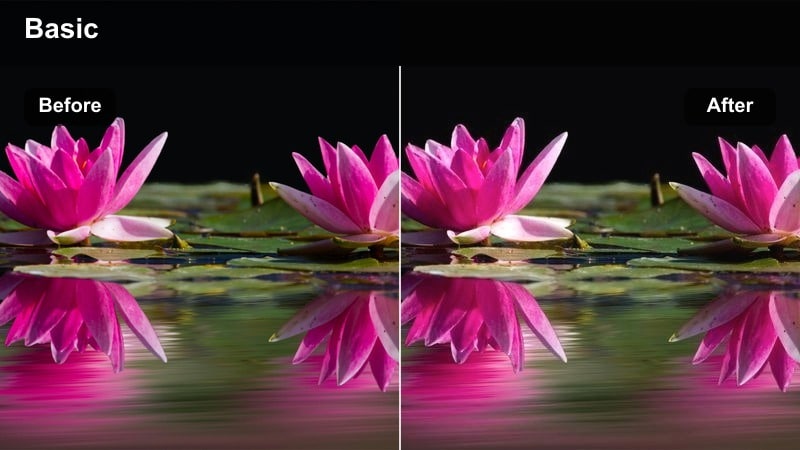
- Effect look: Desaturated, matte highlights with a slight warm tint that gives dusty trails a rugged, filmic feel.
- Best for: Trail running, gravel riding, or 4x4 overland clips on dry, dusty terrain.
- Editing tip: Boost clarity or sharpness just a little to offset the matte softness and keep dust detail visible.
Dusty Trail Matte flattens harsh highlights and pulls back saturation, which is perfect for mid-day desert or gravel missions where raw Insta360 X4 footage can look overly digital. The subtle warm cast and soft shoulder in the highlights give dirt particles, rocks, and scrub a gritty, analog personality that suits longer narrative edits.
After dropping the filter onto your timeline in Filmora, add a light clarity or sharpness bump to keep tire tracks, footprints, and dust clouds textured despite the matte finish. You can also introduce a small amount of film grain on a separate layer to reinforce the rugged mood, keeping grain size and strength moderate so it reads as natural grit instead of video noise.
Snow Lines, Ice Drops, and Whiteout Missions
Glacier Blue Boost
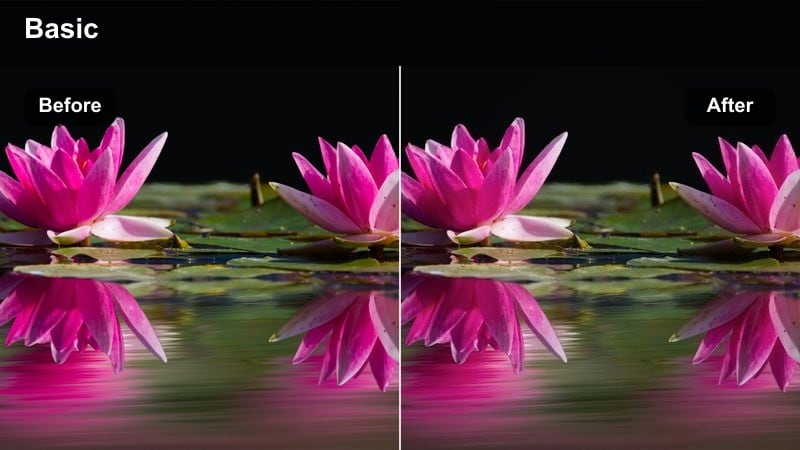
- Effect look: Crisp, cool blues with bright whites and extra clarity to carve detail into snow and ice.
- Best for: Snowboarding, skiing, or ice climbing lines under bright sky or overcast daylight.
- Editing tip: Lower saturation on skin tones slightly so riders do not turn unnatural while snow stays bright.
Glacier Blue Boost is tuned to keep snowfields bright and clean without losing the texture of tracks, ridges, and ice features. It pushes blues and cyans for a crisp alpine feel, while a controlled clarity boost helps your Insta360 X4 footage cut through haze and flat overcast conditions on glaciers or resort slopes.
In Filmora, combine this filter with a selective HSL adjustment that gently desaturates and warms skin tones so faces and hands do not pick up the same icy cast as the snow. Keep an eye on your histogram, and if highlights creep too far right, slightly lower exposure or the filter intensity so you preserve detail in steep drops, cornices, and sprays of powder.
Storm Front Contrast
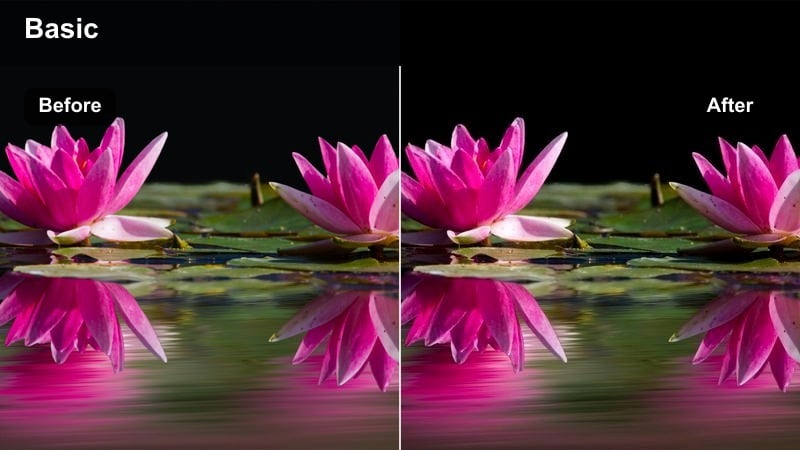
- Effect look: High-contrast, moody tones with deep blues and grays that make incoming storms feel intense.
- Best for: Backcountry tours, ridge traverses, or summit pushes with dark clouds rolling in.
- Editing tip: Add a subtle desaturation to greens so any trees or jackets do not clash with the dramatic sky.
Storm Front Contrast heightens the drama in moody weather by deepening shadows, cooling midtones, and emphasizing the texture in storm clouds and wind-packed snow. It works especially well on Insta360 X4 clips shot on exposed ridges where you want the tension between bright snow and looming sky to tell the story.
Inside Filmora, apply this filter to your storm sequences, then ease off overall saturation or selectively reduce greens so trees, skis, or jackets do not distract from the dark atmospheric palette. Cut your clips to the rhythm of your soundtrack, allowing thunderheads, gusts, and blowing snow to line up with musical builds for an even more intense, cinematic feel.
Whiteout Soft Bloom
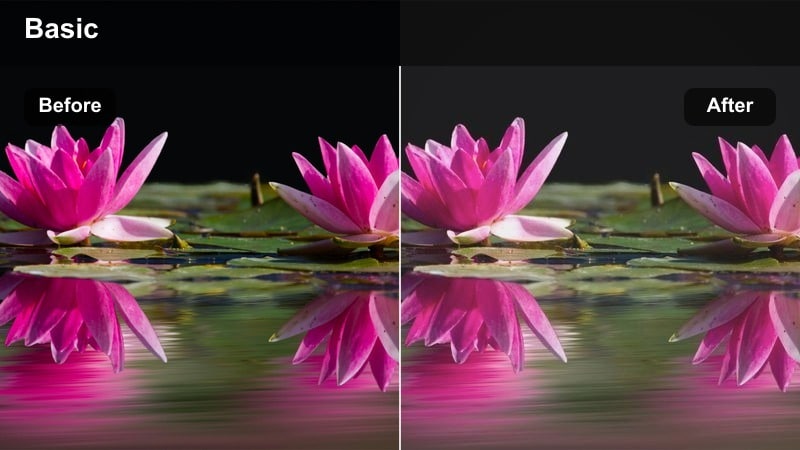
- Effect look: Soft, low-contrast whites with gentle bloom around bright areas for dreamy snow scenes.
- Best for: Flat light resort days, foggy tree runs, or mellow snowshoe clips.
- Editing tip: Use selective sharpening on goggles and gear edges so the subject stays defined inside the soft scene.
Whiteout Soft Bloom is designed for those flat-light days when everything looks gray and lifeless out of the Insta360 X4. The filter raises blacks slightly, reduces harsh micro-contrast, and adds a subtle glow around highlights to turn featureless fog, snowfall, and clouded skies into a dreamy, almost ethereal backdrop for slower-paced missions.
In Filmora, pair this look with smoother camera moves and slower cuts so the softness feels intentional and cinematic rather than blurry. Add a bit of local sharpening or clarity around goggles, poles, and jackets to ensure riders remain defined within the haze, and avoid overly aggressive stabilization crops that could reduce your sense of open, diffuse space.
Jungle Singletrack and River Runs
Tropic Green Rush
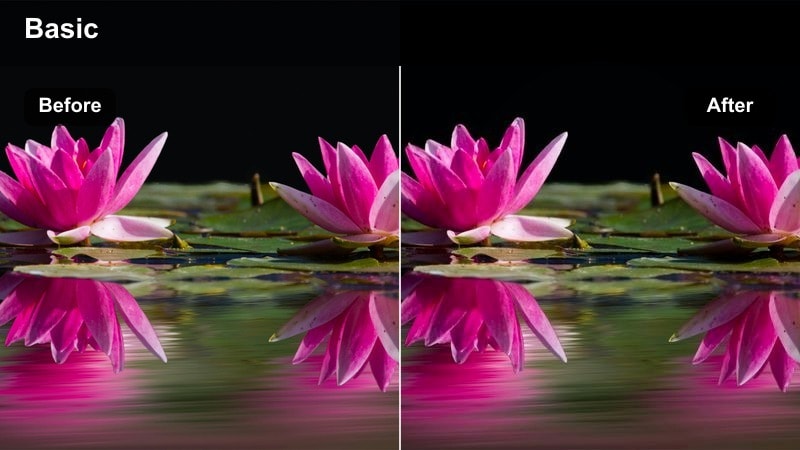
- Effect look: Lush, saturated greens with bright turquoise water and punchy midtones for dense foliage scenes.
- Best for: Trail riding, dirt biking, or running through dense jungle or forest with rivers nearby.
- Editing tip: Dial back green saturation slightly if foliage starts to clip or look neon on overcast days.
Tropic Green Rush makes dense forests and jungle singletrack feel alive by boosting green saturation, brightening water into eye-catching turquoise, and adding punch to midtones. It helps Insta360 X4 clips avoid the muddy, flat look that can happen under thick canopy or in humid, low-contrast conditions.
When grading in Filmora, start by applying this filter, then gently reduce the green channel saturation if leaves or moss start to look radioactive, especially on cloudy days. Use keyframes on your 360 framing so you can swing smoothly from the trail ahead to nearby waterfalls or river bends, letting the rich color carry viewers through the environment.
River Mist Cool
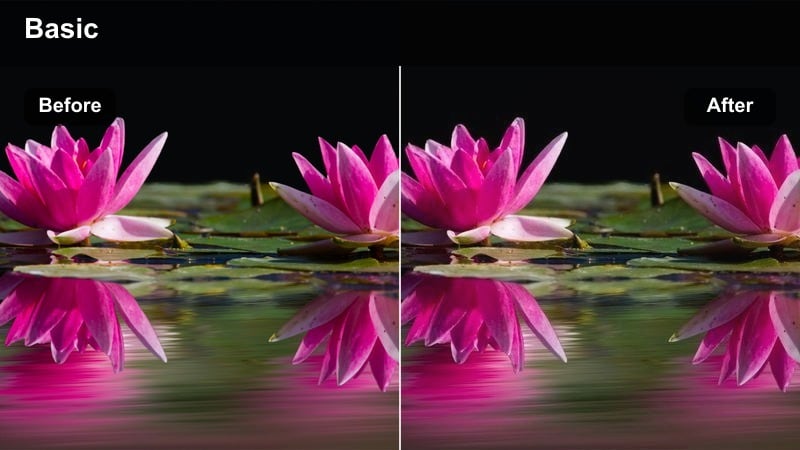
- Effect look: Cool, subdued tones with emphasis on blues and cyans, giving river scenes a fresh, calm vibe.
- Best for: Kayaking, rafting, or packrafting POVs along shaded rivers and gorges.
- Editing tip: Increase local contrast around the boat to stop it from blending into dark water in low light.
River Mist Cool shifts your color palette toward gentle blues and cyans, toning down overly warm or muddy river footage. It is ideal for Insta360 X4 POVs from kayaks or rafts in narrow canyons where the mix of shade, reflections, and moving water can otherwise look messy and inconsistent.
Inside Filmora, place this filter on longer paddling sections and then add a soft vignette or local contrast boost around the boat so it stands out clearly against the water. Combine the look with subtle speed ramps to accent whitewater and tight corners, keeping the ramps gradual so the cool, relaxed tonality of the grade remains smooth and immersive.
Canopy Shadow Matte
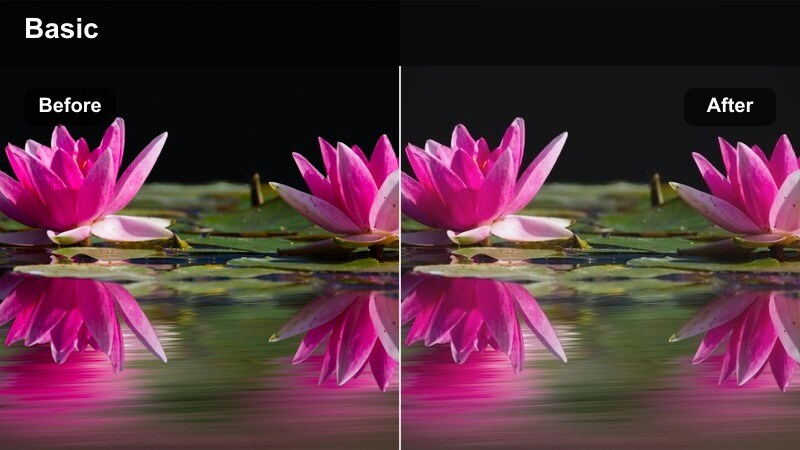
- Effect look: Lifted shadows and gentle contrast that tame harsh light swings under tree canopy.
- Best for: Mountain biking or running in forests with strong sun patches and deep shade.
- Editing tip: Use keyframes on exposure to smooth out extreme light changes if the filter is not enough on its own.
Canopy Shadow Matte tackles the high dynamic range challenges of dappled forest light by lifting shadows and softening contrast. Your Insta360 X4 trail footage will show more detail in dark trunks and ground cover without turning sun patches into distracting, blown-out hotspots.
After applying the filter in Filmora, stabilize and horizon-lock your 360 clips first so the matte look does not exaggerate shakes. Then, if transitions between bright and dark sections are still too aggressive, add exposure keyframes every few seconds to gradually ease the brightness up or down, keeping your audience focused on the ride instead of flickery light swings.
Night Rides and Neon City Missions
Neon City Punch
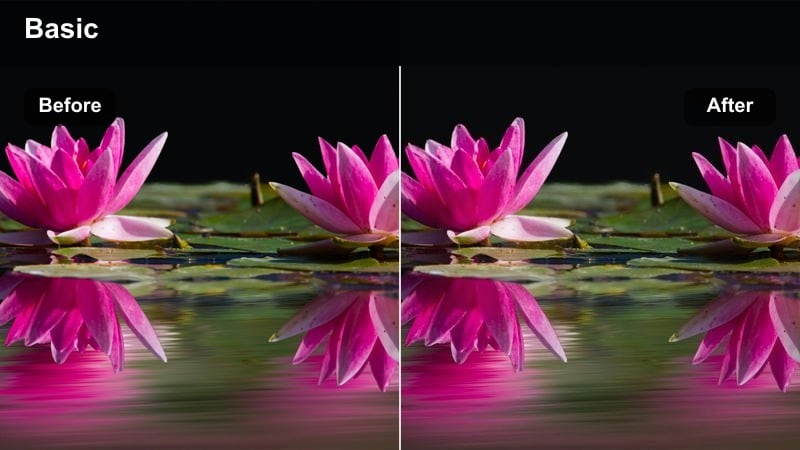
- Effect look: High-saturation neon colors with rich blacks that make city lights explode against dark streets.
- Best for: Night bike rides, skateboard runs, or moto commutes through neon-lit downtown streets.
- Editing tip: Use noise reduction lightly before applying the filter to avoid amplifying grain in the shadows.
Neon City Punch takes advantage of every sign, billboard, and traffic light to turn your Insta360 X4 night rides into electric highlight reels. It deepens blacks, heightens saturation in magentas, blues, and yellows, and gives wet asphalt a glossy, futuristic sheen that works perfectly for fast, energetic edits.
In Filmora, run a light noise reduction pass on your raw clips before adding this filter so you do not amplify grain in dark areas. Slightly underexpose in camera, then, if necessary, gently lift midtones after the filter so you maintain clean detail in riders and surroundings without losing the intense neon pop that defines the look.
Urban Noir Soft
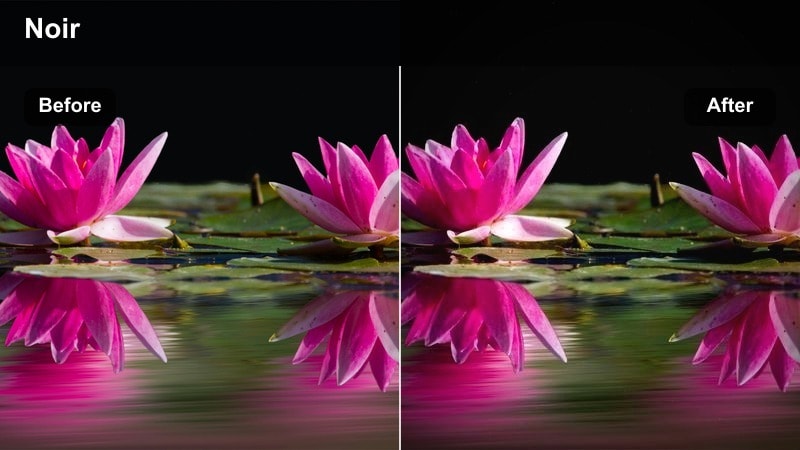
- Effect look: Muted colors with deep shadows and subtle glow around streetlights for a moody, cinematic city tone.
- Best for: Slow night walks, rooftop views, and static tripod-style 360 city timelapses.
- Editing tip: Add a slight crop-in to minimize busy sidewalk edges and keep the focus on key pools of light.
Urban Noir Soft trades neon punch for atmosphere, dialing down saturation and letting pools of light and deep shadows carry the mood. It is great for Insta360 X4 clips that linger on alleys, intersections, and rooftops, where you want a story-driven, contemplative tone instead of sheer energy.
When editing in Filmora, combine this filter with slower pacing, longer dissolves, and natural city soundscapes rather than heavy music to keep the noir feeling intact. A small crop-in or gentle vignette can help remove edge distractions and pull attention toward doorways, windows, and reflections that hint at the narrative happening off-screen.
Midnight Rain Glow
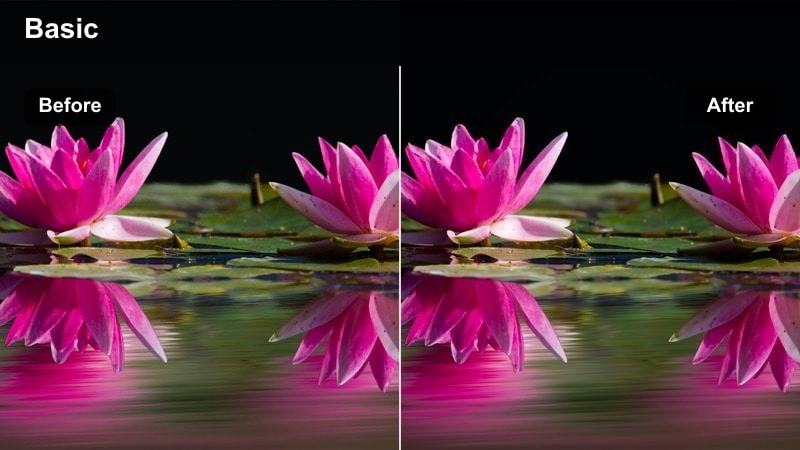
- Effect look: Enhanced reflections, boosted contrast, and subtle color glow in wet streets for rainy night rides.
- Best for: Skateboard, longboard, or moto rides on wet city pavement with reflections of signs and traffic.
- Editing tip: Lift shadows slightly if the road disappears into pure black, but avoid flattening the reflections.
Midnight Rain Glow is all about amplifying the reflections and color trails that appear after a storm. It adds contrast and a delicate glow to wet asphalt, puddles, and painted lines so your Insta360 X4 low-angle shots feel rich and cinematic as city lights smear across the ground.
In Filmora, mount the filter on rain-soaked sequences and adjust shadow levels so you can still distinguish road texture without washing out the reflections. Consider using speed ramps synced to musical beats when you pass through particularly reflective sections or hit puddles, turning each splash of color into a satisfying visual accent.
Tips for Using Insta360 X4 Filters in Filmora
- Shoot in the flattest color profile your Insta360 X4 offers so these filters have room to add contrast and saturation without destroying detail.
- Lock exposure or use exposure compensation when moving from shade to sun to reduce flicker that filters will amplify.
- Create a few reusable presets in Filmora by saving your favorite filters with minor tweaks to contrast, saturation, and vignette.
- Test filters on at least three types of scenes you shoot often, such as trails, snow, and city nights, before committing them to a whole series.
- Use keyframes on filter intensity so the look can subtly ramp in and out between radically different lighting conditions.
- Export a short test reel to your phone and review it outdoors to check if your colors still look natural on mobile screens.
- Keep skin tones in check by using Filmora's HSL tools after adding filters so riders and creators do not look over-processed.
- When in doubt, pull filter strength back 10 to 20 percent; most adventure footage looks better slightly under-styled.
With a small, dialed-in set of Insta360 X4 LUT-style filters, you can turn raw adventure clips into cohesive, on-brand stories in a fraction of the time.
Pick two or three go-to looks for daylight, snow, and night city rides, then refine them in Filmora until they feel like your channel's signature style.
secure downloadNext: Best GoPro Hero 13 LUTs
