

 100% Security Verified | No Subscription Required | No Malware

City video filters can turn flat, gray footage into cinematic urban stories with consistent color and mood in just a few clicks. Whether you shoot handheld street scenes, fast-paced city travel logs, or atmospheric night walks, the right filter can define your visual style.
This guide showcases Filmora city video filters and urban color grades designed for urban photographers, city vloggers, and street filmmakers. Use these looks as starting points to match your citys character, from neon-lit nights to sunlit architecture and gritty side streets.
In this article
City Travel Filters for Daylight and Landmarks
Bright City Travel Pop
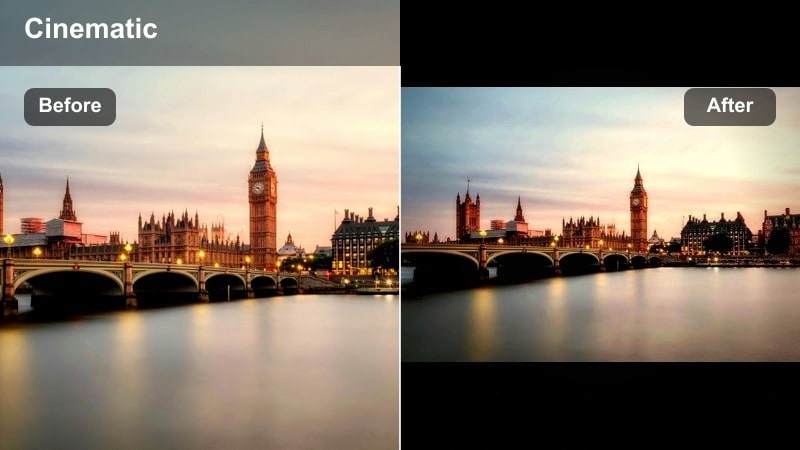
- Effect look: Clean, bright, and slightly saturated with crisp contrast that makes blue skies and glass buildings stand out.
- Best for: City travel days, walking tours, rooftop views, and wide shots of skylines or landmark architecture.
- Editing tip: Lower contrast slightly if faces look too harsh and nudge vibrance instead of saturation to keep skin tones natural.
A punchy, travel-style city filter that makes urban landmarks and skylines feel fresh and inviting. In Filmora, Bright City Travel Pop is ideal when your city footage looks a bit flat or gray, especially on overcast days or when skyscrapers blend into the background. The boosted contrast and color help buildings, skies, and water surfaces snap into focus without turning the whole frame into a cartoonish look.
Apply this filter to your city travel video sequences, then adjust the intensity slider to taste so that architecture looks vivid but not overcooked. When you are vlogging in front of bright backgrounds, combine the filter with Filmoras face-enhancement or skin tone controls to keep your on-camera presence natural. If your skyline shots include white buildings or clouds, fine-tune highlights and shadows to protect detail while preserving that clean, modern travel aesthetic.
AI-Assisted City Color Starting Points
Filmoras AI-powered color tools can quickly analyze your city footage and suggest balanced exposure and white balance before you apply any urban filter. This neutral starting point lets Bright City Travel Pop, Soft Urban Wander, or any other city video filter sit more evenly across mixed lighting, from sunlit plazas to shaded alleyways.
Once AI correction is applied, stack your preferred city video filters from this guide to push mood in the direction you want, whether that means crystalline travel skylines, muted documentary streets, or neon-soaked nights. You spend less time fighting color casts and more time refining style and storytelling.
 secure download

Preview City Filters on Real Urban Footage
Test these city video filters on a mix of daytime streets, golden hour skylines, and night markets to see how each look responds to changing colors and contrast. Side-by-side comparisons on the same timeline make it easy to decide which grades best fit a travel vlog, a street film, or a short social clip.
Drop 5 to 10 second clips into a preview sequence and apply different Filmora filters on duplicated tracks or separate clips. Then trim, toggle visibility, and adjust intensity until you find a combination that supports your narrative about the city rather than distracting from it.
secure downloadCombine Filters with City LUTs for Custom Looks
If you already work with city LUTs or camera-specific profiles, use Filmora filters as creative finishing layers. Apply your base city LUT first to normalize footage from different cameras or phones, then add an urban filter at reduced intensity to shape contrast, saturation, and mood.
This layered workflow keeps your project technically consistent while giving each sequence a unique streetscape flavor, from glossy travel impressions to gritty urban exploration. Once you are happy with the blend, save it as a custom preset to quickly reuse the same hybrid look in future edits.
secure downloadSoft Urban Wander
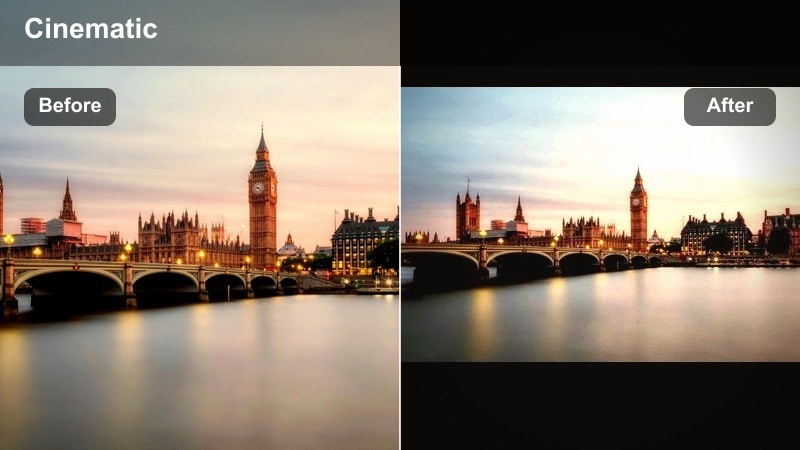
- Effect look: Soft contrast with warm highlights and gentle pastels for a relaxed, lifestyle travel mood.
- Best for: Slow-paced city travel, cafes, side streets, and handheld walking shots with a cozy atmosphere.
- Editing tip: Dial back the filter intensity on already warm footage to avoid orange overload, then fine-tune white balance using a neutral gray surface.
A mellow, lifestyle-friendly city filter that gives sidewalks, cafes, and plazas a calm, dreamy feel. In Filmora, Soft Urban Wander works well when you want your city travel video to feel like a Sunday stroll instead of a high-energy montage. It gently rolls off harsh contrast and introduces warm, pastel tones that flatter skin and make storefronts and facades look inviting.
Use this filter on B-roll of coffee runs, window browsing, or slow gimbal moves down side streets. Combine it with subtle motion blur effects or slower shutter-style looks to reinforce the floating, relaxed mood. A light vignette and careful exposure adjustment will help your subject stand out in busy frames without losing the soft, open feel of the scene.
Architectural Clarity
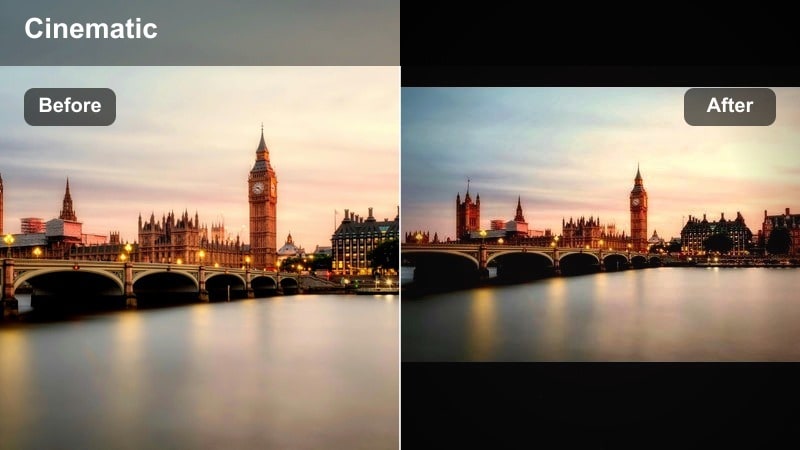
- Effect look: Cool-neutral tones with boosted micro-contrast and clarity to emphasize lines, edges, and textures.
- Best for: Modern architecture, skyline timelapses, hyperlapses, and detailed building close-ups.
- Editing tip: Keep sharpening moderate to avoid halos on edges, and use the HSL panel to selectively desaturate distracting colors like neon signs.
Architectural Clarity is designed for filmmakers and photographers who want their citys structures to feel precise and intentional. The cool-neutral balance in Filmora keeps glass, steel, and concrete looking clean, while the extra micro-contrast helps fine details in windows, patterns, and facades stand out.
Apply this filter to timelapse sequences of skyline changes, hyperlapses around skyscrapers, or slow push-ins toward distinctive buildings. Use masks or gradient tools to manage bright skies so your lines stay crisp from edge to edge. When you are mixing various clips, apply the same filter across them first, then tweak exposure so your city travel video maintains a consistent, architectural signature.
Urban Exploration and Gritty Street Filters
Gritty Street Matte
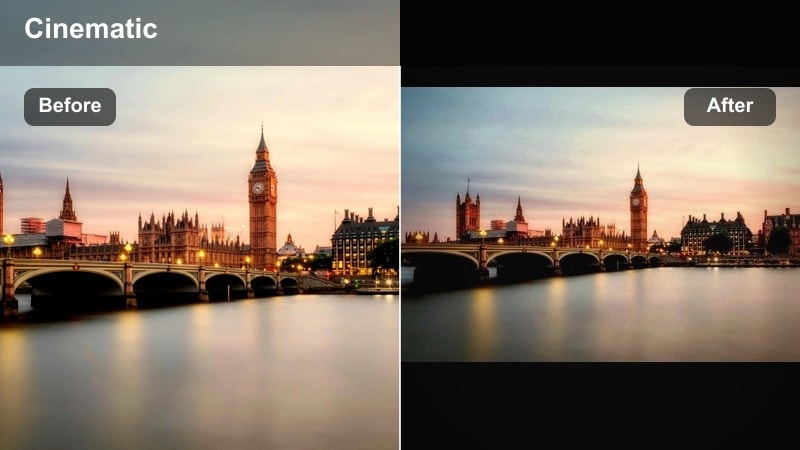
- Effect look: Muted colors, lifted blacks, and a subtle matte finish that gives concrete and asphalt a cinematic, gritty feel.
- Best for: Urban exploration, alleys, underpasses, graffiti walls, and handheld street walk-throughs.
- Editing tip: Lift the blacks only as much as needed; too much will remove depth from shadows and make footage look washed out instead of cinematic.
Gritty Street Matte pulls saturation down and softens contrast just enough to evoke a filmic, urban exploration vibe. In Filmora, this look turns raw sidewalks, stairwells, and back alleys into moody, story-driven backdrops where texture and shape take priority over bright color.
Apply it to B-roll of graffiti, abandoned structures, or everyday street details like crosswalks and bus stops. Once the matte look is in place, bring back one or two accent colors using the HSL panel to guide the viewers eye to signs, clothing, or key props. Pair the grade with handheld camera presets and subtle shake to emphasize a boots-on-the-ground documentary energy.
Urban Fade Desaturated
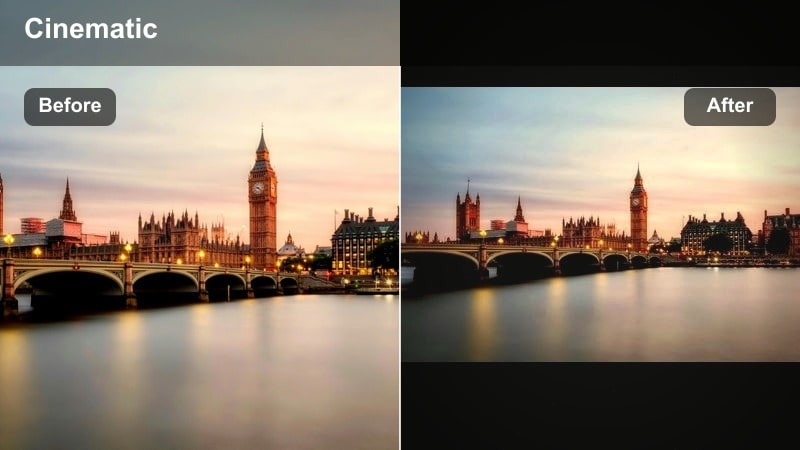
- Effect look: Low saturation with cool shadows and slightly faded highlights for a documentary-style street aesthetic.
- Best for: Street scenes, subways, crosswalks, and B-roll sequences that focus on everyday city life.
- Editing tip: If peoples faces feel too cold, warm the midtones slightly while keeping the shadows cool to preserve the urban mood.
Urban Fade Desaturated is built for grounded, documentary-style city travel videos that emphasize realism over stylization. The cooler shadows and lower saturation in Filmora shift attention toward motion, framing, and story, making it perfect for sequences of commuters, public transit, and sidewalks.
Use this filter when cutting together multi-camera street scenes, as its muted palette can help unify clips from different devices. Start by applying the filter across your whole sequence, then use Filmoras color match and per-clip adjustments to maintain consistent exposure and white balance. Slightly warming faces and key subjects will keep your footage human and approachable without losing the cool, urban atmosphere.
High-Contrast Street Punch
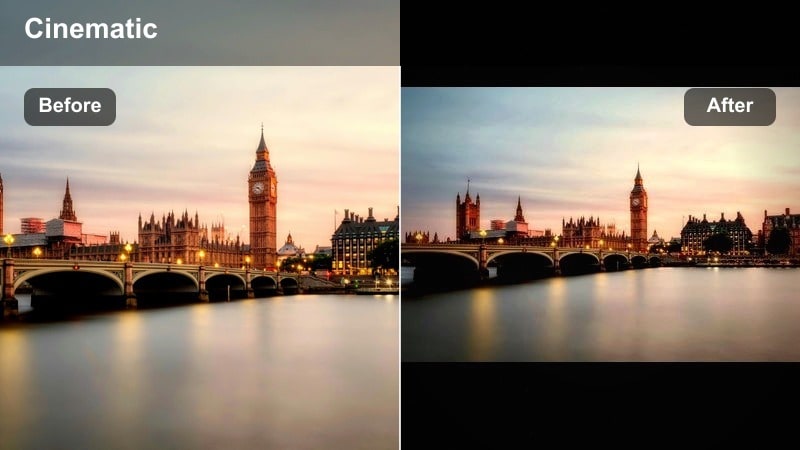
- Effect look: Deep shadows and vivid midtones with strong contrast for punchy, energetic city streets.
- Best for: Busy intersections, bike rides, skate clips, and dynamic street cinematics in strong daylight.
- Editing tip: Keep an eye on clipped highlights on white cars or signs; roll back the filter intensity or reduce highlights to recover detail.
High-Contrast Street Punch adds drama and impact to fast-moving city scenes. In Filmora, this filter deepens blacks and amplifies color in the midtones, which makes traffic, signage, and clothing pop on screen while enhancing the sense of speed and chaos in your city travel video or urban montage.
Apply it to action-heavy shots like skateboarding, cycling, or quick walk-and-talk segments through crowded areas. Combine the look with speed ramps, energetic music, and rhythmic cuts so visual contrast and pacing work together. Monitor scopes to avoid losing detail in bright highlights, and use local adjustments on key elements like faces or important signs if they become too intense.
Night City and Neon LUT-Style Filters
Neon City Glow
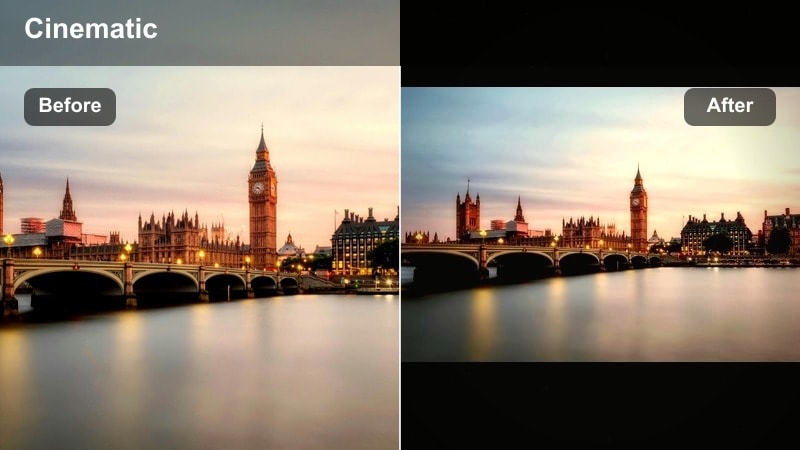
- Effect look: Rich, saturated neons with softened highlights and slightly teal shadows for a cyberpunk-inspired night city vibe.
- Best for: Downtown neon signs, nightlife streets, reflections on wet pavement, and night vlogs under city lights.
- Editing tip: Reduce noise first on high ISO footage, then add this filter; too much sharpening afterward can exaggerate grain in dark areas.
Neon City Glow is tailored for night streets drenched in colored light. In Filmora, it amplifies neon signs, billboards, and reflections while keeping highlights soft enough to produce smooth glow rather than harsh clipping. The subtle teal shadows give a futuristic, cyberpunk edge without overwhelming your footage.
Use it on rainy night walks, market scenes, or nightlife vlogs to make puddles, windows, and wet asphalt reflect color dramatically. Start by applying noise reduction and basic exposure correction, then add the filter and adjust intensity so skin tones stay believable. Fine-tune HSL channels to calm overly aggressive hues while preserving that rich neon atmosphere.
Cinematic Night Teal & Orange
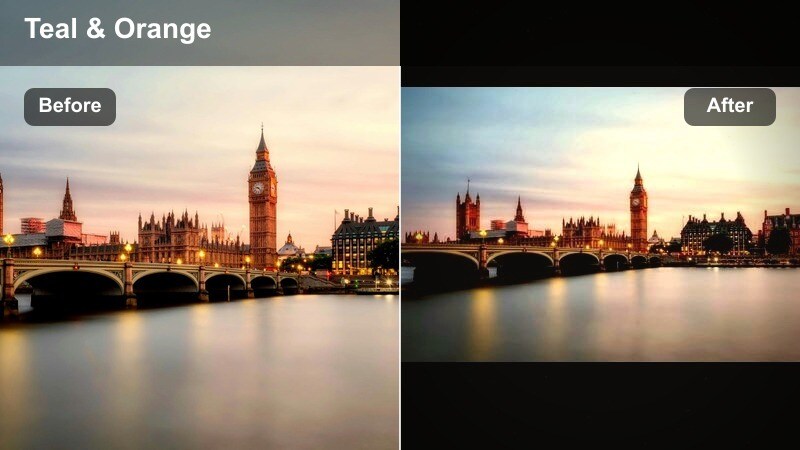
- Effect look: Classic teal shadows and warm highlights adapted for night city, with controlled contrast and cinematic color separation.
- Best for: Night city vlogs, cars under streetlights, cinematic walking shots, and dialogues near storefronts.
- Editing tip: Use this filter lightly if your footage already has strong color; then fine-tune the orange hue toward more natural skin tones.
Cinematic Night Teal & Orange gives your night footage a big-screen color grade that works especially well for narrative and vlog content. In Filmora, it pushes shadows toward teal and lifts warm tones in highlights and midtones, helping faces and practical lights stand out against cooler backgrounds.
Apply this filter to dialogue scenes outside shops, car passes under streetlamps, or long walking shots where your subject moves through mixed lighting. Keep an eye on saturation and adjust the orange hue to protect natural-looking skin. Stabilize and fix exposure across clips before grading so the teal-orange balance remains consistent in your final city video.
Noir Street Night
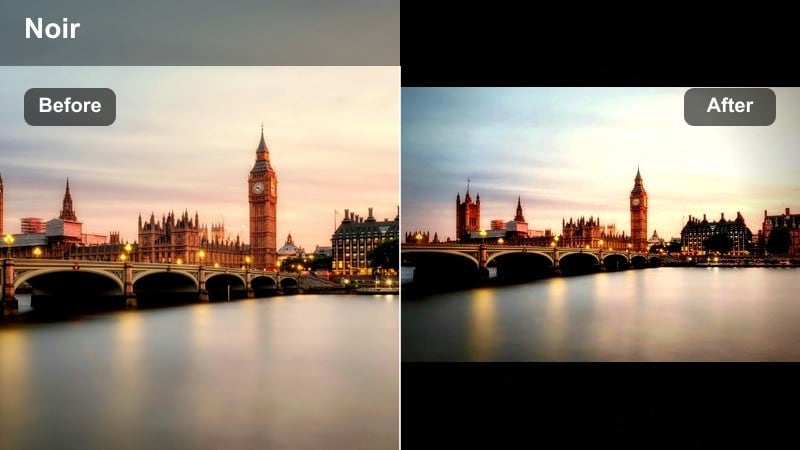
- Effect look: High-contrast monochrome inspired by film noir, with deep blacks and glowing highlights from streetlights.
- Best for: Rainy nights, silhouettes, shadowy alleys, and narrative street films that rely on light and shadow.
- Editing tip: Use curves to fine-tune midtone contrast, keeping detail in faces while letting backgrounds fall into deep shadow.
Noir Street Night strips the city down to light and shadow, perfect for moody storytelling and experimental street films. In Filmora, this black-and-white filter emphasizes wet pavement, silhouettes, and hard light, transforming ordinary city blocks into graphic, high-impact frames.
Use it on rain-soaked streets, backlit figures, and scenes where mystery and atmosphere matter more than color. Adjust curves and vignettes to carve your subject out from the darkness and mimic motivated light from lamps or signage. Because this look is contrast-heavy, check exposure on faces and important details so they remain readable without diluting the noir impact.
Stylized City Vlog and Social-Ready Filters
Urban Vlog Clean
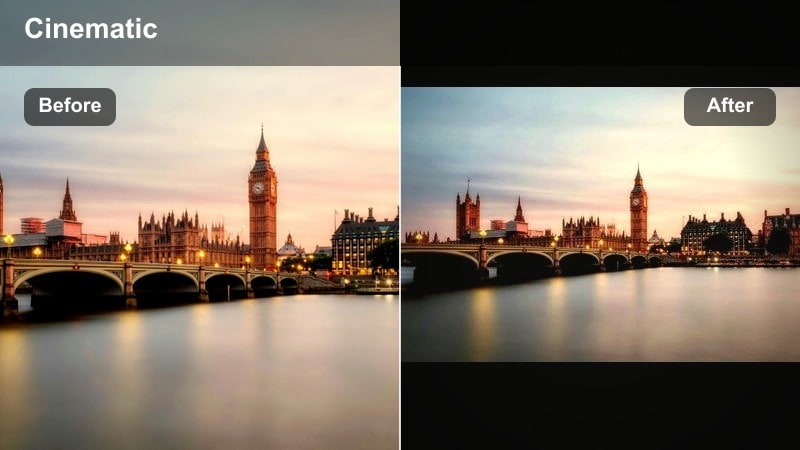
- Effect look: Neutral, influencer-style look with mild contrast, gentle sharpening, and balanced saturation for every city scenario.
- Best for: Daily city vlogs, talking to camera on sidewalks, cafes, co-working spaces, and public transit segments.
- Editing tip: Keep filter intensity around mid-level, then adjust exposure to keep your face slightly brighter than the background.
Urban Vlog Clean is a go-to base look for creators who film in many different city locations. In Filmora, it lightly polishes contrast and clarity so your footage looks professional and platform-ready while preserving accurate color that suits a wide range of environments.
Apply this filter to talking-head segments, walk-and-talk shots, and everyday B-roll. Aim to maintain consistent exposure on your face across scenes, and then save your preferred combination of intensity, saturation, and sharpening as a custom preset. Using this preset each time you edit helps your channel build a recognizable, cohesive city vlog style.
Social City Pastel
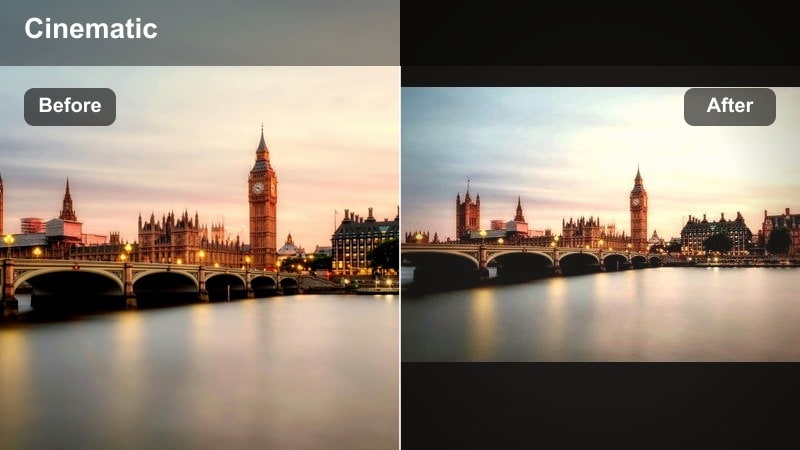
- Effect look: Soft pastel tones, low contrast, and airy highlights tailored for vertical and social content.
- Best for: Reels, Shorts, and TikTok edits of city travel, coffee runs, window shopping, and slow-motion b-roll.
- Editing tip: Apply the filter before cropping vertical, then fine-tune exposure so whites stay clean but not blown out on phone screens.
Social City Pastel is crafted for vertical-first city content that needs to look bright, light, and immediately appealing on small screens. In Filmora, it reduces contrast and pushes highlights toward a soft, airy style that works well with minimal text overlays and quick cuts.
Apply it to short clips of cafes, streets, and storefronts you plan to post to Reels, Shorts, or TikTok. Work in a horizontal timeline first, add the filter, and then crop to vertical so you can reframe for the most aesthetic composition. Keep midtones slightly brighter than you might for desktop viewing so the content remains legible on phones in bright environments.
Urban Film Emulation
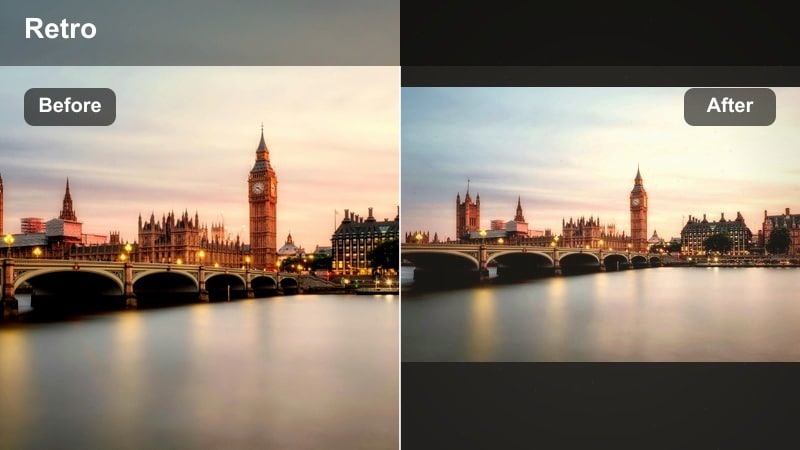
- Effect look: Subtle film grain, warm highlights, and slightly shifted colors for a nostalgic, analog city feel.
- Best for: Montage sequences, train rides, window reflections, and nostalgic city travel stories.
- Editing tip: Keep grain at a moderate level for 4K exports; too much grain can look messy once compressed for streaming or social.
Urban Film Emulation gives your footage a gentle analog character without sacrificing modern clarity. In Filmora, it adds fine grain, warmer highlights, and mild color shifts that evoke print and negative film stock, making it ideal for reflective city montages or memory-style sequences.
Use it on train rides, taxi windows, or slow B-roll of street details you want to feel like lived-in memories. Balance grain strength with your export resolution and destination platform, then layer in ambient city audio or soft music. A few well-placed film burns or light leak overlays can complete the illusion, but deploy them sparingly to keep your story front and center.
Tips for Using City Video Filter Filters in Filmora
- Shoot with a slightly flatter in-camera profile so Filmoras city filters and LUT-style looks have more room to shape contrast and color.
- Match white balance across clips before applying heavy city grades to avoid inconsistent skin tones and sky colors between shots.
- Always check scopes when grading neon or night streets so bright signs, screens, and headlights do not clip into pure white.
- Adjust filter intensity per clip instead of using a single strength for an entire edit, especially when moving from daylight to shade or interior scenes.
- Export a short test scene at your target resolution and platform settings to confirm grain, contrast, and saturation hold up after compression.
- Use Filmoras color match tools to quickly align exposure and color between cameras before you start stacking stylized city filters.
- Save your favorite combinations of LUTs, filters, and minor tweaks as custom presets so future city projects start from a reliable baseline.
City video filters are powerful shortcuts to defining your urban style, whether you focus on city travel, urban exploration, or day-to-day street scenes. With Filmora, you can move from flat footage to cohesive, on-brand color grades in just a few clicks.
Use the filters and approaches in this guide as a toolkit: mix, match, and save your favorite combinations as presets so every new city project starts from a consistent, cinematic baseline that fits your voice and audience.
secure downloadNext: Explore City Video Filters for YouTube and Long-Form Urban Vlogs
