

 100% Security Verified | No Subscription Required | No Malware

These film inspired color tone LUT-style filters in Filmora are designed for content creators who want cinematic depth without the complexity of full color grading.
Use these presets to quickly dial in warm, nostalgic, or modern blockbuster-style tones while keeping your workflow simple and repeatable across your projects.
In this article
Golden Hour Dramas and Warm Storytelling
Sunset Amber Glow
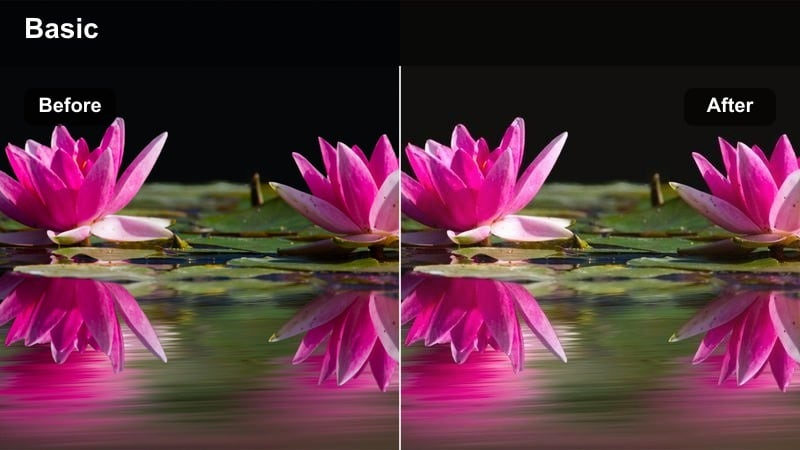
- Effect look: Soft golden highlights that wrap your scene in warm sunset tones with gentle contrast.
- Best for: Romantic vlogs, emotional montages, and narrative scenes shot near golden hour or with practical warm lights.
- Editing tip: Lower the intensity to around 60-70 percent and slightly lift shadows to keep skin tones flattering and cinematic.
Sunset Amber Glow creates a classic golden hour film look, even if you did not have perfect sunset conditions on set. In Filmora, this filter adds amber warmth to highlights and softens contrast, helping faces feel luminous and flattering while backgrounds drift into a gentle glow.
Use it on couples walks, travel sequences, or any city scene where streetlights or window light already lean warm. Apply the filter, reduce its intensity slider for a natural result, then fine-tune skin tones with Filmoras color tools so the warmth feels cinematic instead of overly orange.
Let AI Suggest Film Inspired Color Palettes
Filmoras AI color tools can automatically analyze your footage and suggest adjustments that pair naturally with film inspired color tone LUT-style filters. This helps you keep the mood of Sunset Amber Glow and other presets consistent from shot to shot.
Use AI-powered color matching to align clips shot at different times or locations so your golden hour storytelling feels seamless across the entire edit.
 secure download

Preview Filters in Real Time
In Filmora, you can preview each film inspired color tone LUT-style filter directly on your clips, then scrub through the timeline to see how the tones react to motion and lighting changes. This makes it easy to decide whether a warm or cooler palette better supports your story.
Toggle filters on and off, compare options side by side, and adjust strength until the visual mood perfectly fits your pacing and soundtrack.
secure download1000+ Video Filters and 3D LUTs
Beyond these film inspired color tone options, Filmora includes a large library of filters and 3D LUTs so you can mix, match, and layer looks to build your own visual style. Combine cinematic grades with creative HSL and tone controls for fine-tuned control.
Save your favorite combinations as custom presets so you can instantly apply a consistent, branded color identity across future projects and episodic content.
secure downloadHoney Haze Chronicles
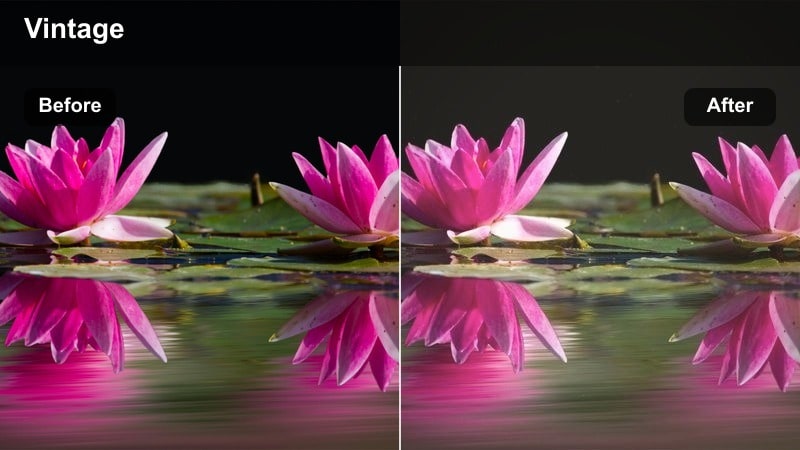
- Effect look: Dreamy, hazy warmth with lowered contrast and soft highlights reminiscent of vintage drama films.
- Best for: Story-driven sequences, lifestyle b-roll, and artistic city strolls with backlit subjects.
- Editing tip: Add a slight blur or glow to highlights and reduce clarity for an extra layer of nostalgic softness.
Honey Haze Chronicles envelopes your footage in a soft, glowing warmth that feels instantly nostalgic. In Filmora, the filter reduces contrast and adds diffusion to bright areas, which is perfect for backlit rooftops, windows, and sunset silhouettes.
Apply this look when you want a gentle, emotional tone for character-focused vlogs or reflective sequences. Layer it with Filmoras highlight glow, then fine-tune brightness and clarity so details remain readable while the overall image stays dreamy and cinematic.
Copper City Memoir
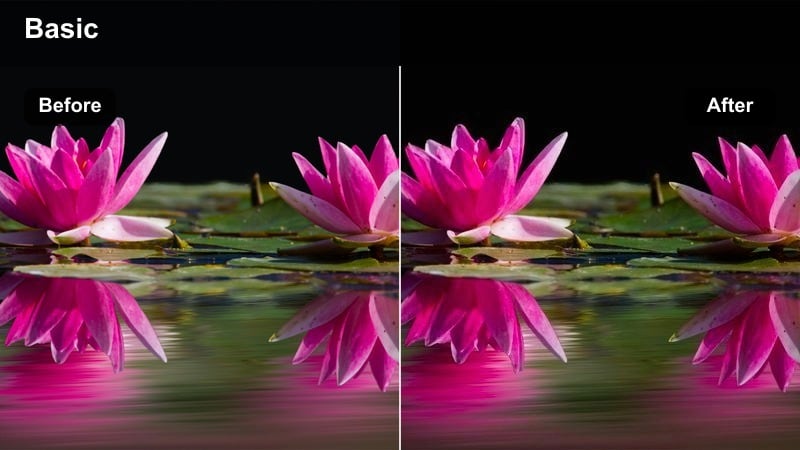
- Effect look: Rich copper and amber tones with a subtle film grain feel and slightly muted blues.
- Best for: Urban stories, travel vlogs, and cinematic B-roll in warm indoor cafes or evening streets.
- Editing tip: Boost midtone contrast to bring back structure in buildings and keep the cinematic copper look controlled.
Copper City Memoir shifts your footage toward deep copper and amber, ideal for evening streets, wet pavements, and cozy interiors. Blues are slightly muted so streetlights, shop signs, and window glows become the visual focus.
Use this filter in Filmora for travel sequences or night walks where you want a warm, lived-in city mood. After applying, add a touch of midtone contrast and optional grain to reinforce the analog feel, and balance saturation so copper highlights stay rich without overpowering the scene.
Moody Teal and Orange Urban Narratives
Blockbuster Teal Orange
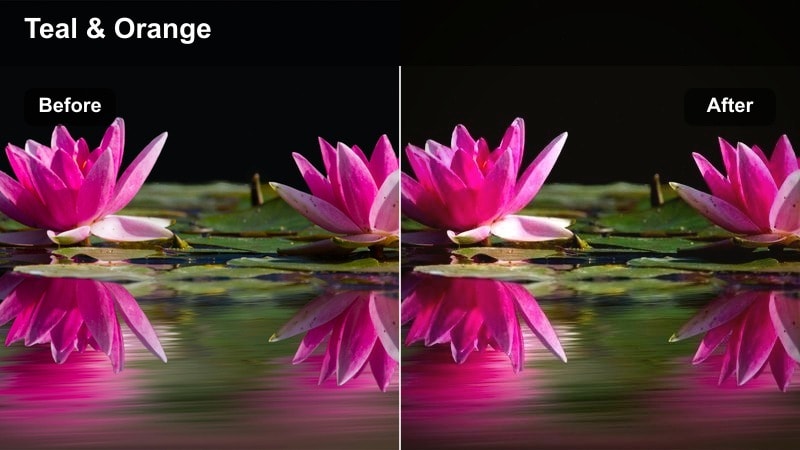
- Effect look: Classic teal shadows and warm orange skin tones with punchy contrast and cinematic depth.
- Best for: Action-style sequences, street travel videos, and dynamic city montages at dusk or night.
- Editing tip: Keep exposure slightly lower than usual, then raise midtones so highlights do not clip under the strong contrast.
Blockbuster Teal Orange delivers the high-contrast, teal-and-orange color scheme seen in modern cinema trailers. Shadows lean blue-teal while midtones and highlights push skin and practical lights toward rich orange, instantly adding drama to city alleys and skyline views.
In Filmora, apply this filter to dusk chases, night walks, or high-energy travel edits. Slightly lower overall exposure, then recover midtones to protect highlight detail, and fine-tune saturation so the teal and orange separation feels bold yet polished for social media or YouTube.
Midnight Metro Teal
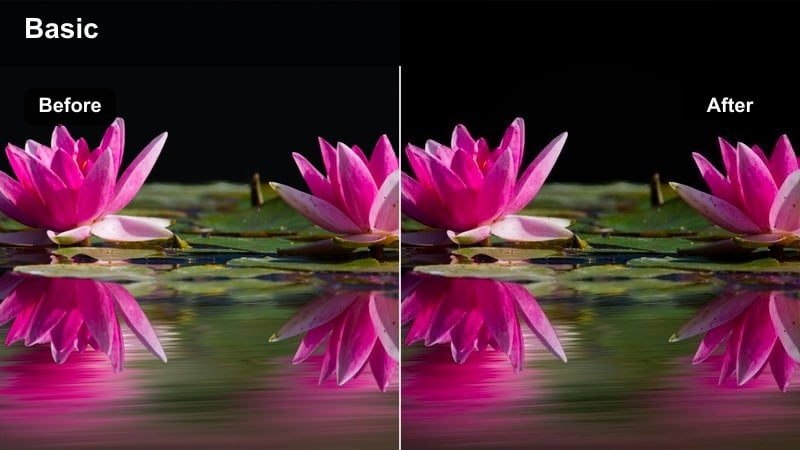
- Effect look: Cool teal-heavy grade with deep shadows, cyan highlights, and a slightly desaturated overall feel.
- Best for: Subway sequences, late-night drives, and any urban noir-inspired content with strong directional light.
- Editing tip: Lift blacks a bit to create a cinematic matte effect that complements dark, high-contrast scenes.
Midnight Metro Teal emphasizes cool teal and cyan tones, giving underground platforms, tunnels, and night streets a stylized noir energy. The filter desaturates colors slightly, so fluorescent and neon lights feel intentional rather than random.
Use it in Filmora for metro rides, car interiors, and night walks where you want to highlight practical lighting. Lift the black point for a matte finish, then adjust exposure so your subject stays visible while backgrounds sink into moody teal shadows.
Amber Neon Crosswalk
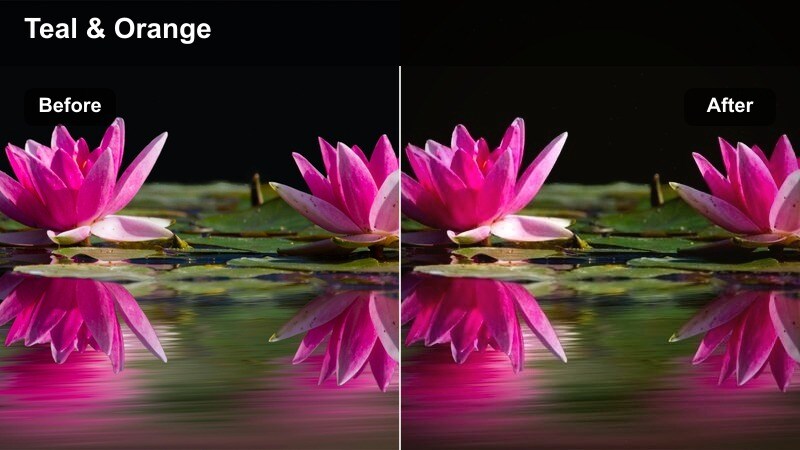
- Effect look: A mix of teal shadows, soft amber highlights, and boosted saturation on city neon accents.
- Best for: Busy crosswalk shots, nightlife b-roll, and handheld city explorations with colorful signs.
- Editing tip: Stabilize handheld footage slightly so the busy color contrast reads clearly and does not feel chaotic.
Amber Neon Crosswalk is tuned for nightlife energy, combining teal in the shadows with warm amber highlights and punchy neon accents. It turns crowded intersections, billboards, and traffic into a vibrant cinematic palette.
In Filmora, apply this filter to handheld street footage, then use mild stabilization so bright signs and headlights remain readable. Adjust intensity to control saturation, and consider adding motion blur or speed ramps to emphasize the rush of city life under the glowing color scheme.
Muted Indie Stories and Subtle Realism
Indie Soft Matte
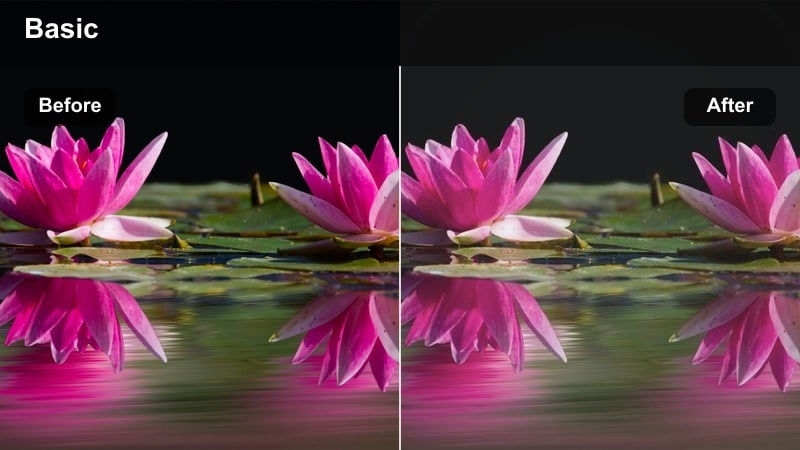
- Effect look: Low-contrast matte finish with gently muted colors and soft, creamy highlights.
- Best for: Indie-style short films, character portraits, and quiet city scenes with natural light.
- Editing tip: Lower saturation of greens and blues while keeping skin tones neutral to enhance the film-like realism.
Indie Soft Matte reduces contrast and saturation to create a quiet, character-driven atmosphere. Highlights become creamy and soft, while shadows lift slightly, making it perfect for window light portraits and reflective city interiors.
In Filmora, pair this filter with gentle camera moves and natural audio for authentic indie storytelling. Subtly desaturate greens and blues, preserve neutral skin tones, and add a light vignette to guide attention toward the subject without breaking the understated mood.
Urban Pastel Reverie
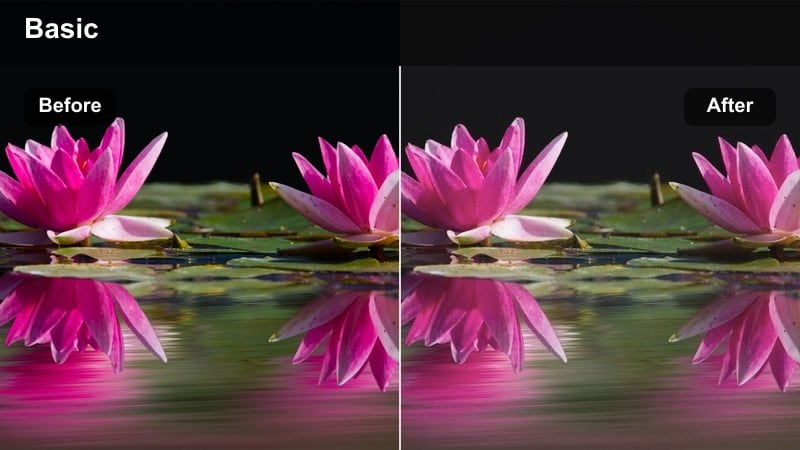
- Effect look: Soft pastel tones, reduced saturation, and balanced contrast that flatten harsh city colors into a gentle palette.
- Best for: Daytime city walks, lifestyle reels, and minimalist aesthetic content focusing on architecture and outfits.
- Editing tip: Avoid over-sharpening so the pastel treatment stays smooth and cinematic rather than crunchy.
Urban Pastel Reverie transforms strong city colors into a soft pastel palette that feels light and aesthetic. Traffic, signage, and buildings shift into gentle hues, which works especially well for fashion and lifestyle content.
Use this filter in Filmora on daytime street or cafe footage where you want a cohesive, Instagram-ready look. Keep sharpening low to maintain smooth tones, adjust exposure for a bright but not blown-out feel, and ensure clutter is minimal so the pastel treatment looks clean and intentional.
Grainy Journal Frame
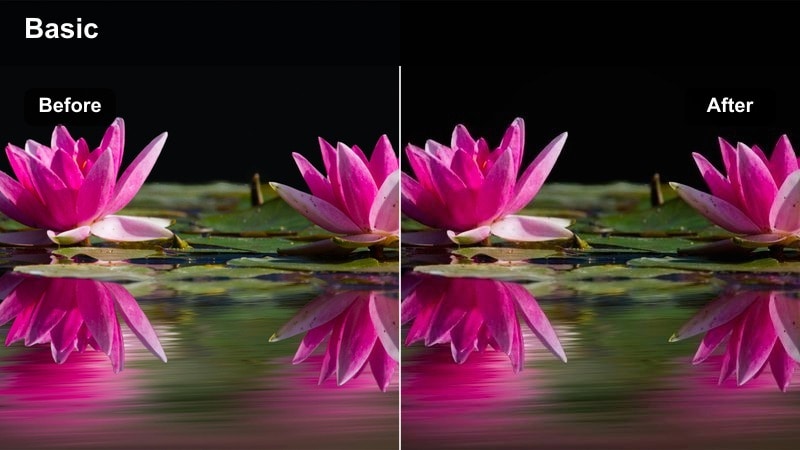
- Effect look: Subtle desaturation with lifted blacks and a film-journal vibe that feels handwritten and intimate.
- Best for: Personal video diaries, street photography-style clips, and reflective storytelling in urban spaces.
- Editing tip: Pair with gentle handheld movement and light film grain to complete the analog journal effect.
Grainy Journal Frame adds a soft, desaturated finish with elevated blacks, giving your videos the feeling of a personal, handwritten diary. The look is calm and intimate, ideal for voice-over confessions and reflective solo walks.
Within Filmora, combine this filter with a subtle film grain overlay and handheld footage to reinforce the analog mood. Keep color corrections minimal so small white balance shifts and imperfections remain, enhancing the documentary-style authenticity.
Retro Analog Vibes and Vintage Cinema
70s City Film Roll
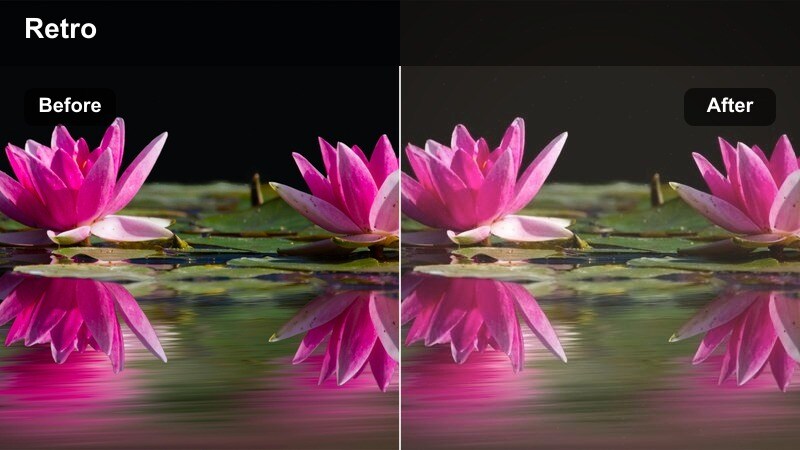
- Effect look: Warm retro cast with slight green in shadows, faded blacks, and a distinctive 70s cinema palette.
- Best for: Throwback city edits, retro-themed skits, and stylized street portraits with vintage outfits.
- Editing tip: Add gentle vignette and lower clarity to mimic older lenses and enhance the time-worn feeling.
70s City Film Roll recreates the warm, slightly faded look of classic 1970s cinema, with gentle green shadows and softened blacks. It works beautifully on city scenes, retro fashion, and stylized skits that call back to an earlier era.
Apply it in Filmora to footage with period-inspired wardrobe or props, then add a vignette and reduce clarity to simulate older lenses. Dial back any modern neon colors and balance saturation so the overall palette stays cohesive with the vintage mood.
Super 8 Street Flicker
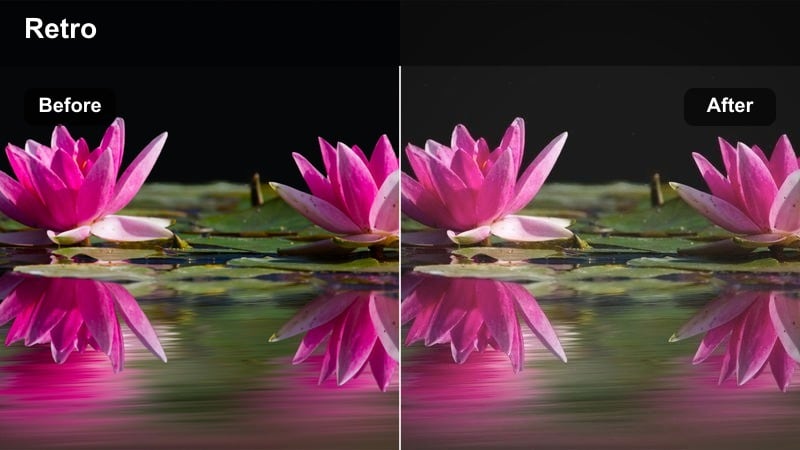
- Effect look: High-contrast retro look with slightly crushed shadows, glowing highlights, and a nostalgic home-movie vibe.
- Best for: Skate edits, candid street clips, and playful city montages that feel like old family films.
- Editing tip: Use shorter clips and jump cuts to echo the choppy, energetic rhythm of Super 8 film reels.
Super 8 Street Flicker brings punchy contrast, rich color, and a hint of highlight bloom that mimics classic home-movie reels. Skating, biking, and candid street moments gain a raw, energetic charm under this filter.
In Filmora, combine the look with fast-paced editing, jump cuts, and maybe a light frame jitter effect to fully sell the Super 8 illusion. Embrace strong daylight and let shadows go deep for an authentic retro punch that still feels fun and watchable on modern platforms.
Cinema Archive Mono
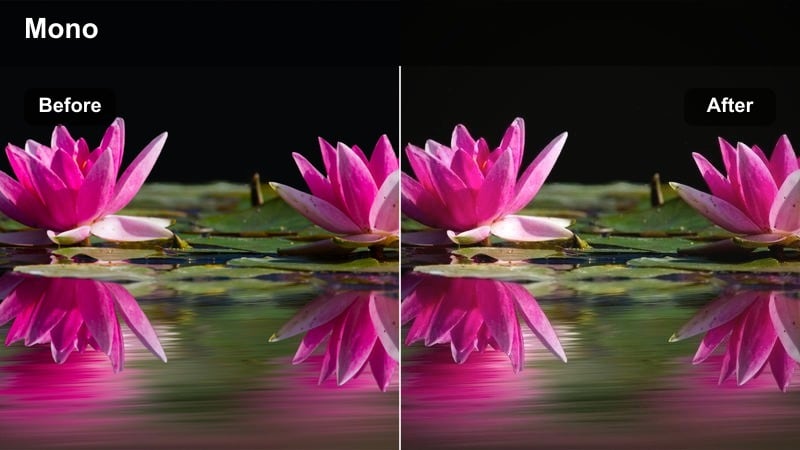
- Effect look: Soft monochrome-inspired grade with a hint of sepia, fine contrast, and timeless archival energy.
- Best for: Historical city pieces, architectural studies, and reflective voice-over sequences.
- Editing tip: Dial down saturation almost to monochrome, then reintroduce a small amount of warm tint for a classic archival mood.
Cinema Archive Mono strips color to near-monochrome while preserving a gentle sepia warmth, giving your footage the feeling of old archival film. It highlights shapes, textures, and architecture, making it ideal for historical city tours and documentary segments.
Use this filter in Filmora with slow camera moves and thoughtful framing so viewers can appreciate lines and details. Lower saturation, add a slight warm tint, and pair with subtle ambient sound or voice-over instead of aggressive music to maintain the timeless, documentary-inspired tone.
Tips for Using Film Inspired Color Tone Lut Filters in Filmora
- Shoot with a neutral or slightly flat camera profile so the film inspired color tone LUT-style filters have more room to shape the final image.
- Always adjust exposure and white balance before applying filters; clean base corrections make cinematic tones look more professional.
- Use different filters for A-roll and B-roll only if they share similar warmth and contrast, so your final edit still feels cohesive.
- Stack a subtle vignette or grain effect after your color filter to enhance the film-inspired depth without overpowering the footage.
- Export a short test sequence with multiple filters applied side-by-side to decide which tone fits your series or channel identity.
- Save your favorite filter and adjustment combinations as Filmora presets so you can quickly reuse them across recurring content formats.
- Mix intensity levels between clips to keep skin tones natural while still benefiting from strong cinematic palettes like teal and orange.
- Regularly compare graded clips with the original footage to ensure details and faces remain clear, especially in low-light city scenes.
Film inspired color tone LUT-style filters in Filmora make it easy for content creators to move from flat footage to cinematic storytelling in just a few clicks.
Experiment with different tones across your urban, travel, and narrative scenes, then refine intensity and contrast so each video feels polished and uniquely yours.
secure download