

 100% Security Verified | No Subscription Required | No Malware

Instagram Reel filters can give your content a polished, on-trend look, but those same clips often fall flat when you repost them as YouTube Shorts if the color and contrast do not translate. The key is recreating the Reel vibe inside Filmora so your Shorts feel native to YouTube while still matching your Instagram aesthetic.
This guide maps popular Instagram Reel styles to Filmora-friendly filter concepts tailored for YouTube Shorts creators, Instagram repurposing editors, and content agencies working on cross-posted shorts, brand campaigns, and short-form content adaptation.
In this article
Urban Daylight Vibes for Talking-Head and B-Roll
Clean Reel Daylight Match
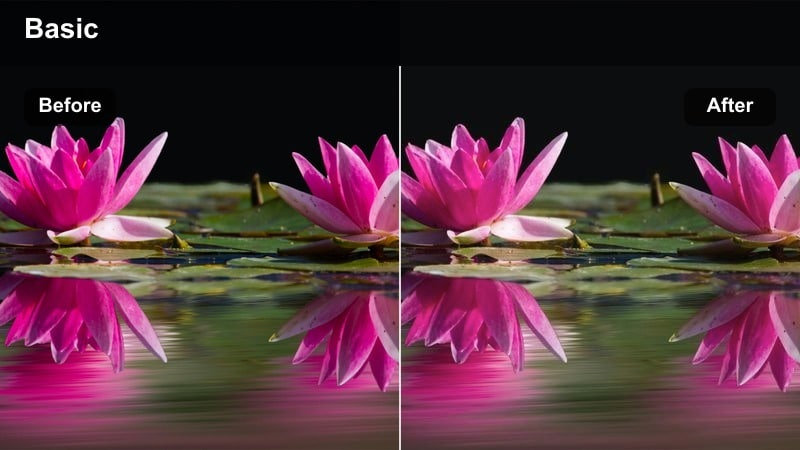
- Effect look: Bright, crisp, and lightly contrasted to mimic popular clean lifestyle Reel filters.
- Best for: Talking-head tutorials, creator vlogs, and behind-the-scenes clips shot near windows or outdoors.
- Editing tip: Boost midtones slightly and reduce saturation just a bit so skin tones feel natural on YouTube's larger screens.
Inside Filmora, start with a neutral look and gently raise exposure and contrast to get that clean, Reel-style daylight pop without blowing out highlights. Use the Color panel to lift midtones while protecting whites, then nudge saturation down a few points so the image stays fresh but not overly boosted on YouTube Shorts.
To keep cross-posted Instagram and YouTube content aligned, use Filmora's skin tone tools and scopes to make sure faces sit in a natural range. Once you have a clean daylight look that works across several clips, save it as a custom preset so every video in your tutorial or vlog series maintains the same bright, urban aesthetic.
Use AI to Match Instagram Reel Color on YouTube Shorts
Filmora's AI-driven color tools can analyze one of your best-performing Reels and help you quickly approximate its color profile for YouTube Shorts. This is ideal when you want a signature Instagram look to carry over to your Shorts library without manually tuning every slider from scratch.
Import a short reference clip into Filmora, let the AI sample its overall color and contrast, and then apply a similar palette to your vertical Shorts timeline. With a single preset, you can batch-adjust multiple shorts so your cross-platform style feels deliberate and consistent.
 secure download

See Filters in Action on Real Cross-Posted Clips
To be sure your Instagram Reel filters translate correctly, bring a recent Reel into a vertical Filmora project and test different looks side by side. Watch your scopes as you switch filters, and preview on a phone or small tablet to see how the final YouTube Short will feel in a real feed.
Filmora makes it easy to create a split-screen comparison between the original Reel grade and your adjusted Short. This lets you confirm that the vibe matches while still respecting YouTube's compression and typical viewing brightness before you batch-apply the look to a full series.
secure download1000+ Video Filters and 3D LUTs
Filmora includes a large library of built-in filters and 3D LUT-style presets that can quickly emulate common Instagram Reel aesthetics. Instead of rebuilding a look from the ground up, you can start from a Filmora filter, tweak intensity, and combine it with color tools to get an on-brand YouTube Short in minutes.
For agencies or creators managing multiple channels, saving these looks as reusable presets means every repurposed Reel can be graded consistently. One click applies your preferred Reel-style treatment, and small adjustments adapt it to different lighting, subjects, or campaign guidelines.
secure downloadSoft Pastel City Aesthetic
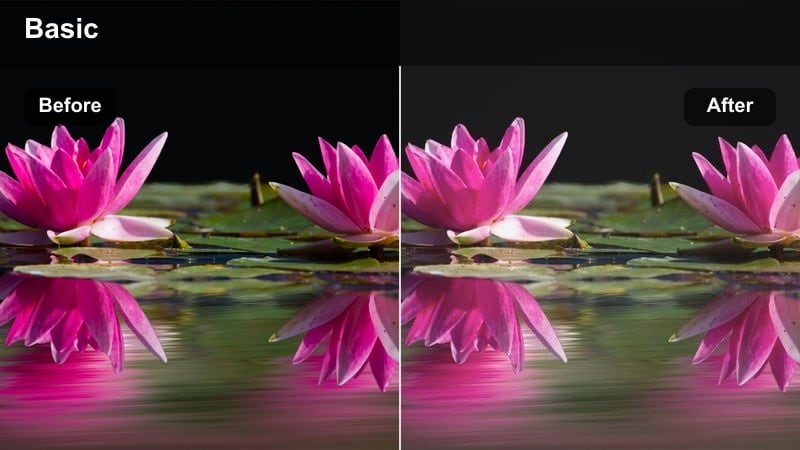
- Effect look: Muted contrast with pastel highlights and softened shadows for an airy lifestyle Reel feel.
- Best for: City lifestyle clips, coffee run B-roll, and desk setups where you want a gentle, aesthetic vibe.
- Editing tip: Lower clarity a touch and lift blacks to avoid harsh edges that can feel too sharp on mobile feeds.
To recreate an aesthetic pastel Reel inside Filmora, reduce overall contrast, lift black levels, and slightly lower clarity so edges feel soft and inviting. Then subtly push tint toward magenta or cyan in the highlights to introduce a pastel wash without distorting skin tones.
Use Filmora's HSL controls to desaturate bold colors like deep reds or greens, which can clash with a pastel vibe on YouTube Shorts. Save this look as a preset and apply it across your lifestyle B-roll, coffee shots, and desk setups so your Shorts grid mirrors the calm, airy mood of your Instagram feed.
Crisp Street Detail Boost
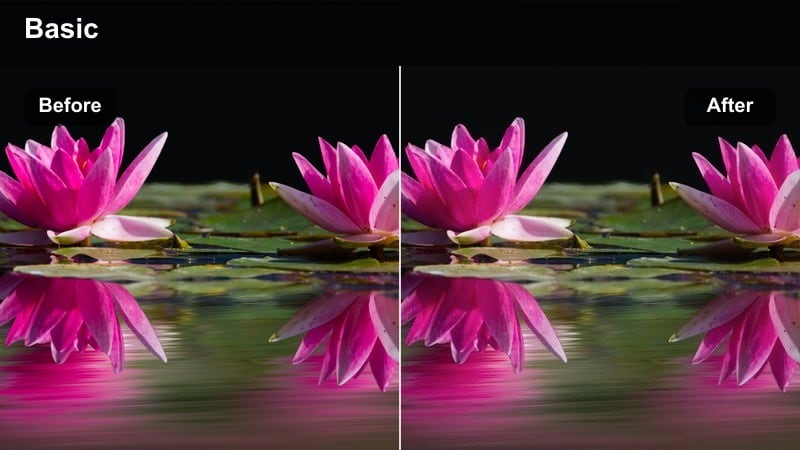
- Effect look: Punchy micro-contrast with subtle sharpening to highlight textures in city streets and interiors.
- Best for: Travel Reels turned Shorts, street B-roll, product shots in urban settings, and workspace tours.
- Editing tip: Use selective sharpening on midtones only so faces do not look overly textured on high-resolution screens.
For a crisp, detail-forward Reel look, raise micro-contrast and apply a small amount of sharpening in Filmora, focusing on buildings, pavement, and product textures. Balance this with controlled highlights and shadows so the depth in your cityscapes and interiors stays strong on smaller YouTube Shorts screens.
Use masks or adjustment layers to limit sharpening to midtone areas while protecting skin and smooth surfaces from looking harsh. Combined with noise reduction and a slightly higher bitrate export, your repurposed travel and street Reels will keep a premium, detailed appearance when published as Shorts.
Warm Branded Looks for Sponsored Content
Cozy Brand Soft Glow
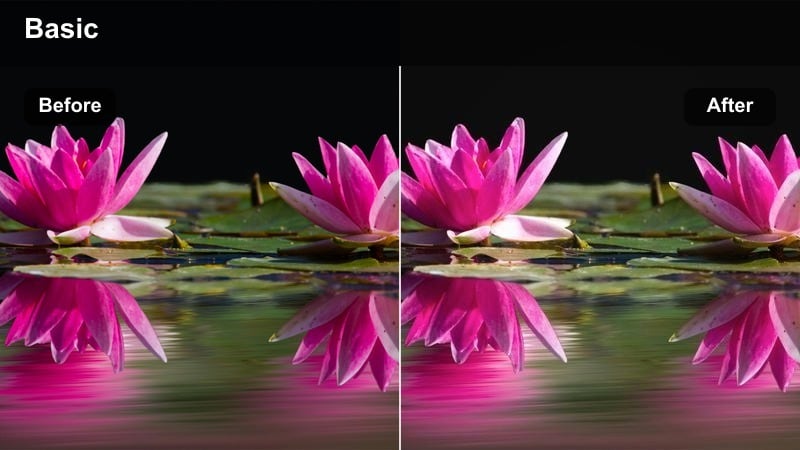
- Effect look: Warm temperature with gentle bloom on highlights, similar to soft glam Reel filters used in brand collabs.
- Best for: Sponsored talking-head segments, product showcases, and brand storytelling in warm interiors.
- Editing tip: Keep saturation moderate so logos and packaging remain accurate while the overall frame stays cozy.
In Filmora, push white balance slightly warmer and add a soft glow or bloom effect to bright areas to mimic glam-style Reels. This creates flattering skin tones and a cozy atmosphere around products without overwhelming viewers on YouTube Shorts.
Use HSL tools to protect critical brand colors, keeping logos and packaging true even as you warm the overall scene. Once you lock a look that both flatters the creator and respects brand guidelines, save it as a preset so future sponsored Shorts automatically match your approved campaign aesthetic.
Amber Campaign Pop
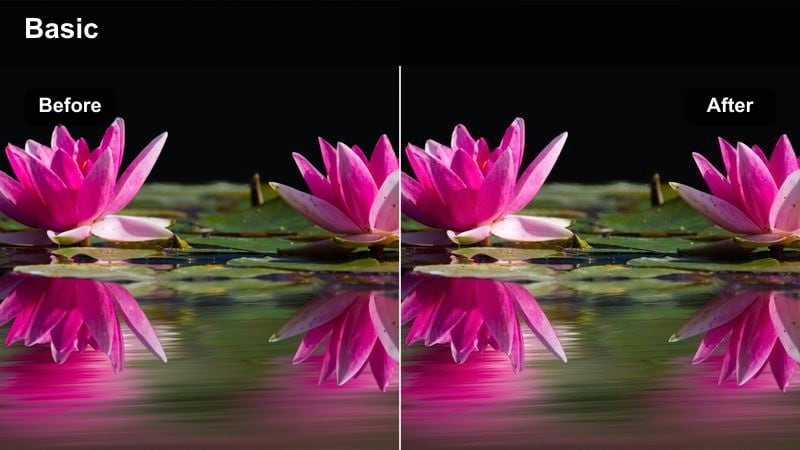
- Effect look: Rich amber midtones with boosted vibrance for a high-energy, ad-like Reel style.
- Best for: High-impact product reveals, launch announcements, and energetic campaign hooks.
- Editing tip: Pair this filter with slightly faster cuts and on-beat transitions so the visual energy matches the color intensity.
To build an ad-like Reel look in Filmora, deepen midtones, raise vibrance, and shift the midtone color wheel gently toward amber. This gives your Shorts a rich, campaign-ready glow that grabs attention in the first seconds of the feed.
Combine the color treatment with dynamic editing techniques such as speed ramps, punch-in cuts, and bold text overlays. Keyframe filter intensity so the amber pop is strongest on reveal moments and slightly softer during explanations, keeping energy high without overwhelming your audience.
Neutral Sponsorship Safe
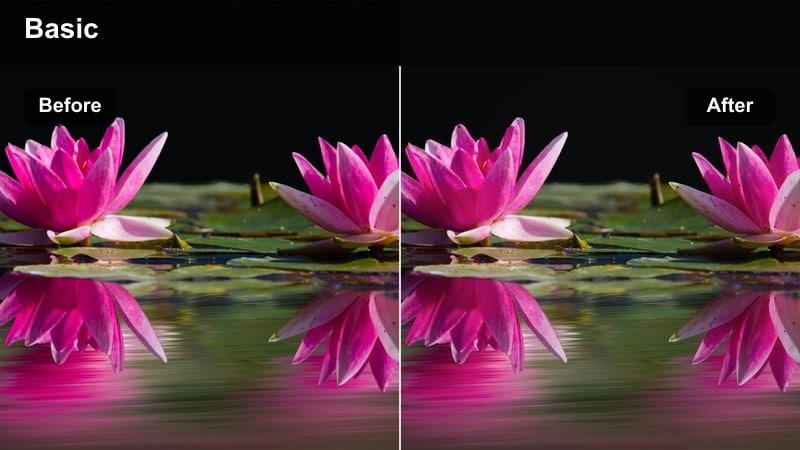
- Effect look: Balanced contrast with true-to-life color that subtly refines footage without obvious stylization.
- Best for: Brand deals with strict color guidelines, app walkthroughs, and screen-recorded explainer Reels repurposed as Shorts.
- Editing tip: Apply the filter lightly and focus on consistent exposure across clips so branded assets look uniform.
For clients that prioritize accuracy, use Filmora to apply a gentle contrast curve, subtle sharpening, and minor saturation adjustments only. This keeps your YouTube Shorts looking polished while preserving screen colors, UI elements, and brand palettes from your Instagram Reels.
Rely on waveform and vectorscope monitors to align exposure and color across multiple clips in the same sponsored Short. Once a neutral, client-approved master look is set, convert it into a preset to rapidly grade future campaigns and maintain consistent visuals across all cross-posted platforms.
Moody Evening Reels Turned Cinematic Shorts
Teal-Orange City Night
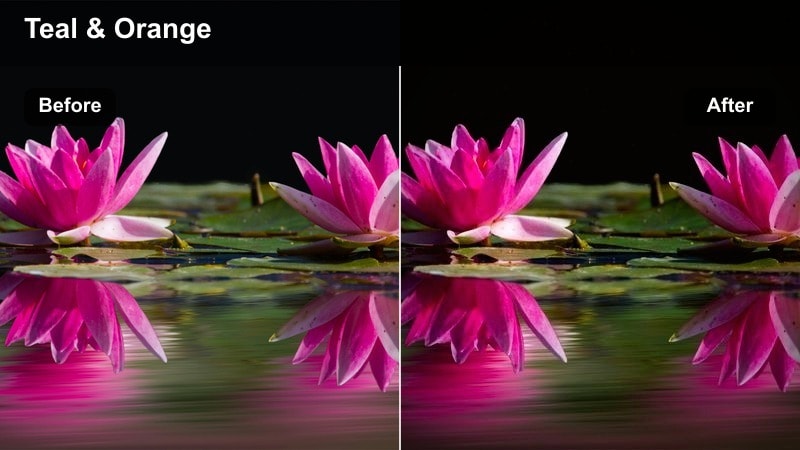
- Effect look: Stylized teal shadows and orange highlights to replicate trendy nighttime Reel color grades.
- Best for: Nighttime street walks, neon signs, rooftop hangs, and nightlife B-roll repurposed as Shorts.
- Editing tip: Keep luminance noise under control and avoid pushing saturation too far or gradients will band on YouTube compression.
To achieve the classic teal-orange Reel vibe in Filmora, cool your shadows toward teal while warming highlights and midtones around skin and streetlights. Keep overall saturation in check and add mild noise reduction so dark areas stay smooth when YouTube Shorts compression kicks in.
Use masking or color range tools to protect faces and key signage from becoming too stylized, ensuring text and important details remain readable. When exporting, choose a higher bitrate and preview your Short on a phone to confirm gradients in the sky and neon areas remain clean and cinematic.
Grainy Lo-Fi Evening
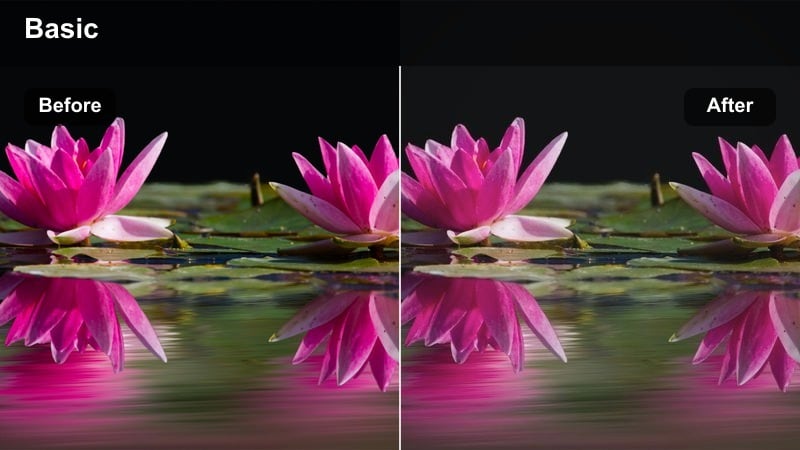
- Effect look: Soft contrast with subtle film grain and a slight fade in blacks for a nostalgic Reel mood.
- Best for: Lo-fi study sessions, late-night editing vlogs, and intimate behind-the-scenes moments.
- Editing tip: Keep grain amount low so it adds texture without looking like compression artifacts on Shorts.
Create a nostalgic lo-fi look in Filmora by slightly fading the blacks, lowering contrast, and adding a fine film grain overlay. This injects texture and mood into your late-night Reels turned Shorts, making study, editing, or chill vlogs feel cozy and cinematic.
Adjust grain size and opacity carefully so it enhances the background while keeping the subject's face clear and readable on mobile screens. Combine the effect with a gentle vignette to pull attention to the center of the vertical frame and reinforce the intimate feel of your night-time storytelling.
Cool Minimal Evening Tone
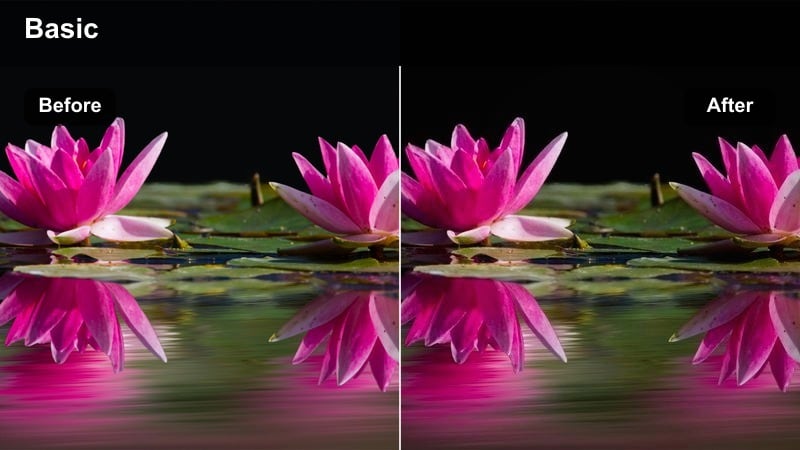
- Effect look: Cooler white balance with reduced saturation for a calm, minimal nighttime aesthetic.
- Best for: Tech demos, late-night productivity clips, and calm creator monologues recorded indoors.
- Editing tip: Use targeted saturation cuts on reds and yellows to control mixed lighting from lamps and screens.
When your evening Reels mix warm lamps and cool screens, use Filmora to shift overall white balance slightly cooler and gently desaturate the image. This creates a clean, tech-forward mood that works well for productivity and app-focused YouTube Shorts.
Target warm hues like orange and yellow in the HSL panel to minimize color casts from lamps while leaving skin tones natural. The final result is a minimal, cohesive palette that feels intentional rather than chaotic, even when your source Reel had multiple competing light sources.
Trendy Vertical Transitions and Viral Reel Styles
High-Energy Punch Filter
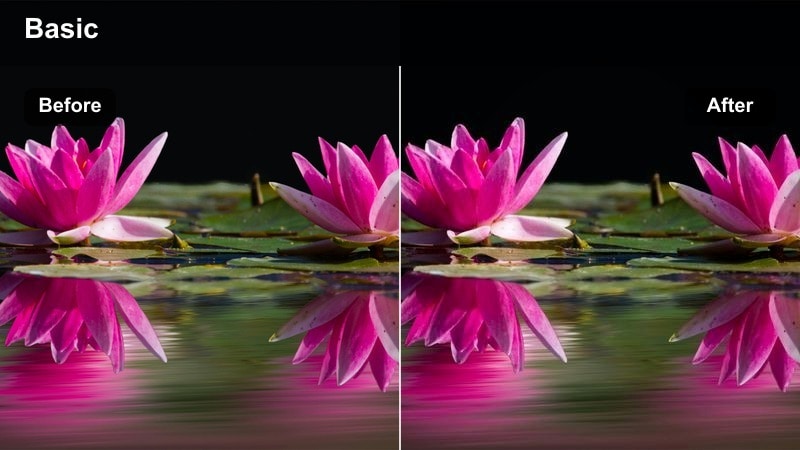
- Effect look: Strong contrast, vivid color, and slightly darker edges to enhance fast transitions and jump cuts.
- Best for: Trend-based transitions, outfit changes, quick cuts, and meme-style shorts.
- Editing tip: Combine with speed ramps and beat-synced cuts, but avoid crushing blacks so mobile viewers still see detail.
To keep viral transition Reels feeling impactful on YouTube Shorts, raise contrast and saturation in Filmora while adding a subtle vignette. This focuses attention on the center of the frame during quick jumps and outfit changes, helping each transition beat land more clearly.
Pair the punchy look with speed ramps, beat-matched cuts, and on-beat zooms so motion and color work together. Be careful not to crush shadows; preserving some detail in dark areas keeps the edit looking professional rather than overprocessed when viewed on different devices.
Soft Beauty Smoothing Reel Match
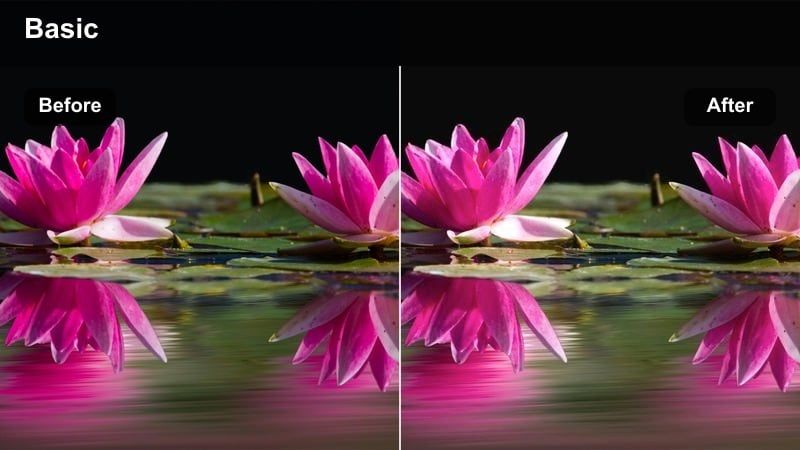
- Effect look: Very light skin smoothing with flattering contrast and gentle warmth reminiscent of beauty Reel filters.
- Best for: Beauty, hair, fashion, and face-forward creator content where viewers expect a polished look.
- Editing tip: Keep smoothing subtle and add texture back through micro-contrast so faces do not appear plastic on larger screens.
In Filmora, apply a light skin smoothing or beautify effect targeted only to the face area, combined with soft contrast and a slight warm shift in white balance. This recreates familiar Instagram beauty filters while respecting the higher resolution and screen size of YouTube Shorts.
Use masks to restrict smoothing to skin and bring back fine detail with gentle micro-contrast so makeup textures and hair strands stay visible. Always preview on a larger screen or tablet; if the face looks too airbrushed, dial back smoothing and rely more on good lighting for a natural yet polished result.
Viral Text Overlay Clarity
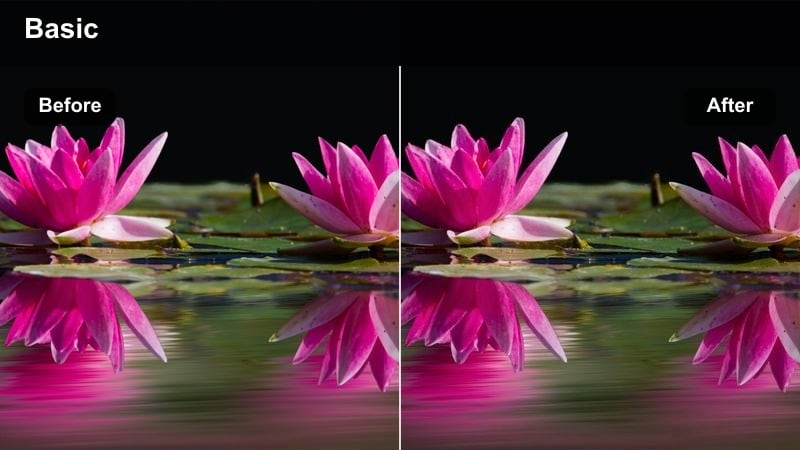
- Effect look: Clean, high-contrast base with slightly desaturated background tones to make text and captions stand out.
- Best for: Storytime Reels, educational Shorts, and meme caption formats where text carries the hook.
- Editing tip: Darken or blur the background slightly under text while keeping the subject visible on the opposite side of the frame.
For text-heavy Shorts adapted from Reels, use Filmora to raise contrast while gently desaturating the background. This creates a neutral canvas that allows bold captions, subtitles, or meme text to read clearly, even on small phone screens and busy feeds.
Add a subtle blur or darkened overlay behind your text block using shapes and opacity controls, keeping the creator framed cleanly on the opposite side. Test on both Instagram and YouTube safe zones to make sure no words are hidden by UI, then save the layout and color treatment as a go-to preset for future educational or storytime content.
Tips for Using Instagram Reel Filters For Youtube Content Filters in Filmora
- Always test your Reel-inspired filter on at least three different lighting scenarios in Filmora before standardizing it across your YouTube Shorts.
- Keep a reference folder of your top-performing Instagram Reels and import those clips as color and contrast guides when grading Shorts.
- Use Filmora's scopes and phone previews to ensure your chosen filter still looks clean after YouTube's mobile compression.
- Design framing and color with both Instagram and YouTube UI in mind so hooks, faces, and text stay clear of crop lines and on-screen buttons.
- Batch edit several repurposed clips with the same Filmora preset to speed up delivery for series content and brand campaigns.
- Regularly revisit and tweak your Reel-style presets in Filmora so they stay aligned with evolving platform trends and your brand aesthetic.
- Save separate presets for daylight, indoor, and night scenes so your Instagram-to-YouTube filter workflow remains quick and predictable.
- Document your preferred export settings for Shorts to keep detail, color, and sharpness consistent across every upload.
Instagram Reel filters can absolutely work on YouTube Shorts, but they need small adjustments in color, contrast, and clarity so the same clip feels native in a different feed environment. With Filmora's filters, color tools, and presets, you can quickly recreate your favorite Reel looks while optimizing them for YouTube's viewing conditions.
Build a small toolkit of Reel-inspired Filmora presets, test them on real cross-posted clips, and refine them over time so your short-form content adaptation looks unified across every platform you publish on. The more consistent your visual identity becomes, the easier it is for viewers to recognize your work instantly, whether they find you on Instagram or YouTube.
secure downloadNext: Instagram Reel Filters for TikTok Cross-Platform Videos
