

 100% Security Verified | No Subscription Required | No Malware

Instagram Reel filters can instantly upgrade your vertical videos, helping you lock in a consistent look, boost colors, and highlight your story without advanced editing skills.
Below are 12 filter-style looks inspired by Filmora that you can use as a starting point for daily Reels, brand promos, and creator storytelling so every clip feels intentional and on-brand.
Golden Hour City Vibes
Sunlit Soft Glow
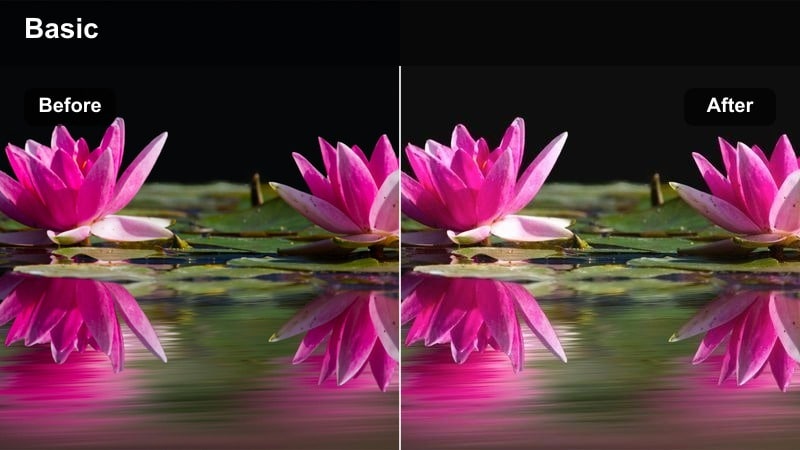
- Effect look: Warm, low-contrast glow that smooths skin and softens shadows.
- Best for: Daily Reels walking through the city at sunset or filming quick lifestyle check-ins.
- Editing tip: Dial back the filter intensity to around 60% and slightly lower highlights to avoid blown-out skies.
In Filmora, Sunlit Soft Glow is easy to mimic by combining a gentle warm color temperature shift with reduced contrast and a softening effect on highlights. This gives your vertical city clips that dreamy, golden-hour haze while keeping movement and detail clear enough for Reels viewers on small screens.
For vlog-style content, apply this look to handheld shots where natural light is already hitting your face from the side or front. Start with basic exposure correction, lower highlight values a bit, then add a glow or soft-focus effect so skin tones look flattering and the city in the background feels softly lit rather than harsh.
Speed up your Reel look with AI-powered color presets
Instead of manually tweaking exposure, contrast, and saturation for every clip, use Filmora-style AI color presets to get a polished Reel look in a single click. AI analyzes your footage and suggests color palettes that match city sunsets, cozy rooms, or neon nights so you can stay focused on filming.
Once you find a palette that matches your brand, save it as your default so every daily Reel, brand promo, and story sequence automatically feels on-theme. This cuts your color-correction time down to seconds, even when you are editing on the go.
 secure download

Preview filters in vertical before you post
Before you commit to a full series look, use Filmora-style preview tools to test filters directly in a 9:16 frame. This lets you see how skin tones, city highlights, and on-screen text will actually appear in the Instagram Reels feed.
Record a short clip in your usual filming spot, then swipe through multiple presets and LUT-style looks on that same timeline. You can instantly compare which option keeps details clean, avoids overblown highlights, and matches your brand colors.
secure download1000+ Video Filters and 3D LUTs
Filmora includes a large library of video filters and 3D LUTs that you can stack, combine, and fine-tune to match any Instagram Reel mood. Whether you prefer warm lifestyle aesthetics, moody nightlife tones, or clean studio color, you can build a reusable look in a few clicks.
Save your favorite combinations as custom presets so your 9:16 Reels, Stories, and Shorts all share the same visual language. This makes it easier to keep your brand consistent, even when you are editing footage from different locations or cameras.
secure downloadCity Gold Pop
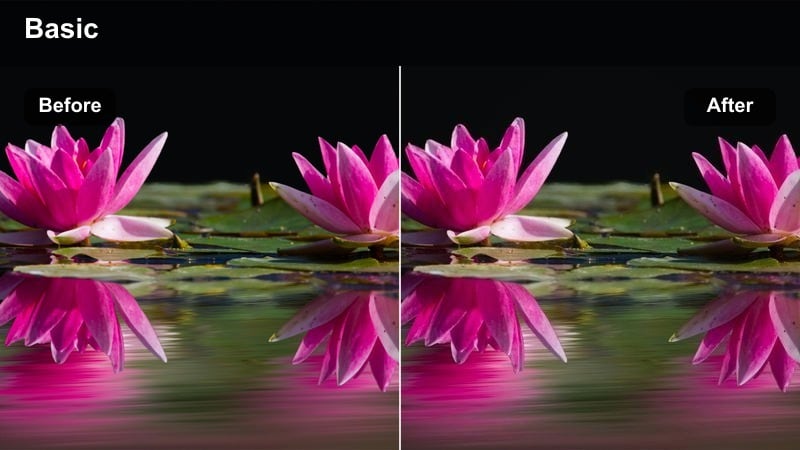
- Effect look: Punchy golden tones with rich contrast and saturated highlights.
- Best for: Brand promos filmed outdoors, street fashion styling, and bold city B-roll sequences.
- Editing tip: Increase saturation in the yellow and orange channels while slightly muting blues to push the golden city feel.
To recreate City Gold Pop in Filmora, start with a contrast boost and targeted HSL adjustments that push oranges and yellows while gently pulling back blues. This combination keeps skies and concrete feeling dramatic but not cartoonish, ideal for fashion Reels and outdoor brand showcases.
Add subtle sharpening and clarity so fabric textures, accessories, and skyline edges stay crisp once Instagram compresses the upload. If you overlay text or stickers, consider slightly lowering global saturation or adding a faint dark overlay behind your captions so they remain readable against busy city scenes.
Sun-Fade Vintage
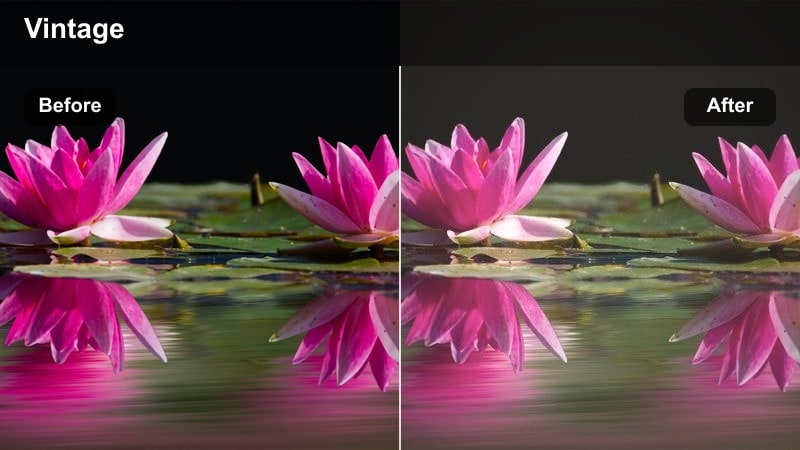
- Effect look: Soft, faded highlights with a subtle grain and nostalgic warmth.
- Best for: Creator storytelling about past memories, city travel diaries, and reflective voiceover Reels.
- Editing tip: Add a slight vignette and a touch of film grain to enhance the retro story-driven feel.
In Filmora, Sun-Fade Vintage is achieved by slightly lifting blacks, lowering overall contrast, and warming midtones while keeping saturation moderate. This makes your city b-roll and portrait shots feel like they were pulled from an old photo album, which works well for memory-style narrations and reflective Reels.
Layer in a soft vignette around the frame and add a low-level film grain effect to complete the retro impression. Use this look on cutaway shots or flashback sequences following a clean, modern intro so viewers instantly understand when you are shifting into a memory or past moment.
Nightlife and Neon Scenes
Neon Edge Contrast
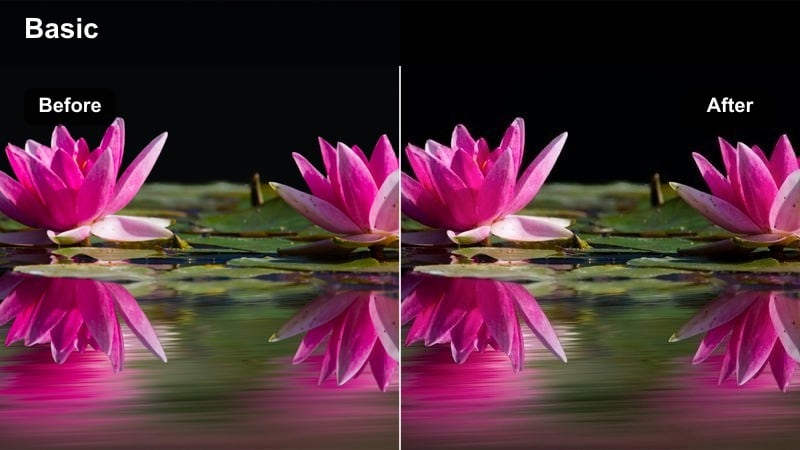
- Effect look: Strong contrast with deep blacks and vibrant neon reds and blues.
- Best for: Reels shot in night markets, club entrances, live music streets, and city nightlife vlogs.
- Editing tip: Lower midtone noise with a subtle denoise pass before applying the filter so dark areas stay clean.
To build a Neon Edge Contrast look in Filmora, first apply a gentle noise reduction to your night footage so grain does not get exaggerated. Then increase contrast and deepen blacks while boosting saturation in red, blue, and magenta channels, making neon signs and LED lights punch hard in vertical format.
Because night scenes can easily crush detail, keep some information in the shadows by adjusting curves carefully rather than maxing out contrast sliders. If your face gets too dark compared to the signs, use Filmora s masking and keyframing tools to brighten just the subject area without sacrificing the glow of the lights behind you.
Cyber City Tint
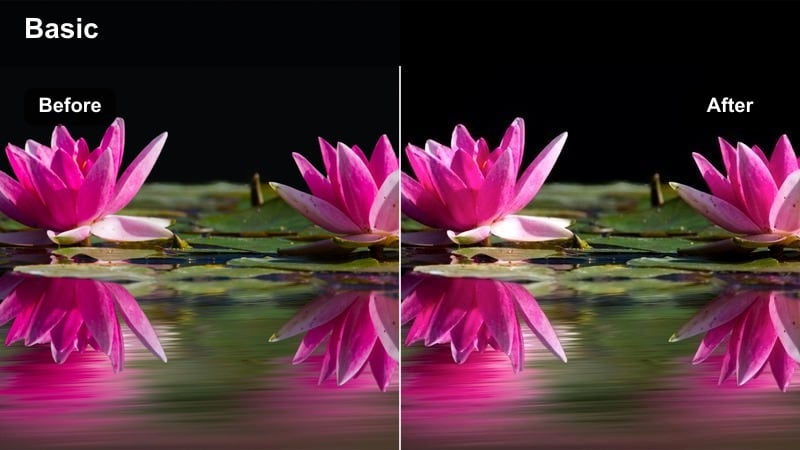
- Effect look: Cool teal-magenta color cast with a soft glow on lights for a futuristic feel.
- Best for: Tech brand promos, gaming creators filming in RGB setups, and futuristic city B-roll.
- Editing tip: Shift the white balance slightly cooler before applying the filter to keep skin from turning too purple.
Cyber City Tint in Filmora is built by leaning shadows toward teal and highlights toward magenta using color wheels or HSL controls. A small bloom or glow effect on bright areas makes LED strips, RGB keyboards, and neon shop fronts feel more cinematic and sci-fi.
For mixed-light scenes, start by cooling your white balance so that neutral objects do not skew orange, then introduce the teal-magenta split toning. If skin tones start to look unnatural, use selective color correction or a face-only mask to keep people looking flattering while the environment stays stylized and futuristic.
Soft Night Urban
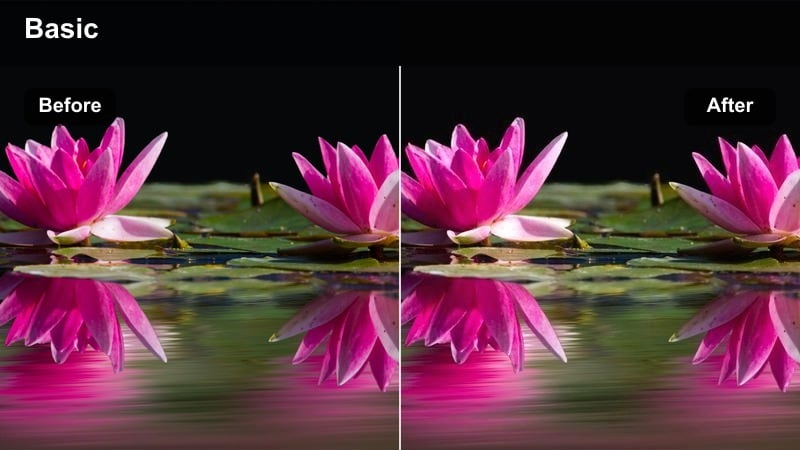
- Effect look: Gentle contrast with softened highlights and warm skin tones in dark environments.
- Best for: Creator storytelling Reels shot on city rooftops, bridges, or quiet side streets at night.
- Editing tip: Lift the shadows slightly to keep details in dark areas while keeping highlights controlled for a cinematic look.
Soft Night Urban is ideal when you want a cinematic mood without harsh nightlife contrast. In Filmora, lightly raise the shadows, keep highlights in check, and give skin tones a subtle warm push so faces stay inviting even in low light.
Pair this grade with gentle sharpening and a small amount of film grain to make night footage feel intentional instead of noisy. It works especially well on talking-head clips filmed near a single light source like a streetlamp or window, where you want the background to stay moody but your subject to remain clear and relatable.
Minimal Studio and Home Setups
Clean Studio True
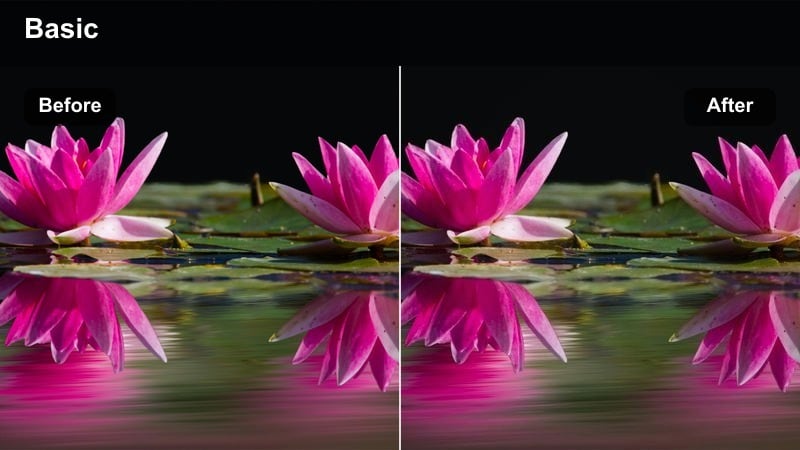
- Effect look: Neutral color grade with slightly lifted shadows and crisp detail.
- Best for: Talking-head Reels, product demos on desks, and tutorial-style educational content.
- Editing tip: Reduce saturation a touch and raise clarity to keep text on screen and product labels readable.
Clean Studio True in Filmora focuses on accuracy and legibility rather than heavy styling. Use a neutral color preset, lift the shadows a little so backgrounds are not too dark, and increase clarity and sharpness just enough to keep faces, text overlays, and product labels crisp in vertical view.
Because this look is designed for tutorials and educational Reels, avoid extreme saturation or contrast shifts that could distract from your message. If your lighting is already balanced, small adjustments to white balance and exposure are usually enough, letting your on-screen graphics and captions stay perfectly readable on mobile screens.
Soft Home Pastel
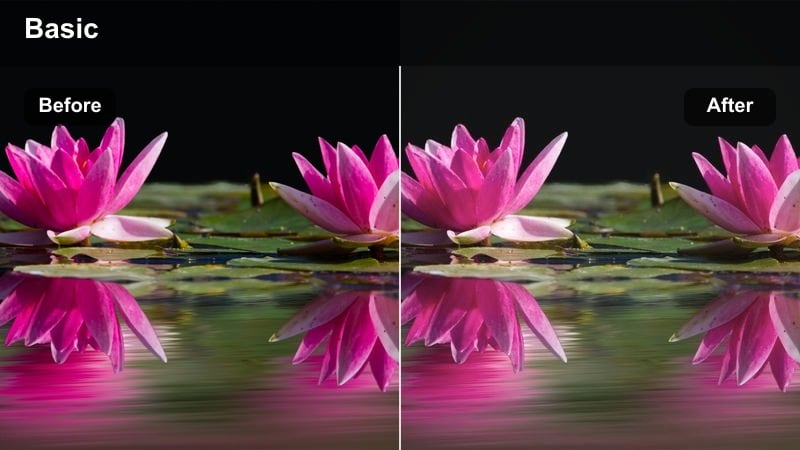
- Effect look: Muted, pastel-like colors with reduced contrast and gentle highlights.
- Best for: Lifestyle creators, morning routine Reels, and cozy home-brand content in vertical format.
- Editing tip: Lower clarity slightly and add a tiny bit of blur to the background to keep focus on your face or product.
To craft Soft Home Pastel in Filmora, gently pull down contrast and overall saturation while keeping whites and highlights clean. This turns bright rooms and neutral decor into a soft, airy background that works perfectly for routines, self-care content, and cozy home-brand Reels.
Add a slight reduction in clarity and, if needed, apply a background blur effect using masking so the subject stays in focus while the environment feels dreamy. The end result is a calm, pastel-toned feed that looks consistent across multiple Reels when you film in the same corner of your home or studio.
Product Spotlight Boost
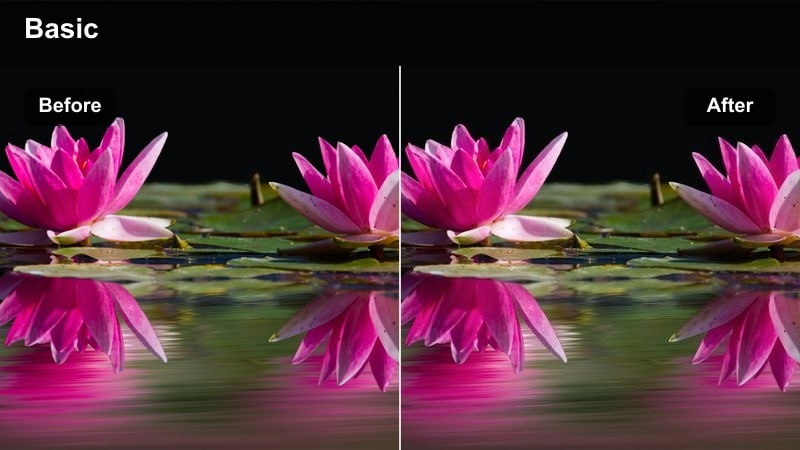
- Effect look: Bright, high-clarity look with targeted contrast that makes objects stand out.
- Best for: Small business promos, unboxing Reels, and vertical product showcases on a table or shelf.
- Editing tip: Sharpen slightly and increase micro-contrast but keep saturation moderate so packaging colors stay accurate.
Product Spotlight Boost in Filmora is tailored for sellers, creators, and small brands that need their items to pop without distorting colors. Brighten exposure slightly, add micro-contrast and clarity, and apply targeted sharpening so edges and logos remain sharp even in quick unboxing or demo shots.
Because accurate color is important for packaging and branding, avoid heavy saturation boosts and instead use subtle HSL tweaks to correct any casts from indoor lighting. Frame with extra negative space in vertical orientation so you can layer price tags, promo codes, or call-to-action text without covering the product itself.
On-the-Go Vlogs and Street Stories
Street Neutral Balance
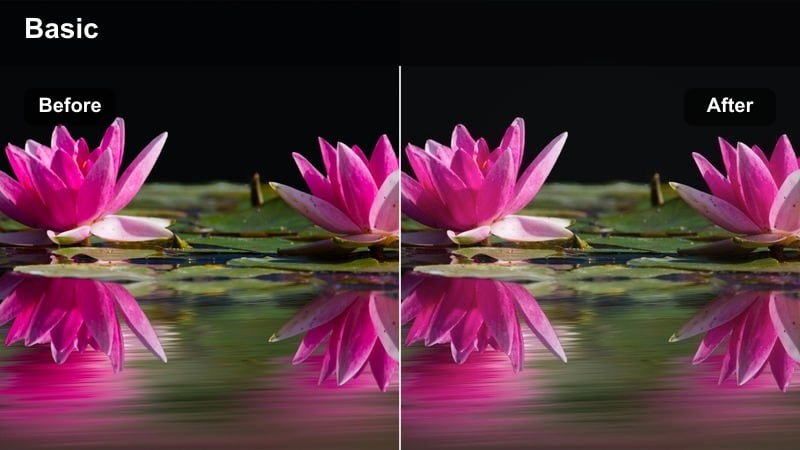
- Effect look: Balanced saturation and mid-contrast look that works in mixed lighting.
- Best for: Daily vlog Reels filmed while walking, commuting, or capturing quick street moments.
- Editing tip: Use slight stabilization and crop to 9:16 before applying the filter so the look stays consistent across jump cuts.
Street Neutral Balance is your go-to Filmora look when vlogging through mixed lighting like shade, storefronts, and buses. Apply mild contrast, keep saturation around the middle, and neutralize color casts so your skin tone and city elements look consistent from shot to shot.
Stabilize your clips and crop to 9:16 first, then apply this filter as a finishing layer to unify all the angles and locations. This way, your Reels feel like a single, cohesive story, even if they are pieced together from quick shots captured throughout the day.
Urban Story Matte
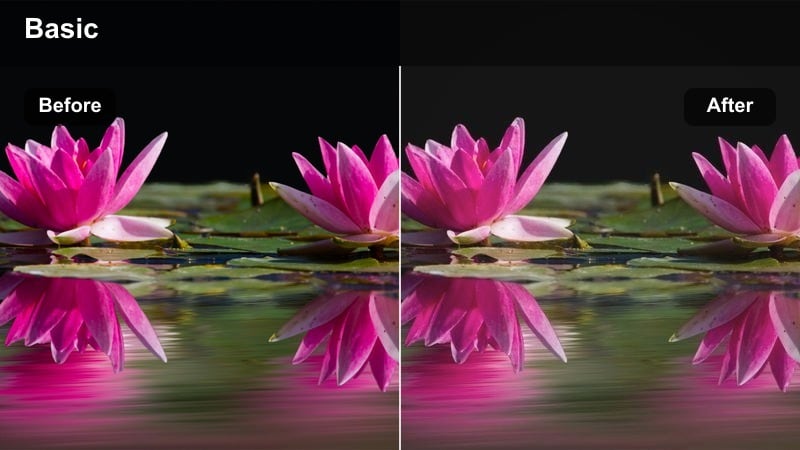
- Effect look: Slightly faded blacks with a matte finish and cool shadows.
- Best for: Narrated city stories, street interviews, and reflective creator monologues on the go.
- Editing tip: Lift the blacks just enough to get the matte effect but keep contrast in the midtones so faces stay defined.
Urban Story Matte in Filmora gives your Reels a documentary-style tone with desaturated blacks and cooler shadows. Use curves to lift the very bottom of the luminance range, creating a matte look while preserving midtone contrast so facial features and street details stay well defined.
This grade pairs well with reflective voiceovers, interviews, or more serious topics where you want a less flashy, more grounded visual mood. Slightly cool the overall color temperature and bring down saturation a touch to reinforce the documentary feel without making the footage look flat or lifeless.
Travel Quick-Cut Pop
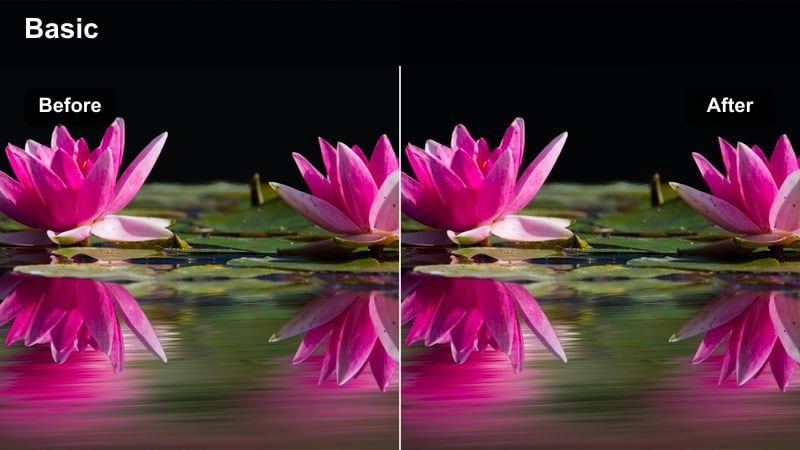
- Effect look: Bright, saturated colors with extra punch on skies and city details.
- Best for: Fast-paced travel Reels, city montages, and quick-cut transitions between locations.
- Editing tip: Align your cuts to the beat, then apply the filter so saturation and contrast hit consistently across every jump cut.
Travel Quick-Cut Pop is designed for energetic montages where every frame needs to feel vibrant. In Filmora, boost saturation and contrast, then give blues and teals in the sky or water a bit of extra emphasis while keeping skin tones natural using HSL or color wheels.
Assemble your quick cuts to the beat of your chosen track first, then apply this filter to the full sequence to avoid mismatched colors between clips. If some shots look overcooked, reduce filter intensity on those specific clips so the entire vertical Reel feels cohesive without losing the punchy travel aesthetic.
Tips for Using Instagram Reels Video Filters Filters in Filmora
- Pick 1–2 signature filters and reuse them consistently so your audience can recognize your Reels at a glance in the feed.
- Always preview how a filter affects skin tones and any text overlays before publishing, especially when using high-contrast or neon-heavy looks.
- Shoot in the cleanest, most even light available, then use Filmora filters to polish the mood rather than rescue extremely dark or mixed lighting.
- Keep filter intensity lower for talking-head, educational, or interview-style Reels and reserve stronger looks for B-roll, montages, and transitions.
- Test your filters in a 9:16 preview inside Filmora to make sure key details are not cropped and that colors look right on vertical screens.
- Save your favorite Instagram-style grades as Filmora presets or LUT-style looks so you can apply them quickly across multiple Reels.
- Combine subtle sharpening with high-resolution exports so your filtered Reels stay crisp after Instagram compression.
- When repurposing content for Shorts or TikTok, reuse the same Filmora filter presets to keep your color identity consistent across platforms.
Using the right Instagram Reel filters can turn simple vertical clips into polished, on-brand stories that viewers want to watch to the end.
Test a few of these looks on your next daily Reels, brand promos, or storytelling series, then lock in a small set of favorites to build a consistent visual style across your entire profile.
secure download