

 100% Security Verified | No Subscription Required | No Malware

Modern color tone video filters help content creators give their footage a cohesive, on-trend look in seconds, from soft neutrals to bold cinematic contrasts.
Below are curated Filmora filter presets designed for different shooting scenarios so you can quickly match the mood of your video while staying consistent across your channel.
In this article
Urban Evenings and City Nightlife
Neon City Glow
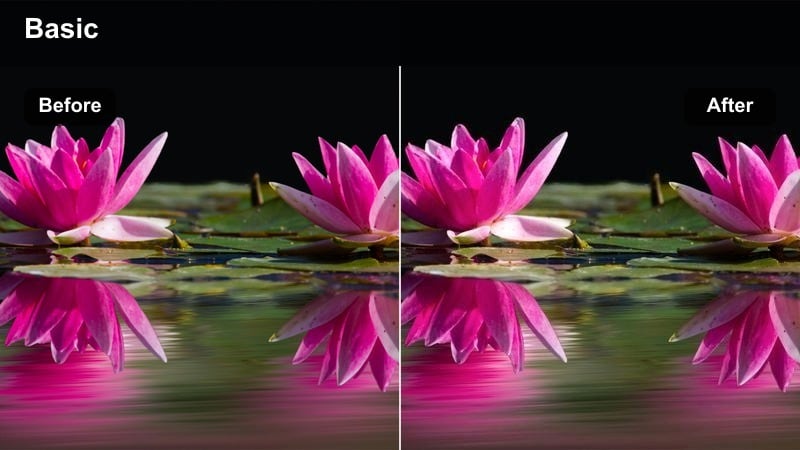
- Effect look: High-contrast, cool shadows with neon-accented highlights that make city lights pop.
- Best for: Night street vlogs, cyberpunk B-roll, cityscape transitions with lots of signage and LEDs.
- Editing tip: Slightly lower exposure before applying to avoid clipped highlights in bright billboards and signs.
Neon City Glow is ideal when you want a modern color tone video filter that amplifies neon signage and LED strips without losing clarity in your subject. In Filmora, apply this preset on night sequences with plenty of light sources, then fine-tune exposure and contrast so the cool shadows and punchy highlights feel sleek instead of harsh.
To keep skin tones natural, combine this look with Filmora tools like skin tone protection or HSL, gently pulling blues out of the face while preserving them in the background. Finish by adding a subtle vignette around the frame so the viewer stays locked on your subject while the neon environment frames the shot with a futuristic atmosphere.
Speed up modern tones with AI-powered color tools
Filmora AI color tools quickly analyze your footage to remove color casts, balance exposure, and even out contrast so your clips start from a clean, neutral baseline. This gives you a strong foundation before you add any modern color tone video filter on top.
Once the AI has corrected your footage, you can stack creative presets like Neon City Glow or other modern grading styles to build a cinematic finish with far less manual tweaking on each shot.
 secure download

See modern filters in action on real footage
Inside Filmora, you can preview how different modern grading presets behave on your own clips, from neon city streets to soft indoor studios. This helps you compare looks like high-contrast night filters versus pastel daytime tones in just a few clicks.
Import a short test sequence, then quickly audition several filters to see how they react to real lighting conditions, skin tones, and motion in your footage before you commit to a look for your entire edit.
secure downloadMatch filters with LUTs for consistent branding
For creators building a recognizable brand, Filmora lets you combine modern filters with LUTs so your colors stay consistent across cameras, locations, and collaborations. Once you find a combination that fits your channel, you can save it as a preset and reuse it with one click.
Use LUTs to establish core color characteristics, then fine-tune each project with individual filters that match the mood of your story while preserving your brand identity.
secure downloadStreet Minimal Matte
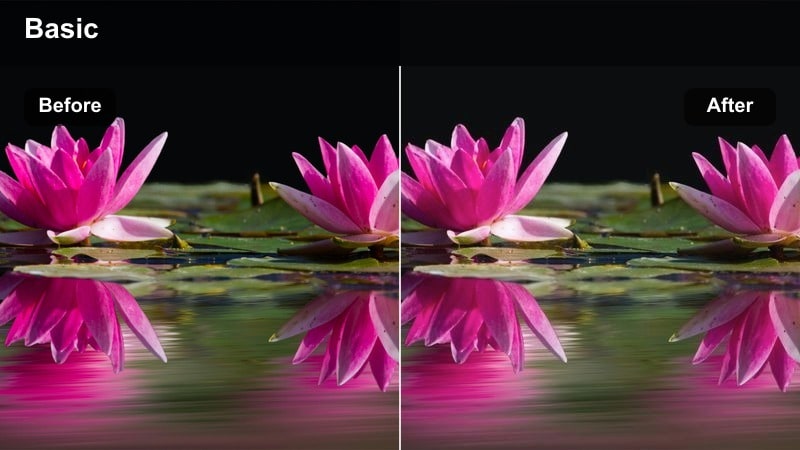
- Effect look: Soft contrast, muted colors, and a subtle matte finish for clean, modern street visuals.
- Best for: Lifestyle city walks, outfit showcases, minimalist urban storytelling.
- Editing tip: Lightly boost clarity only on your subject using masks to avoid adding grit to the entire frame.
Street Minimal Matte delivers a low-key, editorial finish that works perfectly for fashion-forward or lifestyle content in urban environments. In Filmora, apply this preset to reduce distractions in the background, pull back saturation, and let shapes, outfits, and composition guide the viewer instead of loud colors.
To keep your sequence visually consistent, add this filter as an adjustment layer across multiple clips and then apply Filmora color match between key shots. You can mask a small clarity boost around your subject so they stay crisp while the rest of the frame keeps that soft, matte aesthetic ideal for Instagram-ready videos and reels.
Taxi Amber Haze
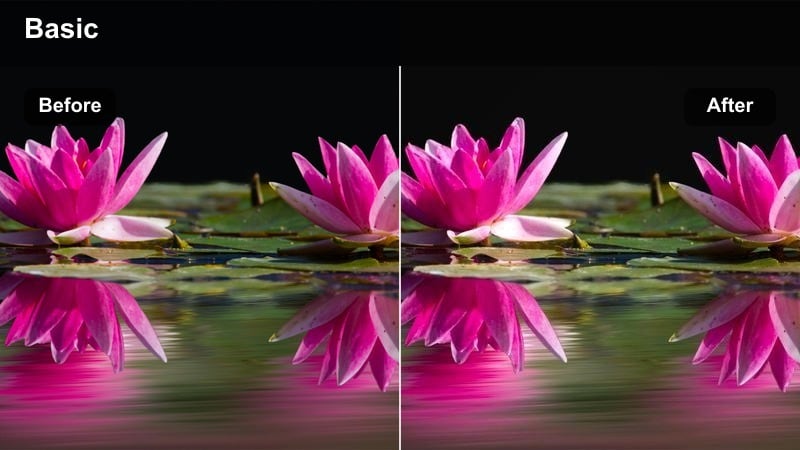
- Effect look: Warm amber highlights with softened shadows, giving city nights a cozy cinematic glow.
- Best for: Taxi rides, cozy night drives, romantic city date vlogs and cinematic B-roll.
- Editing tip: Add a touch of film grain after this filter to enhance the nostalgic, hazy mood.
Taxi Amber Haze wraps your nighttime car footage in a warm, cinematic veil that feels intimate and nostalgic. When you apply this look in Filmora, dashboard lights, passing street lamps, and window reflections take on a rich amber tone that flatters skin while softening shadows for a gentle, dreamy feel.
For best results, shoot with your white balance slightly cooler, then let this preset add warmth without tipping into orange. In the edit, lightly layer film grain and a gentle vignette over the filtered clip to accentuate the hazy atmosphere, and use color wheels to keep the warmth in highlights and midtones while preserving enough contrast for a modern finish.
Bright Daylight and City Lifestyle
Clean Concrete Chic
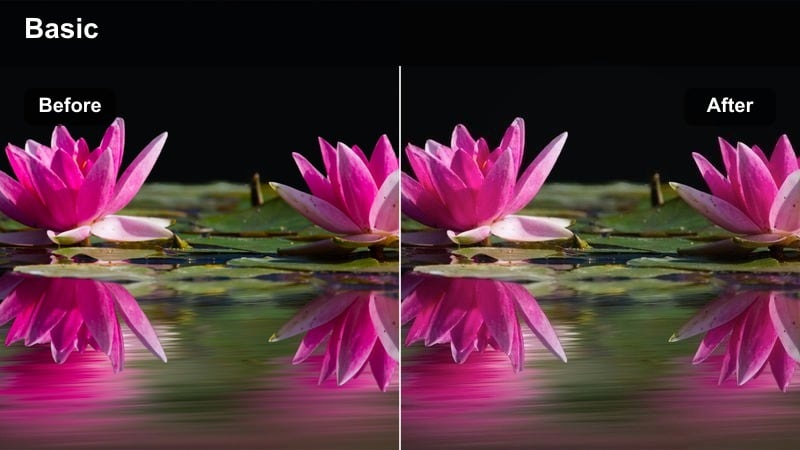
- Effect look: Neutral whites, cool grays, and crisp contrast that flatter modern architecture and outfits.
- Best for: Lookbooks, street fashion reels, architecture-focused city B-roll.
- Editing tip: Dial back saturation slightly in-camera so this filter can add polish without pushing colors too hard.
Clean Concrete Chic is built for minimalist cityscapes where glass, steel, and concrete dominate the frame. In Filmora, this modern color grading preset refines whites, cools grays, and adds sharp contrast so building lines and outfit details feel clean and premium on social feeds.
Apply it to your daylight fashion reels, architecture tours, or productivity montages shot downtown, then refine midtones using curves to avoid crushing shadows. If bright outfits or reflective surfaces risk overexposure, selectively tame highlights on those areas while leaving the background strong and structured for a modern, editorial look.
Soft City Pastel
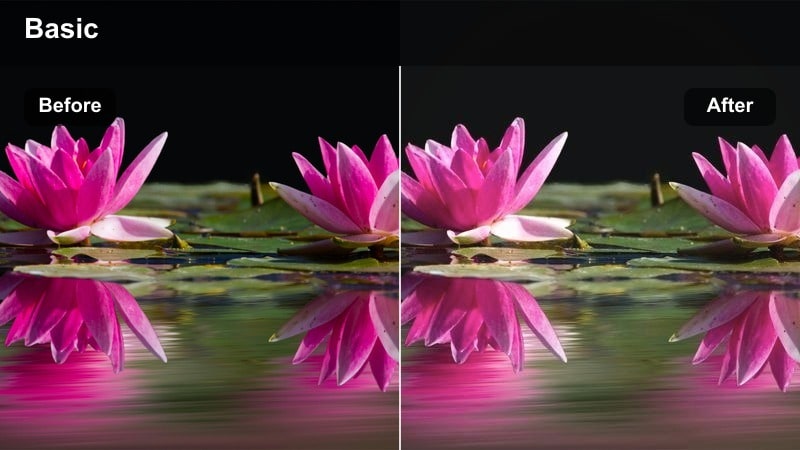
- Effect look: Lifted shadows, pastel saturation, and gentle warmth for dreamy daytime city scenes.
- Best for: Brunch vlogs, lifestyle montages, slow-paced city diaries shot in daylight.
- Editing tip: Lower sharpness a touch after applying to keep the pastel aesthetic smooth and flattering.
Soft City Pastel transforms harsh midday sun into a lighter, more romantic palette with pastel buildings, lifted shadows, and soft contrast. In Filmora, this filter is great for brunch dates, casual walks, and lifestyle diaries where you want the city to feel airy and inviting instead of busy and harsh.
Exposing your footage slightly brighter in-camera gives the preset room to create a glossy, washed-in-light effect while preserving highlight detail. After applying, gently reduce global sharpness and micro-contrast so skin and backgrounds stay smooth, and use Filmora masks to leave text overlays or key graphics a bit crisper for readability.
Glass Tower Neutral
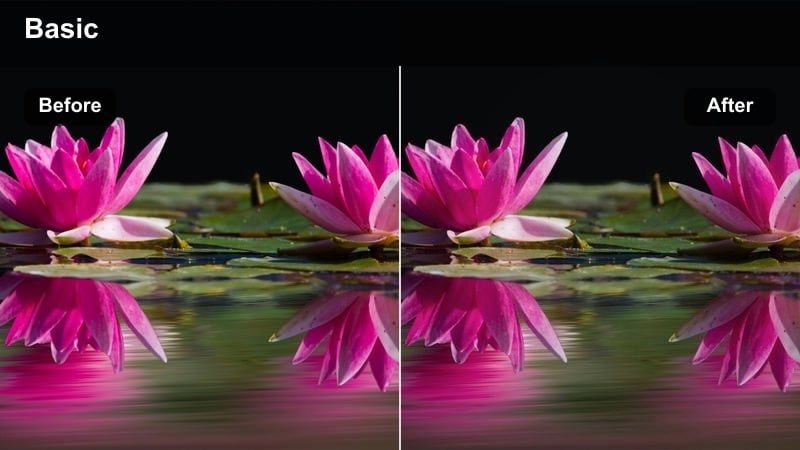
- Effect look: Clean neutrals with subtle cyan blues in glass and skies for a sleek corporate aesthetic.
- Best for: Tech office tours, coworking space videos, productivity and entrepreneurship content.
- Editing tip: Use keyframed exposure to maintain consistent brightness as you move between interior and exterior shots.
Glass Tower Neutral brings a polished, tech-forward finish to office and high-rise footage, emphasizing clean whites and cool cyan reflections. In Filmora, this preset is especially useful for business channels, coworking tours, and productivity content where you want the environment to feel modern and professional.
Apply the filter across both indoor and outdoor sequences, then use keyframed exposure adjustments to smooth out brightness jumps when moving through doors or elevators. To keep skin tones natural, slightly warm your subject using color wheels or HSL while preserving the filter s cool, neutral styling on glass surfaces and skies for a consistent corporate-grade look.
Indoor Studios and Creator Setups
Studio Neutral Soft
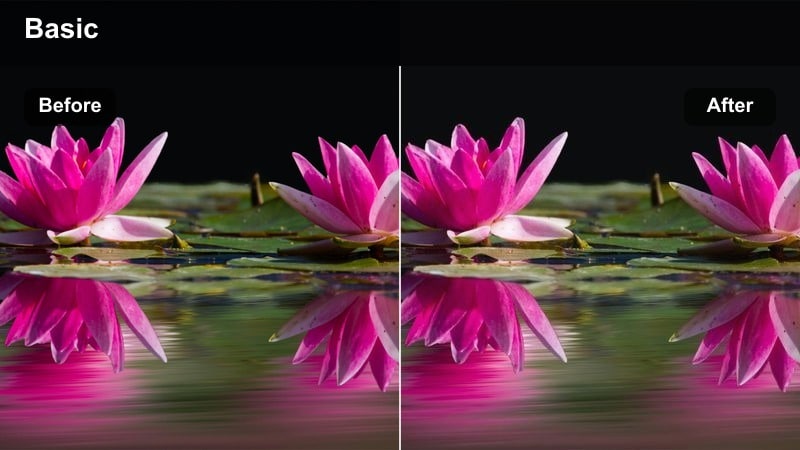
- Effect look: Balanced exposure, gentle contrast, and true-to-life color aimed at clean talking-head videos.
- Best for: YouTube tutorials, commentary videos, remote interviews, and webinars.
- Editing tip: Use Filmora s face enhancement only lightly on top of this filter to keep a natural, modern look.
Studio Neutral Soft is designed for A-roll where clarity, accurate color, and a subtle modern polish matter most. In Filmora, this filter smooths contrast, evens out skin tones, and keeps backgrounds neutral so your audience focuses on what you are saying, not on distracting hues.
Before applying, set manual white balance in-camera so the preset has a solid starting point, then fine-tune skin tones with light face enhancement, avoiding heavy smoothing that can look artificial. This look pairs well with simple text graphics and overlays because its restrained contrast keeps details readable and professional across tutorials, webinars, and long-form commentary videos.
Loft Warm Editorial
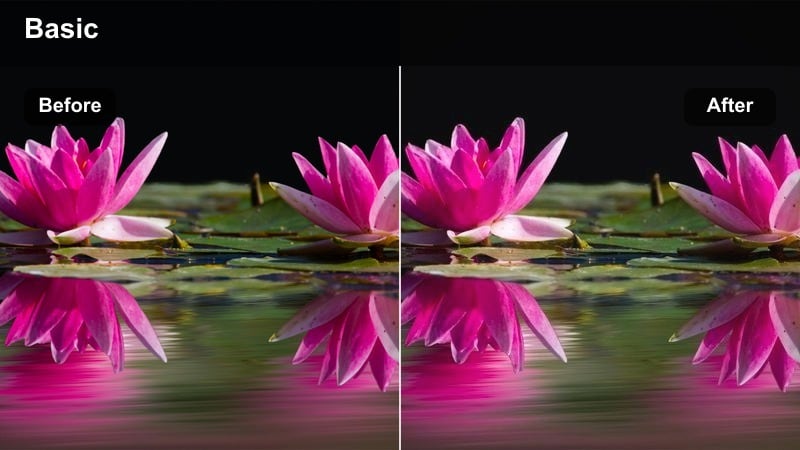
- Effect look: Warm midtones, slightly faded blacks, and editorial-style contrast tailored for creator loft spaces.
- Best for: Podcast sets, creator lofts, workspace tours, and behind-the-scenes videos.
- Editing tip: If shadows feel too lifted, add a subtle S-curve to deepen contrast while keeping the editorial vibe.
Loft Warm Editorial turns your creative workspace into a magazine-style set with glowing lamps, warm wood, and softened blacks. In Filmora, this filter is perfect for podcasts, studio tours, and behind-the-scenes content where you want the room itself to feel cozy, curated, and visually rich.
Introduce practical lights in frame, like table lamps or LED strips, then let the preset amplify their warmth while slightly fading blacks for a cinematic, editorial atmosphere. If your subject starts to look too warm, use masks and secondary color correction to keep faces closer to neutral while the environment soaks up the golden tones, preserving both comfort and clarity.
Desk Setup Cool Balance
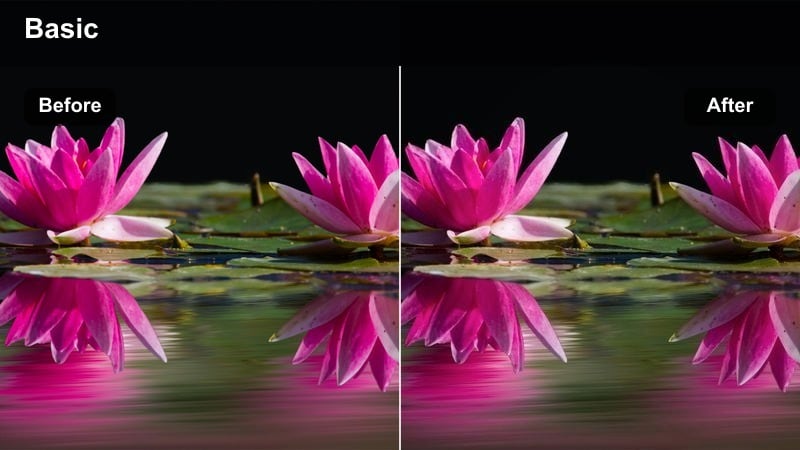
- Effect look: Cooler highlights with neutral midtones that accent RGB lights and tech gear on the desk.
- Best for: Desk setup tours, streaming intros, productivity or tech review channels.
- Editing tip: Reduce saturation of any single RGB color that dominates the frame so the overall palette stays modern and balanced.
Desk Setup Cool Balance is built for RGB-heavy workspaces, giving monitor glows and LED strips a refined cool tone while keeping skin and midtones neutral. In Filmora, this modern color tone video filter helps your desk tours, streaming intros, and tech reviews look sleek without oversaturating blues and purples.
When editing, slightly lower monitor brightness during the shoot and then use the preset to sculpt color instead of rescuing blown-out highlights. If one accent color becomes overpowering, use HSL controls inside Filmora to pull back its saturation, and isolate your face with a subtle warm correction so you remain natural against the futuristic, cool-toned background.
Moody Cinematic City Moments
Overcast Urban Cine
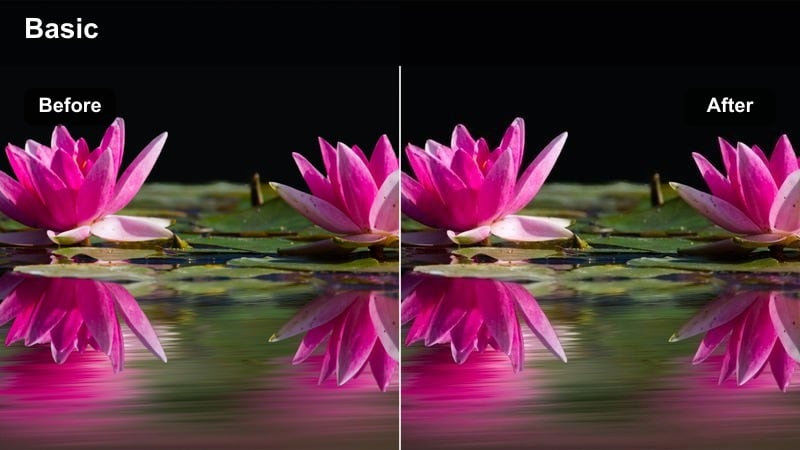
- Effect look: Desaturated colors, cool shadows, and subtle film-like softness for cloudy day streets.
- Best for: Moody B-roll, narrative shorts, reflective city walks filmed under gray skies.
- Editing tip: Add slow push-in or pan movements in editing to match the cinematic tone of this filter.
Overcast Urban Cine is tuned for gray, rainy, or cloudy days when you want to turn flat light into a moody storytelling tool. In Filmora, this preset cools shadows, pulls back saturation, and introduces a soft, filmic texture that fits emotional city walks, reflective monologues, or short narrative pieces.
Apply it across your B-roll and A-roll, then enhance the cinematic feel with slow push-ins, pans, or gentle zooms keyframed directly in the editor. To add depth without overwhelming the subtle palette, consider a light vignette and a touch of film grain, preserving cloud detail and wet pavement reflections as key visual elements in your story.
Subway Teal Shadow
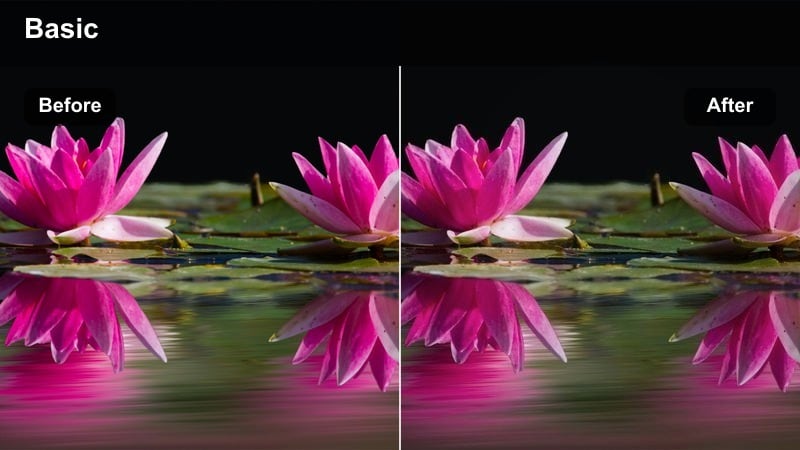
- Effect look: Deep teal shadows with slightly de-saturated backgrounds for dramatic underground transit scenes.
- Best for: Subway rides, underground walkways, escalator shots, and moody travel content.
- Editing tip: Raise midtones slightly if your subway car is very dark to keep details in faces and signage.
Subway Teal Shadow takes advantage of dim transit lighting to create a bold, cinematic underground look with rich teal shadows. In Filmora, this filter is perfect for travel vlogs and city montages featuring subways, tunnels, or underpasses where you want a stylized yet modern color treatment.
Shoot at the lowest ISO you can to minimize noise, then apply the preset and nudge midtones upward if faces or signs are getting lost. If noise still shows up in darker areas, run mild noise reduction before or at the start of your effect stack so details in the teal-tinted shadows remain intact while the overall frame feels dramatic and intentional.
Rooftop Dusk Fade
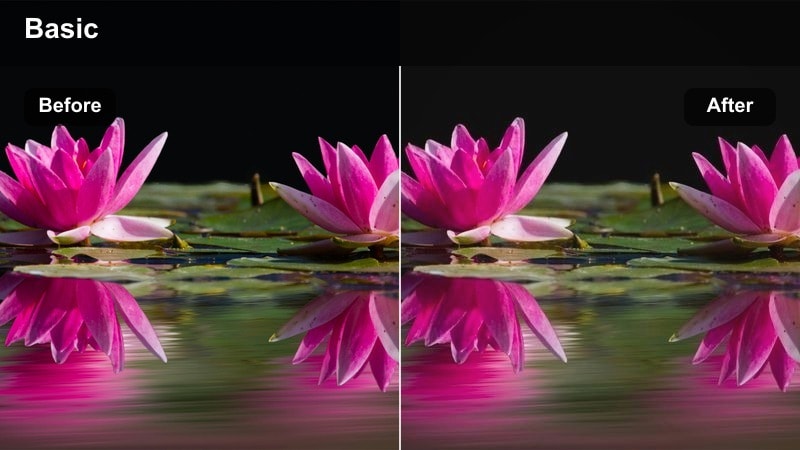
- Effect look: Soft fading highlights with a blue-orange dusk palette tailored for skyline views at golden-to-blue hour.
- Best for: Rooftop hangs, city skyline time-lapses, cinematic end-of-day sequences.
- Editing tip: Use keyframes on saturation as the sky gets darker to keep the progression looking natural.
Rooftop Dusk Fade is crafted for the transition from golden hour into blue hour, emphasizing blue-orange gradients and gently faded highlights. In Filmora, it helps your skyline shots, rooftop moments, and outro sequences feel cinematic and cohesive, even as natural light changes quickly.
Film 15 to 30 minutes around sunset, then apply the preset and use keyframed saturation to gradually reduce color intensity as the sky darkens, maintaining a realistic progression. Lock your white balance in-camera to avoid shifts between clips, and fine-tune highlight roll-off with curves so city lights retain detail while the sky stays soft and filmic.
Tips for Using Modern Color Tone Video Filter Filters in Filmora
- Shoot with a slightly flatter picture profile so modern color tone video filters in Filmora have room to shape contrast and color without clipping highlights or crushing shadows.
- Keep white balance consistent across all clips within a project so a single filter or preset can deliver a unified look without sudden color shifts.
- Test your chosen filter on both A-roll and B-roll to be sure the modern tone supports your story across talking-head segments, transitions, and B-roll sequences.
- Adjust intensity or opacity of filter effects when available instead of stacking multiple heavy looks, which can quickly lead to unnatural color and contrast.
- Use Filmora masks to apply filters more strongly to backgrounds than to faces, preserving flattering skin tones while stylizing the environment.
- Combine filters with LUTs only after you have established clean base correction, preventing color clipping and keeping your overall grade flexible.
- Create and save presets from your favorite filter and color settings so you can reapply the same modern tone quickly to new videos.
Modern color tone video filters in Filmora make it easy for content creators to define a clear visual identity, whether you film in busy streets, quiet studios, or moody city nights. With curated presets for different scenes, you can quickly transform raw footage into polished content that feels cohesive from thumbnail to end screen.
Experiment with several of these presets, refine them with Filmora s basic color tools, and then save your favorite combinations as reusable looks. Over time, your channel will develop a recognizable modern style that keeps viewers engaged and makes every new upload feel professionally graded.
secure download