

 100% Security Verified | No Subscription Required | No Malware

If you rely on portrait video to connect with your audience on Instagram, the right filter can be the difference between an okay post and a polished, thumb-stopping story. Filmoras portrait-focused filters help you smooth skin, balance light, and add a subtle social glow that feels premium but still real.
Below are 12 creator-ready portrait video filters for Instagram that work beautifully for stories and beauty reels. Each one is paired with a quick editing tip so you can dial in the perfect look without spending hours tweaking settings.
In this article
Soft Glow Portrait Filters for Instagram Stories
Cream Glow Story Filter
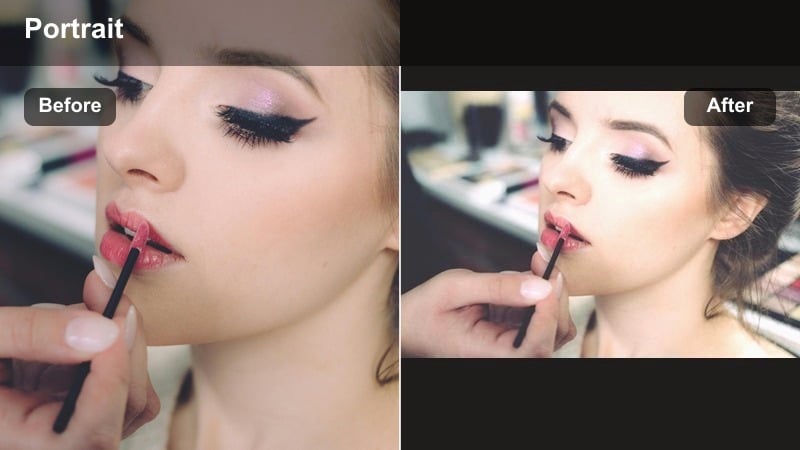
- Effect look: Soft, creamy highlights with gentle contrast and a light skin-smoothing veil
- Best for: Chatty Instagram stories, GRWM clips, and front-camera check-ins filmed near a window
- Editing tip: Lower the filter intensity to around 60 percent to keep skin texture visible and pair it with a slight warm white balance adjustment for natural glow.
Cream Glow Story Filter adds a soft-focus finish to your portrait videos, lifting highlights and wrapping skin in gentle cream tones that feel instantly flattering on camera. Instead of heavy blur, it adds just enough smoothing to even out minor imperfections while preserving natural features, which is ideal for vertical selfie content and quick story updates.
In Filmora, drop this filter on your portrait clips, then fine-tune intensity so your skin still shows realistic texture, especially on cheeks and forehead. Combine it with a small warm white balance and a touch of exposure lift for window-lit footage, and use keyframes to taper intensity down on overexposed parts of your story so your face never looks washed out.
Pro tip: Keep your eyes sharp
If you use this glow filter with a lot of smoothing, sharpen slightly around the eyes so they stay bright and defined in your portrait video.
In Filmora, add a mild sharpen effect after the filter, then mask it just over the eyes and brows for a crisp, natural finish.
Balance Skin Tones Automatically With AI-Driven Color
Filmoras AI-powered color tools help you keep portrait skin tones consistent across different clips, even if you filmed stories and beauty reels in mixed lighting. Instead of manually fixing every shot, AI can quickly normalize white balance and exposure so your face looks cohesive from the first frame to the last.
Apply your favorite portrait video filter for Instagram, then let AI fine-tune color balance so your glow remains natural while your overall aesthetic stays on brand. Once you like the look on one clip, you can mirror those color settings across the rest of your story sequence with just a few clicks.
 secure download

Preview Portrait Filters on Your Face in Real Time
Filmora lets you preview portrait filters on live camera input or existing selfie clips so you can see how smoothing, glow, and color shifts affect your face before exporting anything. This makes it easy to compare soft glow, matte, and night looks side by side without wasting time on full edits that do not match your Instagram style.
Record a quick test story, browse through Filmoras portrait filters, and save your favorites as presets. You can then apply those presets to new clips in a click, helping you keep a consistent portrait aesthetic across stories, reels, and pinned highlights.
secure downloadTurn Your Favorite Portrait Filter Into a Reusable Look
Once you dial in a portrait look you love, Filmora lets you combine filters, color tweaks, and light adjustments into a single preset you can reuse like a LUT. This is perfect for creators and influencers who want a recognizable Instagram portrait style across stories, reels, and grid videos.
Save your customized portrait filter as a preset, then apply it to new projects in seconds, even when you are filming in different rooms, cities, or times of day. That way, your brand colors, skin tones, and overall social video effect stay consistent no matter where you shoot.
secure downloadRose Sheen Portrait Filter
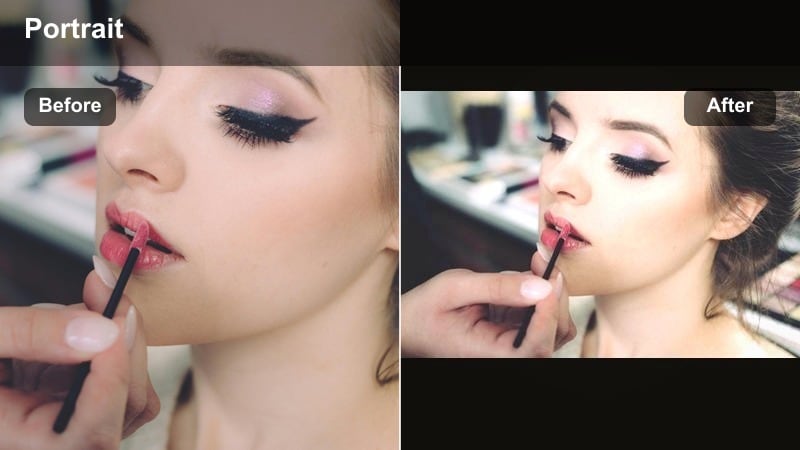
- Effect look: Warm rosy tint, soft highlights, and subtle blush-like color on cheeks and lips
- Best for: Beauty reels, lipstick or blush demos, and romantic storytelling clips shot in soft light
- Editing tip: Reduce saturation on the reds slightly if your makeup is already bold, and bump exposure just a touch to keep the rosy look fresh, not heavy.
Rose Sheen Portrait Filter layers a gentle pink tint over your midtones to mimic a soft, natural flush on camera. It enhances blush, lips, and warm eye looks, making it ideal for GRWM reels, romantic date-night stories, and close-up product showcases where color is the hero.
Inside Filmora, apply the filter, then head into the HSL or color controls to tame reds and magentas if your lipstick or blush is already intense. For cloudy-day or indoor shots, a small exposure bump and slightly lowered contrast keep the rose glow bright and fresh instead of muddy or too dramatic.
Pro tip: Match your makeup tones
Use this filter when your blush and lipstick sit in the same rosy family so the look feels cohesive rather than clashing.
If your makeup leans cooler, lower the filter warmth and add a slight blue tint until the skin and lip tones feel balanced.
Peach Cloud Story Softener
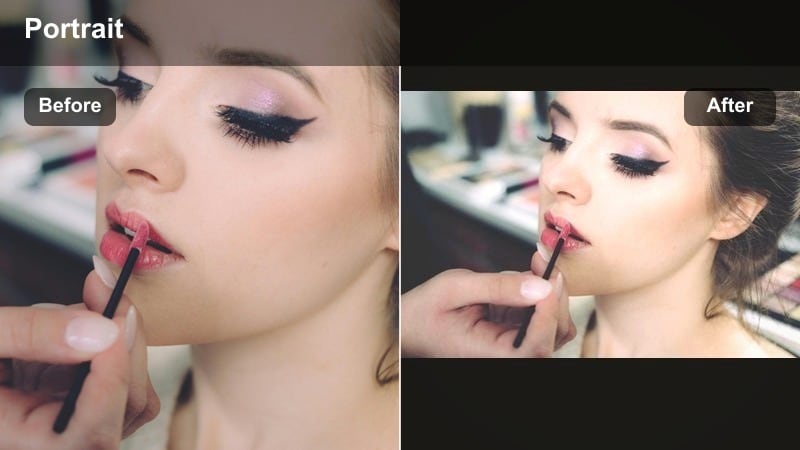
- Effect look: Peachy midtones with soft haze in the background and gentle contrast around the face
- Best for: Casual daily stories, behind-the-scenes clips, and cozy at-home portrait videos
- Editing tip: Use a vignette set very low to nudge attention toward your face, and keep clarity reduced slightly to maintain the dreamy vibe.
Peach Cloud Story Softener wraps your portraits in warm, peach-tinted midtones that give everyday clips a cozy, lifestyle aesthetic. Backgrounds take on a subtle haze while your face remains the clean focal point, which works perfectly for at-home routines, desk diaries, and relaxed check-ins.
In Filmora, pair this filter with a light vignette and a small clarity reduction so edges and busy backgrounds feel more subdued. If your room light is cool, warm up the footage slightly before adding the filter, then fine-tune saturation on oranges to keep skin from drifting too far into deep orange or overly tanned territory.
Pro tip: Lean into natural light
This filter looks best with side window light that already has a bit of warmth, so the peach tones enhance rather than create color.
If your light is cool, raise the temperature slightly before adding the filter so skin does not drift into dull or greyish tones.
Polished Beauty Reel Filters for Portrait Videos
Airbrush Glam Reel Filter
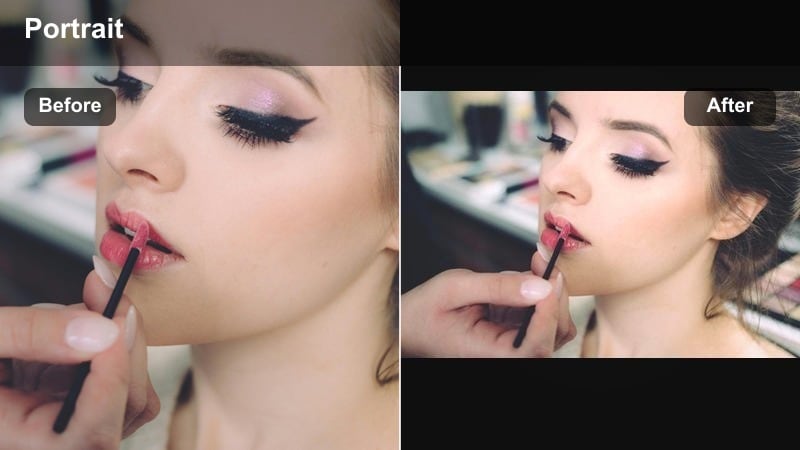
- Effect look: Subtle airbrush-style skin refinement, lifted highlights, and crisp detail on eyes and lips
- Best for: High-glam beauty reels, product close-ups, and sponsored content where polish matters
- Editing tip: Keep the intensity under 70 percent, then add a slight texture boost so pores and fine details still show for a believable finish.
Airbrush Glam Reel Filter is designed for high-definition, close-up beauty content where every detail counts. It smooths uneven texture and lifts highlights for a premium, campaign-ready feel, while keeping lashes, brows, and lip lines sharp so your makeup artistry remains the focus.
In Filmora, apply the filter at a moderate intensity and follow it with a touch of texture or clarity to bring back realistic pores and fine lines. For sponsored beauty content, lock in accurate product shades by using HSL adjustments on reds and yellows, making sure lipstick, blush, and foundation remain true to life in your final Instagram portrait video.
Pro tip: Protect your product colors
If you are showcasing eyeshadow or lipstick, adjust saturation per color channel so the filter does not distort the shade you are promoting.
Compare a no-filter still frame to your edited video and tweak HSL sliders until the colors visually match the original product.
Glass Skin Highlight Filter
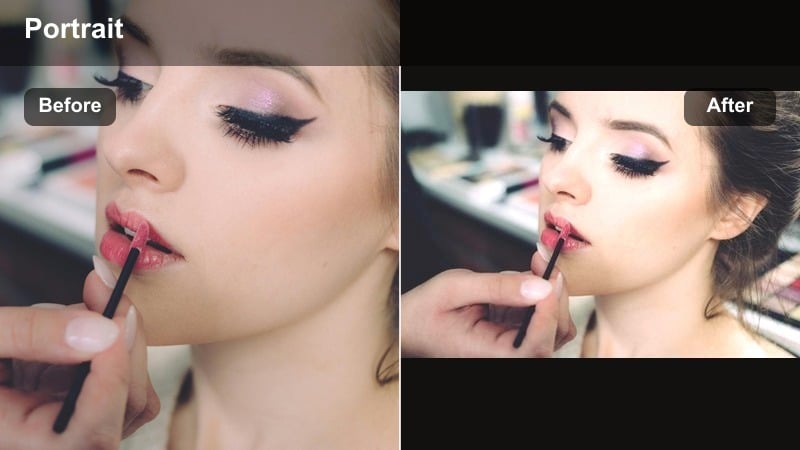
- Effect look: Luminous highlights, slightly brighter midtones, and a dewy, hydrated skin appearance
- Best for: Skincare demos, serum and moisturizer reels, and natural no-makeup portrait stories
- Editing tip: Lower contrast and raise shadows a bit so the glass-skin effect reads as glowing rather than oily on camera.
Glass Skin Highlight Filter adds a luminous sheen across the high points of your face, making skin appear freshly moisturized and light-catching. It works especially well for skincare walk-throughs, before-and-after routines, and minimal-makeup portrait reels where you want hydration and clarity to stand out.
When editing in Filmora, combine this filter with lifted shadows and slightly reduced contrast so highlights stay soft instead of harsh. If your T-zone is already shiny, use masks to selectively tone down hotspots on the forehead and nose while retaining glow on cheekbones, brow bones, and the bridge of the nose.
Pro tip: Avoid hotspot shine
If your T-zone is already reflective, use Filmoras masking tools to lower highlights just on the forehead and nose after applying the filter.
This keeps the glow concentrated on cheekbones and high points while preventing harsh hotspots that distract from your face.
Velvet Matte Portrait Filter
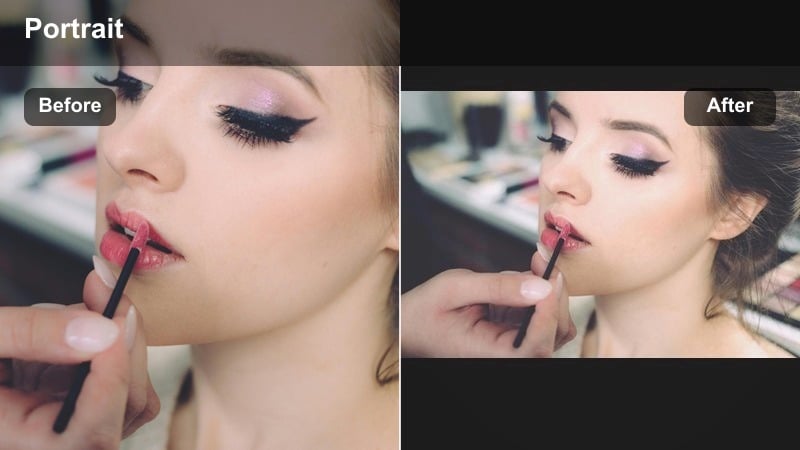
- Effect look: Soft matte finish, gentle desaturation, and even skin tone with subtle depth in the shadows
- Best for: Editorial-style beauty reels, aesthetic montages, and moody makeup looks
- Editing tip: Lower blacks slightly to keep depth in the image, and add a tiny bit of film grain for a high-end editorial feel.
Velvet Matte Portrait Filter removes most surface shine and pulls saturation back for a quietly dramatic, editorial mood. Skin appears smooth and even without heavy glow, which suits smoky eyes, bold liner, and structured contour looks that feel more magazine than casual selfie.
In Filmora, pair this filter with a slight drop in blacks and subtle film grain so your portrait reel has cinematic depth instead of a flat, muted look. Test wardrobe and background colors with a quick sample clip, adjusting saturation and contrast so important details like eye makeup and jewelry still stand out in the matte environment.
Pro tip: Plan your wardrobe colors
Because this filter softens saturation, choose outfits and backgrounds with slightly stronger color so they still pop after editing.
Test a 3-second clip with the filter, then adjust clothing or props before filming the full reel to avoid a washed-out look.
Natural Daylight Filters for Relatable Portrait Stories
True Daylight Portrait Filter
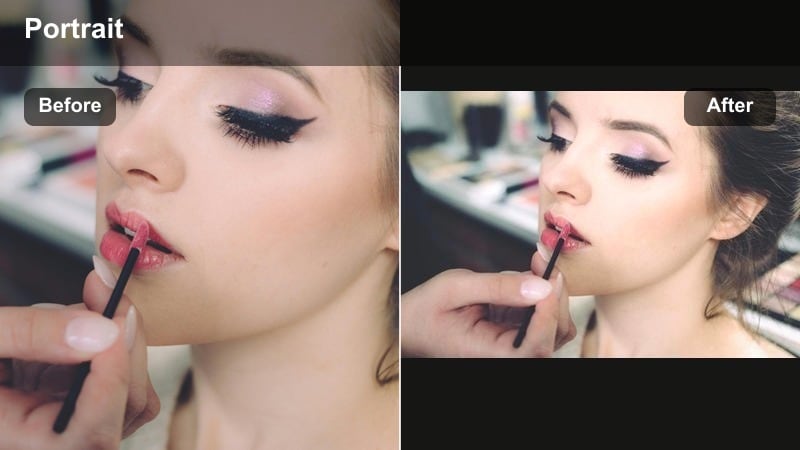
- Effect look: Clean, bright tones with neutral color balance and gentle contrast in midtones
- Best for: Real-life story updates, vlogs, and talking-to-camera clips filmed in natural light
- Editing tip: Adjust white balance before applying the filter so your skin stays neutral; then only slightly increase exposure to avoid clipping highlights.
True Daylight Portrait Filter keeps colors honest while giving your portrait stories a touch of professional polish. It neutralizes color casts from windows, walls, and reflective surfaces, preserving realistic skin tones that are perfect for everyday vlogs, candid life updates, and educational story segments.
Inside Filmora, correct white balance first, especially if you recorded near colored curtains or mixed light sources, then add the filter to refine contrast and brightness. Use scopes or skin-tone lines if available, and keep exposure changes subtle so you maintain the natural daylight vibe while still standing out in the Instagram feed.
Pro tip: Shoot near soft windows
Position yourself facing a window with sheer curtains for the most flattering daylight look with this filter.
If light is harsh, step back or angle your body so the brightest light hits from the side, then let the filter do the final balancing.
City Fresh Street Portrait Filter
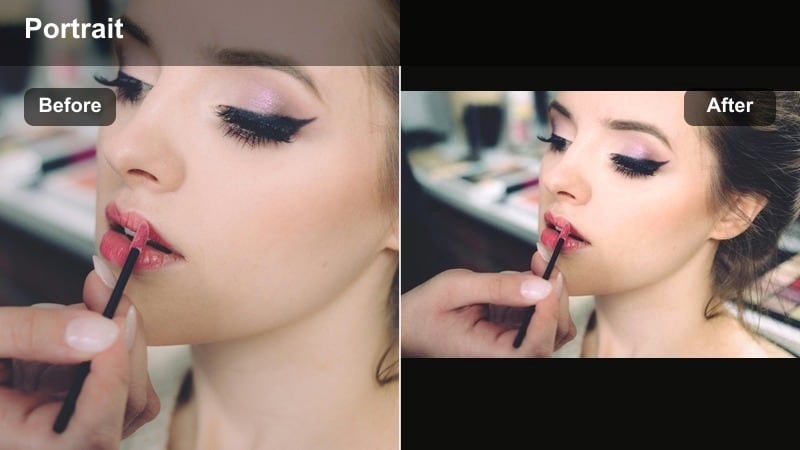
- Effect look: Cooler highlights, crisp detail, and balanced skin tones with a subtle urban edge
- Best for: Out-and-about vlogs, coffee runs, and city walk-and-talk Instagram stories
- Editing tip: Raise clarity slightly on midtones to keep city textures sharp while keeping skin smoothing low for a documentary feel.
City Fresh Street Portrait Filter introduces cool, clean highlights and crisp detail that complement glass, concrete, and street textures. It maintains natural skin tones while giving your background an urban snap, making it ideal for city vlogs, coffee chats, and outfit-of-the-day walk-throughs.
In Filmora, combine this filter with a modest clarity or sharpness increase applied mainly to midtones so buildings and street details feel vivid without over-emphasizing skin texture. If neon signs or colored lights tint your face, use HSL tools to selectively reduce those hues on skin ranges, preserving a natural complexion within the cooler city palette.
Pro tip: Control mixed lighting
If neon signs or shop lights cast color on your face, use HSL controls to reduce that color saturation on skin tones specifically.
Check a frame where your face is closest to bright signs and fine-tune the filter so your skin still looks natural there.
Sun-Kissed Everyday Filter
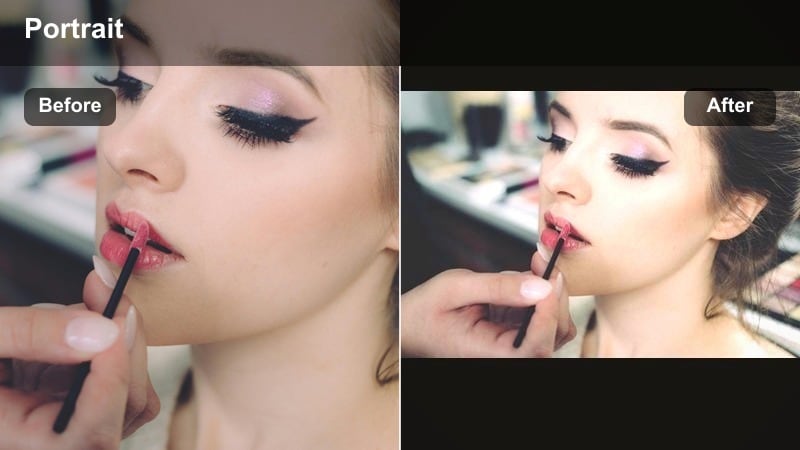
- Effect look: Warm golden highlights with slightly lifted shadows and a gentle tan effect
- Best for: Morning routines, weekend outings, and travel portrait reels shot outdoors
- Editing tip: Dial back the warmth if you film at midday, and instead raise vibrance slightly so colors stay rich without oversaturating skin.
Sun-Kissed Everyday Filter adds a light, golden wash to your portrait videos, giving skin a soft tan-style warmth that feels like natural sunlight. It gently lifts shadows so facial features stay visible, even in backlit or partially shaded settings, which suits morning routines, brunch outings, and travel diaries.
In Filmora, adjust the filters warmth based on your shooting time; scale it back for midday sun and lean in more during early morning or late afternoon. Use vibrance instead of heavy saturation to keep skies, greenery, and outfits rich without pushing skin into overly orange territory.
Pro tip: Use backlight for glow
Stand with the sun slightly behind you and let the filter lift shadows on your face for a halo-like glow without harsh direct light.
If your face gets too dark, raise shadows rather than overall exposure to protect the bright sky in your portrait background.
Face-Focused Story Effects and Social Video Filters
Soft Focus Face Story Filter
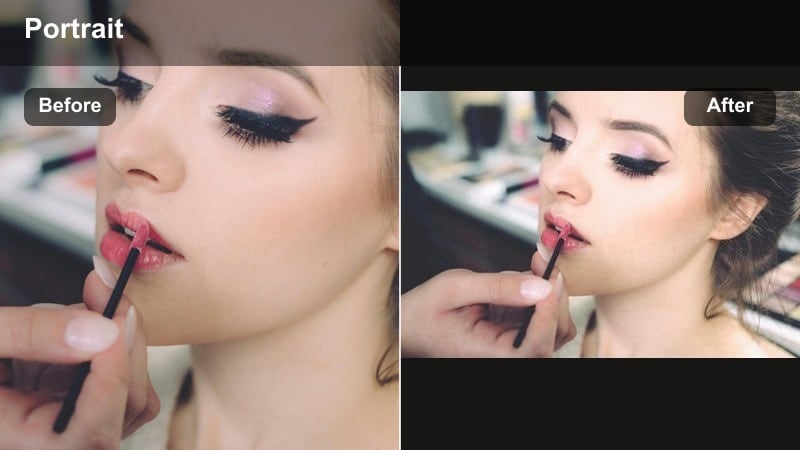
- Effect look: Light background blur, subtle vignette, and smoothed skin tones that keep eyes sharp
- Best for: Q and A stories, emotional check-ins, and close-up reactions where your expression matters
- Editing tip: Trim clips tightly around key reactions, then let this filter and a gentle vignette pull all attention to your eyes and expressions.
Soft Focus Face Story Filter pushes distractions into a light blur while your face and eyes remain the clear center of the frame. It adds a small amount of smoothing and vignette, making emotional updates, reaction clips, and intimate Q and As feel more cinematic and focused.
Within Filmora, combine this filter with tighter cropping and vertical-safe framing, keeping your eyes on the top third of the screen. If your environment is busy, use additional blur effects on the background layer or a depth-of-field style mask so viewers lock onto your expressions and not the room behind you.
Pro tip: Shoot against simple backgrounds
Even with blur, busy backgrounds can create visual noise, so choose a clean wall or soft decor behind you where possible.
If you must film in a cluttered space, frame tighter on your face and shoulders and let the filter handle the rest.
Story Glam Pop Filter
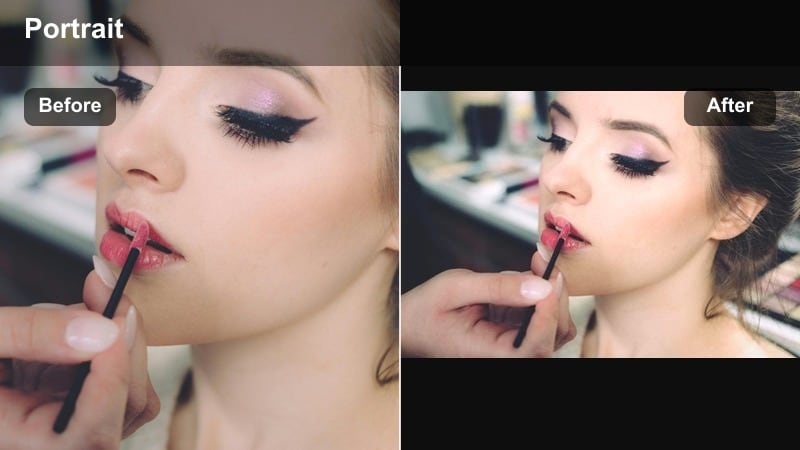
- Effect look: Punchy contrast, boosted saturation on lips and eyes, and slightly brighter highlights
- Best for: Announcement stories, launches, and fun, high-energy beauty reels
- Editing tip: Use shorter, snappier cuts when applying this bold filter so the poppy colors feel exciting instead of overwhelming.
Story Glam Pop Filter is built for loud, high-energy moments where you want your portrait to jump off the screen. It intensifies saturation around lips and eyes and adds strong contrast, making announcements, launches, and playful reels feel instantly more dynamic.
In Filmora, edit your clips into short, punchy segments before applying this filter so bold colors do not fatigue viewers over time. Watch reds and pinks closely; if lipstick or blush loses detail, reduce saturation in those channels or roll back the filter intensity until you see clear texture again.
Pro tip: Watch for color clipping
Check your reds and pinks after applying this filter to ensure lipstick and blush still show detail and do not turn into flat blocks of color.
If they do, gently lower saturation in those specific channels or back off filter intensity a bit.
Night Portrait Social Filter
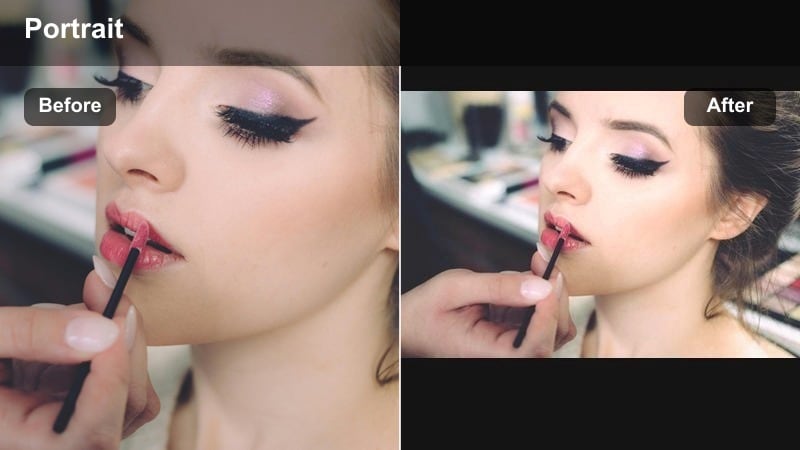
- Effect look: Lifted shadows on the face, controlled noise, and rich nighttime color with soft highlights
- Best for: Evening outings, night city reels, and low-light Instagram stories at events
- Editing tip: Stabilize your clip first, then apply the filter and raise shadows sparingly to brighten your face without flattening the night atmosphere.
Night Portrait Social Filter is tuned for low-light scenes, brightening your face while preserving the mood and color of city lights or event spaces. It reduces visible noise and softens harsh highlights, so your portrait looks intentional rather than grainy or overexposed.
In Filmora, stabilize handheld clips first to reduce motion blur, then apply the filter and gently raise shadows around your face only. If your background starts to look washed out, lower overall exposure slightly and rely on localized adjustments or masks to keep your portrait bright while the night environment stays rich and atmospheric.
Pro tip: Stay close to your light source
At night, film near a street lamp, storefront window, or phone light so the filter has enough information to brighten your face cleanly.
Avoid standing directly under harsh lights that create unflattering shadows; aim for light coming from in front or slightly above eye level.
Tips for Using Portrait Instagram Social Filters in Filmora
- Film a few seconds of test footage in each new location and try two or three portrait filters in Filmora before recording your full story or reel.
- Match your filter intensity to your content type: keep it softer for honest updates and ramp it up for glam beauty reels and promotional posts.
- Save at least one neutral, low-intensity portrait preset in Filmora as your backup look for days when lighting or makeup is unpredictable.
- Use vertical-safe framing with your eyes in the top third of the screen so Filmoras portrait filters and face effects sit naturally on your features.
- Combine subtle skin smoothing with a touch of texture or grain to keep portrait videos polished but still human and relatable.
- Batch-edit multiple clips with the same portrait filter and color corrections in Filmora to maintain a consistent Instagram aesthetic across stories and reels.
The right portrait video filters for Instagram can smooth out harsh lighting, refine skin tones, and give every story or beauty reel a consistent, on-brand glow. With Filmoras portrait-focused effects, you can quickly transform simple clips into polished, feed-ready content.<
