

 100% Security Verified | No Subscription Required | No Malware

Repurposing TikTok content to Instagram Reels and Stories only works if your video filters translate cleanly between platforms. Colors, contrast, and skin tones that look great on TikTok can easily break on Instagram's compression and UI.
Use this curated set of TikTok video filters for Instagram to keep your cross-platform content consistent, clickable, and on-brand for Instagram creators, Reels editors, and social media managers.
In this article
Sunlit City Vibes for Everyday Reels
Soft Daylight Glow
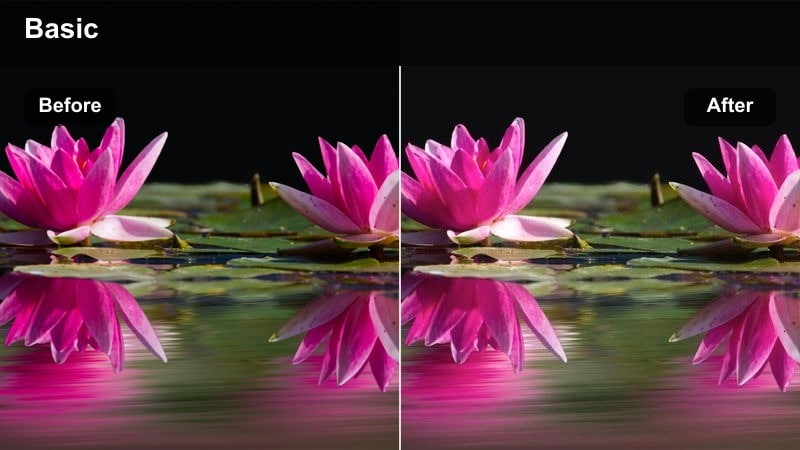
- Effect look: Bright, low-contrast daylight polish that softens harsh midday sun while keeping skin tones natural.
- Best for: Lifestyle vlogs, day-in-the-life Reels, casual brand storytelling shot outdoors.
- Editing tip: Lower vibrance slightly on Instagram to avoid oversaturation after upload and add a mild vignette to center attention.
In Filmora, Soft Daylight Glow is ideal when you are working with clips shot in hard midday light that tends to create blown-out highlights and unflattering shadows. The filter evens out those extremes, lightly lowers contrast, and keeps skin tones believable so your TikTok footage can move over to Instagram without looking too harsh in the feed.
Apply this look near the end of your grade, then fine-tune exposure with the scopes open so white areas do not clip once Instagram recompresses the file. If you are batch-repurposing a whole day-in-the-life series from TikTok, save Soft Daylight Glow as a preset in Filmora and apply it to your entire sequence before exporting vertical 9:16 masters for Reels and Stories.
City Neutral Matte
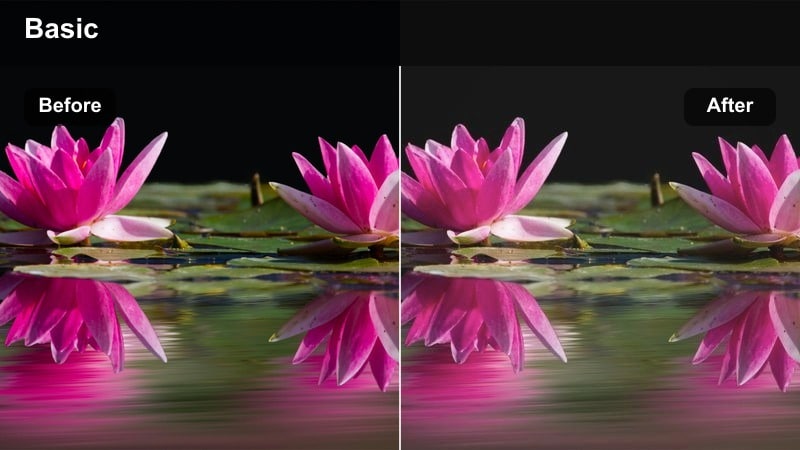
- Effect look: Muted urban palette with a soft matte finish that reduces glare from glass and concrete.
- Best for: Street-style outfit clips, walking talks, creator b-roll with buildings and sidewalks.
- Editing tip: Dial back the matte curve on darker footage and add a tiny bit of clarity to keep text overlays readable.
City Neutral Matte in Filmora pulls back strong saturation and adds a gentle matte curve so your urban backgrounds feel cinematic instead of distracting. It is especially useful when you have lots of reflections and glare in your TikTok clips that could turn into crunchy highlights once you port them over to Instagram Reels.
Use the Color panel to slightly adjust the tone curve if your original footage is already low contrast so you do not lose too much depth. For outfit and talking clips, combine this filter with Filmora text presets and add a little extra clarity or local contrast around your subject so captions and clothing details stay crisp on small-screen Instagram playback.
Smart Color Matching Between TikTok and Instagram
Filmora's AI-driven color tools help you adapt TikTok video filters for Instagram so the Reels version matches the tone you originally dialed in. Instead of rebuilding every grade from scratch, you can analyze one well-edited TikTok clip and transfer its look to a whole batch of vertical videos.
Use AI color matching on your hero shot, then apply the suggested Instagram-ready balance across all your repurposed content so your feed stays consistent, even when footage comes from different days, cameras, or creators.
 secure download

Drag-and-Drop Filters Built for Reels
Filmora's social video filter pack is tuned specifically for vertical formats, so your TikTok-inspired grades hold up inside the Instagram Reels and Stories interface. You can apply filters with one click, then see how they behave with UI overlays, comments, and captions before you post.
Preview multiple looks on the same clip, save your favorites as presets, and export platform-specific versions so your TikTok and Instagram feeds share a style without looking identical.
secure downloadCombine Filters and LUTs for Signature Styles
Blend Filmora filters with LUTs to build a signature look that feels native on both TikTok and Instagram. Filters give you fast, stylized changes, while LUTs let you lock in more advanced color science so your brand palette stays consistent across every vertical clip.
Once you have a combination you like, save it as a custom preset so your whole team can apply the same TikTok-to-Instagram style in a couple of clicks for future campaigns.
secure downloadSunset Transition Warmth
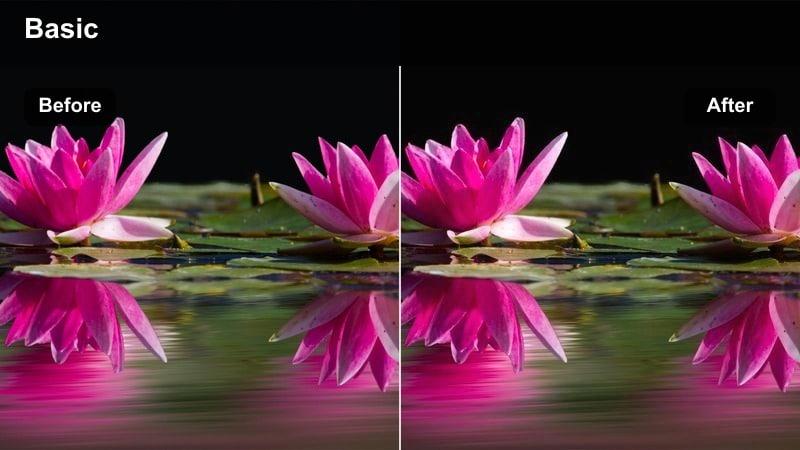
- Effect look: Golden city warmth with lifted shadows that mimics golden-hour light even on slightly flat footage.
- Best for: Transition Reels, travel intros, and storytelling captions over walking shots around sunset.
- Editing tip: Reduce the orange hue shift if your skin tones look too warm, then add light motion blur for smoother transitions.
Sunset Transition Warmth is designed to simulate golden-hour glow, which often gets dulled during TikTok compression and then again on Instagram. In Filmora, this filter lifts shadows and nudges tones toward warm gold so even overcast or flat city footage can feel like it was shot at the perfect time of day.
Use it on your transition-heavy Reels where you cut from room to street or day to night, making sure to keyframe intensity if some shots were captured in real sunset light. When repurposing from TikTok, preview side by side inside Filmora and gently roll back saturation in the orange and yellow channels until skin looks rich but not orange on Instagram.
Studio and Talking-Head Filters for Authority Content
Clean Skin Neutral
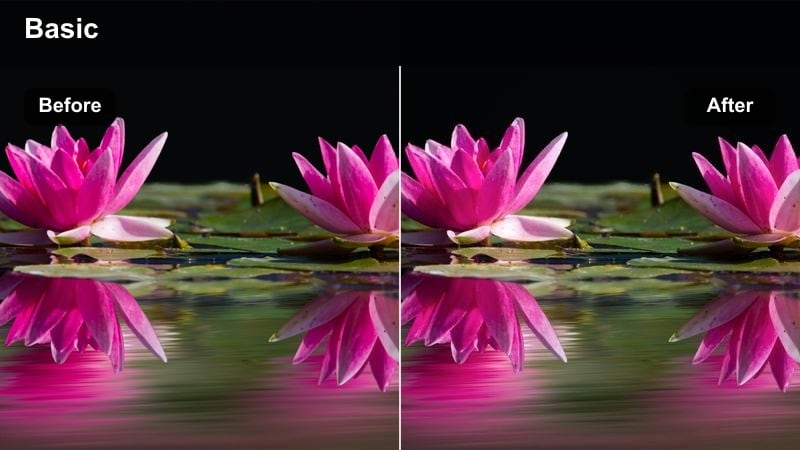
- Effect look: Balanced contrast with subtle skin smoothing and neutral color cast for a professional studio feel.
- Best for: Educational carousels in motion, expert tips, coaching Reels, and brand announcements.
- Editing tip: Keep sharpness a bit lower than TikTok to avoid crispy edges around hair and text on Instagram's compression.
Clean Skin Neutral gives your talking-head clips a polished, studio-ready look that feels consistent whether viewers see them on TikTok or Instagram. The filter evens out minor skin texture and locks your color balance into a natural, neutral space that works under both ring lights and softboxes.
In Filmora, drop this filter onto your A-roll track before adding captions or animated graphics so you do not accidentally shift brand colors later. If you are repurposing a TikTok series of tips, use the same Clean Skin Neutral preset across the playlist, then export 9:16 masters for Reels so every piece of authority content carries the same trustworthy visual tone.
Creator Desk Warmth
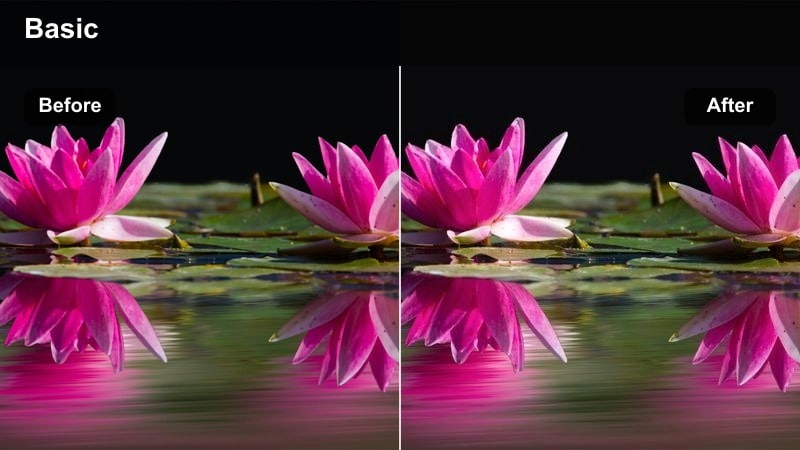
- Effect look: Cozy, slightly warm desk setup look with soft highlights for laptop and keyboard reflections.
- Best for: Behind-the-scenes editing sessions, social media strategy Reels, productivity storytelling.
- Editing tip: If your desk has RGB lights, desaturate blues slightly so the warmth remains the dominant mood on Instagram.
Creator Desk Warmth leans into the cozy, behind-the-scenes aesthetic that performs well in both TikTok and Instagram Reels feeds. It smooths out monitor glare and reflections across your setup while adding a gentle warm cast that makes keyboard, mouse, and notebook details look inviting instead of clinical.
When editing in Filmora, combine this filter with subtle camera movement or looping desk B-roll and overlay text tips about your process or workflow. Because the look is not overly stylized, you can reuse the same filtered desk clips under multiple talking-head or voiceover topics, turning them into a versatile cross-platform background for educational content.
Minimal Brand Contrast
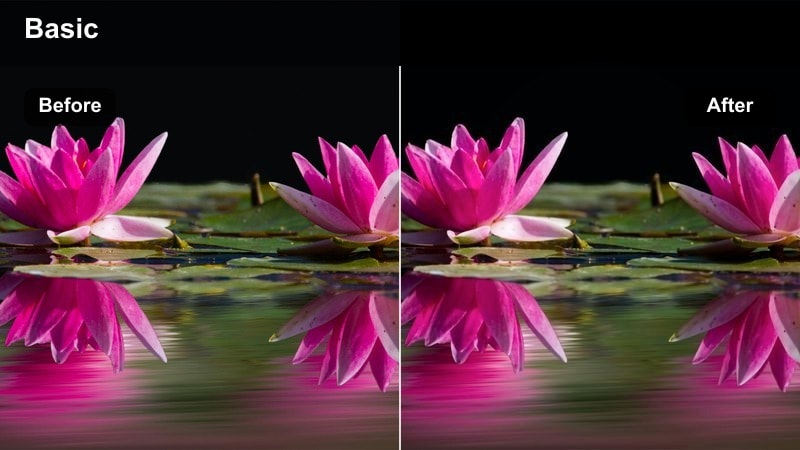
- Effect look: Clean whites, crisp edges, and medium contrast that makes logos and typography stand out on small screens.
- Best for: Brand storytelling Reels, product teasers, and motion graphics mixed with talking-head clips.
- Editing tip: Check your Reels cover in grid view and slightly increase exposure if your white backgrounds look dull compared to neighboring posts.
Minimal Brand Contrast is built for product and brand-forward clips where readability and logo clarity matter more than heavy stylization. In Filmora, it brightens whites without pushing them into pure clipping, keeping your background clean while ensuring product edges and brand marks stay sharp on phone screens.
Apply this filter to any TikTok promos you want to recycle on Instagram, then layer lower-thirds, callouts, or animated arrows using Filmora's titles and graphics. Be sure to preview the final export against a simulated Instagram grid so you can tweak exposure and contrast until your product thumbnails stand out clearly in a busy feed.
Nightlife and Neon Looks for High-Energy Clips
Neon Pop Streets
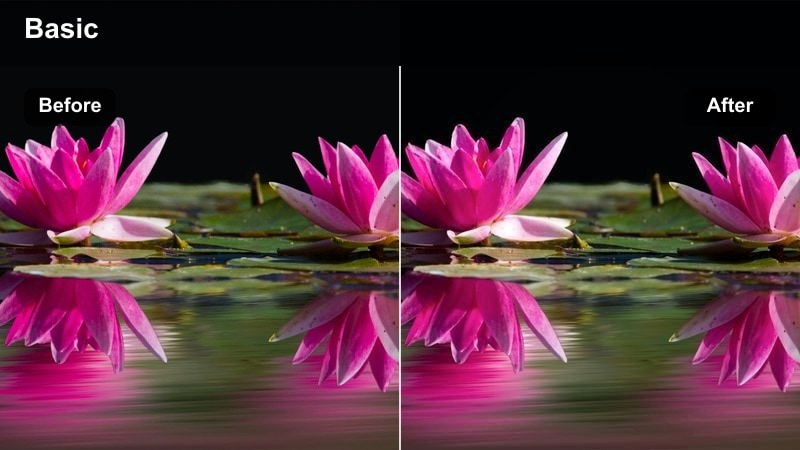
- Effect look: Punchy neon saturation with deep blacks that makes city signs and LED panels glow.
- Best for: POV nightlife Reels, concert walk-ins, and high-energy B-roll for event recaps.
- Editing tip: Use vertical motion blur transitions between clips and keep cuts tight to match the energetic color grade.
Neon Pop Streets pushes your night footage into a bold, contrasty space where LEDs, signs, and screens become the main visual hook. In Filmora, this filter deepens blacks to hide muddy low-light areas while intensifying neon hues so your club or city scenes keep their energy when moved from TikTok to Reels.
Use it on short, beat-synced clips and take advantage of Filmora's motion blur transitions and speed ramps to match the grade's intensity. Before exporting vertical masters for Instagram, slightly trim brightness and highlights compared with your TikTok version so text on signs and screens does not blow out under Instagram compression.
After Hours Soft Noise
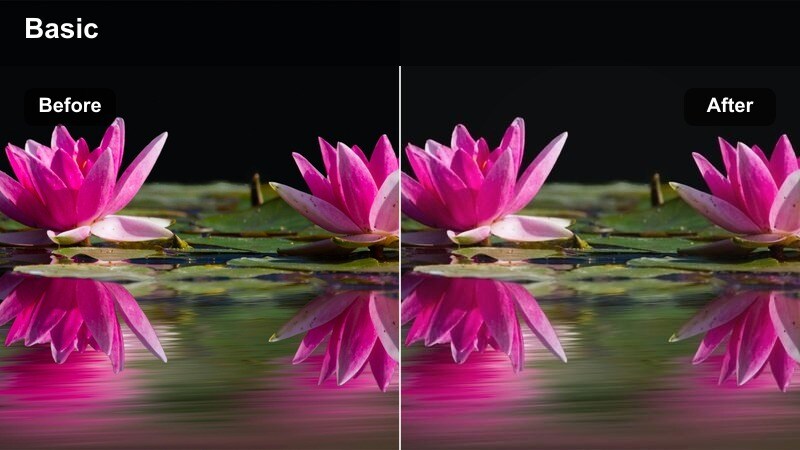
- Effect look: Softened shadows with a subtle filmic grain that helps low-light clips feel intentional, not noisy.
- Best for: Late-night creator check-ins, candid behind-the-scenes at events, moody storytelling in the city.
- Editing tip: Keep grain strength lighter for Reels where you add subtitles so the text remains legible atop darker footage.
After Hours Soft Noise is perfect for cleaning up low-light TikTok clips before they make the jump to Instagram, where compression can exaggerate digital noise. The Filmora filter softens harsh shadows and overlays a gentle film-style grain so imperfections read as intentional texture instead of camera struggle.
Apply it to talking, walking, or reflective night clips and then fine-tune grain size and opacity so faces remain clear and subtitles stay easy to read. When exporting for Reels, test a short draft upload to ensure the grain pattern still looks smooth and does not turn blocky after Instagram's processing pipeline.
Club Lights Color Shift
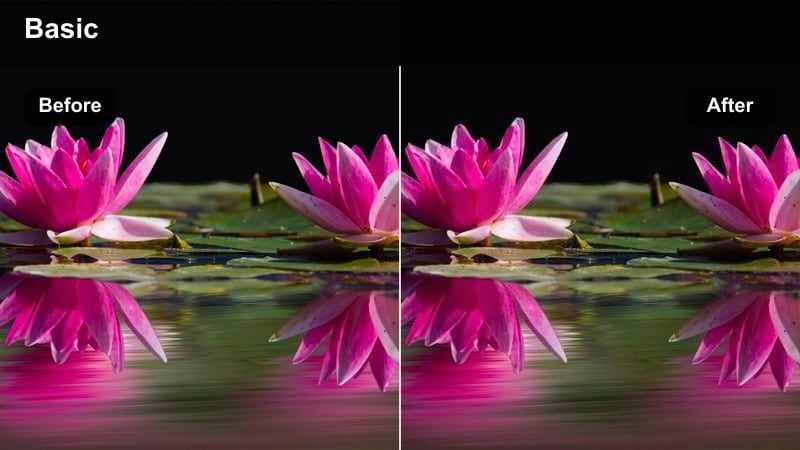
- Effect look: Dynamic color shift emphasizing magenta and blue stage lights for dramatic nightlife scenes.
- Best for: DJ sets, dance Reels, performance highlights, and fast-paced recap videos.
- Editing tip: Cut to the beat and stack this filter with a very light glow effect on the brightest areas to enhance movement.
Club Lights Color Shift in Filmora pushes your stage lighting toward vivid magentas and blues, turning ordinary event coverage into stylized recap content. It exaggerates the most colorful parts of your TikTok clips so performances, DJ sets, and dance moments feel dramatic on Instagram Reels without needing heavy manual color grading.
Combine this filter with beat-synced cuts, quick zooms, and subtle glow on the brightest lights to amplify perceived motion. When you prepare cross-platform edits, create a slightly toned-down version of the filter for Instagram to reduce clipping and ensure that performer faces still read clearly in the first few seconds of the Reel.
Aesthetic Lifestyle Looks for Curated Grids
Soft Cream Lifestyle
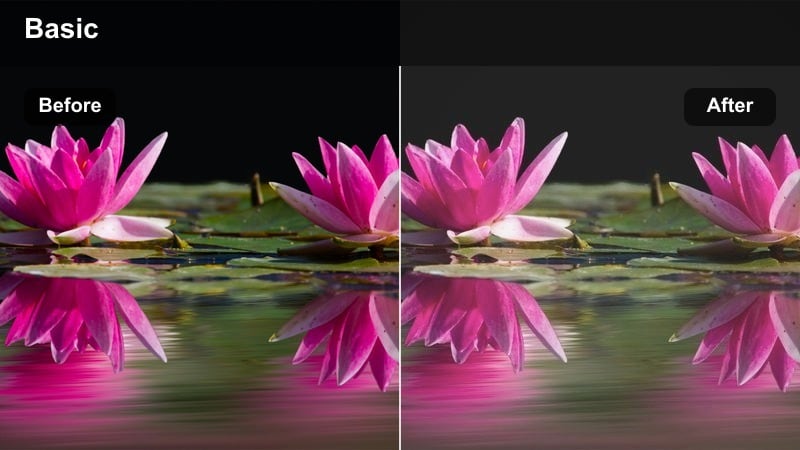
- Effect look: Creamy highlights and slightly faded blacks for an airy, aspirational lifestyle vibe.
- Best for: Morning routines, coffee-walk POVs, lifestyle brand storytelling, and aesthetic b-roll.
- Editing tip: Lift blacks just enough to get the airy look but keep some contrast so small text still reads on mobile.
Soft Cream Lifestyle is designed for creators building a light, aspirational aesthetic that needs to stay cohesive across TikTok and Instagram grids. In Filmora, it gently fades blacks and adds creamy highlights, making windows, bedding, and bright interiors feel soft and inviting without losing too much detail.
Use this filter on morning routines, desk setups, and coffee POVs, then export still frames from your clips to serve as consistent Reel covers on Instagram. If you reuse the same preset on your TikTok uploads, you can maintain one unified brand look while still tailoring captions, hooks, and music to each platform's audience.
Pastel City Walk
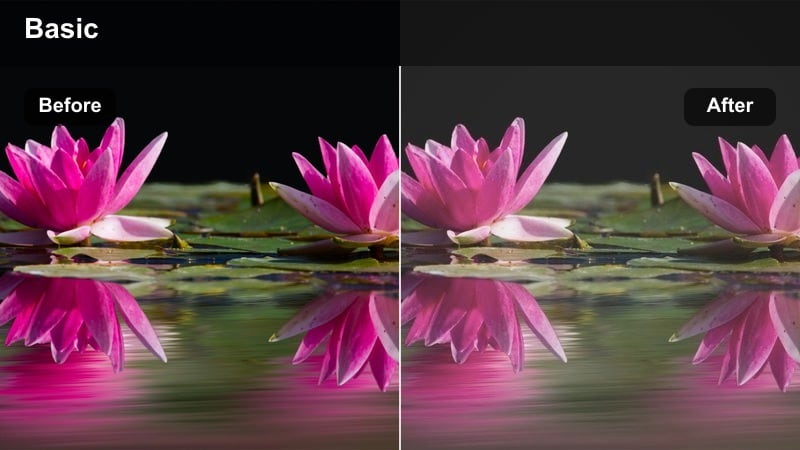
- Effect look: Gentle pastel toning over city scenes, with slightly reduced contrast for a dreamy walk-through feel.
- Best for: Slow walking POVs, outfit-of-the-day Reels, and creator reflections while moving through the city.
- Editing tip: Slow clips to 0.8x speed and add subtle stabilization so the dreamy color grade feels intentional and calm.
Pastel City Walk softens hard city edges and pushes colors toward a gentle pastel palette, making everyday streets feel like part of a curated lifestyle feed. In Filmora, this filter reduces contrast and saturation just enough to create a dreamy mood while preserving enough detail for outfits, signage, and faces to stay recognizable.
For cross-platform storytelling, apply this look to walking POVs or talking clips captured on the move and slow them slightly in the editor for an intentional, reflective feel. You can keep your TikTok version a touch more saturated for a livelier vibe, while letting the Instagram Reels export lean into the softer pastel mood that fits a curated grid.
Brand Grid Consistent
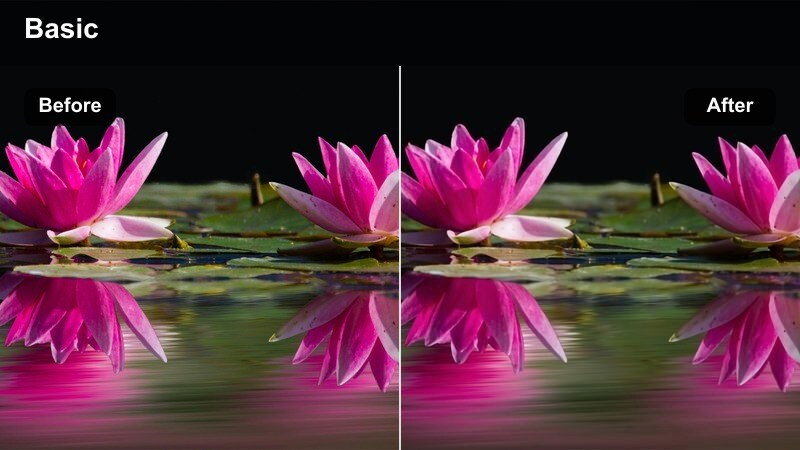
- Effect look: Subtle color cast that unifies mixed footage sources into one cohesive Instagram grid aesthetic.
- Best for: Accounts mixing UGC, studio, and city clips that still need a unified Reels and Stories look.
- Editing tip: Apply this filter as the final layer after any TikTok-native effect to bring everything back to your brand baseline.
Brand Grid Consistent is a finishing filter you can use in Filmora to tie together footage from multiple cameras, lighting setups, or creators. It adds a gentle color cast and balanced contrast that unifies UGC, studio shots, and city clips so your Instagram grid looks intentional even when your TikTok sources vary widely.
Drop this filter on after you have applied TikTok-native effects or other strong looks, then tweak intensity until everything settles into your brand's baseline palette. Saving it as a preset lets you quickly standardize content coming from collaborators, editors, or community submissions before you export the final 9:16 versions for Reels, Stories, and TikTok.
Tips for Using Cross-Platform Tiktok To Instagram Filters Filters in Filmora
- Always test your favorite TikTok filter on a 9:16 export in Filmora and upload it as an unlisted or draft Reel to see how Instagram compression changes the color and contrast.
- Use Filmora's safe guides to keep your face, hooks, and key text inside the central zone so TikTok and Instagram UI elements do not cover anything important.
- Export at the highest resolution and bitrate your device and workflow allow so Filmora's filters and LUTs survive the double compression of downloading from TikTok and reuploading to Instagram.
- Create a baseline brand preset in Filmora that you apply to every repurposed TikTok before stacking more experimental looks on top.
- Batch edit related clips on a single Filmora timeline so you can copy and paste filter settings and keep a consistent look across a whole Reel series.
- Use Filmora's AI color matching to quickly harmonize clips shot in different lighting conditions before you fine-tune platform-specific tweaks for TikTok and Instagram.
- Save platform-specific versions of your favorite presets, such as TikTok-bright and Instagram-soft, so you can adapt the same core look in one click.
- Export a still frame with your final Filmora grade for each series and reuse it as a Reels cover to keep your Instagram grid visually consistent.
By choosing TikTok video filters that translate well to Instagram, you protect your brand consistency while making the most of every piece of content you shoot.
Load these Filmora presets into your workflow, batch-grade your TikTok clips for Instagram Reels and Stories, and keep evolving toward a signature cross-platform look your audience recognizes instantly.
secure downloadNext: TikTok Video Filters for Reels with Scroll-Stopping Style
