

 100% Security Verified | No Subscription Required | No Malware

Want to compare two products side by side, show a reaction alongside the original clip, or fit several camera angles into one video? A split-screen layout lets you do all three without switching between separate videos.
You can make a split-screen video online for free using a browser-based editor, though some tools limit layouts or add watermarks to exports. For more control over clip placement and screen layouts, Wondershare Filmora offers split-screen templates and Multi-Frame effects. This guide walks you through both methods so you can choose the one that best suits your project.
In this article
Part 1. How to Make a Split-Screen Video Online for Free
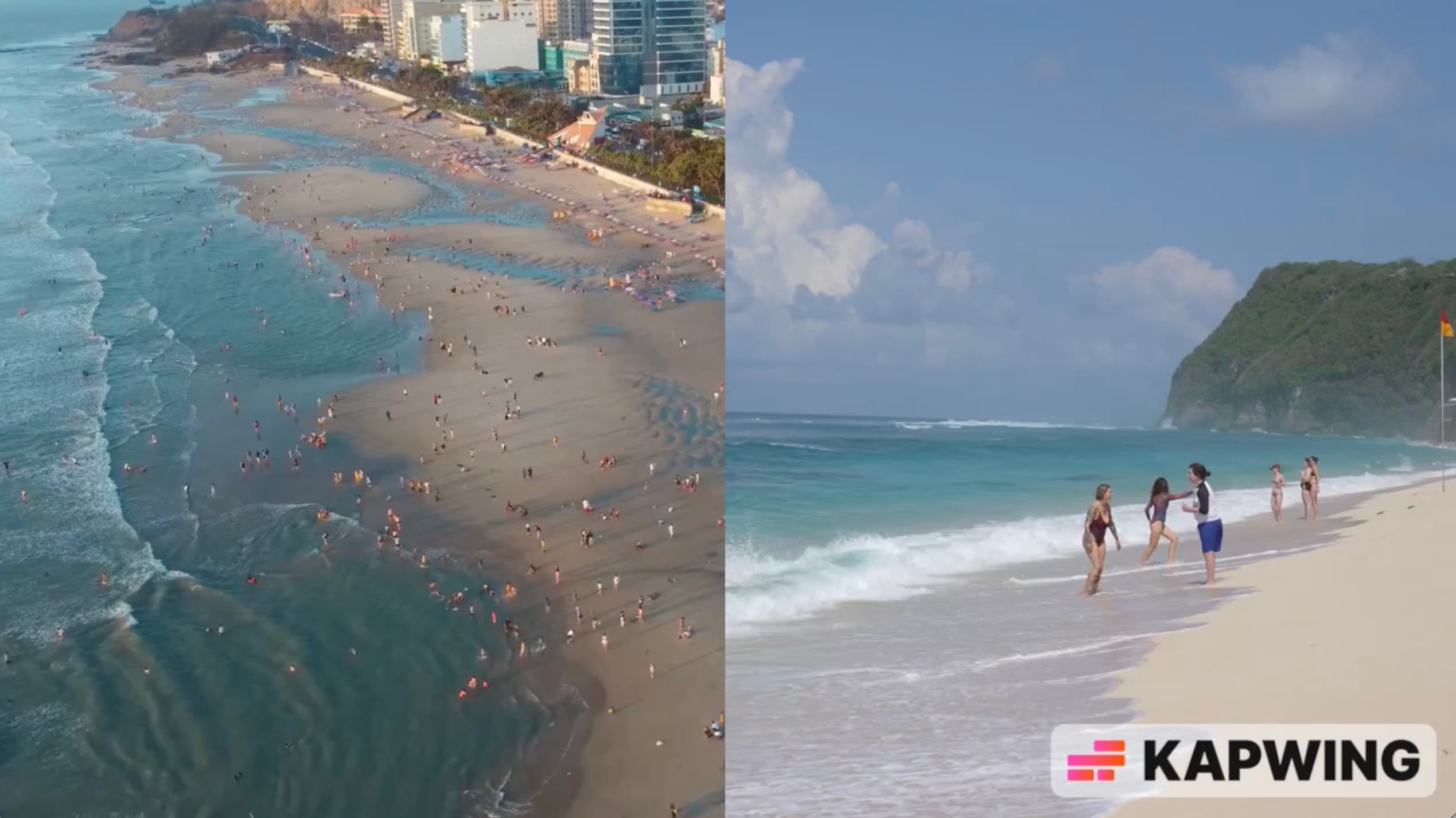
Kapwing's Split Screen Video Maker is a free split-screen video editor online that lets you arrange multiple clips on one canvas without installing software. Its free plan includes a watermark, 720p exports, and a four-minute export limit.
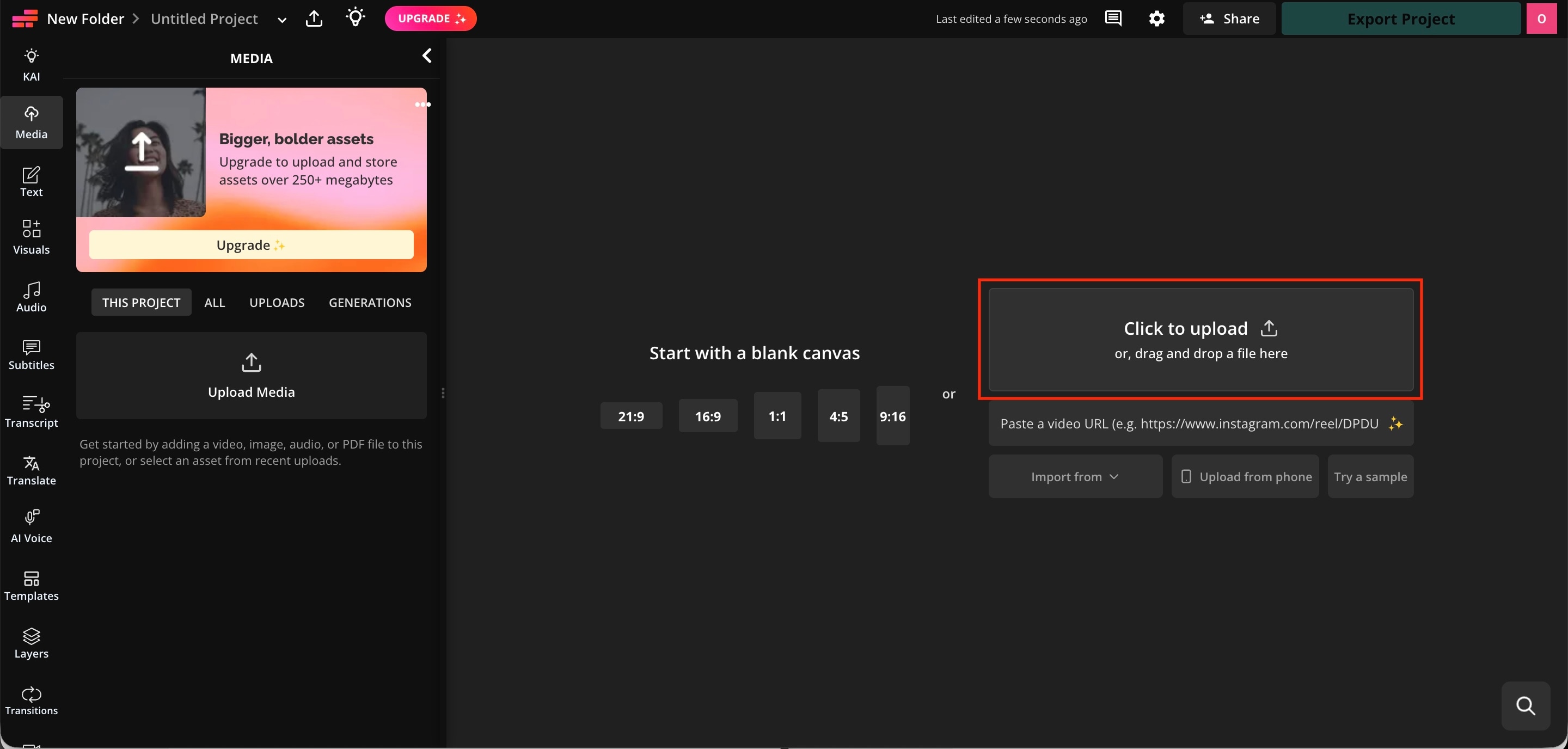
Step 1. Upload Your Video Clips
Open Kapwing's split-screen tool and upload the videos you want to combine. You can also add B-roll footage if you want to show extra visuals alongside your main clip.
Step 2. Arrange Your Videos Side by Side
Drag and resize each clip on the canvas to create your preferred layout. Place videos side by side, stack them vertically, or position them in a custom arrangement to suit your project.
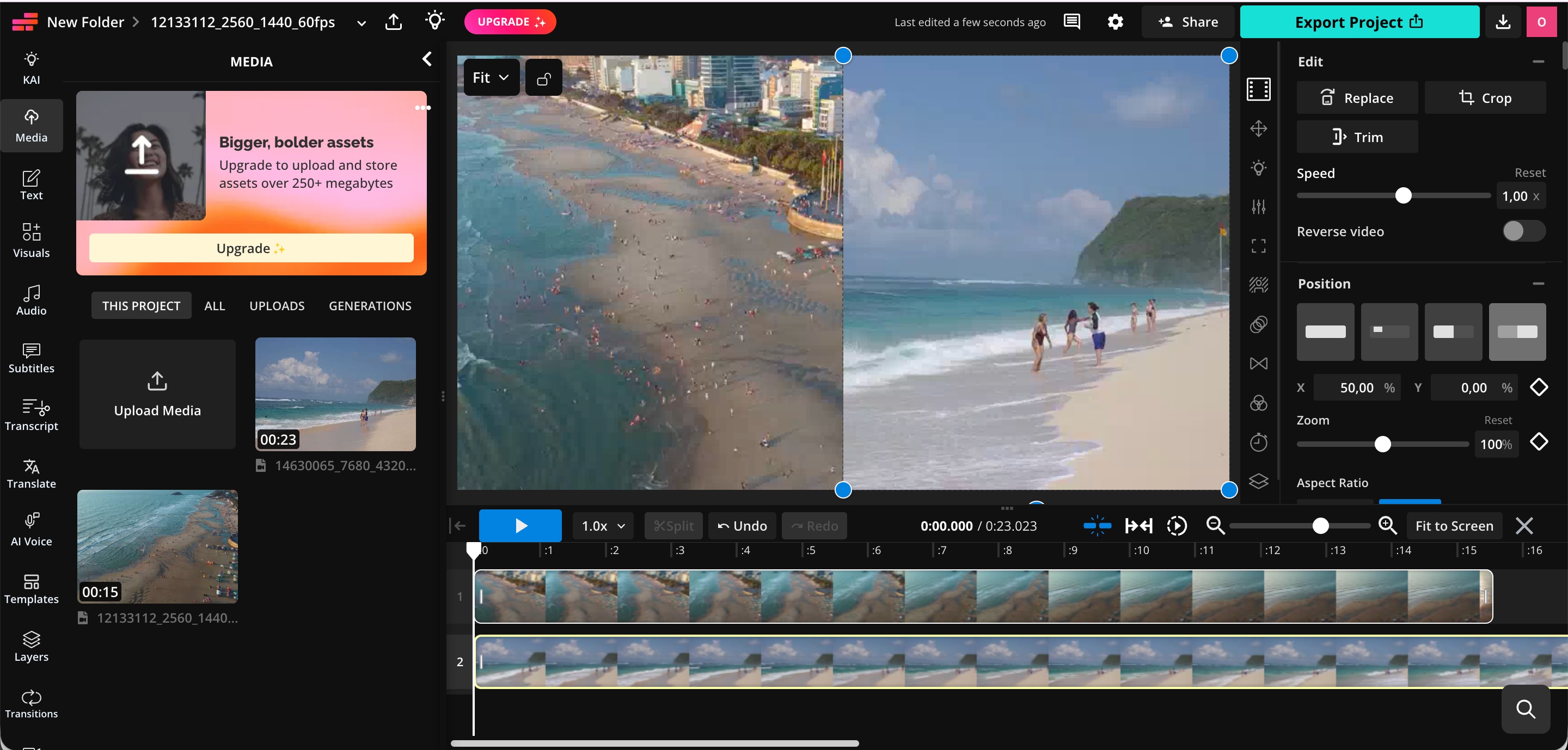
Step 3. Adjust Each Clip
Reposition or crop the footage to keep important details visible. Trim the clips to align key moments, and adjust the audio if needed to prevent overlapping sounds from becoming distracting.
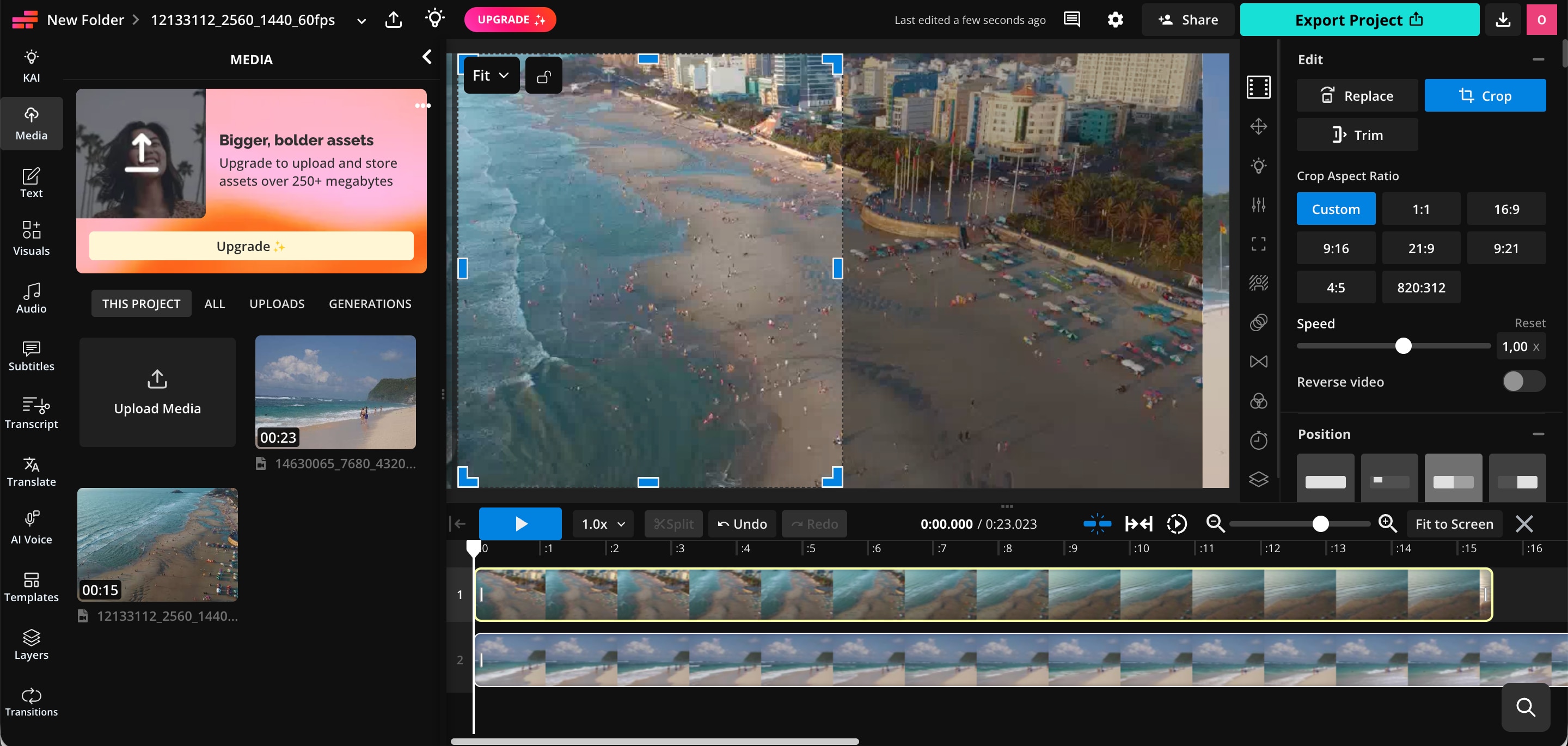
Step 4. Preview and Export Your Video
Preview the video to check the layout, timing, and audio. When everything looks right, export your video as an MP4 file and download it to share on platforms like YouTube, TikTok, or Instagram.
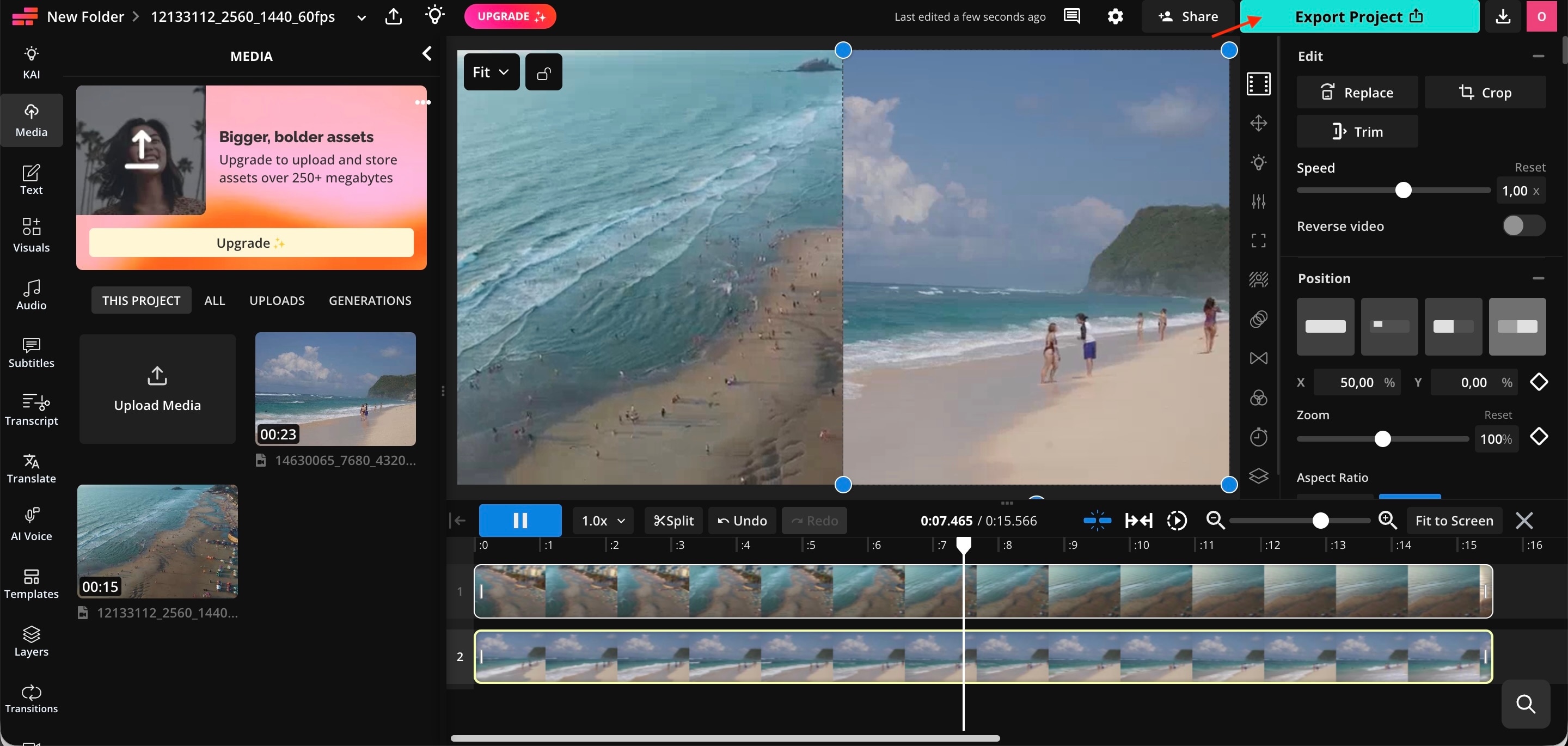
Keep in mind that Kapwing's free plan may limit export quality and video length and add a watermark.
Part 2. How to Make a Split-Screen Video with More Control in Filmora
If you want to create a split-screen video with more flexibility than a browser-based editor offers, Filmora lets you choose between ready-made split-screen templates and Multi-Frame effects. Templates arrange clips in preset layouts, while Multi-Frame effects add a multi-panel look to your footage. You can then adjust the clip placement and timing to suit your video.
 secure download

Step 1. Create a Project and Import Your Footage
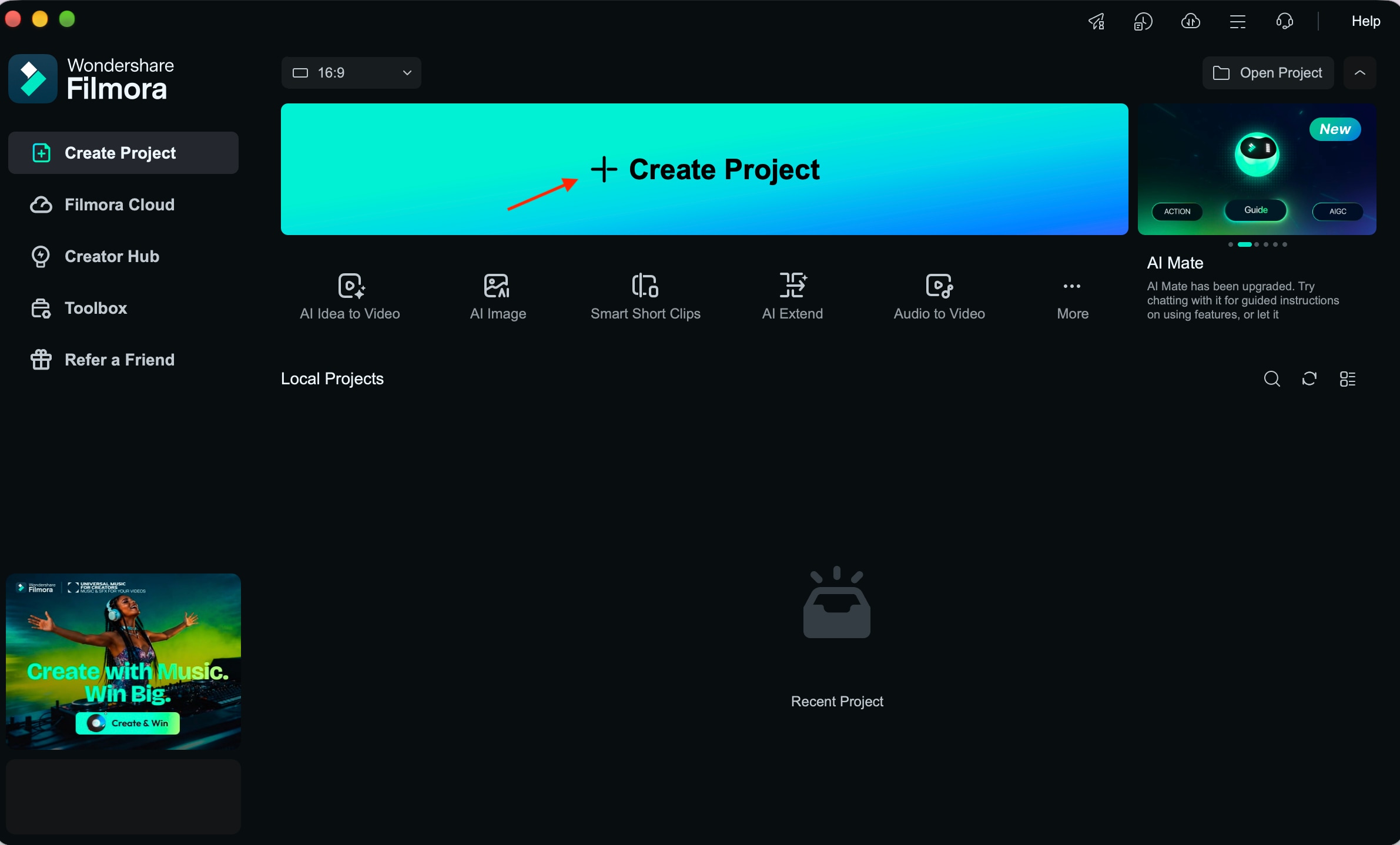
Open Filmora and create a new project. Import the video clips you want to combine into the media library.
Step 2. Choose a Split-Screen Template
Browse the available split-screen templates in Filmora and preview the layouts. Choose one that fits the number of clips you want to display and your desired composition.
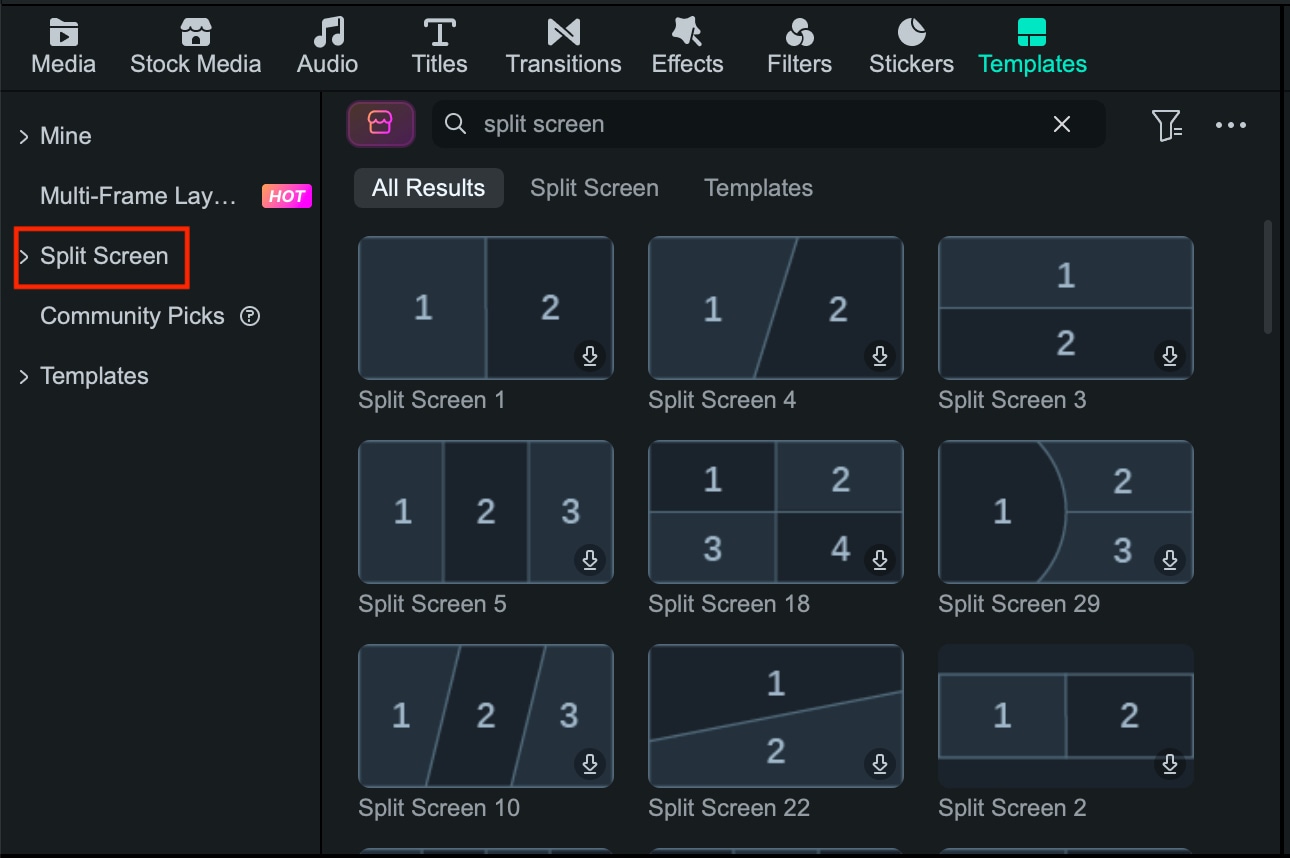
Step 3. Add Your Videos to the Layout
Drag your selected clips into the template's available slots and adjust the crop or position. Depending on the template and version, you may also be able to adjust borders, colors, and animations.
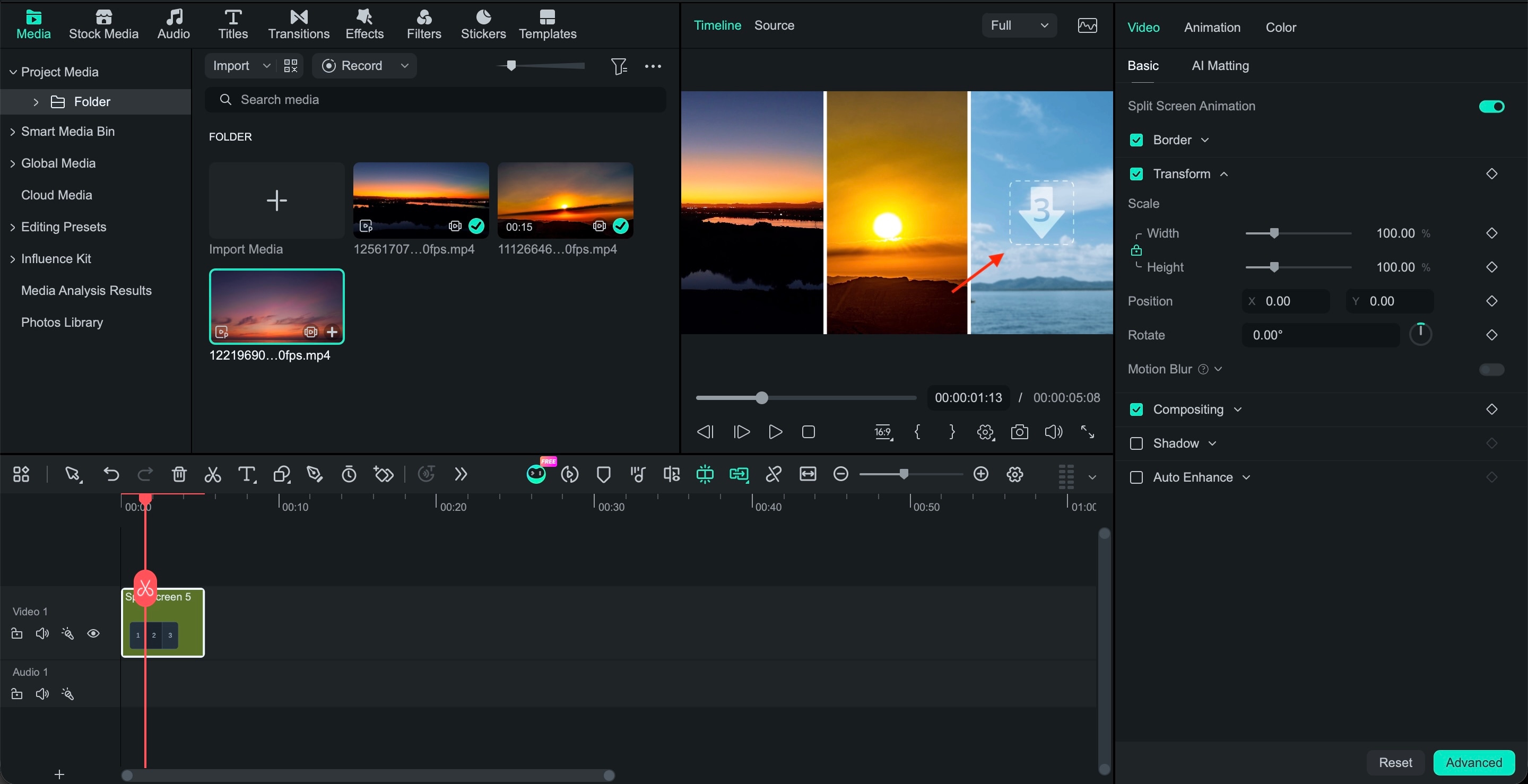
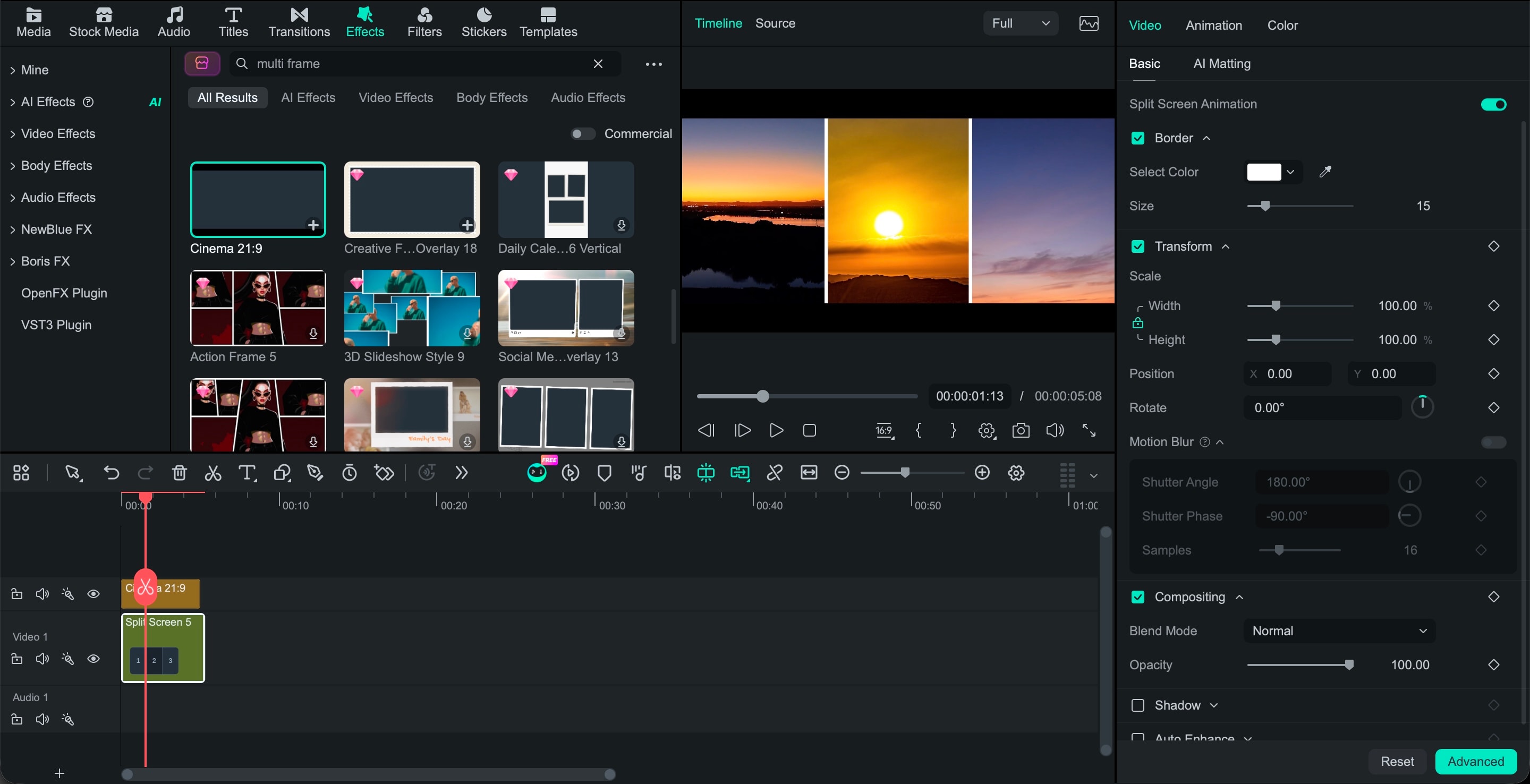
If you want to apply a multi-screen look to footage in an existing edit, explore the Multi-Frame effects in the Effects panel and adjust the available settings.
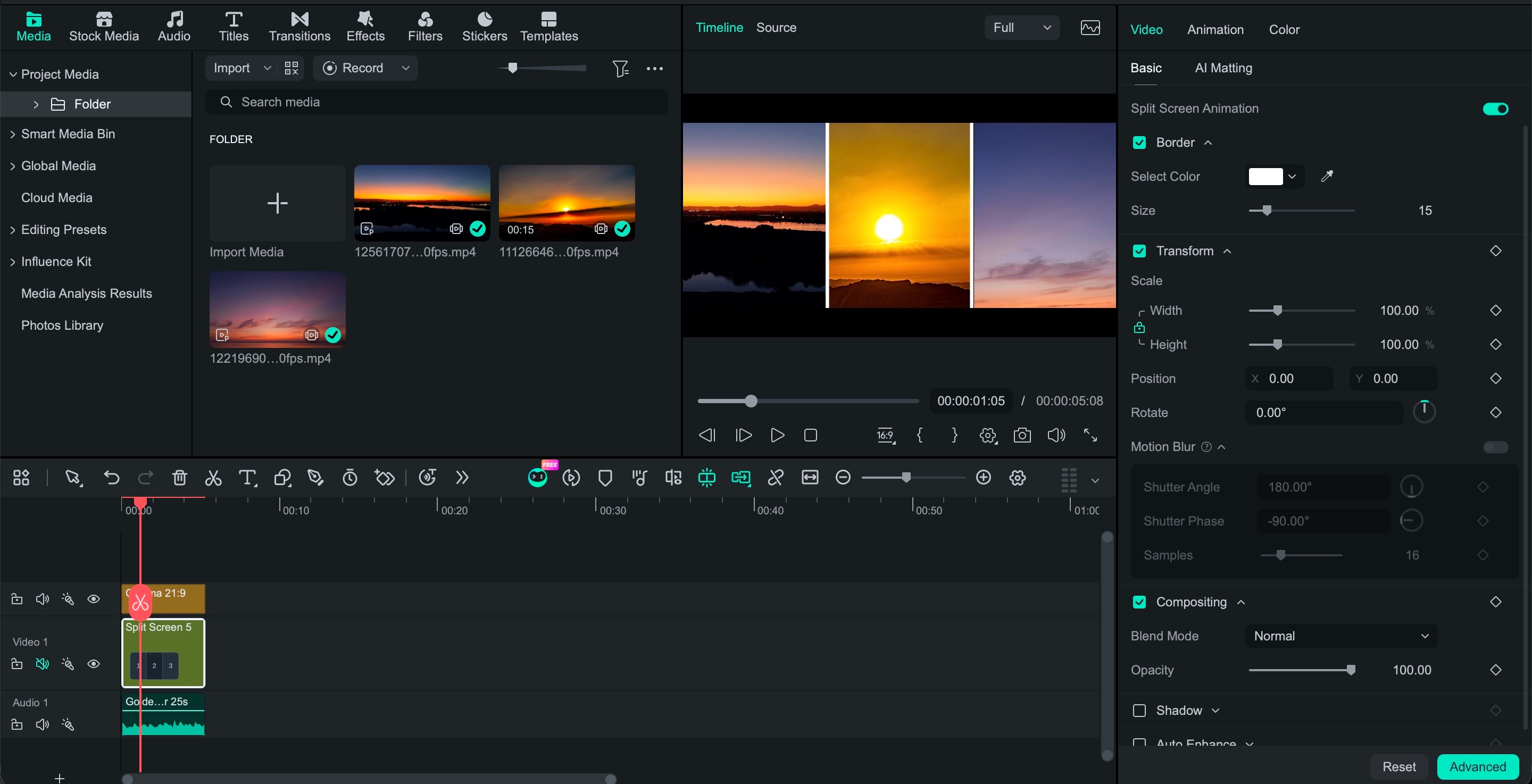
Step 5. Refine the Audio and Timing
Trim the clips so their key moments align and review the audio tracks. If several videos contain sound, mute unnecessary tracks or choose one as the main audio source to avoid overlapping dialogue.
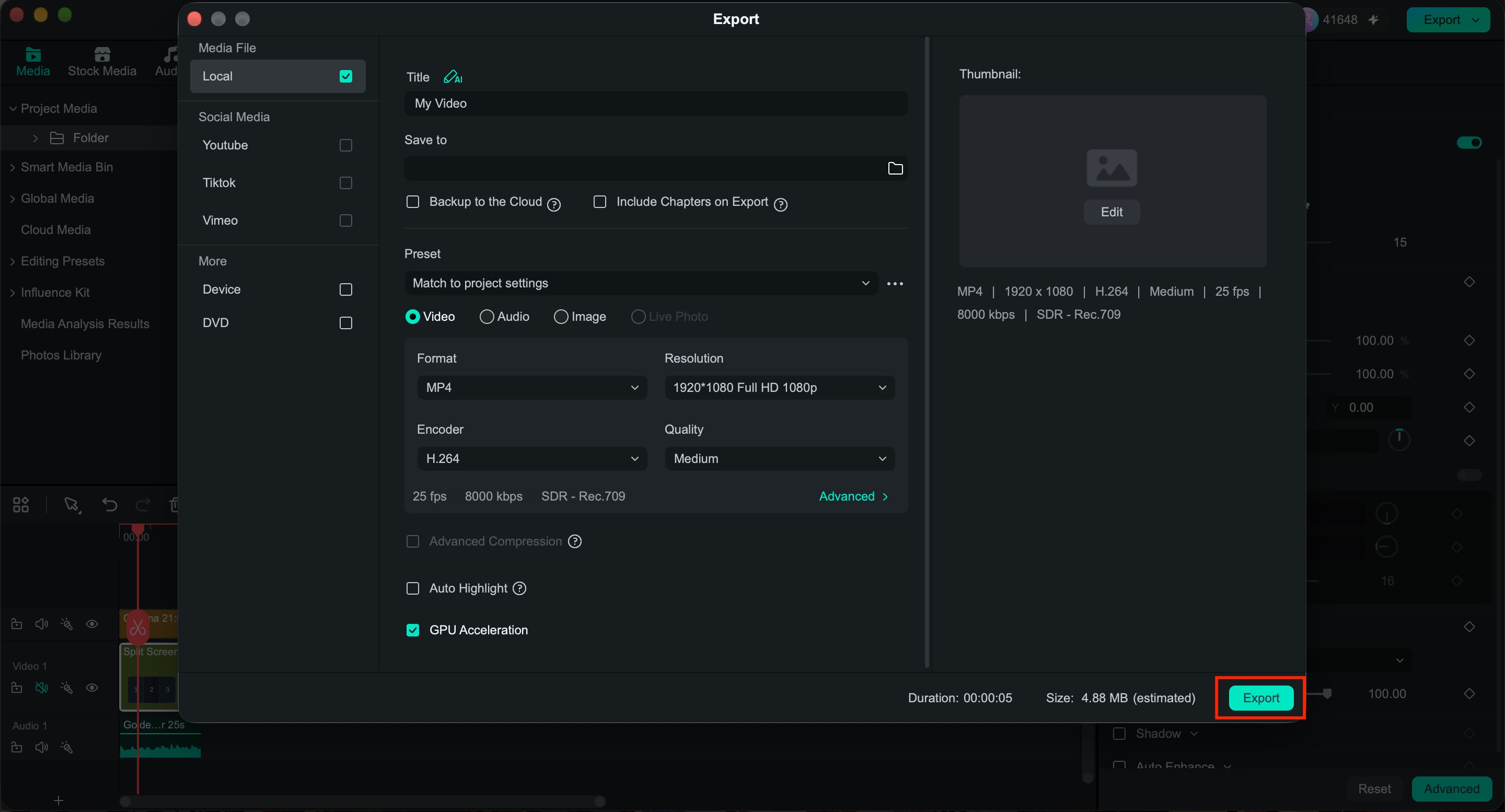
Step 6. Preview and Export Your Video
Play the entire sequence to check the framing, timing, transitions, and sound. When you're satisfied, click Export to save the finished video.
 secure download
 Filmora offers alternative ways to make a split-screen video without relying on a browser-based editor, especially when you want to refine the layout and coordinate several clips in a single project.
Part 3. Tips for Creating Better Split-Screen Videos
Creating a split-screen video online involves more than placing multiple clips on one canvas. The footage needs to work together, the timing should feel natural, and each panel should be easy to see. Whether you use a free online split-screen video editor or Filmora, these tips can help you get better results.
1. Choose footage with a clear purpose
Consider what each clip adds to the video. When comparing products, show the same feature from a similar angle. For a reaction video, keep the original footage visible while the person responds. If two panels show nearly identical content without adding context, remove one to give the remaining clips more room.
2. Keep the framing consistent
Adjust the zoom and position so people or products appear at roughly the same size when you're comparing them. Make sure faces, product labels, and other important details aren't cut off. Reposition or crop each clip as needed.
3. Match the timing
When showing the same event from different angles, line up the footage so viewers can compare both views at the right moment. Remove long pauses and empty opening segments, but leave enough time for viewers to understand what's happening in each panel.
4. Keep the audio easy to follow
If multiple clips contain dialogue, keep the most important track audible and mute or lower the others. Preview the full edit with headphones to catch overlapping dialogue or sudden volume changes. You can make use of Audio Ducking to automatically lower background music when someone speaks, and keep the dialogue clear without making the overall audio feel unbalanced.
5. Check the final aspect ratio
A 16:9 frame is common for YouTube videos, while 9:16 is widely used for TikTok, Instagram Reels, and YouTube Shorts. Check whether faces, product details, and text remain visible at actual viewing size. If side-by-side panels look too narrow in a vertical video, try stacking the clips instead.
Conclusion
If you need to put two videos side by side without installing software, a free split-screen video editor lets you arrange clips online without lengthy setup so you can combine footage directly in your browser.
However, free tools may come with export limits that affect your final video. If you want more control over layouts, clip timing, and audio, Filmora offers split-screen templates and Multi-Frame effects for more detailed editing. Choose based on your project complexity and how much flexibility you need to bring your video together.
FAQ
-
Can I Make a Split-Screen Video Online for Free?
Yes. Tools like Kapwing let you upload clips, resize them, and arrange them side by side in your browser. Check the free plan's export limits and watermark policy before downloading your video. -
What Is the Best Free Split-Screen Video Editor?
It depends on your needs. Kapwing is convenient for quick online edits, while Filmora offers split-screen templates and more tools for adjusting clips, timing, and audio. Check each tool's free-plan limits before choosing. -
How Do I Put Two Videos Side by Side?
Upload both clips to a video editor, place them in separate tracks or layout slots, and resize them to fit the left and right sides of the frame. Adjust the crop and timing, then preview the result before exporting. -
Can I Put More Than Two Videos on One Screen?
Yes. You can arrange three or more clips in a grid or multi-panel layout if your editor supports it. Keep each panel large enough for viewers to see the important details. -
Can I Make a Split-Screen Video in Filmora?
Yes. Filmora offers split-screen templates for preset layouts and Multi-Frame effects for a multi-panel look. You can adjust clip placement and timing, refine the audio, and export the finished video.
