


Everybody knows YouTube, but not everyone realizes the platform has its own dedicated editing app called YouTube Create. Designed to help creators produce Shorts and long-form videos directly from their phones, the YouTube Create app packs AI-powered editing tools, creative assets, and seamless YouTube integration, all completely free.
Naturally, a price tag of zero can make some people wonder whether it actually delivers enough features for serious content creation. So, we'll break down everything you need to know about the YouTube Create app, from its editing experience and AI capabilities to its limitations and whether it's the right video editor for your needs.
Part 1. Meet YouTube Create: Google's Editor for Modern Creators
Imagine having a video production studio sitting right inside your pocket; that’s the whole idea behind YouTube Create. Google built this mobile editor specifically for creators who want to shoot, edit, and upload videos without getting bogged down by complicated timeline setups or pricey subscription fees.
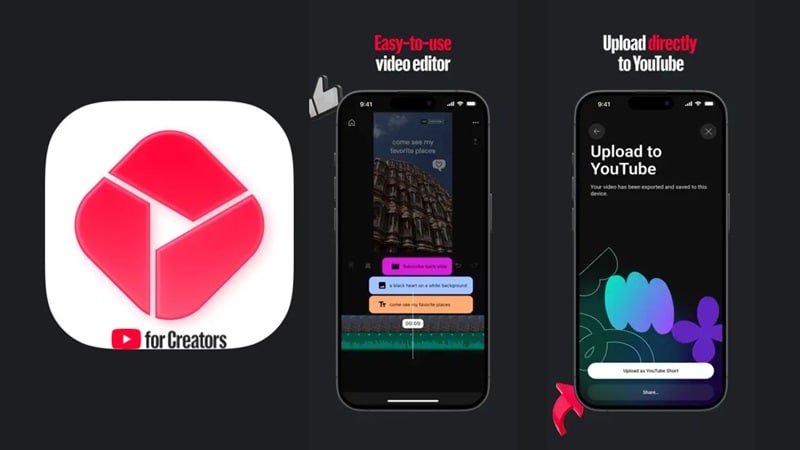
YouTube Create opens up opportunities for different kinds of creators, since it covers both Shorts and long-form content. It's a great fit for:
- New YouTubers creating their first videos.
- Shorts creators who edit directly on their phones.
- Vloggers who need quick edits while traveling.
- Lifestyle and beauty creators.
- Students creating school projects.
- Small business owners making product videos.
YouTube Create vs. YouTube Studio
One common source of confusion is the difference between YouTube Create and YouTube Studio. Since both come from Google and are aimed at creators, it's easy to assume they do the same thing, but they actually serve completely different purposes.
| YouTube Create | YouTube Studio |
| Edit videos | Manage your YouTube channel |
| Create Shorts and long-form videos | View analytics, check revenue and performance |
| Prepare videos for publishing | Manage uploads and settings |
A simple way to remember it is this:
- YouTube Create helps you make videos.
- YouTube Studio helps you manage the videos you've already published.
Part 2. YouTube Create Pricing & Access
Before you start chopping up clips, you need to know how to grab the right file without accidentally putting your device at risk. Let's get into it!
Downloading the YouTube Create App
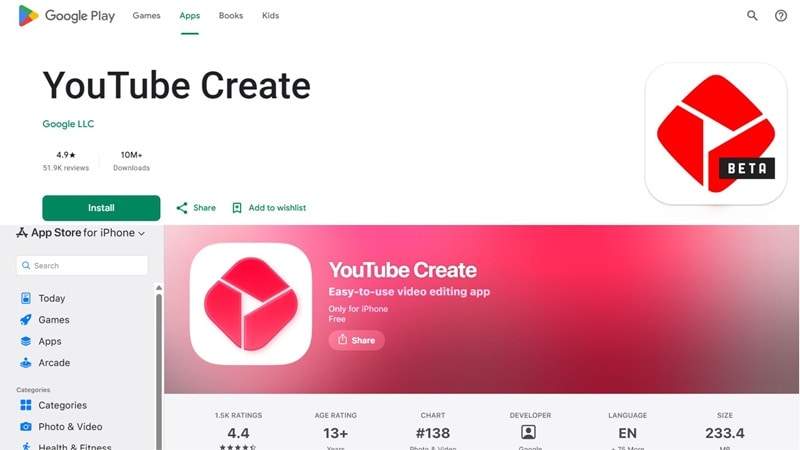
Finding an official YouTube Create app link is easy; just grab the official YouTube Create app download straight from the Google Play Store or the Apple App Store. On iOS, it currently requires an iPhone XR or later running iOS 17 or newer, and the app itself runs a little over 200 MB, so it's worth having some storage room to spare before installing.
Beware of APK Links
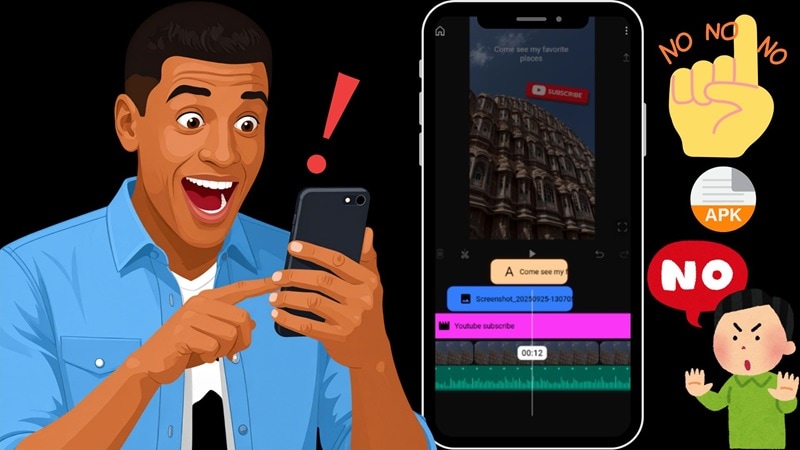
If you search online, you'll see plenty of sites offering a direct YouTube Create APK or YouTube Create APK download. It’s super tempting to click those direct files, especially if the app isn't officially unlocked in your country yet, but you really should avoid them. Downloading YouTube Create from those sources exposes your phone to huge risks:
- Hidden Malware: Altered installation files can sneak spyware or viruses onto your phone.
- Stolen Login Data: Fake builds can compromise your sign-in details, putting your main channel in danger.
- No Auto-Updates: Unofficial files won't get essential safety patches or feature updates from Google.
Is YouTube Create Really Free?
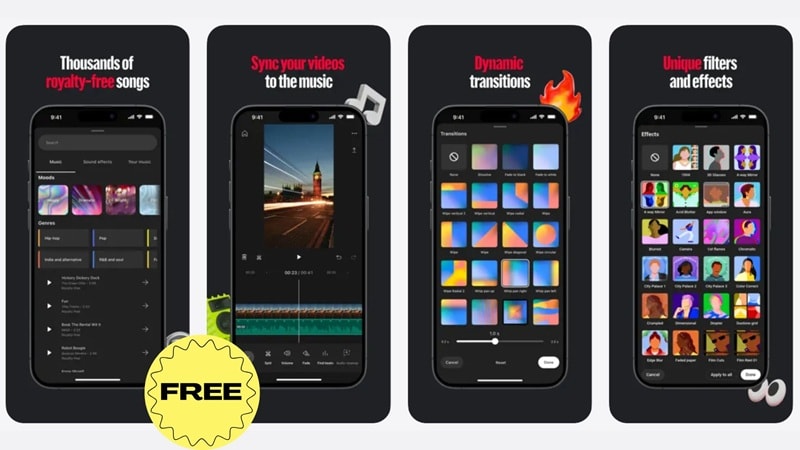
Yes, genuinely. There's no subscription, no in-app purchases for premium tools, and critically, no ads interrupting your editing session, which is rare for a mobile video editor. Every feature covered in this review, the AI tools included, comes at zero cost. That said, as you'd expect from anything free, it's a simpler tool than a full desktop editor, which we'll get into shortly.
Part 3. AI Meets Mobile Editing: YouTube Create's Best Features
Thankfully, YouTube Create isn't just a trimming tool with a YouTube logo slapped on it. It genuinely packs in a fairly complete editing toolkit. So, let's walk through what's actually inside.
Basic Editing Tools
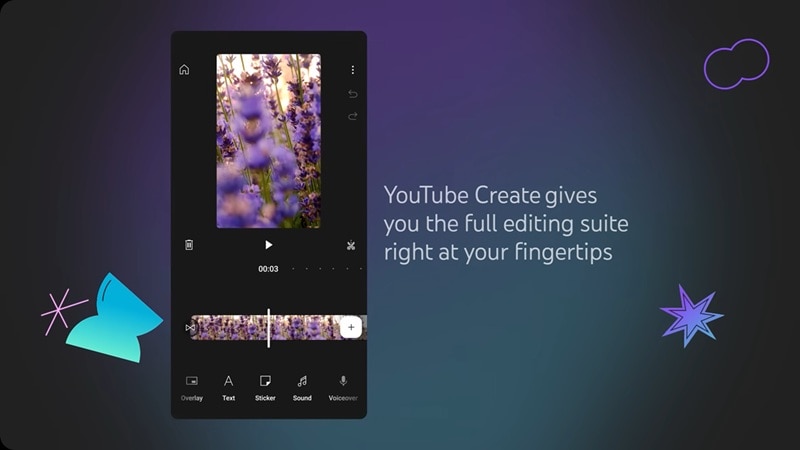
At its core, YouTube Create offers a timeline-based editor that's easy to understand, even if you've never edited a video before. Some of the everyday editing tools include:
- Trim and split tools to cut clips down to exactly what you need.
- Speed controls to slow down or speed up footage for effect.
- Crop and rotate options to reframe clips on the fly.
Audio Cleanup
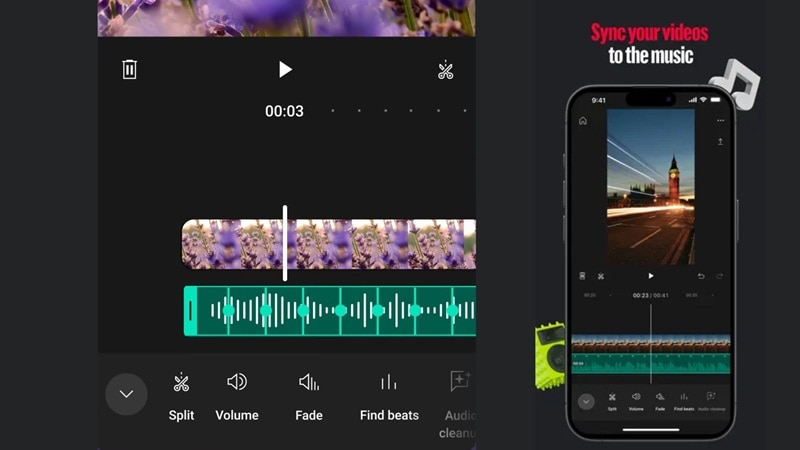
YouTube Create also includes tools that help improve sound quality without requiring separate audio editing software. The app can reduce unwanted background noise and clean up recorded voices, making conversations easier to hear. On top of that, you can use the Find Beats feature to sync your audio to the video automatically!
Creative Assets
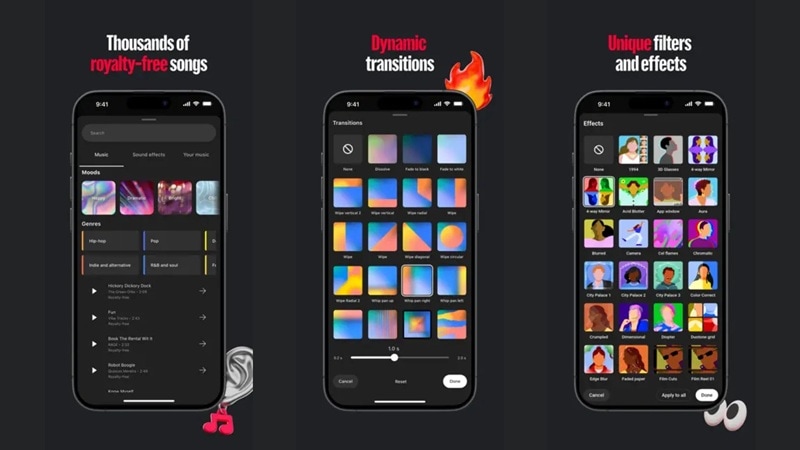
You don't need to hunt for external assets. The YouTube Create app includes a huge gallery of dynamic transitions, stylish video filters, customizable fonts, and fun stickers. Even better, you get direct access to thousands of royalty-free music tracks and sound effects from the native sound library, meaning you never have to stress about copyright claims again.
AI Features
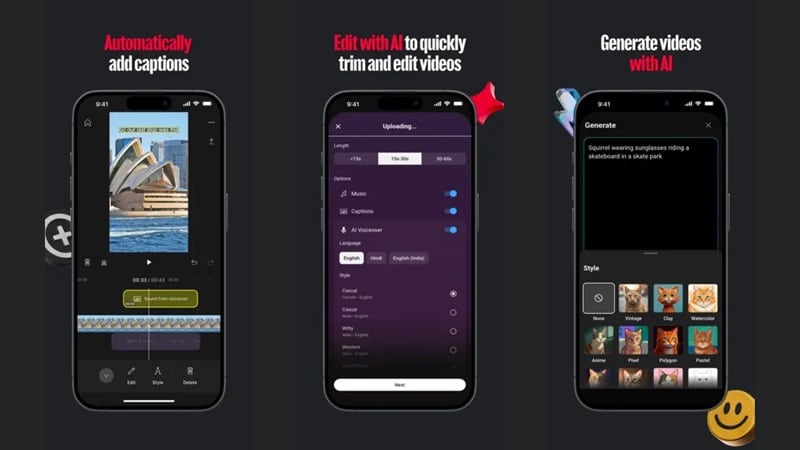
Beyond audio cleanup, there are a few YouTube Create AI features. AI captions can auto-generate subtitles in select languages. There’s also an Edit with AI tool that automatically trims and arranges your clips into a rough first draft of your video (available in select locations).
Neither replaces a human editor's judgment entirely, but both genuinely speed up the more tedious parts of putting a video together.
Part 4. The Biggest Strengths and Weaknesses of YouTube Create
At the moment, the YouTube Create app has a 4.9 rating on the Google Play Store and a 4.4 rating on the Apple App Store. And after digging through real reviews on both platforms, a pretty clear picture emerges of where this app earns its praise and where people run into friction.
Here's the honest rundown.
- Completely free forever with zero watermarks or ad pop-ups interrupting your flow.
- Direct publishing straight to your creator channel speeds up uploads.
- The one-tap auto-caption tool gets consistently praised, and it's genuinely accurate.
- The sticker, font, and transition library (40+ transitions) gives casual edits real personality without extra downloads.
- Editing is still fairly linear (basically clip after clip), so there's no support for transparent overlays or true keyframing yet.
- Some users report the app freezing or crashing partway through longer or more complex edits.
- Exporting can demand a surprising amount of free phone storage, which catches people off guard.
- Caption styling is limited to the app's built-in font library, so you can't upload your own custom fonts for captions.
Part 5. YouTube Create Alternative on PC: Wondershare Filmora
As a free mobile editor, YouTube Create is genuinely worth having on your phone. But some projects, longer edits, multi-layer compositing, detailed color work, just need a bigger screen and a deeper toolkit to really come together. And unfortunately, the YouTube Create for PC version doesn't exist yet.
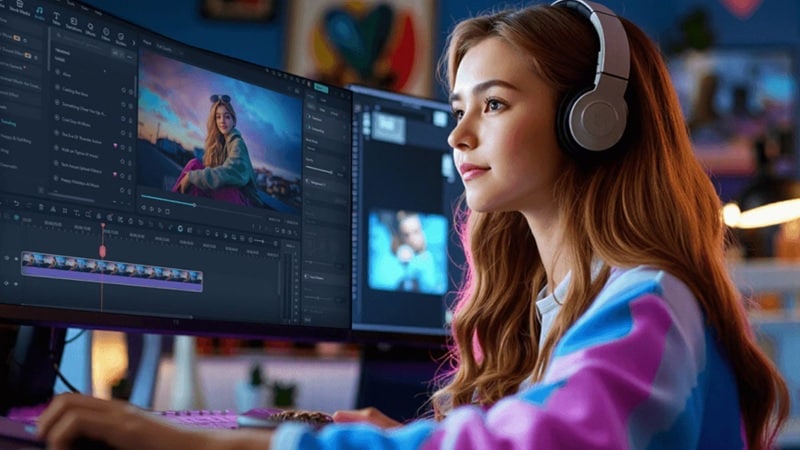
That's exactly where a desktop alternative like Wondershare Filmora comes in. This all-in-one video editor manages to balance beginner-friendly editing with powerful creative tools. You don't need years of editing experience to create professional-looking videos, yet the software includes features that can support much larger projects.
 Secure Download
Why Filmora Stands Out
Here are several reasons many creators choose Filmora as they move beyond mobile editing.
1. Edit Across Multiple Devices
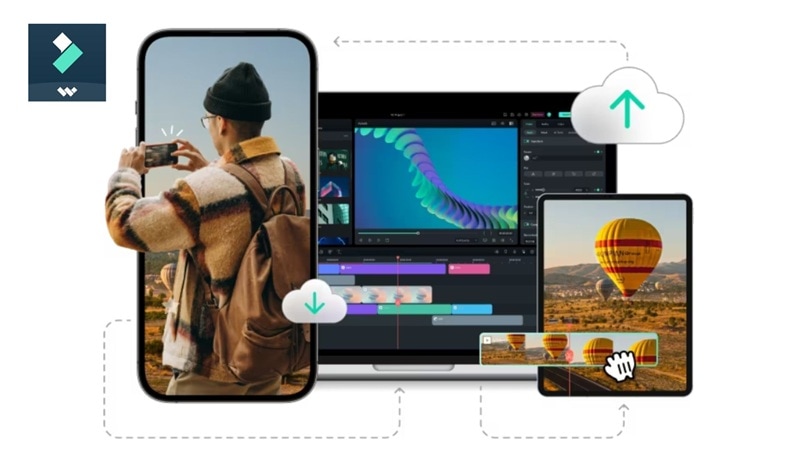
Unlike YouTube Create, Filmora isn't limited when it comes to compatibility. It's available on Windows, macOS, Android, and iOS, making it easier to start a project on one device and continue working on another depending on your workflow. This flexibility is especially useful for creators who don't always edit in the same place.
2. Better for Long-Form Content
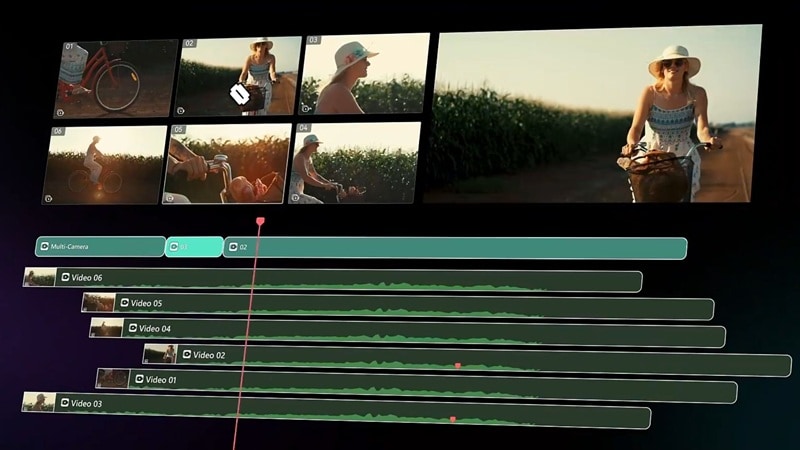
Managing dozens, or even hundreds, of clips is much easier on a desktop timeline. That’s why while YouTube Create is excellent for quick edits, Filmora feels much more comfortable when you're producing:
- YouTube documentaries.
- Podcasts.
- Tutorials.
- Gaming videos.
- Interviews.
- Product reviews.
- Online courses.
3. More AI Tools in One Place
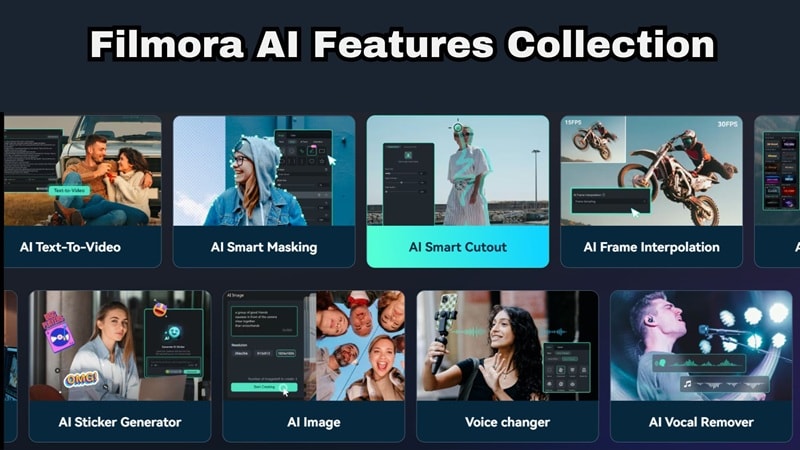
Filmora goes beyond basic AI editing by offering features such as:
- AI Video Generator.
- AI Image to Video.
- AI Copilot Editing.
- AI Smart Cutout.
- AI Object Remover.
- AI Music and Audio tools.
- AI Translation and Subtitle features.
- AI Color Palette.
Instead of speeding up only a few editing tasks, AI is integrated throughout the editing workflow.
4. Built for More Than Just YouTube

Although many YouTubers use Filmora, it's designed for content across multiple platforms. Whether you're creating videos for:
- YouTube
- TikTok
- Instagram Reels
- Facebook.
Once your edit is done, Filmora's Social Content Planner helps you schedule and manage posts across platforms.
Secure DownloadConclusion
YouTube Create earns its spot as a genuinely solid, completely free mobile editor, especially if your workflow revolves around quick Shorts or simple long-form uploads straight to your channel. The AI captions and audio cleanup tools alone make it worth having installed, even as a backup option.
But once your projects call for more precision, layering, or advanced AI generation, you'll want a desktop tool alongside it. In such cases, Filmora pairs a proper editing timeline with a much deeper AI toolkit, so you can start on your phone with the YouTube Create app and finish with real creative control on the big screen.
FAQs About YouTube Create
-
Does YouTube Create work offline?
You can perform basic video trimming, splitting, and clip arrangements without an internet connection. However, loading new music tracks, applying fresh AI features, generating auto-captions, and uploading videos directly to your YouTube Create channel will require an active connection. -
Can I import videos from cloud storage into YouTube Create?
YouTube Create primarily imports videos and photos that are available on your device. If your media is stored in a cloud service like Google Drive or iCloud, you'll usually need to download those files to your phone before importing them into your project. -
Can I collaborate with other creators on a YouTube Create project?
Not directly. Your YouTube Create account is designed as a solo, on-device editing experience rather than a real-time collaborative tool. So, there's no built-in way to co-edit a single project with someone else simultaneously.
