

 100% Security Verified | No Subscription Required | No Malware


 ChatGPT
 Perplexity
 Gemini
 Claude
 Grok
Grok
Loop animation brings in high impact with low effort. You create a simple, short clip that repeats itself. That effect makes it more visually appealing and increases its usefulness. You can use a wide range of tools to make one. But here, we have listed the 5 best tools, the different animation types, use cases, and more. Continue reading to learn about these and know which loop animation tool is the best for you.
In this article
Why Loop Animations Are So Popular
Loop animations have a lot of use cases. You can use them to attract followers, create motion graphics, or reveal your brand's logo in an interesting way.
Social Media
Brands can use loop animation for product showcases. A simple looping animation can bring a static image to life. It makes it more eye-catching, which is essential in social media marketing.
Motion Graphics
Loop animation in motion graphics is used to create seamless, repeating movement. Loop animation makes it so that the start and the stops are not very noticeable. As such, you can see them in backgrounds, ads, and cinemagraphs.
Logo Reveals
A loop animation can be used in logo reveals to continuously showcase a brand identity without interruption. The repeated motion keeps the logo visible and engaging. It's perfect for building recognition in social media posts, website banners, presentations, and digital displays where consistent brand exposure is important.
Background Animations
A looping animation can create a striking effect where only one element moves repeatedly. You can use it for flowing water, drifting clouds, or a flickering light, adding depth and atmosphere to the video without doing too much.
What Makes a Good Loop Animation Tool?
You can choose from a wide array of animation tools to create a loop. But some of them are more worthwhile than others. Here's a guide that you can use to determine which are the best ones to use.
Easy Looping Setup
A complicated tool can do a lot of advanced things that can ensure the wow-factor is there. However, it may take days, or months even, to master them. They are not suitable for beginners who want to create loop animations as soon as possible.
That said, one of the qualities to look for in a loop animation tool is ease of use. You should be able to create a repeating animation without taking complex steps. Those with built-in loop options, especially those that can automate it, are your best options.
Motion Path Support
Motion paths allow you to set paths that objects will take. You don't have to manually rotate and move the said object frame by frame. The tool automatically adjusts that for you.
Playback Controls
A good tool helps you preview and refine your looping animation before you export it. The tool should let you play, pause, and do frame-by-frame navigation. Tools should also allow you to adjust the speed and fix timing issues.
Export Quality
Of course, the tool will not be great if the exported media it creates are low-quality. It should offer high-quality export options that preserve smooth motion and visual clarity. Also, look for features such as support for multiple file formats, customizable resolutions, and optimized settings for social media or professional projects. These help ensure the final animation looks polished across different platforms.
Best Tools for Creating Loop Animations
Based on the factors listed above, here are the best tools for creating loop animations.
Filmora
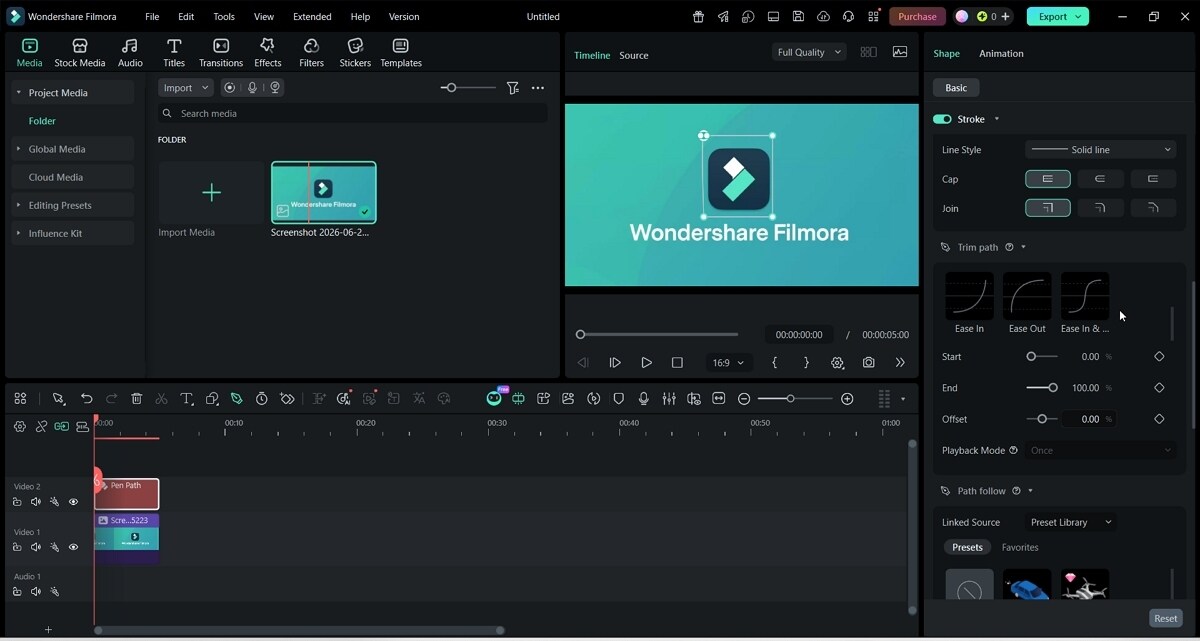
Wondershare Filmora is a user-friendly video editor that allows you to create loop animations using the Trim Path feature. It allows you to create animate strokes or select elements from its presets to travel along your set path. Unlike with other tools, you can create the loop with just a few clicks.
Here's more information about its loop animation features:
Loop Mode
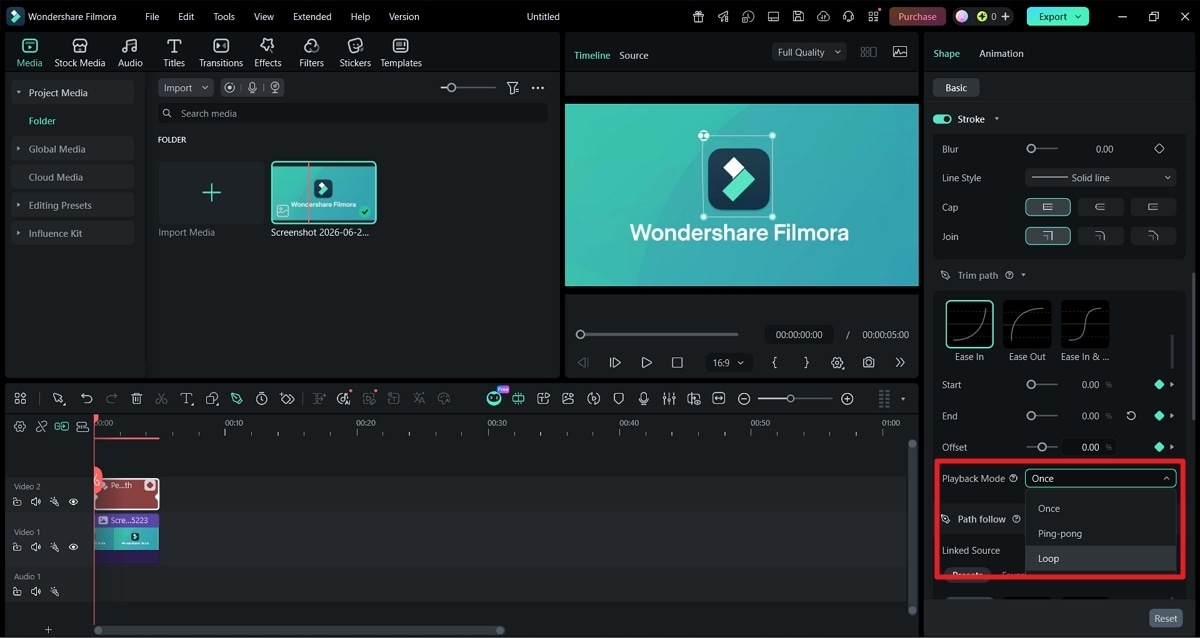
Loop is one of the playback options you can find in the Trim Path tab. When this setting is selected, your video will repeat from the start once it reaches the end frame. It then continues to play in an endless loop.
Ping-Pong Mode
The Ping-pong mode creates a seamless, satisfying loop animation. Instead of jumping back to the start, the animation plays in reverse after reaching the end frame. As a result, it looks smoother. Furthermore, a ping-pong loop essentially doubles the animation length, making it more interesting.
Trim Path Presets
The Trim Path Presets make Filmora an easy-to-use loop animation tool. On other tools, you need to set the keyframes yourself. You can still do that when using Filmora if you want more control. Alternatively, you can use the presets. These 6 options create the keyframes for you. Thus, all you need to do is draw the path, select a preset, select the playback mode, and extend the clip.
Path Follow Controls
Filmora offers path follow controls, which let you make an element follow the path that you set. It helps make the loop animation more interesting. You can select the elements from the preset library. It includes cars, paper planes, map markers, and more. Alternatively, you can select an object from your timeline or upload one from your media files.
Beginner-Friendly Workflow
The workflow in Filmora is very straightforward. Draw the path, set the keyframes, extend the clip, and you're done. And even if you decide to use the path follow features, it does not become complicated. The tool automates the element's movement and even fixes the rotation. With all that said, you don't need to be an expert video editor to use Filmora.

 secure download

After Effects
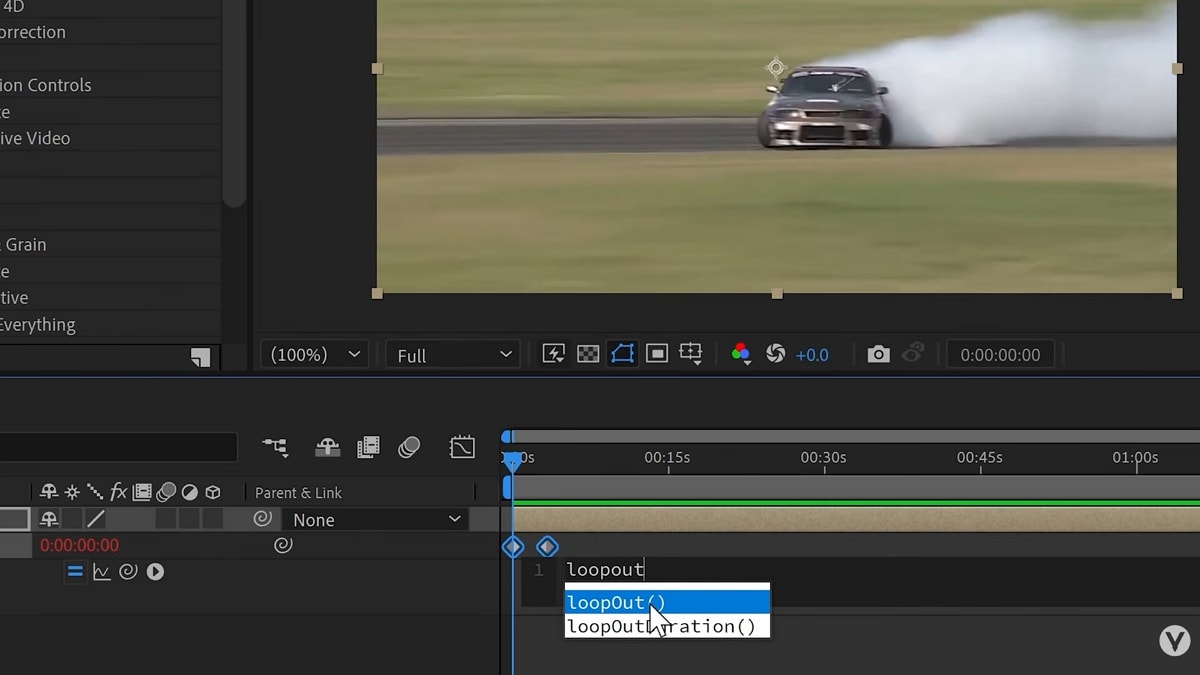
After Effects is a powerful loop animation creation tool. Its loop expression lets you do a lot of things. It has two configurations, loopOut and loopIn, which determine whether the loop plays beyond the last keyframe or before the first keyframe. Then, it offers a total of four loop types.
However, After Effects is a little complex. To create the loops, you need to know the expressions, the exact things to type and where to type them. It's not something beginners would know. So choose it only if you have time to study and learn about its advanced features.
Blender
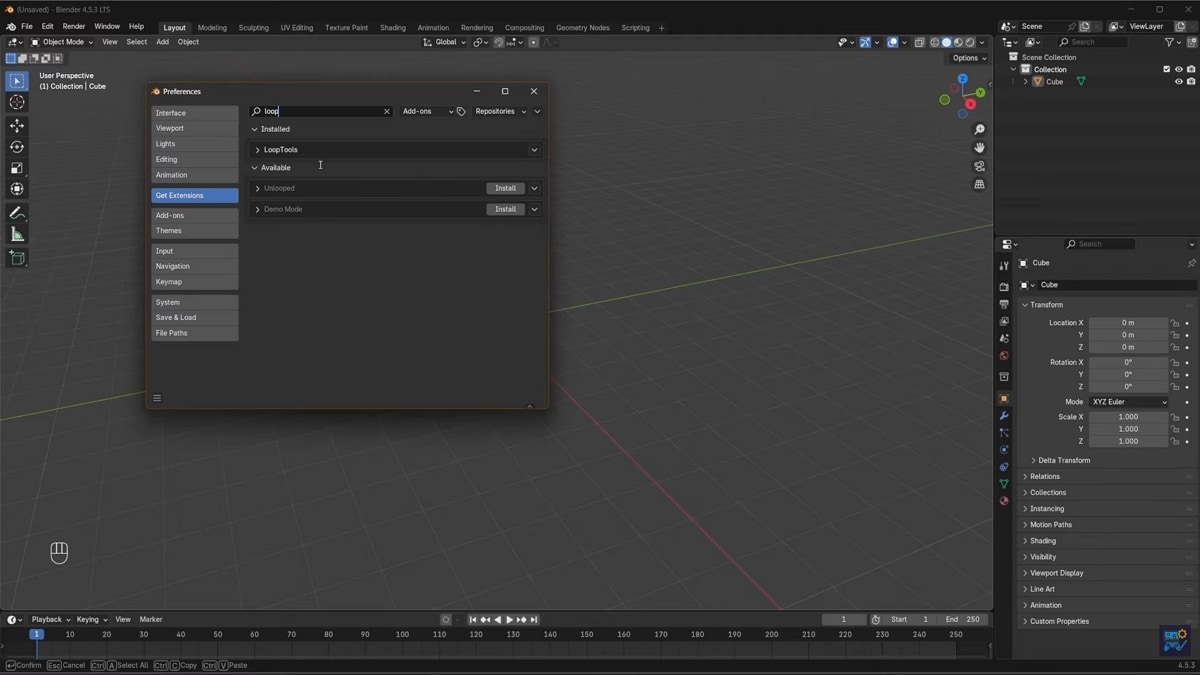
Blender is an open-source 3D modeling and animation tool. It is one of the best tools for creating essential looping animations, like walking or tires rolling. But like After Effects, this tool is complicated. You need to know how to change the workspace windows into the correct editors. Also, you need to have knowledge about 3D object manipulation and animation.
Canva
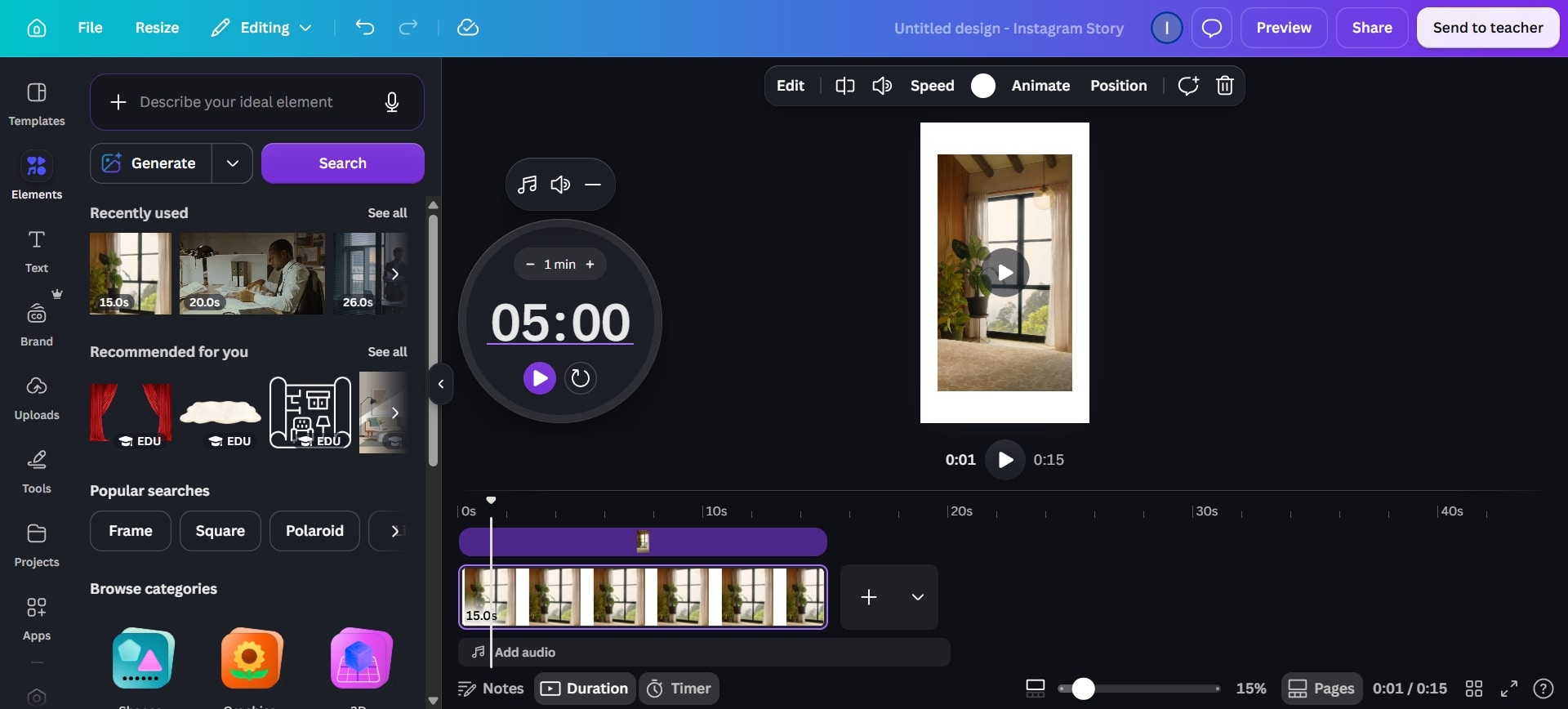
Canva is the most beginner-friendly option in this list. To make a loop animation in Canva, you simply have to select the "Play on repeat" playback mode. That makes it a great choice if you just want to make simple loops for social media content. However, for projects that demand more control, its capabilities may not be enough.
Figma
Figma is the tool to choose if you are a web or app designer. It lets you create and preview the interface before you start coding. You can use Figma to create loop animations and see how good they would look in the app or website. It is useful for loading screens, background animations, and logo reveals.
Maya
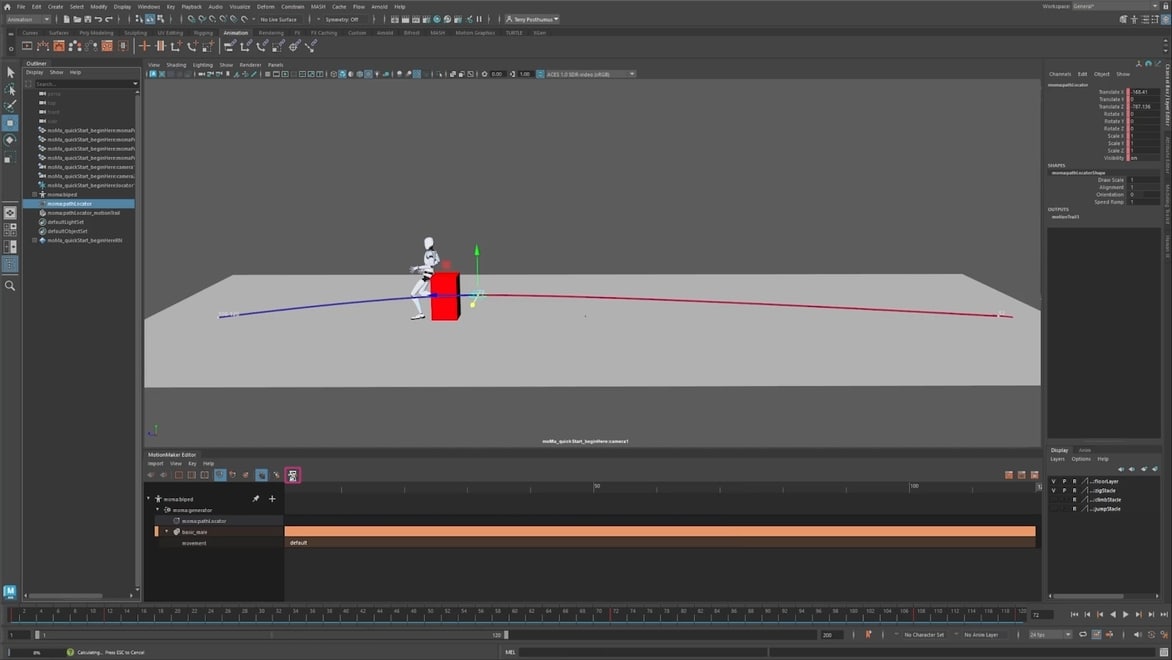
Maya is another 3D animation tool. It is the one that big animation studios use to create films and shows. Needless to say, its advanced features make it a reliable tool for creating looping animations. The catch is that it is costly and has a steep learning curve. If you are not really into 3D animation and filmmaking, there are better options for you.
Best Loop Animation Types You Can Create
A looping animation can take many shapes depending on the project.
- Logo loops: A brand mark pulses, rotates, or redraws itself every few seconds.
- Background loops: Soft, moving textures or particles placed behind text or product shots.
- Infinite loading animations: Small spinners or progress bars used in apps and websites.
- Social media animations: Short bouncing or sliding clips made for Reels, TikTok, or Stories.
- Motion path animations: Objects travel along a custom curve, often used in explainer videos.
Each type leans on the same core idea. The first frame and the last frame need to match closely enough that the eye cannot find the seam.
How to Create a Loop Animation in Minutes
Here is a step-by-step guide on how to create a loop animation in Filmora in minutes.
Step 1. Draw a Path
Add your media file to the timeline and draw on it using the Pen tool.
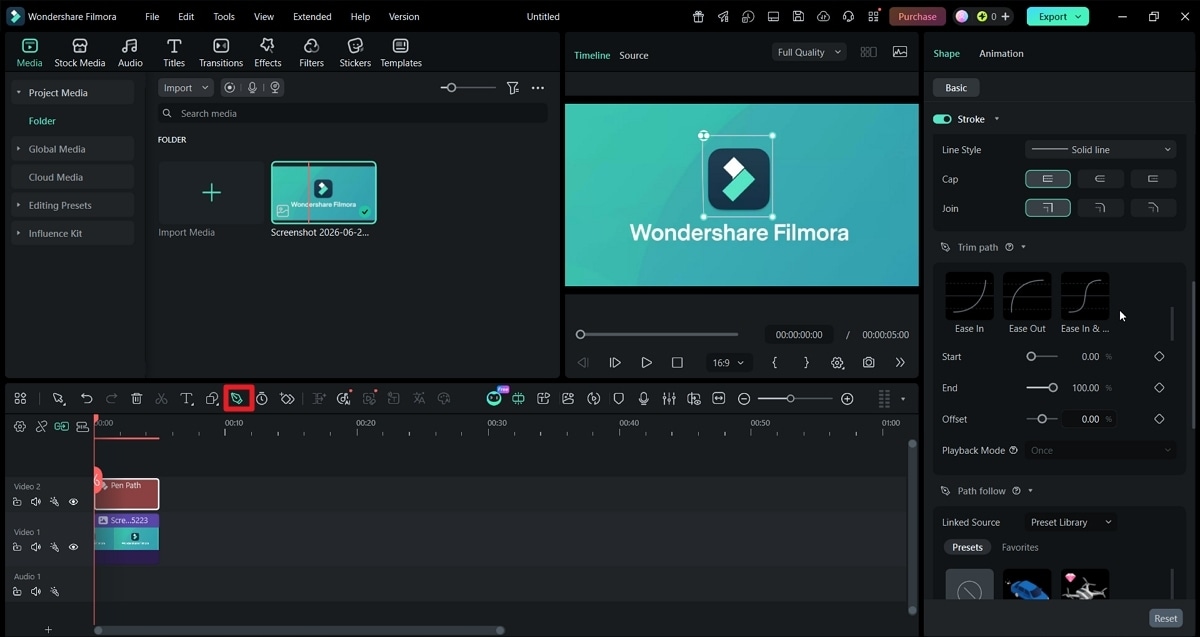
Step 2. Apply the Animation Preset
Select the shape you draw in the timeline. On the sidebar, scroll down to "Trim Path" and select an animation preset. It will create the keyframes for you.
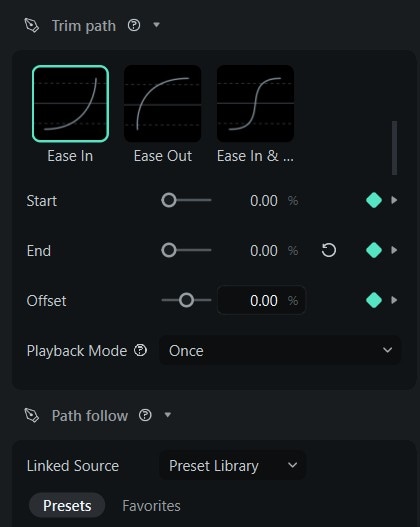
Step 3. Choose Loop or Ping-Pong
Click the dropdown menu for the playback mode and choose between Loop and Ping-pong. Choose Loop if you want the loop to jump back to the start. Choose Ping-pong if you want to get to the start by playing the animation in reverse.
Step 4. Export
Extend the clip to let the animation play out. Preview it and export when satisfied.
Which Tool Is Best for Most Users?
| User Type | Recommended Tool |
|---|---|
| Beginners | Filmora |
| Content creators | Filmora, Canva |
| Designers | Figma |
| Motion graphics artists | Filmora, After Effects |
| Animators | Blender, Maya |
Conclusion
Loop animation brings simple clips to life and makes them more useful across social media, motion graphics, logo reveals, and background visuals. The right tool depends on how much control you need and how much time you want to spend learning.
For most beginners and content creators, Wondershare Filmora is the easiest place to start. Its Loop and Ping-Pong modes, Trim Path presets, and Path Follow controls help you build smooth animations without complex expressions or manual frame-by-frame work. For advanced motion designers and 3D animators, After Effects, Blender, or Maya may offer deeper control, but they also require more time and experience.
secure download FAQs About Loop Animation Tools
-
What is a loop animation?
A loop animation is a clip or sequence that repeats continuously so smoothly that viewers cannot tell where it restarts. -
How do I make an animation loop forever?
Use your editor’s Loop or Repeat option to repeat the clip automatically and make sure the first and last frames match closely enough to hide the seam. -
What is Ping Pong animation?
Ping Pong animation plays a clip forward, then immediately plays it backward, creating a smooth back-and-forth motion instead of a hard restart. -
Which software is best for loop animations?
It depends on your needs. Filmora suits beginners and quick turnaround work, while After Effects and Blender suit professionals who need deeper control. -
Can I create loop animations without After Effects?
Yes. Tools like Filmora, Canva, and Figma can produce smooth loops without expressions or a long learning curve. -
Do loop animations increase my video file size?
Not normally. A loop repeats existing footage, so file size depends more on resolution, frame rate, and export compression than on the loop itself.
