


 100% Security Verified | No Subscription Required | No Malware


 ChatGPT
 Perplexity
 Gemini
 Claude
 Grok
Grok
As a video editor, content creator, or even a generally curious person, you’ve probably wondered if you can change a person’s pose in an image. And with the help of AI, the answer is yes, you certainly can. Even better, you can do it from any device.
AI pose changers are especially handy if you’re trying to renew a person's pose in an old picture or even change how a recent one looks. All you need is a great tool and your reference picture.
In this article, we will explore the different ways AI body pose changers work. We’ll also explain how to use AI to change poses in different ways. Keep reading to learn more.
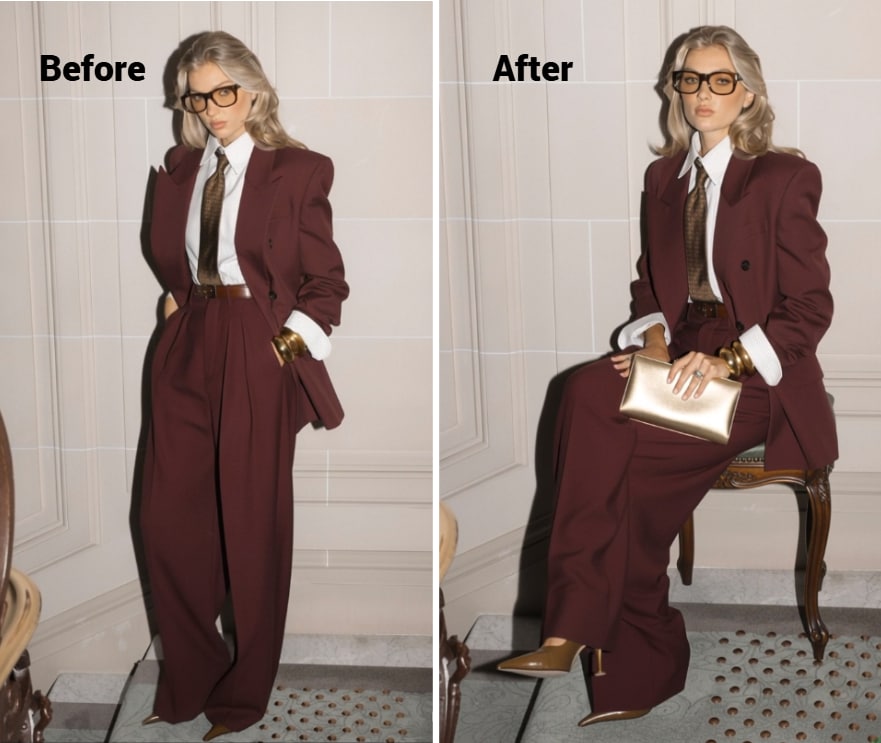
Part 1: The Different Ways that AI Pose Changers work?
Even though they produce the same results, which is to change a character’s position in either a video or a photo, AI pose changers work in very different ways. Below, let’s go over some of the most popular ways these tools work:
- Templates: Some pose changer AI tools use built-in templates to change a particular character’s posture in a photo or video. With these types, what you have to do is upload your image, and the AI will do all the work. The only downside is that these types aren’t very flexible, and the poses are often limited.
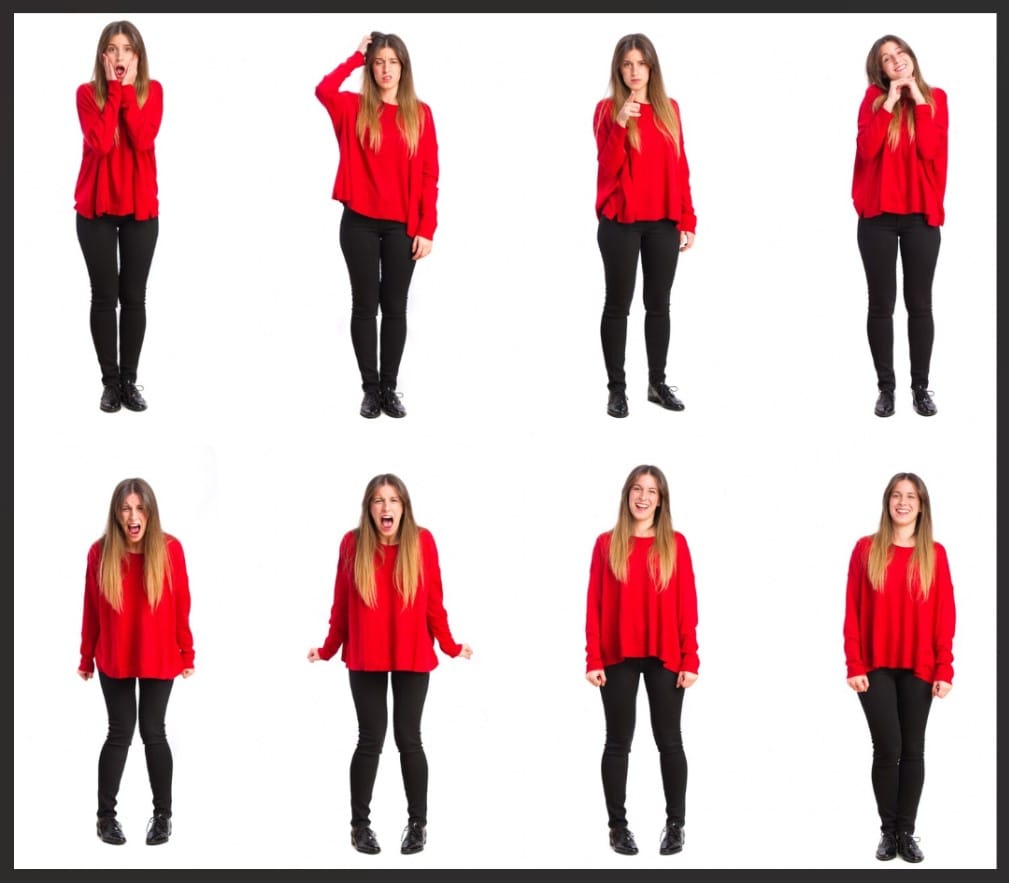
- Prompts: Pose changers like Wondershare Filmora offer prompt-based posture adaptation. This means that alongside your picture, you have to describe the pose you want the character to take. This is the quickest and most effective way since you get full control over the pose, and you don’t have to spend too much time editing and regenerating.
- Manual edits: These types of AI pose changers require you to highlight the areas you want to work on. Sometimes, you’d have to highlight that character or the part of their pose you want to change. While this offers flexibility, it takes a lot of time, making it not the most efficient.
In all, if you’re looking for fast yet efficient ways to change a person’s pose in a picture, always look out for prompt-based AI body pose changers.
Part 2: How to Change Poses with Filmora Image to Video for Mobile
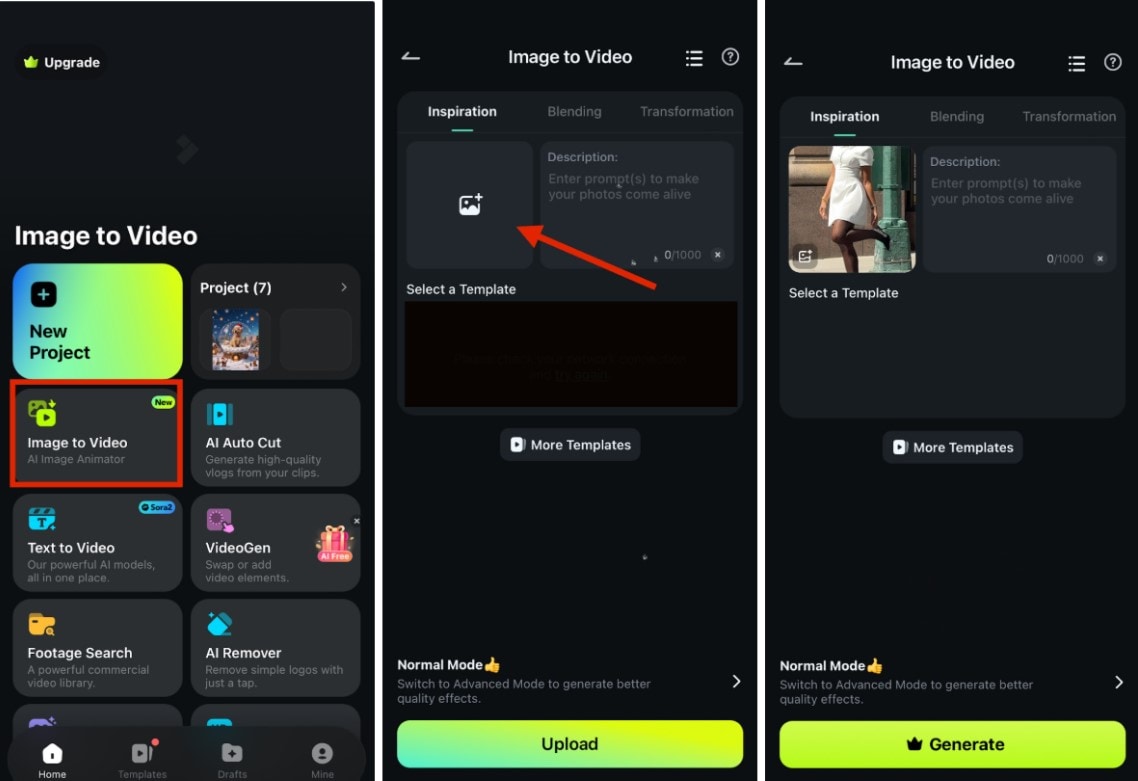
If you’re looking to change a person’s pose from your phone, we have just the thing for you. Filmora for mobile offers an Image-to-Video tool that can help you tweak any pose to your preferences.
Filmora for mobile uses a prompt-based system, so you get full control over the output, and you can edit it further after generating. Plus, you can either export the output as a video or a live image. Here’s how to use this pose changer AI tool from your mobile device:

 Secure Download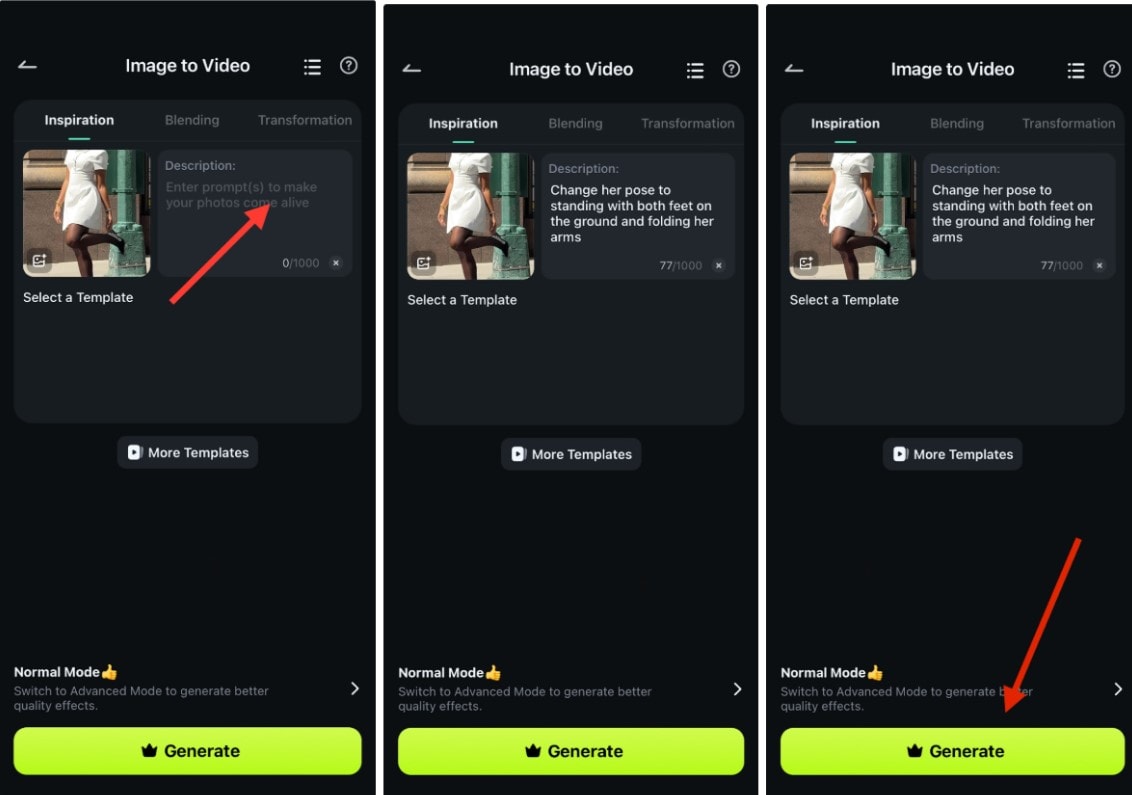
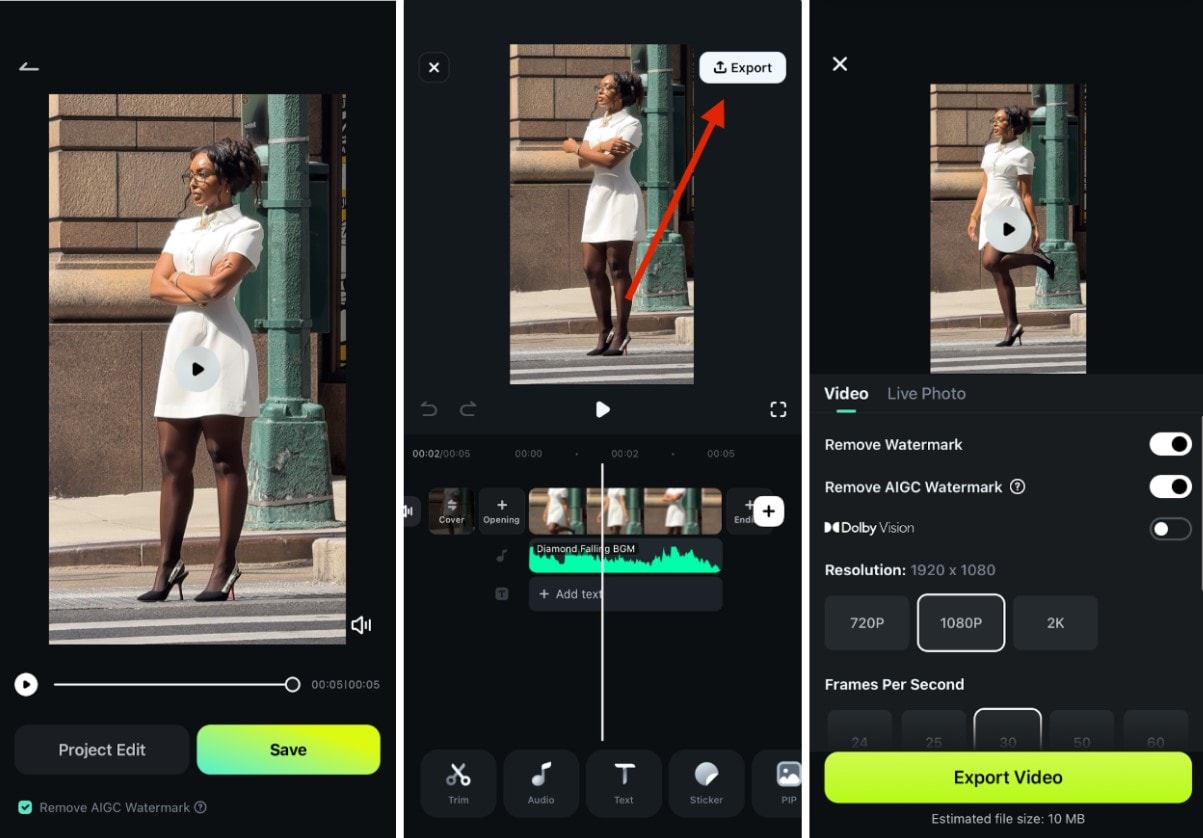
Below is a sample of what our output looks like:
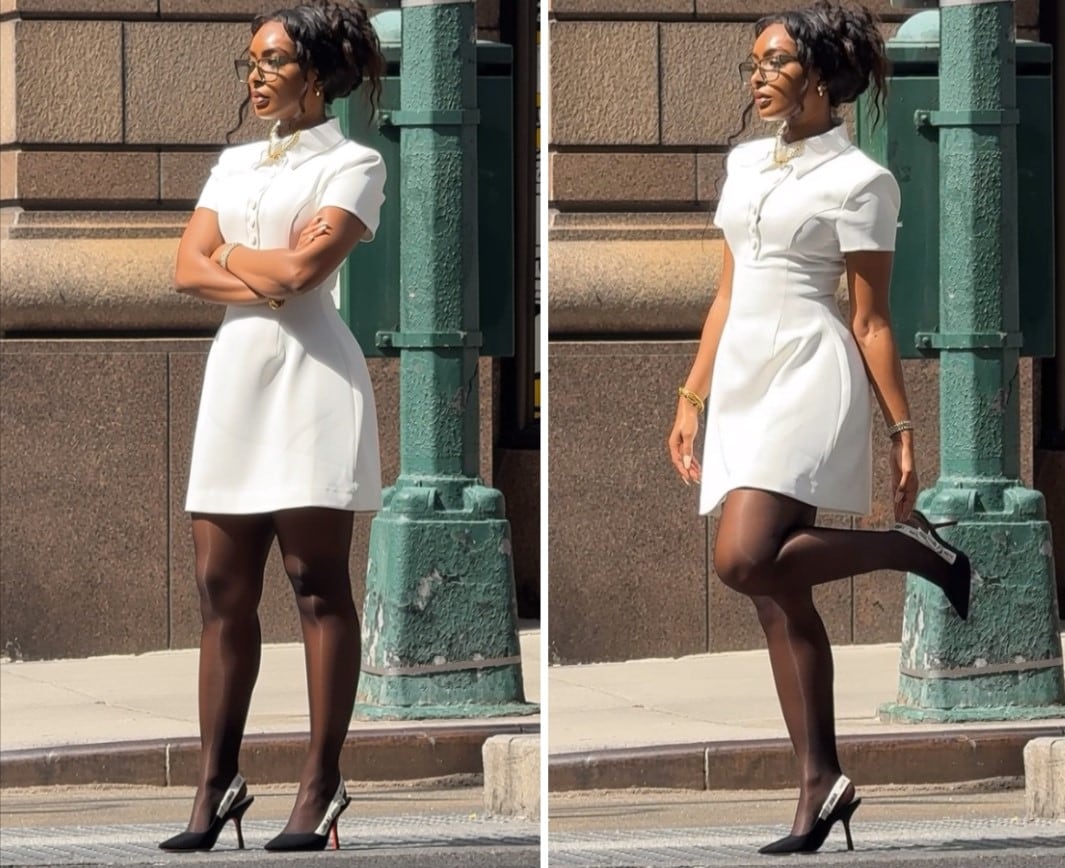
Part 3: How to Change Character Pose with Filmora Image to Video for Desktop
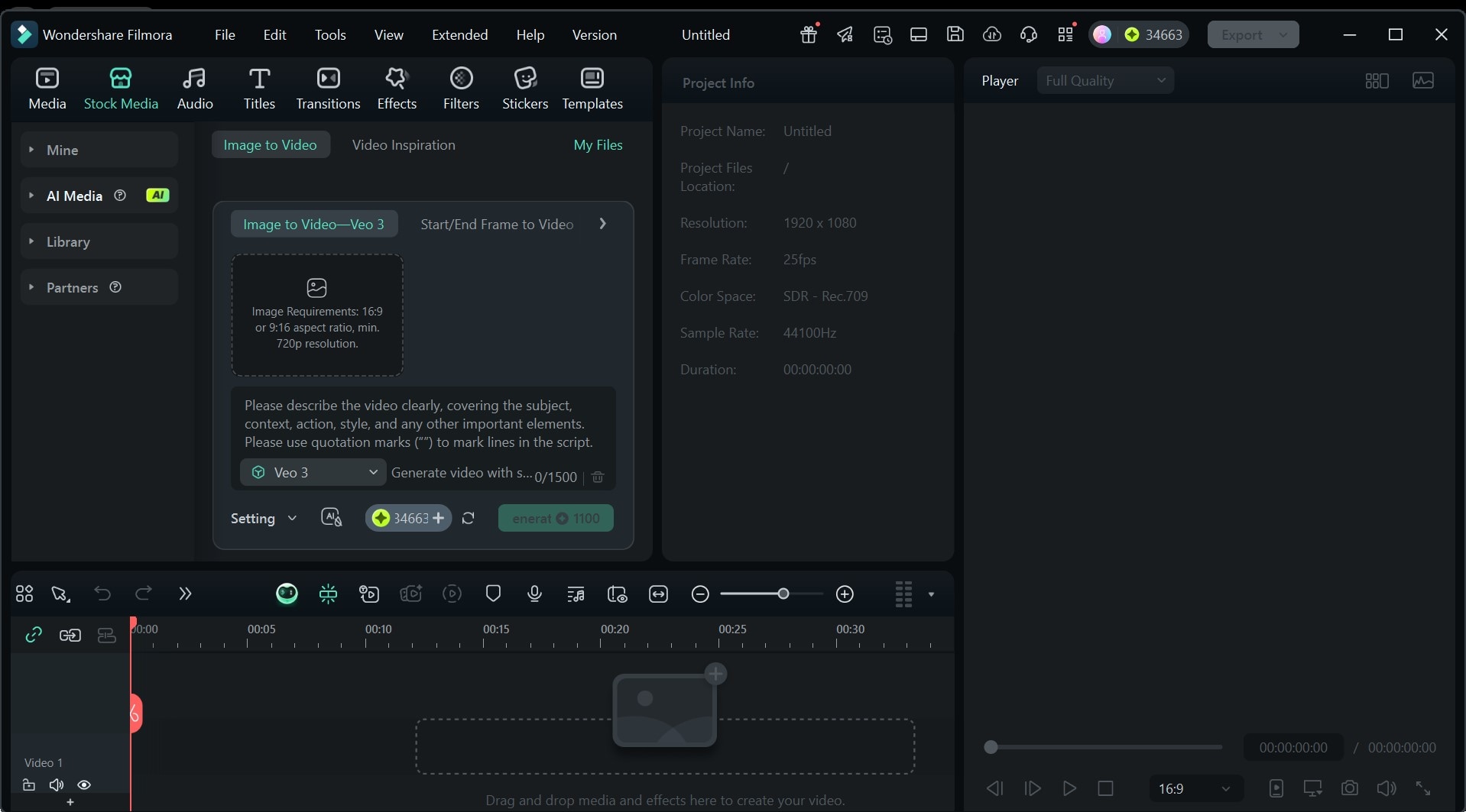
For more advanced editing, Filmora for desktop gives you direct access to our comprehensive editing suite and the Image-to-Video tool, which you can use to change your character’s pose. Here’s a step-by-step process to use our AI to change poses in your picture:
 Secure Download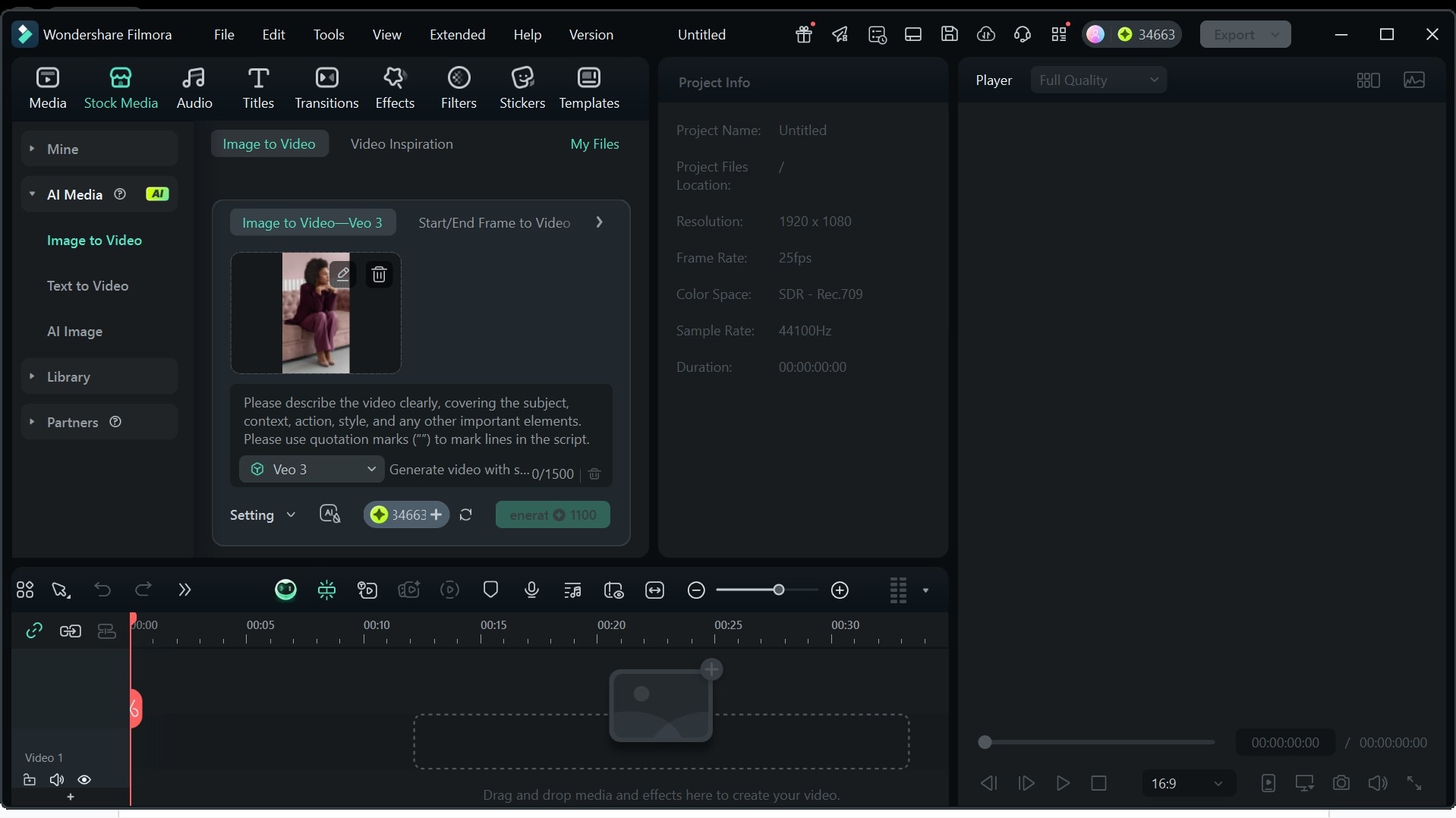
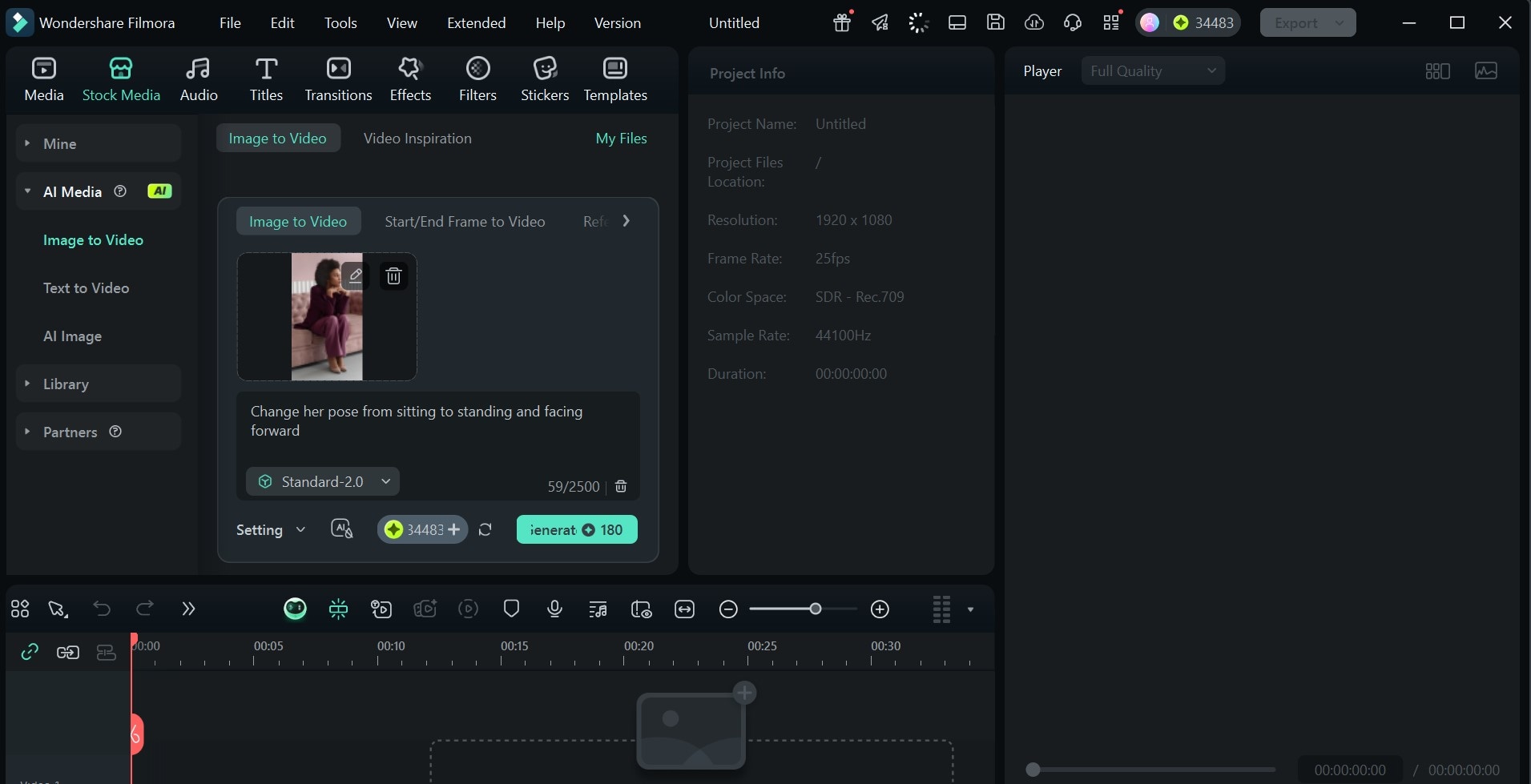
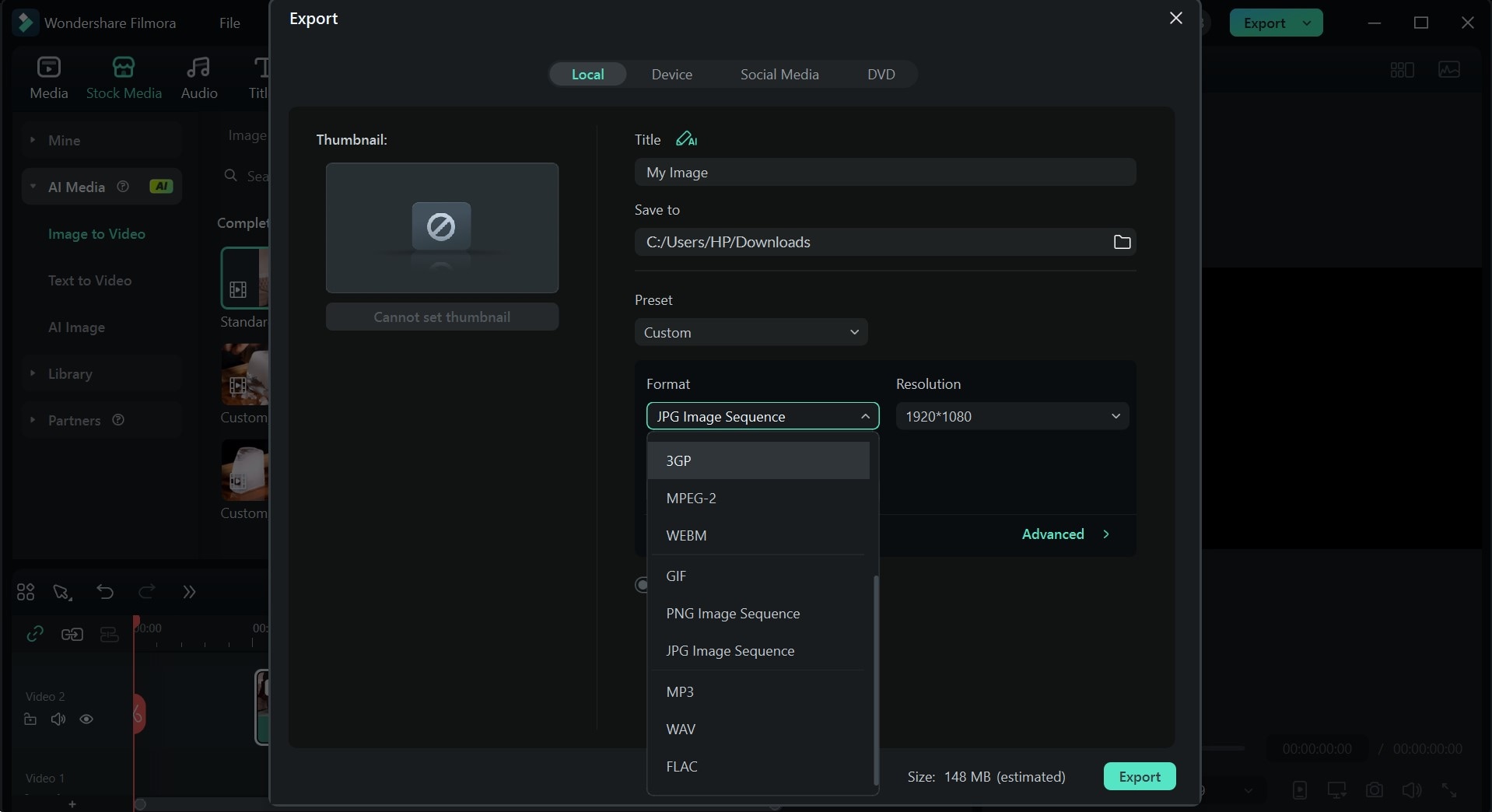
Here’s what the final result should look like:
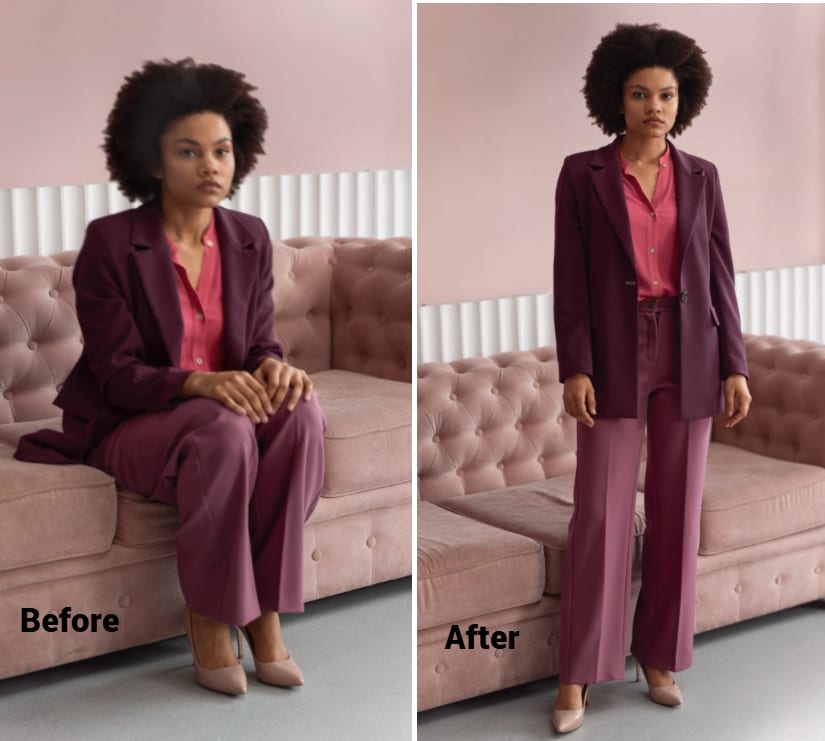
Part 4: Online Method to Change Poses with AI
If you’re in need of a fast process without downloading any tools, an AI pose changer online would definitely do the trick. However, it’s important to note that for more long-term editing, a downloadable tool is a better choice.
Nevertheless, here’s a guide to changing character poses with AI online using a reliable platform like SellerPic:
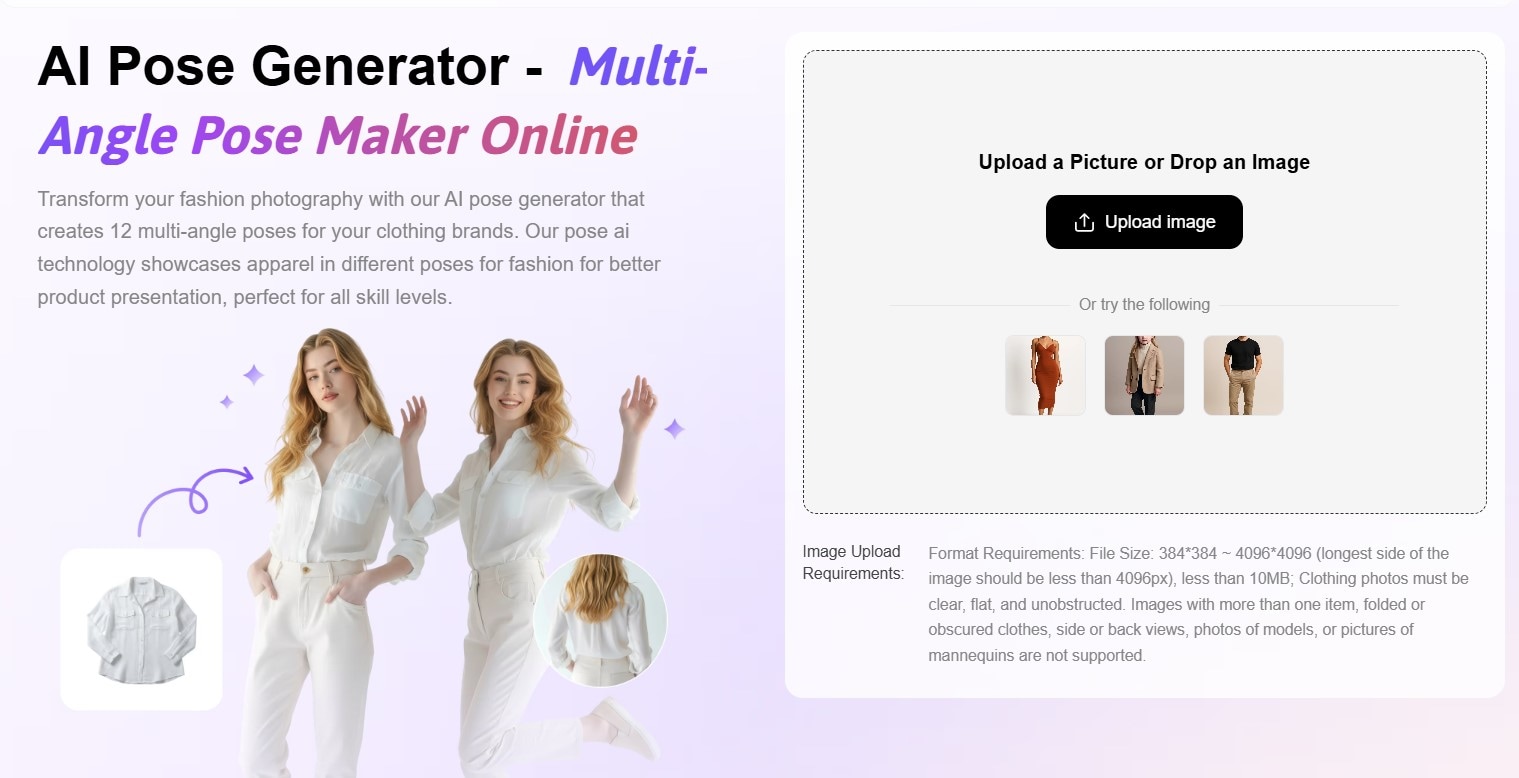
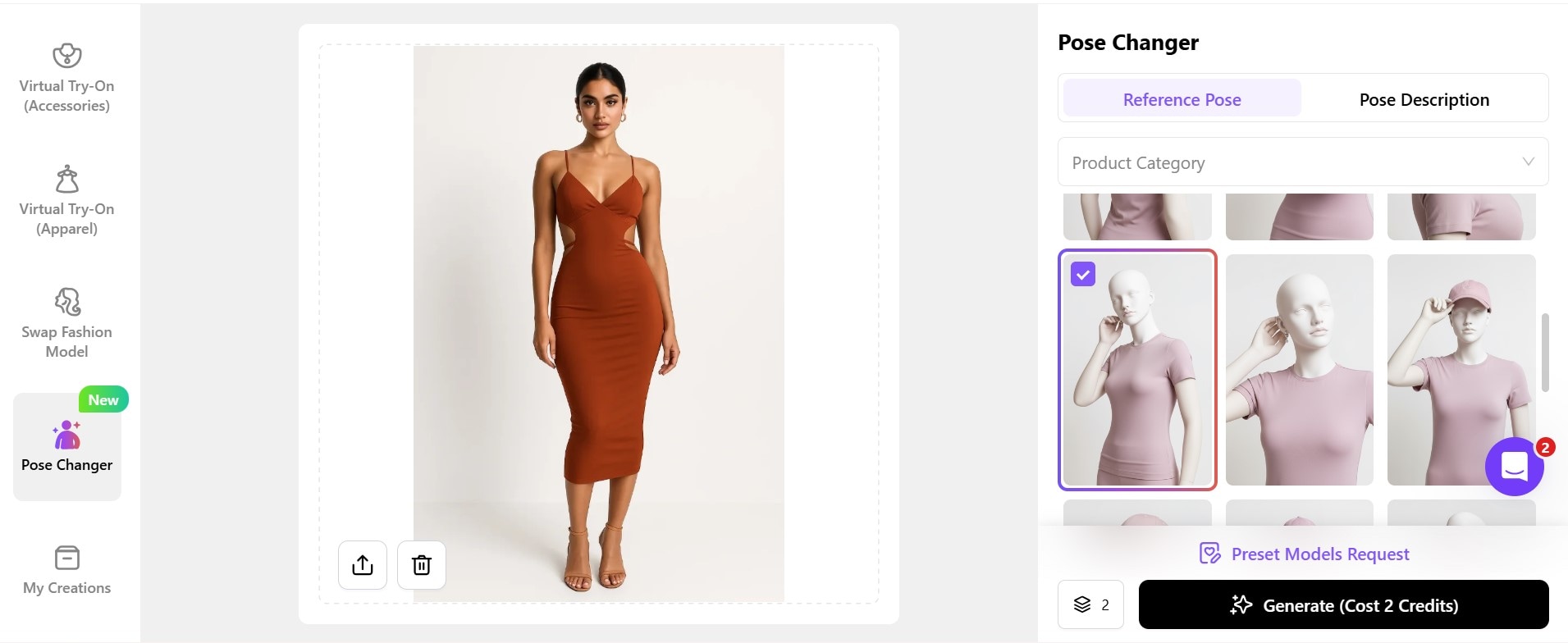
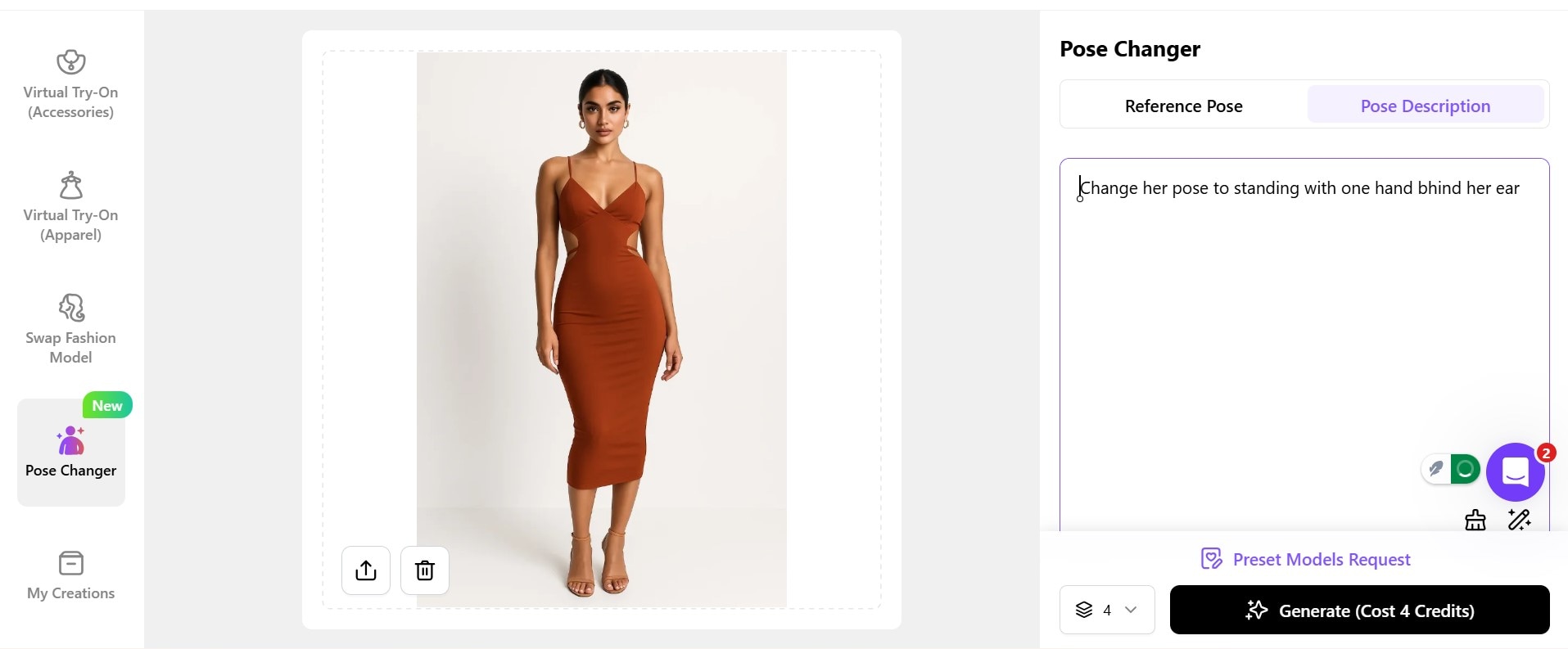
Here’s the final image:
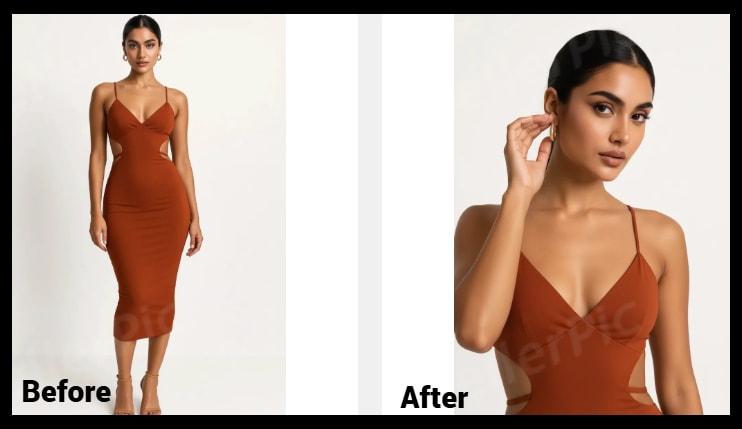
Note: Online AI pose changer tools rely solely on the internet, so there’s a chance the image generation process will be slow.
Bonus: Other Fun Ways to Adapt Characters with AI
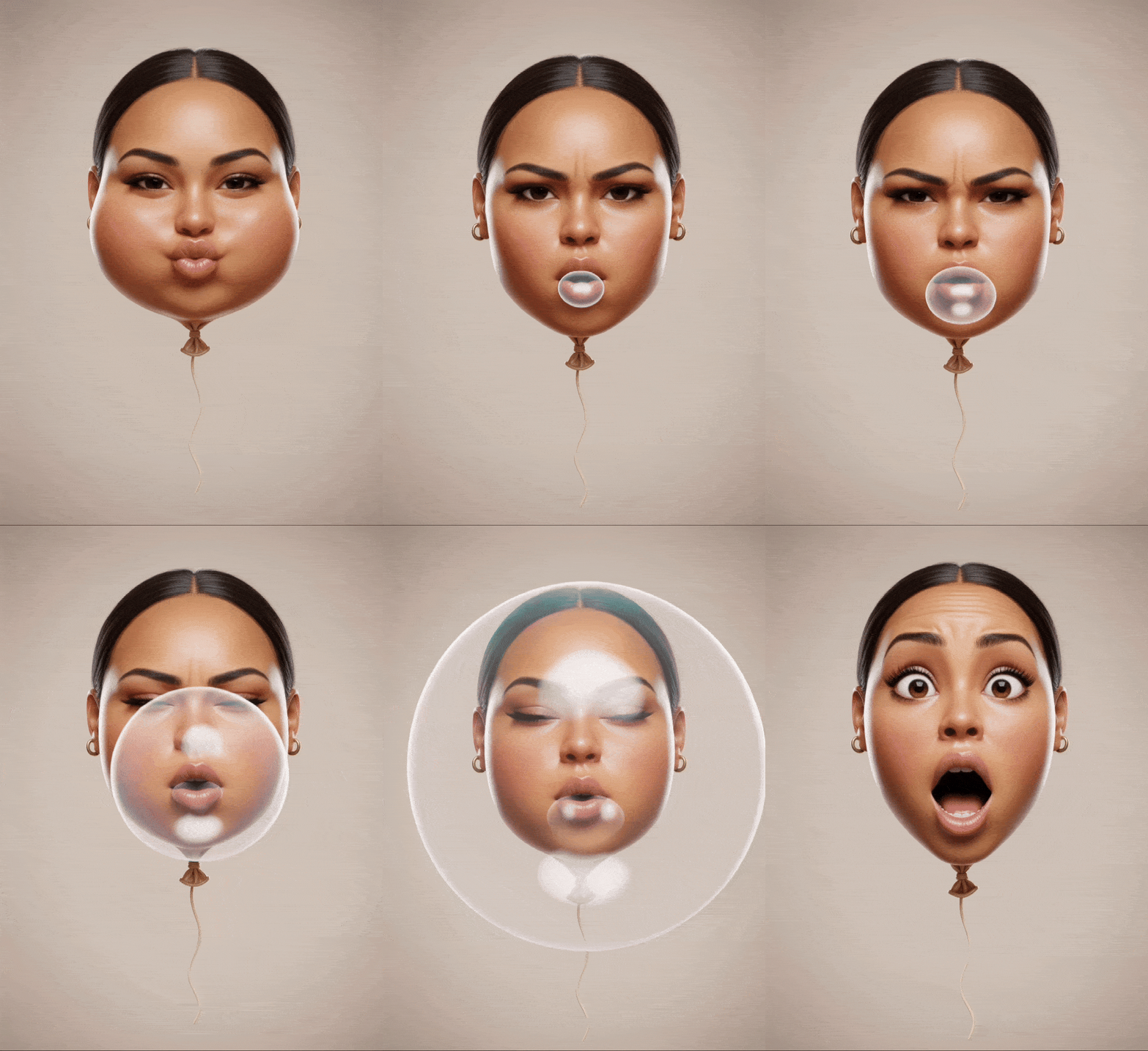
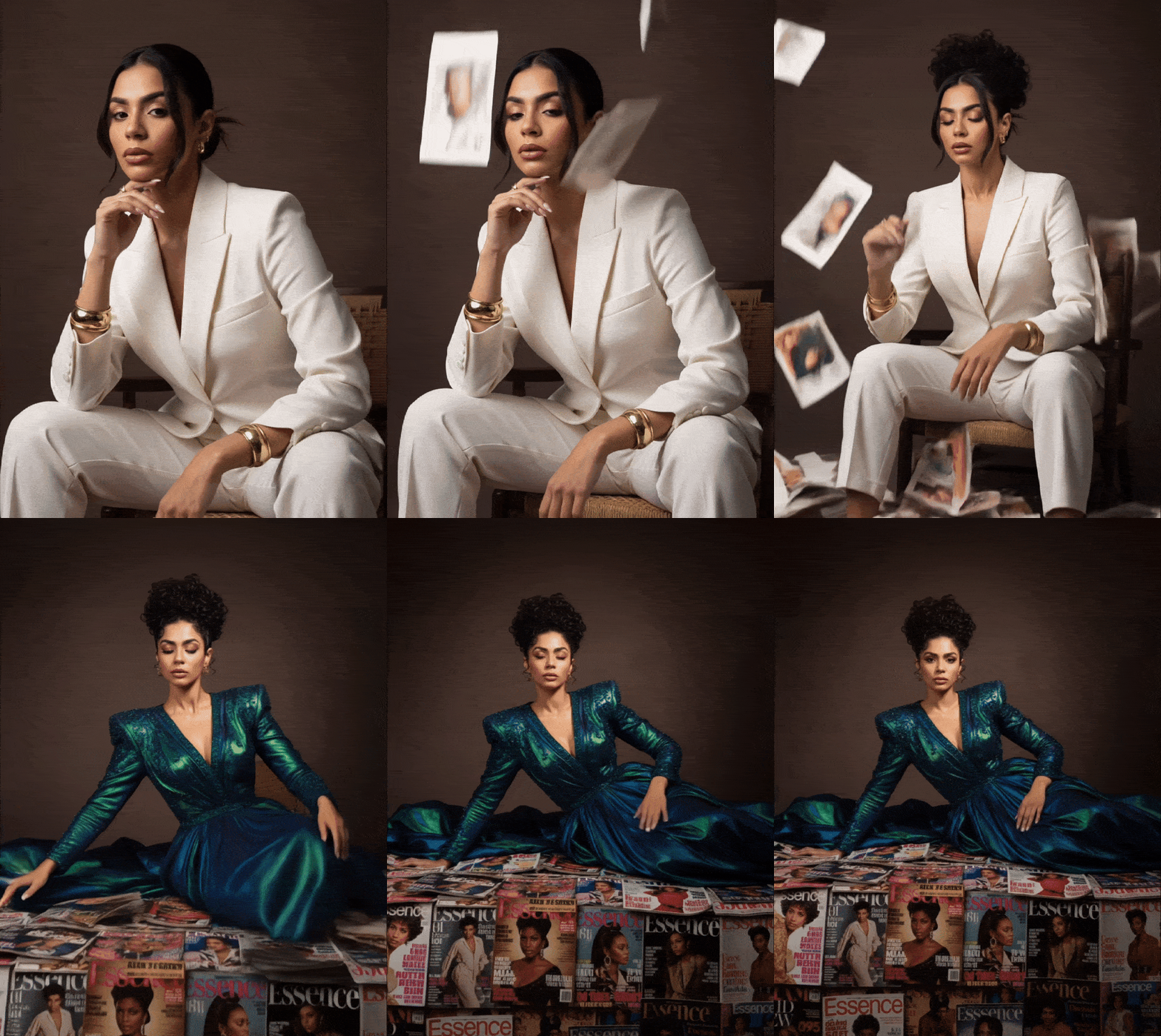
If you’re looking for other fun ways to adapt characters in your images or videos with AI, we have the perfect tool to aid your creativity. Filmora for mobile has integrated the Nano Banana Pro Model, allowing you to adapt, tweak, and have fun with realistic AI templates suited for any use.
Here are some of the most fun ways to adapt your characters with our AI
- Hair swap grid
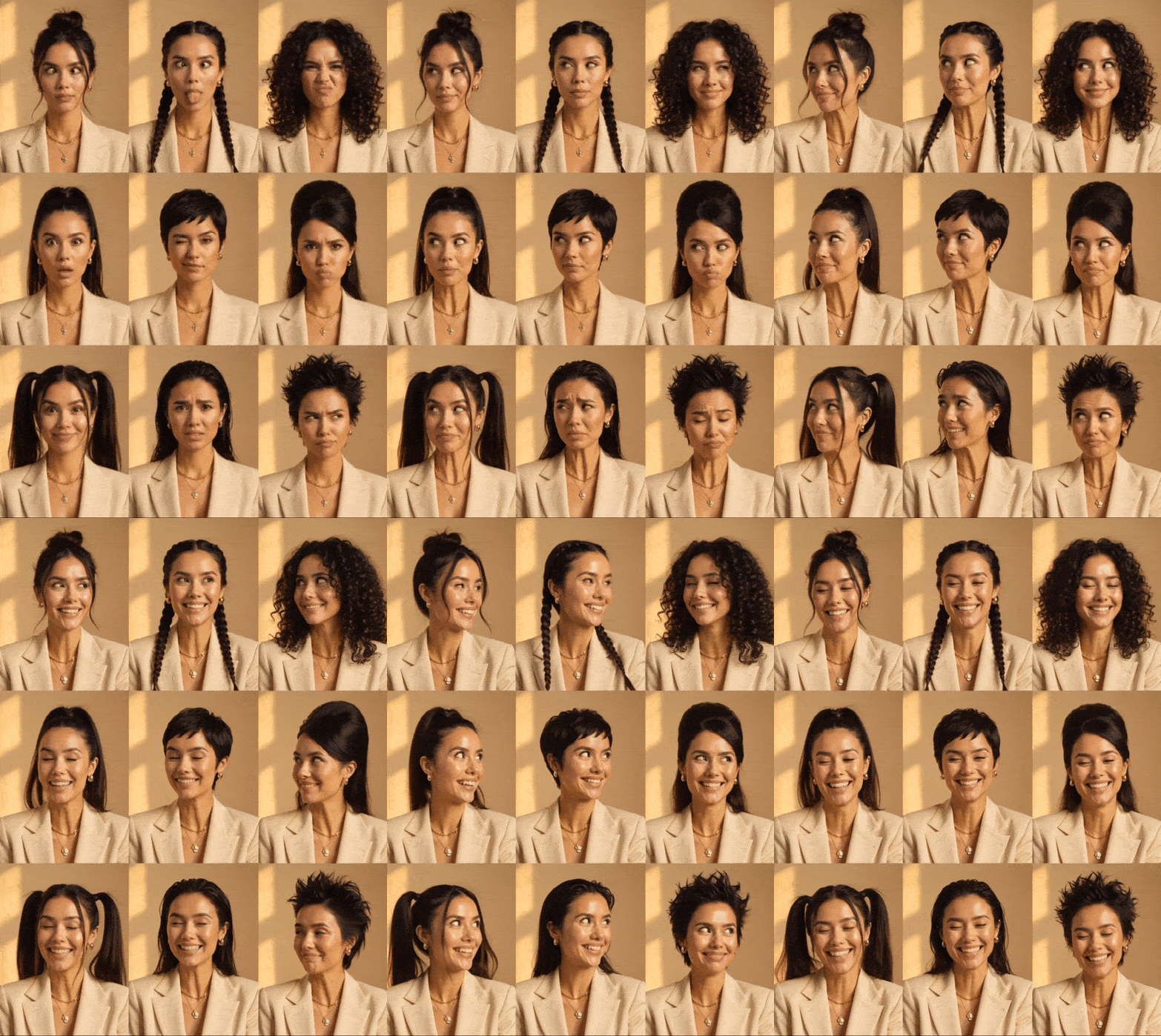
- Inflated head
- Magazine pictorial
Conclusion
Clearly, changing poses with AI doesn’t have to be a complicated process. With the guidelines in this article and a reliable tool like Filmora or even an AI pose changer online, you can easily adapt your characters.
Also, if you’re searching for even more fun ways to play with your images, we recommend exploring our Nano Banana Pro templates from the mobile version. Use your creativity without limit with Filmora!

