

 TL;DR:
Wondershare Filmora utilizes Sora 2 models within its Text-to-Video workflow to apply AI style transfer to existing clips, transforming their visual aesthetics while preserving the original motion and scene structure.
● Unlike standalone generators, Filmora allows post-generation editing on a timeline to mix AI outputs with original footage, adjust colors, and apply audio or text overlays.
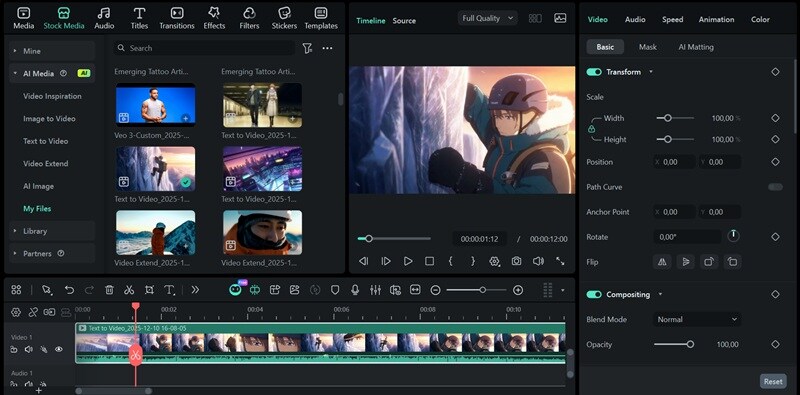
● The transfer requires placing a video on the timeline, navigating to Stock Media > AI Media > Text to Video, selecting Replace Clip, and inputting a descriptive prompt.
● For accurate results, prompts must avoid vague terms like "cinematic," explicitly restate the original scene's action, and specify physical elements or camera movements to retain.
Ask AI for a summary
 ChatGPT
 Perplexity
 Gemini
 Claude
 Grok
Grok
Refreshing old footage is now easy with AI video style transfer. You don't need to spend much time to start from scratch or make new scenes just to give your video a fresh look. Just upload the clip, describe the style you're aiming for, and wait as the AI tool transforms your video.
If you've been curious about trying AI video style transfer, we are going to walk you through what it is, how it works, and how you can restyle your clips in just a few minutes.
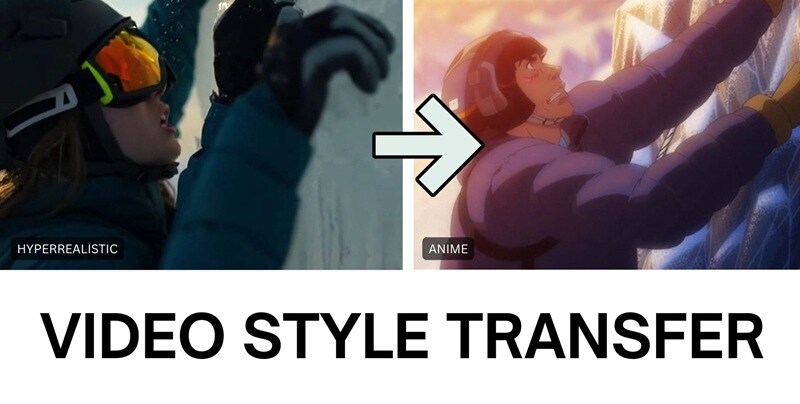
Part 1. What Is Video Style Transfer?
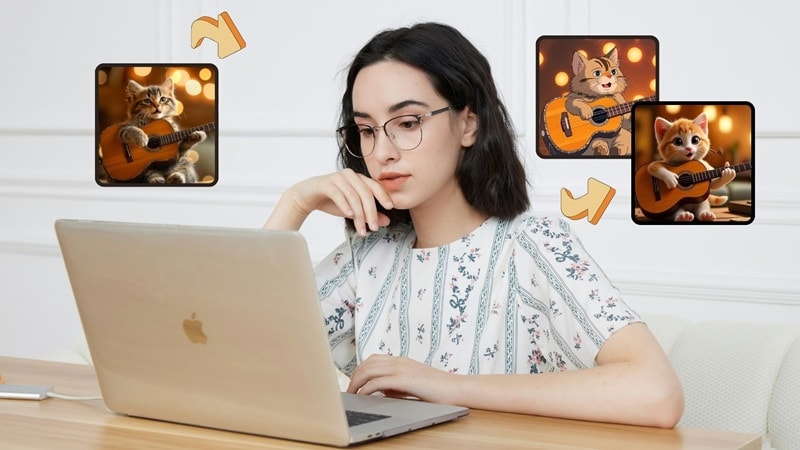
Video style transfer is a way to change how a video looks without changing what actually happens in it. The scene, movement, and camera work stay the same, but the visual style gets a full transformation.
Usually, you'd have to stack heavy effects, filters, or do frame-by-frame edits to get such results. AI style transfer video takes a different approach by actually rebuilding the visual layer of your video instead of just placing effects on top.
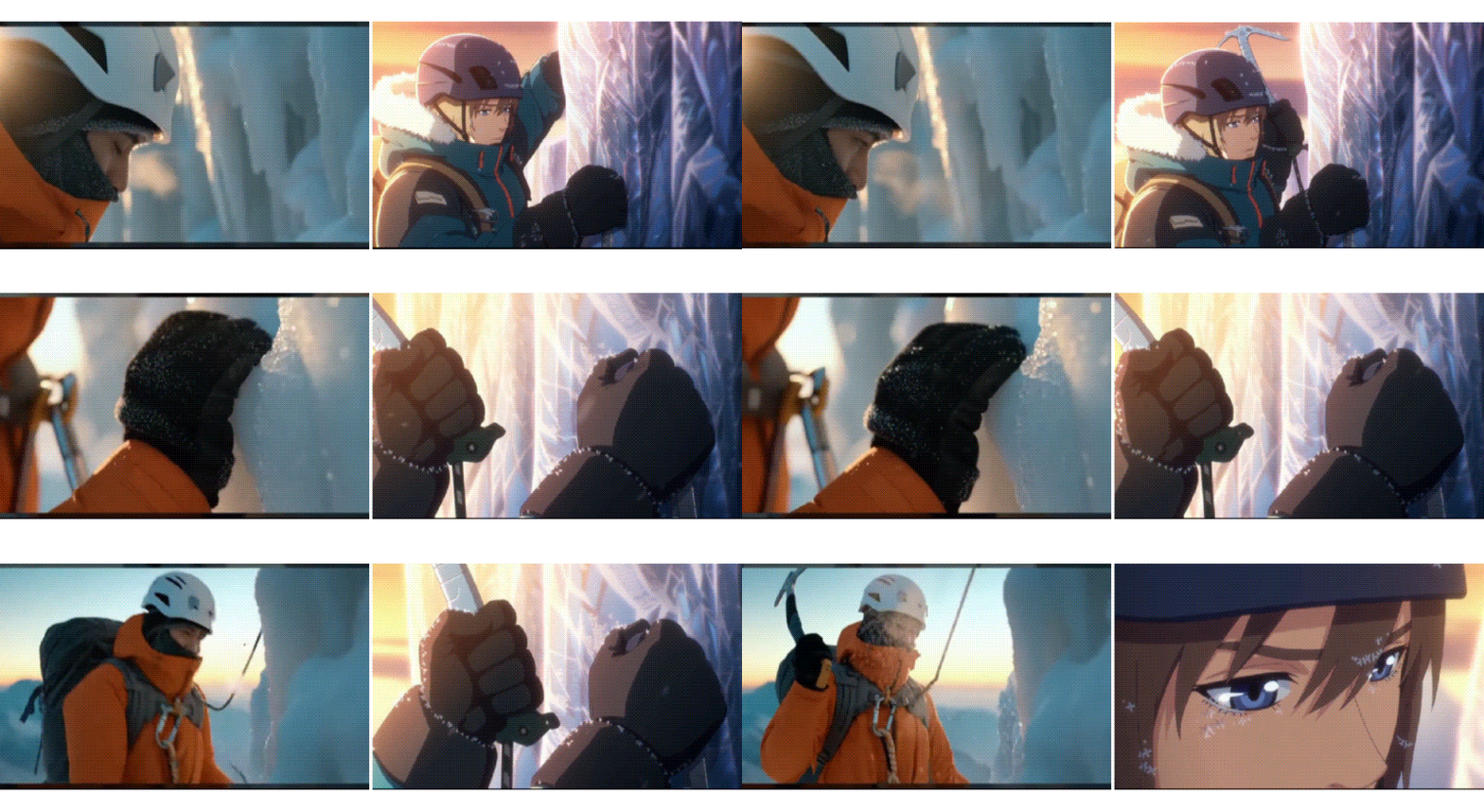
With AI style transfer, the system can regenerate:
- Lighting and shadows, to match the new atmosphere
- Materials and textures, such as skin, fabric, or surfaces
- Character appearances
- Background art styles (e.g., from realistic to illustrated)
- Cinematography details, including motion blur and depth of field
In a way, it works like an AI video-to-video generator, where you create a new version of your video from an existing clip to produce a visually different output.
Part 2. Best AI Video-to-Video Generator for Style Transfer
If you're looking for a flexible way to do AI video style transfer, Wondershare Filmora is one of the most practical options right now.
Filmora lets you re-style videos using AI through its Text-to-Video workflow, which is powered by Sora 2, among other models. The idea is similar to Sora 2's Remix feature, where you can "reimagine" a video by changing its style, mood, or visual direction while keeping the original motion.
 Secure Download
The difference lies in what happens after the AI generation. Because Filmora is a full video editor, you're not limited to the generated result. After the AI finishes generating your clip, you can make some adjustments, such as:
- Trim or rearrange scenes on a timeline
- Mix AI-generated clips with original footage
- Adjust colors, speed, or transitions
- Add text, music, sound effects, overlays, and more
This workflow gives you way more room to experiment. You can test different styles, change the pacing, or combine multiple AI outputs into one cohesive video. Filmora lets you refine and shape the final result just like a normal editing project.
How to Use AI Video Style Transfer With Filmora
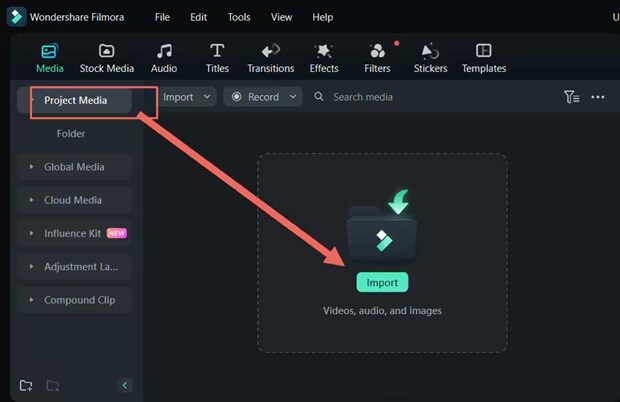 Secure Download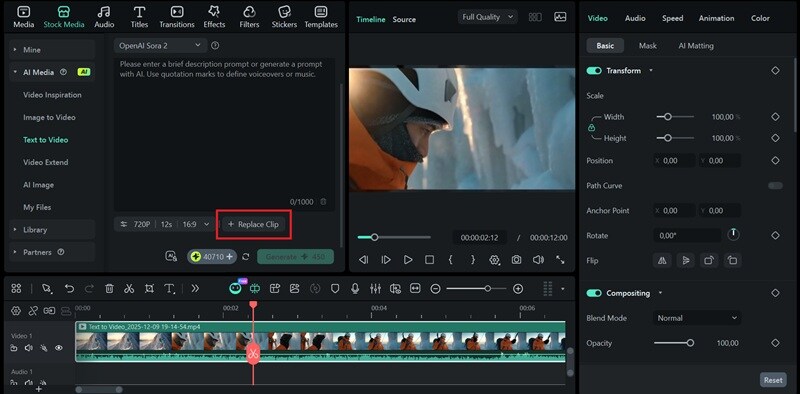
Part 3. Best Practices to Improve Your Restyled Videos Quality
When performing a video style transfer with Filmora, the way you structure your prompt can impact the final outcome. So, if the result looks off or is not quite what you expected, you can start by fixing how you describe the style and scene in your prompt.
Paying attention to these details is important if you want to ensure a better result.
1. Describe the Visual Style Clearly
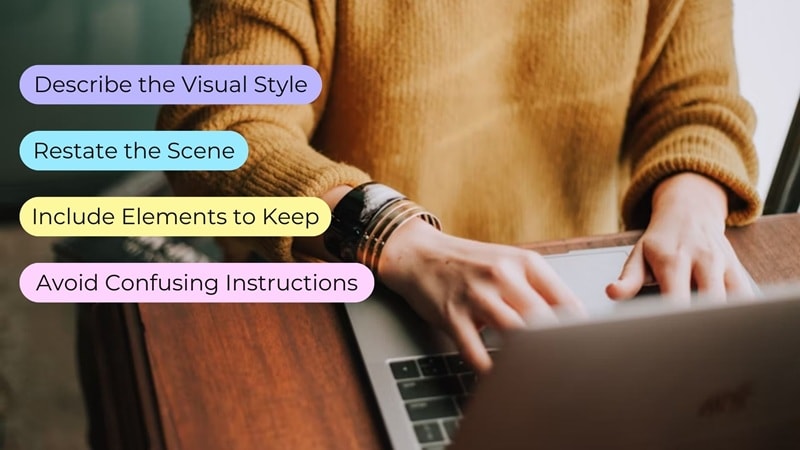
Be specific about the look you want. Saying something like "make it cinematic" is a common mistake that most people make. It's too vague and leaves a lot open to interpretation. You can try something a bit more detailed, like:
- "Moody, low-light cinematic style with subtle highlights and gentle contrast."
- "Vintage film style with muted colors, soft contrast, and subtle grain."
- "Anime-style with bold outlines and vibrant colors."
Clear style descriptions give the AI a much stronger visual direction.
2. Restate the Scene
Even when using video style transfer, it's still important to describe what's happening in the clip. Briefly mention who appears in the scene, what they are doing, and the setting. This helps the AI preserve the original action and scene flow while applying the new visual style.
3. Include Key Elements You Want The AI to Keep
If certain details matter, include them in your prompt. You can specify elements such as the same character, facial features, camera movement, or framing. This helps maintain recognizability and reduces the chance of unwanted changes.
4. Avoid Overly Long or Confusing Instructions
More words don't always lead to better results. Advanced models like Sora 2 already understand scene structure and context well. Keep your prompt concise, and avoid combining too many styles or ideas in a single instruction.
You can try referring to this prompt template:
"Turn the video into a [visual style]. The scene shows [brief scene description]. Keep [key elements you want to preserve], while applying [specific lighting, colors, or mood]."
Part 4. What You Can Do with Style Transfer Video
The style transfer video techniques you've just learned can be useful in many different situations. Just to name a few, you can explore the following ways to apply them in your own projects.
1. Give Old Videos A Fresh Look
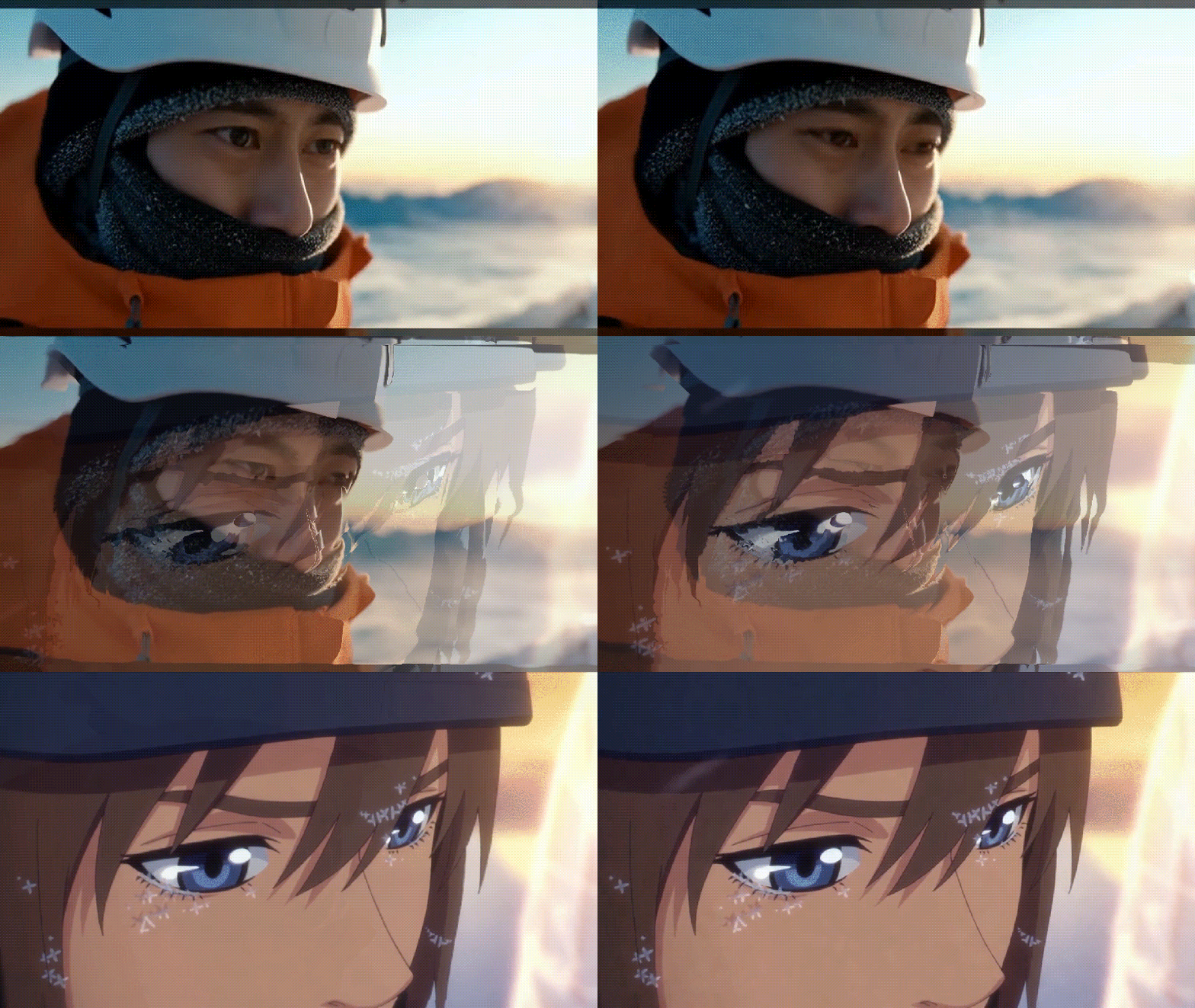
Got some old clips sitting on your hard drive that feel boring? Don't delete them just yet. AI video style transfer can breathe new life into those clips by giving them a completely new look. You can change the vibe from flat and dull to more artistic or stylized.
2. Visualize Alternate Versions of Your Project
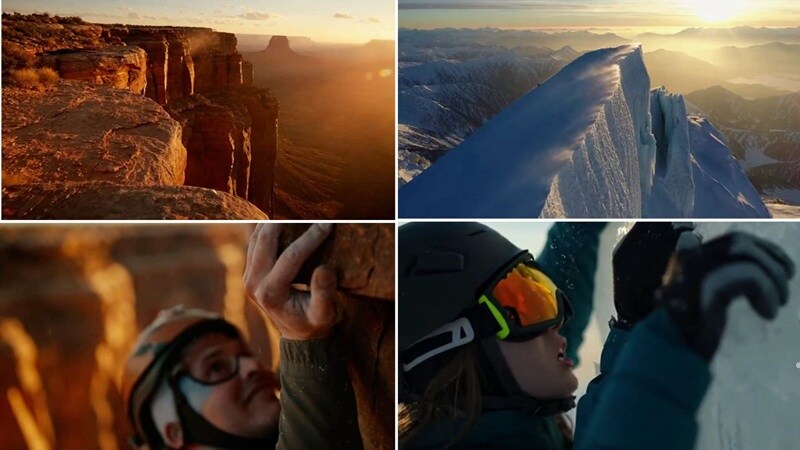
Style transfer also lets you create "what if" versions of the same video. You can see how a scene looks in different settings or styles, which can be useful for storytelling or concept development.
3. Test Multiple Styles to See What Works Best
For marketing or social media content, you can generate several style variations from the same video and compare their performance. Since the concept stays the same, it's easier to tell which visual style works better and connects more with your audience.
Conclusion
AI video style transfer makes refreshing your videos much simpler. You can take what you already have and give it a brand-new look with just a prompt.
The tool that can help you with it is Filmora. Powered by Sora 2, you can use it to replace the original look of your video and create something completely different. After that, you can refine the result on a timeline by adjusting colors or adding text, music, and effects before exporting.

