

 100% Security Verified | No Subscription Required | No Malware


 ChatGPT
 Perplexity
 Gemini
 Claude
 Grok
Grok
Have you ever noticed a progress bar in modern video content? Whether it's a fitness countdown on Instagram, a recipe reel on TikTok, a YouTube tutorial, or some kind of performance or time tracking, progress bars are everywhere. Apart from being very trendy, they're also very practical, and you can use them as a subtle tool that boosts retention.
In this guide, you'll learn how to add a progress bar to a video with the most powerful video editor. Let's dive in.
In this article
Why Should You Add a Progress Bar to Your Video?
Adding a progress bar might feel like a small design tweak, but you'd be surprised to realize how significant an impact it can make. Check out the most important reasons for this.
- Visual cue for completion: A progress bar acts as a visual timeline, showing how much is left.
- Professional touch: A progress bar gives your video a sleek, edited feel. Tutorials, explainers, and reels with progress bars stand out as more structured and thoughtfully produced.
- Engagement booster: Short-form platforms like TikTok, Instagram, and YouTube Shorts thrive on viewer retention. The longer someone watches, the more the algorithm favors your content.
- Versatility across niches: You can use progress bars for fitness countdowns, showing reps or the time left in a workout session, for cooking videos, tracking recipe steps in real time, for educational clips, guiding learners through key stages.
In short, progress bars keep viewers informed, entertained, and engaged. So, how to add a progress bar to a video? You may ask. All you need is a progress bar video maker. In our recommendation today, it is Wondershare Filmora. Let's see the reasons why we picked that.

 secure download

Why is Filmora the Best Progress Bar Video Maker?

- Built-in shapes and overlays: Filmora comes with pre-made shapes and overlays that you can instantly use to create progress bars.
- Keyframe animation for smooth fills: With Filmora's keyframe animation, you can animate the bar filling up over the entire timeline with precision.
- Pre-made effects and elements: Filmora includes effects and elements that already mimic progress indicators.
- Cross-platform editing: It works on Android, iOS, Windows, and Mac.
- Powerful video editing features: Filmora offers a plethora of basic, advanced, and AI-powered video editing features that allow you to trim, improve, polish, and perfect your video footage with ease.
How to Add a Progress Bar to a Video with Filmora?
Adding a progress bar in Filmora is straightforward. You can do it on both desktop (Windows and Mac) and mobile (Android and iOS). We'll give a detailed guide for each version.
Use the Progress Par Generator on Your PC
- Download and install Filmora on your PC.
secure download
- Create a New Project.
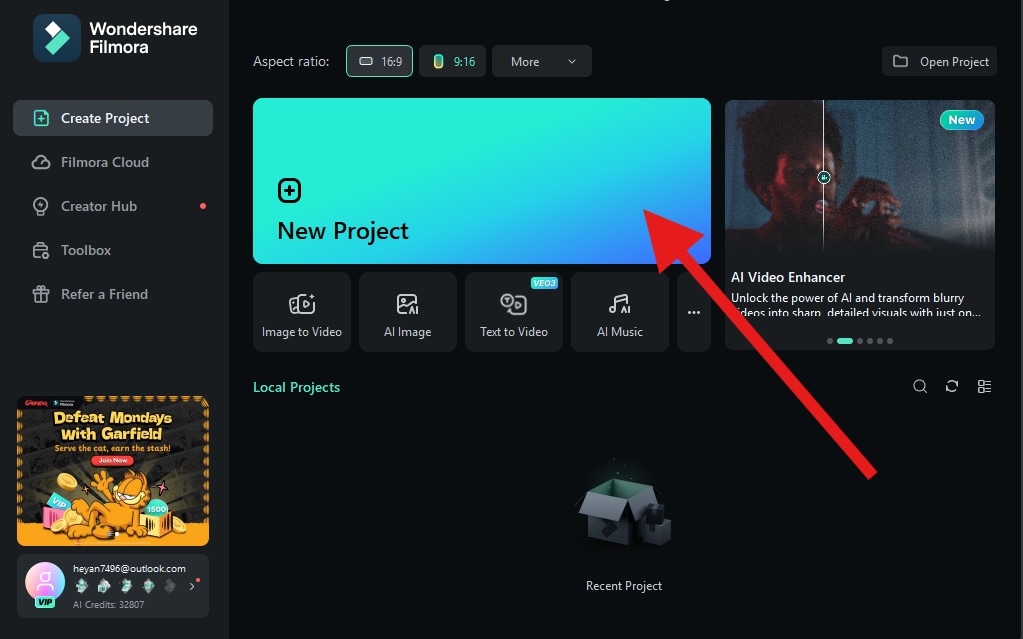
- Now, click on Import and add a video file where you want to insert a progress bar.
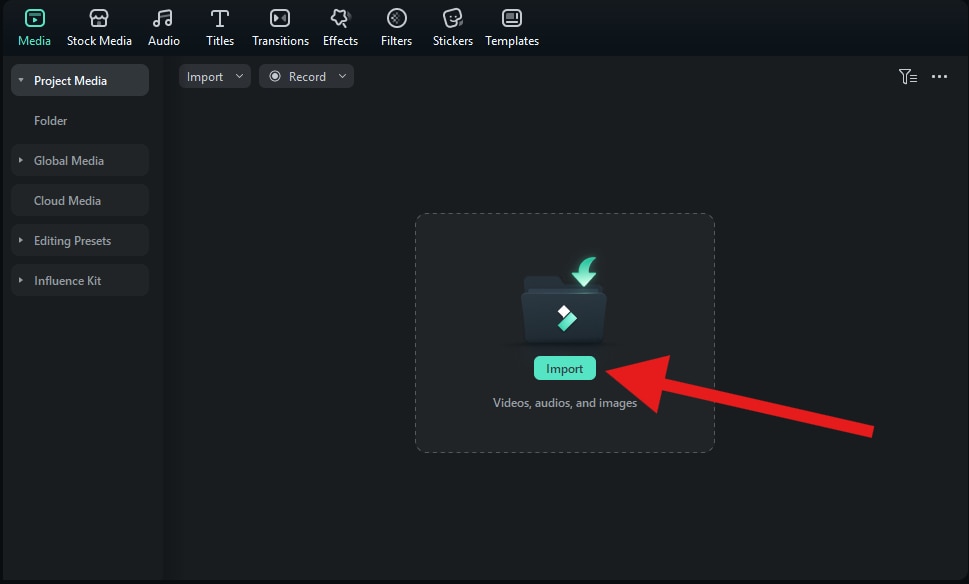
- When the video is uploaded, drag it to the timeline.
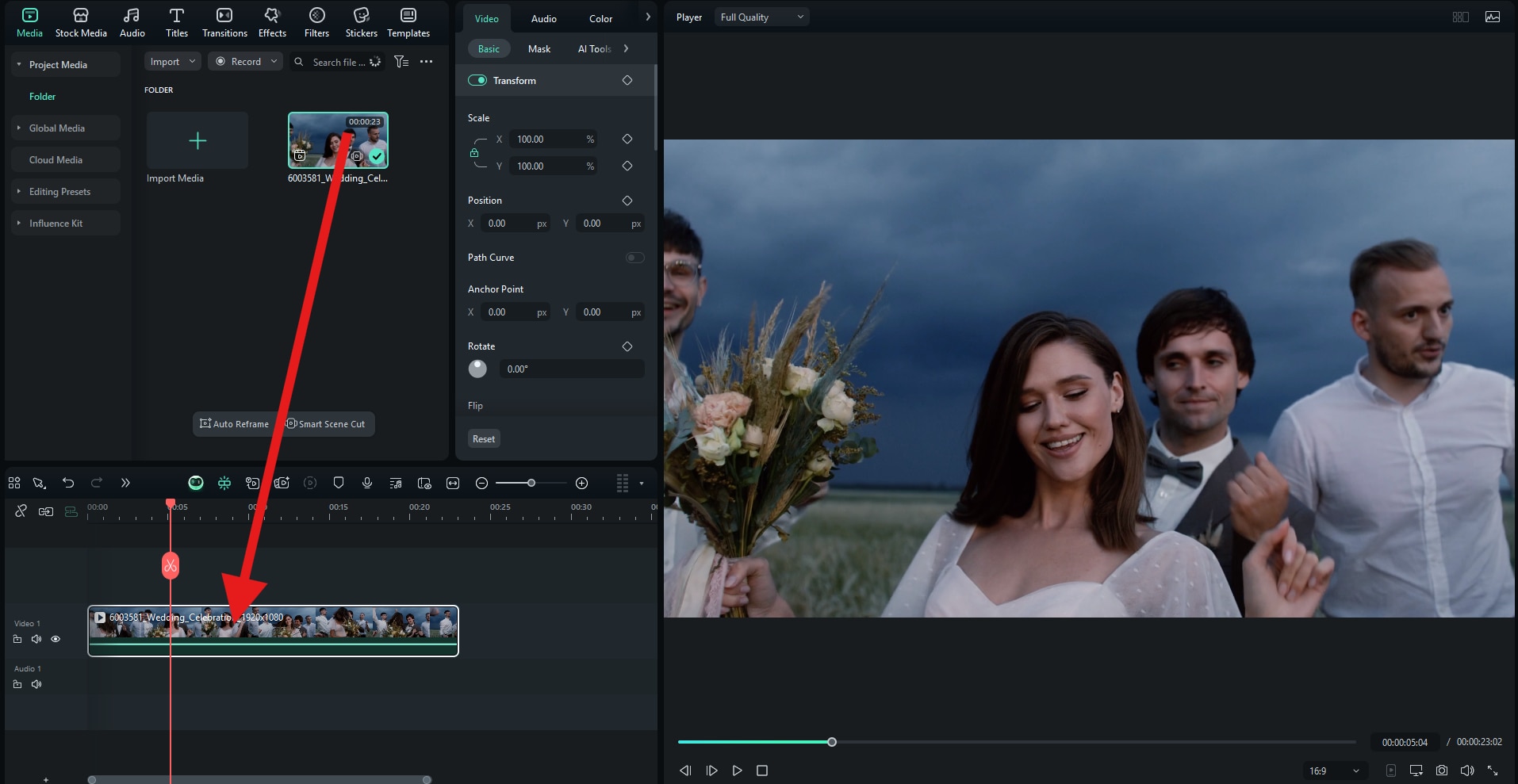
- Now, go to Effects. In the search bar, type "Progress Bar" and pick a design that you like (there are many options). Drag the progress bar effect that you like to the timeline, and go to Effect > Video to adjust various effect parameters.
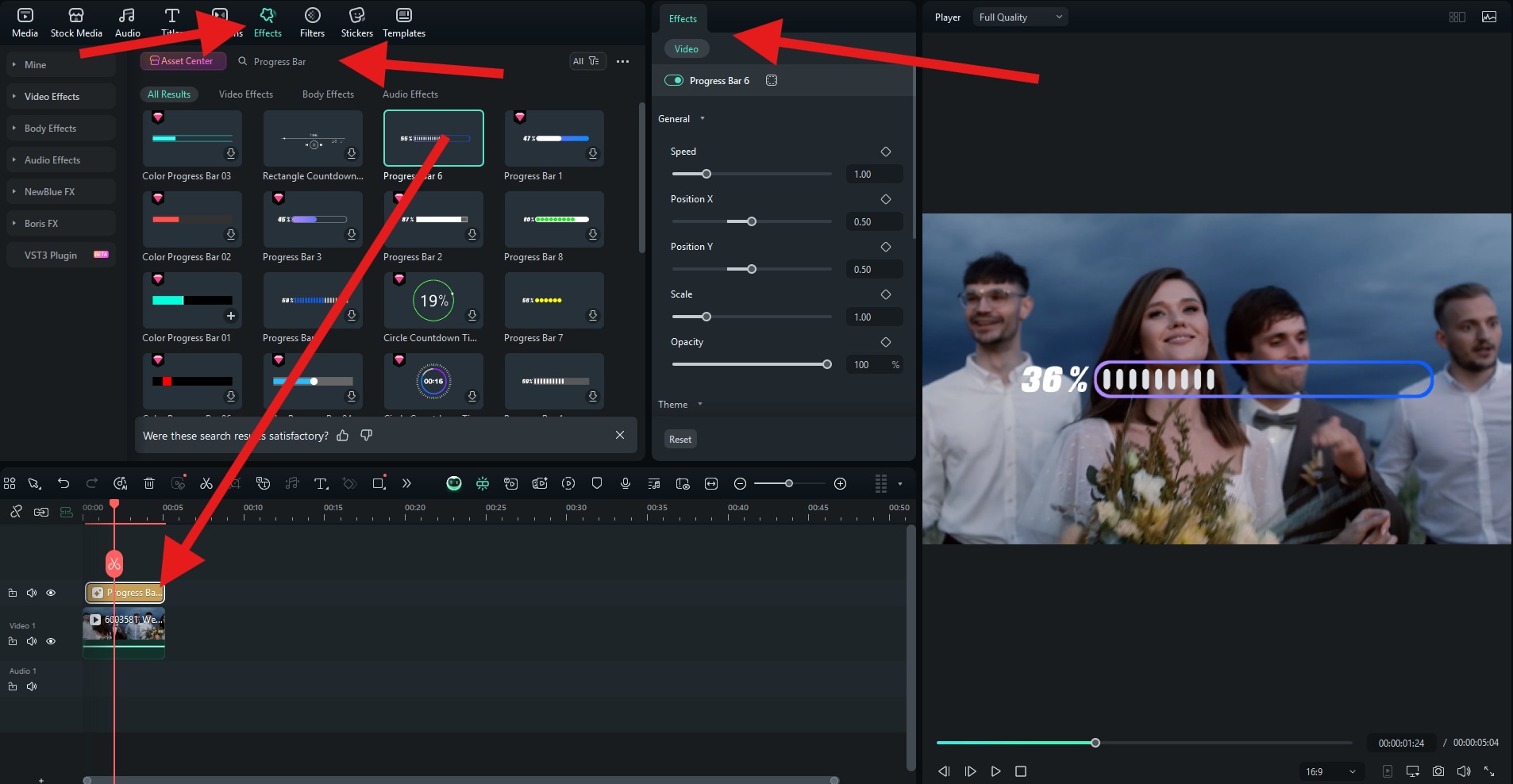
Take a look at how this progress bar turned out for us.
Use the Best Mobile Photo Progress Bar Maker
- Download and install Filmora on your phone.
- Tap to open the app and tap on New Project. Then, simply import a video from your device.
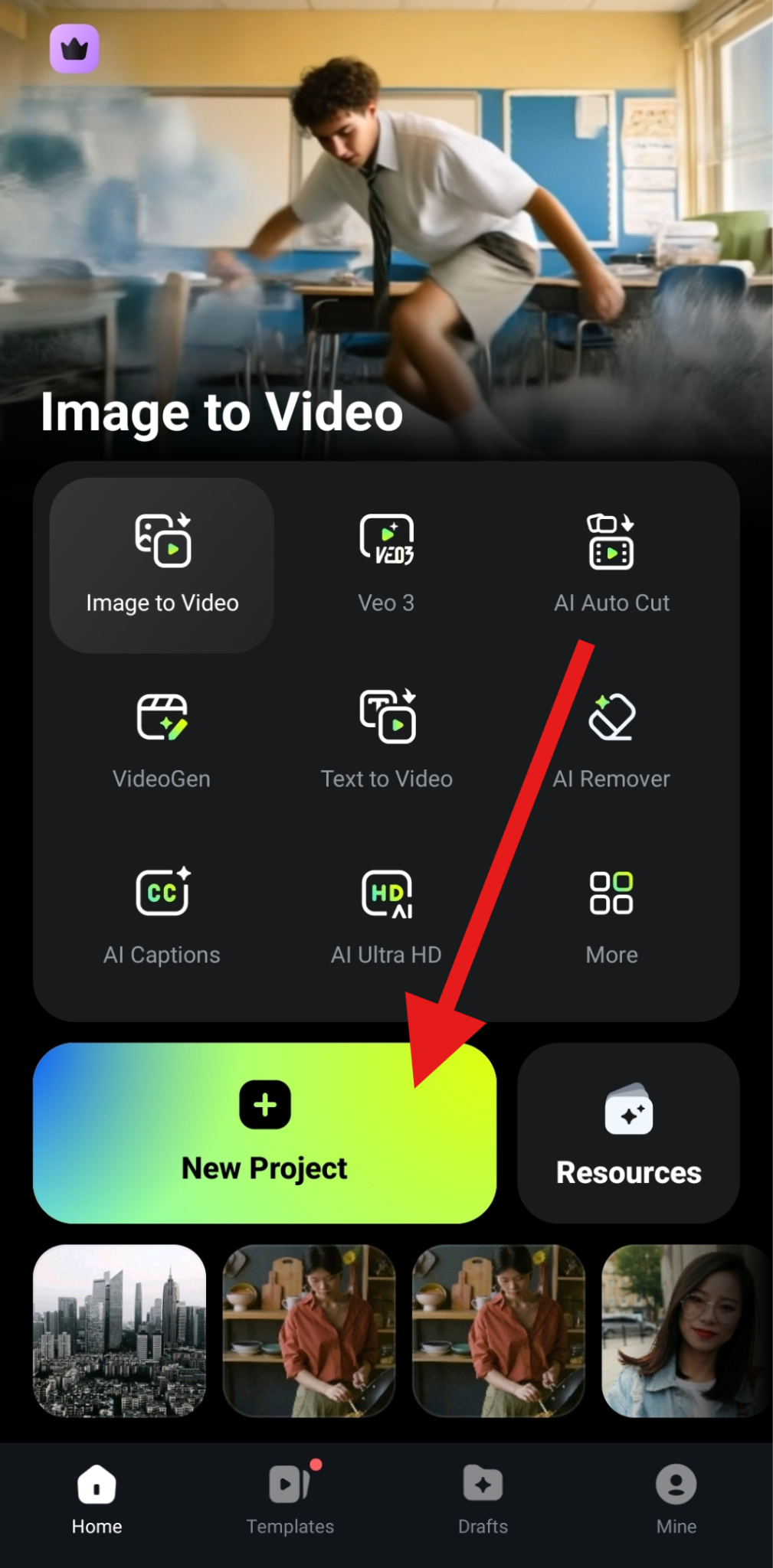
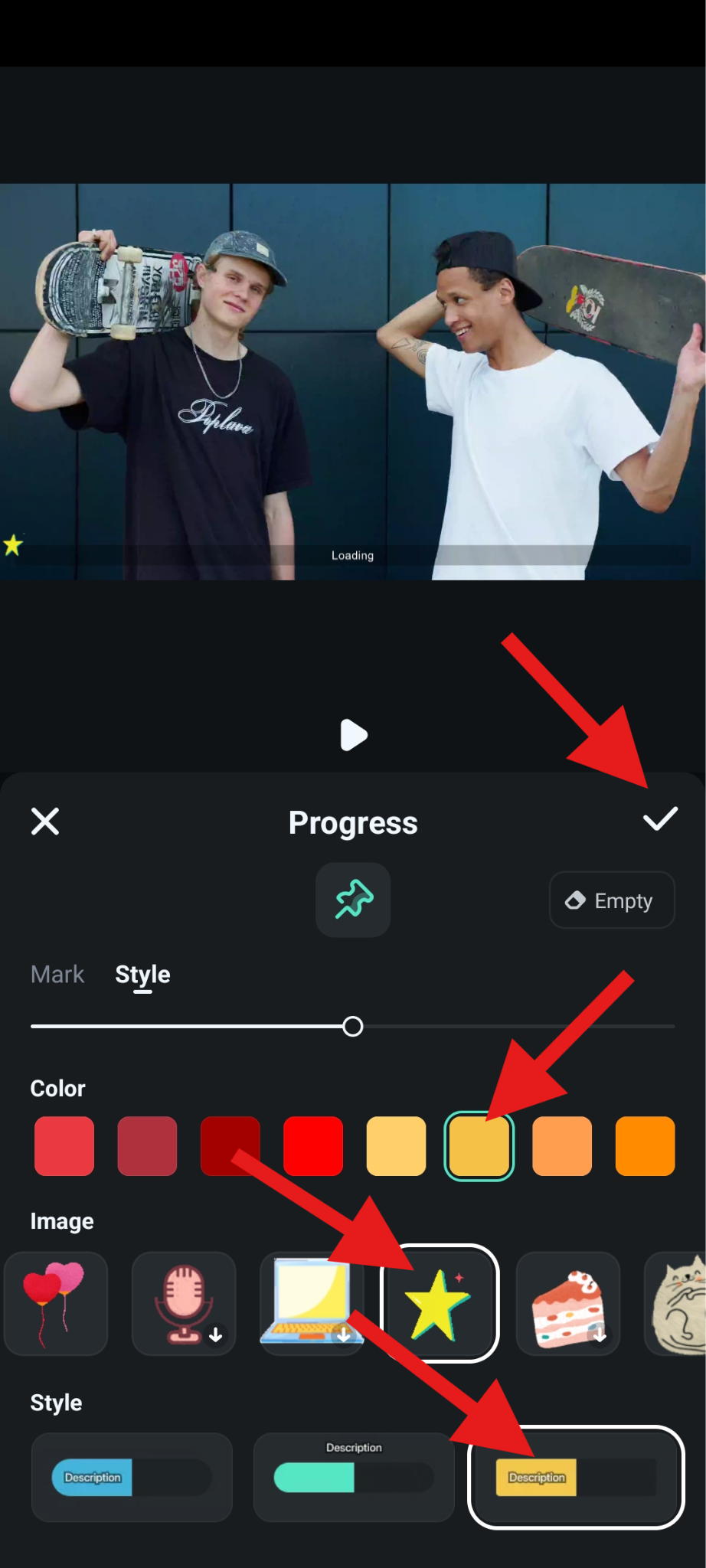
- Scroll through the bottom menu to the right all the way to reach the Progress feature.
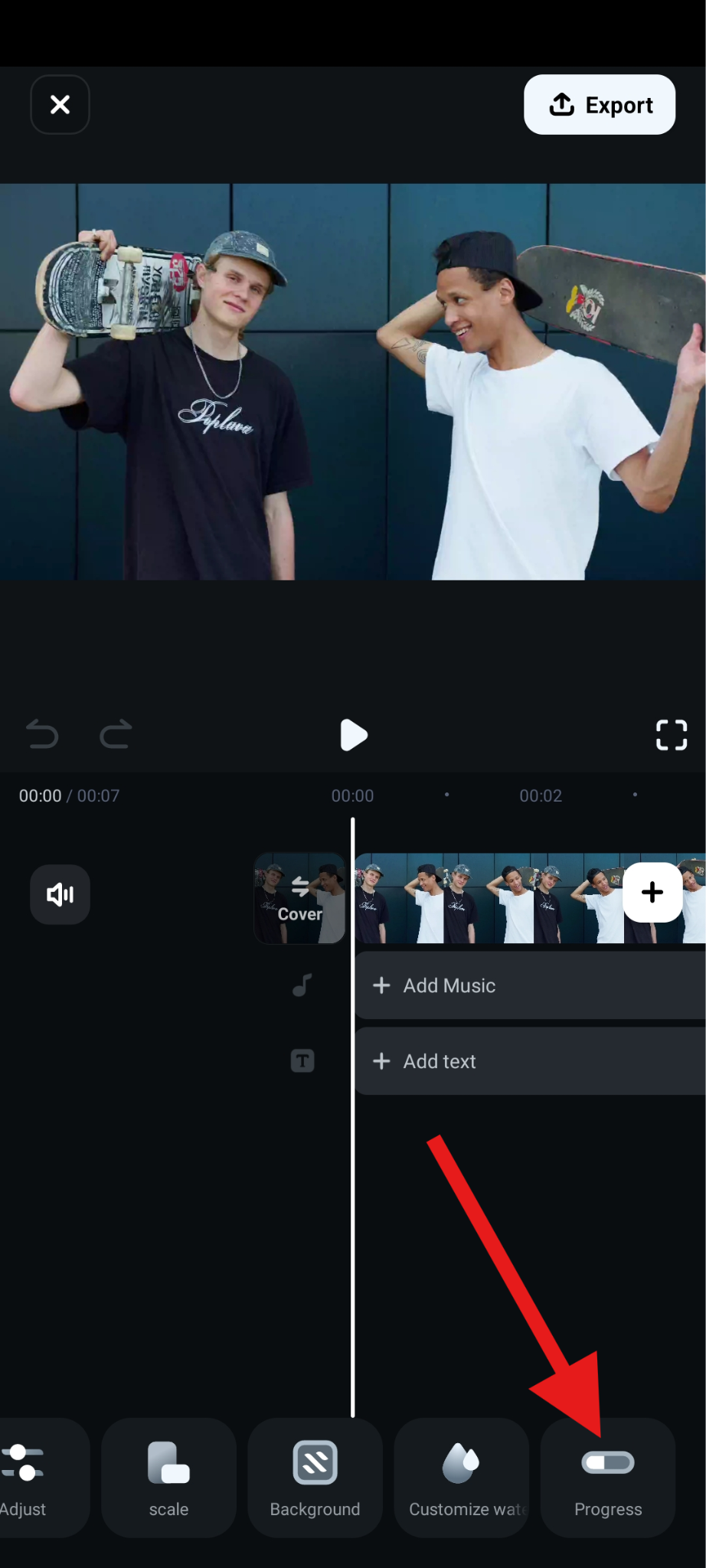
- Add some text to the bar (if you want) and tap on Style.
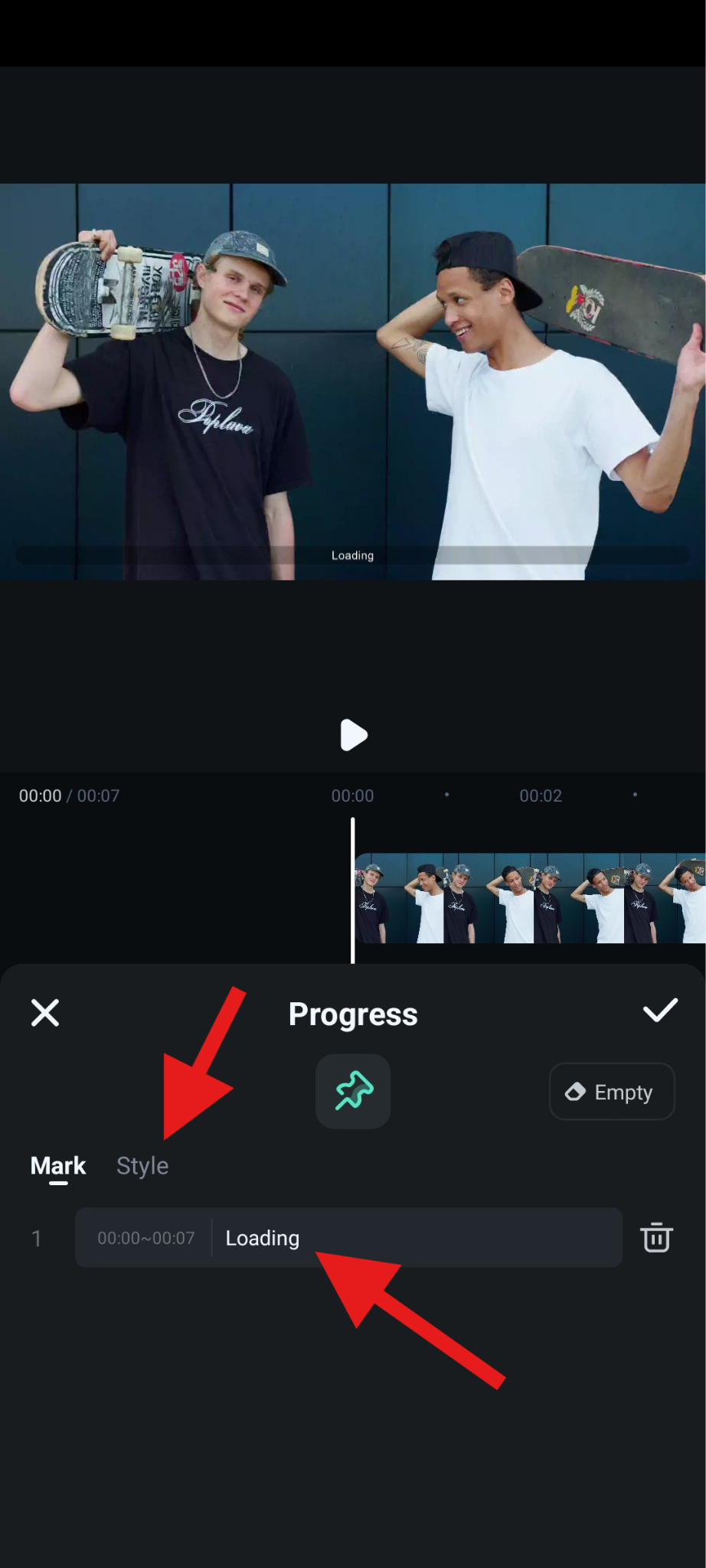
- Pick the color that you want. Then, you can add an image at the top of the progress bar and select the style that you prefer. You can also adjust the size.
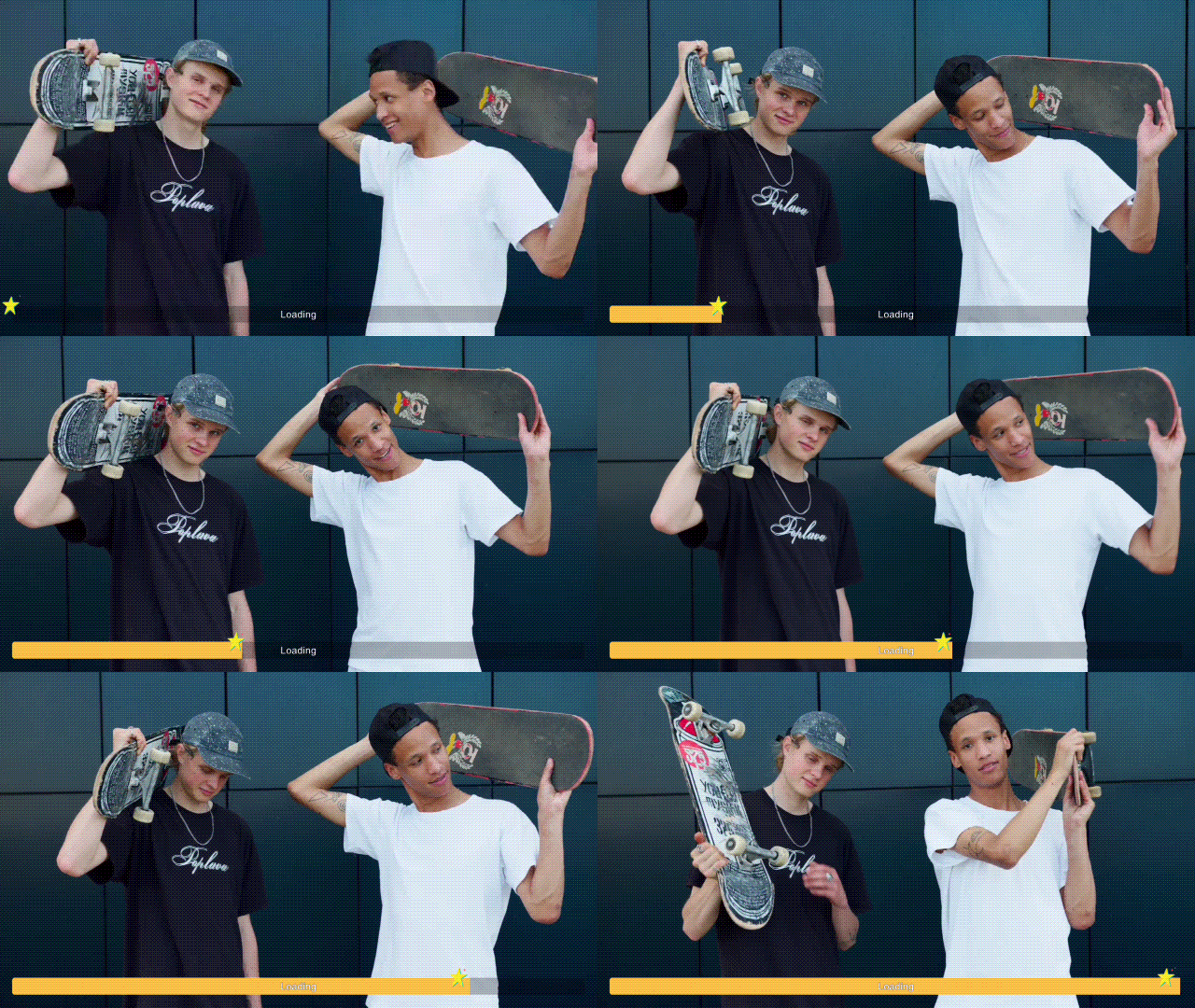
Take a look at the result we achieved with Filmora mobile.
Tips for Adding Progress Bars to Videos
Here are some practical tips for adding progress bars to videos that make them engaging and easy to follow:
- Define the Purpose First: Deciding the purpose you want to use the progress bars to show. For tutorial videos, you can use them to show the chapter or step progress; for countdowns and reveal videos, use them to build anticipation; for social media content, you can use them to encourage viewers to watch till the end.
- Color coding: Matching your brand colors makes your content more recognizable at a glance, while high-contrast shades ensure the bar is visible no matter what's happening in the background.
- Placement: Choose the best placement according to the different situations. If you want a standard and view-friendly way, you can place them at the bottom edge, at the top edge if you have subtitles and a lower-third graphic, and around the frame if it is for social media creative posts.
- Duration match: Always sync your bar animation to the precise runtime of the clip. In Filmora, you can do this automatically, or you can set keyframes at the beginning and end of your video timeline, ensuring the bar fills smoothly from 0% to 100% in perfect alignment with the content length.
Conclusion
A progress bar may seem like a small detail, but it can transform your video. It gives viewers clarity, improves retention, and makes your content look professional. Whether you're creating short TikToks, detailed tutorials, fitness reels, or something else, progress bars add that extra layer of polish, and with Filmora, it's simple to add, customize, and animate progress bars on both desktop and mobile. Instead of wrestling with complicated tools or relying on limited online generators, you can drag, drop, and adjust with ease.
Download Filmora today and start using it as your progress bar maker to create engaging, professional-looking videos that keep viewers glued to the screen.
secure download 