

 100% Security Verified | No Subscription Required | No Malware


 ChatGPT
 Perplexity
 Gemini
 Claude
 Grok
Grok
Video background templates are designs that you can use as the backdrop of your main video. They can be simple colors, animated graphics, patterns, or themed visuals. You can use offices, classrooms, gaming setups, and more. You’ll often see these used in funny skits on TikTok.
However, creators use them in many ways. Some use subtle, clean backgrounds to create a nice contrast for their content. They also use simple ones to highlight their messages. Others try to go for bold, animated effects that grab your attention. Backgrounds are versatile, after all, and can be used in many different ways.
This article will explore different types of video background templates, where to find them, and how to use them effectively. By the end, you’ll know how to choose templates that match your style and elevate your videos.
In this article
10 Video Background Templates That You Can Use in Filmora
Choosing the right background can completely change the way your video feels. Instead of filming in front of a plain wall, you can use already polished and professional templates. These designs save you time while making your content more engaging.
 secure download

Sample Filmora Video Background Templates
Filmora includes a wide range of video background templates under the Templates tab. They’re ready to use and can be customized with text, video clips, or other effects.
Stocks News

This template is built for professional news-style videos. It has a blue theme with a globe graphic that looks like a digital screen. A mix of blue, black, and white tones frames the main “news” area. Perfect for anyone creating reports, updates, or formal video announcements.
News Streaming

If you want a more dynamic look, this template features a red globe design that transitions into a frame where you can place a speaker’s face. A red fading line runs across the bottom for adding text or headlines. It works well for commentary, live discussions, or news-style reaction videos.
Morning News Background

This template uses a futuristic circle animation that smoothly transitions into a frame with a blue headline section. It’s versatile enough for morning reports, quick updates, or casual news summaries.
Finance Coverage

Designed for business or financial content, this template features a golden ribbon animation with currency symbols. There’s space to insert a speaker or reporter. The professional gold-and-black color scheme makes it perfect for covering economic topics or corporate presentations. It also makes for a good intro background video.
Finance Background

If you want something simpler, this template uses a black backdrop filled with money symbols and coins. Its gold-and-black style can be used for financial tips, investment content, or money-related commentary.
Academic Reboot

A fun, colorful design built for education. It features a splash effect background with a laptop frame, making inserting text or a person easily. It works well for school projects, online teaching, or academic presentations.
Music Mania

This background template for video editing sets a retro, club-like vibe with bright colors and dynamic visuals. It’s excellent for music-related content: DJ sets, playlists, or concert highlights. The design instantly adds energy to any video.
Festival Travel

This template combines bright neon colors, a hand-disc DJ animation, and arcade elements for something more playful. It’s perfect for travel vlogs, festival coverage, or fun highlight reels. The lively design makes videos feel bold and exciting.
Campus Presentation

This one has a neon, cartoonish computer interface that frames your content. You can place a speaker inside the frame or use it for slides and discussions. It’s a strong choice for casual learning content, student projects, or campus-related videos.
Game Background
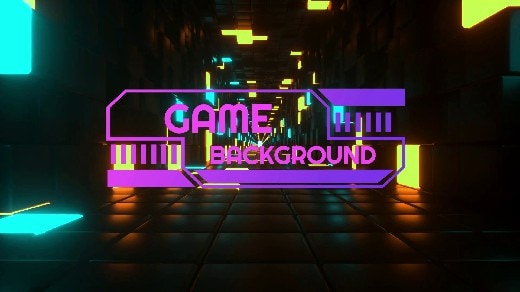
This template creates a futuristic world for gamers with black tiles and glowing yellow-and-white lights. The “walking camera” effect adds movement, and you can place a person or text in the middle. It works for gaming intros, reviews, or live streams.
How To Use Filmora’s Video Background Templates
Filmora makes adding video background templates straightforward. Instead of spending hours designing from scratch, you can use ready-made templates that instantly improve the look of your content. Here’s a quick guide to using them.
Step-by-Step Guide
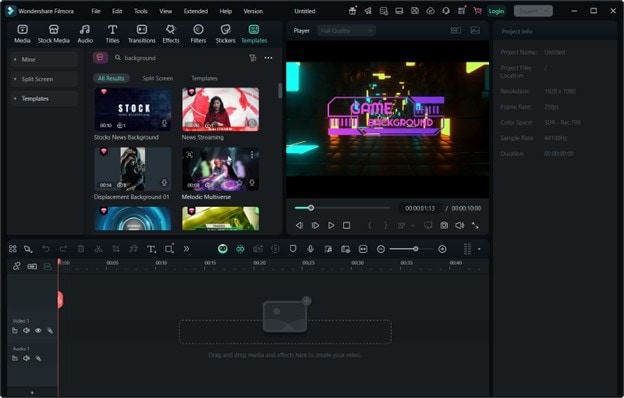
- Go to the Templates tab and type “background” in the search bar. Choose a template that fits your project and drag it onto the timeline.
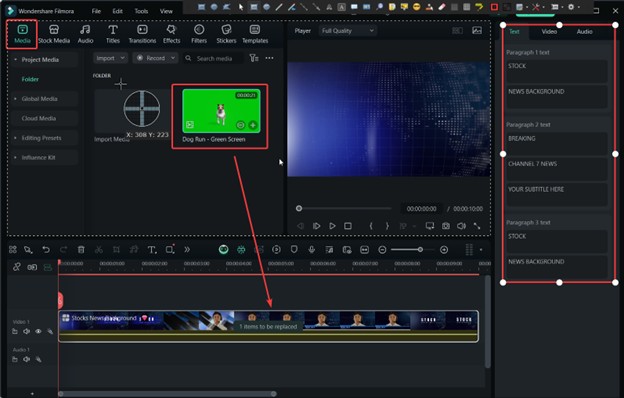
- Replace the placeholders with your own clips that you uploaded under Media. You can likewise adjust the text, duration, and more from the side panel.
- Once you’re satisfied, click Export.
How To Improve the Use of Video Background Templates in Filmora
Using video background templates quickly adds style to your videos, but making them look polished often requires extra adjustments. Filmora includes tools that help you refine backgrounds so they feel seamless and professional. Here are some features worth trying.
Color Grading
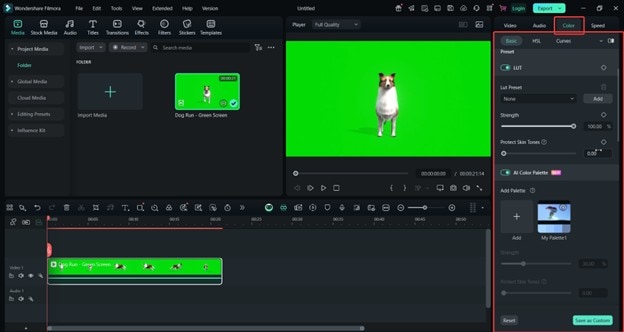
Background templates don’t always match your footage perfectly. With Filmora’s color grading tools, you can adjust brightness, contrast, and tones so your clips and backgrounds blend naturally. You can even use the AI Color Palette function to adjust tones instantly.
Keyframe Animation
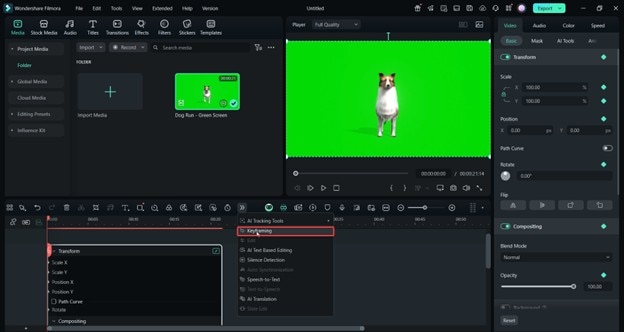
Add motion to your backgrounds or foreground elements with keyframes. For example, you can animate text sliding in or scale up a logo over time. Small movements like these make your videos feel more dynamic.
Chroma Key
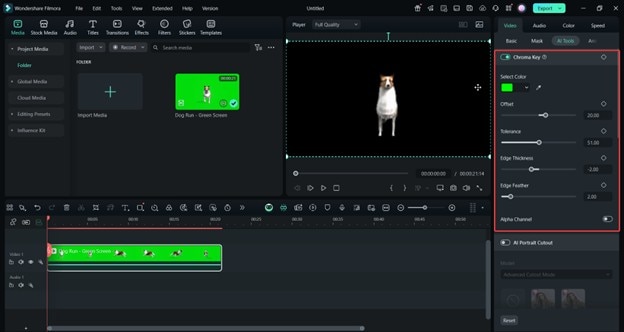
If you’re filming with a green screen, Filmora’s Chroma Key tool lets you remove the background and replace it with a chosen template. This is useful for news-style videos, gaming streams, or presentations where you want to stand in front of an animated backdrop.
Masking Tools
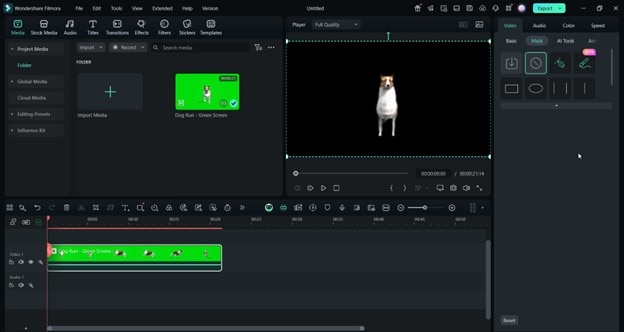
Masking allows you to cut out shapes or highlight specific template areas. You can use this to frame your subject, create transitions, or blend multiple design elements.
PiP (Picture-in-Picture)
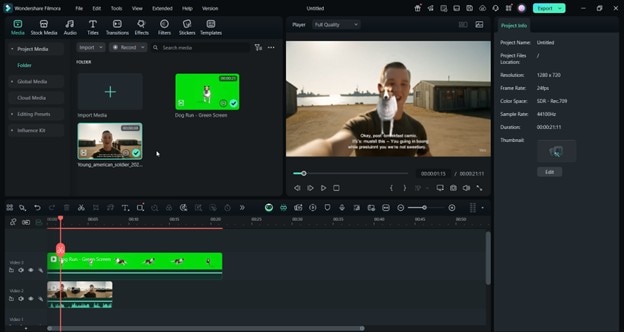
Filmora’s PiP feature lets you layer video clips or images over your background. All you have to do is to use the layers on the timeline. This works well for reaction videos, tutorials, or any format where you want your content and a stylish background visible simultaneously.
Conclusion
As you may know, video background templates help a lot in improving your work time. Instead of worrying about what to put behind your video to make it more visually interesting, you’ll just have to drag them into the placeholders, just like in Filmora.
However, the best videos don’t rely on templates alone. Make sure to flex some of your editing skills by making use of the video templates as a starting point and not as the end-all-be-all. Thus, make sure to use all of the tools available at your disposal to make the best videos possible.
secure download 