Closing Video Effects Examples & Guides
Explore popular closing effects for video and how-to guides
Loading more closing video effects...
 Category:
 Duration:
 Aspect Ratio:
Everything You Need to Create Cinematic Video Closings
A professional outro is the secret to keeping viewers subscribed and watching. Filmora provides a comprehensive closing effect pack filled with particle effects and stylized overlays that transition your footage into the credits seamlessly. From social media call-to-actions to movie-style credit rolls, these closing effect presets are designed to save you hours of manual editing while maintaining a high-end look.
Pro-Grade Closing Effect Presets for Instant Impact
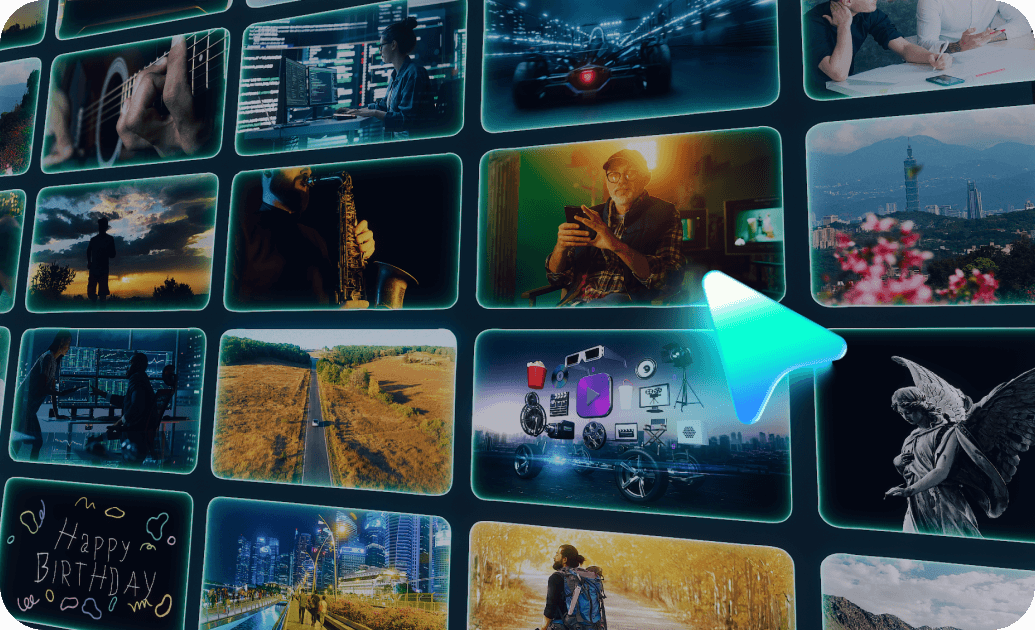
Pro-Grade Closing Effect Presets for Instant Impact
Why build complicated end-sequences from scratch? Our closing effects for video include pre-configured settings that handle everything from lighting to timing. Simply drag a closing effect pack onto your last clip to instantly add depth and professionalism. These effects pair beautifully with color grading to ensure your final frames leave a lasting impression.
- Cinematic Fade-Outs - Smoothly transition to black or white with artistic blur and light leaks.
- One-Click Outros - Apply complex visual styles to your ending sequence in a single motion.
- Dynamic Presets - Choose from high-energy glitch effects or elegant, slow-motion credit backgrounds.
Customizable Closing Effect Templates for Unique Brand Identities
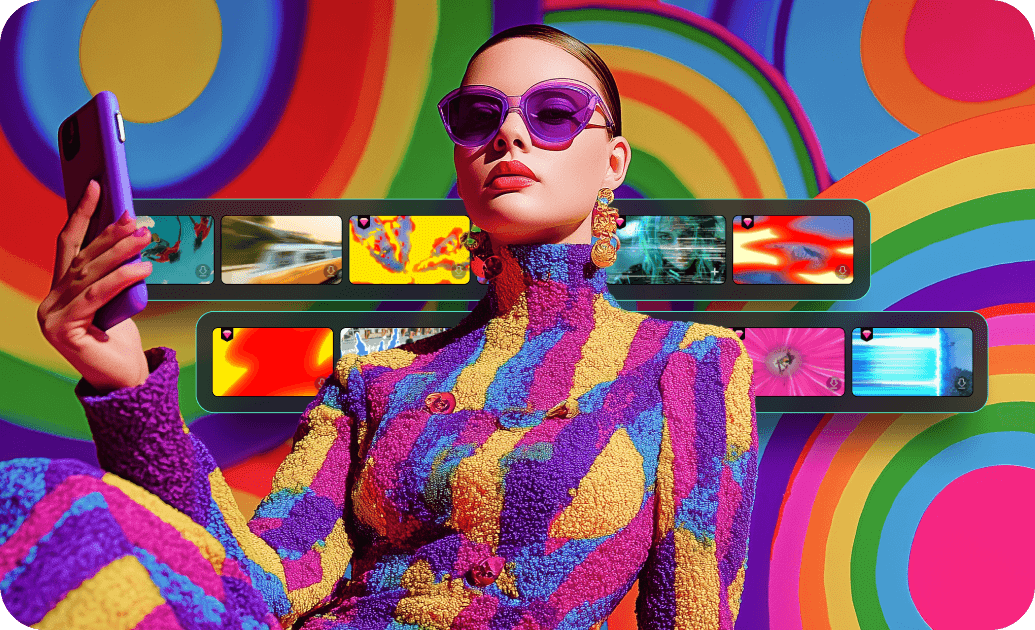
Customizable Closing Effect Templates for Unique Brand Identities
Every channel has its own vibe. Our closing effect templates allow you to tweak colors, intensities, and speed to match your brand's aesthetic. You can integrate text overlays for your social handles or use motion blur to create a high-speed exit that keeps the energy high until the screen goes dark.
- 🎬 Tailored Intensity - Control the strength of visual filters to keep your branding consistent.
- ✨ Integrated Graphics - Overlay subscriber buttons and "next video" placeholders directly onto the effect.
- ⚡ Speed Adjustments - Sync the closing effects for video to the tempo of your background track.
- 🎨 Color Matching - Harmonize your closing effect with the palette of your entire project.
Complete Closing Effect Pack for Social Media Creators

Complete Closing Effect Pack for Social Media Creators
For creators on TikTok, Instagram, and YouTube, the final few seconds are crucial for engagement. Our closing effect pack includes vertical and square formats specifically optimized for mobile viewing. Enhance your ending with Sound Effects that sync perfectly with your visual closing effects, creating a multisensory experience that encourages viewers to stay connected.
- Platform-Specific Layouts - Perfectly sized closing effects for 9:16, 1:1, and 16:9 ratios.
- Dynamic Outro Cards - Animated templates that hold space for your profile picture and social links.
- Engaging Visual Cues - Use specific closing effect presets to point viewers toward your call-to-action buttons.
- Fast Export - Render your high-quality closing sequence instantly with optimized hardware acceleration.
Frequently Asked Questions About Closing Video Effects
How to Apply Closing Video Effects in Filmora
Create professional, cinematic endings in seconds with our library of closing effects. Follow these simple steps to import your footage, apply pro-grade outro effects, and export a polished final project.
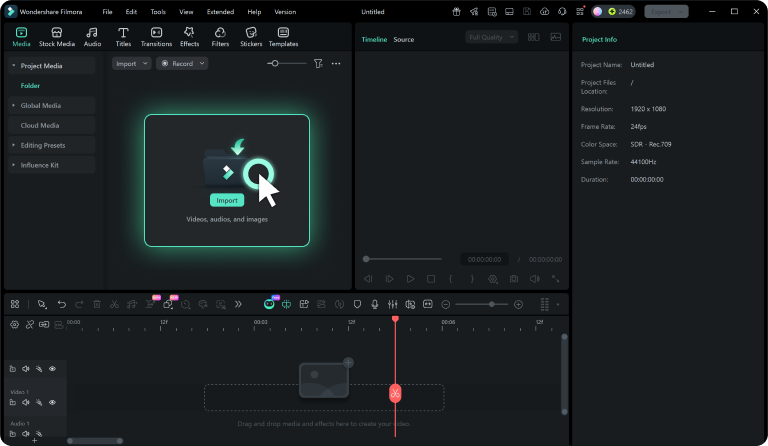
Step 1 Import Your Project
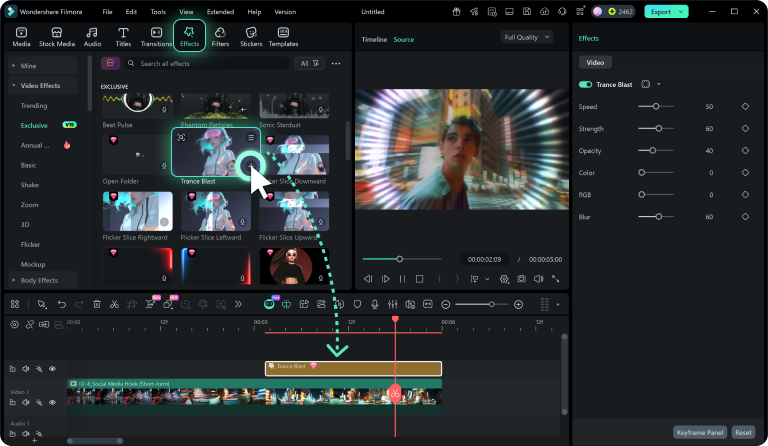
Step 2 Choose a Closing Effect
Step 3 Customize Outro & Export
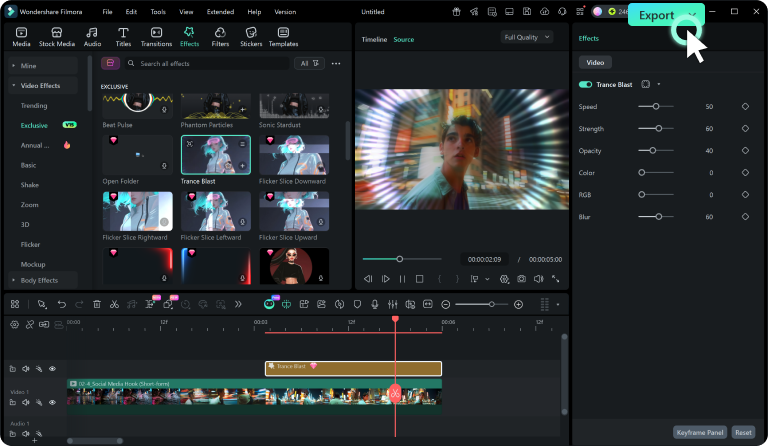
-
1:Import Your Project
Open Filmora and prepare your final sequence. Drag your clips to the timeline, making sure the last clip is ready for a professional closing effect. -
2:Choose a Closing Effect
Head to the "Effects" panel to explore a wide range of closing effect presets. Drag your preferred closing video effects to the end of your timeline for an instant cinematic finish. -
3:Customize Outro & Export
Fine-tune the visual look using the settings panel. When your closing effects for video are perfectly synced, click Export to produce your final masterpiece.
Explore More Cinematic Effects
Discover other creative effect categories to enhance every part of your video project