

 100% Security Verified | No Subscription Required | No Malware

The right storytelling color grading LUT can turn a simple clip into a powerful cinematic moment, guiding viewers through your narrative with mood-driven color and contrast.
This collection of storytelling-focused video filters is designed for content creators who want consistent, filmic tones that reinforce emotion, pacing, and character arcs in every scene.
In this article
Soft Dawn Memories and Gentle Beginnings
Soft Dawn Glow
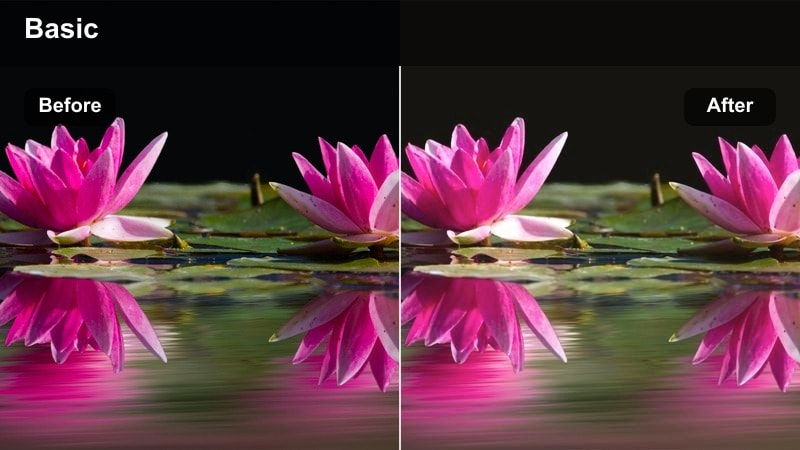
- Effect look: Subtle pastel warmth with lifted blacks and a light haze that feels like early morning memories.
- Best for: Opening scenes, vlogs at sunrise, gentle intros, and reflective storytelling about new chapters.
- Editing tip: Lower the contrast slightly and add slow, minimal camera movement to emphasize the dreamy quality.
Soft Dawn Glow wraps your footage in a warm, hazy wash that instantly suggests new beginnings and quiet reflection. The lifted blacks and pastel warmth reduce harshness in the frame, softening shadows and giving your visuals a memory-like quality that works beautifully for first scenes and sunrise sequences.
In Filmora, apply this storytelling color grading LUT-style filter to your establishing shots and A-roll when you want viewers to ease into the narrative. Combine it with gentle motion graphics, slow zooms, and cross-dissolves, and keep additional corrections minimal so the hazy mood and subtle warmth remain the visual focus of your opening chapter.
Pair Storytelling Filters with AI Color Matching
Filmora s AI color tools help you keep Soft Dawn Glow and other storytelling filters consistent across cameras, lenses, and different sunrise conditions. Instead of manually matching each shot, you can align the entire sequence to one hero frame for a unified dawn aesthetic.
Choose a favorite frame that best represents your pastel, hazy morning look, then use AI color matching to bring surrounding clips in line. This keeps the emotional tone stable as you cut between wide city views, close-up reactions, and B-roll details.
 secure download

Preview Storytelling Filters in Real Time
Before you lock in a look, use Filmora s side-by-side and split-screen preview tools to compare options like Soft Dawn Glow, Morning Journal, and Gentle Backstory on the same clip. Seeing them next to each other makes it easier to decide which grading best supports your introduction or memory sequence.
Test how each filter handles skin tones, skies, and background detail as you scrub through the timeline. This real-time preview workflow helps you quickly match the color grade to the emotional beat you are crafting.
secure download1000+ Video Filters and 3D LUTs
Beyond these storytelling-specific grades, Filmora includes a large library of filters and 3D LUTs you can stack, tweak, and save as presets. This lets you start from a cinematic base look, then customize details like contrast or color emphasis for each character or location.
Explore genre looks, film emulations, and stylistic LUTs, then refine them in the color panel so your storytelling color grading evolves with your project while staying easy to reproduce across episodes or series.
secure downloadMorning Journal
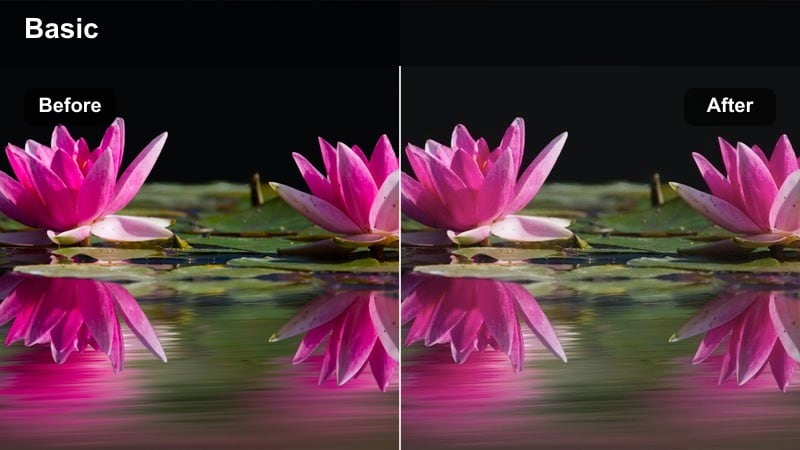
- Effect look: Neutral soft contrast with muted primaries and a slight creamy highlight roll-off.
- Best for: Desk setups, talking-head intros, day-in-the-life storytelling, and calm productivity scenes.
- Editing tip: Balance your white balance first, then apply the filter and gently increase saturation on skin tones for a natural finish.
Morning Journal delivers a clean, intimate look that keeps your image neutral while smoothing harsh edges in highlights. The soft contrast and muted primaries are ideal for productivity vlogs, study-with-me content, and any A-roll where you want viewers to focus on your words without distraction.
In Filmora, use this storytelling color grading LUT-style filter as a base look for your main talking-head angles. After you correct exposure and white balance, apply the filter, then fine-tune skin tone saturation in the color panel so your face remains natural and inviting while the surrounding frame stays calm and cohesive.
Gentle Backstory
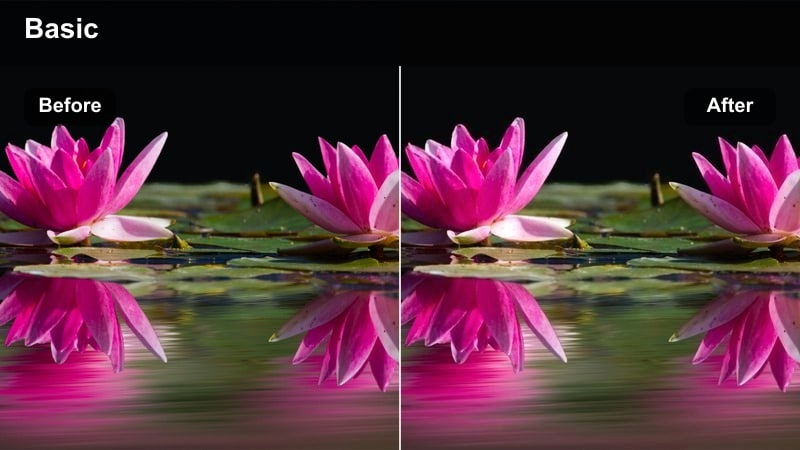
- Effect look: Desaturated midtones with warm highlights and slightly cool shadows for balanced nostalgia.
- Best for: Flashbacks, montages of old footage, and reflective narration about the past.
- Editing tip: Add a slow vignette and use slower cuts to let the viewer sit with each moment longer.
Gentle Backstory dials down midtone saturation while keeping highlights warm and shadows slightly cool, creating a subtle nostalgic feel without heavy vintage gimmicks. This balanced palette helps old locations and memories feel emotional and grounded rather than overly stylized.
In Filmora, apply Gentle Backstory to both archival clips and newly shot reenactments so they share one visual language. Add a light vignette and lengthen your cuts in the timeline, allowing the soft contrast and muted colors to encourage viewers to linger on each remembered detail of your story.
Midday Drama and Character Turning Points
Urban Conflict
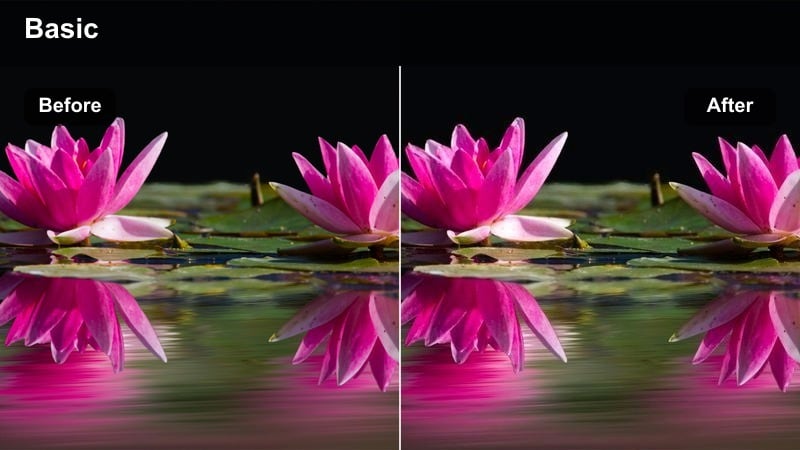
- Effect look: Punchy contrast, cooler midtones, and slightly teal shadows with controlled warm skin tones.
- Best for: Tense conversations, confrontations in the city, and high-stakes narrative beats.
- Editing tip: Tighten your cuts and use handheld footage with this filter to heighten urgency and realism.
Urban Conflict leans into strong contrast and cool, teal-tinted shadows that emphasize hard edges and city textures. By keeping skin tones relatively warm against cooler surroundings, the filter draws attention to characters while letting the environment reinforce tension and emotional friction.
In Filmora, apply Urban Conflict to scenes with arguments, negotiations, or sudden twists that happen in public spaces. Pair it with handheld footage, snappier edits on the timeline, and quick reaction shots so the punchy grading and dynamic cutting work together to keep viewers on edge.
Decision Point
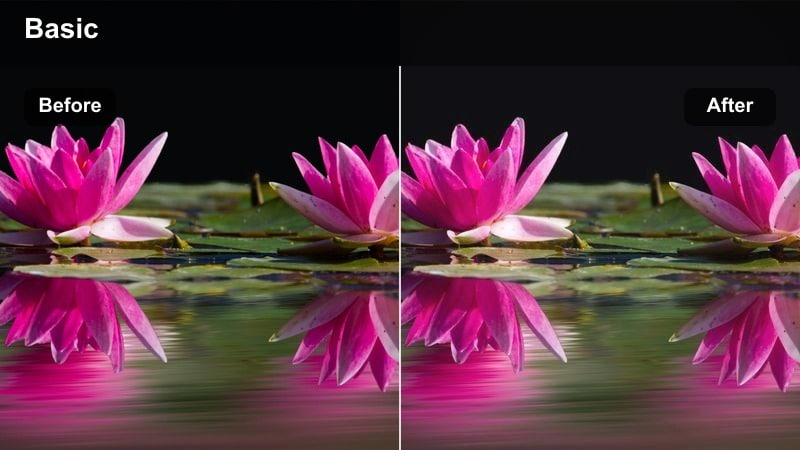
- Effect look: Balanced cinematic contrast with subtle warm midtones and slightly faded blacks.
- Best for: Moments of choice, character close-ups, and voiceover-driven internal monologues.
- Editing tip: Use slow push-in shots, and let this filter add weight to the character s expressions.
Decision Point offers a neutral but cinematic look, with gentle warmth in the midtones and slightly faded blacks that prevent the image from feeling too harsh. This combination puts emphasis on faces and expressions, making it an excellent choice for character-defining moments and introspective beats.
In Filmora, use this storytelling color grading LUT-style filter on close-ups where your subject hesitates, reflects, or explains their inner world via voiceover. Add slow push-ins or subtle digital zooms, and keep your cuts minimal so the viewer can stay locked on micro-expressions supported by the nuanced grading.
Crossroads Noon
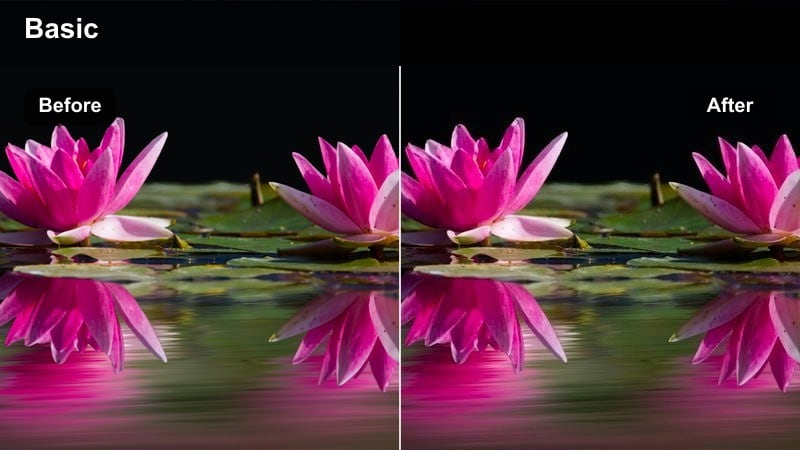
- Effect look: High-key daylight look with controlled highlights and slightly cooled whites for clarity.
- Best for: Documentary-style scenes, street interviews, and mid-story information reveals.
- Editing tip: Expose for the face, then let the filter take care of bright backgrounds while you keep details readable.
Crossroads Noon is built to tame harsh midday sun, giving you bright, high-key images with controlled highlights and slightly cool whites. This keeps interviews and documentary-style exteriors crisp and legible while preventing skies and concrete from blowing out completely.
In Filmora, apply Crossroads Noon when you are cutting together street interviews, factual segments, or exposition scenes that need to stay visually clear. Expose your footage for skin tones during shooting, then let the filter pull back highlights and unify your daylight material for a polished, documentary-ready look.
Golden Hour Emotion and Intimate Revelations
Golden Reveal
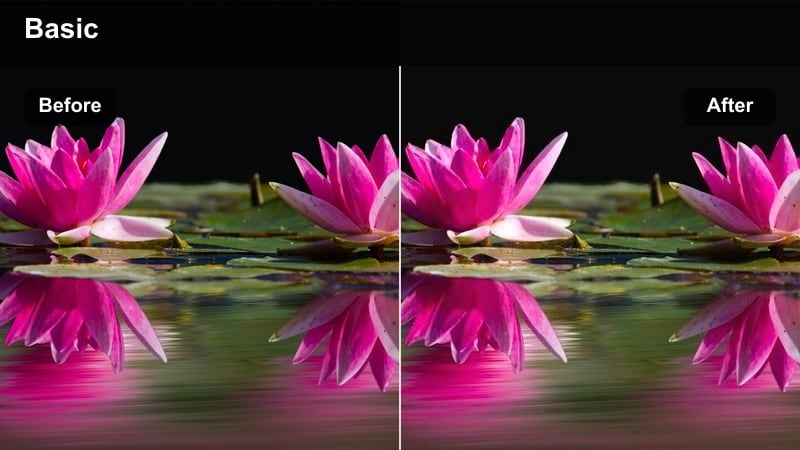
- Effect look: Rich golden highlights, warm skin tones, and gentle contrast with a slight cinematic bloom.
- Best for: Heartfelt confessions, relationship beats, and hopeful turning points at sunset.
- Editing tip: Shoot slightly underexposed, then let the filter lift highlights for a glowing, cinematic finish.
Golden Reveal amplifies sunset color with rich golden highlights and glowing skin tones, while a touch of bloom softens hard edges. This creates a classic cinematic golden-hour atmosphere perfect for hopeful confessions, reconciliations, and emotionally uplifting reveals.
In Filmora, use this filter for key dialogue scenes shot at dusk or whenever you want to simulate sunset warmth. Slightly underexpose your clips in-camera or with the exposure control, apply Golden Reveal, then fine-tune highlight levels so skies retain texture while your characters appear bathed in meaningful, story-driven light.
Quiet Confession
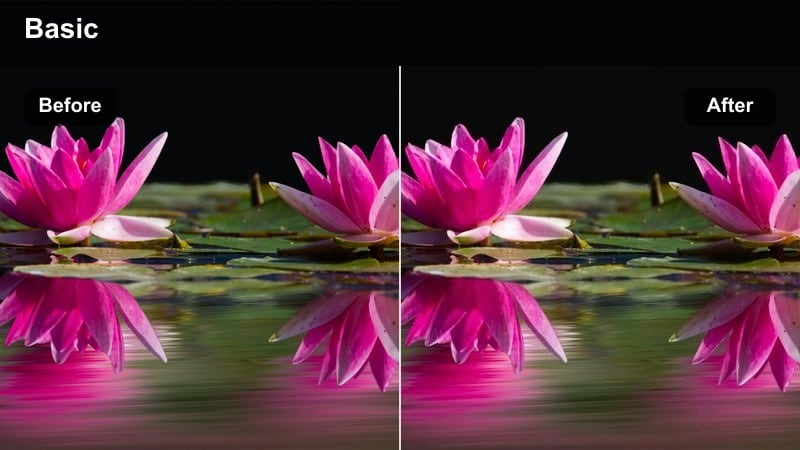
- Effect look: Soft, slightly desaturated palette with warm midtones and lowered texture for a gentle feel.
- Best for: Close-up monologues, diary-style vlogs, and soft-spoken emotional reveals.
- Editing tip: Reduce background music volume and let room tone breathe to match the softness of the image.
Quiet Confession reduces texture and saturation just enough to create a tender, forgiving image that directs attention to eyes, breath, and subtle emotion. Warm midtones add a sense of comfort and closeness, making it ideal for vulnerable monologues and personal vlogs.
In Filmora, apply this storytelling color grading LUT-style filter on intimate A-roll segments or recurring diary entries. Lower your background music and let room tone or gentle ambient audio come through, so the softened visuals and quieter mix work together to build trust and emotional intimacy with your audience.
Sunset Epilogue
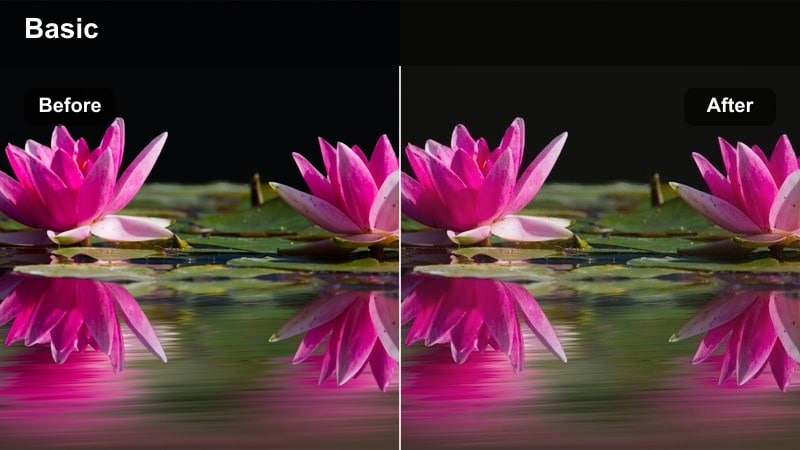
- Effect look: Warm oranges balanced with gentle magenta shadows and slightly faded contrast for an ending feel.
- Best for: Closing montages, outro scenes, and reflective walks through the city at dusk.
- Editing tip: Use slower shutter and motion blur to make movements feel like lingering echoes of the story.
Sunset Epilogue uses warm oranges, magenta shadows, and softened contrast to give your footage the feeling of a story winding down. The slightly faded look suggests distance and reflection, making it ideal for final walks, cityscapes at dusk, and contemplative outros.
In Filmora, reserve this filter for closing chapters or end cards that feature B-roll of streets, skies, or characters leaving frame. Pair it with slower shutter footage or slight motion blur effects, then lengthen your cuts and let music carry the emotion while the grading signals that the narrative is drawing to a close.
Night Reflections and Cinematic City After Dark
Neon Monologue
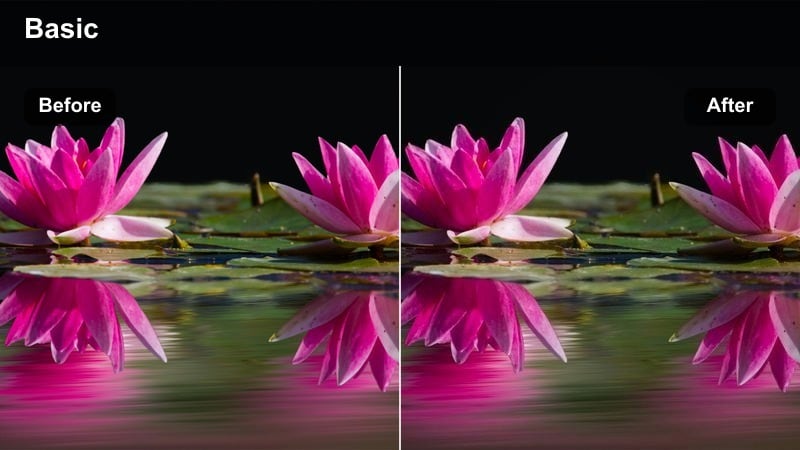
- Effect look: Deep contrast with emphasized neon colors, cooler shadows, and glossy highlights.
- Best for: Night walks, urban reflections, and voiceovers set against buzzing city lights.
- Editing tip: Shoot near colorful signs or reflections and let this filter amplify the color contrast for visual interest.
Neon Monologue heightens the vibrancy of neon signs and city lights while pushing shadows cooler and dark. The result is a glossy, stylized nightscape where colors pop against deep blacks, perfect for introspective walks or reflective voiceovers set in busy streets.
In Filmora, apply this storytelling color grading LUT-style filter to footage captured near LED billboards, storefronts, or wet streets that mirror light. Let the filter boost saturation and contrast, then keep your cuts smoother and slower so viewers can absorb the graphic interplay of color and darkness around your character.
Midnight Resolve
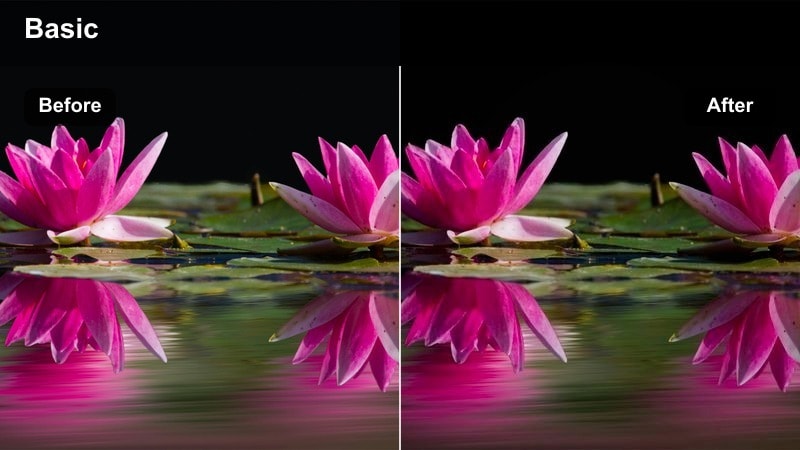
- Effect look: Moody low-key contrast with muted colors and subtle blue undertones for seriousness.
- Best for: Late-night decisions, quiet rooftop scenes, and contemplative city overlooks.
- Editing tip: Allow more negative space in your compositions and hold on silences to match the reflective mood.
Midnight Resolve desaturates your palette and introduces gentle blue undertones, creating a serious, introspective atmosphere. The low-key contrast keeps much of the frame in shadow, encouraging viewers to focus on isolated pockets of light and the character within them.
In Filmora, apply this filter to rooftop shots, window views, or quiet nighttime interiors where characters process what has happened. Embrace negative space in your framing and use longer pauses in dialogue or sound design, letting the moody grade and darkness underline the weight of late-night decisions.
Final Farewell
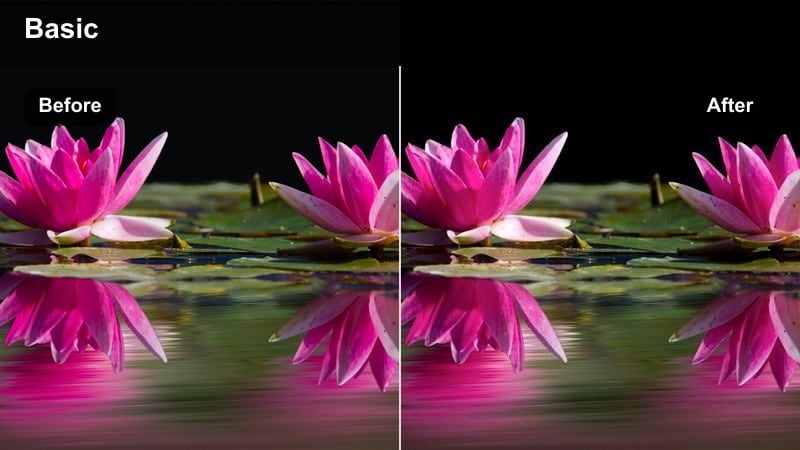
- Effect look: Cool desaturated palette with soft highlights and gentle film-like grain.
- Best for: End-of-journey scenes, final voiceovers, and bittersweet departures in the city at night.
- Editing tip: Slow down your cuts and fade your music gradually while the filter carries the emotional goodbye.
Final Farewell cools and desaturates your image while adding soft highlights and subtle grain for a filmic, understated finish. This look supports bittersweet endings and quiet departures, letting sadness or acceptance play out without overly dramatic color.
In Filmora, apply this storytelling color grading LUT-style filter to your final night sequences or reflective voiceovers that close the narrative loop. Combine it with gradual music fades, dissolves, or match cuts back to earlier locations so the restrained color and film-like texture give your goodbye scenes a lingering, memorable weight.
Tips for Using Storytelling Color Grading Lut Filters in Filmora
- Choose one core storytelling filter per video and use it as your visual anchor while only slightly adjusting exposure or saturation between scenes.
- Match the filter to the emotional temperature of the scene first, then tweak contrast and saturation to fit your brand.
- Always correct white balance and exposure before applying a storytelling color grading LUT-style filter for more predictable, consistent results.
- Use warmer filters for hope, connection, and resolution, and cooler or more desaturated filters for tension, distance, or uncertainty.
- Test your chosen filter on both close-ups and wide shots to ensure it supports faces and environments equally well.
- Save frequently used grading combinations as Filmora presets so you can quickly reapply your storytelling looks across episodes or recurring formats.
- Combine color grading with thoughtful pacing and sound design so the visual tone, music, and cuts all support the same emotional arc.
- Preview filters on mobile and desktop exports to confirm that your storytelling color choices read clearly across different screens.
Storytelling color grading LUT filters in Filmora give content creators a fast, reliable way to shape mood, signal story beats, and carry viewers through an emotional journey.
Build a small toolkit of go-to filters for beginnings, turning points, and endings, and your videos will feel more cinematic, cohesive, and intentional from the first frame to the last.
secure download