

 100% Security Verified | No Subscription Required | No Malware


 ChatGPT
 Perplexity
 Gemini
 Claude
 Grok
Grok
The Cinematic Tone Video Filter collection in Filmora helps content creators give everyday footage a polished, movie-style finish with just a few clicks. Each preset is tuned for mood, contrast, and color so your videos instantly feel more intentional and visually immersive.
Whether you shoot vlogs, short films, travel reels, or client promos, these cinematic filters let you skip heavy manual grading and instead choose a mood that matches your story, then fine-tune it with simple adjustments.
In this article
Golden Hour Dramas and Emotional Storytelling
Sunset Soft Glow
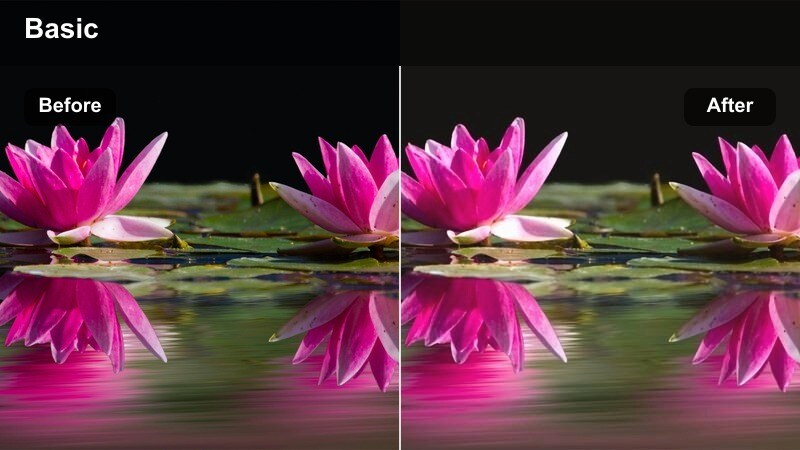
- Effect look: Warm, hazy highlights with gentle contrast for dreamy golden-hour scenes.
- Best for: Romantic sequences, slow-motion walks, travel intros, and emotional B-roll at dusk.
- Editing tip: Lower the filter intensity to around 60% and slightly reduce highlights to avoid clipping bright skies.
Sunset Soft Glow wraps your footage in warm, cinematic tone that mimics the look of carefully lit golden-hour setups. In Filmora, this preset adds a soft bloom to highlights and a gentle contrast curve, helping even flat or overcast footage feel like it was captured during a perfect late-afternoon moment.
Use this filter when you want to turn casual walks, couple shots, or scenic travel clips into emotional story beats without advanced color grading. Apply the Cinematic Tone Video Filter in the Effects panel, dial the intensity slider to taste, then tweak exposure and highlight sliders so faces stay readable while skies stay rich and detailed.
Pair Cinematic Filters With AI Color Correction
Before you layer on a cinematic tone video filter like Sunset Soft Glow, use Filmora's AI color tools to quickly normalize exposure and white balance. A clean base image means the warmth, glow, and contrast of your cinematic preset will look consistent from clip to clip.
Once AI has handled the first color pass, you can switch between different cinematic tone presets and see accurate previews, saving time compared to manual grading from scratch.
 secure download

Preview Cinematic Tones in Real Time
Filmora's preview window lets you hover over cinematic tone filters and instantly see how they will reshape your footage. You can quickly compare warm, cool, or high-contrast looks on the same shot to find the mood that best matches your scene.
Toggle different presets on and off, adjust intensity, and scrub through your timeline as you go, making it easy to audition multiple cinematic tones without slowing down your edit.
secure downloadCombine Filters With LUTs for a Signature Style
Cinematic tone filters add mood and atmosphere, while LUTs help you maintain a consistent color identity across entire series or channels. By stacking a subtle LUT under your chosen cinematic preset in Filmora, you can build a layered grade that feels both stylized and cohesive.
Adjust individual filter and LUT intensities until skin tones, brand colors, and backgrounds feel unified, then save your combination as a custom preset to reuse on future projects.
secure downloadAmber Twilight
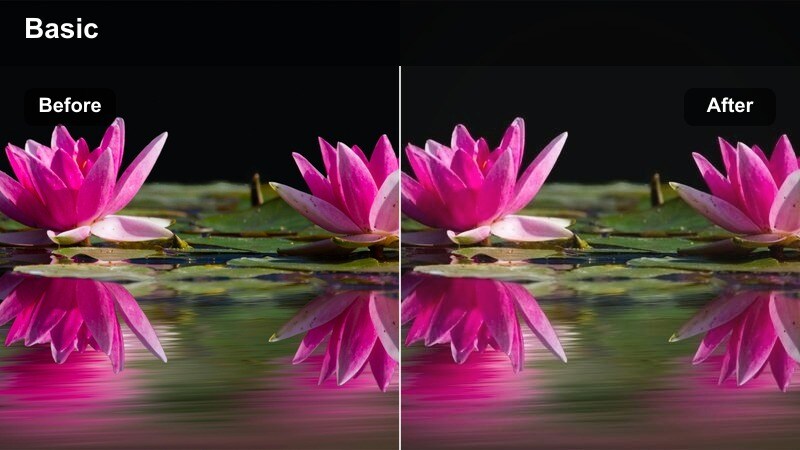
- Effect look: Deep amber tones with subtle fade in the blacks for a nostalgic, filmic twilight look.
- Best for: Short films, character-driven scenes, narrative vlogs, and reflective monologues.
- Editing tip: Add a slight vignette and reduce saturation of greens to keep attention on faces and key objects.
Amber Twilight shifts cool blue-hour footage into a rich amber palette, softening blacks for a vintage film feel. In Filmora, it is ideal when you want your rooftop, street, or interior windows-at-dusk shots to lean into nostalgia and emotional depth.
Apply this cinematic tone video filter to narrative sequences or introspective vlog moments, then fine-tune with the vignette and color tools so eyes and key props remain the brightest elements in the frame. Small curves adjustments in the shadows can help you gradually deepen contrast across cuts to build tension over time.
Golden Cinema Portrait
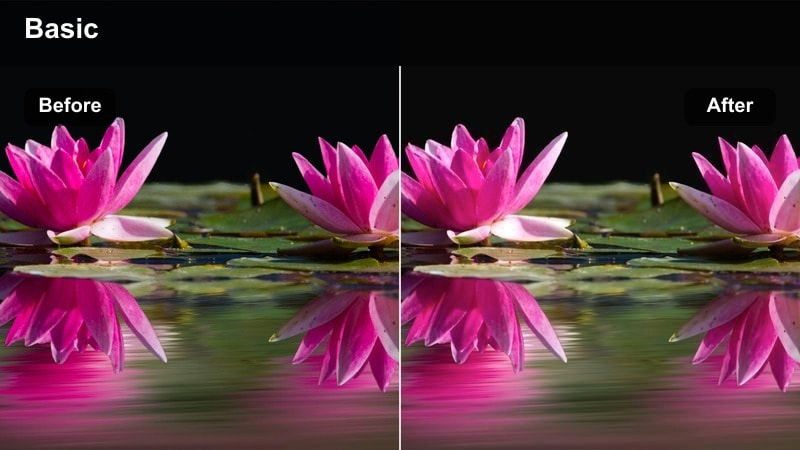
- Effect look: Soft, warm highlights with lifted midtones for flattering, cinematic portraits.
- Best for: Talking-head content, beauty shots, lifestyle vlogs, and emotional close-ups.
- Editing tip: Slightly reduce clarity around 5-10 percent to smooth skin while keeping eyes and hair sharp.
Golden Cinema Portrait is tuned to flatter faces, adding warmth and gentle midtone lift so skin looks soft yet dimensional. Within Filmora, this filter can quickly elevate talking-head clips, beauty content, or lifestyle sit-downs to a more polished, commercial-grade aesthetic.
After applying the preset, use Filmora's skin tone and sharpening controls to keep details in eyes, lashes, and hair crisp while de-emphasizing minor skin texture. Adjust the intensity slider so backgrounds gain cinematic depth without making complexions look overly orange or stylized.
Urban Night Cinema and Neon Atmospheres
Neon Noir
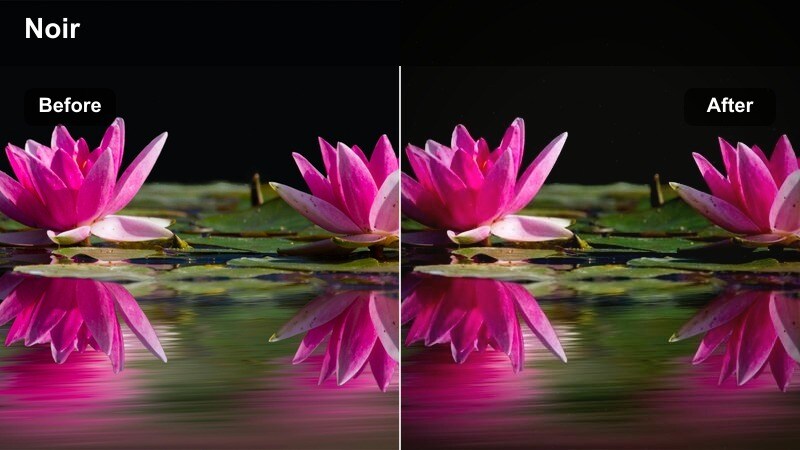
- Effect look: Strong contrast with deep shadows and saturated neon colors for a neo-noir city look.
- Best for: Night street scenes, cyberpunk edits, music videos, and moody city b-roll.
- Editing tip: Crush the blacks slightly and lower overall saturation, then selectively boost magenta and teal for precise neon control.
Neon Noir pushes your nighttime city footage into a bold, high-contrast realm with inky shadows and vibrant signage. In Filmora, this cinematic tone filter is ideal when you want alleyways, reflections, and wet streets to feel like frames from a neo-noir feature or cyberpunk music video.
Apply the filter, then use HSL and curves to tame any channels that feel too aggressive while emphasizing key neon hues like magenta or teal. Combine it with slow-motion shots or handheld moves, and add just a touch of film grain to give your night sequences a gritty, stylized finish.
Midnight Teal Punch
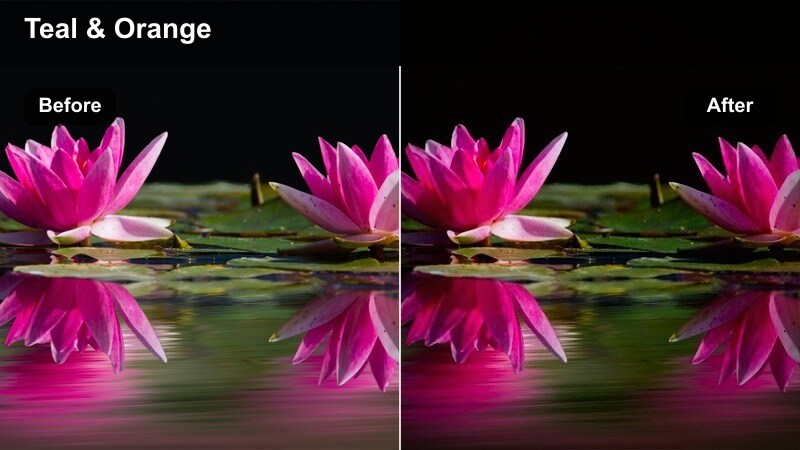
- Effect look: Teal-shifted shadows with cooler overall tone and crisp clarity for modern urban energy.
- Best for: Skate edits, handheld city walks, tech reviews, and urban lifestyle content.
- Editing tip: Increase sharpness slightly and add subtle motion blur on fast cuts to keep movement cinematic, not harsh.
Midnight Teal Punch turns night scenes into cool, modern frames by shifting shadows toward teal and enhancing edge detail. In Filmora, this filter works especially well for energetic edits where motion, street art, and city textures need to pop without overwhelming viewers.
Use it on skateboarding runs, night city walks, or tech B-roll, then fine-tune sharpness and motion blur so your footage feels glossy but still cinematic. Keep an eye on skin tones by masking or adjusting HSL ranges, maintaining natural faces against stylized teal surroundings.
Cinema Street Haze
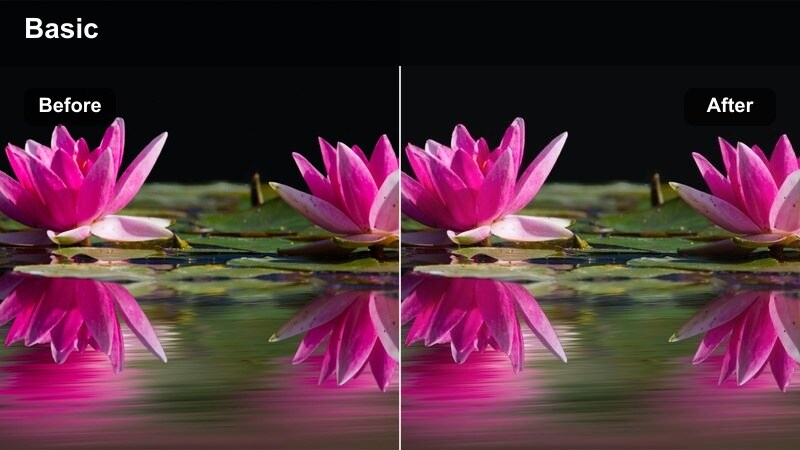
- Effect look: Softened contrast with a gentle bloom around bright streetlights for hazy city ambiance.
- Best for: Night vlogs, rainy city b-roll, and narrative scenes with characters moving through streets.
- Editing tip: Add a light grain overlay to reinforce the atmospheric, film-like softness created by the filter.
Cinema Street Haze wraps city lights in a soft glow, smoothing harsh contrast while preserving important detail on subjects. This cinematic tone filter in Filmora is great for rainy sidewalks, backlit silhouettes, and slow, contemplative night walks.
Apply it to clips featuring reflections, windows, or subtle smoke, then adjust clarity and contrast so your subject stays defined against the dreamy background. Layer in a light grain effect and, if needed, reduce clarity only in the background using masks to deepen the atmospheric separation between character and environment.
Daylight Film Look for Travel and Lifestyle
Soft Film Day
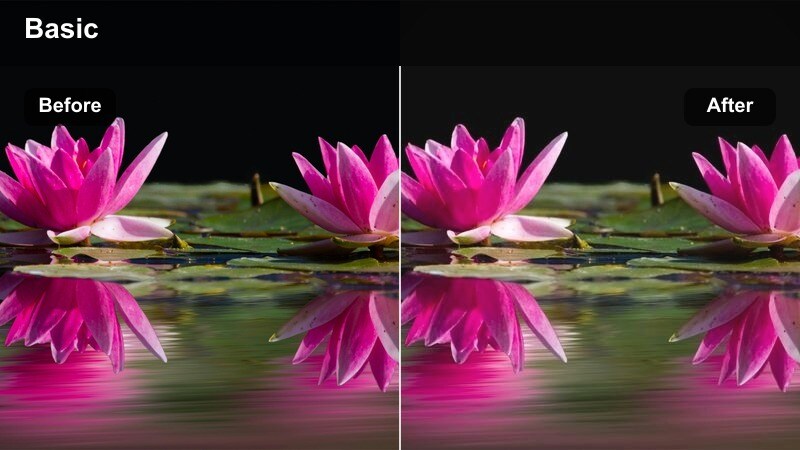
- Effect look: Muted highlights, gentle contrast, and mild color fade for a classic filmic day look.
- Best for: Daily vlogs, street documentaries, run-and-gun travel footage, and family clips.
- Editing tip: Dial the filter strength to around 70 percent and slightly lift the shadows for a softer, less digital daylight feel.
Soft Film Day tones down harsh sunlight by muting highlights and easing contrast, giving bright footage a subtle analog character. In Filmora, this cinematic tone filter helps you turn everyday daytime scenes into cohesive, film-style sequences without complex grading.
Use it for city walks, family outings, or street documentaries, then fine-tune exposure so skies hold detail and faces remain gently lit. Lifting shadows slightly after applying the filter can further reduce the crisp, digital edge common in action camera or phone footage.
Travel Cinema Pop
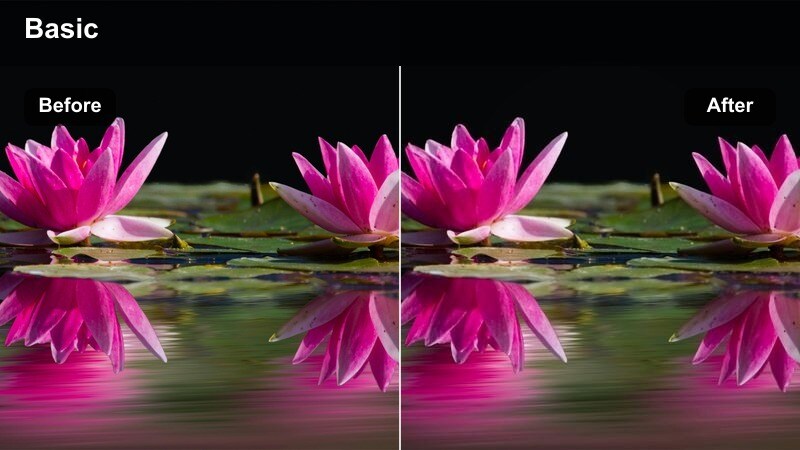
- Effect look: Vibrant colors with slightly deeper shadows and crisp micro-contrast for energetic travel imagery.
- Best for: Travel montages, city guides, destination promos, and upbeat lifestyle reels.
- Editing tip: Keep saturation just below 100 percent and adjust individual HSL channels to stop clothes or signs from clipping.
Travel Cinema Pop boosts color and contrast just enough to make destinations feel lively and polished, without drifting into unrealistic territory. When applied in Filmora, this cinematic tone video filter enhances architecture, landscapes, and food shots so they stand out in fast-paced edits and social reels.
Apply it to both drone and handheld clips to maintain a unified look across your travel story, then refine individual HSL channels to control intense reds, blues, or yellows. Keeping the overall saturation slightly restrained ensures your footage stays cinematic rather than cartoonish, even in very colorful locations.
Documentary Neutral Cine
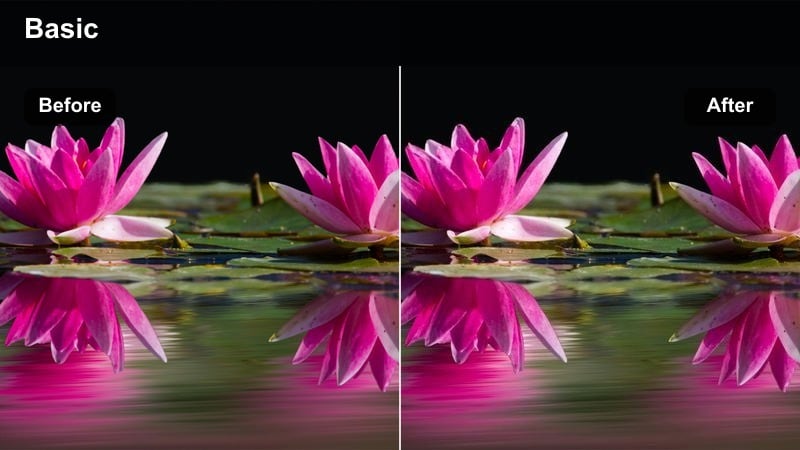
- Effect look: Balanced color, moderate contrast, and clean tonality for a neutral, professional cinema documentary style.
- Best for: Interviews, brand stories, educational content, and corporate documentaries.
- Editing tip: Use small white balance tweaks instead of heavy saturation changes to maintain a natural, trustworthy feel.
Documentary Neutral Cine adds a subtle cinematic polish while keeping colors realistic and trustworthy, which is crucial for interviews and brand stories. In Filmora, this preset provides a professional base grade that works across different cameras and locations without drawing attention to itself.
Apply it to talking heads, office B-roll, and classroom or workshop scenes, then fine-tune white balance per clip to keep skin tones accurate. Avoid heavy saturation pushes; instead, use gentle adjustments to maintain a calm, credible look that still feels more cinematic than straight-out-of-camera video.
High-Drama Cinematic for Trailers and Shorts
Trailer Intense Contrast
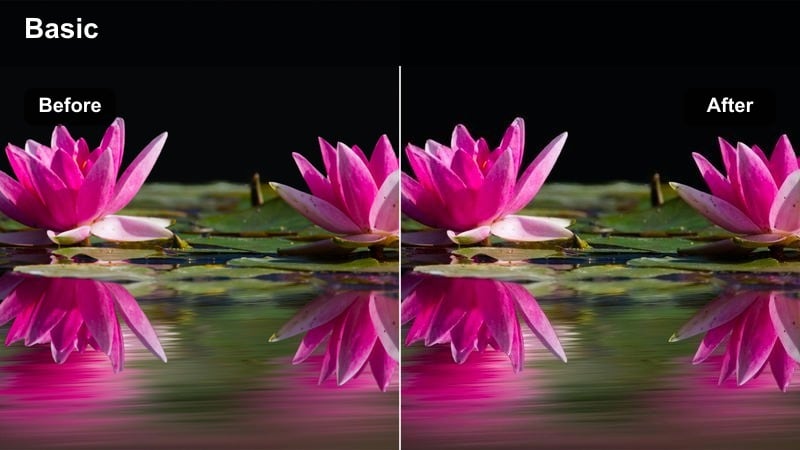
- Effect look: Bold contrast with slightly desaturated colors and strong midtone punch for dramatic trailers.
- Best for: Short film trailers, YouTube intros, gaming montages, and dramatic promos.
- Editing tip: Trim the filter intensity between 50-80 percent for dialogue scenes and push it higher for pure b-roll sequences.
Trailer Intense Contrast gives your footage the gripping, high-impact look associated with modern film trailers by emphasizing midtones and darkening backgrounds. In Filmora, this cinematic tone filter is perfect for punchy intros, quick-cut montages, and any sequence where you want every frame to feel urgent and dramatic.
Apply it more aggressively on B-roll and action shots while slightly easing intensity on dialogue clips to keep faces readable. Pair the filter with rhythmic editing and sound design, timing contrast peaks to musical hits or sound effects for maximum emotional impact.
Desaturated Epic
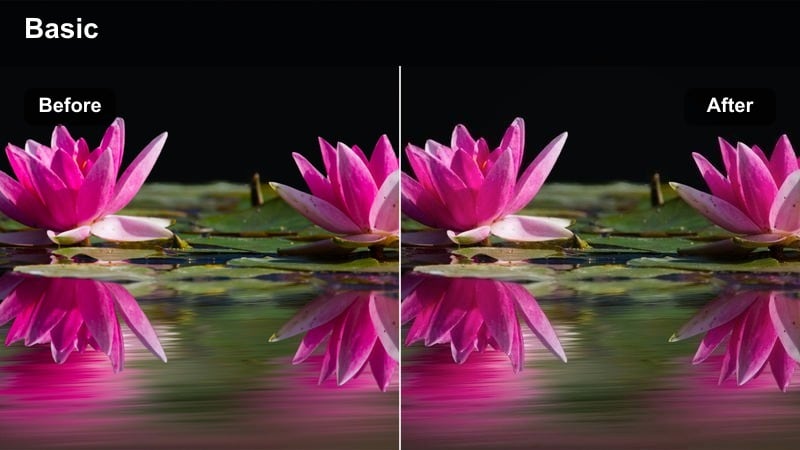
- Effect look: Muted color palette with cool shadows and strong clarity for a serious, epic tone.
- Best for: Cinematic shorts, action sequences, moody storytelling, and dramatic landscape cityscapes.
- Editing tip: Lower overall saturation but selectively boost warm midtones on your subject to keep them visually separated.
Desaturated Epic strips away bright color, cools shadows, and sharpens detail, guiding attention toward composition and emotion rather than vibrancy. In Filmora, it is ideal for hero shots on rooftops, dramatic landscapes, or any scene where you want scale and seriousness to dominate.
Use masks or HSL tools to introduce a hint of warmth back into your main subject while the environment stays muted and cool. This separation makes characters or key objects stand out powerfully in wide shots, especially when combined with leading lines and slow, deliberate camera moves.
Cinema Fade Vignette
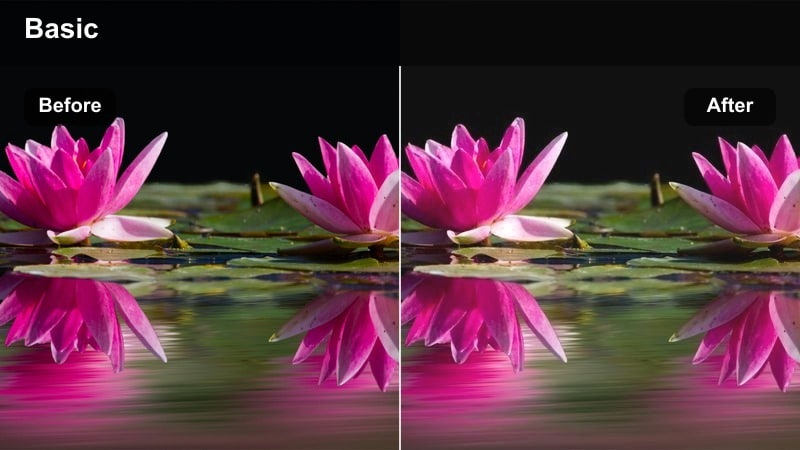
- Effect look: Gently faded blacks with a built-in vignette and subtle warm shift for a classic movie frame.
- Best for: Title cards, closing shots, emotional reveals, and reflective endings.
- Editing tip: Center your subject and keep edges simple so the vignette guides attention without feeling heavy-handed.
Cinema Fade Vignette softens blacks and darkens the frame edges, creating a classic, focused movie look that draws the eye to the center. In Filmora, this cinematic tone filter is a powerful choice for opening and closing shots, emotional reveals, and reflective beats in your story.
Apply it sparingly to hero moments so they visually stand apart from the rest of your edit, and consider combining it with a gentle push-in or slow zoom. Keeping backgrounds uncluttered and subjects centered will let the vignette naturally guide viewer attention where you want it.
Tips for Using Cinematic Tone Video Filter Filters in Filmora
- Shoot as flat as your camera allows so cinematic tone filters have more room to shape contrast and color.
- Keep an eye on skin tones when using strong stylized looks and correct them separately if needed.
- Match filter intensity across clips in the same scene to avoid jarring shifts in mood.
- Use masks to limit filters to backgrounds or specific areas when faces start to look over-processed.
- Always adjust exposure and white balance first, then apply cinematic filters for predictable results.
- Reduce filter strength for dialogue-heavy scenes and push it higher for purely visual sequences.
- Export a short test edit with a few presets to compare how they hold up on different screens.
- Combine a cinematic tone video filter with subtle grain and filmic motion blur for a more authentic movie feel.
Cinematic tone video filters in Filmora give content creators an easy way to turn raw clips into cohesive, story-driven visuals without advanced color grading skills. Each preset is crafted to handle contrast, color, and mood so you can focus on performance, framing, and pacing.
Start with the preset that best matches your scene, refine intensity and basic color, then build on it with LUTs and simple adjustments to create a signature cinematic style that fits your channel. As you refine your favorites, save custom combinations as presets so every new project begins with your own movie-style foundation.
secure download