


 100% Security Verified | No Subscription Required | No Malware


 ChatGPT
 Perplexity
 Gemini
 Claude
 Grok
Grok
Waterfall animation brings the endless, fluid motion of water straight to your screen—creating a sense of peace, freshness, and naturalness in any space. Whether you're looking for ready-made waterfall live wallpapers or want to create your own personalized design, this guide has you covered.
You can easily download waterfall wallpapers online, or use Wondershare Filmora to generate ai waterfall that exists nowhere else on earth. We'll walk you through both paths: finding the perfect ready-to-use scenes and becoming the creator of your own unique waterfall live wallpaper.
In this article
Part 1. Create Your Own Live Waterfall Wallpaper (Mobile & Desktop)
Why settle for simple animated loops? Filmora enables you to create next-generation AI live wallpapers, powered by the Sora 2 physics simulation model. This goes beyond basic animation to simulate realistic turbulent flow, accurate light refraction, and natural object momentum.
The result is a custom, cinematic waterfall or nature scene that feels alive on your desktop or mobile screen, offering a depth of realism that standard wallpaper libraries cannot match.
 Secure Download
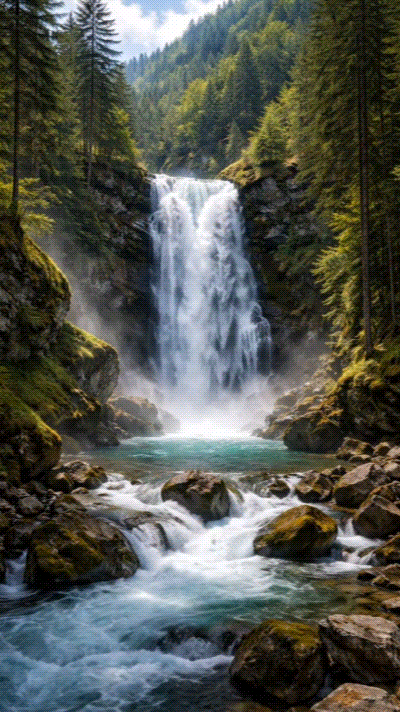
Some popular moving waterfall wallpaper styles to generate:
- Realistic Waterfall: Giving an immersive natural rock texture, flowing water, forest or mountain surroundings.
- Anime-Style Waterfall: Illustrated scenery, soft lighting, stylized water motion.
- Fantasy Waterfall: Incorporates floating rocks, glowing water, magical mist, and particles.
- Dreamy Soft-Focus Waterfall: Creates pastel tones, gentle blur, calming visual flow.
- Night Waterfall: Serene and dramatic.
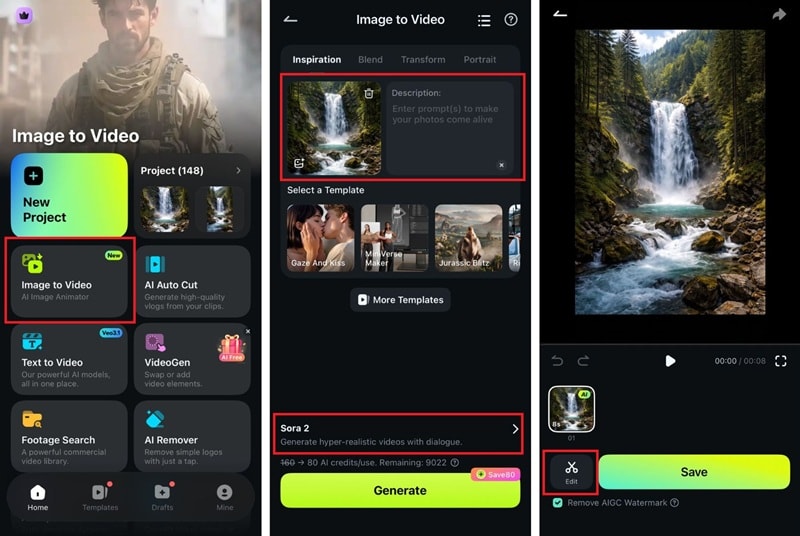
To create a custom and personalized waterfall images moving wallpaper, you can use the Image to Video feature in the app. It works by turning a written prompt into a short animated clip.
On Mobile: Personalized Live Waterfall Wallpapers
Filmora mobile app supports live photo export, which you can set as a live wallpaper later. Below are the steps on how to create an AI waterfall live wallpaper on the Filmora mobile app.
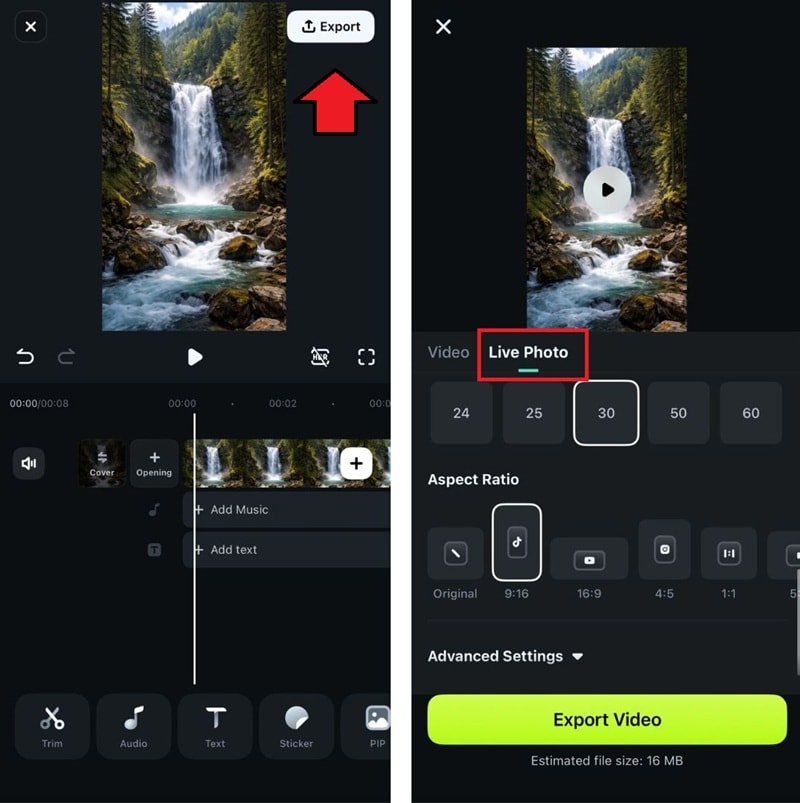 Secure Download
On Desktop: Animated Waterfall Creation
If you want to make an animated waterfall for your computer instead, you can save it in MP4 or GIF, depending on the platform you are using. For desktop wallpapers, Filmora's desktop version provides more advanced editing tools to perfect your wallpaper.
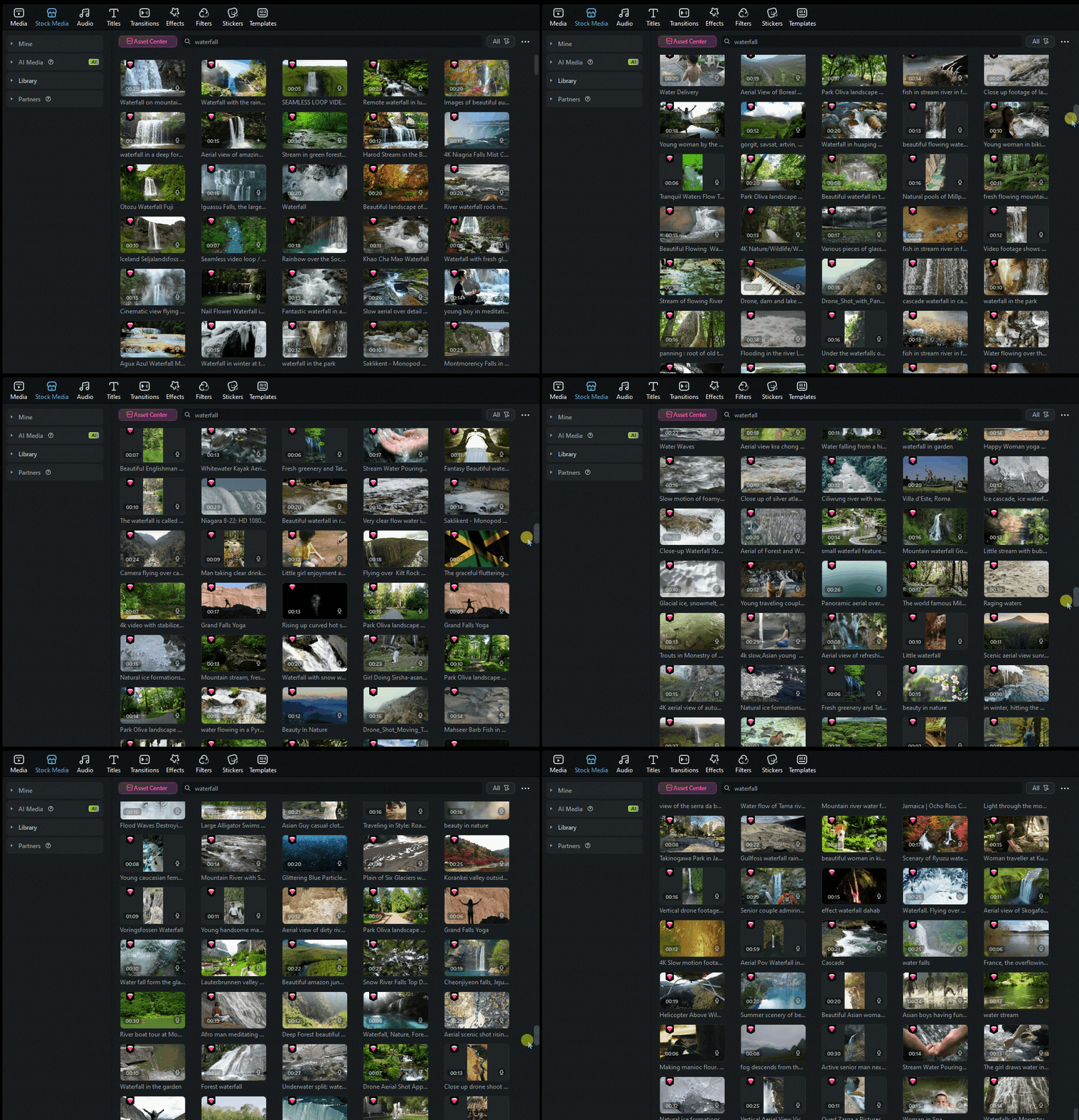
Aside from using the Image to Video, you can also use Text to Video to create a custom live waterfall wallpaper entirely from scratch. Follow the steps below.
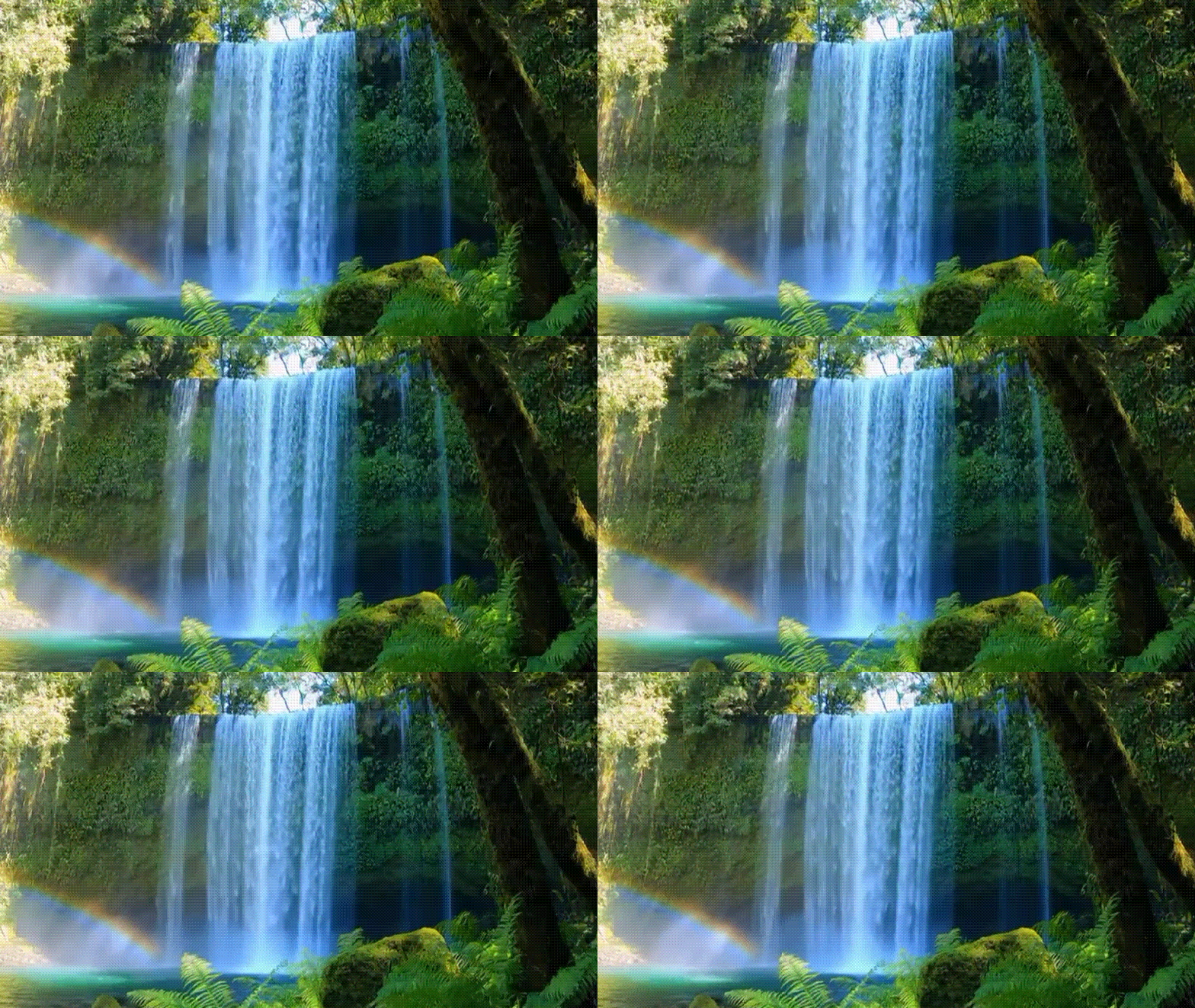
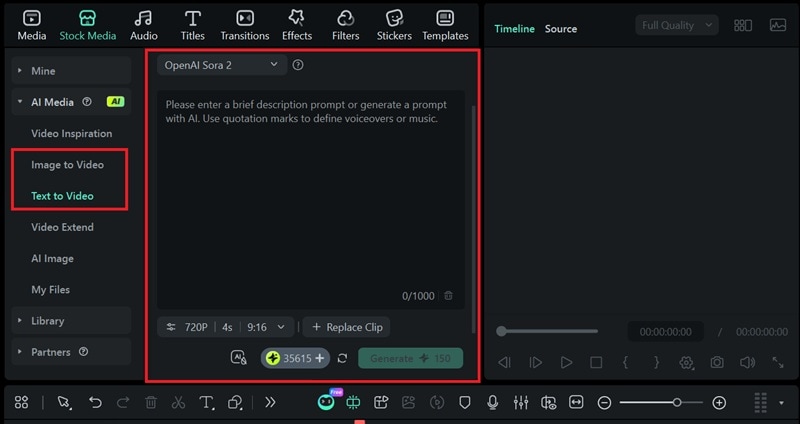
Choose your AI method:
- Text to Video: Best for starting from scratch. Enter a detailed prompt.
- Image to Video: Perfect if you have a still image of a waterfall you want to animate.
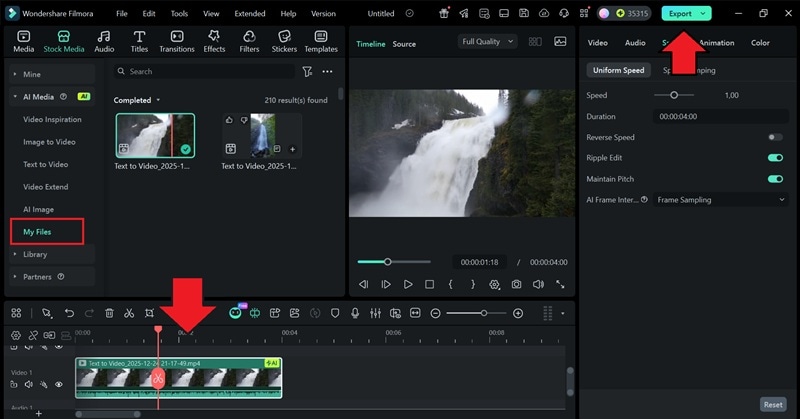
Click Export and select a high-bitrate MP4 at your monitor's resolution (1920x1080 or 3840x2160).
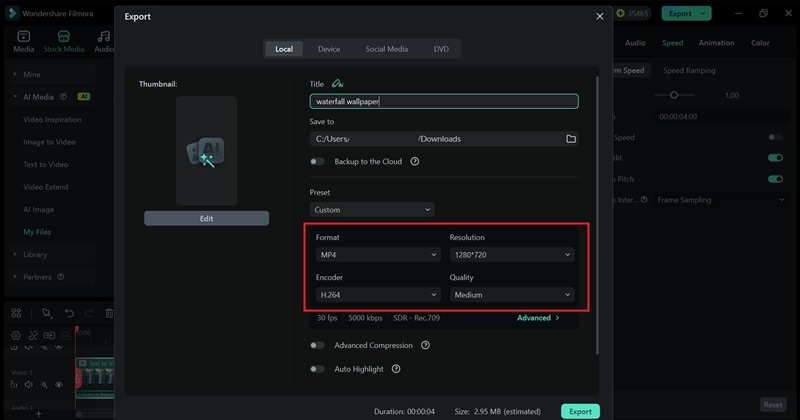
Note: macOS requires third-party apps like Wallpaper Engine or Live Desktop to set video wallpapers. A high-quality, looping GIF can also be used for some lightweight applications.
Part 2. Find More Live Waterfall Wallpaper for Download
If creation isn't your goal today, many online libraries offer ready-to-use animated wallpapers. Here's our curation of the best sources:
1. MyLiveWallpaper.com
A dedicated platform for animated waterfall wallpapers. They offer a massive library of nature-themed loops. It offers from realistic Niagara Falls footage to digitally animated abstract water flows. Files are typically optimized for mobile and desktop.
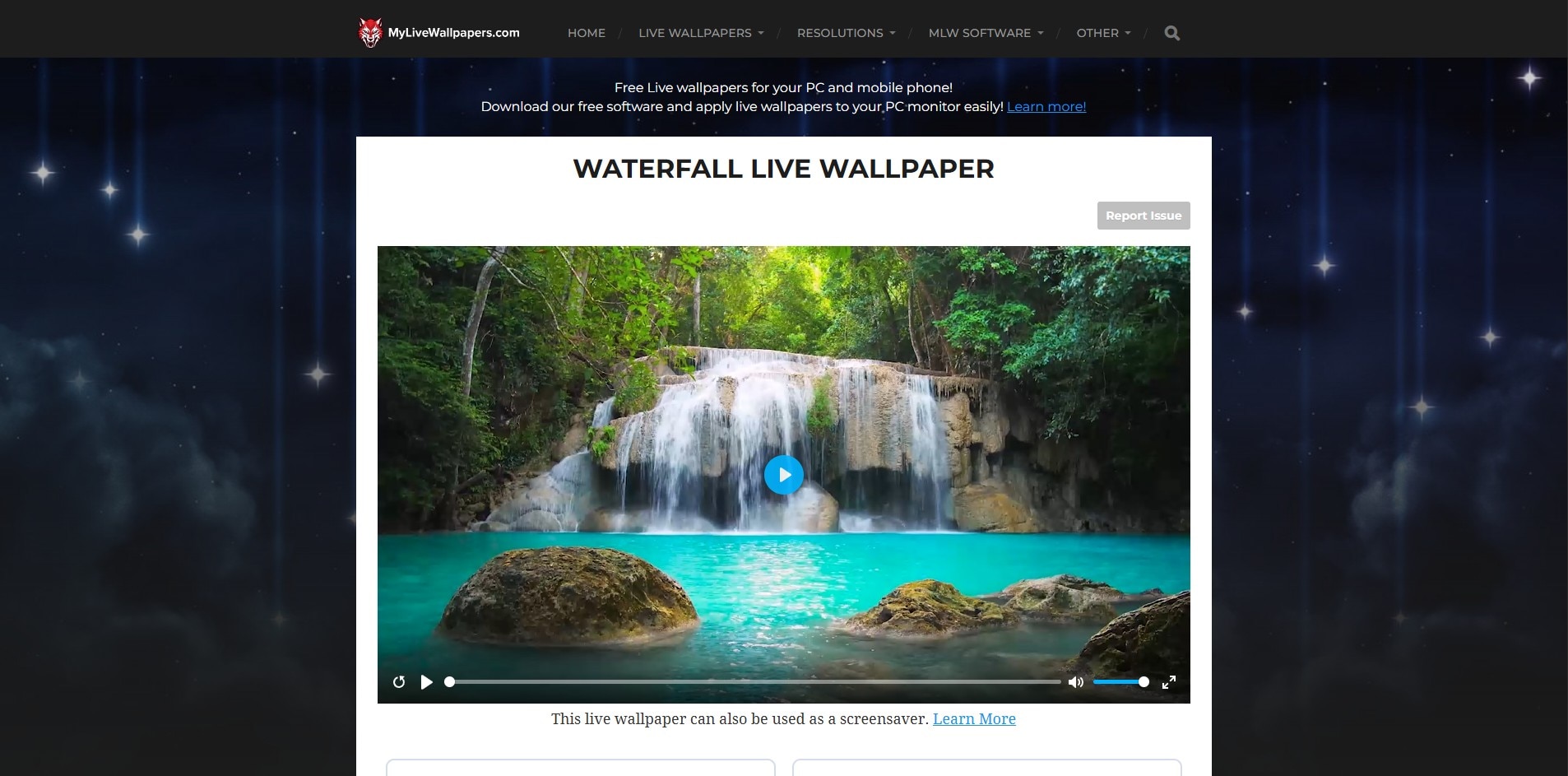
Pricing and Limitations: Free. Most wallpapers are free for personal use. The rest may prohibit redistribution or commercial use. The website is heavy with ads; some "anime" style waterfalls can feel a bit repetitive.
2. Pixabay
A premier source for free stock media. Its video library is unparalleled for finding real, high-quality footage of waterfalls from around the world. Perfect for users seeking authenticity over digital creation.
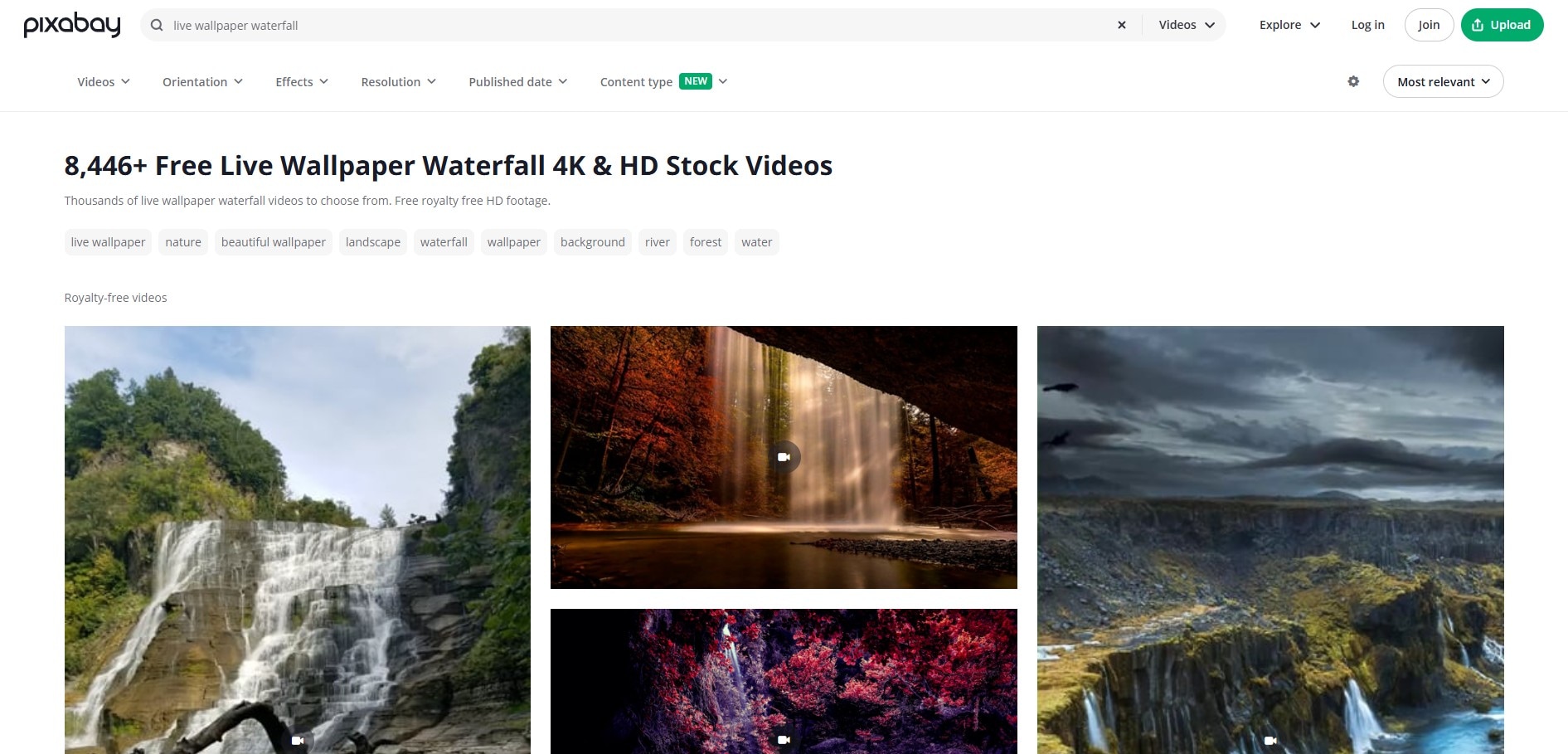
Pricing and Limitations: Free. All content is under the Pixabay License. It means you can use it even for commercial purposes without attribution. Not optimized for looping, you may need to edit them.
3. LiveWallpapers.com
This website offers a wide, curated collection. A good choice for discovering artistic and themed waterfall wallpapers. It also often includes previews and user ratings. So you can easily spot the good one.
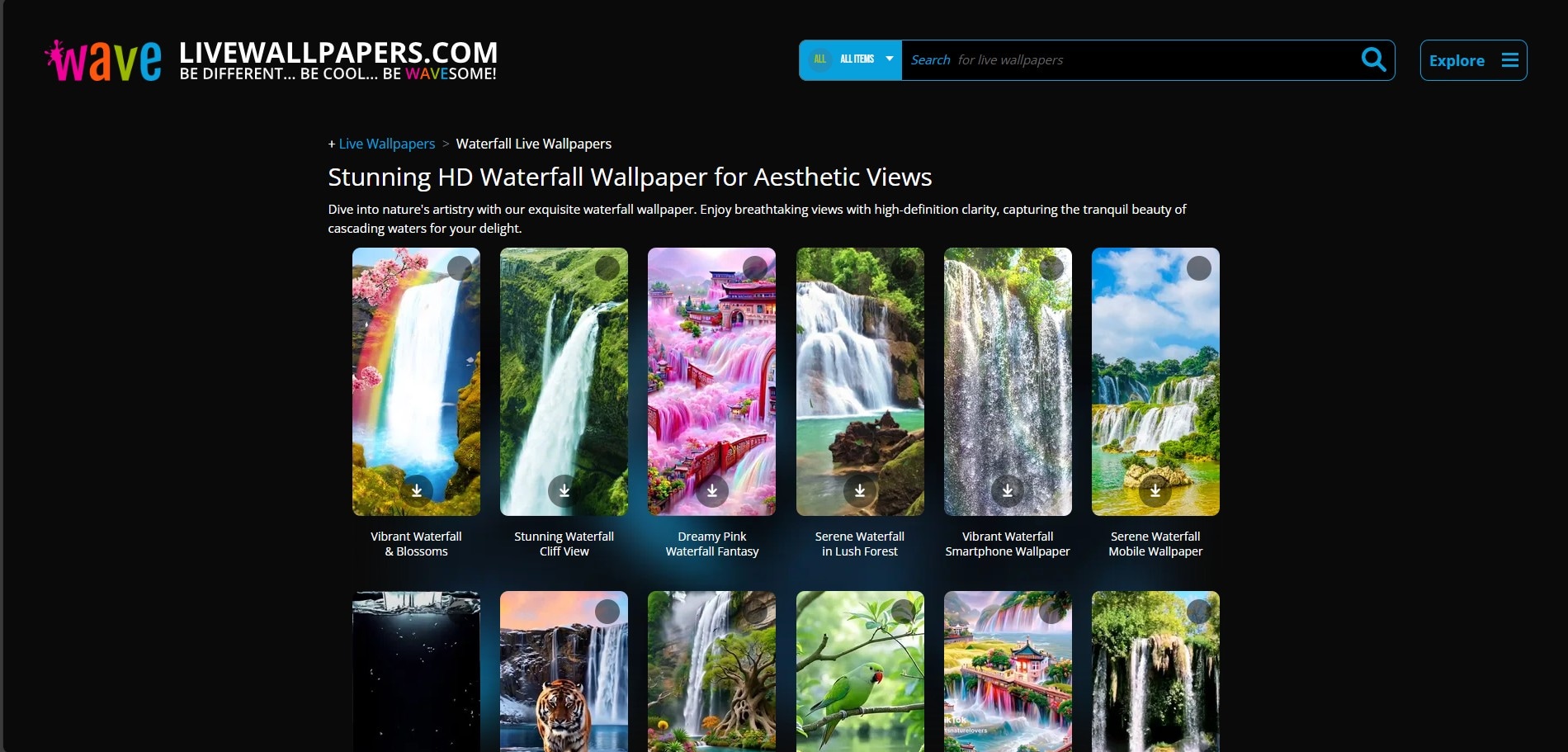
Pricing and Limitations: Free. Most wallpapers are free for personal use. The rest may prohibit redistribution or commercial use. The library is updated less frequently than larger stock sites.
4. Waterfall Live Wallpaper App on Android
This dedicated Google Play app provides convenience. It houses many moving waterfall wallpapers in one place, including the waterfall. It comes with customization like adjustable flow speed, filters, and effect settings.
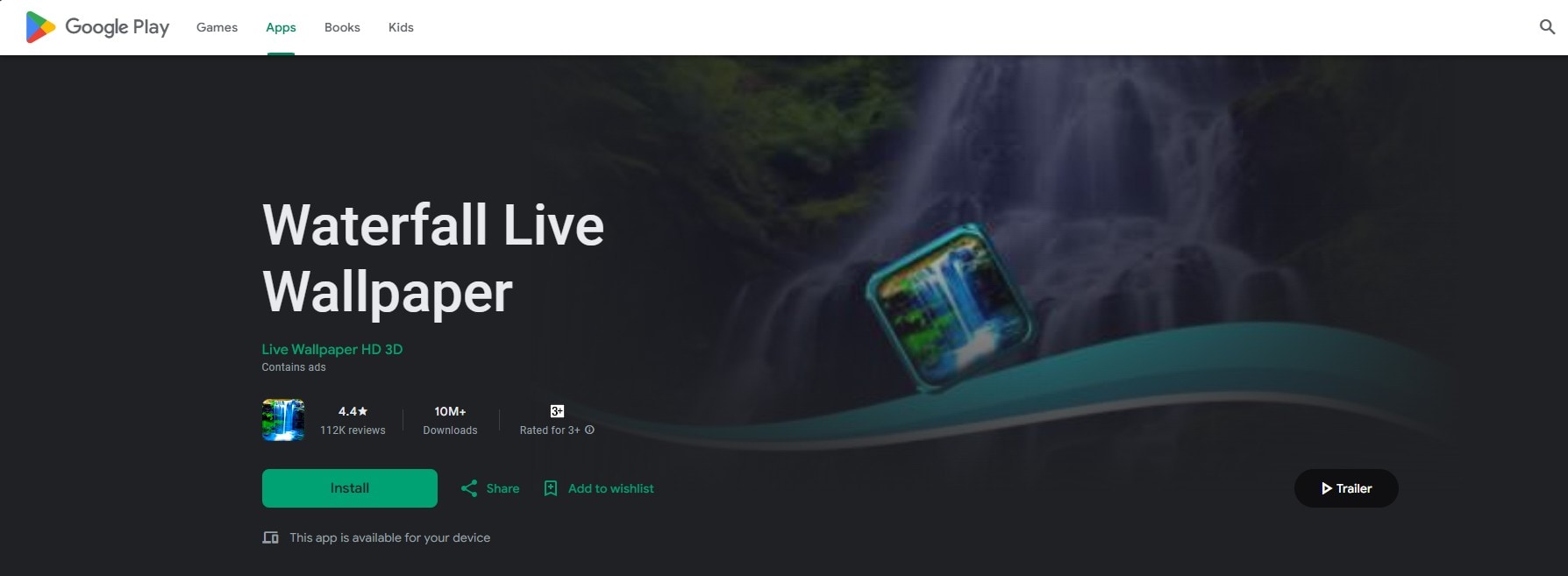
Pricing and Limitations: Free with Ads. The base app is free but displays ads. A small fee can unlock all wallpapers and remove ads. The simplest solution for Android users, but it can be a significant drain on battery life compared to a simple video loop.
Why isn't my live waterfall wallpaper working?
If your waterfall animation is stuck or won't play, check these common issues:
1. File Format Conflicts
- iPhone: iOS is very picky. A standard MP4 will only work as a static image. You must convert it to a Live Photo or use Filmora's native Live Photo export.
- Android: Many older Android versions require a specific "Video Wallpaper" app to run MP4s as backgrounds.
- PC: Windows does not support MP4 backgrounds natively. You will see a black screen or a static image unless you use a third-party engine.
2. Low Power Mode
On both iPhone and Android, "Battery Saver" or "Low Power Mode" usually disables all animations, including live waterfall wallpapers, to save energy. If your waterfall isn't moving, check your battery settings.
3. Hardware Limitations
Older devices may struggle to render 4K animated waterfall files. If your phone feels hot or the wallpaper is laggy, try exporting your Filmora project at 1080p instead of 4K. Live photos usually require a special format and may need conversion tools. Or, you can animate it again with Filmora and export it in a live photo format.
Part 3. How to Set the Live Waterfall Wallpaper on Your Computer or Phone
Now that you have your live waterfall wallpaper ready, you can set it up on your devices.
How to Set Up Live Wallpaper on PC/Mac
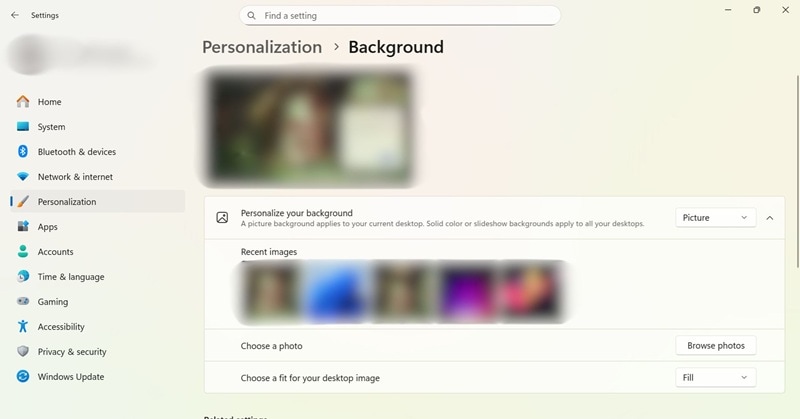
- On Windows: Go to Settings > Personalization > Background. Select Video from the Personalize your background button. Then click Browse videos to find your MP4 file.
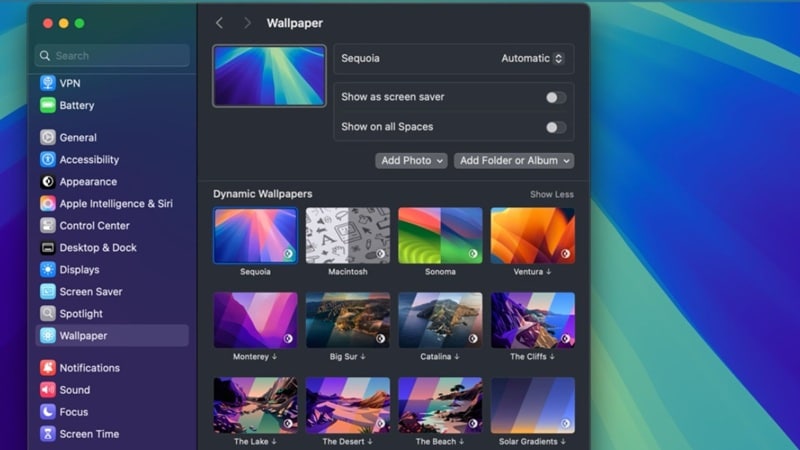
- On macOS: Go to Settings > Desktop Background or System Settings > Wallpaper. Set the “Dynamic Wallpapers” and add your own video.
- 3. Using Wallpaper Engine: On some series, Mac and Windows don't natively support animated waterfall images to set as a wallpaper. You will need this third-party application to apply the live waterfall wallpaper you just created or downloaded. Simply add your MP4 file to the library and apply it.
How to Set Up Live Wallpaper on iOS & Android
On iOS:
- Go to Settings, choose Wallpaper, and click Choose a New Wallpaper.
- Tap "All Photos" and select your Live Photo.
- Pinch or zoom to adjust framing, then tap Add.
Android (Steps may vary):
- Long-press on any area on your home screen.
- Select "Wallpapers," "Styles," or a similar option button.
- Find Live wallpapers or the My videos section.
- Select your MP4 file, tap Set wallpaper, and choose whether for Home screen, Lock screen, or both.
Conclusion
By following the steps above, you can now create and correctly set your animated waterfall wallpaper. Once it's in place, you can ensure a flawless, looping moment of tranquility every time you glance at your screen.
Using Filmora, you can animate a waterfall image, generate a scene from a text prompt, or fine-tune the flow and movement until it looks natural. It also makes exporting easy, so your wallpaper works properly on both mobile and desktop.
Embrace the flow and let your personal style and serenity shine through!


