100% Security Verified | No Subscription Required | No Malware


 ChatGPT
 Perplexity
 Gemini
 Claude
 Grok
Grok
Ever captured a moment that deserves to move — like a smile, a wave, or a sunset breeze? With the right video-to-Live Photo converter, you can transform any clip into a dynamic, touch-activated memory.
In this guide, we'll show you:
- The best online tools to convert videos into Live Photos within seconds
- Filmora's offline method for higher quality output and more creative control
- Practical tips, side-by-side comparisons, and FAQs to help you pick the best option
Whether you're creating animated wallpapers or sharing aesthetic motion shots on social media, this article will walk you through everything you need to know — clearly, simply, and visually.
In this article
Part 1. Best 3 Video to Live Photo Converter Online Tools
To transform videos into dynamic photos with motion and sound, explore the curated list mentioned below of video to Live Photos converters online:
1. Img2Go
Do you want to convert your cherished video into Live Photos without any hassle? Utilize Img2Go to craft immersive images and short clips, preserving both audio and motion without losing their quality.
With its extensive range of photo editing options, like image compression and resizing, you can create trending content as per your requirements. Let's have a look at the provided guide to learn how to use the video to Live Photos online converter:
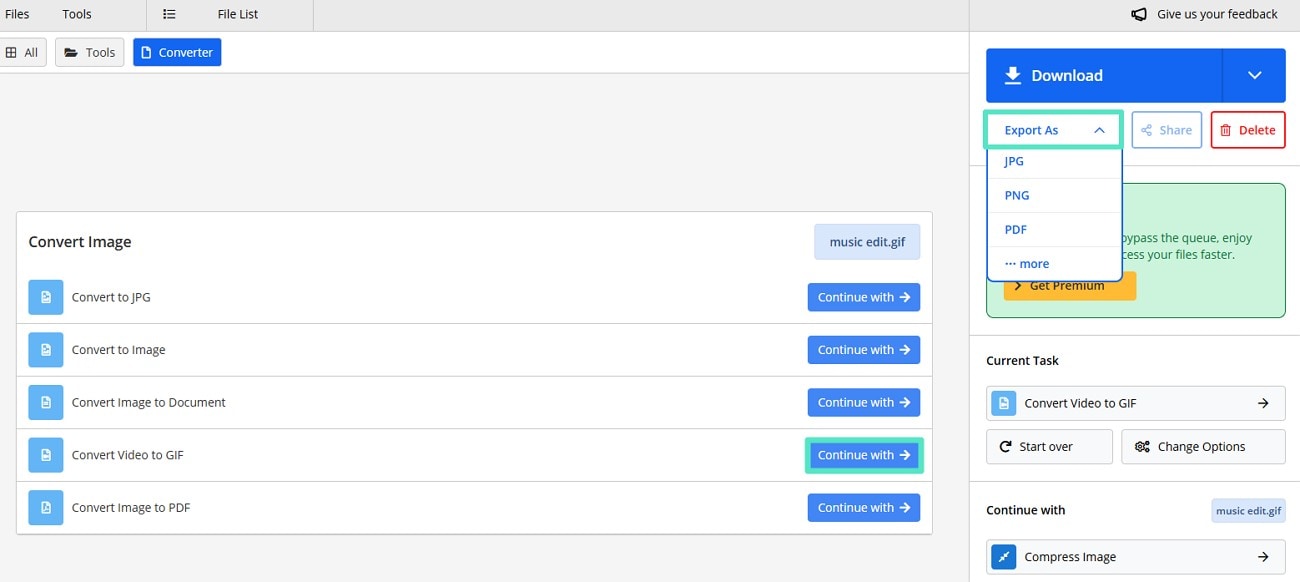
Step 1. Begin the process by clicking on the "Choose File" button to upload a video after accessing the tool from your web browser.
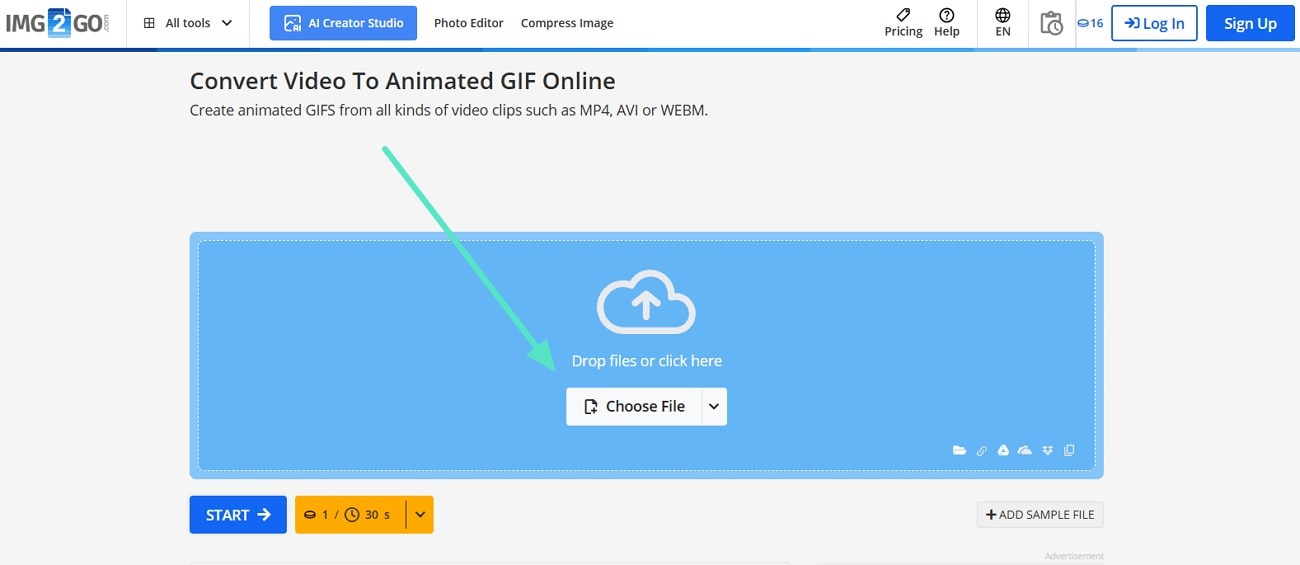
Step 2. Moving forward, enhance your Live Photos by choosing options such as color filters and frame rates to achieve the required outcomes. Hit the "Export As" button and navigate to the "Convert video to GIF" option to tap on the "Continue With" button to save results for offline use.
Limitations
- Security risks: Users hesitate to upload files due to concerns of unauthorized access.
- Connectivity issues: Users may face delays or incomplete uploads during conversion.
- Internet dependency: The tool requires a stable internet connection to function properly.
2. Ezgif
Bring photos to life by using the Ezgif video-to-Live Photo converter online, as it offers multiple formats to upload video, including OGG, MOV, and 3GP.
Users can refine output quality by adjusting playback speed and the beep sound effect to replace audio words. Discover the process of Live Photos creation with the following guide:
Step 1. Access the tool on the web to click on "Choose File" to upload a video from your device.
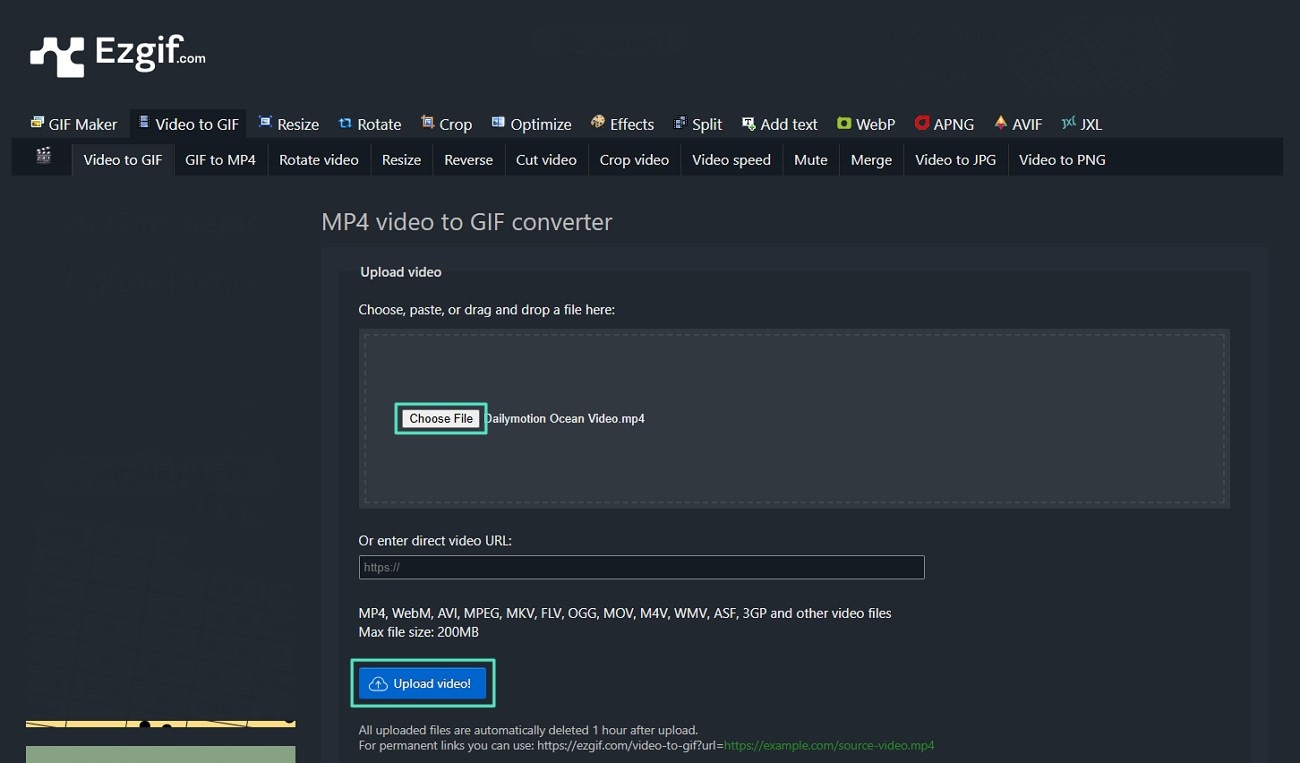
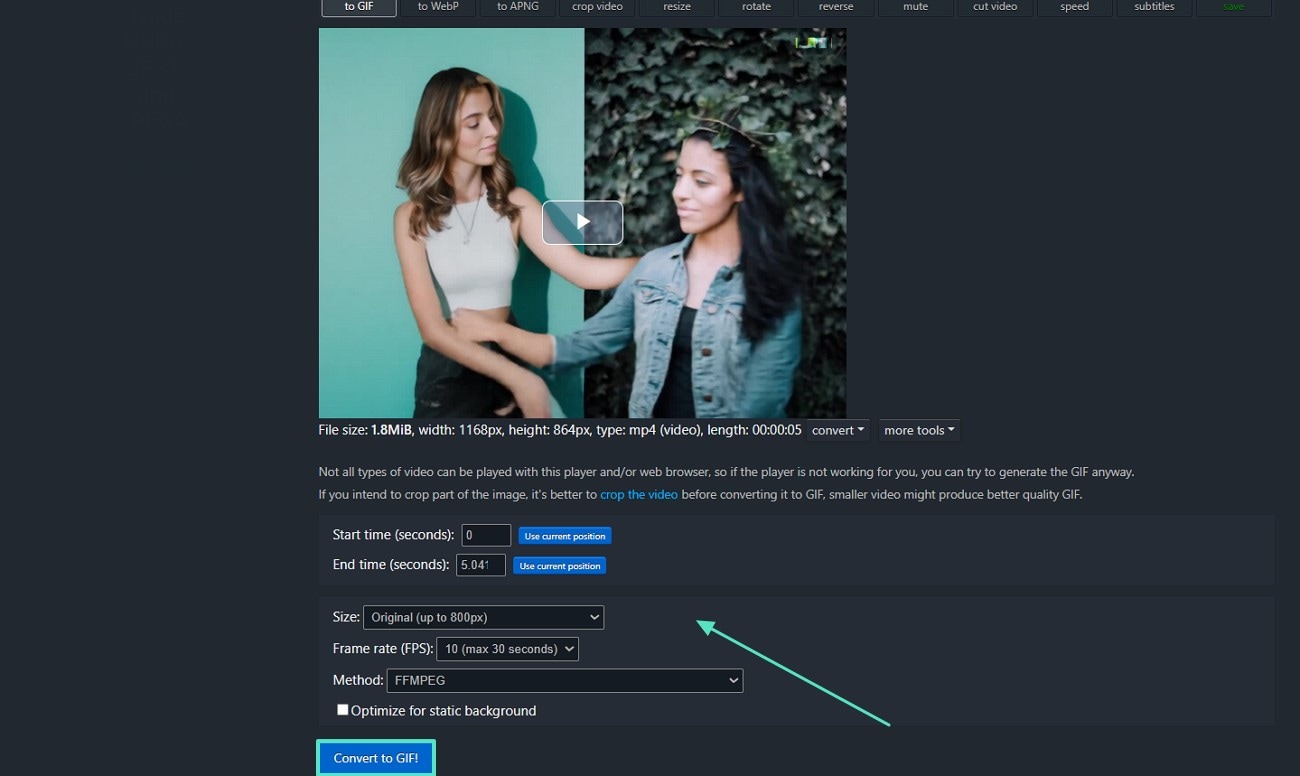
Step 2. Adjust the editing settings of the tool, such as size and frame rate, and hit the "Convert to GIF" button.
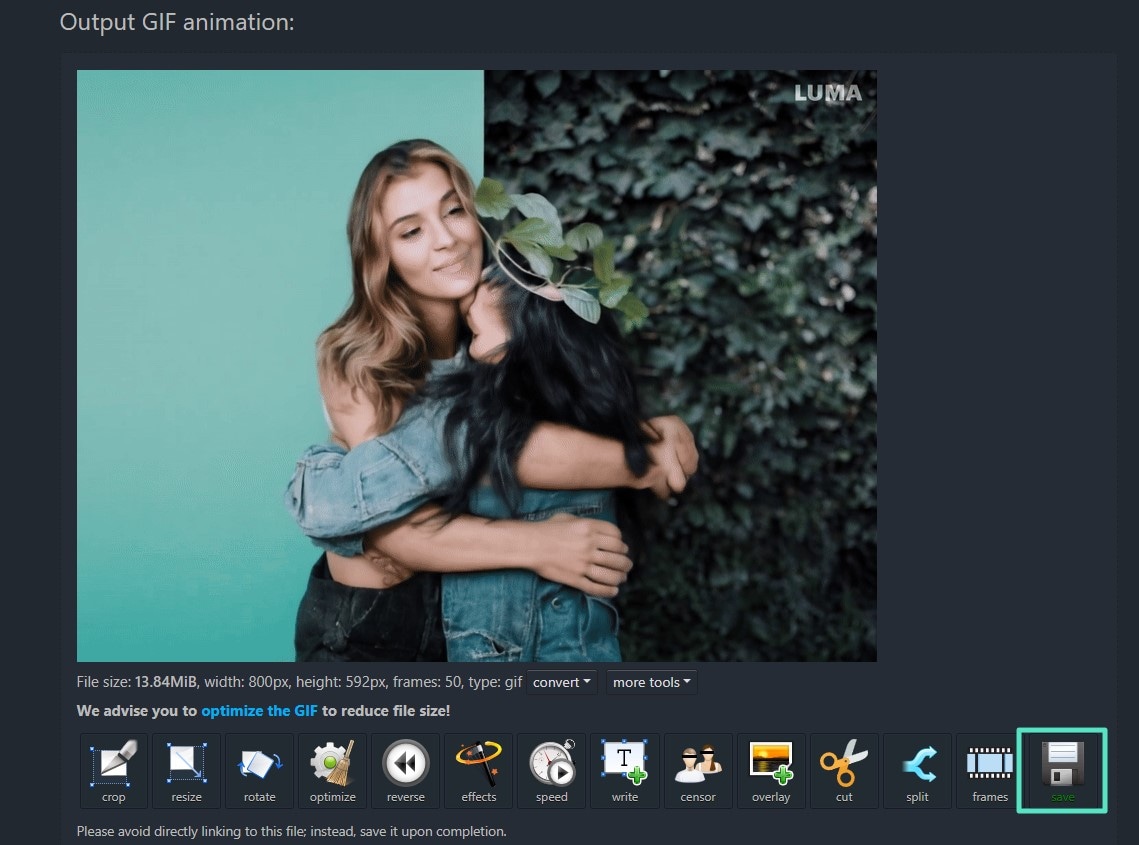
Step 3. In the last step, tap on the "Save" button from the provided options to download the file for later use.
Limitation
This tool does not support batch processing, so users have to execute each file individually, which can be time-consuming for them. Additionally, you can't utilize cloud-based storage within this converter, resulting in an insufficient and annoying user experience.
3. Clideo
Users can create live pictures from scratch using any media across Clideo, whether it's a video of cats or a collage of photos using a video-to-live photo convertor. Its caption feature for Live Photos allows users to create text within images to personalize their creations.
Turn the video into a live photo online by following the steps mentioned below:
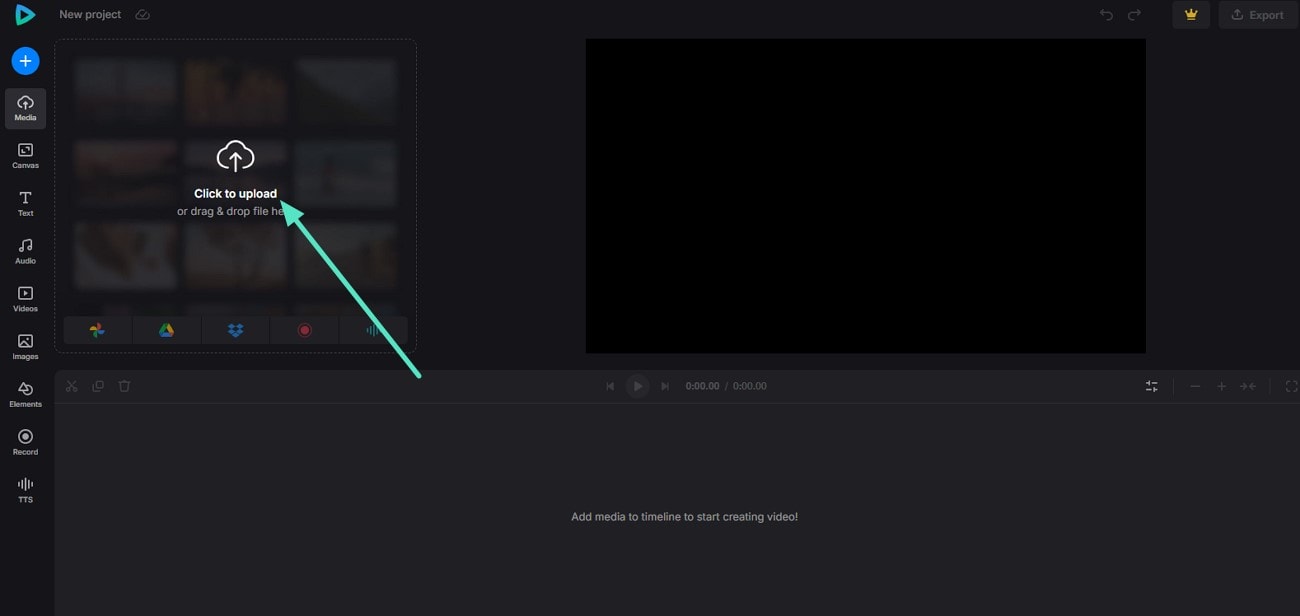
Step 1. To upload a video, navigate to the tool in your browser and tap on "Click to Upload."
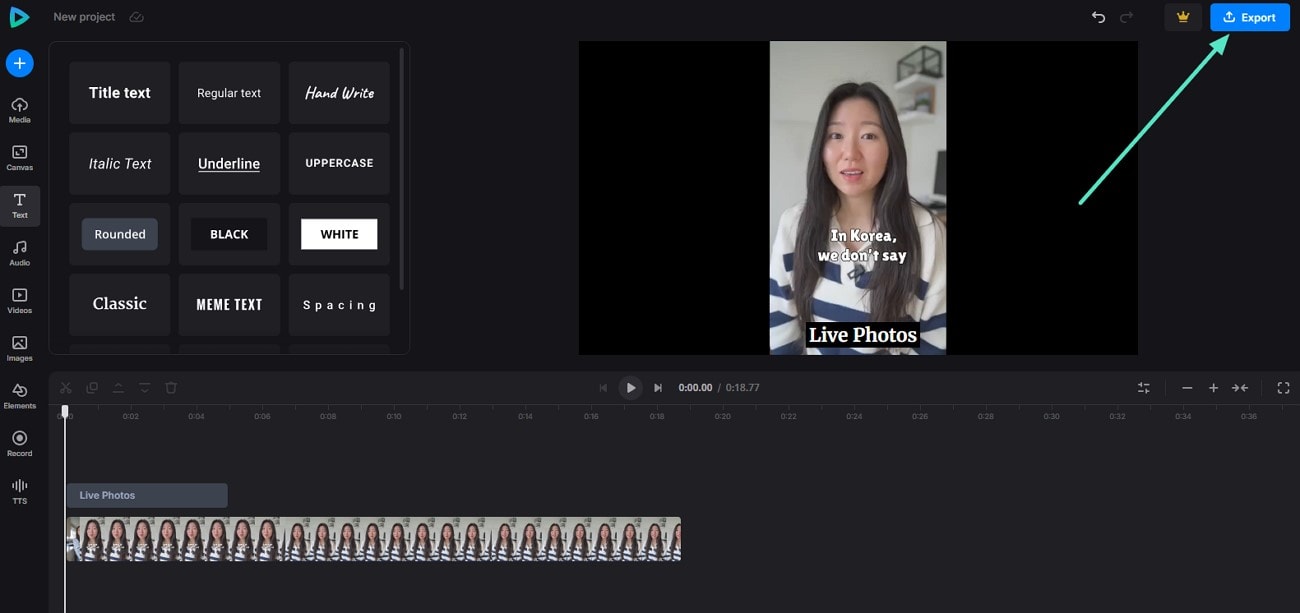
Step 2. Once your video is uploaded, edit your video using the left panel options, including text, canvas, and images. After the achievement of the desired result, hit the "Export" button to execute the process.
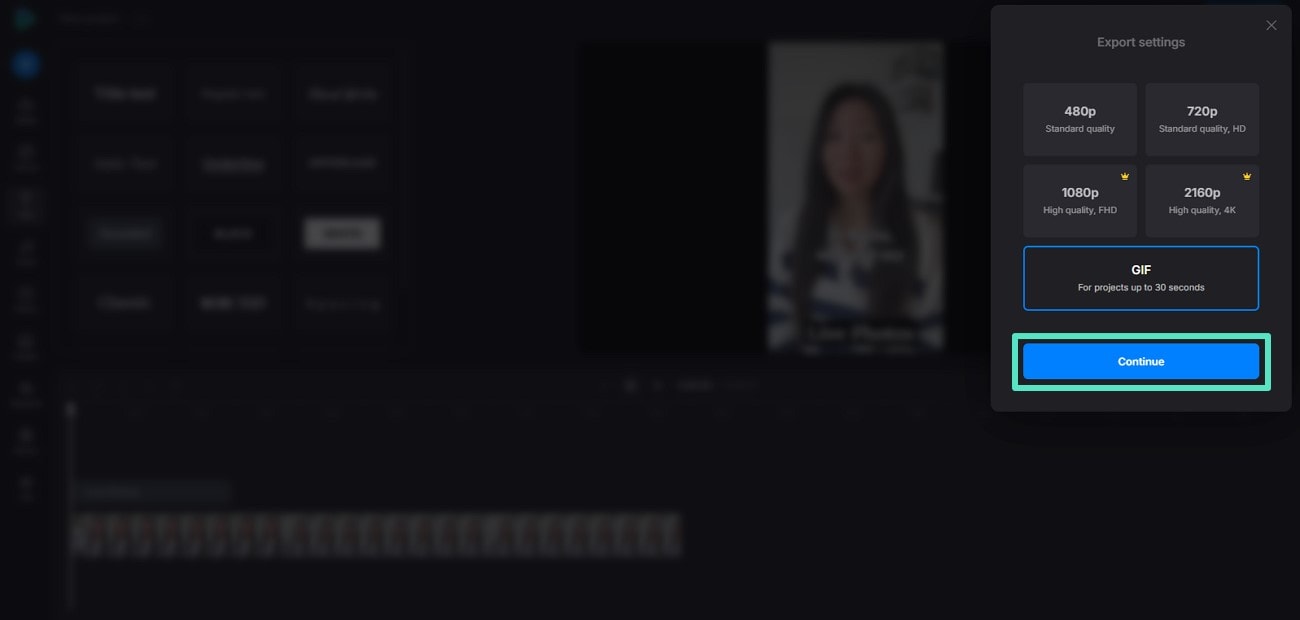
Step 3. In the following interface, choose your required image quality from the options and tap on "Continue" to download the live photo.
Limitation
This converter takes a long time in file processing, especially when large files or high-resolution images are added. Additionally, Clideo contains fewer editing features, like trimming and resizing, and lacks motion tracking and AI-powered customization, making it limited for professional editing.
Why Online Converters Fall Short
📌 Note: Most online tools only support Video → GIF, not Video → Live Photo. So if your goal is creating custom animated wallpapers or sound-enabled motion content, this method may feel restrictive.
GIF vs. Live Photo — What's the Difference?
| Feature | GIF | Live Photo |
| Sound | No audio | Supports sound |
| Motion Style | Basic loop animation | Smooth motion, realistic feel |
| Editing Control | Very limited | Effects, filters & AI enhancements |
| Best Use | Memes, reactions, short fun clips | Dynamic wallpaper, aesthetic content |
| Compatibility | Works anywhere | Designed for iPhone experience |
Most online converters are slow with large or high-resolution files and offer only basic editing tools like trimming and converting. They lack advanced features such as AI enhancements, motion tracking, or creative templates, making them unsuitable for professional or visually polished results.
If you want to go beyond basic GIF conversion and actually turn a still image or video into a Live Photo with cinematic motion, Filmora Mobile provides a fast and creative solution — and you can export directly as Live Photo for iPhone use. Next, let's see how Filmora Mobile makes it possible ⬇️
Part 2. Wondershare Filmora - The Best Offline Video to Live Photo Generator
Using Video to Live Photos converters online often results in blurry or low-quality outputs, especially when exporting content as GIFs. While Wondershare Filmora has long supported high-quality GIF exports, it now offers a more powerful solution.
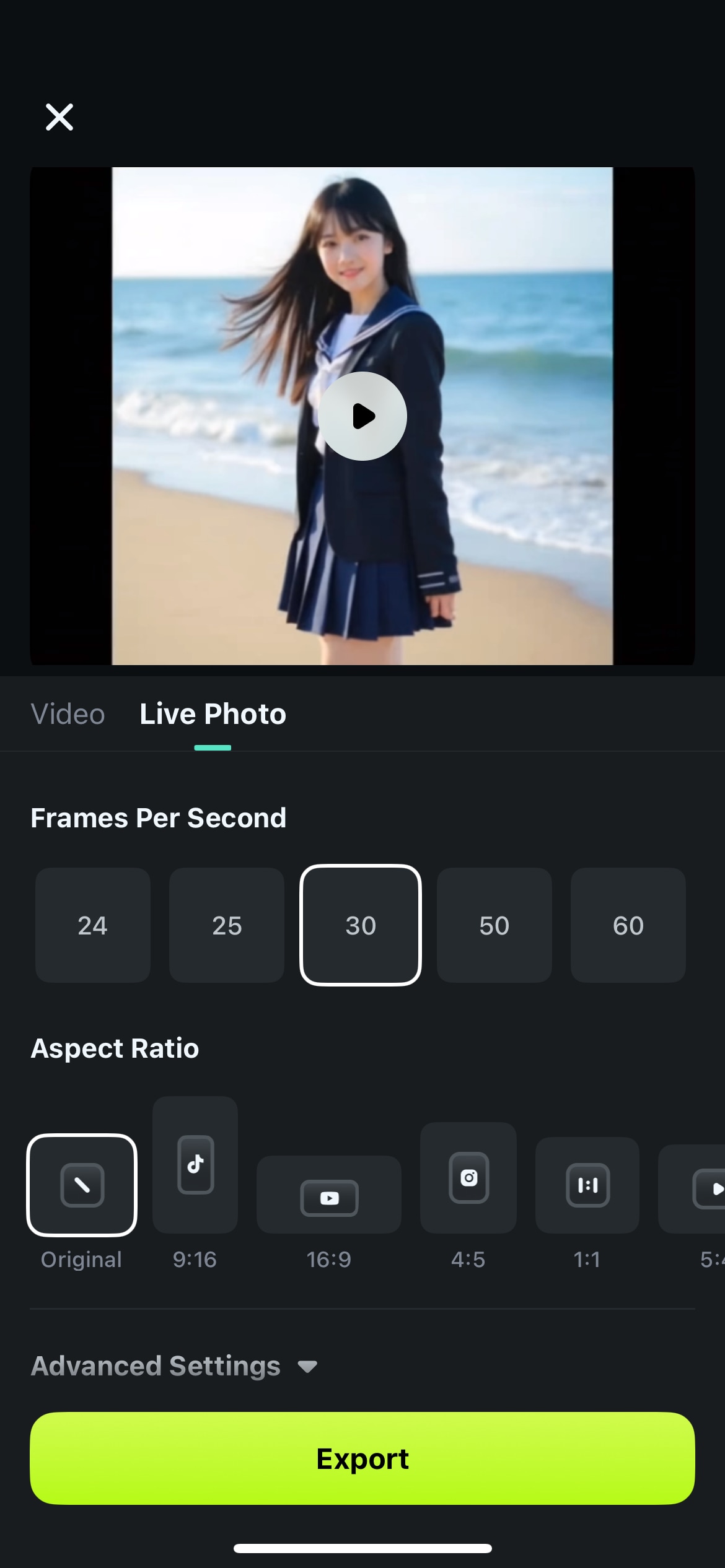
With Filmora's Video to Live Photo Generator, you can easily convert your videos into Live Photos on your iPhone, preserving motion, sound, and every dynamic detail that makes a moment memorable. This tool allows exporting Live Photos of up to 5 seconds, giving creators more expressive ways to share their stories.
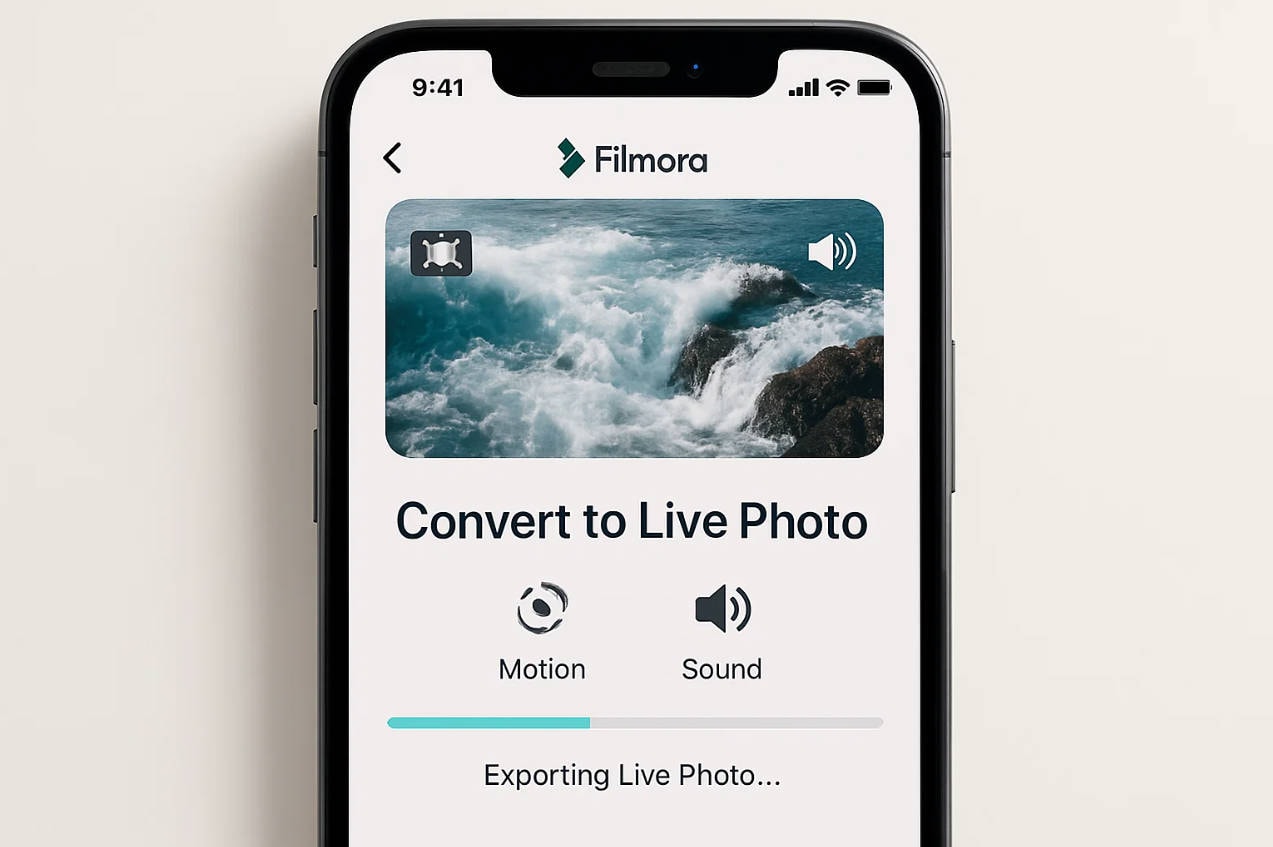
Filmora also understands the needs of Apple users who want to share Live Photos online or turn short clips into fun, animated images. That's why it's preparing an update tailored for video to Live Photos online conversions—fully optimized for Apple's format and high-quality export standards.
 Secure Download
Key Features of Filmora's Video-to-Live Photo Converter
Here are the features Filmora is bringing to the table with its video to Live Photos converter accessibility:
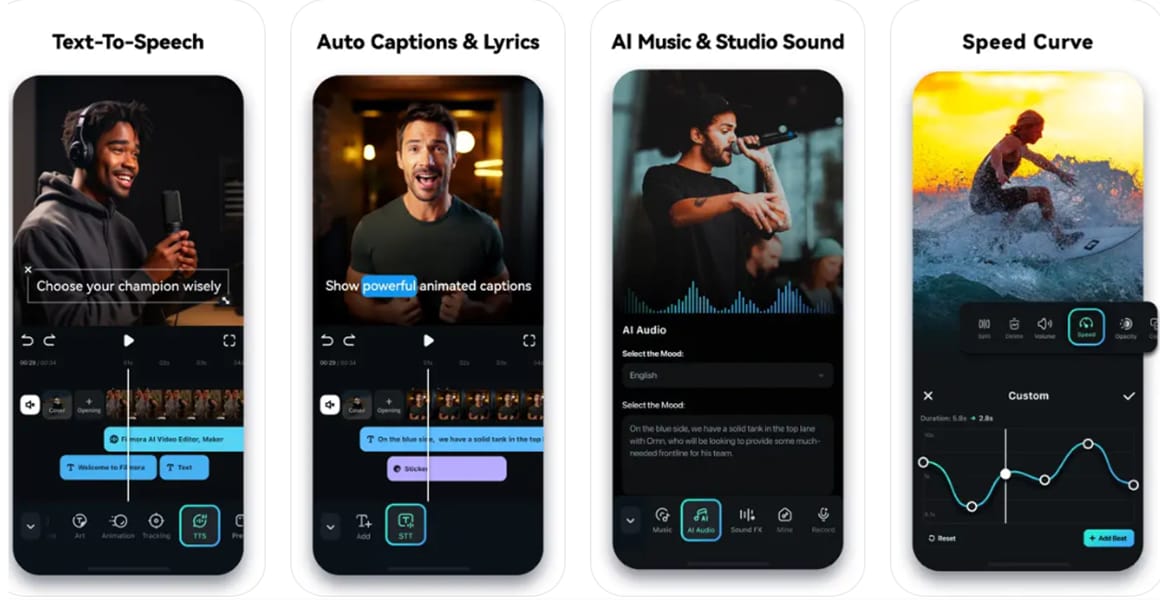
- Advanced Trimming: Precisely cut the best part of your video to turn into a Live Photo, ensuring only the most memorable moment is preserved and exported.
- Speed Control: Adjust playback speed to create dramatic slow-motion effects or fun fast-motion clips before converting them into Live Photos.
- Color Correction: Enhance or change video colors to match your style, or create multiple versions of a Live Photo to share with friends.
- iPhone Compatibility: Exported Live Photos are fully optimized for iPhones, allowing easy sharing via WhatsApp, iMessage, or AirDrop.
✨ Bonus - AI Image-to-Video With Nano Banana Pro
Forget basic GIF converters — with Filmora Mobile + Nano Banana Pro, you can turn a static photo into a cinematic, motion-filled clip that's perfect for social media or exporting as a Live Photo on iPhone.
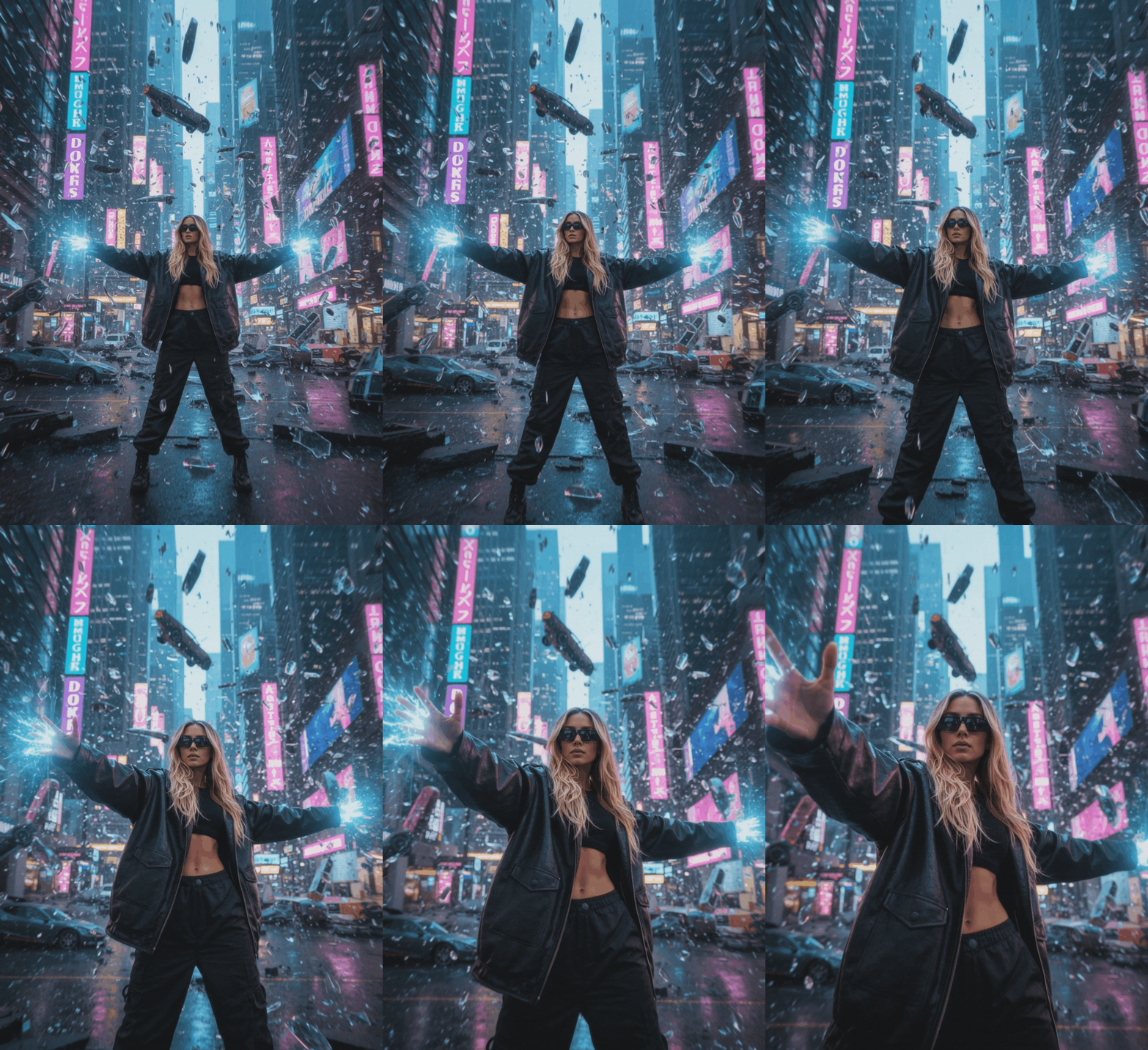
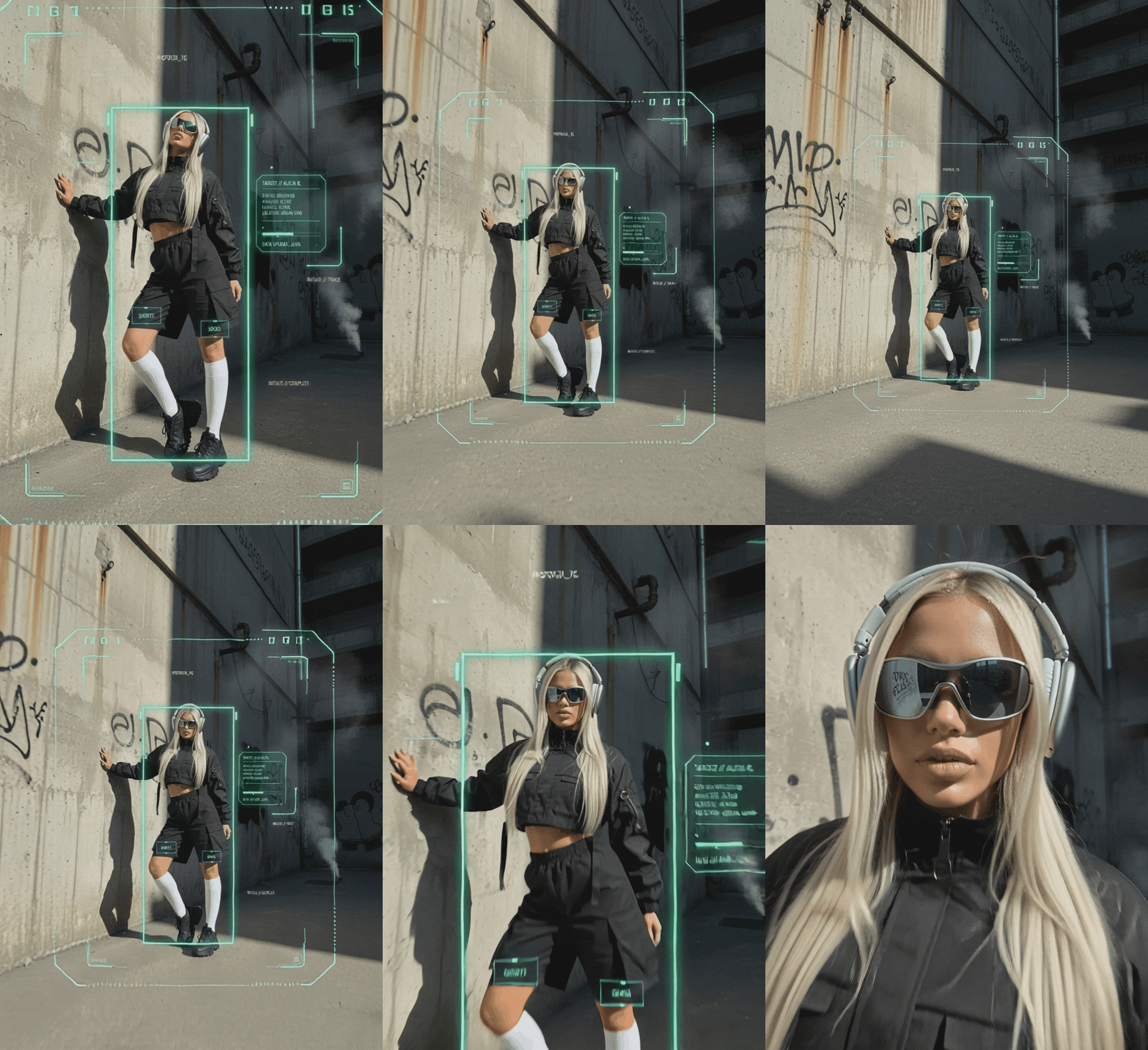
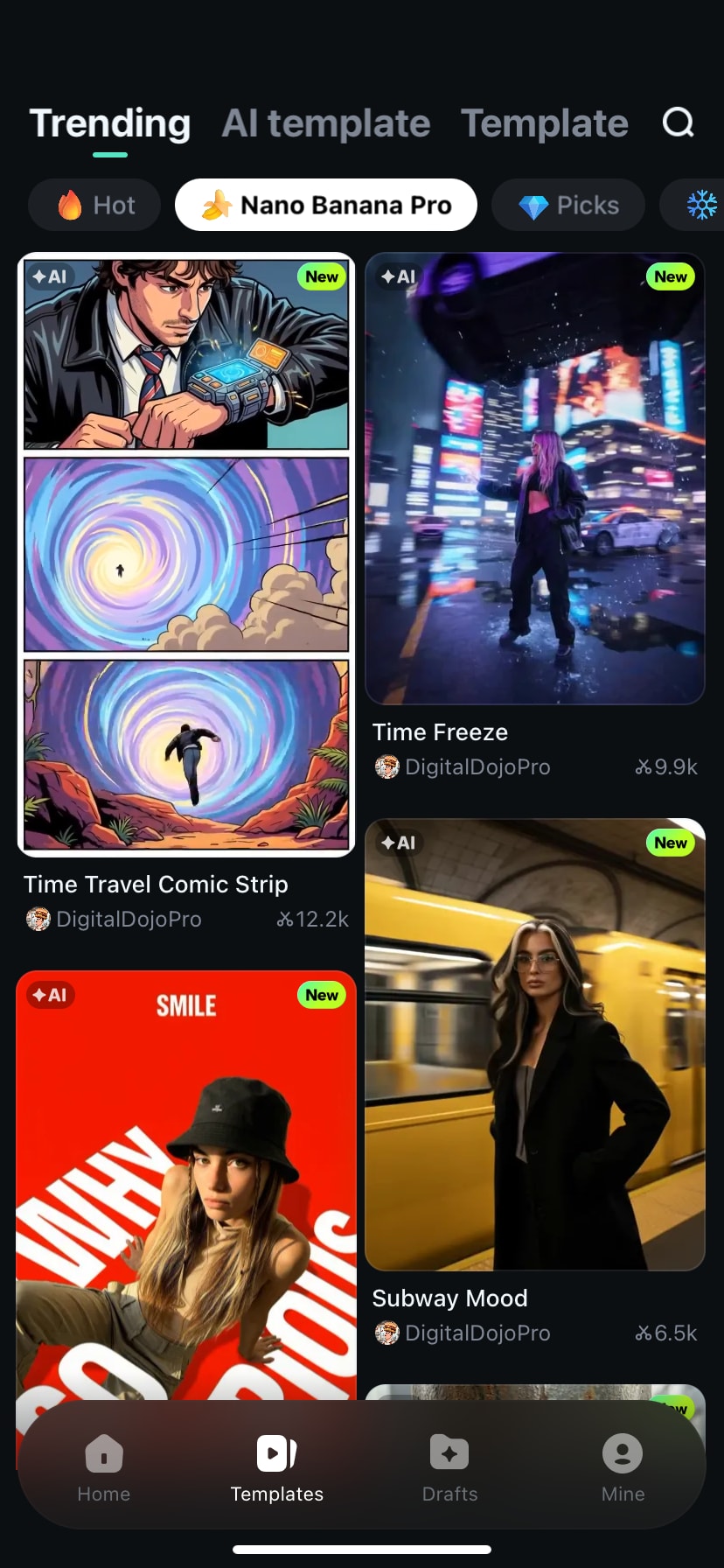
The app offers a variety of ready-made templates, including styles like Fashion Portrait Poster, HoloPole Sticker, and Life in Collage, so you can instantly bring your photos to life.
- Phone Stage
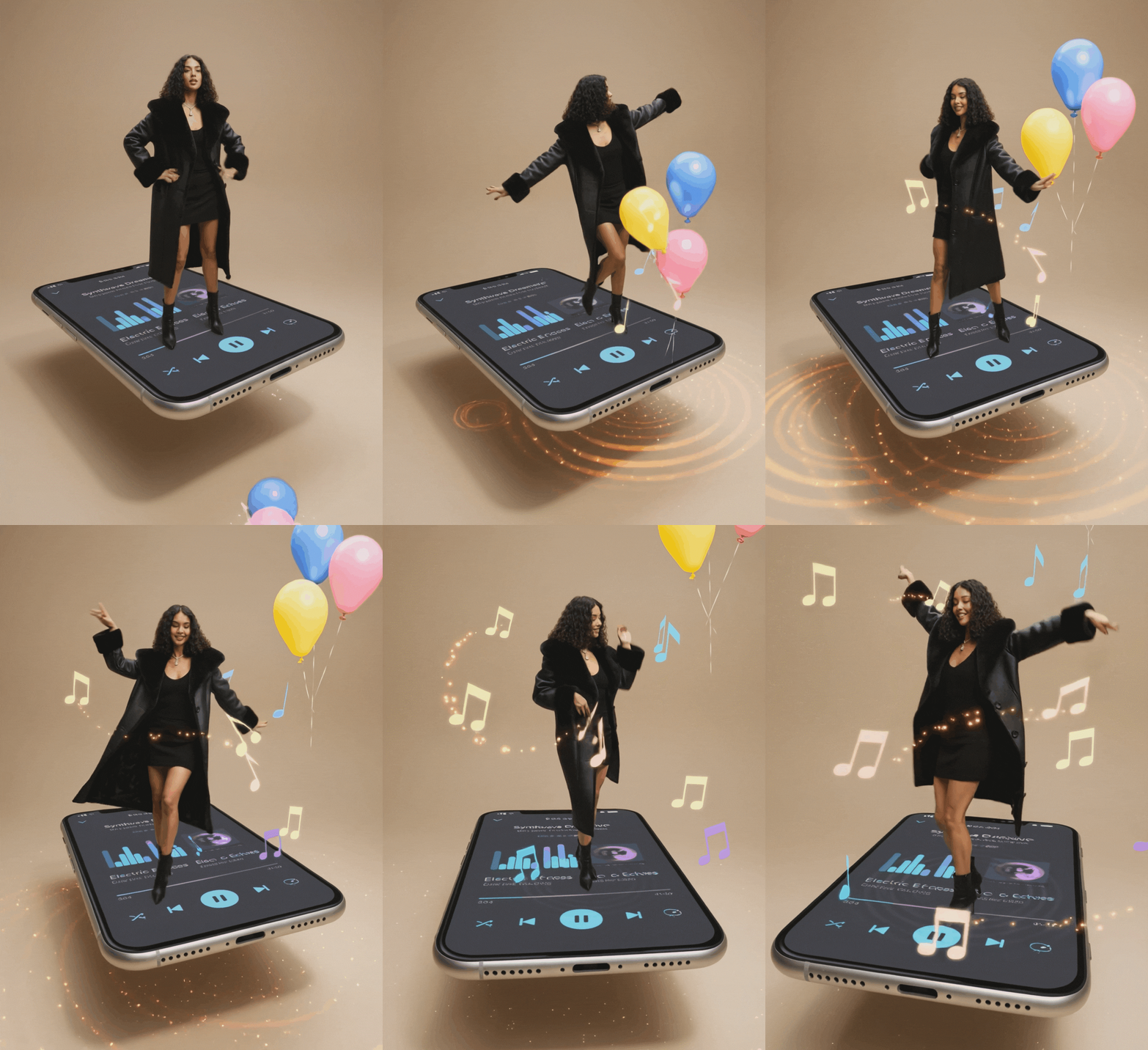
- Time Freeze
- Cyber OOTD
 Secure Download
Next, let's walk through the step-by-step process so you can create your own Live Photo with Filmora Nano Banana Pro Template in minutes.
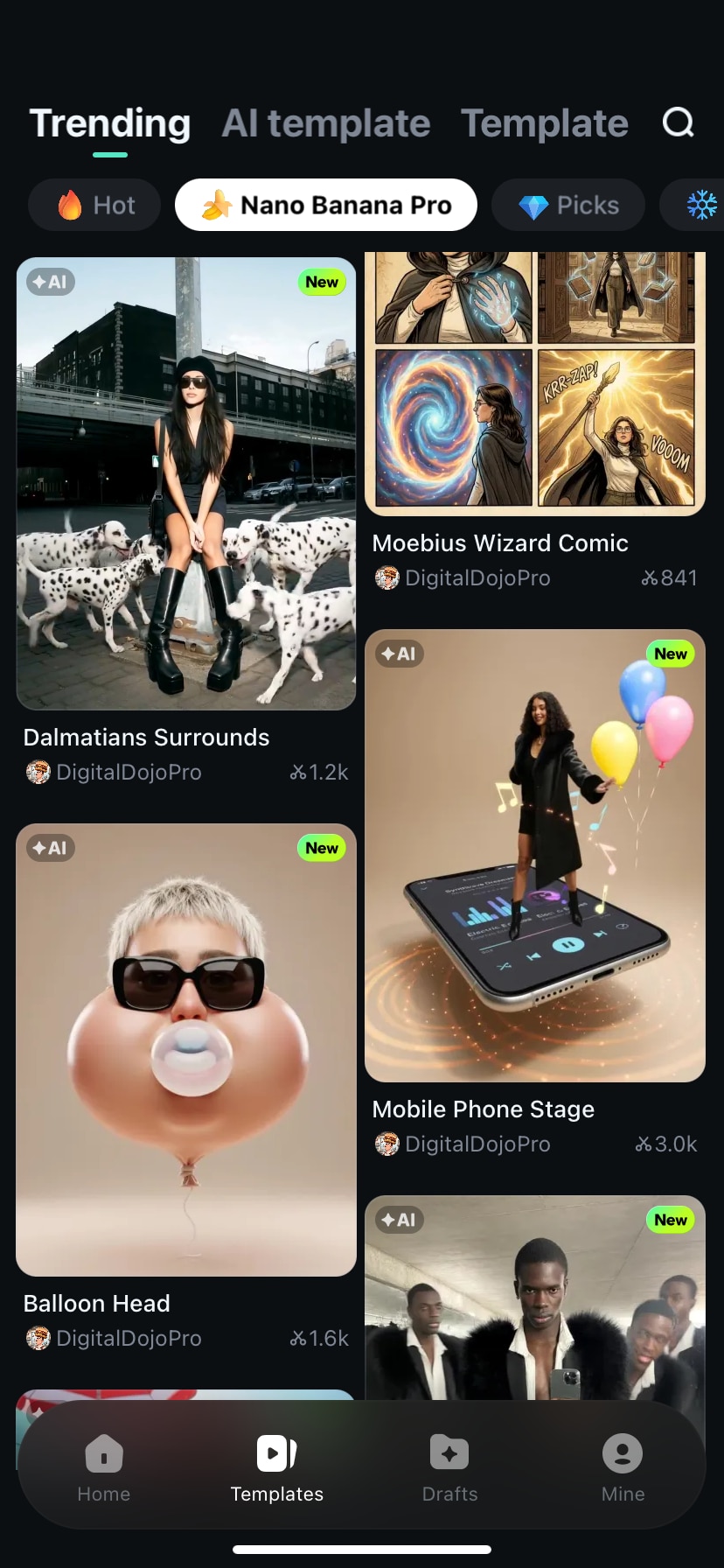
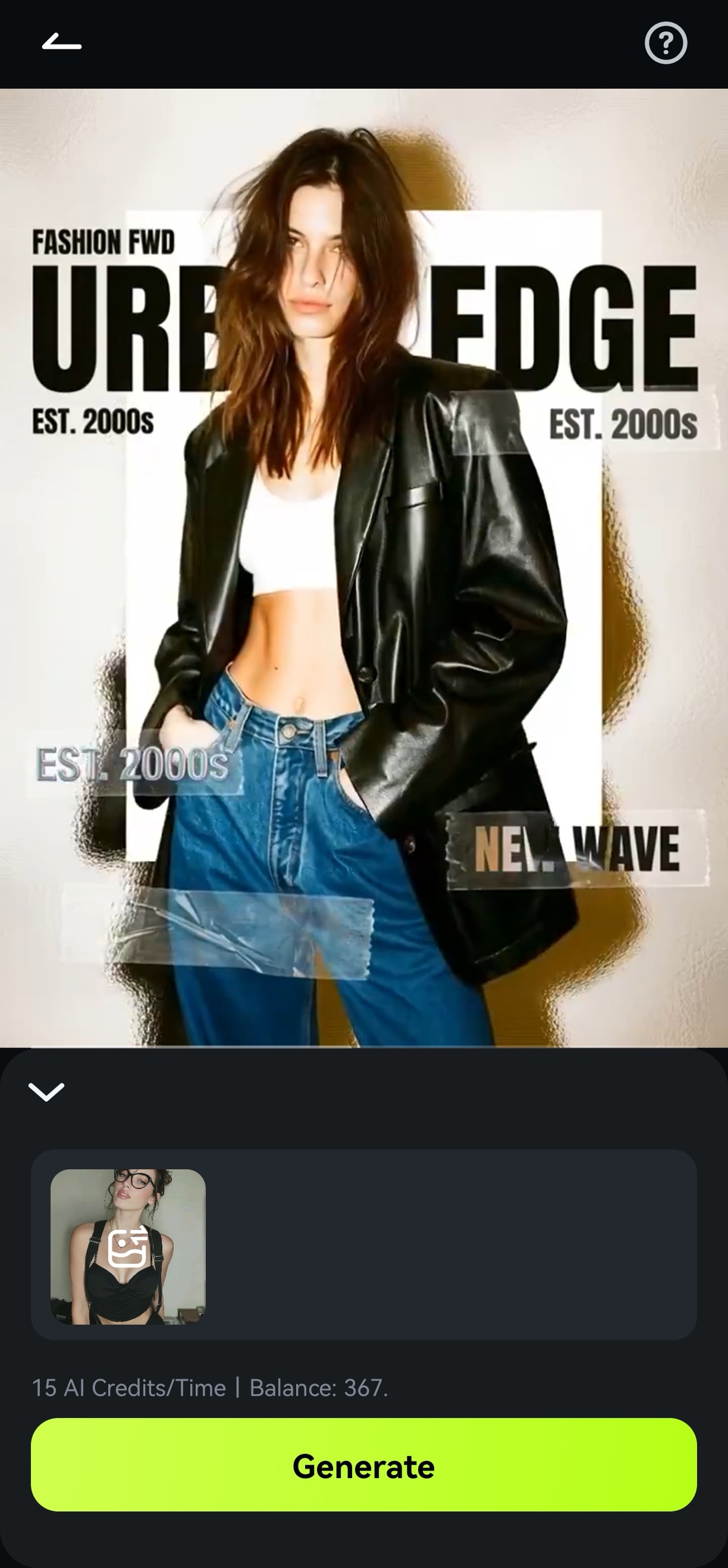
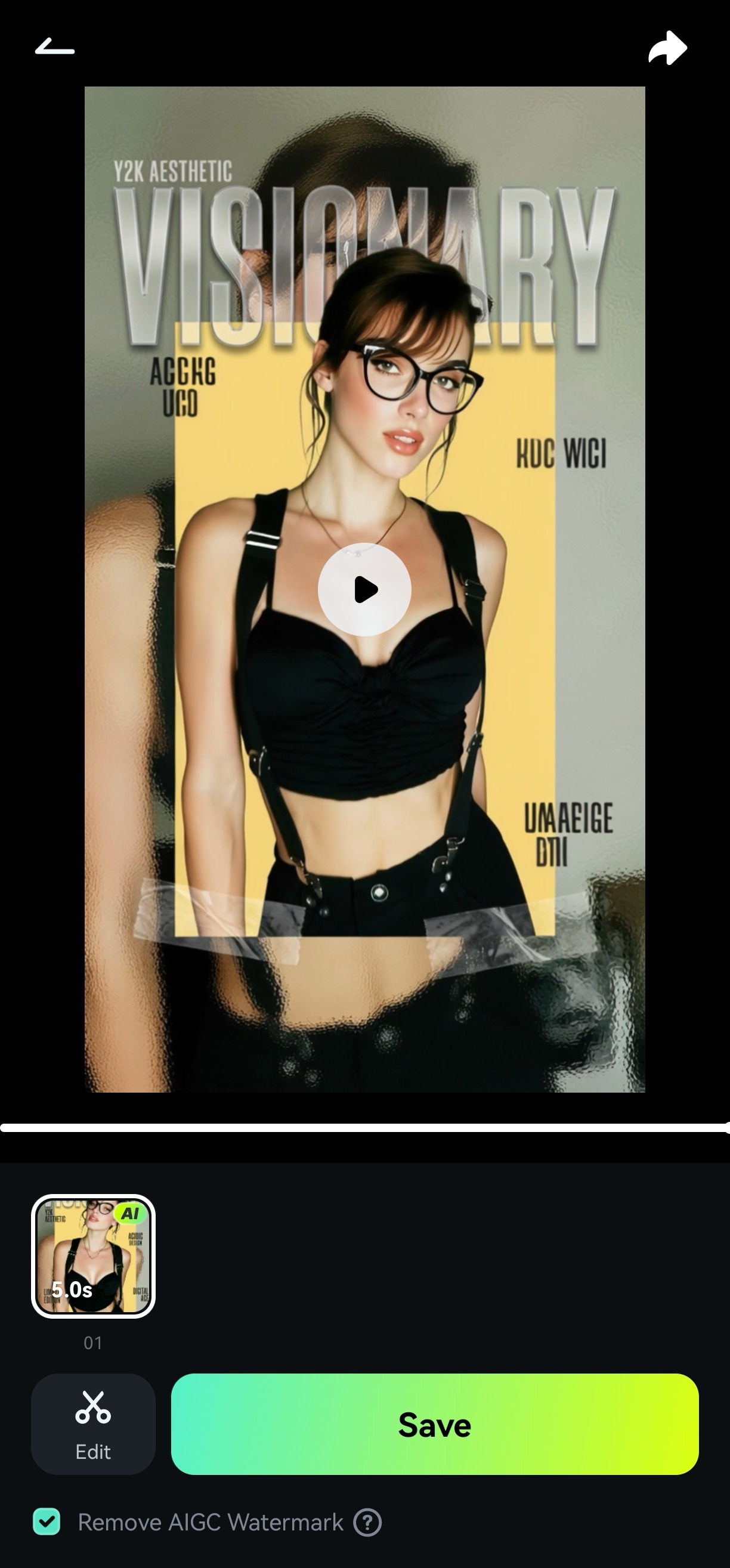
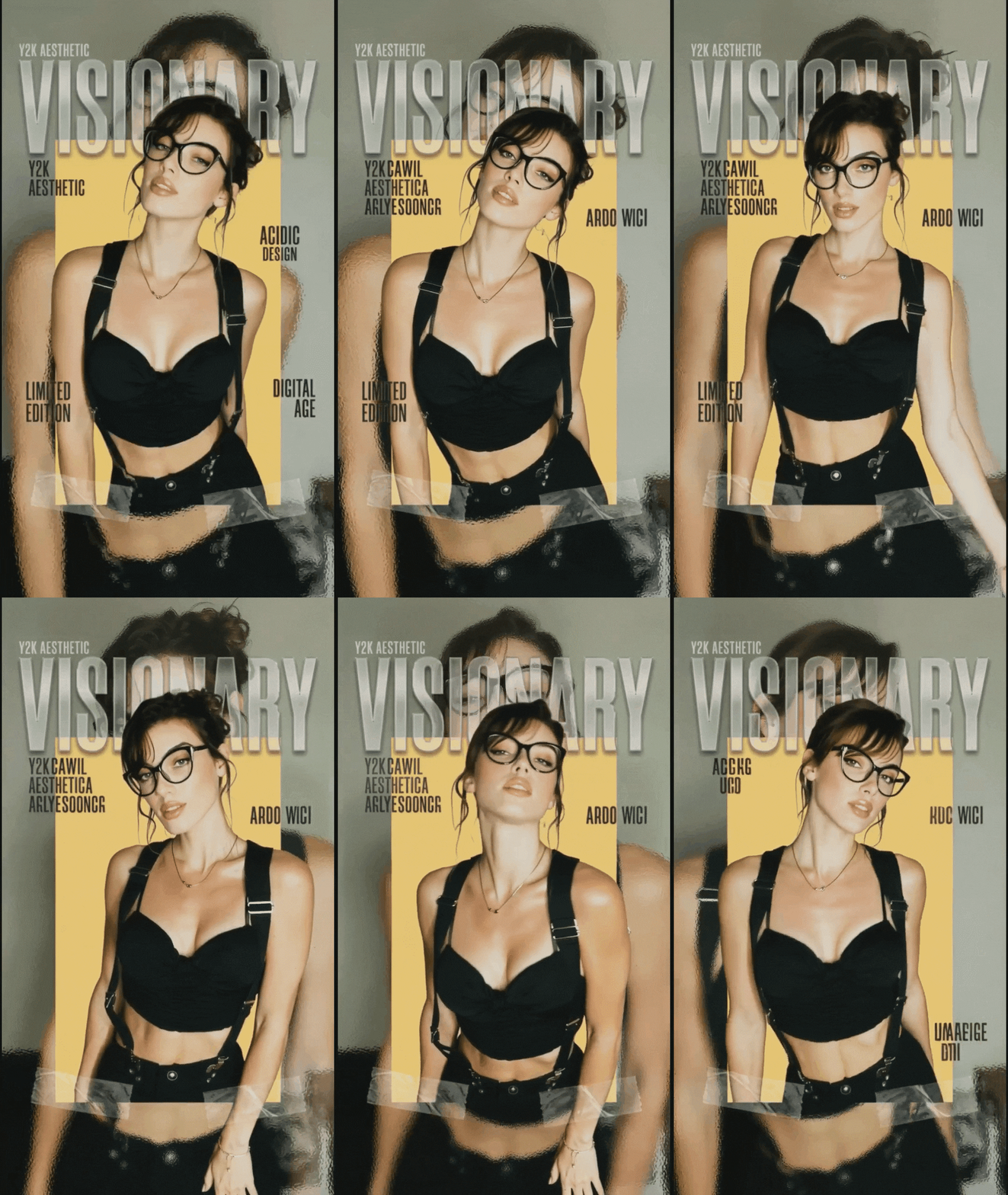
This workflow shows a major advantage over basic online converters: no video file needed, no manual editing, and the output is far richer than a simple looping GIF. Want to see it in action? Check out this demo video for a quick walkthrough:
Secure DownloadWhy Choose Filmora?
With Filmora on hand, sharing engaging generated videos directly from the tool to social platforms like Facebook, Instagram, or Twitter will be possible. Especially, this turn video into Live Photos online tool is perfect for individuals using iOS devices and frequently using Live Photos for different purposes. Users won't need to send the visuals that don't look stunning to the trash box, since they could add different filters to fine-tune them.
Part 3. Online or Offline - What's the Best Way to Create Video from Live Photos?
Having discussed both online and offline tools in detail above, let's now discuss which one user must go for:
| Scenario | Details |
| For Quick Conversions | When on a tight schedule and only requiring basic-level editing, an online tool can help you save the day. It will convert your short videos into Live Photos in seconds, and you won't need to download the tool first to get started. |
| For Offline Access | If you lack a stable internet connection, online tools may fail to help. However, with an offline tool, you can convert your videos into Live Photos whenever you want without worrying about an internet connection. |
| Professional-level Editing | Users demand advanced color correction, perfect lighting via filters, and sound optimization. Therefore, Filmora, a desktop-based tool, offers professional-level editing and customization to cater to their demands. Moreover, you can also turn still images to fun videos here! |
| AI-based Editing Features | In case you need AI-based editing features to convert video to Live Photos online, turn to Filmora. This platform enables you to enhance your Live Photos with smart effects, automated motion adjustments, and sound speed, making your final output next-level. |
Part 4. Discussing The Potential Use Cases of Converting Video to Live Photo
In today's digital landscape, dynamic visuals are essential to convert video into a live photo while preserving a unique blend of movement within a still image. Let's delve into the practical use cases where video-to-live photo conversions are incredibly beneficial.

- Personalized Wallpapers: transform your favorite clips—like playful pet videos or mesmerizing sunsets—into dynamic Live Photos using a video to live wallpaper converter online, turning your screen into a captivating and interactive visual experience.
- Social Media Engagement: Turn your posts or reels into Live Photos to grab more followers on your accounts by offering appealing visuals and interactive content.
- Marketing and Branding: Marketers and influencers can create content uniquely with high-quality visuals by transforming food, fashion, or product videos into dynamic Live Photos with movement and sound.
- Travel Enthusiasts: Transform your favorite travel moments into Live Photos with one click using the video to Live Photos converter online for free. Additionally, you can re-experience your adventure highlights, like sunsets or landscapes, anytime.
- Photography Enhancements: Elevate your captured nature, actions, or portrait shots into Live Photos to add life to your photography. Furthermore, utilize it to add a cinematic touch to wedding shots, creative compositions, and street photography.
Conclusion
To summarize, this article discussed video to Live Photos online and offline tools you can use to accomplish professional-level editing. One of such tools is Wondershare Filmora, which is all set up to launch its video to Live Photos feature. So, stay tuned for this feature to go live, and get ready to up your content creation game.