

 100% Security Verified | No Subscription Required | No Malware


 ChatGPT
 Perplexity
 Gemini
 Claude
 Grok
Grok
If your Midjourney results keep adding things you never asked for, you may be using your prompt wrong.
The thing is, most people only focus on describing what they want to see and leave everything else up to the AI. Since tools like Midjourney aren’t perfect, this “ambiguity” often leads to common issues such as unwanted objects in your results.
To prevent this, you can guide the AI more clearly by telling it what to exclude using Midjourney negative prompts. If you don’t know how to use it, we will break down how negative prompts in Midjourney work and how to apply them properly, so that your results look closer to what you actually want.
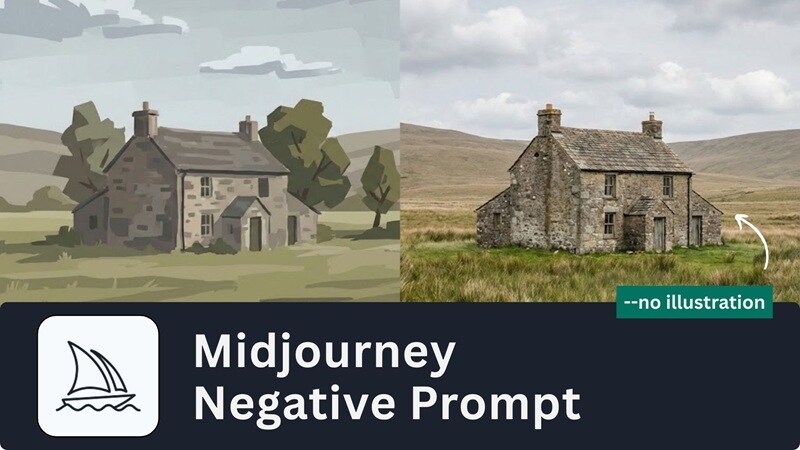
Part 1. What Midjourney Negative Prompts are Used for
Midjourney AI negative prompts are basically instructions to tell the AI what you don’t want to see in your image. They have a special role in making sure your results stay aligned with what you want to create, since they are designed to block unwanted details that Midjourney might otherwise add on its own.
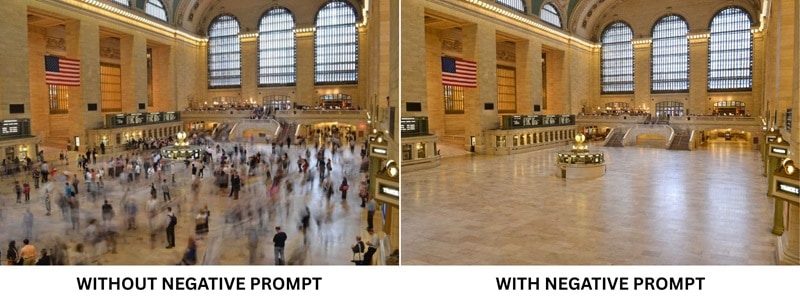
When used correctly, negative prompts give you more control over the final output. They can offer several benefits, such as:
- Cutting down on common AI mistakes: Midjourney still makes the same kinds of errors, like extra fingers or strange-looking objects in the background. You can tell the AI to avoid these issues upfront by adding negative prompts.
- Keeping the layout clean from the start: Negative prompts also help with composition. By telling the AI what to leave out, you can avoid cluttered backgrounds, unwanted props, or distracting colors.
- Getting the look and style you want: Besides fixing common AI errors, Midjourney negative prompts are also useful for guiding the overall look. You can avoid certain styles or lighting that don’t match your vision.
Part 2. How to Add Negative Prompts in Midjourney
Negative prompts are actually not exclusive to Midjourney. Many AI image generators support them in one way or another. However, negative prompts in Midjourney work a little differently from most platforms.
This is because negative prompts in Midjourney rely on prompt structure, syntax, and “weighting.” There are two ways on how to put a negative prompt in Midjourney:
- Using the “--no” parameters
- Using negative prompt weight
Method 1: Use the '--no' Parameters
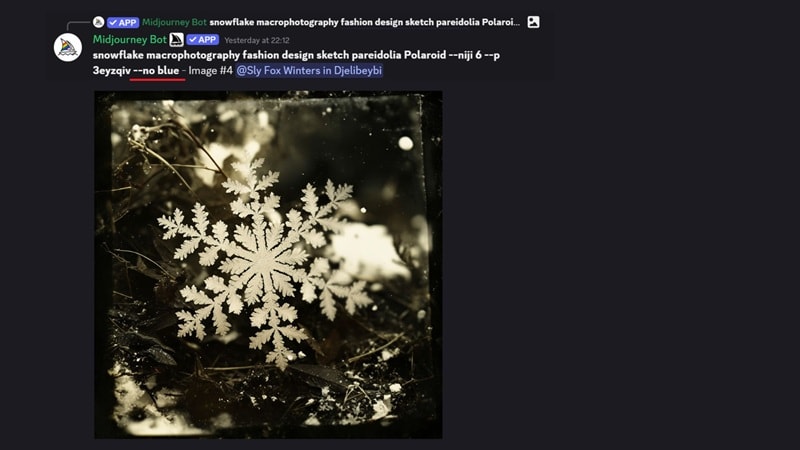
You might assume that using words like “don’t,” “avoid”, or “without” in your prompt is enough to tell the AI what to avoid. That approach works in some AI tools, but Midjourney usually doesn’t read those words as a negation.
Instead, Midjourney relies on the --no parameter to block specific elements from the result. When you add --no, you are telling Midjourney which objects, styles, or details it should not generate.
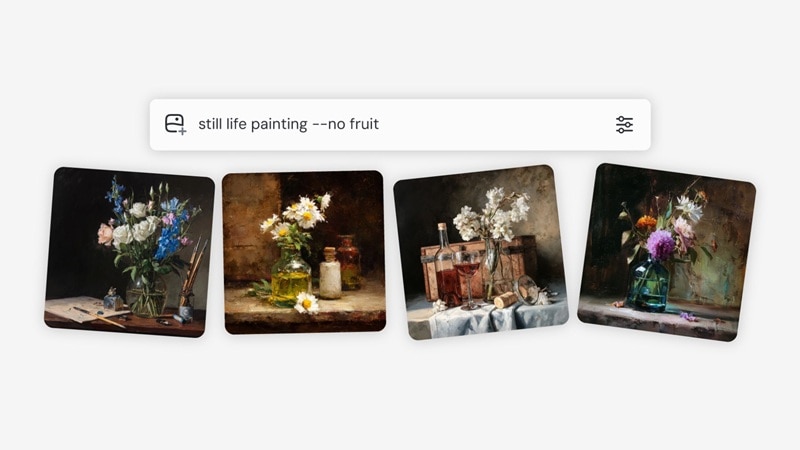
Some Midjourney negative prompt examples that are commonly used are:
- --no extra fingers
- --no extra limbs
- --no bad anatomy
- --no blurry
- --no text
- --no cartoon style
- --no people
Method 2: Use Midjourney Negative Prompt Weight
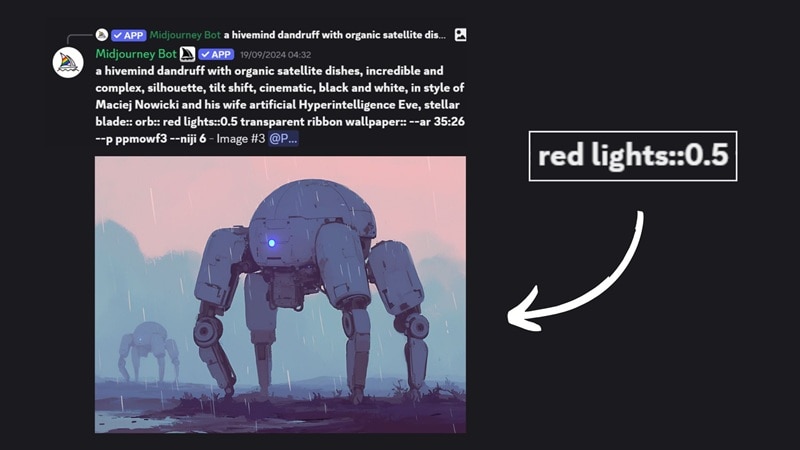
Another way to control unwanted elements is by using Midjourney negative prompt weights. Unlike the previous method, this approach gives you more control over how strongly certain words influence the final image.
When you add a negative weight, you’re telling Midjourney to push an element away instead of removing it completely. By default, every word in a prompt has a weight of 1. If you lower the weight or assign a negative value, you reduce how much influence that word or phrase has on the final image.
How to use the Midjourney negative prompt weight:
Negative prompt weights are written using double colons and a negative number, like this:
unwanted_element::-0.5
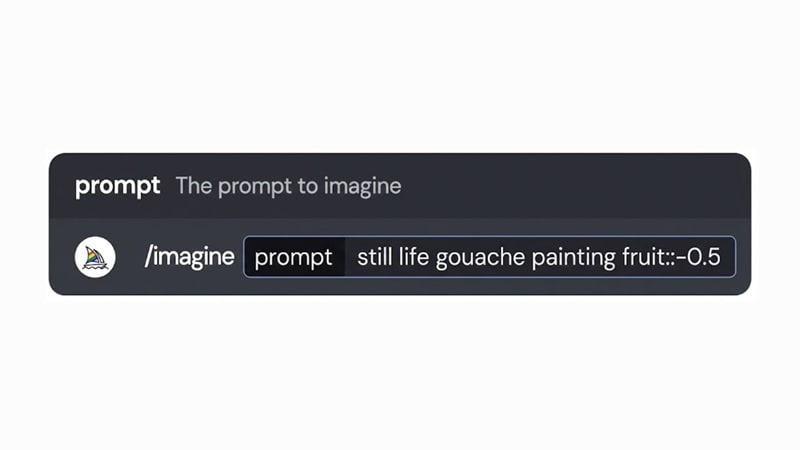
The more negative the number, the stronger the exclusion effect. If you want to slightly reduce the presence of something, use a small negative value. Just keep in mind that the total weight in your prompt must be positive, or Midjourney won’t generate the result.
For example:
- ✅ still life painting:: fruit::-0.5 (total weight = 0.5)
- ❌ still life painting:: fruit::-2 (total weight = -1)
Note: The --no parameter functions the same way as assigning a -0.5 weight. This means “still life painting:: fruit::-0.5” is the same as “still life painting --no fruit.”
Part 3. Midjourney Negative Prompt vs Other AI Generators
As you see, Midjourney negative prompts work through special parameters and a weighting rule. While this approach is flexible, it can feel confusing at first, especially when the results don’t change much, or they don’t work the way you expect.
If you’re curious about how other AI tools handle negative prompts, many of them take a much more direct approach. Some offer a dedicated negative prompt box, while others let users type what they want to avoid in plain language.
A More Straightforward Option: Wondershare Filmora
For comparison, Wondershare Filmora is another AI tool that you can try alongside Midjourney. It can work as both an AI text-to-image generator and a text-to-video generator, which makes it easier to move from generating images to turning them into videos within one platform.


To use the negative prompt in Filmora, you only need to add exclusions directly into your prompt using words like “avoid,” “exclude,” or “no.” If you prefer a more structured format, you can also write it like this:
- [Your main prompt]. Exclusions: [list of things to avoid]
- [Your prompt]. Negative prompt: [items to avoid]
Use a Negative Prompt for AI Image Generation in Filmora
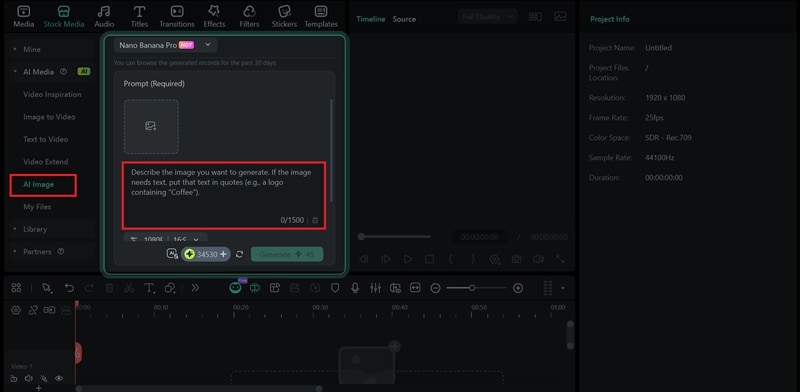
To generate an AI image in Filmora, you can access them under the Stock Media > AI Media panel. Then, enter the main prompt to describe what you want to create, and add a negative prompt in the same field.
Use a Negative Prompt for AI Video Generation in Filmora
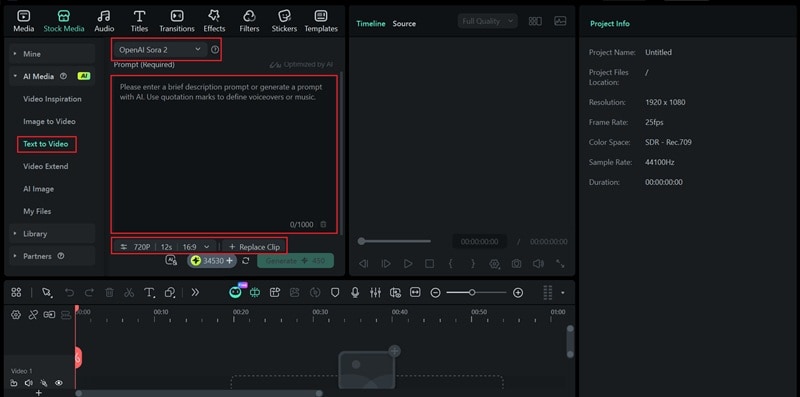
The process for AI video generation in Filmora is similar to image generation. Open Stock Media > AI Media, then select Text to Video to create a video from a written prompt.
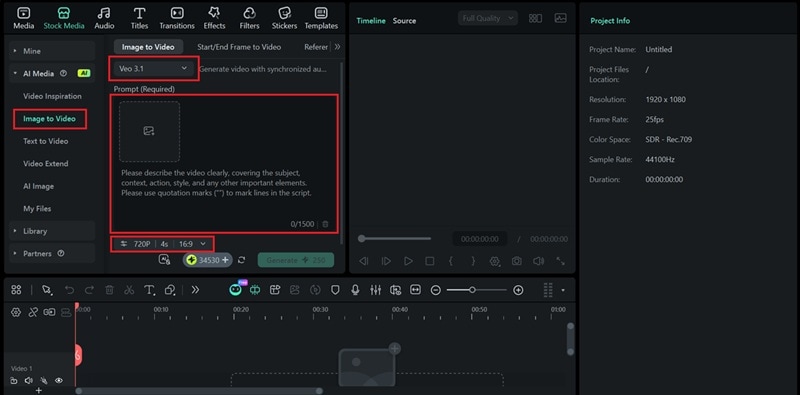
If you want to use an existing image as a reference, choose Image to Video instead. Upload your image, then add both your main prompt and any exclusions to guide the AI.
Part 4. Negative Prompt Best Practices for Better Results
Still having some trouble controlling your AI results through prompts? Even after learning how to use negative prompts in Midjourney, some unwanted details can still slip through. Try the tips below to help you get the results you want.
1. Define What You Want First
In many cases, positive prompting works better than jumping straight to exclusions. It’s easier for Midjourney to understand what you want than to guess what should be removed. Prioritize describing what you’re aiming for first, then use negative prompts only to fix specific issues that show up.
2. Exclude One Thing at a Time
When you try to block too many things at once through the Midjourney negative prompt, it’s hard to tell what’s actually fixing the problem. On top of that, piling on too many no’s can limit Midjourney’s options, which can only result in lower-quality images.
Instead, pick the one thing that’s bothering you the most and remove that first. Once that’s sorted, you can layer in more exclusions when necessary.
3. Add Specific Terms as Needed
Sometimes removing one item doesn’t fully solve the problem. Even after excluding a certain element, similar details may still appear in different forms. When that happens, refine your negative prompt by listing related items or using a broader term that covers them all.
4. Avoid Conflicting Instructions
Your Midjourney negative prompt shouldn’t be fighting with your main prompt. If you tell Midjourney two opposite things at the same time, Midjourney won’t know which instruction to follow, and the results will look off.
Conclusion
Negative prompts are one of the easiest ways to take back control in Midjourney. Before the AI takes over and fills in the gaps on its own, you set limits on what should not be generated. It helps avoid common issues, like unwanted objects or styles that don’t fit what you’re trying to create.
If Midjourney’s negative prompt system ever feels too technical, tools like Filmora offer a more straightforward approach. You can write exclusions in plain language, without worrying about special syntax, while working with both AI images and videos in one place.
FAQs About Midjourney Negative Prompt
-
1. Why is the Midjourney negative prompt not working?
When this happens, it’s usually because the negative prompt conflicts with the main prompt or when the excluded element is too closely tied to what you’re asking for. Another common reason is being too vague. AI tools are not mind readers, so unclear or broad exclusions can be interpreted loosely.
If you’re using Midjourney negative prompt weights, make sure the total value of all weights in your prompt is positive. If the total number is negative, Midjourney will show an error. -
2. Is there a limit to how many negative words Midjourney can handle?
There’s no strict word limit to how you can add negative prompts in Midjourney, but adding too many at once can backfire to the result. Overloading your prompt can confuse the AI or reduce image quality. It’s better to start with one or two key exclusions, and only add more if the problem keeps showing up. -
3. Can negative prompts block specific art styles or artists?
Yes, to a certain extent. You can exclude styles or artist references using --no followed by the style or name. However, results may vary, especially if the style is closely related to your main prompt. If the style keeps appearing, try adjusting the main prompt instead of relying only on negative prompts. -
4. What’s the best negative prompt for realistic images in Midjourney?
Many users exclude common AI mistakes to create realistic images in Midjourney, such as extra fingers and bad anatomy. You can also add negative prompts that break the sense of realism, like blurry, illustration, low quality, or cartoon style. From there, refine the list based on the specific problems you see in your results.
