

 100% Security Verified | No Subscription Required | No Malware


 ChatGPT
 Perplexity
 Gemini
 Claude
 Grok
Grok
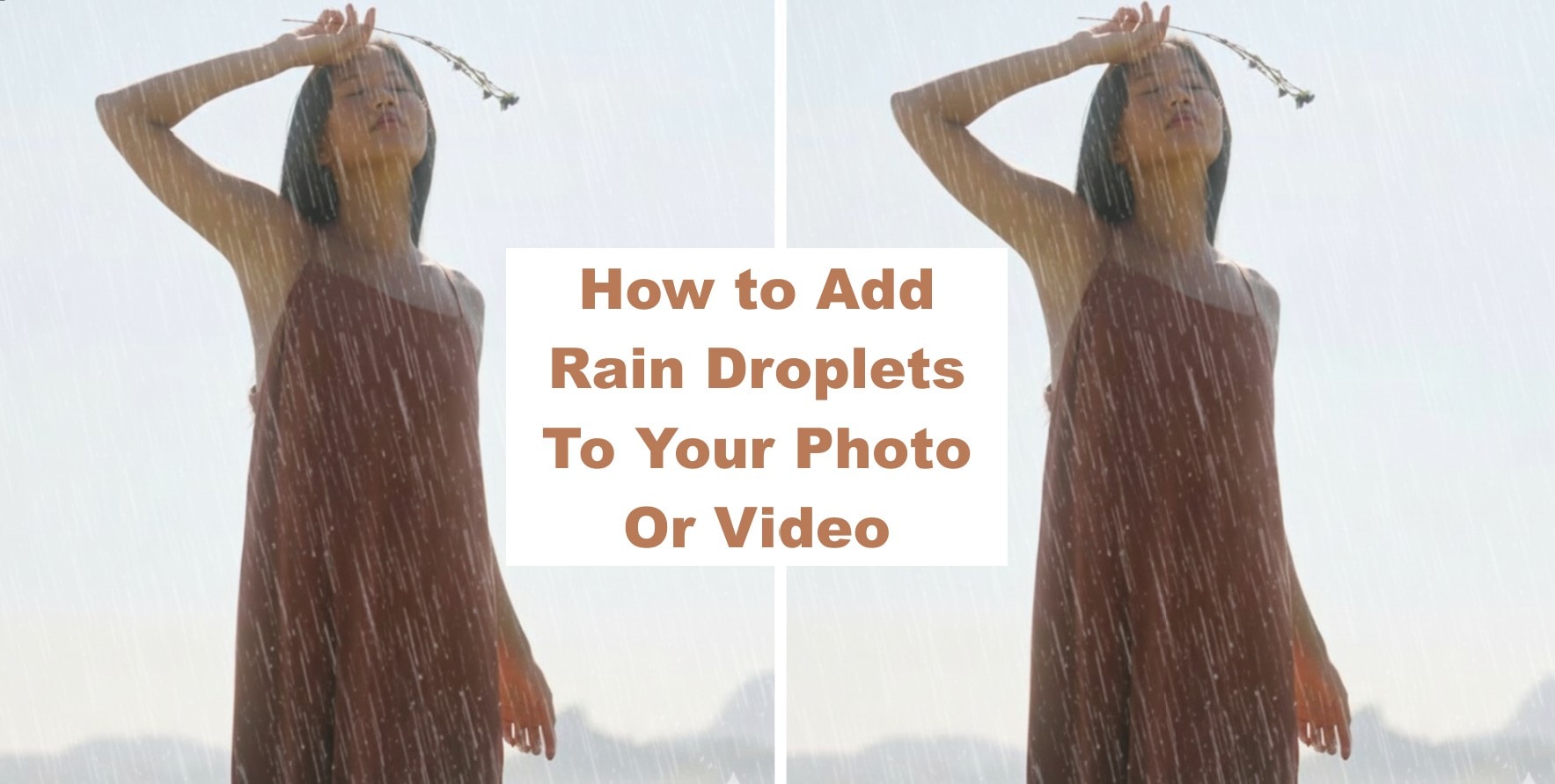
Many creators have realized how the AI rain effect can completely change the mood of an image. How it softens light, deepens colors, adds texture, and wraps a scene in emotion. Recently, using this effect has become a trend and has spread fast across TikTok, YouTube Shorts, and Instagram Reels.
In the past, adding this effect meant planning a shoot, renting gear, and waiting for the right weather. Even doing it in post-production also needed layers of VFX and motion tracking. Now, AI models make it simple.
You can type an AI rain effect prompt, and tools build the image for you. Interestingly, this guide will show the best tools that make this possible and how to write better prompts to get the job done, and more.
Part 1: Top Tools to Create the AI Rain Effect on Photos and Videos
By using different tools in the online and offline spaces, you can add the AI rain effect to photos and videos at your convenience. Each tool has its own way of applying these effects, and the easiest way to get this done is to use an AI rain effect prompt. Let's look at the top options you can utilize.
1. Wondershare Filmora - Best For Adding Rain Effects on Images and Videos
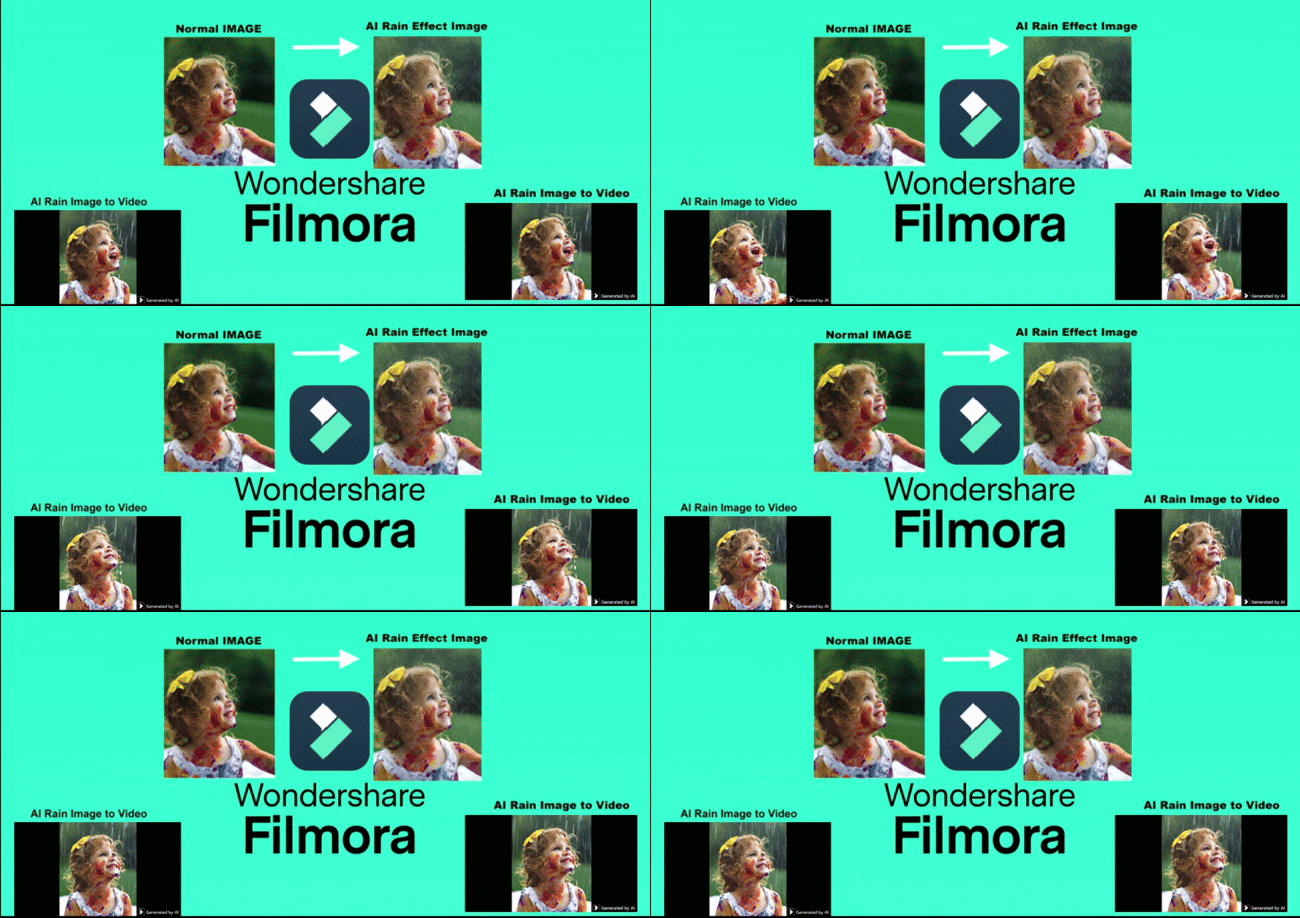
The first on this list is an offline tool known as Wondershare Filmora. You can call this a general video editor, looking at what you can do with it, but considering the AI capabilities, it is one of the best AI rain effect video and image tools. Filmora includes a full AI toolkit that helps you create and edit effects with precision. You can add an AI rain effect on photos through its Text-to-Image feature powered by the Nano Banana model.

 secure download

2. Gemini -2.5-flash-image - Best For Adding Rain Effects on Images
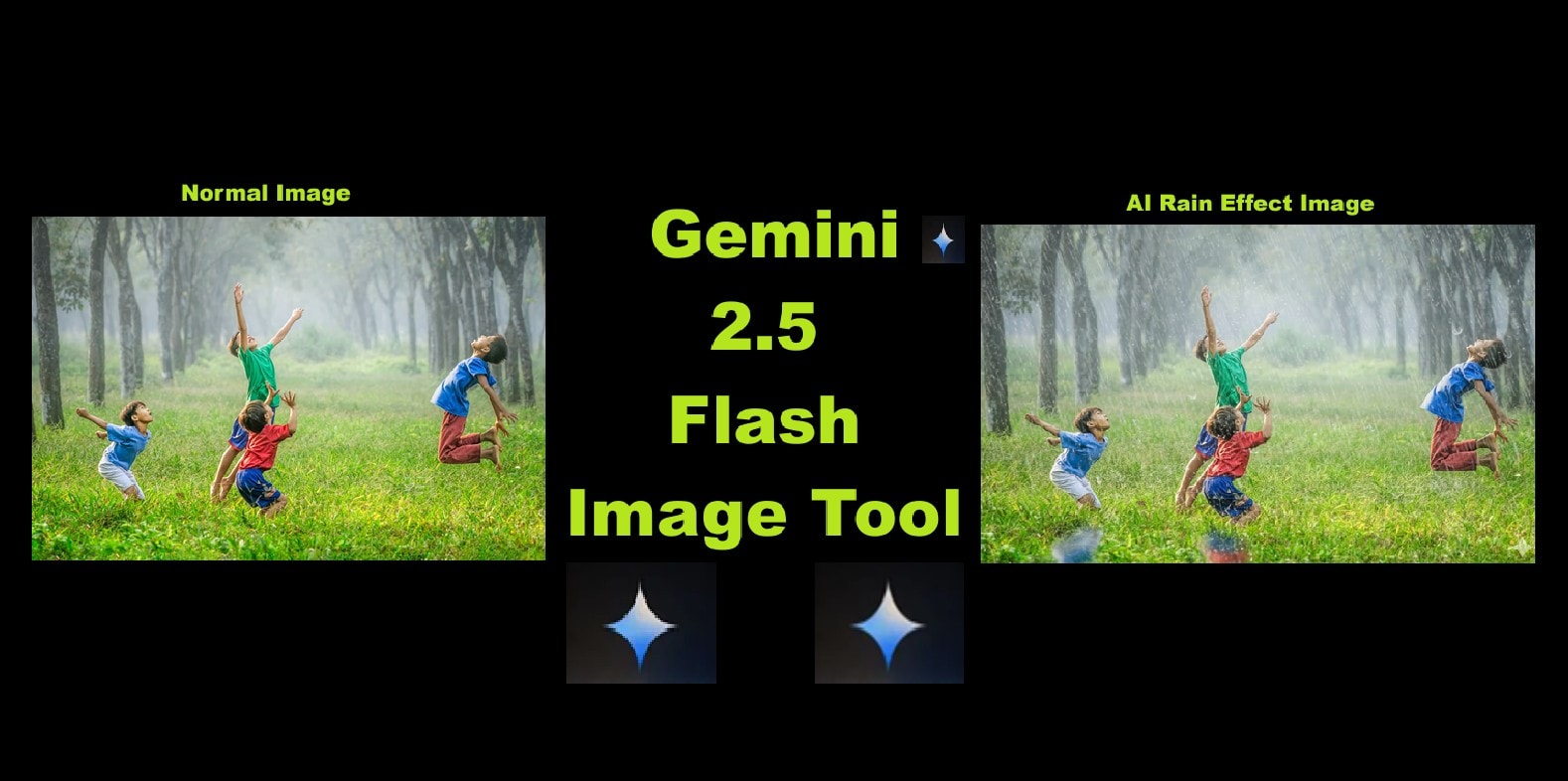
Next is the Gemini 2.5 Flash Image, an online tool to create or add high-quality rain effects on images. Adding rain effects using this tool requires text prompts that instruct the tool on what exactly to do. Gemini understands emotion, weather, and lighting.
Which Is the Best Tool for Adding AI Rain Effects?
Choosing the best tool for your project depends on what you want to achieve as a final result. For example, Gemini is ideal for images that need rain effects accompanied by lighting or other weather components. While you can achieve a similar effect with Filmora, you get the option to edit images further and eventually animate them. The image-to-video tool +VEO 3 is one of the award-winning tools that make it stand out.
However, most experts combine the strengths of both. For generating AI rain effect images, they use Gemini or ChatGPT to generate text prompts, which is another language model tool that can help you create AI rain effect prompts with the right style, mood, and lighting. Then use Filmora to turn images generated by Gemini into videos.
Part 2: How to Apply the AI Rain Effect to Photos
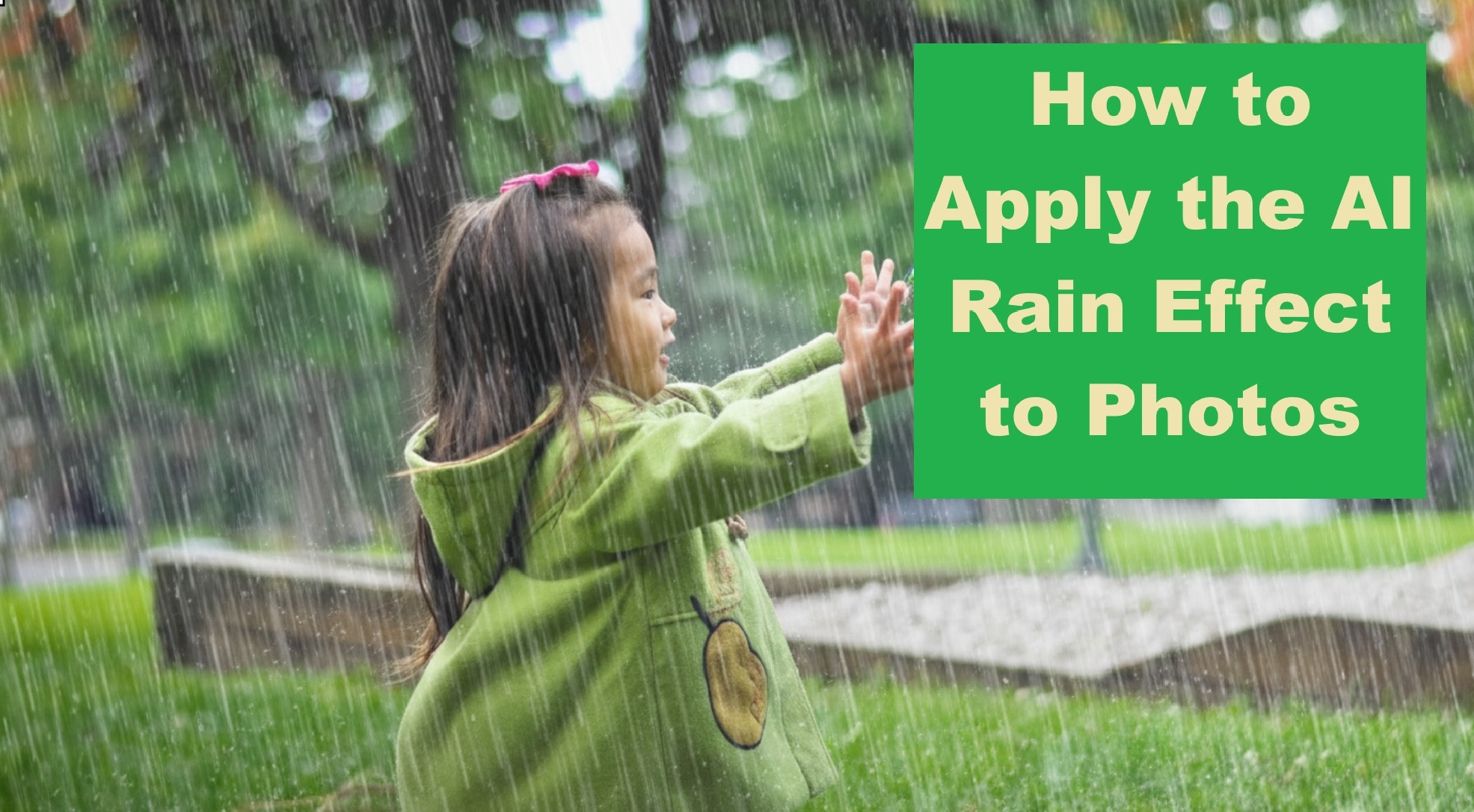
Filmora makes it easy to create the AI rain effect on photos or videos without needing extra gear. Below is how to get started with the process.
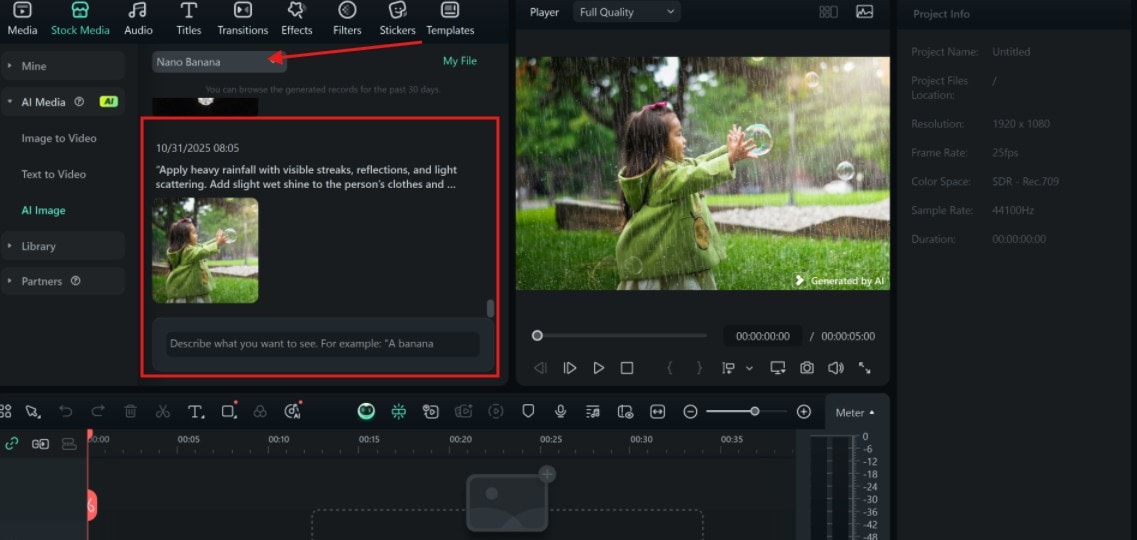
Step 1: To begin, open Filmora and select "AI Image."
 secure download
Step 2: Import your image, select the Nano Banana model, and enter a text prompt to add AI rain effects to the photo.
- Prompt sample: Apply heavy rainfall with visible streaks, reflections, and light scattering. Add a slight wet shine to the person's clothes and background for a realistic, dramatic atmosphere.
Step 3: Export the image in the resolution you prefer.
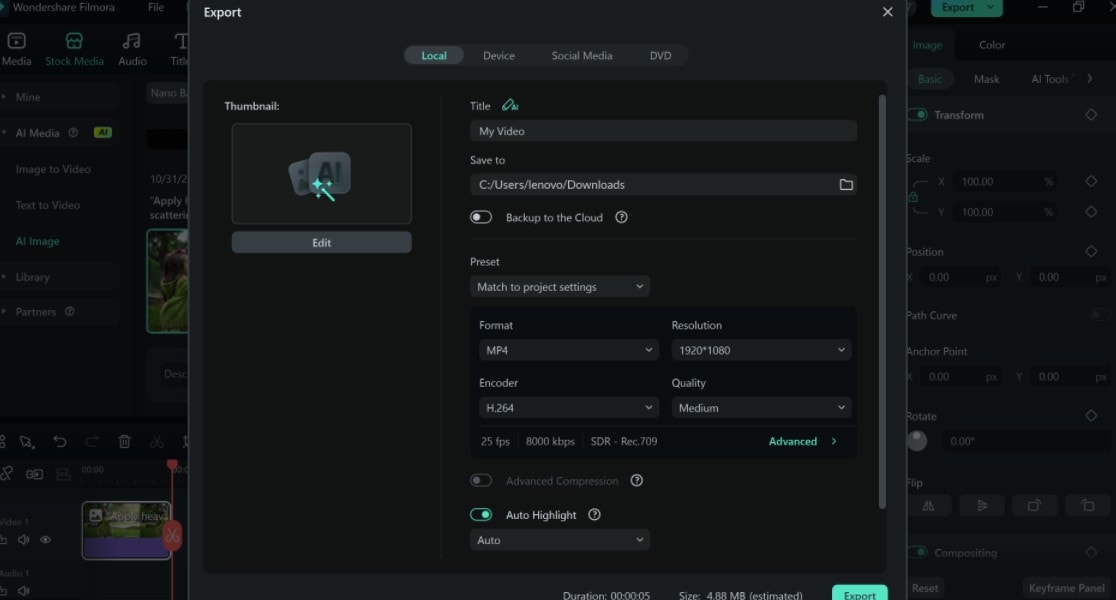
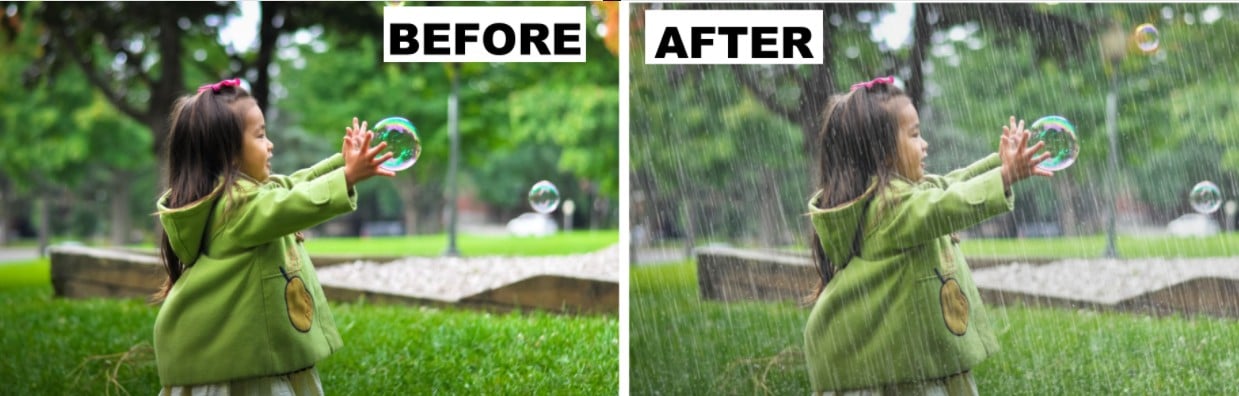
Image Preview
How to Quickly Animate Your AI Rain Effect Image
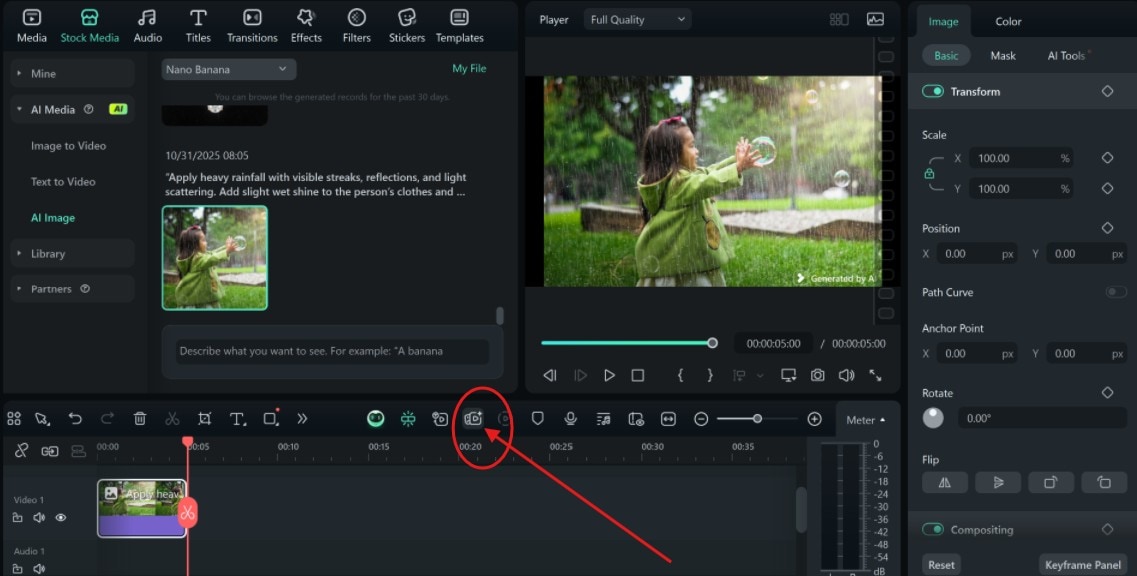
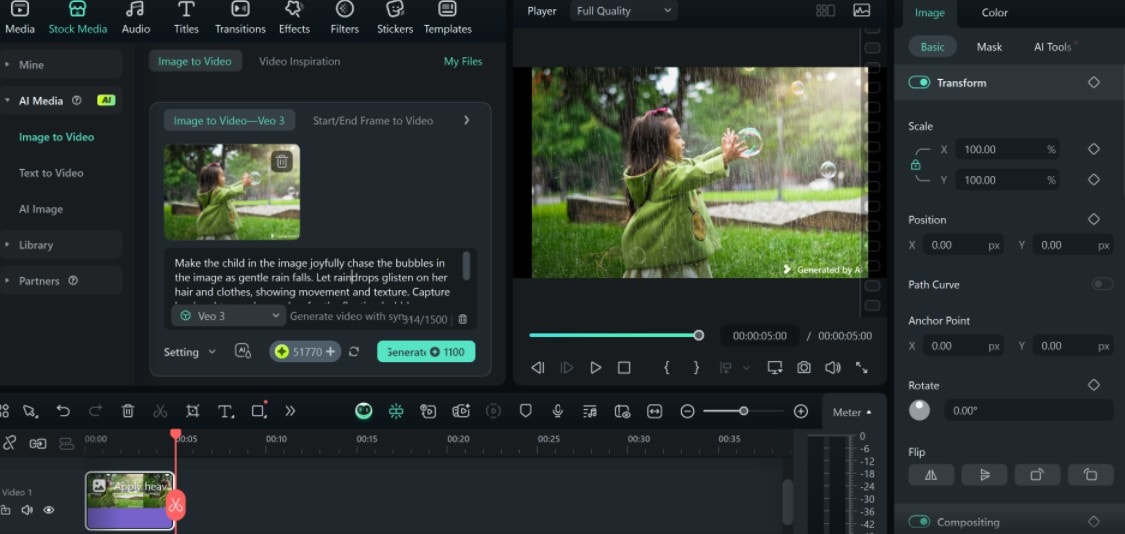
Step 1: After generation, you can use Filmora's image toto video tool to animate a video. From the terminal, select the image to video shortcut button, and set the aspect ratio.
 secure download
Step 2: Enter a text prompt of what action you want the image to take, ensure to select the VEO 3 model, and click Generate. Export when the process completes.
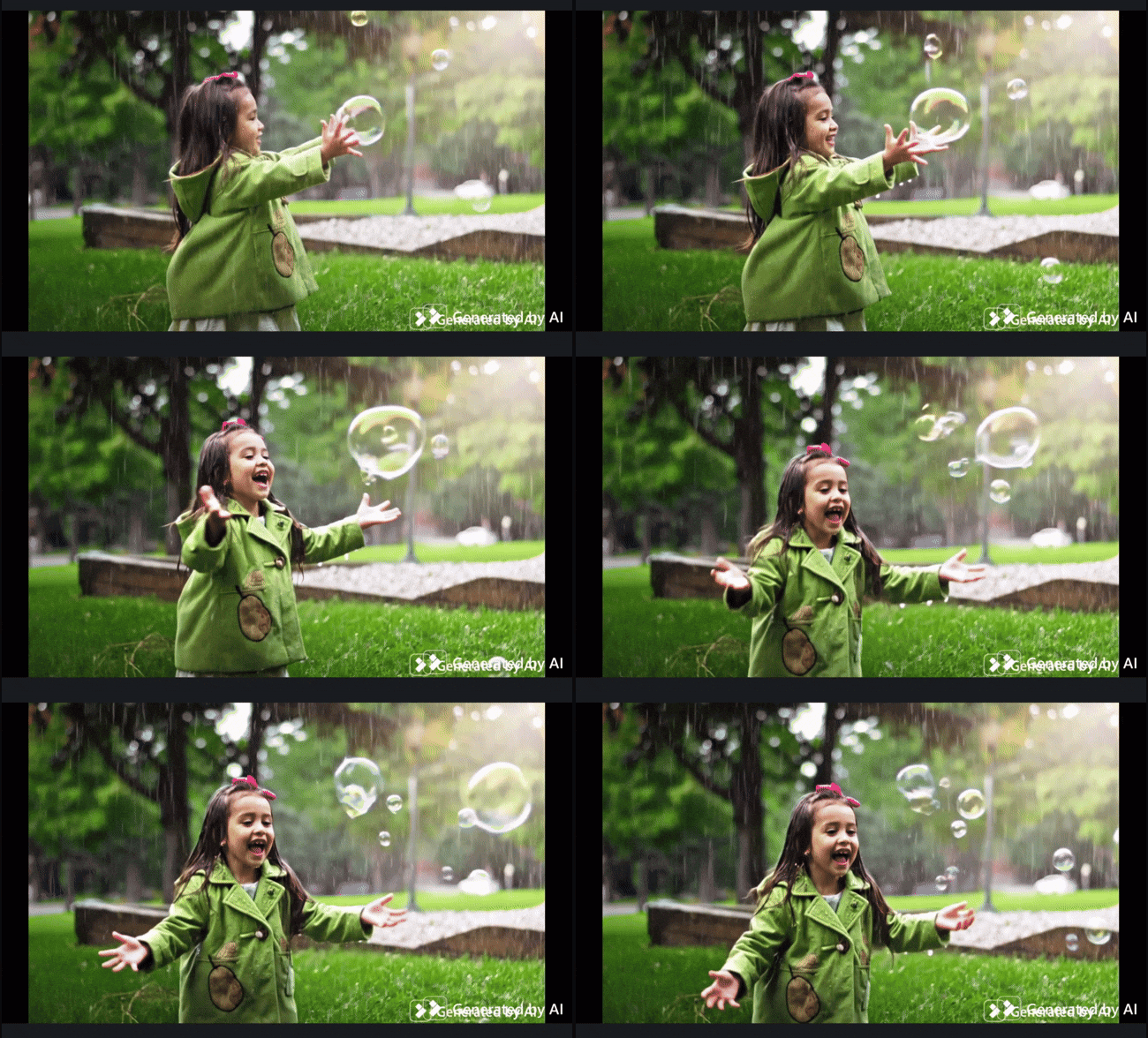
- Sample Prompt: Make the child in the image joyfully chase the bubbles in the image as gentle rain falls. Let raindrops glisten on her hair and clothes, showing movement and texture. Capture her laughter as she reaches for the floating bubbles, blending the playful energy of childhood with the soft, cinematic mood of a rainy day.
Video Preview
AI Rain Effect Prompt: Sample Prompts You Can Try With the Nano Banana Model
Your AI rain effect prompt is the secret to creating a scene that feels alive. Below are 7 detailed, high-quality prompts for creating a realistic AI rain effect on photos using the Nano Banana model (or any advanced text-to-image generator).
|
AI Rain Effect Prompt Style |
Prompt Description |
|
Cinematic Rain Portrait |
Add soft, realistic rainfall across the entire scene. Keep raindrops visible in both foreground and background with motion blur for depth. Maintain clear focus on the person's face while adding wet reflections on clothes and light mist in the air. Lighting should be moody and cinematic, like a movie scene filmed during gentle rain at dusk. |
|
Realistic Urban Rain Ambiance |
Create a realistic rain effect in a city background. Show reflections of streetlights on wet pavement, visible droplets on windows, and faint ripples in puddles. Keep the subject slightly wet but illuminated by the ambient city glow. The atmosphere should feel calm and immersive, like a rainy evening walk through downtown streets. |
|
Heavy Rain Drama |
Add heavy rainfall with thick, visible drops and splashes hitting the ground. Apply motion blur to create intensity. Keep the person's expression and features sharp, with subtle highlights showing wet hair and clothes. Use overcast lighting and light fog to enhance realism and emotion. |
|
Romantic Rain Scene |
"Generate soft rain falling gently around the characters in the image. The raindrops should shimmer with ambient light and create a dreamy, romantic feel. Add light reflections on the ground and mild haze in the background. Keep skin tones natural and colors warm to balance the cool rain tones." |
|
Artistic Rain Photography Style |
Add a cinematic rain overlay that looks like it was captured by a professional camera. The raindrops should vary in size and focus, some sharp and some blurred, creating a natural depth effect. The lighting should enhance shadows and highlights on the face, giving the image an artistic, emotional tone. |
|
Peaceful Rain in Nature |
Add light rain to a natural outdoor setting with trees or fields. The raindrops should be soft and dispersed, forming small ripples in puddles or leaves. Add a faint mist to the background and gentle light filtering through clouds. Keep the subject's clothes and hair slightly damp for authenticity. |
|
Night Rain with Neon Glow |
Apply rain effects to a night-time city scene with neon lights reflecting off wet streets. The rain should appear fine and realistic, with visible streaks and droplets. Add a misty glow around lights to enhance the mood. Keep the person in focus, slightly glistening from the rain, with realistic reflections on surfaces. |
Part 3: How to Add Rain Effects Overlays to Already Produced Videos
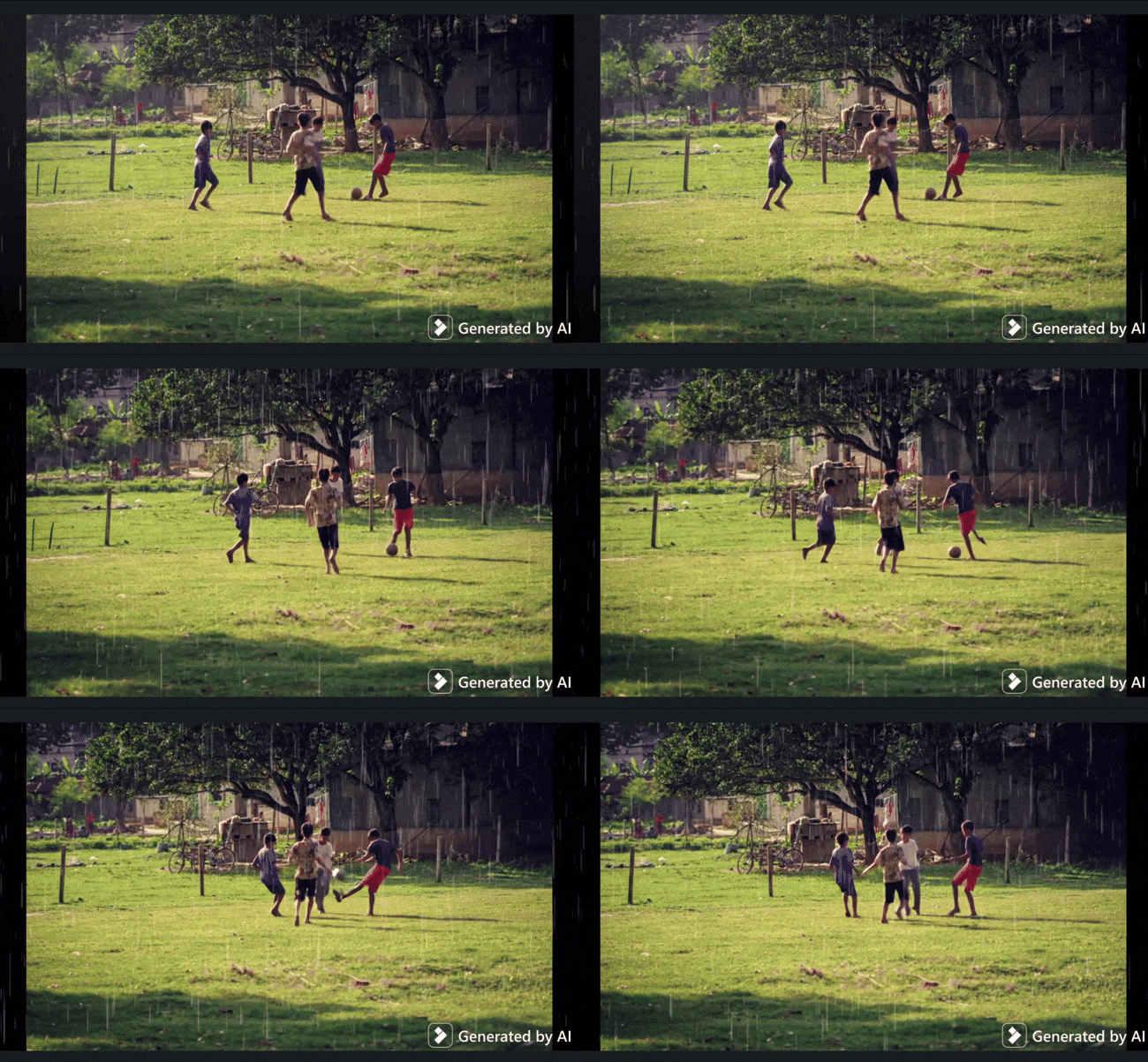
If you already have a finished video but still want that soft drizzle or heavy downpour feel. With Filmora, you can add the AI rain effect video overlay in minutes with its built-in video effect. You do not need to rebuild the scene or re-edit from scratch. Below is how to add a rain effect in Filmora.
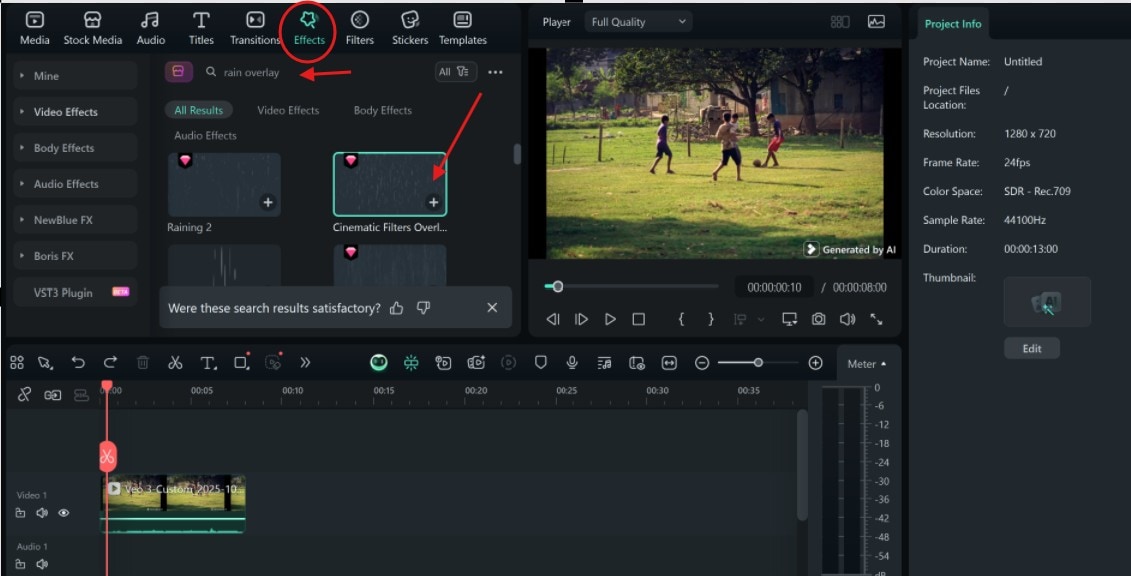
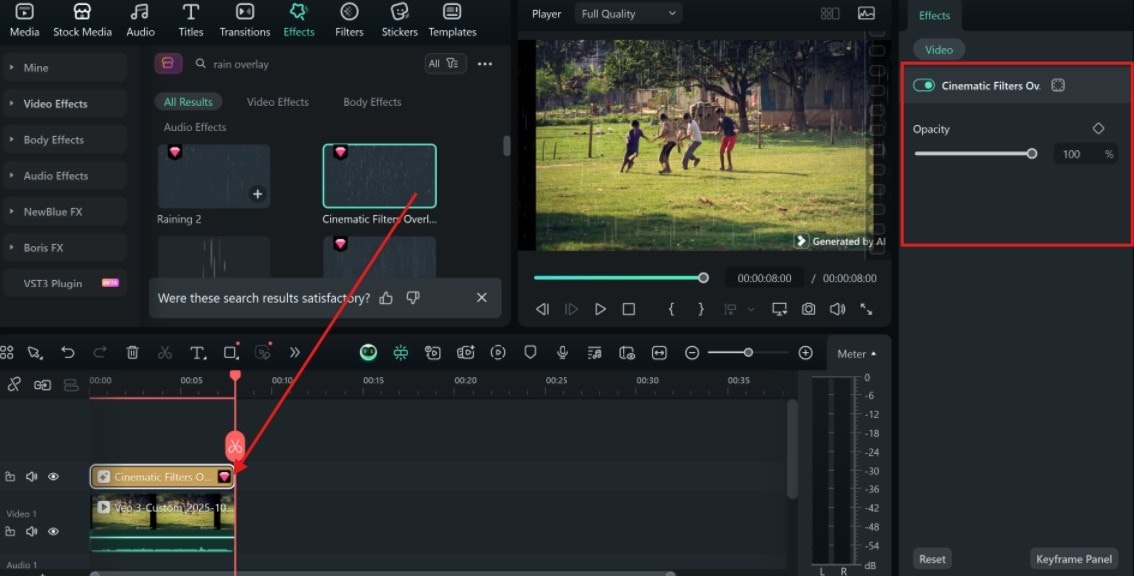
Step 1: Import your Video into Filmora. Go to the "Effects" tab and type "Rain Overlay" in the search bar, and click on any of the ones that fit your video's mood to download.
 secure download
Step 2: Drag your selected rain overlay onto the timeline, placing it above your main video layer. Adjust the opacity of the rain overlay to control how visible or light the drops appear. Preview your edit, then export and share on your feeds.
Video Preview
Conclusion
Creating an AI rain effect has never been this simple or fun. You no longer need expensive VFX or real rain setups. Tools like Gemini and Filmora, integrating the Nano Banana model, make the process smooth and creative. Using Filmora makes it possible to add rainfall, mist, or droplets to not just images but also video within minutes.
Remember, writing a clear rain effect prompt that describes your idea in detail ensures you get the best output for images. If you already have videos, layer the AI rain effect video overlays to bring more depth and texture. After that, the editing tools help you refine color, balance shadows, and enhance droplets. So open Filmora, try the rain effect, and see how a touch of rain can turn any video into art.
